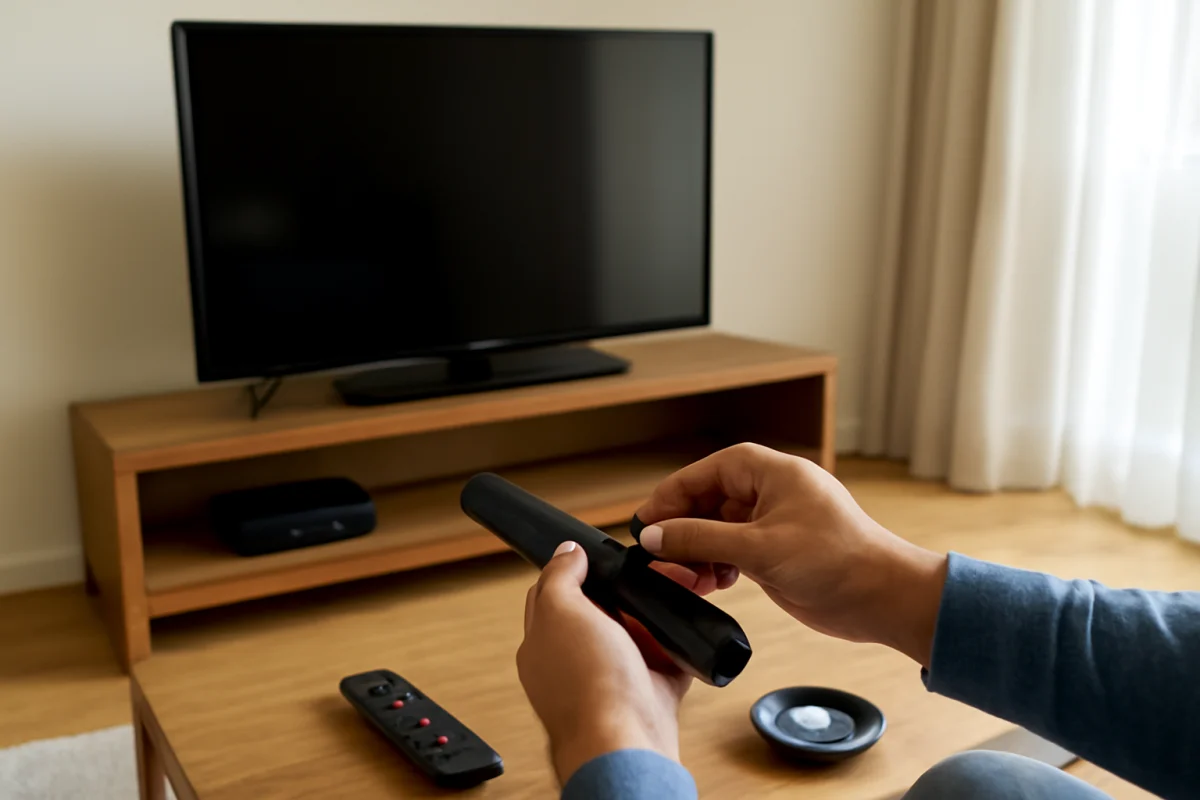
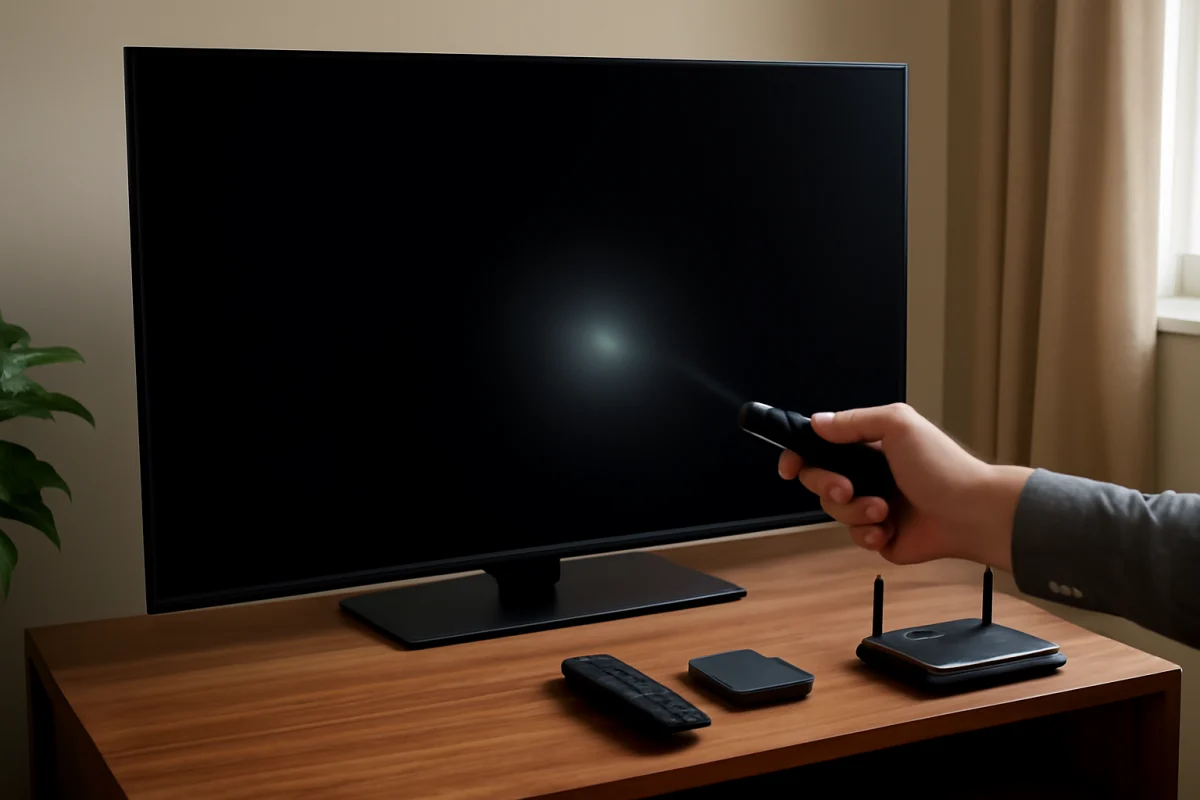
If your LG TV remote works slowly, misses button presses, or stops responding, start with the simple causes: weak batteries, blocked sensors, interference, or a temporary TV or remote glitch. Replace or reseat the batteries, make sure nothing is blocking the TV, and power-cycle both devices before trying a reset or re-pairing process.
The correct fix depends on the type of remote you have. Basic LG remotes generally send commands through infrared, while some LG smart remotes also use a wireless connection for pointer movement, voice features, and other functions. Because LG menus and pairing steps can vary by model and webOS version, use the names shown on your TV rather than forcing a procedure designed for a different remote.
Check the batteries first
Slow response is often a battery problem, even when the remote still turns the TV on and off. A remote may have enough power to send an occasional command but not enough for consistent operation, especially when you press buttons repeatedly or use features that require a wireless connection.
- Remove the batteries from the remote.
- Check that the battery contacts are clean and that there is no corrosion, moisture, or loose material inside the compartment.
- Install a fresh set of batteries of the correct type and orientation.
- Press several buttons and test the remote from close to the TV.
Do not mix old and new batteries or combine different battery types. If the remote has been stored for a long time, inspect it for leakage or physical damage before using it again. If new batteries make no difference, keep them installed while you continue troubleshooting.
Remove anything blocking the TV sensor
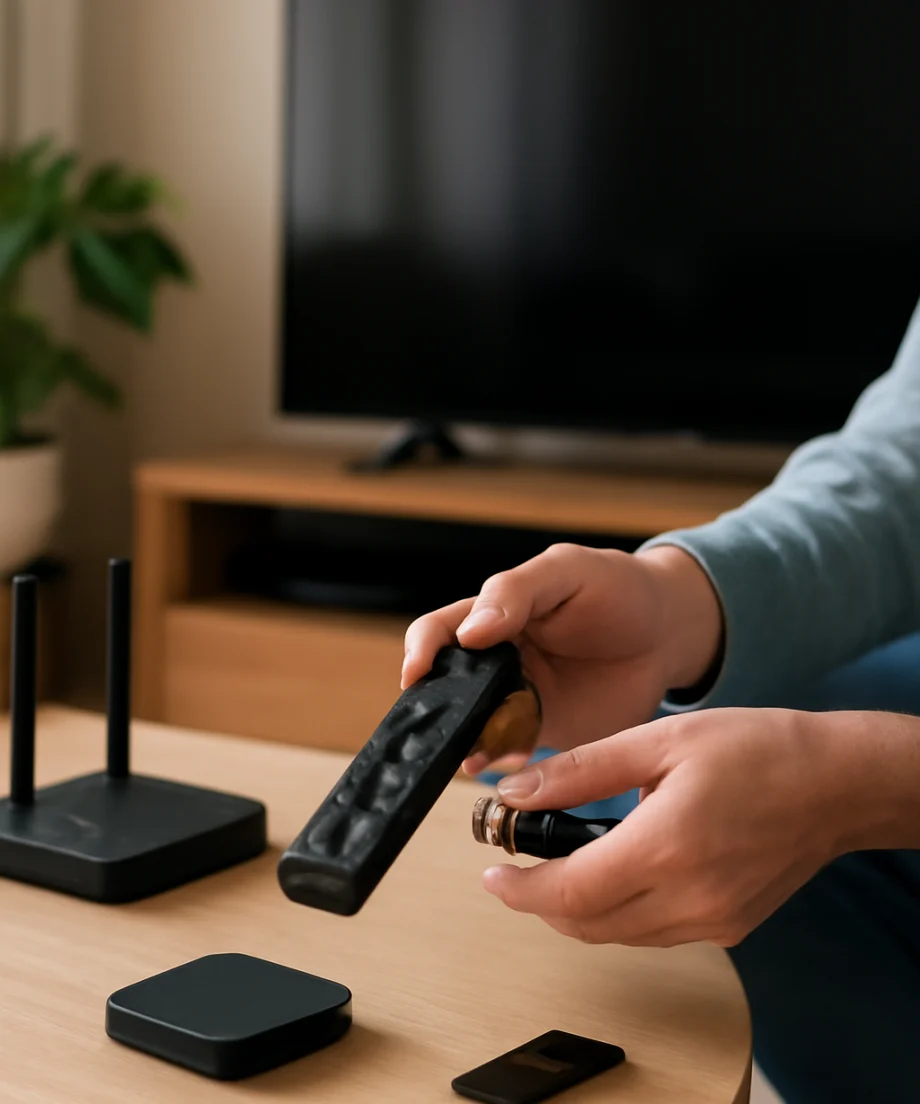
Infrared remotes need a clear path to the TV's receiving sensor. The sensor is usually near the lower edge of the screen, but its exact location varies by LG model. A soundbar, center speaker, decoration, TV stand, game console, or even a protective film can partially block it.
Move objects away from the front and lower edge of the television, then point the remote directly at the TV from a short distance. Test the power, volume, navigation, and input buttons. If the remote works only when you aim at one particular area, the issue may be the line of sight rather than the remote itself.
Bright sunlight or strong lighting aimed directly at the TV's sensor can also interfere with infrared signals. Close nearby blinds or change the angle of a bright lamp temporarily. This is more likely to cause inconsistent behavior than a complete failure, but it is easy to rule out.
Restart the remote and LG TV
A temporary software or connection problem can make an otherwise functional remote appear frozen. Start with a simple restart that does not change your picture settings, apps, accounts, or network configuration.
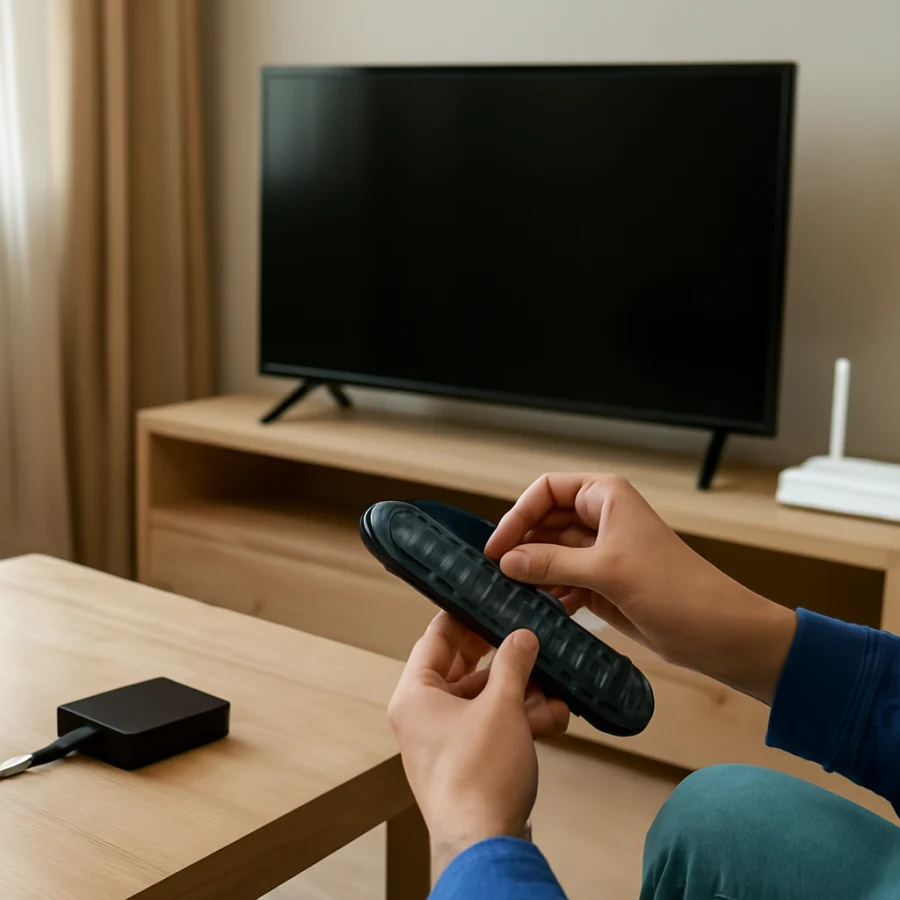
- Remove the batteries from the remote.
- Unplug the LG TV from the wall outlet.
- Wait at least one minute.
- Plug the TV back in and wait for the screen to finish starting.
- Reinstall the batteries and test the remote again.
If the TV is connected to a surge protector or power strip, temporarily plug it directly into a working wall outlet if it is safe and practical to do so. Do not repeatedly unplug the TV while it is updating or starting up. If the TV does not turn back on normally, use its physical power button and allow it time to complete the startup process.
Determine whether the problem affects every button
Pay attention to which commands fail. If only one or two buttons are unreliable, the rubber button membrane or the contact beneath it may be worn or dirty. Pressing harder is not a dependable repair and can damage the remote further.
If all buttons work slowly, the problem is more likely to involve batteries, signal interference, a wireless pairing issue, or the TV itself. If the power button works but navigation does not, test the remote while standing closer to the screen and aim it directly at the sensor. Also check whether a button is stuck. A continuously pressed button can prevent other commands from being recognized normally.
For a quick infrared test, open your phone's camera app and point the front of the remote toward the camera lens. Press a button while viewing the remote's emitter through the screen. Some phone cameras show a flashing light when an infrared signal is sent, although not every phone camera detects infrared, and the result is not a complete test of the remote. If you see no light, try another camera or phone before deciding the remote has failed.
Check whether it is a smart remote pairing problem
Some LG smart remotes use both infrared and a wireless connection. Basic buttons may still work while the pointer, scroll wheel, voice control, or directional navigation becomes delayed or unavailable. In that situation, the remote may need to be paired with the TV again.
Move close to the TV and look for the pairing instructions associated with your exact remote and LG model. The required button combination can differ, so avoid relying on a combination from a different LG remote. If the TV displays a pairing prompt, follow the on-screen instructions and wait for confirmation before testing the pointer or voice function.
If the remote repeatedly loses its connection, temporarily turn off or move nearby wireless devices that could be causing interference. Keep the remote away from other electronics during testing. A connection problem can also be related to the TV's software or hardware, so repeated unpairing is not always the answer.
Test the TV with its physical controls or another remote
Use the physical button or control on the TV, if available, to open a basic menu or change the volume. The location and available functions vary by model. This test helps separate a remote problem from a TV problem.
- If the TV responds normally to its physical control but not to the remote, focus on the batteries, signal path, remote pairing, or remote hardware.
- If the TV is also slow when using its physical control, the issue may involve the TV's software, startup process, external device, or internal hardware.
- If an alternate compatible remote works normally, the original remote is likely defective or needs pairing.
- If multiple compatible remotes fail in the same way, investigate the TV sensor, software, or interference.
An external streaming device can make the situation confusing. When you use a Roku, Fire TV, cable box, or game console, the remote may be controlling that device rather than the LG TV. Test the LG TV's own power and volume controls separately, then check the device remote and its connection. You can find more troubleshooting guidance in our remote controls troubleshooting guide.
Disconnect external devices for a controlled test
HDMI devices can sometimes affect startup behavior, control signals, or the TV's response when device-control features are enabled. To test for this possibility, turn off the TV and disconnect external devices such as streaming players, receivers, soundbars, and game consoles. Leave the TV connected to power only, then test the remote after the TV starts.
If the remote works normally with everything disconnected, reconnect one device at a time. Test after each connection so you can identify which device or cable changes the behavior. You may also need to review the TV's device-control settings, but the available options and menu names vary by LG model and software version.
Check for TV software updates without resetting the TV
If the remote is usable enough to navigate, check the TV's support or software-update area for an available update. LG's menu layout can change between models and software versions, so use the settings search or the support instructions for your exact TV when available.
Do not interrupt the TV during an update. Keep it connected to power and allow the process to finish. If the remote is too unreliable to navigate, use the TV's physical control or the manufacturer's official support instructions rather than guessing through menus.
Software updates can correct temporary response or compatibility problems, but they cannot repair a damaged remote, sensor, button membrane, or wireless circuit. If the problem began immediately after connecting a new device, test that device separately before assuming the TV needs an update.
When to reset or replace the remote
A factory reset should be a later step, not the first response to slow button presses. Resetting the TV can remove saved settings, accounts, app data, network details, and customized preferences. If you decide a reset is necessary, record important settings first and confirm the reset instructions for your exact LG model.
Replace the remote or seek service when it has liquid damage, cracked housing, corroded contacts, a damaged battery cover, or several nonworking buttons. A compatible replacement may need to be paired before smart features work. Check compatibility carefully because LG remotes that look similar may not support the same functions.
If the TV's physical controls are also unresponsive, the front sensor appears damaged, or the TV reacts inconsistently to several known-good remotes, contact LG support or a qualified repair provider. Provide the TV model, remote type, symptoms, and the tests you already completed. Avoid opening the TV or spraying cleaner into the remote or sensor area, as this can create additional damage and safety risks.
What the symptoms usually indicate
| Symptom | Most useful first check |
|---|---|
| All buttons respond slowly | Install fresh batteries and power-cycle the TV. |
| Remote works only when aimed directly at the screen | Clear the TV sensor and remove nearby bright light. |
| Power works but pointer or voice features do not | Check smart-remote pairing and battery condition. |
| Only a few buttons fail | Look for stuck, worn, or damaged buttons. |
| TV is slow with its physical control too | Disconnect external devices and investigate the TV itself. |
For more LG-specific troubleshooting, browse the LG TV section on TV Fix Guide. If the TV is also restarting or shutting down unexpectedly, see our guide to why an LG TV keeps turning off.
Comments
0No comments yet. Be the first to share a helpful note or question.
Leave a Comment
Your email address will not be published. Comments are reviewed before appearing on the site.