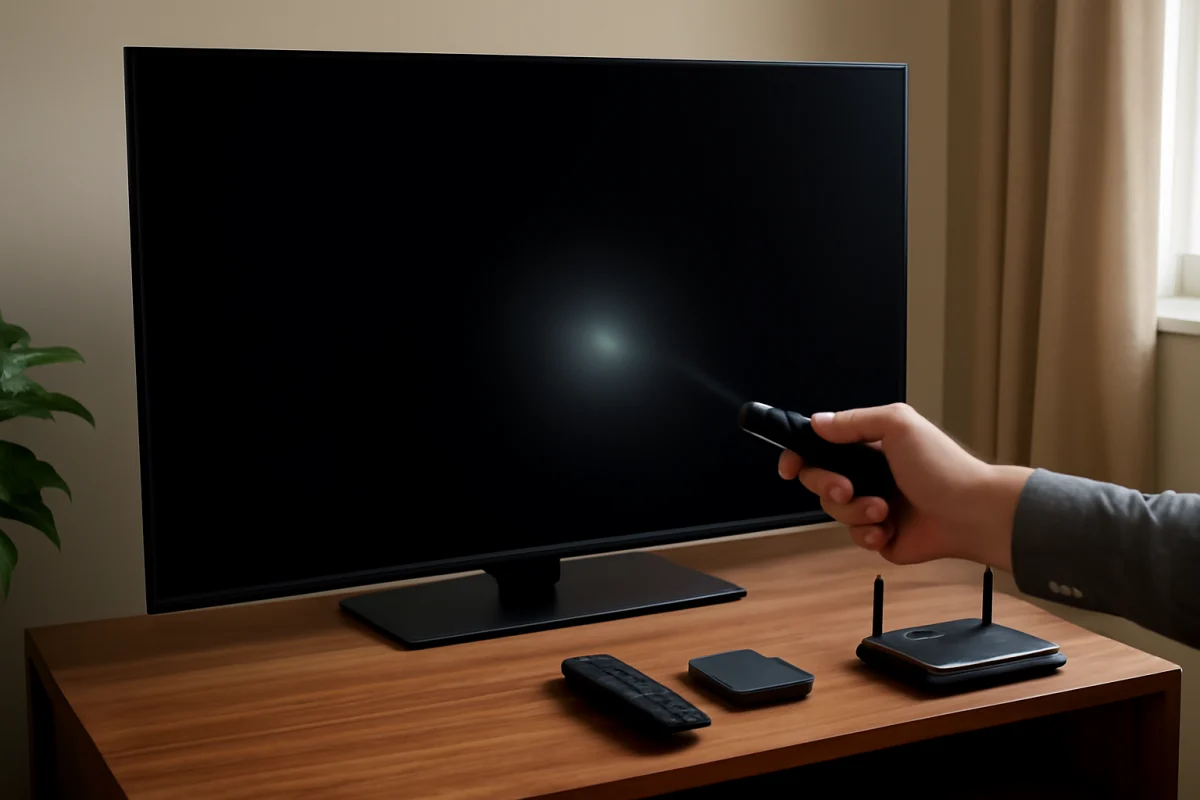
An LG TV screen can look too dark because of a picture mode, energy-saving setting, automatic brightness feature, weak source signal, or a developing backlight problem. Start by checking whether the dim image appears everywhere, including the TV’s home screen and settings menus. If only one input or app looks dark, the TV itself may be working normally.
Before changing advanced settings or resetting the television, try the simple checks below. Menu names and available options vary by LG TV model, webOS version, and region, so use the closest matching setting on your screen rather than looking for an exact label.
First, check whether the whole TV is dark
Press the Home button and look at the TV’s home screen, settings menu, or volume indicator. These built-in elements do not depend on the same external source as a cable box, game console, or streaming app.
- If the home screen and every input are dark: a picture setting, automatic brightness feature, power-saving option, or hardware issue is more likely.
- If only one app is dark: close and reopen the app, then test another app or video.
- If only one HDMI device is dark: check that device’s video settings, cable, and HDR output.
- If the screen is almost black but sound works: the backlight or another display component may need professional diagnosis. See our guide to LG TVs with sound but no picture.
Also make sure the room lighting has not changed your perception. A picture that looks comfortable in a dark room may appear too dim in daylight, while a very bright picture can seem normal at night. Compare the TV with the lights at a typical viewing level.
Turn off energy-saving features temporarily
Many LG TVs include power-saving controls that reduce screen brightness to use less energy. Some models may adjust brightness automatically according to the room or the selected energy setting. These controls can make the picture look especially dark during daytime viewing or when the room sensor detects low light.
Open the TV’s settings and look for an area related to picture, energy, general preferences, or support. Search for terms such as Energy Saving, automatic brightness, ambient light, or eye comfort. Temporarily choose the least restrictive setting, or turn the feature off if the TV allows it. The exact location and wording depend on the model.
Watch the same scene for several minutes after making the change. If the brightness changes again by itself, another automatic picture control may still be active. If turning off energy-saving features fixes the problem, you can later choose a lower power-saving level that provides a better balance for your room.
Choose a brighter picture mode
Picture modes are designed for different viewing conditions. A cinema, filmmaker, or similar mode may intentionally use a darker image, especially in a bright room. A standard or vivid mode may appear brighter, although vivid settings can make colors less accurate and may increase eye strain.
Open the picture settings and test the available preset modes while playing a familiar scene. Select the mode that looks appropriate for your room, then adjust it rather than assuming the brightest preset is the best choice.
If your LG TV lets you save picture settings separately for each input, repeat the check for the cable box, game console, and other devices. Some televisions also use different picture settings for each app or for different types of content. A change made while watching one HDMI input may not affect a streaming app.
Adjust the backlight or OLED brightness control
On LCD and LED LG TVs, the control that changes the panel’s overall light output may be labeled Backlight or use a similar term. Increase it gradually and check whether the entire screen becomes brighter without making colors look washed out.
LG OLED televisions use self-lit pixels rather than a conventional LED backlight. Their overall brightness may be controlled by a setting with different wording, depending on the model. Look for the main brightness or OLED light control in the picture settings. Do not confuse this with a black-level or shadow-detail control, which affects dark areas differently.
Make small adjustments and wait for the picture to settle before deciding whether they helped. If the screen is bright enough in menus but dark only in certain scenes, the issue may involve HDR or the source content rather than the panel’s basic brightness.
Check HDR and source-device settings
High Dynamic Range content can look darker than expected when a TV, streaming device, game console, or cable box does not handle the signal correctly. A dark image may be limited to HDR titles, a particular console, or one HDMI input.
Test the same app or device with a non-HDR video. If standard content looks normal but HDR content is consistently too dark, check the source device’s display settings and test another HDMI port or cable. Make sure the device is not forcing an output format that the TV handles poorly.
Game consoles and streaming devices may also have their own calibration screens. Run the device’s built-in display calibration again, following the on-screen instructions. Avoid changing several settings at once, because it becomes difficult to tell which adjustment solved the problem.
Inspect the HDMI connection
A loose or damaged HDMI connection can cause an incorrect picture, flashing, missing color, or a black screen. It is less common for a loose cable to create a uniformly dim picture, but checking the connection is quick and safe.
- Turn off the external device and the TV.
- Disconnect the HDMI cable from both ends.
- Reconnect it firmly, or test with a known-good compatible cable.
- Try another HDMI input on the TV if one is available.
- Restart the external device and select the correct input again.
If the picture is dark only through a cable box or console, contact that device’s support team or check its display settings. If multiple sources and the TV menus are all dim, focus on the TV’s own settings and hardware instead.
Restart the TV without resetting it
A basic restart can clear a temporary software or video-processing problem without deleting your apps or customized settings. Turn the TV off, unplug it from the wall, and wait about one minute. While it is unplugged, press and hold the TV’s physical power button for several seconds if your model has one. Then reconnect the TV and turn it on with the remote or the physical control.
Test the home screen, a built-in app, and an external input. If the screen is still dark, check whether the issue began after connecting a new device or changing a picture setting. You can also review the TV’s software update area, but update steps and availability vary by model. Do not unplug the TV during an update.
Look for signs of a backlight or panel problem
Hardware trouble becomes more likely when the TV remains dark across its menus, apps, and inputs after the settings and restart checks. On an LCD or LED model, a failing backlight may produce a dim image that is still faintly visible, uneven brightness, dark patches, flickering, or a screen that becomes darker after the TV has been on for a while.
To check for a very faint image, play content with bright areas and view the screen from a normal distance. Do not press on the panel or remove the back cover. Internal television components can retain dangerous electrical charges even when the TV is unplugged.
On an OLED model, uneven dark areas, image retention, or a fault affecting only part of the panel may indicate a display problem rather than a brightness setting. A professional technician should evaluate persistent panel symptoms, especially if they appeared suddenly or after a power event.
When to consider a picture reset
If the screen became dark after several picture adjustments and you cannot identify the setting responsible, use the picture settings’ reset option if your model provides one. A picture reset normally restores picture-related adjustments without erasing the entire TV, but the exact behavior can vary.
Write down any custom settings first, including the selected picture mode and input-specific adjustments. Reset picture settings before considering a full factory reset. A factory reset removes personal settings, app logins, network information, and other stored preferences, so it should be a last resort rather than the first response to a dim screen.
Get help if the screen stays dark
Contact LG support or a qualified TV repair professional if the entire picture remains unusually dark after you test multiple inputs, disable automatic brightness controls, adjust the appropriate brightness control, and restart the TV. Have the model information available, along with a description of whether sound works and whether the home screen is also dim.
Stop using the TV and seek professional help if you notice a burning smell, crackling, smoke, unusual heat, liquid damage, or repeated power cycling. Do not open the television to inspect LEDs, power boards, or the panel yourself.
For related troubleshooting, browse the LG TV troubleshooting section or review our broader picture and sound guides. The most useful clue is whether the darkness affects every screen or only one source: that distinction usually separates a TV setting from an external-device or hardware problem.
Comments
0No comments yet. Be the first to share a helpful note or question.
Leave a Comment
Your email address will not be published. Comments are reviewed before appearing on the site.