If your Samsung curved TV has sound but a dark screen, uneven brightness, flashing areas, or a picture that disappears after a few minutes, the backlight system may be failing. However, a backlight problem is not the only possible cause. Picture settings, an external device, software behavior, loose connections, and the television’s power circuits can produce similar symptoms.
Start with the simple checks below before resetting the TV or opening the rear panel. Do not remove the back cover unless you have the training to work safely around electronic components. Even when the TV is unplugged, internal parts may retain hazardous electrical energy.
Identify what the screen is actually doing
First, describe the symptom as accurately as possible. The pattern often points toward the correct part of the troubleshooting process.
- Sound works, but the screen is completely black: The backlight, display panel, main board, or power circuitry could be involved.
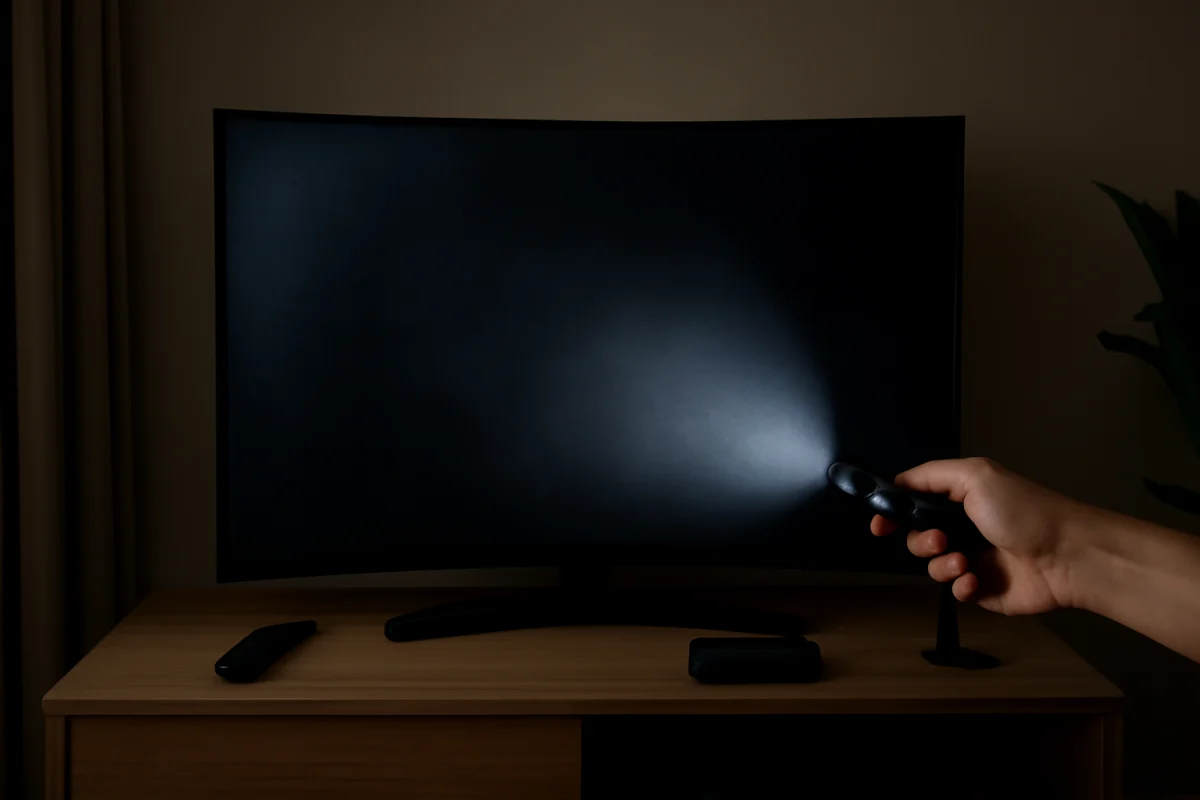
- A faint image is visible with a flashlight: The TV may be producing a picture while the LED backlight is not illuminating it.
- Only one side or section is dark: An LED strip, diffuser, panel connection, or panel itself may be damaged.
- The screen flickers or pulses: Unstable power, a failing LED strip, overheating, or an image-processing issue may be responsible.
- The picture is dim but still visible: Eco or energy-saving settings, picture mode, ambient-light behavior, or a weakening backlight may be the cause.
- The problem appears only on one input: The TV backlight may be fine, while the cable, source device, or input signal is causing the problem.
Curved-screen construction does not create a separate troubleshooting method, but it can make physical panel damage and repairs more complicated. The exact internal design varies by model and screen size.
Check whether the TV menu is also dark
Press the remote’s Home or menu button and look at the TV’s own interface. If the menu is bright while a cable box, game console, or streaming device looks dark, the issue is probably related to that source, its video settings, or the connection.
If the menu is dark too, temporarily disconnect every HDMI device and check the TV’s built-in screen. This separates a television hardware problem from an issue caused by an external device. For HDMI-specific troubleshooting, see our guide to Samsung TV HDMI connection problems.
Perform a safe power reset
A temporary control or power error can make the screen appear black even when the hardware is still working. To clear that possibility:
- Turn the TV off.
- Unplug it directly from the wall outlet.
- Leave it unplugged for several minutes.
- Disconnect external HDMI, USB, antenna, and audio devices while it is off.
- Plug the TV back into a known-good wall outlet and turn it on.
Avoid relying on a switch-controlled power strip during this test. If the TV works normally after the reset, reconnect devices one at a time. If the screen goes dark again after reconnecting one device, inspect that device, its cable, and its output settings.
Inspect picture and energy-saving settings
Menu names and available settings vary by Samsung model, software version, and region. Look through the picture and general settings for options that reduce brightness or respond to room lighting. These may include an energy-saving feature, ambient-light adjustment, automatic brightness behavior, or a picture mode designed to reduce power use.
Turn those features off temporarily and select a standard picture mode if your TV offers one. Do not judge the result from a single movie or show, because some content is intentionally mastered very dark. Test a bright TV menu, a well-lit broadcast, and more than one input.
If the screen remains consistently dim after the settings change, the backlight may be aging. If the brightness changes suddenly, pulses, or turns off while sound continues, hardware becomes more likely. Our guide to a Samsung TV screen that is dark but still has sound covers related symptoms.
Use the flashlight test carefully
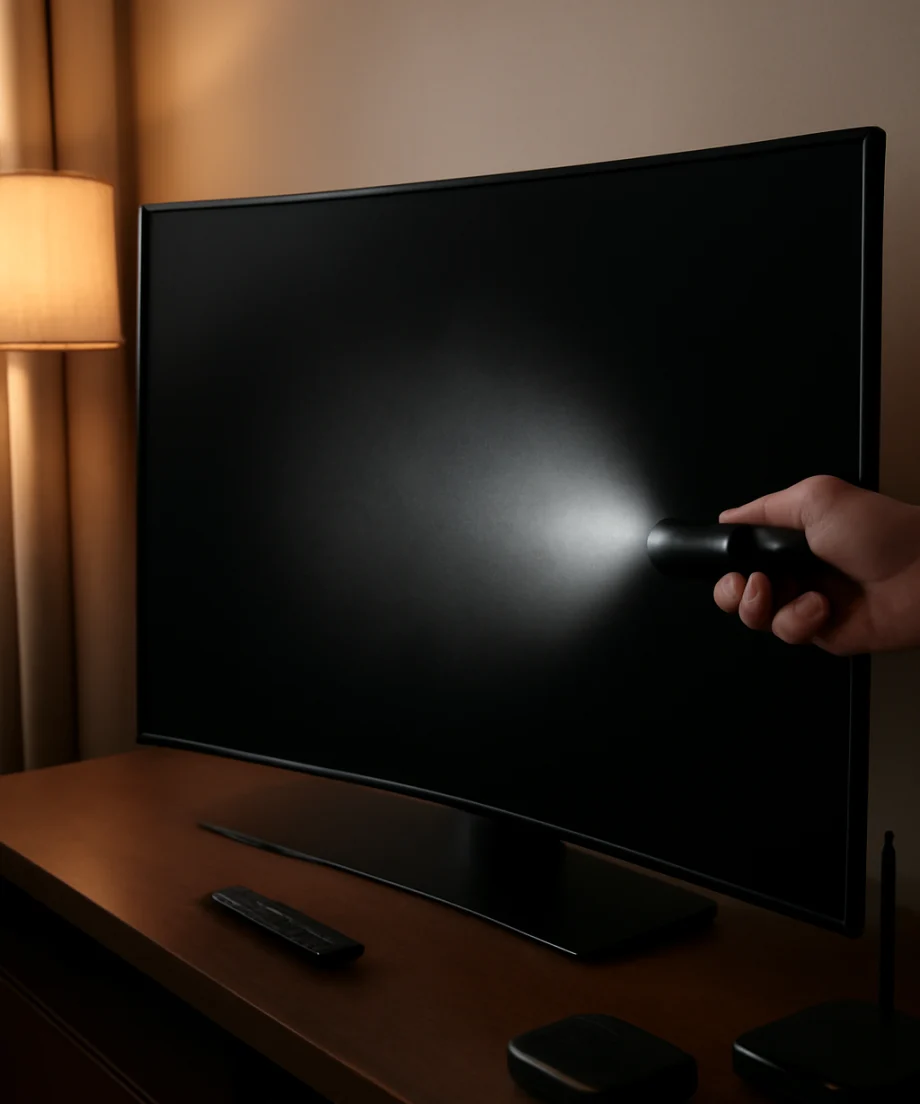
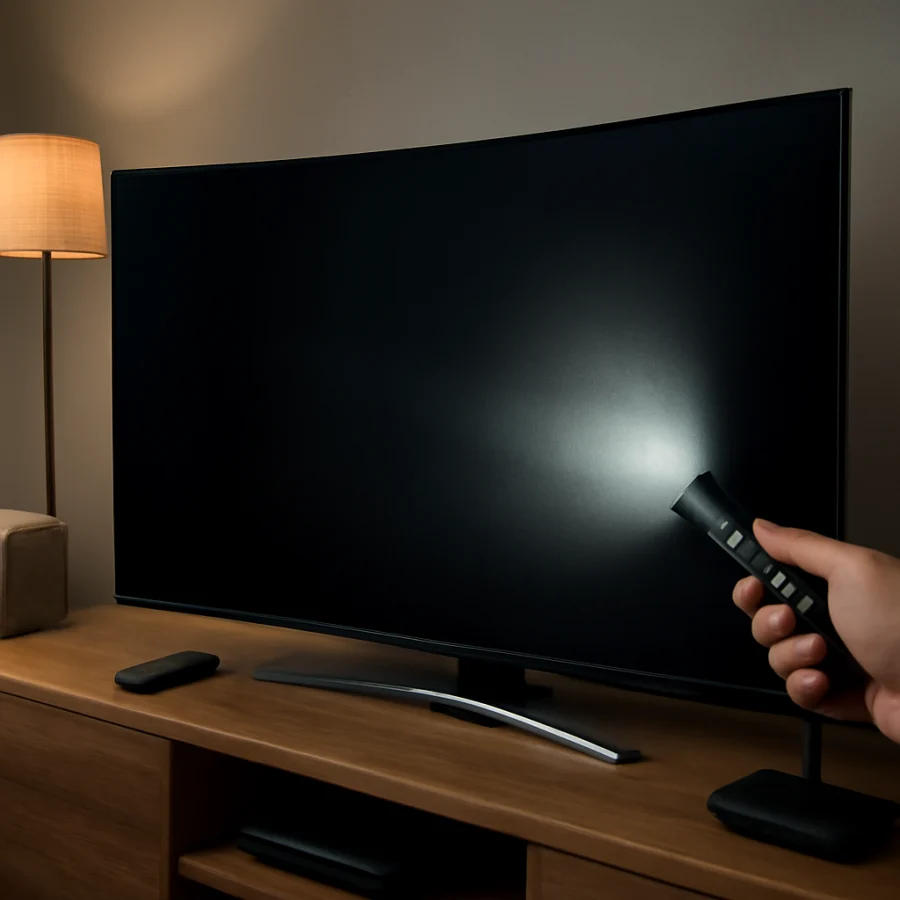
The flashlight test can help determine whether the TV is creating an image without lighting the screen. In a dim room, turn the TV on and play a source that should display a recognizable picture. Shine a flashlight at an angle close to the screen rather than pressing it against the panel. Look for very faint shapes, menus, or movement.
If you can see a faint image, the LCD display may be working while the LED backlight is not. Possible causes include failed LED strips, a backlight driver problem, a power-board fault, or a connection issue. This test is not definitive, and a failed panel or main board can sometimes produce a similar result.
Do not use excessive pressure on the curved screen. Do not pry around the bezel or attempt to remove the panel to confirm the diagnosis. The screen is fragile, and a repair attempt can turn a backlight fault into permanent panel damage.
Look for signs of overheating or intermittent failure
Notice whether the problem appears after the TV has been running for a while. A television that starts normally and then becomes dark may have a component that fails as it heats up. Blocked ventilation, dust buildup, an aging LED strip, or a weakening power circuit can contribute.
Make sure the ventilation openings are not covered by a wall, cabinet, cloth, or other equipment. Leave adequate space around the TV according to the owner’s manual. With the TV unplugged, you can gently remove loose dust from accessible exterior vents using a suitable method. Do not insert tools into the openings and do not spray liquid or cleaner into the set.
If the backlight repeatedly turns on and off, stop using the television for long periods until it is inspected. Repeated cycling can stress other components and makes it harder to tell whether the original problem is getting worse.
Check the power connection and wall outlet
A poor power connection can cause flickering, shutdowns, or a screen that fails to illuminate. Confirm that the power cord is firmly connected wherever it is removable and that the wall outlet works with another suitable device. Avoid testing through an overloaded extension cord or an unreliable surge protector.
If the TV makes clicking sounds, smells burnt, shows signs of heat damage, or trips a breaker, unplug it immediately. Do not continue powering it on to see whether the problem clears. These symptoms require professional evaluation.
When a factory reset may help
A factory reset is not a repair for a failed backlight, but it can help if the symptom is caused by corrupted settings or unusual software behavior. Use it only after checking the simpler causes. A reset may remove saved network details, installed apps, picture adjustments, and other personal settings. The exact reset path differs by model, so use the instructions for your specific TV rather than following a menu path from a different Samsung series.
Before resetting, take note of important picture, audio, and network settings. If the TV screen is too dark to navigate safely, a reset is unlikely to be useful and may make diagnosis more difficult.
Decide whether the fault is the backlight or the panel
A failed backlight can sometimes be repaired by replacing LED strips or a related circuit. The repair is delicate because the LCD panel and diffuser layers must be removed without bending or cracking them. Curved panels require especially careful handling and may not tolerate uneven pressure.
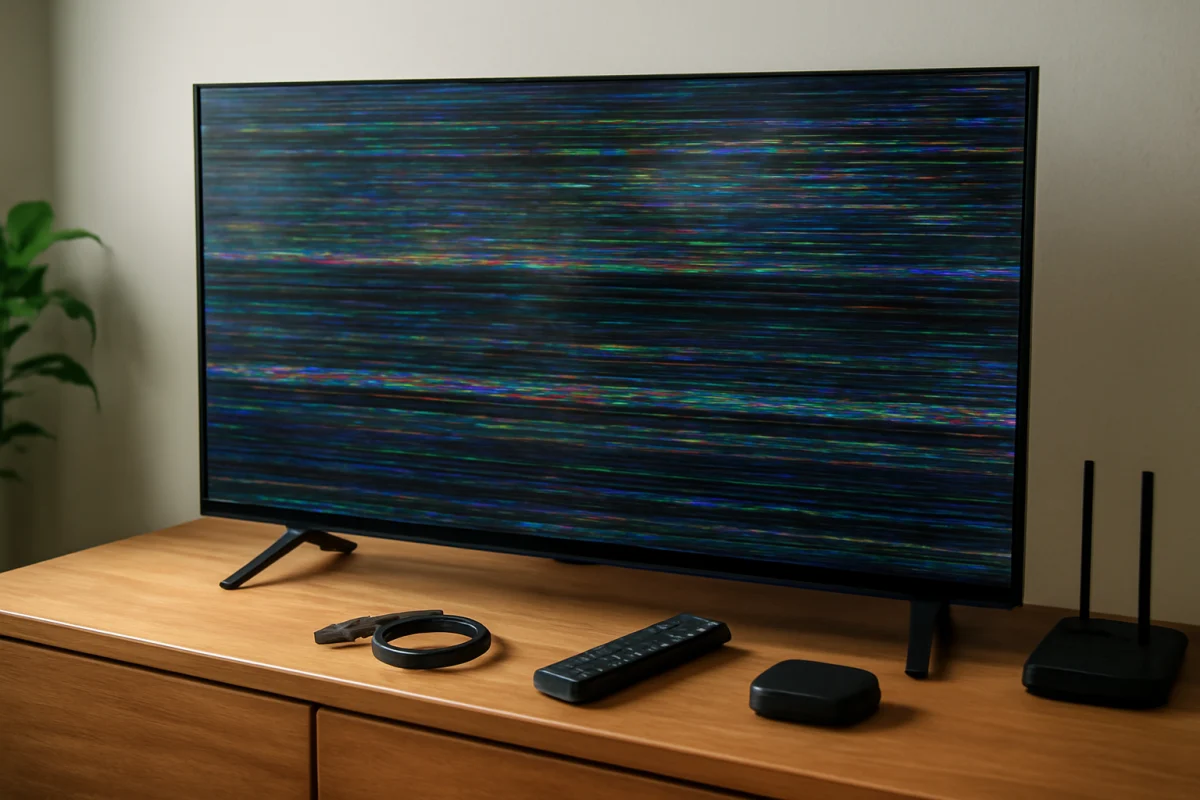
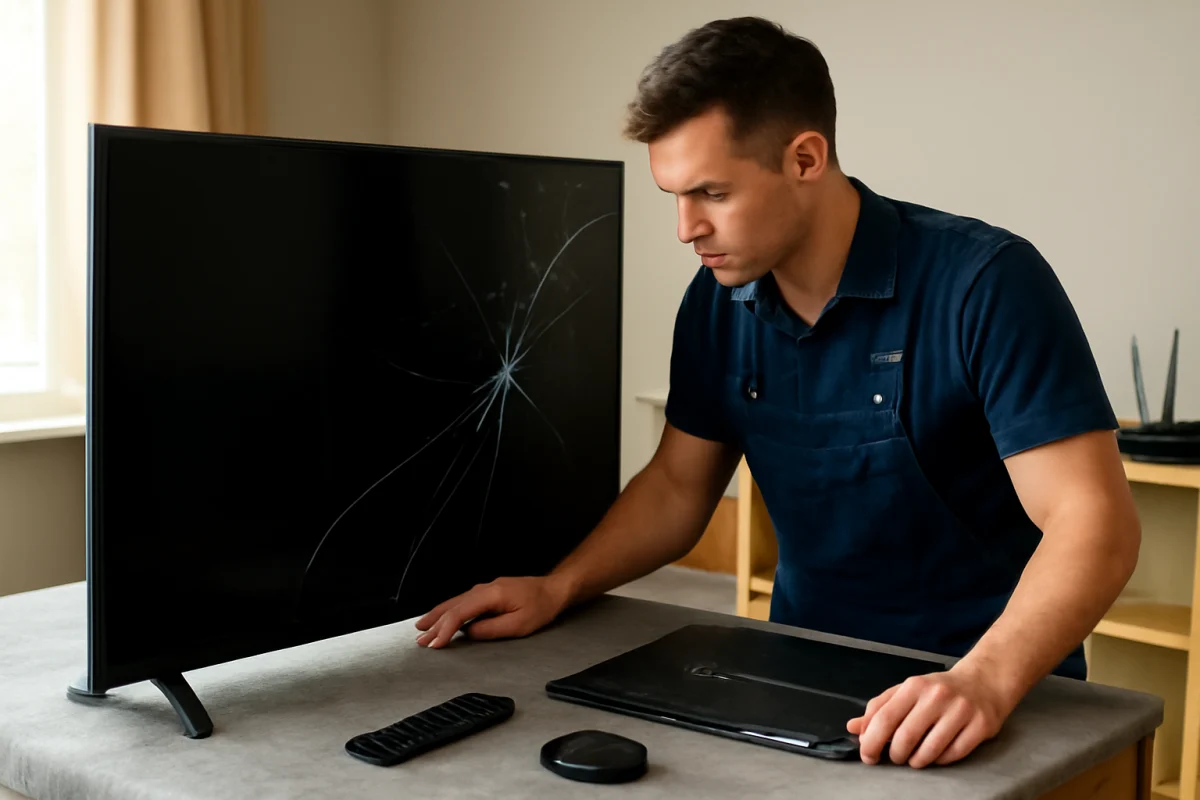
A panel fault is usually more serious. Cracks, vertical lines, large permanent areas of discoloration, liquid damage, or damage caused by impact can indicate that the panel itself is involved. A backlight replacement will not correct a damaged LCD panel.
Because the same dark-screen symptom can come from the panel, power board, main board, LED strips, or wiring, avoid ordering parts based only on an online symptom description. A technician should test the television before parts are purchased. If the panel must be replaced, compare the repair estimate with the cost of another TV and consider the set’s age, condition, and availability of compatible parts. See our Samsung TV screen replacement guide for factors to consider.
When to stop troubleshooting
Stop using the TV and seek qualified service if you notice smoke, a burning smell, liquid entry, crackling, exposed wiring, repeated breaker trips, or visible damage to the power cord. Do not open the television if you are not trained to work on mains-powered electronics.
For a service request, record the model number from the label or settings page, the approximate age of the TV, and when the symptom occurs. Take a short video showing the screen turning dark or flickering, if doing so is safe. Also note whether sound continues, whether the menu is visible, whether a flashlight reveals a faint image, and whether the issue affects every input.
Those details help distinguish a settings problem from a backlight or power fault and can prevent unnecessary parts replacement. In many cases, the safest practical answer is a diagnosis from a qualified repair professional, especially when the TV has sound but no visible picture and the flashlight test suggests that an image is still being generated.
Comments
0No comments yet. Be the first to share a helpful note or question.
Leave a Comment
Your email address will not be published. Comments are reviewed before appearing on the site.