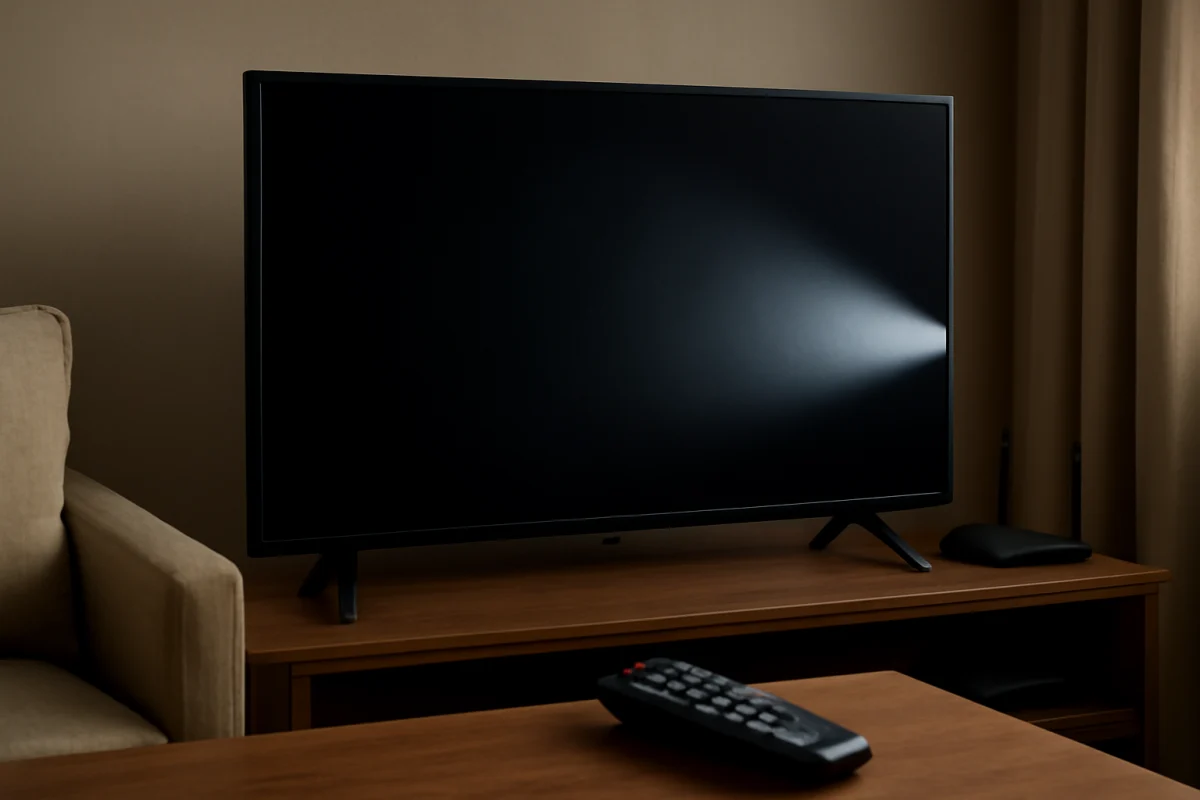
If your Samsung TV produces sound but the screen is dark, the problem is usually limited to the picture path rather than the entire TV. Start with simple checks: make sure the screen is not muted or disabled, test the TV’s own menu, check the input and cables, and perform a complete power cycle. If you can see a very faint image with a flashlight, the backlight may have failed. If no menu or image appears at all, the issue may involve the display panel, internal power circuits, or main board.
Use the steps below in order. They are designed to separate a settings or connection problem from a likely hardware fault without opening the television.
First, check whether the TV is showing a faint image
Turn on the Samsung TV and play a source that normally produces video. Dim the room, then shine a flashlight at an angle across the screen. Do not press the flashlight hard against the panel. Look closely for a faint home screen, menu, moving picture, or channel logo.
If you can barely see an image, the TV is receiving and processing video, but its backlight may not be working correctly. The backlight illuminates the LCD panel from behind. When it fails, sound can continue normally while the picture becomes nearly invisible.
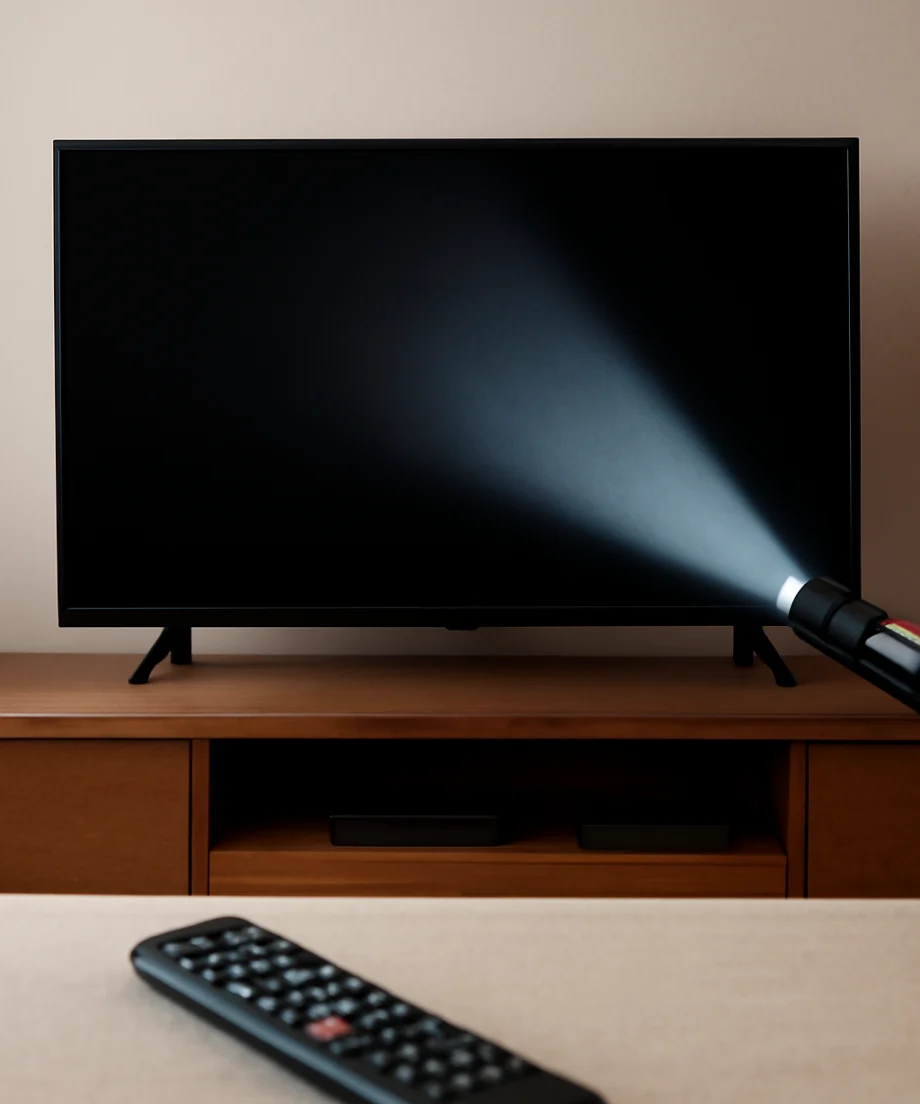
If the flashlight test shows nothing, that does not prove the backlight is healthy. The problem could still involve the backlight, but it may also be caused by an input issue, a display panel fault, an internal board, or a power-related problem.
Press Home or Menu and test the TV’s own interface
Press the Home, Menu, or equivalent smart-TV button on the remote. The exact button layout varies by Samsung model and remote. You can also try the controls on the TV if they are accessible.
If the menu appears
A visible menu means the panel and basic display system are working at least partially. The original problem may be limited to a cable box, game console, streaming device, or selected input.
Change to another source, such as a built-in app or live TV input, if available. Then check whether the picture returns. If only one connected device is dark, focus on that device, its HDMI cable, and the selected input rather than the Samsung TV itself.
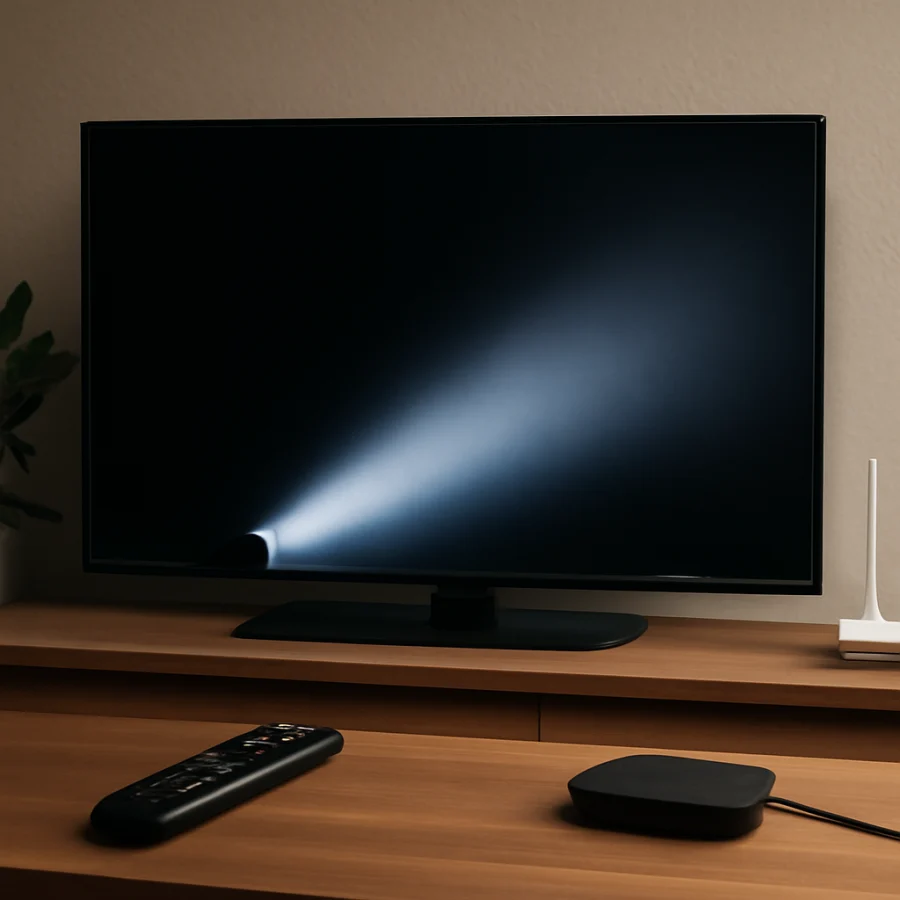
If the menu does not appear
If the screen stays black when you press Home or Menu, disconnect every external device from the TV. Leave the power cord connected, turn the TV on, and try the menu again. A failed external device or unusual HDMI communication problem can sometimes make troubleshooting confusing.
If there is still no menu, continue with the power-cycle and picture-setting checks below. A missing menu makes a hardware issue more likely, especially when the flashlight test reveals no image.
Make sure the screen has not been turned off
Some Samsung TVs include a screen-off, picture-off, or similar energy-saving function. When enabled, the TV may continue playing audio while the display remains dark. The name and location of this option vary by model, software version, and region.
Press a normal navigation or volume button and watch for any change. Avoid relying only on the power button, because it may place the TV into standby rather than restore the picture. If you can access the settings, look through picture, accessibility, energy-saving, or general device options for a feature that turns the screen off while leaving sound active. Do not change several unrelated settings at once; changing one option at a time makes the cause easier to identify.
Check brightness, contrast, and picture settings
If the menu is visible but the video is unusually dark, open the picture settings and check brightness, contrast, and any backlight or screen-light control available on your model. A dark picture can result from a custom picture mode, an energy-saving adjustment, or settings changed accidentally with the remote.
Try a standard or normal picture mode if one is available. You can also use the TV’s picture reset option, but read the prompt carefully. A picture reset normally affects picture adjustments, while a full factory reset may erase apps, network details, accounts, and other personal settings. Use the smaller reset first when the TV offers that choice.
If the screen is completely black and you cannot see the settings, do not attempt to navigate menus by guessing a long sequence of remote commands. Menu layouts differ between models, and blind changes can make the situation harder to diagnose.
Disconnect external devices and inspect the HDMI connection
A black picture with working sound can come from a cable box, streaming stick, Blu-ray player, console, or receiver. Turn off the TV and the connected device, then unplug the HDMI cable from both ends. Reconnect it firmly, select the correct input, and test again.
If possible, test another HDMI cable and another HDMI port. Avoid connecting through an AV receiver, switch, splitter, or adapter during the test. Connect the source directly to the TV so there are fewer points of failure.
Also confirm that the source device itself is awake and outputting video. Check whether its own status lights, remote controls, or another television indicate normal operation. If the Samsung TV displays its Home menu and built-in apps but not the external source, the TV’s panel is less likely to be the problem.
For more help with a connection problem, see our WiFi and Network troubleshooting guides when the affected source depends on an internet connection.
Perform a complete power cycle
A normal tap of the power button may leave some circuits in standby. A complete power cycle can clear a temporary software or HDMI communication problem.
- Turn off the TV using the remote or the TV’s physical control.
- Unplug the TV from the wall outlet.
- Disconnect external devices from the TV, including HDMI and USB devices.
- Wait at least one minute.
- Plug the TV directly into a known-good wall outlet, bypassing a power strip temporarily.
- Turn on the TV and check for the Samsung logo, Home menu, or picture.
Do not repeatedly unplug and reconnect the power cord in rapid succession. If the TV makes clicking sounds, repeatedly restarts, smells hot or burnt, or causes the outlet to trip, unplug it and stop testing.
Check whether the TV reacts normally
Pay attention to the status light, startup sound, remote response, and any change in the screen when you adjust the volume. These clues can help narrow the issue, but they do not identify a failed component by themselves.
A TV that responds to the remote, changes volume, and plays audio but never shows its logo, menu, or picture may have a display-related hardware fault. A TV that turns on and off unexpectedly may have a broader power or main-board problem. If the status light behaves differently from normal for your model, consult the model’s documentation rather than assuming a particular blink pattern has one universal meaning.
What the flashlight test can and cannot tell you
A faint image under a flashlight is a strong clue that the image signal is reaching the panel but the backlight is not illuminating it properly. Possible causes include failed LED backlight strips, a backlight driver problem, or another internal power issue.
A completely blank screen with no faint image may point to a panel, main board, power board, or connection inside the TV. These parts are not safely accessible to most owners. Modern televisions can contain stored electrical energy even after they are unplugged, and removing the rear cover can create both shock and physical-damage risks.
Do not open the TV just to inspect the backlight or reseat internal cables unless you are trained and understand the safety risks. A repair professional can test the backlight and boards with the correct equipment.
When a Samsung TV reset may help
A reset can help when the TV’s software or picture configuration is responsible, but it is not a reliable fix for a failed backlight or panel. If you can see the menu, look for the reset option in the TV’s support, general, or system settings. The exact path varies by model and software version.
Before performing a full reset, note that you may need to reconnect Wi-Fi, sign back into streaming apps, restore preferences, and retune channels. If the TV screen is completely dark, a reset may be difficult or impossible to complete safely because you cannot confirm the prompts. In that situation, finish the external-device and power-cycle checks first.
If the TV frequently loses its network connection after the picture returns, our guide to Samsung TV Wi-Fi disconnections covers that separate problem.
When professional repair is the practical next step
Arrange professional diagnosis when the screen remains dark after you have tested the TV menu, removed external devices, checked the input, and completed a power cycle. Repair is especially appropriate when the flashlight test reveals a faint image, the TV has visible impact or liquid damage, or the picture briefly flashes before going dark.
Describe the symptoms clearly: whether sound works, whether the menu appears, whether a faint image is visible, whether the screen flashes at startup, and whether the problem affects every input. Those details can help a technician distinguish a backlight issue from a panel or board problem.
If the repair estimate is significant, ask what component is suspected and whether the diagnosis is confirmed or preliminary. A panel problem can be more difficult to justify economically than a smaller replaceable component, but the right decision depends on the TV’s age, condition, size, and local repair options. Avoid choosing parts based only on a generic online symptom because Samsung models can use different internal designs.
Quick diagnosis summary
- Faint image visible with a flashlight: the backlight or its power circuit is a likely suspect.
- Home menu appears, but one device is dark: check that device, the HDMI cable, and the selected input.
- Menu appears but the picture is simply dim: check screen-off, energy-saving, picture mode, brightness, and backlight settings.
- No menu, no faint image, and sound still works: a display, power, or internal board fault is more likely.
- Burning smell, liquid damage, repeated clicking, or tripped power: unplug the TV and stop troubleshooting.
For related Samsung troubleshooting, visit the Samsung TV section of TV Fix Guide. The safest approach is to rule out a disabled screen, wrong input, external device, cable, and temporary software issue before considering internal repair.
Comments
0No comments yet. Be the first to share a helpful note or question.
Leave a Comment
Your email address will not be published. Comments are reviewed before appearing on the site.