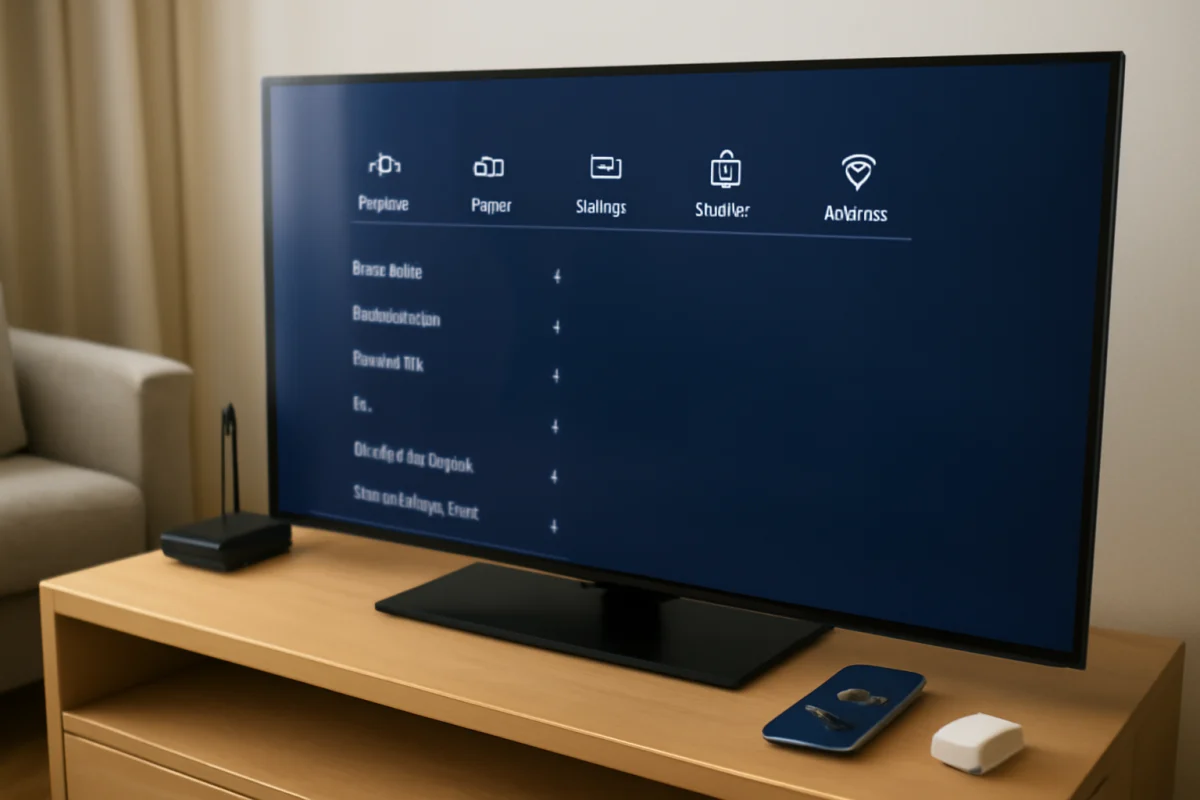
If your Samsung TV is reading menu items, volume changes, or program information aloud, you can usually turn off Voice Guide without the original remote. The easiest alternatives are the TV's physical control button, the SmartThings app, or a USB mouse connected directly to the TV. The exact menu wording and available controls vary by Samsung TV model and software version.
Start with the simplest option that works for your setup. Do not reset the television just to disable narration. A reset removes settings and may sign you out of apps, while Voice Guide is normally controlled through the Accessibility settings.
First, make sure Voice Guide is the feature speaking
Samsung TVs can produce spoken audio for more than one reason. Voice Guide is the accessibility feature that reads menus and on-screen controls. It may announce the channel, volume level, input, or selected item as you move around the interface.
If the voice only describes what is happening in a show or movie, the TV may be playing an audio description track instead. That is controlled by the broadcast, streaming app, or content itself rather than the main Voice Guide setting. If narration continues only inside one app or one program, check that app's audio and subtitle settings too.
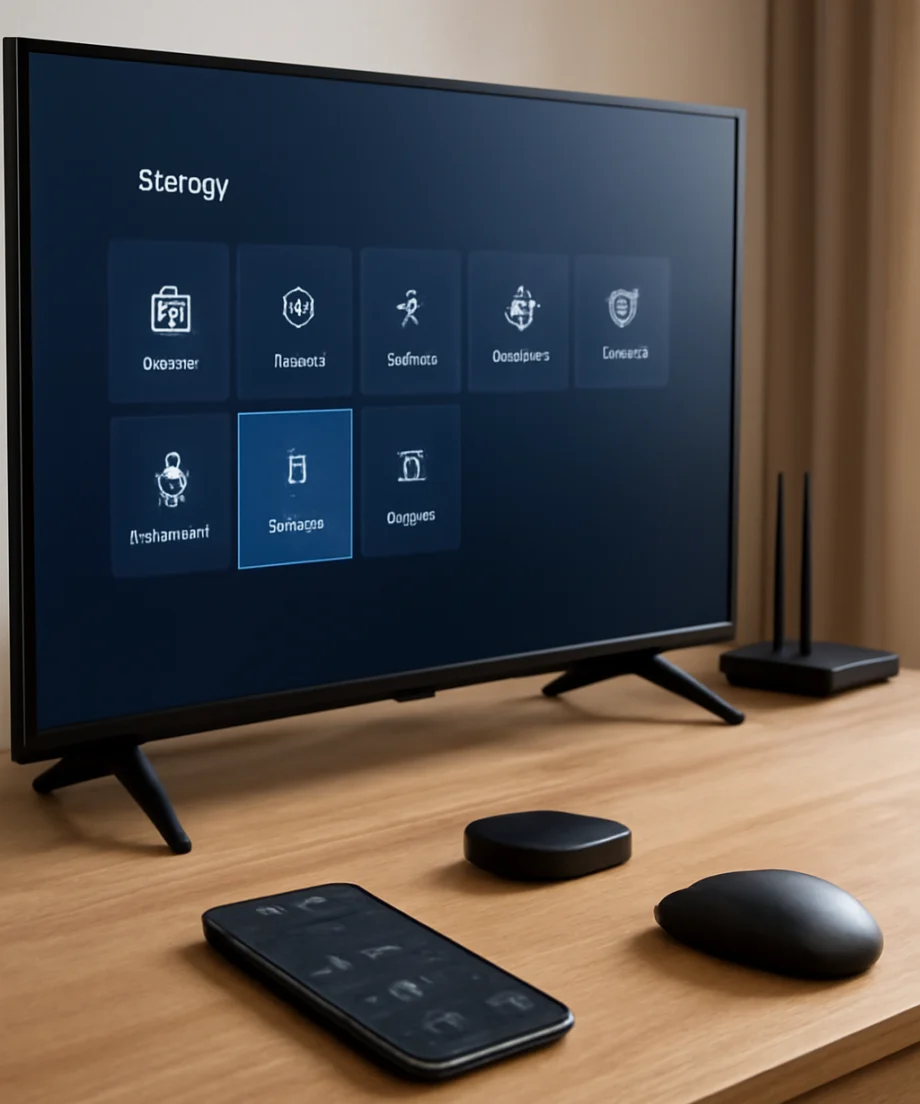
You may also hear a voice from a connected cable box, streaming device, game console, or soundbar. To narrow it down, change the TV's input or temporarily turn off the external device. If the TV still reads its own menus aloud, continue with the steps below.
Option 1: Use the TV's physical control
Most Samsung TVs have at least one physical control, although its location and design differ. Look along the lower edge, underneath the Samsung logo, on the back panel, or near one side of the television. It may be a small button, a joystick-like control, or a control area that moves in several directions.
Open the menu with the control button
- Turn on the TV and stand close enough to see the screen clearly.
- Press the physical control once to open the TV's on-screen control menu, if your model displays one.
- Use the directions on the control to highlight Settings or the gear icon.
- Open All Settings, if that option appears.
- Look for General & Privacy, General, or a similar section.
- Open Accessibility.
- Select Voice Guide Settings or the Voice Guide option, then set it to Off.
Older Samsung televisions may place Accessibility under a different top-level menu, such as System or General. The labels can also change between model years. The important path is to find the Accessibility section and then disable Voice Guide.
A single physical button can be awkward for navigating a long menu. Move slowly and watch for the on-screen highlight before pressing. A short press and a press-and-hold may perform different actions, so avoid holding the control unless the on-screen instructions indicate that you should.
Option 2: Turn it off with the SmartThings app
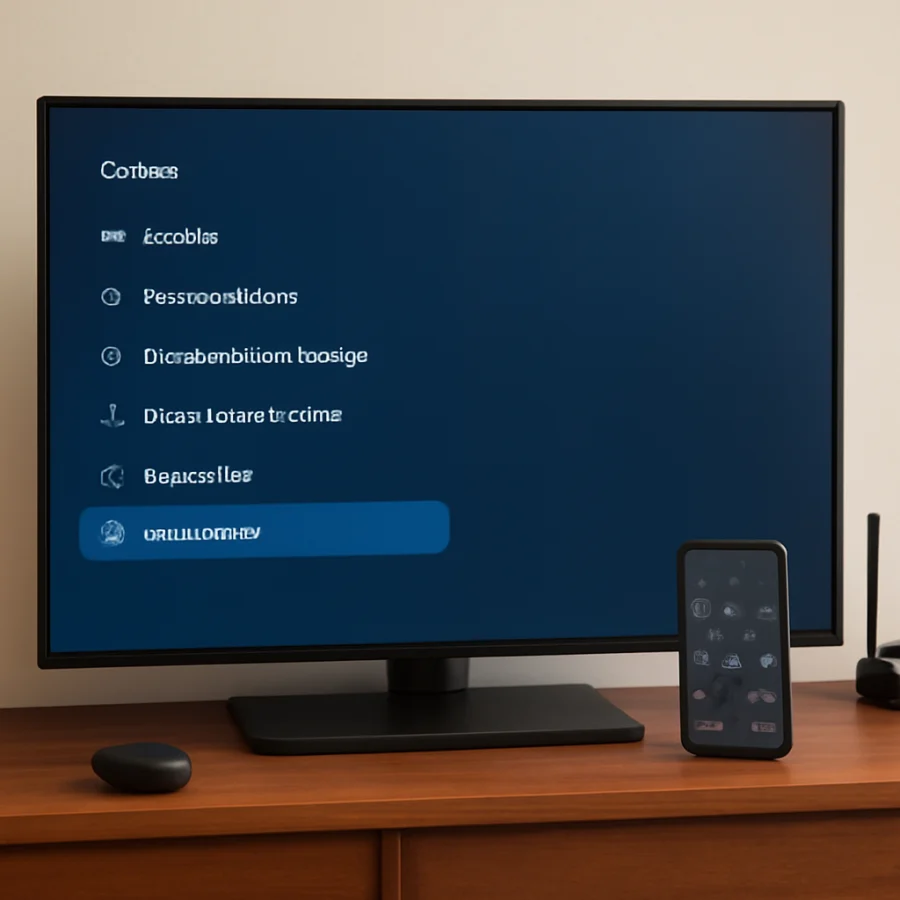
If the TV is already connected to your home network and was previously added to the SmartThings app, your phone can work as a remote. This is often the most convenient solution when the original remote is missing.
- Install or open the SmartThings app on your iPhone or Android phone.
- Sign in to the Samsung account used with the TV, if required.
- Make sure the phone is connected to the same home Wi-Fi network as the television.
- Select the Samsung TV from your devices.
- Open the remote-control interface.
- Use the on-screen controls to open Settings, then find Accessibility.
- Turn off Voice Guide.
The app may not find the TV if it is offline, has been removed from your Samsung account, or is connected to a different network. Some phone and TV combinations also require permission to discover nearby devices. Follow the prompts shown in SmartThings rather than repeatedly restarting the TV.
If your Samsung TV has trouble connecting to the network after a power interruption or router change, see this guide to Samsung TV Wi-Fi disconnections. If the TV was never connected to Wi-Fi, SmartThings may not be a practical first choice because adding it can require on-screen approval.
Option 3: Connect a USB mouse
A basic wired USB mouse can provide another way to navigate the settings when the remote is unavailable. This method works on many Samsung smart TVs, but support and navigation can vary by model. A keyboard may also work for some tasks, although a mouse is usually easier for selecting menu items.
- Turn off the TV if you want to connect the accessory before startup.
- Plug the mouse into an available USB port on the TV.
- Turn on the TV and wait a few seconds for the pointer or cursor to appear.
- Use the mouse to open Settings.
- Navigate to Accessibility, then Voice Guide or Voice Guide Settings.
- Choose the setting and switch it off.
If nothing appears to happen, move the mouse across the screen and click once. Try another USB port if the TV has more than one. Some models do not show a traditional pointer in every menu, and some USB accessories are not recognized. This does not mean the TV is defective.
Check for a Voice Guide shortcut
Samsung remotes often provide a shortcut to accessibility features, but the shortcut is not useful if you have no remote. If you borrow a compatible Samsung remote, look for an accessibility shortcut or a way to open the Accessibility Shortcuts menu. The exact button combination depends on the remote and TV model.
Be careful with random button-combination instructions found online. A shortcut that works on one Samsung remote may open a different menu on another. It is safer to use the TV's physical control, SmartThings, or a USB mouse unless you know the remote is compatible.
If Voice Guide turns back on by itself
Voice Guide should remain off after you disable it, but it can seem to return for several reasons. First, confirm that you changed the setting on the TV rather than turning off narration inside only one app. Then check the following possibilities.
Someone is activating the accessibility shortcut
If children, guests, or another household member use the TV, an accessibility shortcut may be getting triggered accidentally with a compatible remote. After turning Voice Guide off, avoid pressing and holding remote buttons near the TV unless you know what they do. If the TV offers an option to manage accessibility shortcuts, review it as well.
The voice comes from an external device
Streaming players, cable receivers, and game consoles can have their own screen-reader or audio-description settings. Switch to the TV's home screen and move through its menus. If there is no narration there but a connected device speaks, open that device's accessibility settings instead.
The program has audio description
Audio description is a spoken explanation of visual action in a movie or show. It can sound similar to Voice Guide, but it is part of the content's audio options. Open the playback controls in the app and choose the standard audio track when available. Live television may provide the option through the channel, receiver, or broadcast audio settings.
The setting was changed on a different TV profile
Some Samsung TV features can behave differently depending on the device, account, or connected source. Make sure you are changing the setting on the affected television and not in a phone app or on another Samsung TV in the same SmartThings account.
Power-cycle the TV before trying a reset
A normal power cycle is a low-risk way to clear a temporary control or menu problem. Turn the TV off, unplug it from the wall, wait about 60 seconds, and plug it back in. Then check the Accessibility settings again using one of the methods above.
Do not assume that unplugging will change the Voice Guide setting. It usually does not; the purpose is to refresh the TV if menus are slow, a USB accessory is not recognized, or the SmartThings connection is stuck.
What to do if you cannot reach Settings
If the physical control will not open a menu, SmartThings cannot connect, and the USB mouse is not recognized, inspect the TV's buttons and connections. Make sure the set is actually on rather than in standby, and try disconnecting nonessential USB devices. If the screen is hard to see, increase room lighting and look for the highlighted menu item rather than relying only on the spoken prompts.
You can also use a compatible replacement remote, but compatibility matters. A remote made for a different Samsung TV may control power or volume without exposing every smart-TV function. If you borrow one, test basic navigation first. For pairing-related problems, see this guide to reconnecting a Samsung TV remote.
A factory reset should be a last resort, not the standard fix for Voice Guide. It removes personal settings and may require you to reconnect Wi-Fi, sign back into streaming apps, and repeat the initial setup. Only consider it if the TV has broader software or configuration problems and you are prepared to set it up again.
When to contact Samsung support
Contact Samsung support or a qualified TV technician if the TV changes settings without input, repeatedly re-enables accessibility features after a reset, or does not respond to its physical controls. Write down the TV's model information before contacting support, but do not share account passwords or payment details with anyone helping you troubleshoot.
In most cases, however, no repair is needed. Find the TV's Accessibility settings through the physical control, SmartThings, or a USB mouse, then switch Voice Guide off. If only one app or external device is speaking, adjust that source's audio or accessibility settings instead of changing the TV itself.
Comments
0No comments yet. Be the first to share a helpful note or question.
Leave a Comment
Your email address will not be published. Comments are reviewed before appearing on the site.