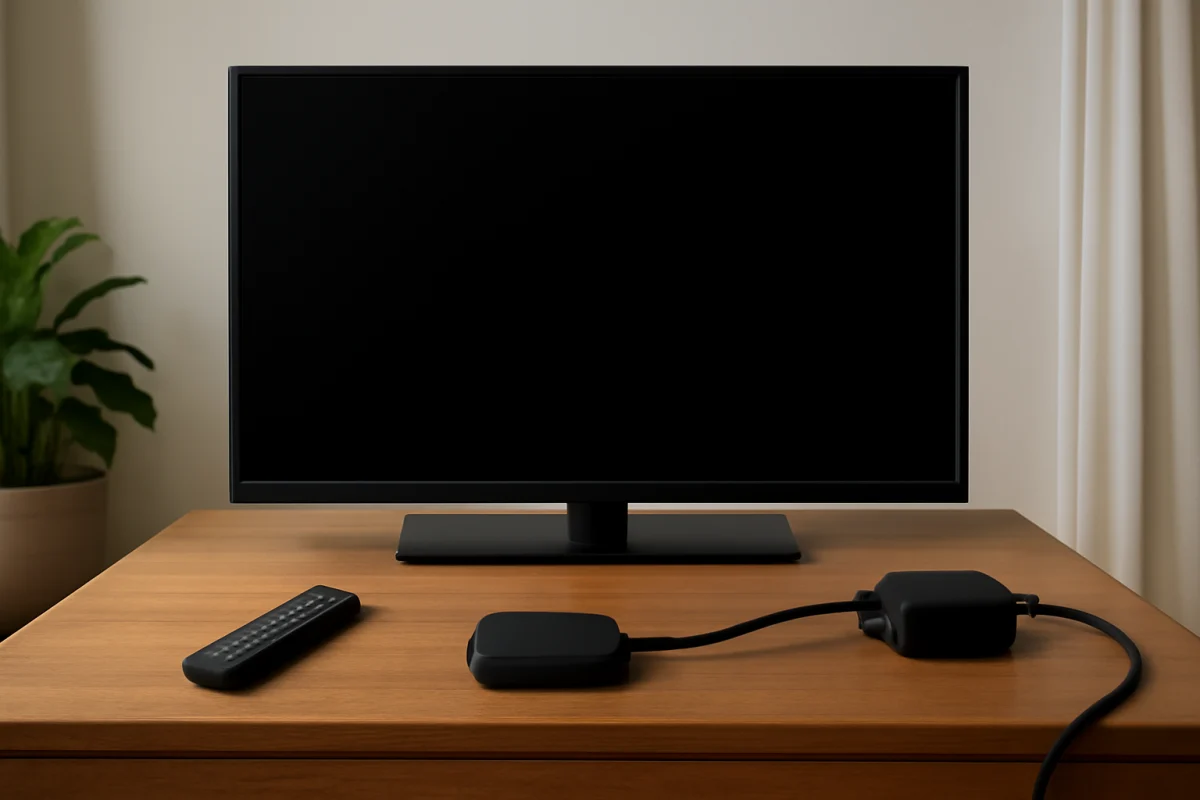
If your Fire TV has sound but the screen is blank, start by checking the TV input, HDMI connection, and power cycle before changing settings or performing a reset. A black screen can come from a loose cable, an incorrect input, a temporary Fire TV or TV software glitch, an app problem, or a display issue inside the television.
Keep the steps below in order. The early checks do not erase your apps, account information, or settings. If the picture returns during one step, stop there and use the result to identify the likely cause.
1. Confirm that the TV is on the correct input
The Fire TV may be working normally while the television is displaying a different HDMI input. Press the TV remote's Input, Source, or similar button and select the HDMI port where the Fire TV is connected. The wording and button layout vary by TV brand and model.
If you use a soundbar, AV receiver, HDMI switch, or another intermediary device, the Fire TV may not connect directly to the TV. In that setup, confirm that the intermediary device is powered on and set to the correct source. For a quick test, connect the Fire TV directly to a known-working HDMI port on the TV, bypassing the switch or receiver.
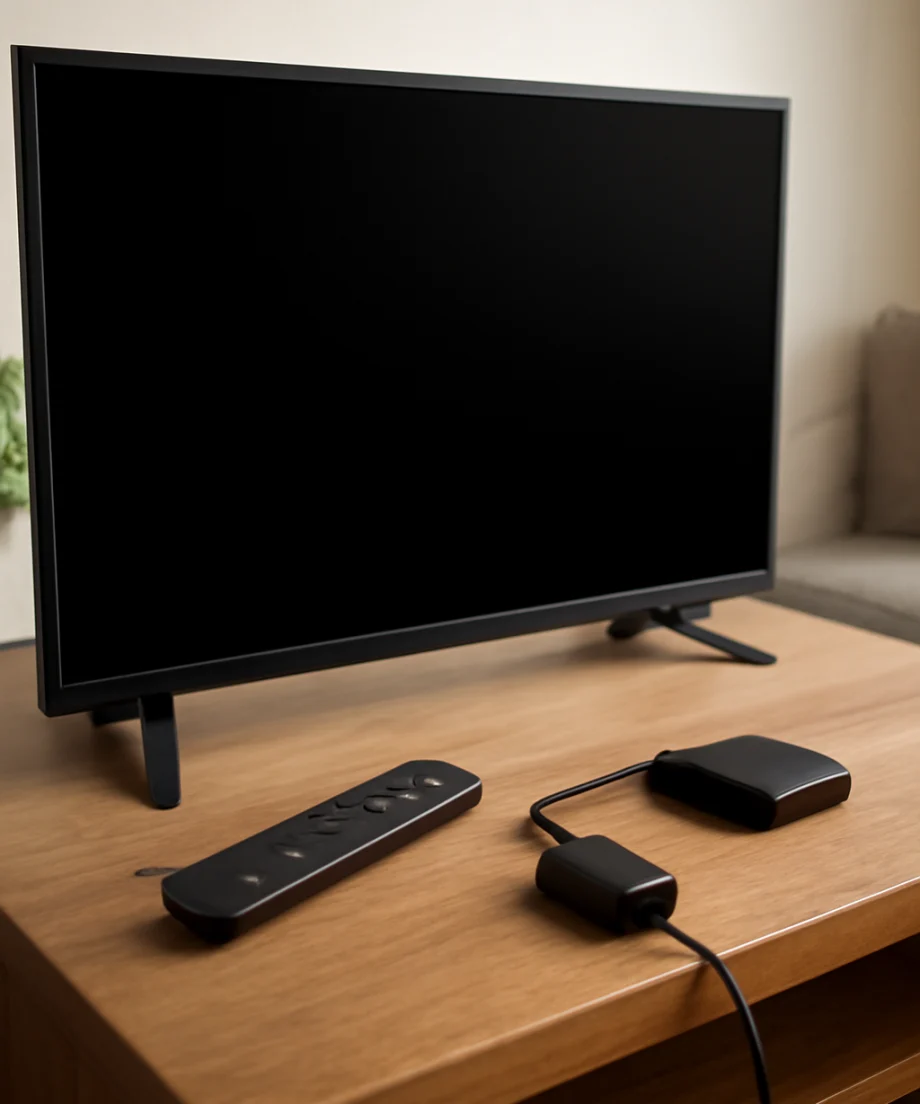
Give the TV a few seconds after changing inputs. Some displays take a moment to recognize an HDMI signal. If you see a “No signal” message, that usually points toward the input, cable, connection, or Fire TV output rather than an individual streaming app.
2. Check whether the TV's own menu appears
Press the TV remote's Menu, Home, Settings, or Volume button. If the TV's built-in menu or volume indicator appears, the panel is producing an image, and the issue is more likely related to the selected input, HDMI connection, Fire TV device, or source content.
If the TV menu does not appear and the screen remains completely dark, turn up the TV volume and check whether the backlight seems to be on. Look at the screen from an angle in a dim room, without staring directly into it. A faint image can suggest a backlight or display problem. Avoid opening the television; internal components can retain dangerous electrical energy even when the TV is unplugged.
3. Reseat the HDMI connection
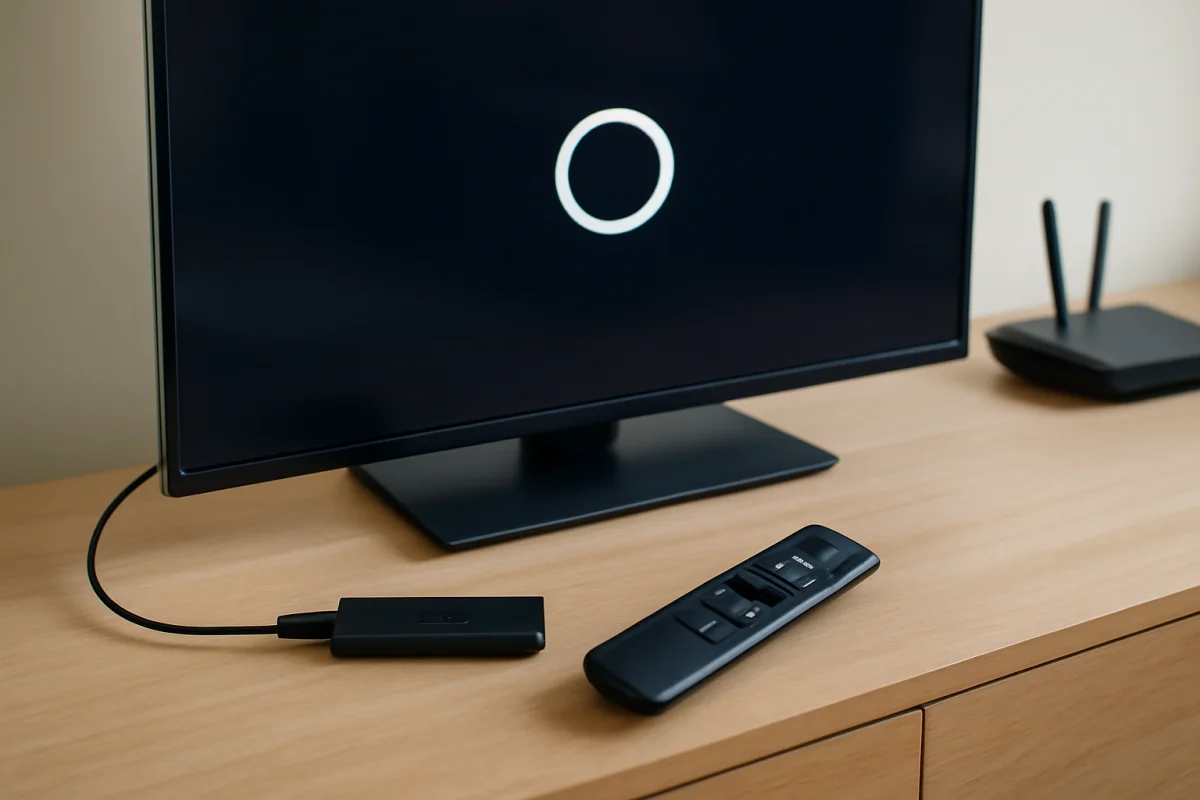
Turn off the TV and unplug the Fire TV device from power. Disconnect the HDMI cable from both ends, then reconnect it firmly. If you use a Fire TV Stick, make sure the stick is fully inserted into the HDMI extension or adapter supplied with it, if one is being used. A loose HDMI connection can allow audio while the video signal fails.
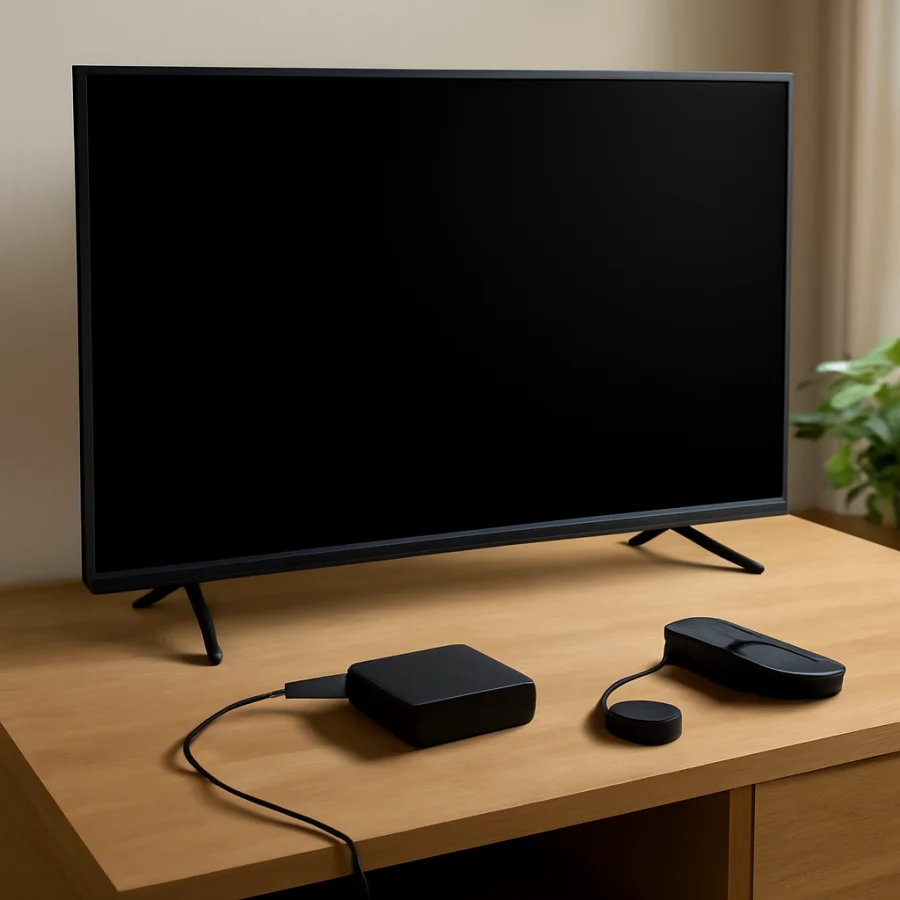
Try another HDMI port on the TV. After moving the cable, select the matching input with the TV remote. If the picture appears on one port but not another, the original port may be damaged, disabled, or affected by a compatibility issue.
If possible, test with another HDMI cable that you know works with a different device. Do not assume a cable is good simply because it looks intact. Cable faults can affect video while audio continues, especially when a connection is loose or marginal.
4. Restart the Fire TV and television completely
A normal restart can clear a temporary video-handshake or software problem. Unplug the Fire TV from its power source, not just from the HDMI port. Then unplug the TV from the wall outlet. Wait at least 60 seconds before reconnecting anything.
Reconnect the TV first and turn it on. Select the correct HDMI input, then reconnect the Fire TV to power. If you are using a USB port on the TV to power a Fire TV Stick, test the original power adapter and a wall outlet instead. TV USB ports may not provide consistent power, particularly while the device is starting or streaming.
Allow the Fire TV a few minutes to boot. The startup screen may not appear immediately after power is restored. If the screen remains blank, continue with the next checks.
5. Test the Fire TV with a different HDMI port or TV
If you have access to another television or monitor with an HDMI input, connect the Fire TV there temporarily. This test helps separate a Fire TV problem from a TV problem.
- If the Fire TV displays a picture on another TV, the original TV, HDMI port, cable, or TV settings are the more likely cause.
- If the Fire TV remains blank on another display, focus on the Fire TV power supply, HDMI connection, remote commands, or the device itself.
- If another HDMI device also produces sound but no picture on the original TV, the television or its input system may be at fault.
Use a simple setup for the test: Fire TV directly into the display, with no HDMI switch, receiver, splitter, or soundbar between them. Once the picture works, add the other equipment back one piece at a time.
6. Check whether only one app has the problem
Try returning to the Fire TV home screen or opening a different app. If the home screen and other apps display correctly, the issue is probably limited to one app, one title, or its playback session rather than the TV screen.
Close the affected app if the Fire TV interface allows it, then open it again. You can also restart the Fire TV and check whether the app needs an update. App menus and update options can differ by Fire TV version, so use the labels shown on your device rather than following a menu path from another model.
If multiple apps have sound but no picture, an app-specific explanation becomes less likely. In that case, continue checking the HDMI path, power, display, and Fire TV software.
For related symptoms, see this guide to what causes a black screen on Fire TV.
7. Check the remote and try a display-related command
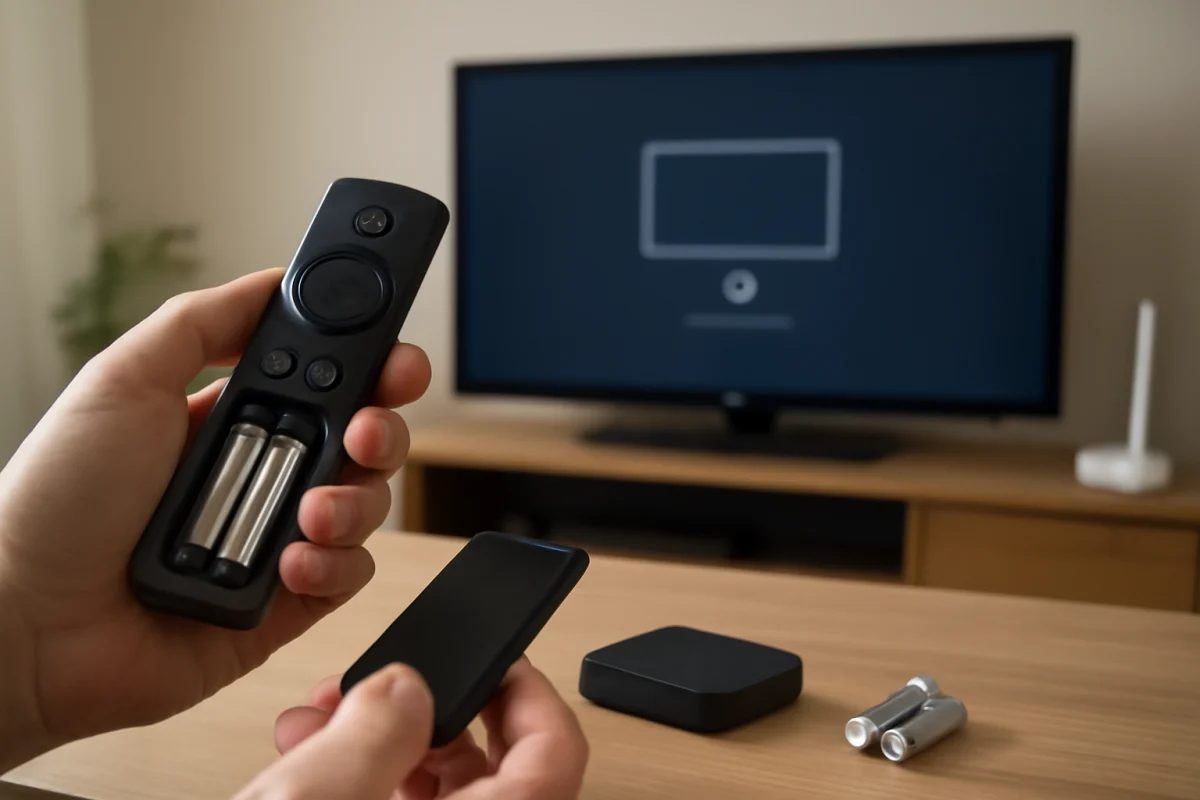
A remote problem can make the Fire TV seem frozen or prevent you from navigating back to the home screen. Replace the batteries or test the remote close to the Fire TV. If you use the Fire TV app as a remote, make sure the phone and Fire TV are connected to the same network; this option will not help if the Fire TV is offline or stuck during startup.
Press the Home button and wait several seconds. If the screen changes, the Fire TV was likely displaying a different screen or had a temporary interface problem. You can also press the Play/Pause button after starting known video content to check whether the device is responding, but avoid repeatedly pressing buttons while the device is still booting.
If the remote has stopped responding completely, follow these remote troubleshooting steps before assuming the Fire TV has failed.
8. Check TV picture settings without guessing
If the TV menu is visible but the Fire TV picture is not, review the TV's picture settings and HDMI-related options. Some televisions have a setting that changes HDMI signal handling, color format, enhanced input mode, or compatibility mode. These labels vary widely by manufacturer and model.
Do not change several settings at once. If you recently changed a picture, input, or HDMI setting, return only that setting to its previous value. If you are unsure what an option does, leave it unchanged and use another HDMI port or display for testing.
Some TVs also allow individual picture settings for each input. A setting that looks normal on one source may make another source appear extremely dark. Compare the Fire TV input with a working HDMI device if one is available.
9. Check power and overheating
Touch the Fire TV power adapter and device carefully. They may feel warm during use, but unusually high heat, a burning smell, visible damage, or repeated shutdowns are warning signs. Disconnect the device and allow it to cool. Do not use a damaged adapter or cable.
Make sure the Fire TV has ventilation and is not trapped behind a hot television, inside a tightly enclosed cabinet, or pressed against other electronics. Overheating can cause freezes, restarts, or an apparent loss of video. If the device works briefly after cooling and then loses the picture again, heat or power delivery may be involved.
When possible, use the original or manufacturer-approved power equipment for the Fire TV model. A weak or incompatible power source can cause unstable behavior that is difficult to diagnose from the screen alone.
10. Consider HDCP or compatibility problems
Audio without video can sometimes occur when the Fire TV and display do not complete a protected-content or HDMI compatibility handshake. This is more likely with older TVs, HDMI switches, AV receivers, splitters, capture devices, or adapters.
To test this possibility, connect the Fire TV directly to the TV, use a different HDMI port, and remove all adapters and intermediary devices. If direct connection works but the original setup does not, reconnect each component individually. The failing component may need different settings, a firmware update, or replacement, but the exact solution depends on the brands and models involved.
Do not assume that changing a resolution setting will fix every HDMI problem. If you cannot see the Fire TV interface, avoid blindly entering menu commands that could make the display harder to restore.
11. Use a reset only after the basic tests fail
A factory reset should be a last resort. It removes account information, installed apps, and device preferences, and you will need to set up the Fire TV again. Before resetting, confirm that the problem is not the TV input, HDMI cable, power adapter, or an intermediary device.
If the Fire TV picture works on another display, resetting the Fire TV is unlikely to repair the original TV's HDMI port or panel. If the Fire TV is blank on multiple displays but still produces sound, a reset may be worth considering only if you can reliably navigate the device and understand the data that will be erased. The reset path can vary by Fire TV model and software version, so use the options shown on your device or the manufacturer's current support instructions.
When the blank screen likely needs repair
Stop troubleshooting and seek professional service if the TV has no visible menu, shows a faint image with a flashlight or angled light, repeatedly flashes, smells burnt, makes unusual sounds, or has physical damage. A failed backlight, panel, power board, or main board requires opening the TV, which is not a safe home repair for most people.
Contact support for the correct Fire TV device if it fails on more than one known-working display after you have tested its power supply and HDMI connection. Have the device model, TV model, connection method, and results of your tests ready. This information helps support distinguish a Fire TV failure from a display or accessory problem.
What the test results tell you
The most useful clue is whether the TV's own menus appear and whether the Fire TV works on another display. A visible TV menu with no Fire TV picture points toward the input path. A picture on another TV points toward the original television or its HDMI setup. A blank picture everywhere suggests the Fire TV, its power source, or a compatibility problem. A blank screen in only one app points toward that app or its content.
Start with the least disruptive action: select the correct input, reseat the HDMI cable, use direct connection, and perform a full power cycle. These checks solve many temporary black-screen problems without erasing your Fire TV setup.
Comments
0No comments yet. Be the first to share a helpful note or question.
Leave a Comment
Your email address will not be published. Comments are reviewed before appearing on the site.