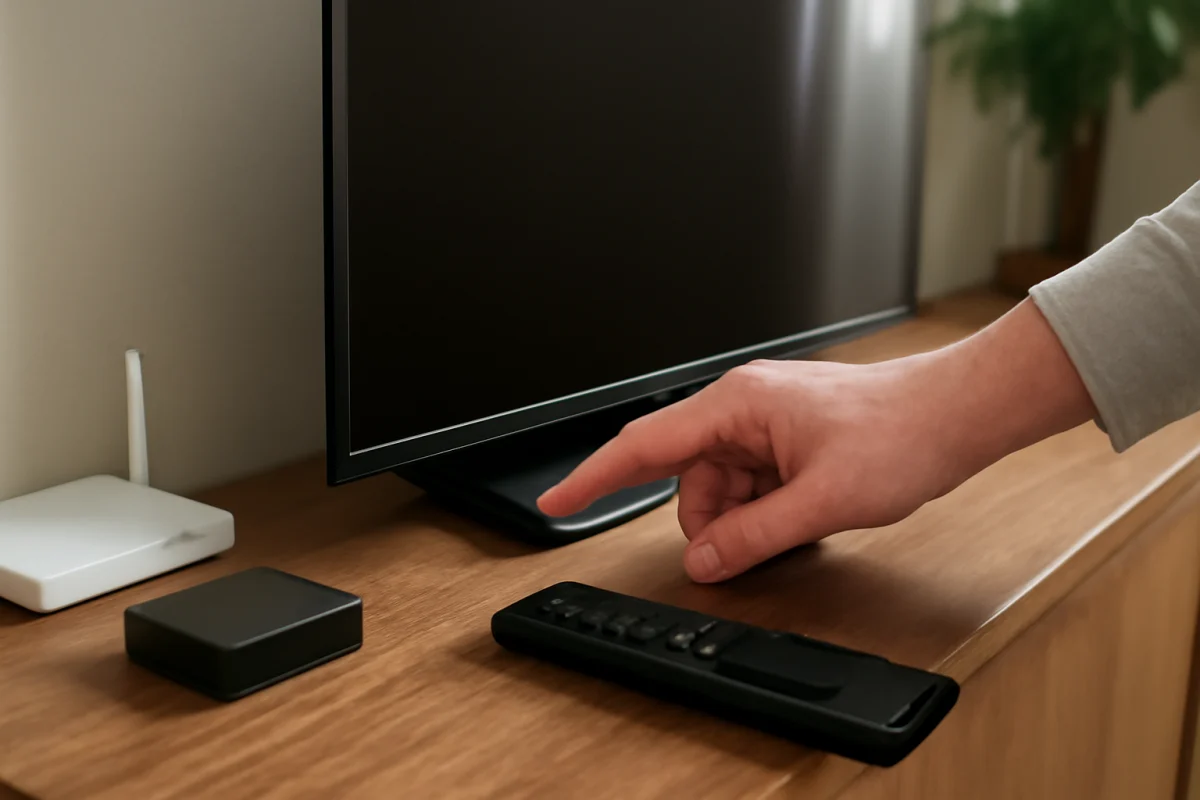
If your Samsung TV power button is not working, first determine whether the problem is limited to the remote or affects the TV itself. Try the physical control on the television, check the power connection, and perform a simple power reset before considering repairs. The exact button location and menu options can vary by Samsung TV model, but the troubleshooting process below applies to most sets.
Check whether the problem is the remote or the TV
Samsung TVs usually have a physical control somewhere on the television. Depending on the model, it may be beneath the Samsung logo, on the lower edge, on the back, or near one of the side edges. Some models use a small control button or a joystick-style button rather than a clearly labeled power key.
Press the TV's physical control once. If the TV turns on, displays a menu, or responds in any way, the television is receiving the command and the remote is the more likely problem. If there is no response, continue with the power and connection checks below.
Do not press the button repeatedly or force it. A control that feels loose, stuck, or unusually difficult to press may be physically damaged. In that situation, repeated pressure can make the problem worse.
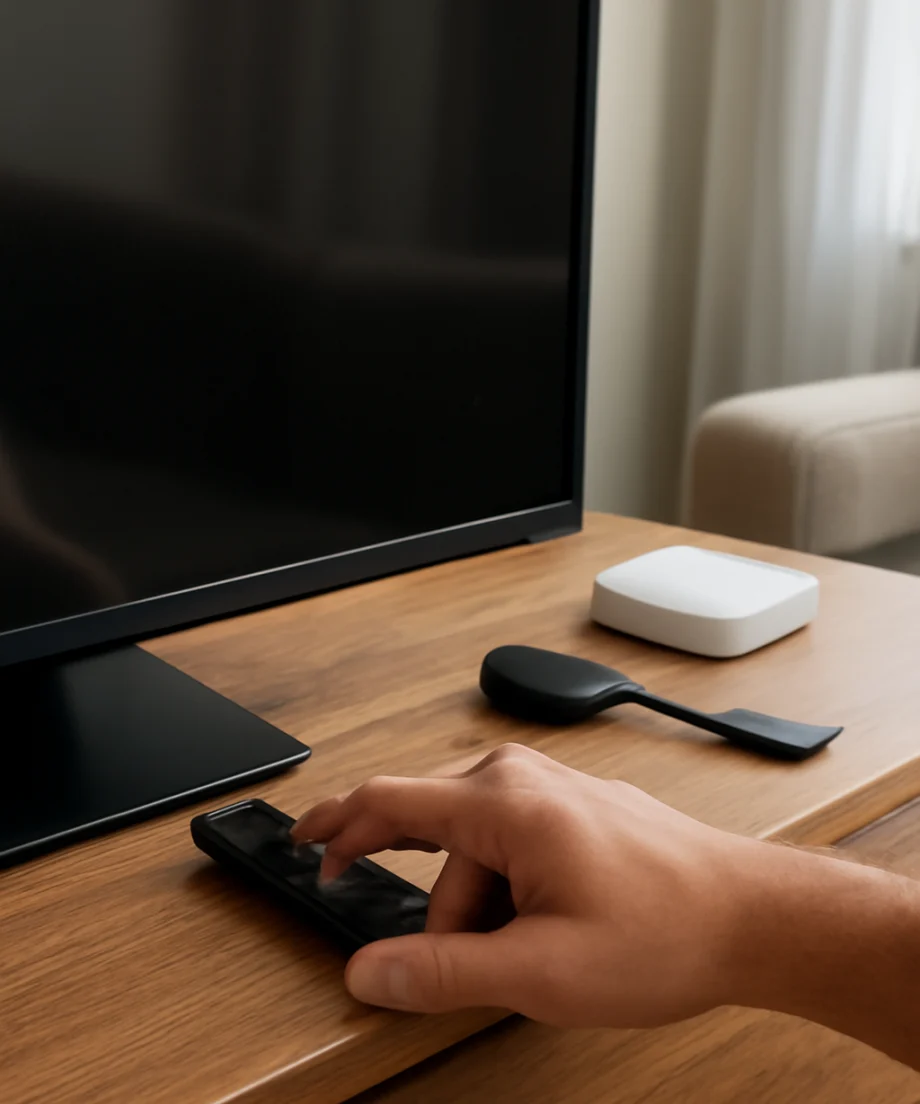
Confirm that the TV is receiving power
Look for the standby light. Its location and behavior differ by model, and some Samsung TVs allow the light to be disabled. Still, the light can provide a useful clue:
- A visible standby light usually means the TV is receiving at least some power.
- No light may indicate a power connection problem, a disabled indicator, or an internal fault.
- A light that flashes or changes when you press a button may show that the TV detects the command even if the screen does not turn on.
Check both ends of the power cord. Make sure the cord is firmly connected to the TV if it is detachable and securely plugged into the wall or power strip. Avoid testing the TV through a questionable extension cord, surge protector, or smart plug. Connect it directly to a known-working wall outlet for a short test.
Test the outlet with another device, such as a lamp or phone charger. If the other device also fails, the TV may not be the cause. Check whether a wall switch, tripped breaker, or switched power strip is preventing power from reaching the outlet.
Perform a safe power reset
A temporary control or standby problem can prevent a Samsung TV from responding normally. A power reset is a low-risk step that does not require changing settings.
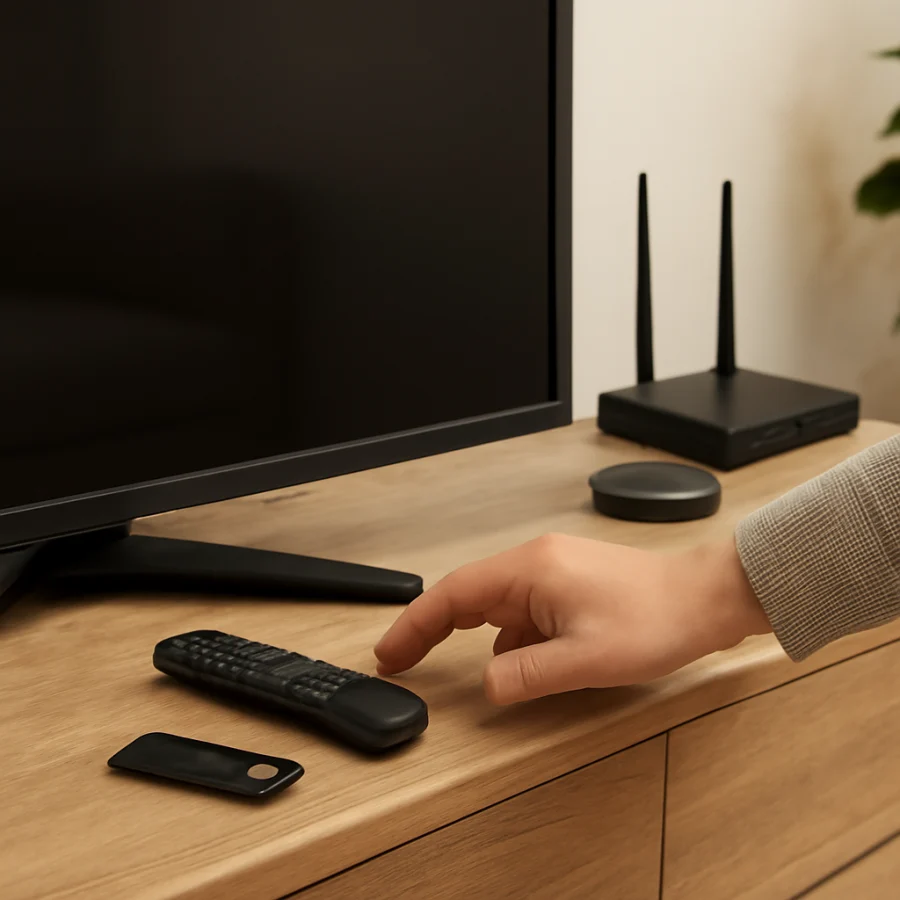
- Unplug the TV from the wall outlet.
- Leave it unplugged for at least 60 seconds.
- While it is unplugged, press and hold the TV's physical power control for about 10 to 15 seconds if the button is accessible.
- Release the control, reconnect the TV directly to the wall outlet, and try turning it on.
If your model has a removable power cord, reconnect it firmly at both ends before testing. Do not open the back of the TV or attempt to discharge internal components. Televisions contain areas that can retain dangerous electrical energy even after being unplugged.
Test the Samsung remote
If the physical TV control works but the remote does not, inspect the remote before assuming the TV is defective. Replace the batteries with a fresh matching pair, checking the positive and negative symbols inside the battery compartment. Remove any protective shipping tab if the remote is new.
Check the battery contacts for dirt, corrosion, or a contact that has been pushed down. If you see leakage or corrosion, avoid touching it with bare hands and replace the remote if cleaning does not restore reliable operation. Make sure no object is blocking the front of the TV, although many Samsung smart remotes communicate wirelessly after pairing.
Try several remote buttons, not just Power. If volume, navigation, or another command works, the power button itself may be worn or damaged. If no button works, the remote may need new batteries, pairing, or replacement.
For compatible Samsung smart remotes, pairing steps can vary by model and remote generation. Keep the remote close to the TV and follow the instructions supplied with that remote or shown in your model's manual. If the remote will not pair, see our guide to reconnecting a Samsung TV remote.
Use a phone camera to check an infrared remote
Some remotes send infrared signals that are invisible to the human eye. You can perform a basic test with many phone cameras:
- Open the camera app on your phone.
- Point the front of the remote toward the camera lens.
- Press the Power button while watching the phone screen.
If the remote uses infrared, you may see a small flashing light on the phone display. This test is not definitive because some phone cameras filter infrared and many newer smart remotes use wireless communication instead. A failed camera test does not automatically prove that the remote is defective.
Remove connected devices temporarily
A connected HDMI device, USB accessory, receiver, or control system can occasionally interfere with startup or send unexpected commands. Unplug all external devices from the TV, including streaming players, game consoles, soundbars, cable boxes, and USB drives. Leave only the TV's power cord connected, then try the physical control and the remote.
If the TV turns on after accessories are removed, reconnect the devices one at a time. The last device connected before the problem returns may be involved. HDMI control features can also allow another device to turn the TV on or off, but the name and location of that setting depend on the Samsung model and connected equipment.
Check for a screen problem instead of a power problem
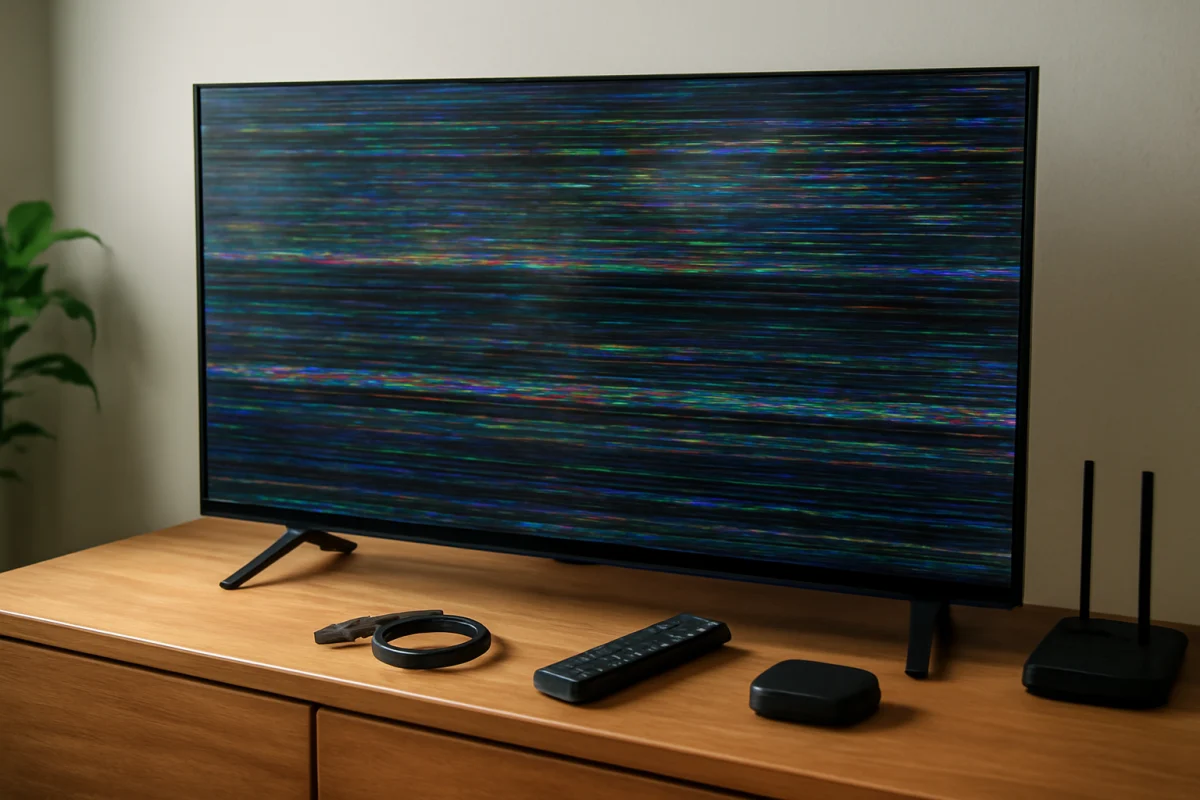
Sometimes the TV powers on but appears not to respond because the display is dark. Listen for startup sounds, check whether the standby light changes, and press the volume button. If you hear sound or see a brief flash from the screen, the TV may be operating while the display has a separate fault.
Shine a flashlight at the screen from an angle in a dim room while the TV is on. If you can faintly see menus or an image, the backlight may be involved. Do not press on the panel or remove the rear cover. For related symptoms, read our guide to a Samsung TV screen that is dark but still producing sound.
When a factory reset may help
A factory reset is not the first choice when the power button does not work. It erases personal settings, installed apps, account information, and network details, and it may not be possible if the TV cannot be controlled. Consider it only when the TV turns on and responds to controls but behaves incorrectly after the simpler steps have been completed.
The reset path and wording vary by Samsung TV model and software version. Use the on-screen support or settings instructions for your exact model rather than selecting options at random. If you cannot navigate the menus, do not repeatedly attempt button combinations found for a different model.
Signs that the TV needs service
Arrange professional service or contact Samsung support when the TV remains completely unresponsive after testing a known-working outlet and completing the power reset. Service is also appropriate if:
- The physical power control is broken, stuck, or detached.
- The power cord or connector is visibly damaged.
- The TV repeatedly clicks, shuts down, or cycles on and off.
- The standby light behaves abnormally and the TV does not start.
- There is a burning smell, smoke, sparking, liquid damage, or visible scorching.
- The TV turns on only after repeated attempts or loses power when moved.
Unplug the TV immediately if you notice smoke, sparks, a burning odor, or liquid entering the set. Do not continue testing it. Never open the television unless you are trained and equipped to work safely with high-voltage electronics.
What to have ready before requesting help
Write down the TV's model number, whether the standby light is visible, whether the physical control responds, and what happened during the power reset. Note whether the problem began after a power outage, a surge, liquid exposure, or connecting another device. Photos of a damaged cord or button can also help a technician understand the issue.
If the remote is the only part that fails, replacing or repairing the remote is usually more practical than servicing the television. If neither the remote nor the physical control works, focus on the outlet, cord, power reset, and signs of internal damage before changing settings. You can find more troubleshooting guides in the Samsung TV section of TV Fix Guide.
Comments
0No comments yet. Be the first to share a helpful note or question.
Leave a Comment
Your email address will not be published. Comments are reviewed before appearing on the site.