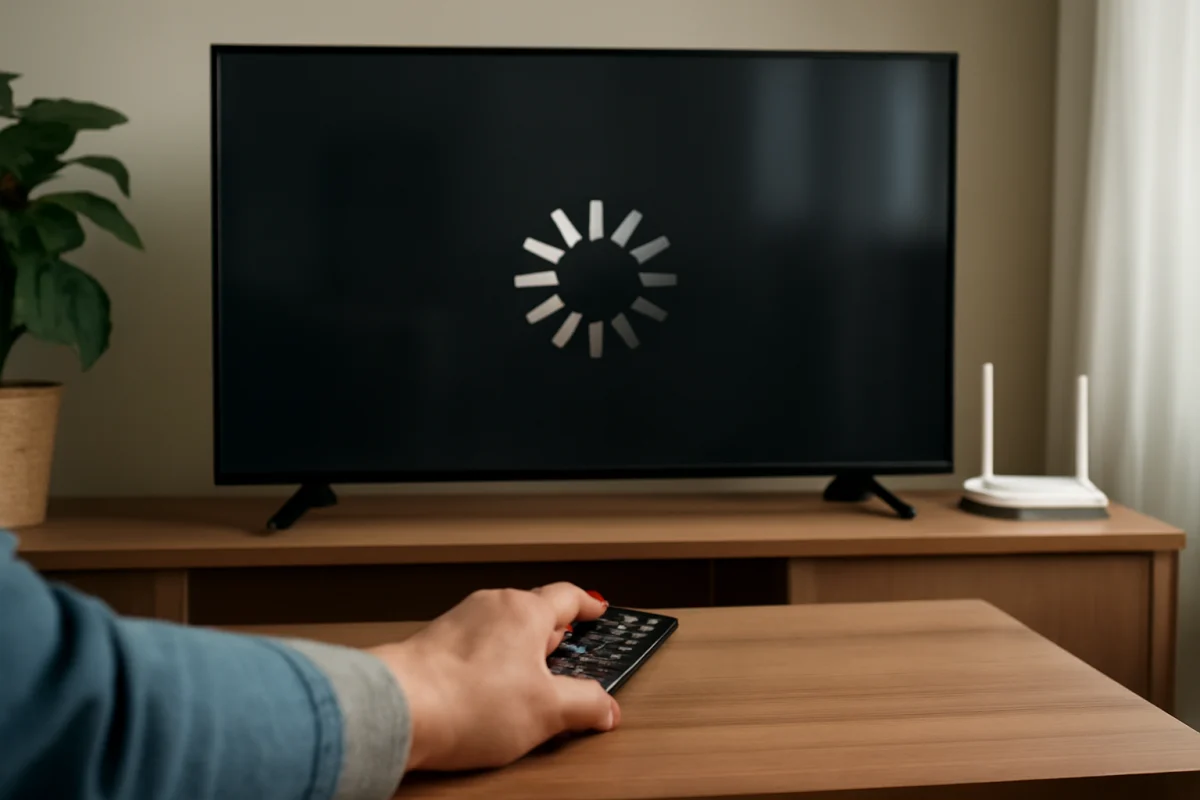
If the picture on your LG TV keeps freezing during streaming, start by checking whether the problem affects one app or everything you watch. A freeze in only one app usually points to that app or its service. If Netflix, YouTube, live TV apps, and other services all pause or become blocky, the more likely causes are an unstable Wi-Fi connection, router congestion, outdated software, or a problem with the TV itself.
Before changing advanced settings or resetting the television, pause the stream, wait briefly, and try a different title. Then test another app. These simple checks can show whether the problem is connected to the content, the streaming service, the network, or the LG TV.
Check whether one app or every app freezes
Open a second streaming app and play a different video for several minutes. If only one service freezes, close that app completely and open it again. You can also try another title in the same app because a single program may have a temporary playback or server issue.
If multiple apps freeze at approximately the same time, focus first on the connection and the TV. If the problem happens only during live programming, the service may be experiencing a delivery issue, or your connection may not be keeping up with changing network conditions. On-demand video can sometimes play normally even when live streams struggle.
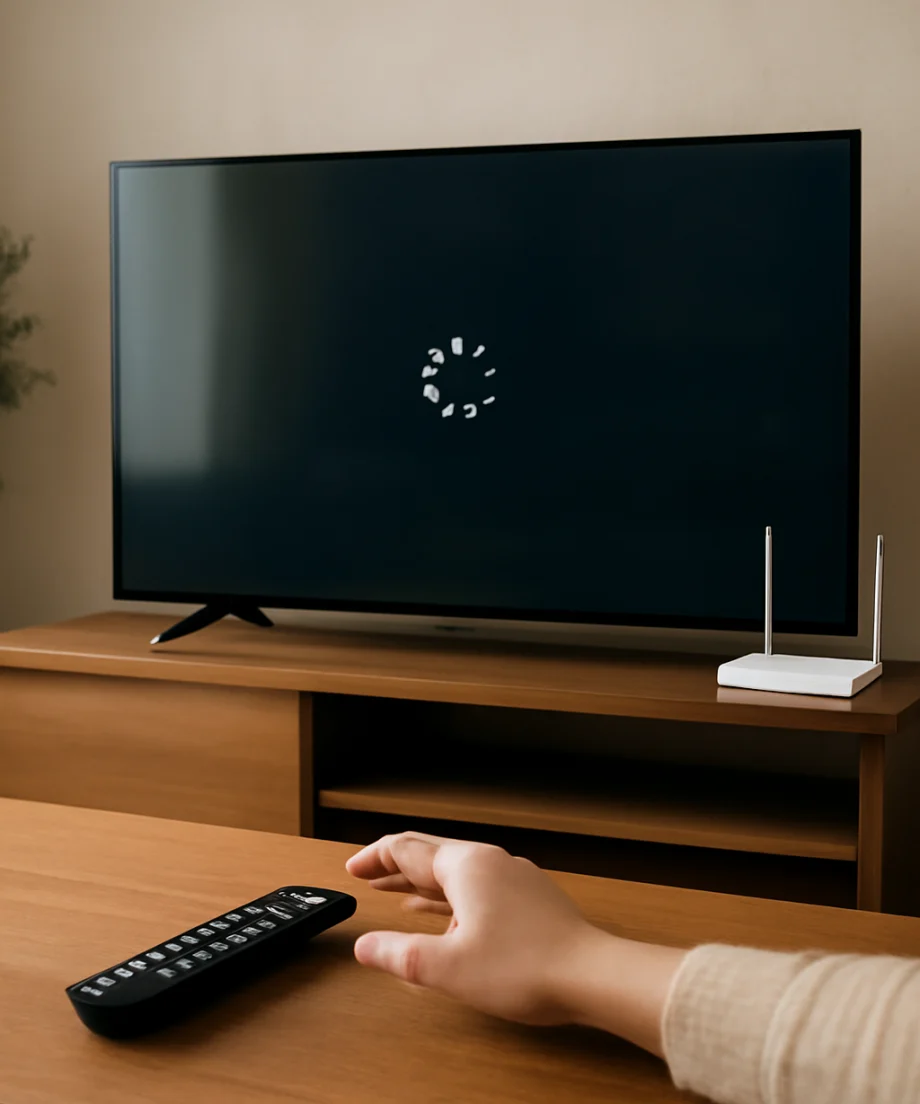
It is also useful to test the same service on a phone or computer connected to the same home network. If playback freezes on several devices, the TV is probably not the only cause. For more app-specific troubleshooting, see the Streaming Apps troubleshooting guide.
Restart the LG TV and streaming equipment
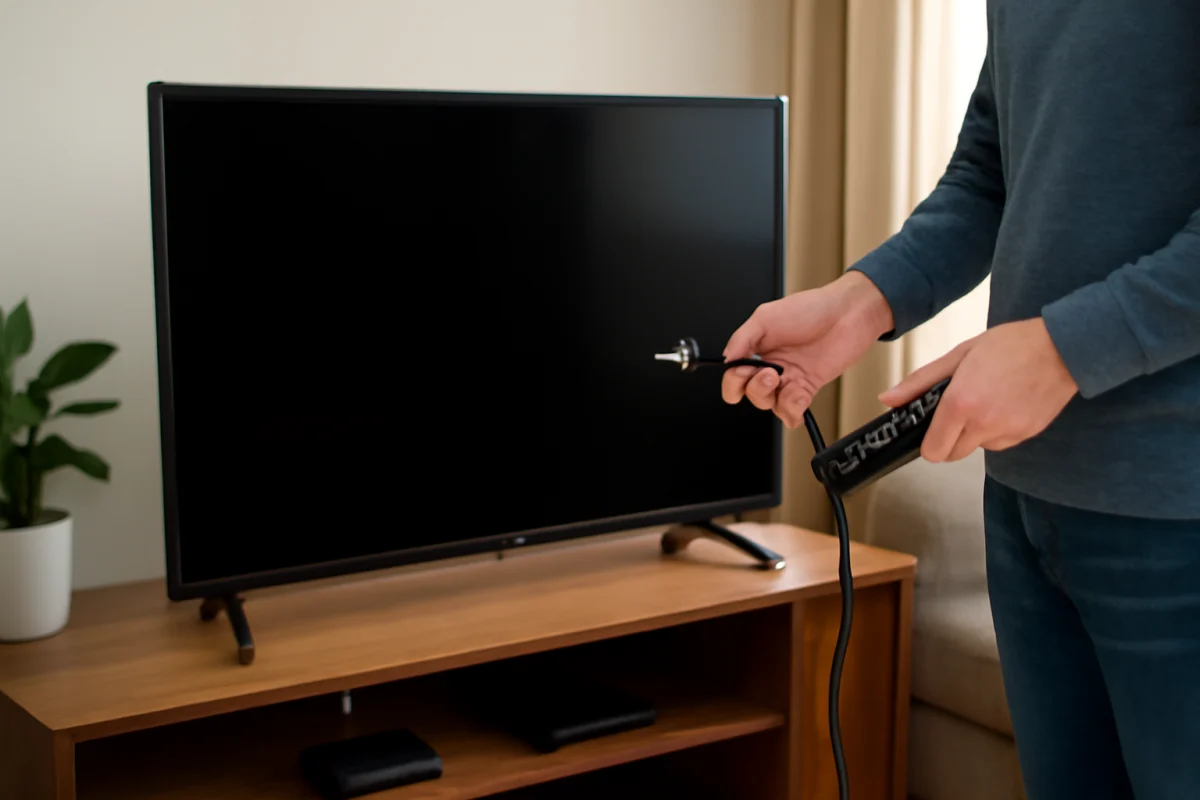
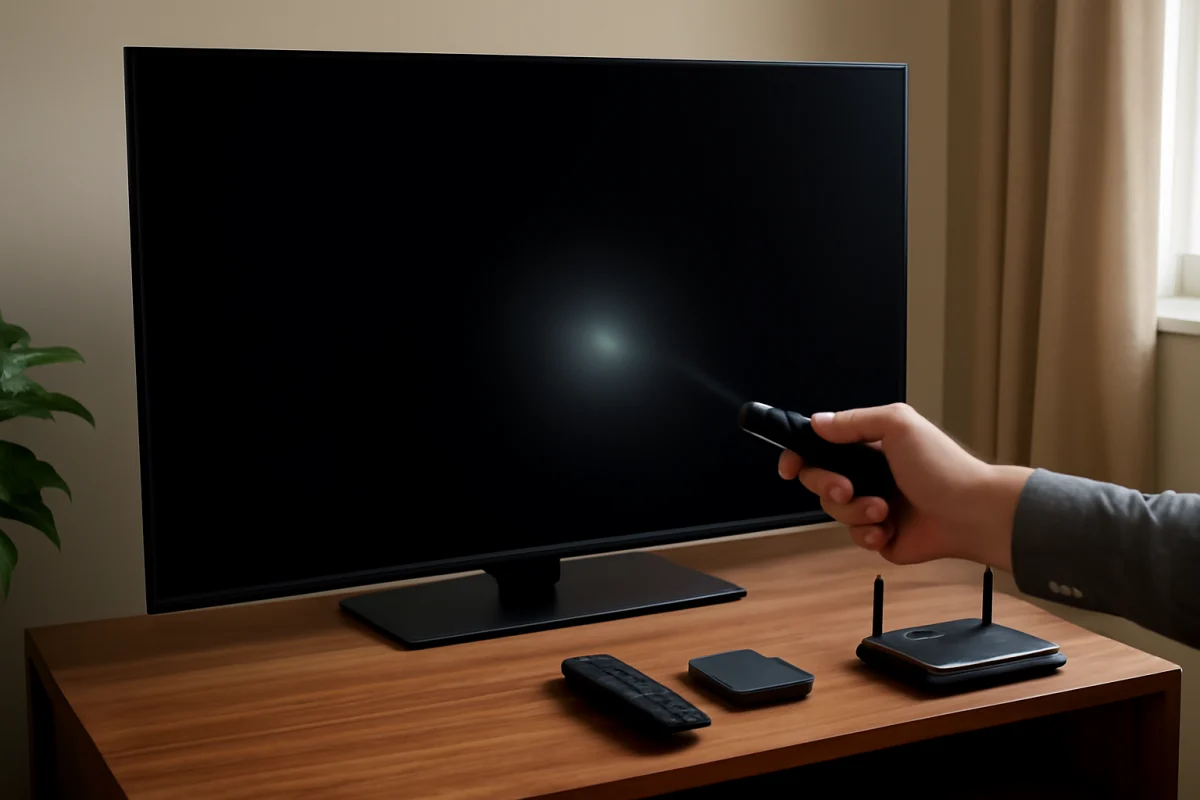
A regular power-off may not fully clear a temporary software or network problem. Turn off the LG TV with its remote, unplug it from the wall, and leave it disconnected for about one minute. While the TV is unplugged, restart your modem and router as well. If your network equipment has separate power units, reconnect the modem first and wait for it to settle before reconnecting the router.
Once the home network is available again, plug in the TV, turn it on, and test streaming. This process can clear a stuck network session and refresh the TV's connection without deleting apps, accounts, or picture settings.
If the TV is connected through a surge protector or power strip, temporarily connect it directly to a wall outlet for testing, if that is safe and practical. A failing strip or loose connection can cause intermittent behavior, although it is less common than a network or app problem.
Test the Wi-Fi connection
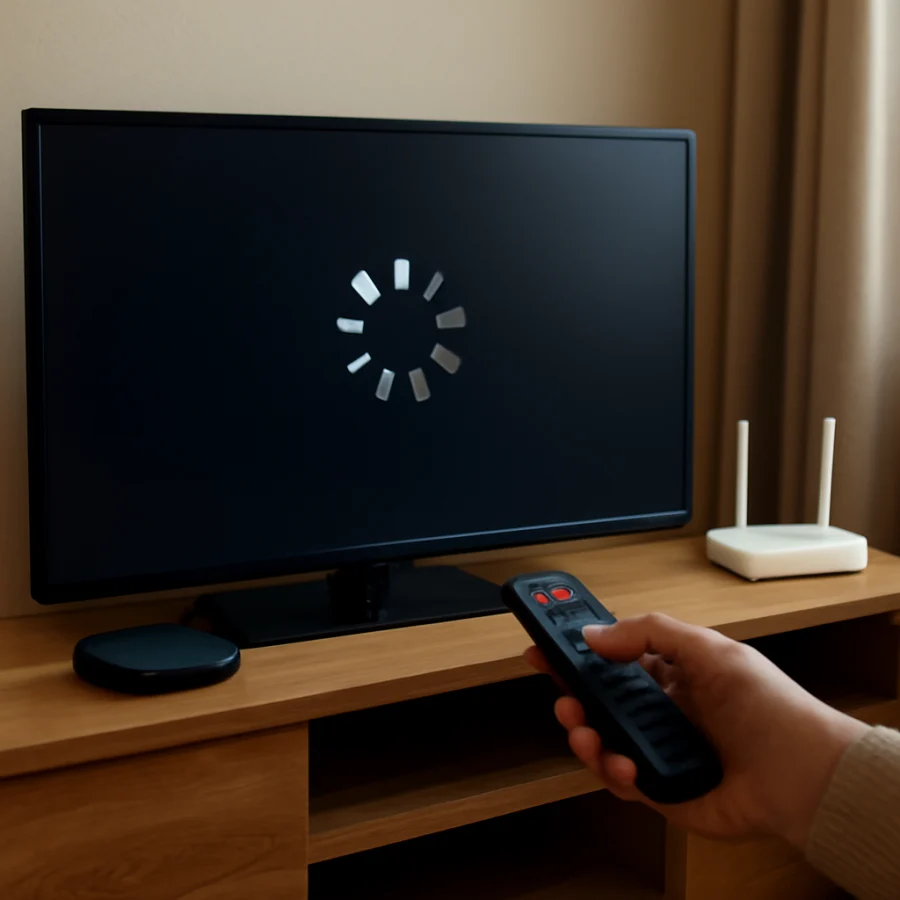
Freezing often happens when the TV remains connected to Wi-Fi but the connection becomes too slow or inconsistent for video playback. Move the router closer to the TV if possible, or remove large objects and electronic equipment that may be blocking the signal. The ideal placement depends on your home, so use this as a test rather than a permanent rule.
Pause downloads, game updates, cloud backups, and other high-bandwidth activity on the network. Multiple video streams, security cameras, and large downloads can compete with the TV, especially during busy periods.
If your router offers more than one Wi-Fi network, test the TV on the other available band. The best option depends on distance, walls, router placement, and network congestion. A higher-frequency band may be faster nearby but weaker through walls, while a lower-frequency band may reach farther but be more crowded.
When possible, connect the LG TV to the router with an Ethernet cable for a short test. A stable wired connection is one of the quickest ways to separate a Wi-Fi problem from a TV or app problem. If streaming becomes smooth over Ethernet, improve the wireless setup rather than resetting the television. More connection checks are available in the Wi-Fi and network troubleshooting section.
Check whether the stream is buffering or the TV is actually freezing
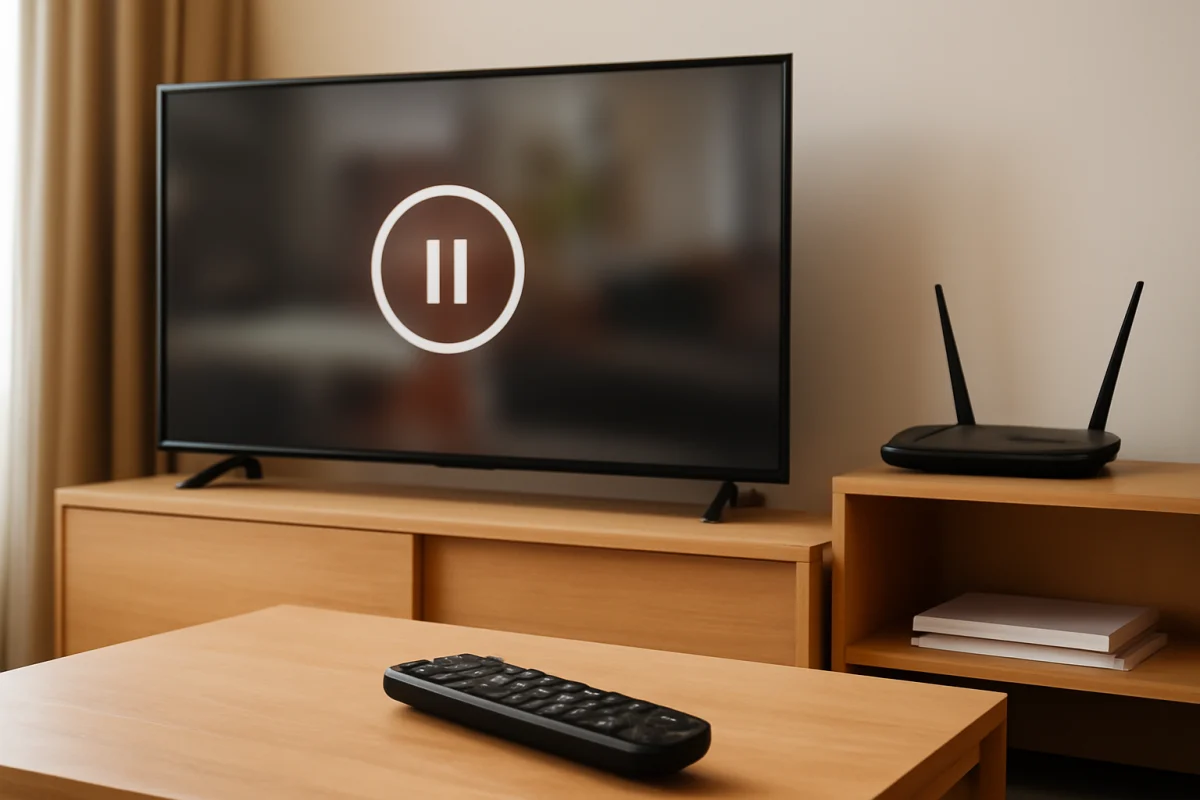
These symptoms can look similar but point to different causes. During buffering, the video may pause while menus and the remote continue to respond normally. The app may show a loading symbol or resume after a short wait. This usually suggests a network, service, or app problem.
If the video, audio, menus, and remote all stop responding, the TV or app may be stuck. Press a few remote buttons once and wait rather than repeatedly pressing them. Repeated commands can make the TV appear more delayed after it begins responding again.
Also notice what happens when you return to the LG home screen. If the home screen works normally while one app is frozen, close and restart that app. If the entire interface remains slow or unresponsive, continue with a full power cycle and software checks.
Close and update the affected streaming app
Exit the app and reopen it. On LG TVs, the exact method for closing, removing, updating, or reinstalling an app can vary by webOS version and model. Look for the app management or settings area shown on your TV, but do not assume that every LG television uses the same menu wording.
If an update is available, install it and test playback again. An app can freeze because of damaged temporary data, a failed update, or a compatibility issue with the current TV software. If the app allows you to sign out, signing out and back in may refresh the account session, but keep your login information available before doing this.
Reinstalling the app is a reasonable next step when only that app continues to freeze. It may remove downloaded data and require you to sign in again. Do not reinstall every app at once; testing one affected service at a time makes the cause easier to identify. If apps generally fail to open rather than merely freeze during playback, see what to do when apps will not open on an LG TV.
Check the LG TV software and automatic settings
LG models and webOS versions do not all show the same settings, so use the software update option available on your particular TV. If the TV reports that an update is available, install it when the connection is stable and allow the process to finish. Do not disconnect the TV during an update.
Review any automatic power-saving, quick-start, or network-related options only if the basic steps have not helped. These settings may be named differently by model and region. A feature that keeps the TV partially active can occasionally preserve a faulty app or network session, while a power-saving setting may affect behavior on some models. Change one setting at a time and test after each change so you know what made a difference.
Try a different connection or streaming device
Connect the TV temporarily to a phone hotspot only if your mobile plan and signal can support the test. You do not need to watch an entire movie; several minutes of the same type of video may be enough. If playback is smooth through the hotspot but freezes on home Wi-Fi, investigate the router, internet service, or wireless signal.
You can also test a streaming stick, game console, or other external player on the same TV. If the external device streams smoothly while the LG TV apps freeze, the TV's built-in app environment may be the problem. If both the built-in apps and external device freeze, the network or streaming service becomes more likely.
When an external player is involved, check its HDMI connection as well. A loose cable usually causes a missing picture, flickering, or a signal message rather than ordinary buffering, but it is still worth reseating the cable. For related HDMI symptoms, use this guide to fix an LG TV HDMI port that says no signal.
When to consider a network provider or service issue
Contact your internet provider or check its service status when several devices freeze, speed changes dramatically during the day, or the connection drops during other activities. A speed test on a phone or computer can provide useful information, but it may not represent the TV's actual Wi-Fi performance. Run the test near the TV and repeat it at different times if the problem is intermittent.
Streaming services can also have temporary outages or problems with particular live events. Search the service's official help or status page using another device. Avoid changing TV settings repeatedly when many users are reporting the same playback problem.
Use a factory reset only as a last resort
A factory reset can remove corrupted settings, but it also erases saved network information, app sign-ins, preferences, and other personal settings. It should not be the first response to occasional buffering. Before using it, confirm that the TV software is current, the network has been tested, affected apps have been restarted or reinstalled, and the issue is not limited to a known service problem.
The reset procedure and menu names vary by LG model and software version. Follow the instructions displayed on the TV and make sure you know your Wi-Fi password and streaming account credentials first. If the picture continues freezing after a reset, especially when the TV is wired to the router and multiple apps are affected, arrange professional support. Persistent freezing together with widespread menu lag, unexpected restarts, unusual lines, or other display problems may indicate a hardware issue rather than ordinary buffering.
What the results tell you
The most useful clue is whether the issue follows the app, the network, or the TV. One app freezing points toward that app or its service. Several apps freezing only over Wi-Fi points toward the wireless connection or router. Freezing on multiple devices suggests the home network or internet provider. Freezing that continues on a wired connection, across several apps, and after a proper restart may require LG or professional assistance.
Work through the checks in that order, starting with the least disruptive steps. In many cases, restarting the network, improving the Wi-Fi path, or reinstalling one affected app restores smooth streaming without changing the TV's saved settings.
Comments
0No comments yet. Be the first to share a helpful note or question.
Leave a Comment
Your email address will not be published. Comments are reviewed before appearing on the site.