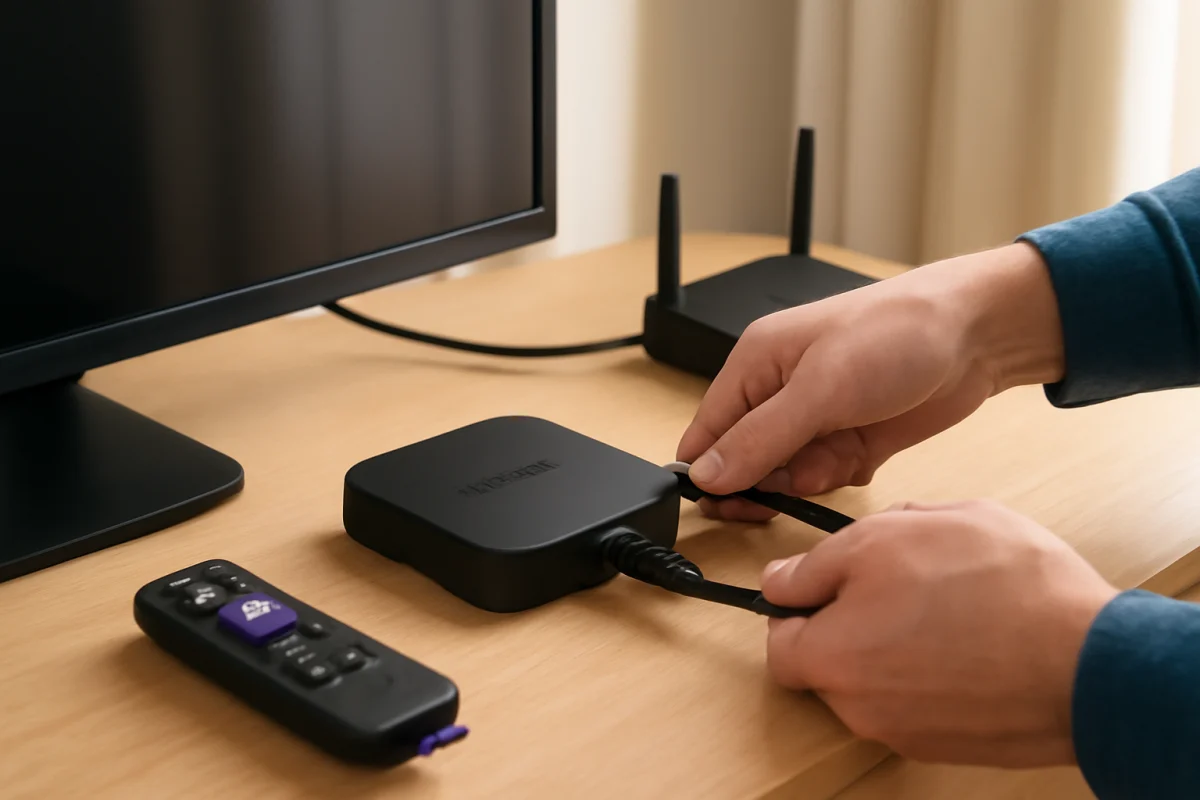
If your Roku keeps showing the logo, going black, and restarting, begin with the power connection and attached devices. Unplug the Roku device or TV, disconnect HDMI accessories, wait at least one minute, and then reconnect it directly to a reliable power source. This simple reset often resolves a temporary software crash or unstable power condition without erasing your settings.
A boot loop can affect a Roku streaming player, Roku Streaming Stick, or Roku TV. The exact menus and reset method can vary by model and manufacturer, so do not assume that instructions for one Roku product apply to another. Work through the steps below in order, starting with checks that do not remove your account, apps, or settings.
What causes a Roku boot loop?
A Roku may repeatedly restart because it is not receiving steady power, an HDMI accessory is interfering with startup, the operating system encountered an error, or the device has a network or storage problem. On a Roku TV, the issue can also involve the television's internal power board, overheating, or another hardware fault.
The timing of the restart provides a useful clue. If the device restarts immediately after the logo appears, power or hardware is more likely. If it reaches the home screen and then reboots when an app opens, software, storage, network activity, or a specific channel may be involved. If the problem began after moving the device, changing cables, or connecting a new accessory, undo that change first.
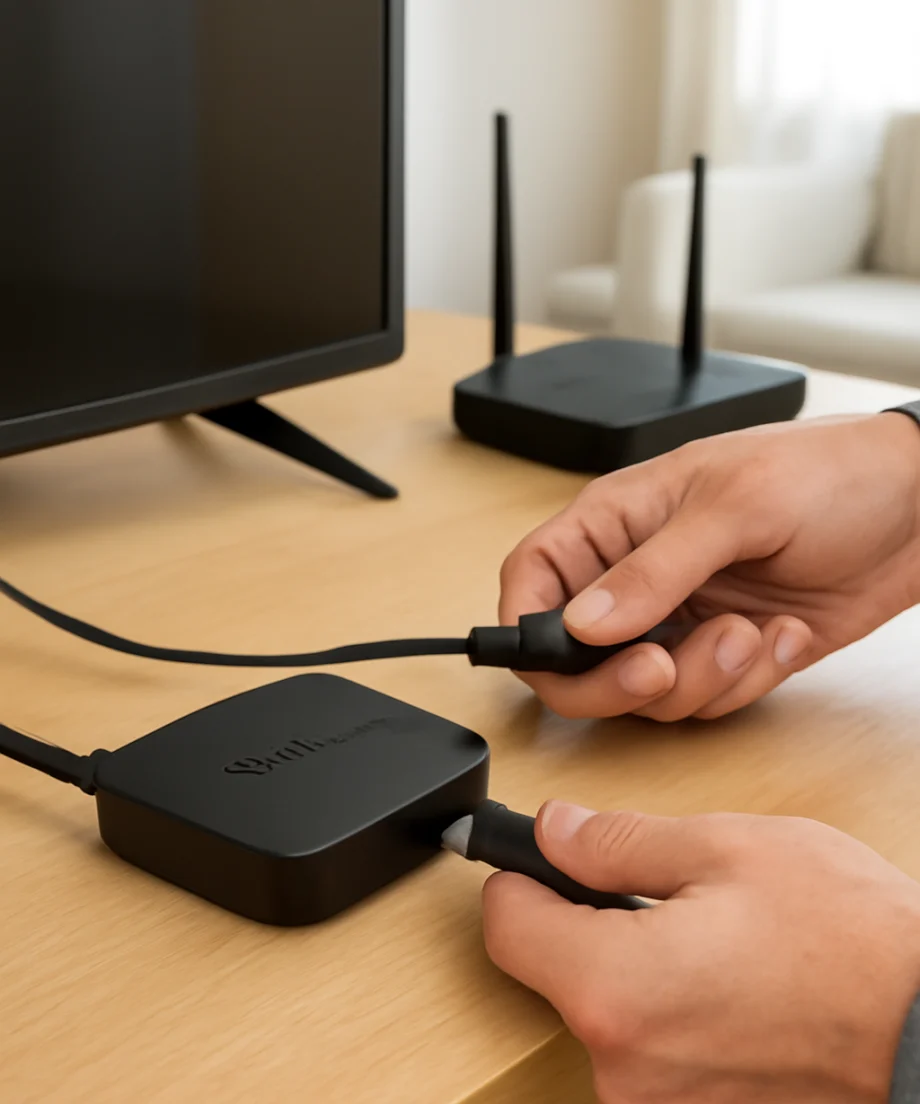
1. Perform a complete power cycle
A normal press of the power button may not fully restart every Roku product. Use a complete power cycle instead:
- Turn off the Roku TV or disconnect the Roku player from the television.
- Unplug the Roku device or TV from the wall outlet.
- Disconnect the power cable from the Roku device if it has a detachable cable.
- Wait at least one minute. If the device feels unusually hot, leave it unplugged longer so it can cool.
- Reconnect the power cable and plug the device directly into a wall outlet.
- Turn it on and watch whether it reaches the home screen.
Do not repeatedly unplug and reconnect the device in rapid succession. A short wait gives the hardware time to discharge and the software a better chance to start cleanly.
2. Check the power source and cable
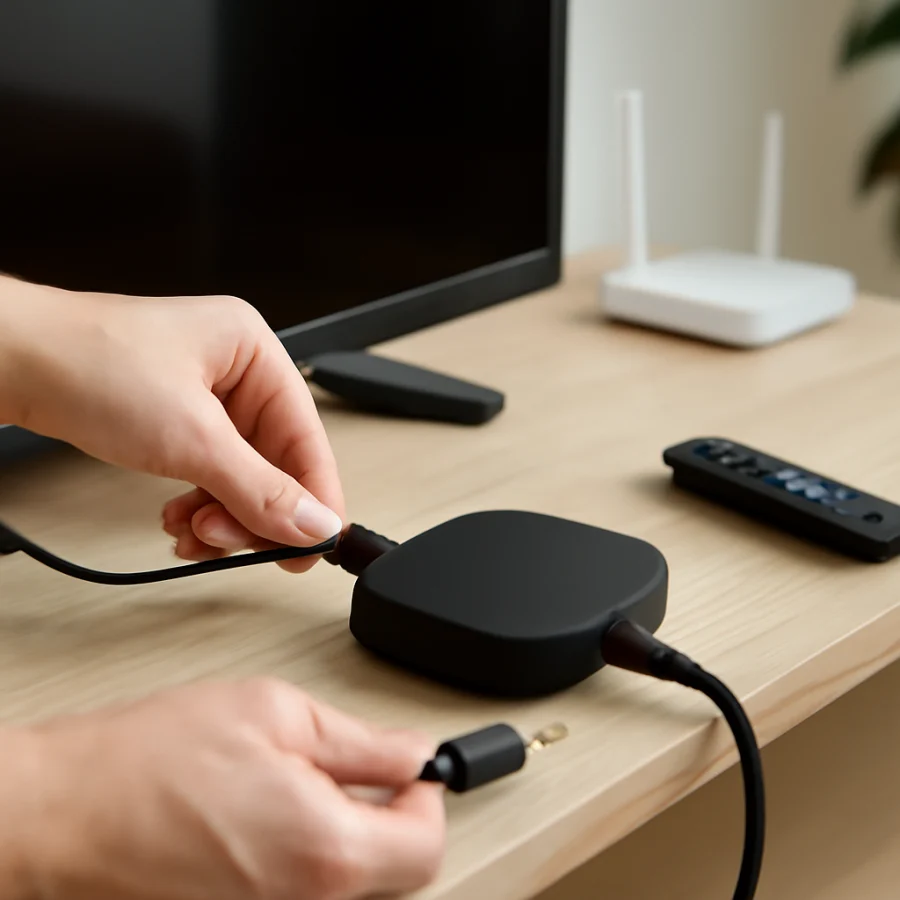
Insufficient or unstable power is a common cause of repeated restarts, especially with Roku streaming sticks and compact streaming players. If your Roku uses a USB power cable, make sure it is connected to the power adapter or USB port recommended for that device. A television's USB port may not provide the same power as a wall adapter, and available power can vary between TV models.
Inspect the cable and connectors for cuts, bent parts, looseness, or signs of heat damage. If you have a compatible replacement cable and power adapter, test them one at a time. Use only equipment with suitable electrical ratings for the Roku device; do not force a connector or use a damaged adapter.
For a Roku TV, plug the television directly into a wall outlet while testing. Temporarily remove a power strip, surge protector, smart plug, or extension cord from the setup. If the TV works normally from another outlet, the original outlet or accessory may be the source of the interruption.
3. Disconnect HDMI devices and accessories
External equipment can interfere with startup through HDMI communication. Turn off the Roku TV or unplug the Roku player, then disconnect soundbars, receivers, game consoles, Blu-ray players, HDMI switches, capture devices, and other accessories. Leave only the Roku and its power connection attached.
Start the device again. If the boot loop stops, reconnect the accessories one at a time. The last device connected before the problem returns is a strong suspect. Try a different HDMI input or cable if appropriate, and check whether the accessory has its own power or standby behavior that could be affecting the TV.
If the Roku reaches the home screen with all HDMI accessories removed, the Roku itself may be working correctly. You can find more guidance about related television power behavior in our article on Roku TV turning on and off by itself.
4. Check for overheating and ventilation problems
Heat can cause a Roku device to freeze or restart. Streaming sticks installed behind a tightly enclosed TV, players placed on top of other electronics, and TVs with blocked vents are more likely to retain heat.
Move a Roku player to a hard, open surface with room around it. Do not cover the device, place it inside a closed cabinet, or position it directly above another heat-producing component. For a Roku TV, make sure furniture, wall mounts, and nearby objects are not blocking the ventilation openings.
After unplugging the device and allowing it to cool, try starting it again. Never use water, compressed liquid, or an improvised cooling method on the device. If the Roku becomes extremely hot, smells burnt, or shows physical damage, stop using it and seek manufacturer or retailer support.
5. Test the network after the Roku starts
A network problem usually does not cause a Roku to reboot continuously before the home screen appears, but it can trigger restarts after startup or when an app loads. If you can reach the home screen, check whether other devices on the same Wi-Fi network have internet access.
Restart your router and modem by unplugging them, waiting briefly, and reconnecting them. Allow the network equipment to finish starting before testing the Roku. If possible, temporarily test the Roku on another network, such as a phone hotspot, to determine whether the original network is involved. Mobile hotspot testing may use cellular data, so monitor data usage and disconnect it afterward.
For detailed troubleshooting, see our guides to Roku connected to Wi-Fi but without internet and Roku network connection failures during setup.
6. Remove a recently added or unstable channel
If the Roku reaches the home screen but restarts when you open one particular channel, that channel may be damaged, outdated, or conflicting with the current software. First, test other apps to see whether the reboot happens everywhere or only in one channel.
If the home screen remains stable long enough, remove the problem channel and restart the Roku. The steps and wording can differ between a Roku player and a Roku TV, but channel removal is generally performed from the home screen by highlighting the channel, opening its available options, and choosing the removal command. Confirm the action only after checking that you know the channel's sign-in information.
Reinstall the channel later if the device becomes stable. If the Roku continues restarting across multiple channels, deleting one app is unlikely to solve the underlying problem. Storage limitations can also affect performance, so review our guide to freeing space on a Roku TV.
7. Check for a software update if the device stays on
When the Roku remains usable for several minutes, check for a system update through the settings area. Menu names and the exact path can vary by Roku product and TV manufacturer, so look for an option related to system updates rather than relying on an exact menu sequence.
Keep the Roku connected to power and the internet during the update. Do not unplug it while software is downloading or installing. A temporary interruption during an update can create additional startup problems.
If the boot loop began immediately after an update, allow the device several minutes to complete startup before interrupting it. Then perform the full power cycle described earlier. If an update repeatedly fails, use our guide to Roku update download and installation problems.
8. Try the reset button only when necessary
If the Roku still loops after checking power, ventilation, HDMI devices, the network, and channels, a factory reset may be the next software-level option. A factory reset removes personal settings, installed channels, network information, and account-related setup from the device. It does not repair a failed power supply or damaged hardware.
Before resetting, make sure you know the email address and password used for the Roku account and any streaming services you will need to sign in again. If the device can reach its menus, use the reset option there. If it cannot, some Roku products have a physical reset button or pinhole, while the location and required press duration vary by model. Check the product's official documentation for the correct procedure instead of holding an unknown button repeatedly.
Do not perform a factory reset if the device is in the middle of a confirmed software update, unless the manufacturer's instructions specifically tell you to do so. If the reset process itself causes a restart loop, disconnect accessories, verify power again, and contact support.
When a Roku boot loop likely indicates hardware failure
Hardware may be the more likely cause when the Roku restarts with no HDMI accessories connected, uses a known-good power setup, remains cool, and loops before the home screen every time. Other warning signs include a burnt smell, visible damage, a loose power port, severe overheating, or a television that cannot remain powered even with external devices removed.
At that point, repeated resets are unlikely to help. Record the model information, describe when the restart occurs, and note which tests you completed. Contact the Roku device manufacturer or the television manufacturer, depending on whether you have a standalone Roku player or a Roku TV. Warranty, repair, and replacement options vary by product, seller, and location, so check the applicable support information rather than assuming a particular policy.
Quick checklist
- Unplug the Roku for at least one minute and reconnect it directly to reliable power.
- Test a compatible power cable, adapter, or wall outlet if available.
- Disconnect all HDMI devices and reconnect them one at a time.
- Improve ventilation and let an overheated device cool down.
- Test the network only after the Roku can reach the home screen.
- Remove a channel only if one app clearly triggers the restart.
- Install updates without interrupting the power or internet connection.
- Use a factory reset only after protecting your account details and exhausting lower-risk steps.
A Roku boot loop that disappears after a power or accessory change is usually a setup-related problem. If it continues before startup under a clean test configuration, focus on the power equipment and hardware rather than repeatedly reinstalling apps.



Comments
0No comments yet. Be the first to share a helpful note or question.
Leave a Comment
Your email address will not be published. Comments are reviewed before appearing on the site.