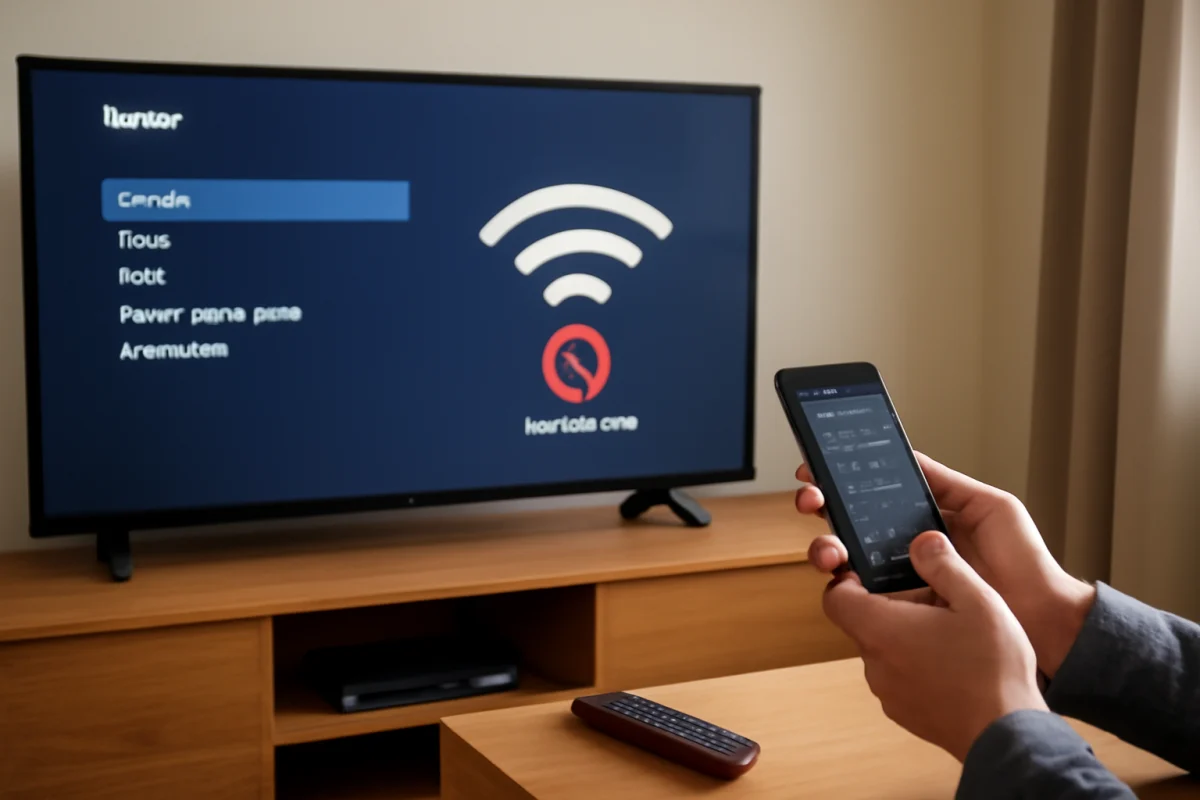
If your Roku TV says it is connected to Wi-Fi but apps will not load, the TV has probably joined your wireless network without getting reliable internet access. Start by checking another device on the same Wi-Fi, then restart the network equipment and Roku TV. If other devices also cannot browse, the issue is likely with the router, modem, or internet service. If only the Roku TV is affected, focus on its network connection, software, signal quality, or DNS-related communication.
Work through the steps below in order. Most connection problems can be resolved without a factory reset, and resetting the TV too early can create extra work by removing saved settings and app sign-ins.
First, confirm whether the internet is down
Use a phone, computer, or another streaming device connected to the same Wi-Fi network. Open a few websites or apps rather than checking only one service. If none of the devices can get online, the Roku TV is not the main problem. Check the modem and router, look for an internet service outage, or contact your provider if the connection remains unavailable.
If other devices work normally but the Roku TV does not, continue with the TV-specific checks. Also test more than one Roku app. A single app may be experiencing an outage or a temporary server problem, while the rest of the TV remains connected.
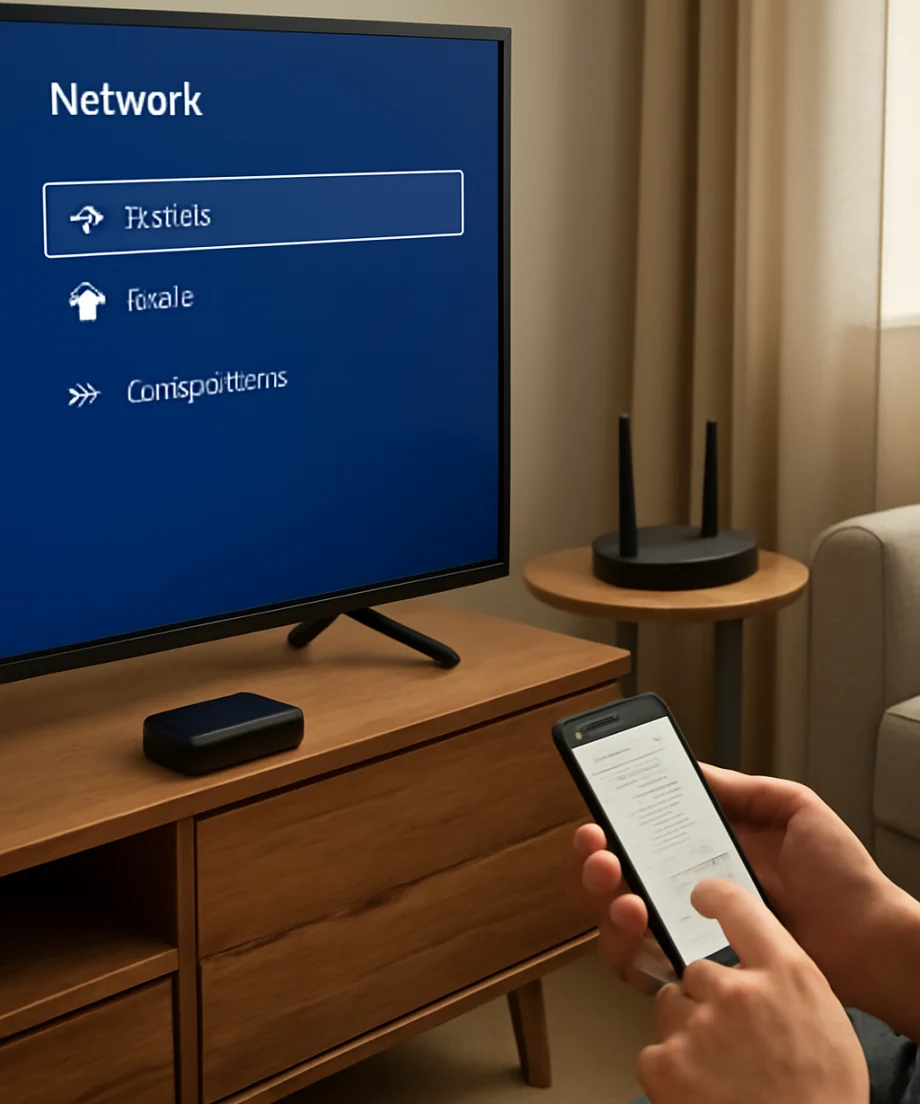
Check the Roku TV's network status
Open the TV's network settings and look for an option such as checking the connection, testing the network, or viewing connection details. The wording and menu path can vary by Roku TV brand and software version. You are looking for more than the Wi-Fi name: check whether the TV reports internet access and whether the signal appears weak or unstable.
Pay attention to these clues:
- Wi-Fi connected but internet unavailable: The TV can communicate with the router, but the router may not be providing working internet access to it.
- Weak signal: Distance, walls, furniture, or interference may be causing dropped communication.
- Connection works briefly and then stops: The network may be unstable, overloaded, or affected by power-saving or router management settings.
- Only one app fails: The app or its service may be the source of the problem rather than your Wi-Fi connection.
Restart the modem, router, and Roku TV
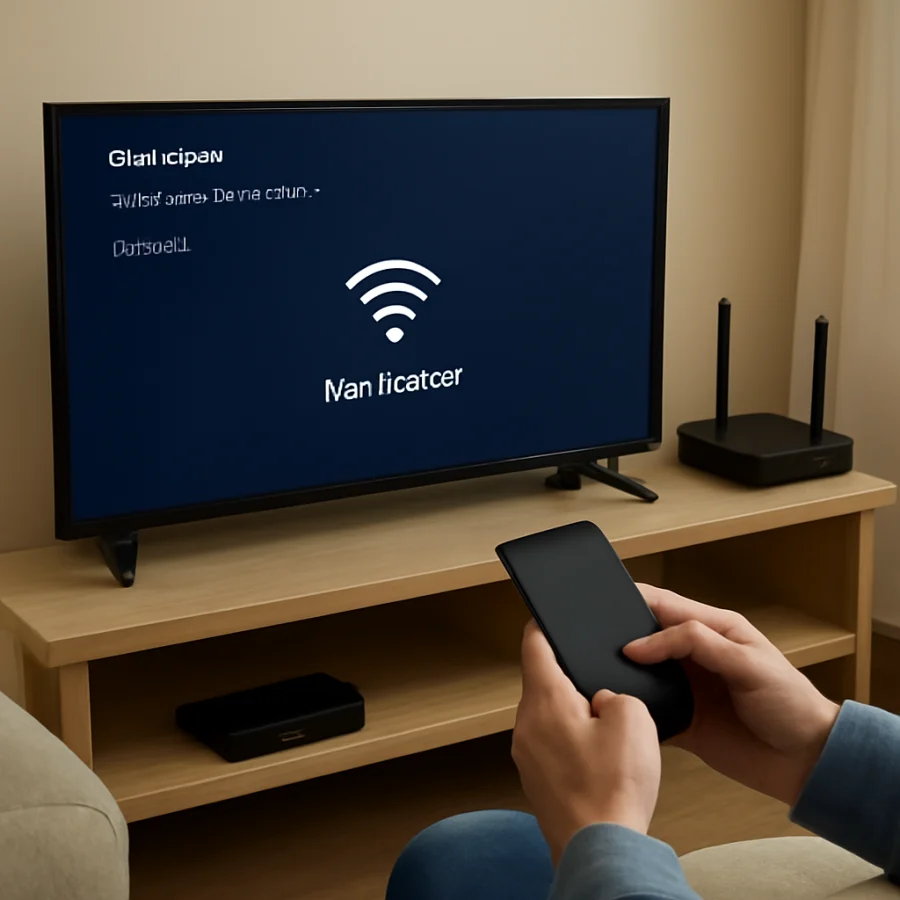
A complete restart is one of the safest and most useful fixes. Turn off the Roku TV and unplug it from power. Then unplug the modem and router, or the single gateway device if your internet equipment combines both functions.
Wait at least a short period before reconnecting the equipment. Plug the modem or gateway back in first and allow its normal connection lights to settle. If you use a separate router, reconnect it after the modem is ready. Give the wireless network time to appear, then turn on the Roku TV and test an app.
Do not repeatedly unplug the equipment while it is starting. The exact startup time varies by provider and hardware. If the modem never returns to its usual connected state, the problem may be with the internet service or the equipment rather than the Roku TV.
Reconnect the Roku TV to Wi-Fi
Removing the saved wireless connection and joining again can clear incorrect network information. In the Roku TV's network settings, choose the option to set up or change the wireless connection. Select your home network, enter the password carefully, and wait for the connection test to finish.
Make sure you select the correct network if your router broadcasts separate names for different bands or guest access. Avoid using a guest network during testing if possible, because guest networks can restrict communication or require an additional sign-in page that a TV may not support.
If the password is rejected, confirm it on another device or check the router's settings. Wi-Fi passwords are case-sensitive, and a small typing error can prevent a stable connection.
Improve the wireless signal
A Roku TV may connect successfully even when the signal is too weak for dependable streaming. If the router is in another room, behind large furniture, inside a cabinet, or near thick walls, move the router or improve the TV's line of communication where practical.
For a quick diagnosis, temporarily move the router closer to the TV or test the TV on a different wireless network, such as a phone hotspot. A hotspot test should be brief because mobile data use may be limited or charged by your carrier. If the Roku TV works on the hotspot but not on your home network, the TV is probably functional and the home router or network configuration needs attention.
If your router supports both a regular network and a higher-frequency band, try the other available network name. One band may provide better range while another may offer better speed nearby. The best choice depends on your router, home layout, and local wireless interference.
Check for router restrictions
Some router settings can allow a device to join Wi-Fi while preventing normal internet access. Look for parental controls, access schedules, device pauses, MAC filtering, security restrictions, or limits on the number of connected devices. Router menus vary widely, so use the manufacturer's documentation if you are unsure what a setting does.
Also check whether the router has reached its device limit or is reporting an error. Disconnecting unused devices can help with a quick test, but do not change advanced security settings permanently unless you understand the effect. If the Roku TV works after a router setting is changed, restore secure settings where possible and identify a less disruptive exception for the TV.
Check the date and time settings
Incorrect date or time information can sometimes interfere with secure connections, app sign-ins, or certificate checks. Open the Roku TV's system or time settings and use automatic time information if that option is available. The exact wording may differ by model. After correcting the setting, restart the TV and test the affected apps again.
Update the Roku TV software
If the TV can reach the update service but streaming apps still fail, check for a system update in the settings. Roku normally handles updates automatically, but a TV that has been offline for a while may need to check manually.
If the TV cannot connect to your home internet at all, an update may not be possible from the normal menu. Do not download random firmware files or follow instructions intended for a different television model. Roku TV software and menu behavior can vary by brand and model, so use the on-screen instructions or official support information for your specific television.
Test whether the problem affects one app
Open several apps that you use regularly. If only one app fails, check whether it needs an update, sign-in, or removal and reinstallation. Some apps also have their own service outages or temporary playback problems.
Before removing an app, make sure you know the account email and password associated with it. Reinstalling an app can require you to sign in again. If every app fails while the TV continues to report a Wi-Fi connection, return to the network and router checks instead of repeatedly reinstalling apps.
Try a wired connection if your setup supports it
Some Roku TV models and home networks support a wired Ethernet connection, while others do not. If your TV has a compatible network port and your router is nearby, connect it with a suitable Ethernet cable and test the connection.
A wired test can help separate wireless interference from a broader internet problem. If Ethernet works but Wi-Fi does not, concentrate on wireless signal strength, router band settings, interference, or the TV's saved wireless profile. If Ethernet also fails, the issue is more likely to involve the router, internet service, account access, or the TV's network software.
When to consider a network reset
If reconnecting to Wi-Fi and restarting the equipment do not help, the TV may offer a network reset option. This is more disruptive than simply reconnecting because it can remove saved wireless information and require you to set up the connection again. Use it only after recording your Wi-Fi password and confirming that the problem is limited to the Roku TV.
The menu name and location can vary. Follow the wording shown on your screen rather than relying on instructions for a different Roku TV model. After the reset, restart the TV if prompted, join the wireless network again, and run the connection test.
Use a factory reset only as a last resort
A factory reset erases personal settings, saved network details, app arrangements, and account sign-ins. It may help with persistent software or configuration problems, but it should not be the first response to a temporary internet outage or weak Wi-Fi signal.
Before using a factory reset, confirm that other devices can access the internet, restart the router and TV, reconnect the TV to Wi-Fi, and try a second network if possible. If the TV fails on multiple working networks, contact Roku or the television brand's support team before resetting. They may be able to identify a known issue or recommend a model-specific procedure.
When the problem is probably not the Roku TV
The issue is more likely to be your network or internet provider when multiple devices lose access, the modem cannot establish its normal connection, or the router repeatedly drops all connected devices. It is also likely to be network-related if the TV works normally on a hotspot but not on your home Wi-Fi.
The TV becomes the more likely source when every other device works, multiple Roku apps fail, reconnecting to Wi-Fi does not help, and the TV cannot get online through another reliable network. In that situation, note what you already tested, including whether a wired connection or hotspot worked, and provide those details to support. For more related troubleshooting, see the Roku troubleshooting guides and Wi-Fi and network tips on TV Fix Guide.
Quick checklist
- Test another device on the same Wi-Fi.
- Try more than one Roku app.
- Restart the modem, router, and Roku TV.
- Reconnect the TV to the correct wireless network.
- Check signal strength and try another network band if available.
- Look for router pauses, access schedules, filters, or device limits.
- Check the TV's date, time, and available software updates.
- Test Ethernet or a temporary hotspot if supported.
- Use a network reset only after simpler steps fail.
- Reserve a factory reset for persistent problems after other networks and support options have been considered.
A Wi-Fi connection indicator only confirms that the Roku TV can communicate with the router. It does not always confirm that the router can reach the internet or that Roku's services can be contacted. Testing the connection one layer at a time—TV, Wi-Fi, router, internet service, and individual apps—usually reveals where the failure is without unnecessarily erasing your settings.



Comments
0No comments yet. Be the first to share a helpful note or question.
Leave a Comment
Your email address will not be published. Comments are reviewed before appearing on the site.