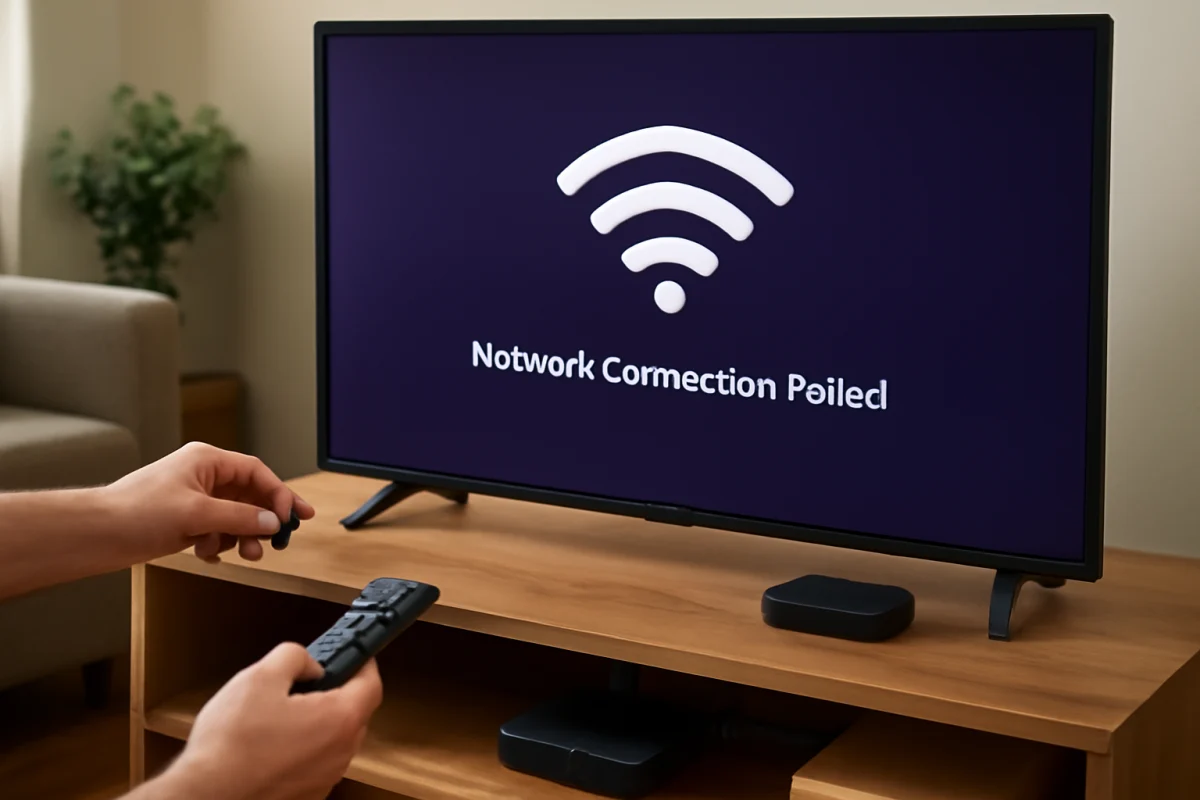
If your Roku TV says “Network connection failed” during setup, the most likely causes are an incorrect Wi-Fi password, a weak or crowded wireless signal, a router that needs attention, or a temporary problem connecting to Roku’s online services. Start by checking the network and the password, then restart the TV and router before trying more advanced steps.
The wording and menu layout can vary by Roku TV brand and model, but the basic troubleshooting process is similar. You usually do not need to reset the television immediately. A careful diagnosis can often identify whether the problem is the TV, the home network, or the internet connection itself.
First, identify where the connection fails
During setup, a Roku TV generally has to complete several separate tasks: find nearby wireless networks, connect to your router, obtain a local network address, and reach the internet. A failure at any of these stages can appear as a general network connection error.
Pay attention to what you see on screen:
- If your Wi-Fi network does not appear, the TV may be too far from the router, the wireless network may be hidden, or the router may not be broadcasting normally.
- If the network appears but the password is rejected, recheck the password and its capitalization.
- If the TV accepts the password but cannot complete the connection, the router or internet service may be the more likely source.
- If other devices also cannot get online, focus on the router or internet service before changing TV settings.
This distinction matters because repeatedly entering the same password will not fix a router outage, and resetting the TV will not repair a weak signal in another room.
Check the Wi-Fi network and password
Begin with the simplest possibility: make sure you are selecting the correct wireless network. Many homes have similarly named networks, separate guest networks, or both a standard and a higher-frequency network. If you recently replaced your router or changed internet providers, the saved network name may no longer be valid.
Enter the Wi-Fi password slowly. Passwords are case-sensitive, and a single extra character can cause the connection to fail. Use the on-screen keyboard carefully, especially when switching between letters, numbers, and symbols. If your phone or computer is already connected, you can check the saved Wi-Fi details on that device, but avoid sharing the password publicly.
Some routers use a button or app to display or change network credentials. If you cannot confirm the password, check the label supplied with the router or contact the person who manages the home network. Do not change router security settings just to make the TV connect unless you understand the effect on every device in the home.
Move the TV closer to the router temporarily
A Roku TV may detect a network even when the signal is too weak for a reliable setup connection. Walls, floors, cabinets, metal objects, and other electronics can reduce wireless performance. This is especially common when the router is in a basement, enclosed cabinet, or room separated from the TV by several walls.
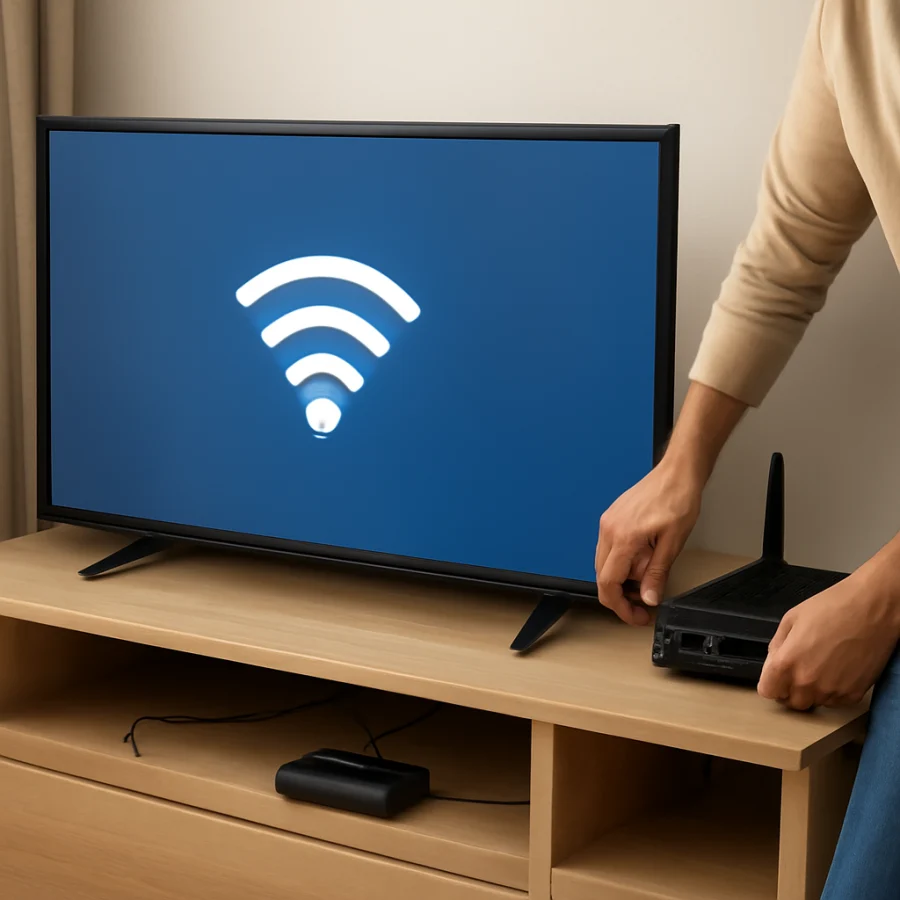
If possible, move the router or the TV closer together for the initial setup. You only need to do this as a test; the final placement can be adjusted later. Keep the router in an open, elevated location rather than behind the television or inside furniture. If the TV connects when it is closer, the original problem was probably signal strength or interference.
A Wi-Fi extender or mesh system can help with coverage, but do not add one before testing the basic connection. An improperly placed extender can create another weak link or make it harder to determine which network the TV should use.
Test another device on the same network
Use a phone, tablet, or computer in the same room to test the Wi-Fi. Make sure that device is connected to the same network you selected on the Roku TV, not mobile data or a different access point.
There are two useful results:
- If the other device also cannot browse the internet, the issue is probably with the router, modem, or internet service.
- If the other device works normally but the TV fails, concentrate on the TV’s connection process, signal conditions, compatibility, or a temporary setup problem.
A working phone does not prove that the TV has a strong enough signal, because different devices can have different antenna performance and placement. Still, this test quickly separates a general outage from a TV-specific problem.
Restart the router and Roku TV
A full restart can clear a temporary network or setup process problem. First, turn off the Roku TV and unplug it from power. Then unplug the router and, if you use a separate modem, unplug that as well.
Wait at least a short while before reconnecting the equipment. Plug the modem back in first if you have one, then the router, and allow the network equipment time to finish starting up. The indicator lights may change during this process. Once Wi-Fi is available again, reconnect the TV to power and repeat the setup.
Do not press a small reset button on the router unless you intend to restore its factory settings. A router factory reset can erase the wireless name, password, and other settings. A normal power restart is the safer first step.
Try a different network as a diagnostic test
If you have a phone with a mobile hotspot, you can use it temporarily to determine whether the home network is the source of the problem. This is a diagnostic step, not necessarily a good permanent solution. Hotspot data may be limited, and some mobile plans restrict hotspot use.
Turn on the hotspot and look for it in the Roku TV’s available networks. If the TV connects to the hotspot but not to your home Wi-Fi, the TV’s wireless hardware is less likely to be the main problem. Investigate the home router, its security settings, network name, password, or internet service instead.
If the TV cannot connect to the hotspot either, check the password carefully and keep the devices close together. If multiple networks fail despite correct credentials and a strong signal, continue with the TV-focused steps below.
Look for network compatibility issues
Most current home routers offer settings designed to support a range of devices, but unusual or recently changed configurations can cause trouble during setup. Examples include a guest network with device isolation, access restrictions, filtering based on device addresses, or security settings that older equipment does not handle well.
If someone recently changed the router configuration, ask what was changed. A standard home network is usually the best test. Avoid disabling security permanently. If a router setting must be adjusted, change one setting at a time and restore it if it does not help.
Some routers combine multiple wireless bands under one network name, while others show separate names. If both options are visible, try the other available network. The names and capabilities vary by router and Roku TV model, so there is no single band that is guaranteed to work in every home.
Continue setup with a wired connection if available
Some Roku TV models include an Ethernet port, while others rely only on Wi-Fi. If your TV has a network port and your router is nearby, connect an Ethernet cable temporarily and try setup again. A wired connection removes wireless signal strength and interference from the test.
If Ethernet works, the problem is probably related to Wi-Fi coverage, wireless configuration, or compatibility rather than the TV’s internet connection as a whole. Check the cable connections and avoid using damaged or unusually long cables while troubleshooting.
Check for a temporary service or setup problem
Roku setup requires communication with online services. Even when your home internet appears to be working, a temporary service issue or a problem reaching a particular online endpoint can interrupt activation or setup. These issues often resolve without changes to the TV.
Before performing a factory reset, wait and try the setup again later. You can also check Roku’s official support resources using another device for current service information. If the TV connects to your network but setup repeatedly stops at an online step, note that detail when contacting support.
Use the TV’s network reset option carefully
If the TV previously connected to a different network, saved connection information may be interfering with the new setup. Roku TV menus vary by brand and software version, but many models provide a network reset or option to forget saved networks somewhere in the network settings.
Use that option only if you can find it clearly in the TV’s settings. It will remove saved Wi-Fi details, so you will need to enter the network name and password again. After the reset, restart the TV and try a fresh connection.
If you are still on the initial setup screen and there are no network-management options available, do not force a reset through hidden button combinations. Those procedures vary, and using the wrong one can erase settings without addressing the underlying network problem.
When a factory reset is appropriate
A factory reset should be one of the last steps, not the first response to a failed network connection. It removes personal settings and may require you to repeat activation, sign-ins, picture adjustments, and app setup. It also will not fix an offline router or a Wi-Fi signal that cannot reach the TV.
Consider a factory reset only when:
- The TV fails to connect to several known-good networks.
- The network settings appear corrupted or behave unexpectedly.
- Roku support recommends the reset for your specific model.
- You have recorded the information needed to set up the TV again.
The exact reset path differs between Roku TV brands and models. Use the reset option shown in your TV’s own settings rather than relying on instructions for a different television.
When to contact your internet provider or Roku support
Contact your internet provider if other devices cannot get online, the router repeatedly disconnects, or the service has an outage. Ask the provider to check the connection and router rather than replacing TV settings at random.
Contact the TV manufacturer or Roku support if the TV cannot connect to any reliable network, especially after a restart and a close-range test. Have the TV model, the exact point where setup fails, and the results of your network and hotspot tests ready. Those details help support determine whether the problem is related to the television, the router, or the online setup process.
For more troubleshooting guides, visit the Roku section on TV Fix Guide. You can also browse our Wi-Fi and network troubleshooting guides if other devices are having connection problems.



Comments
0No comments yet. Be the first to share a helpful note or question.
Leave a Comment
Your email address will not be published. Comments are reviewed before appearing on the site.