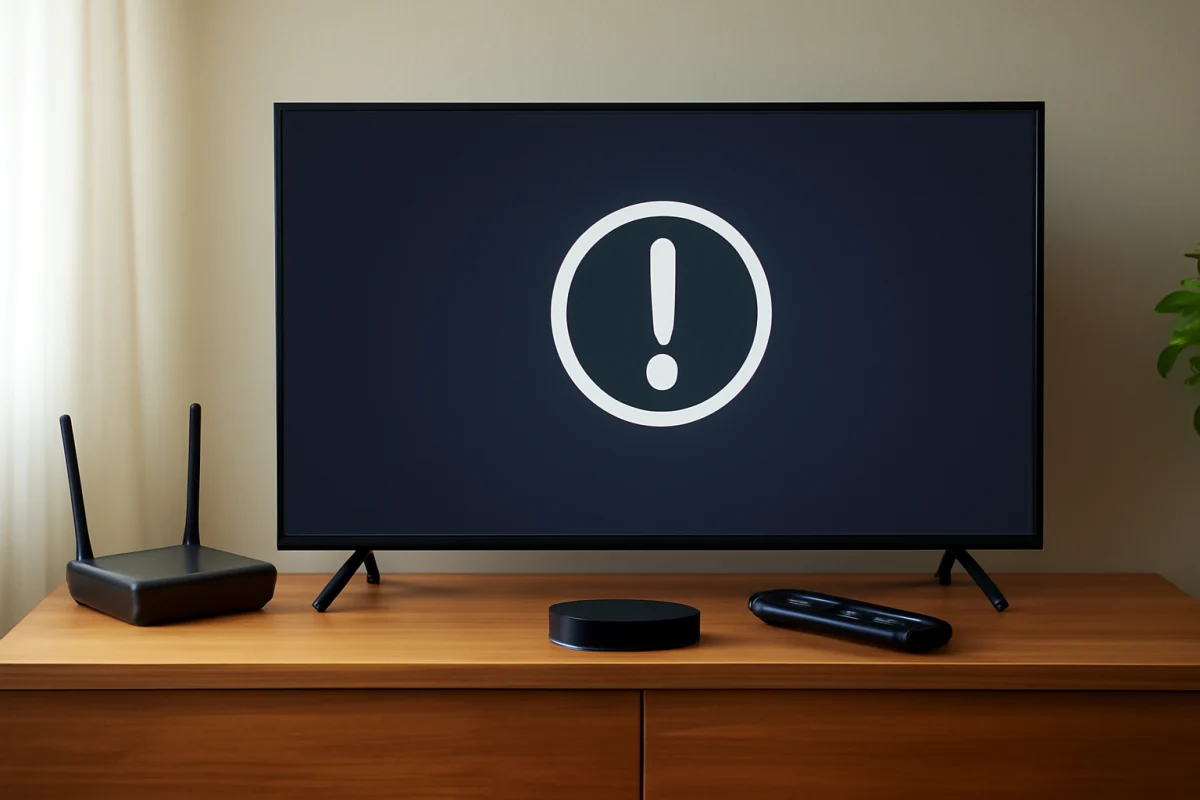
If your Roku TV says an update failed, start by checking the internet connection and restarting the TV. Most update problems come from an interrupted download, an unstable Wi-Fi connection, or a temporary issue with Roku’s update service. Leave the factory reset as a last resort because it removes your apps, accounts, preferences, and network settings.
The menu wording and update options can vary between Roku TV brands and software versions. Use the closest matching option on your screen rather than forcing a step that does not appear on your model.
What a failed Roku TV update usually means
A Roku TV update has two main stages: downloading the software and installing it. The cause of the failure depends partly on which stage stopped working.
- Download problems: The TV cannot maintain a connection to the internet, reach the update service, or save the downloaded files correctly.
- Installation problems: The update downloaded but could not be verified, prepared, or installed after the TV restarted.
- Temporary system problems: The TV or network may be stuck after an earlier failed attempt, power interruption, or incomplete restart.
- Storage-related problems: The TV may not have enough working space to complete the update, although the exact behavior varies by model.
Before trying advanced recovery steps, note whether the TV can open streaming apps and whether other devices in your home have working internet. That distinction helps determine whether the problem is limited to the Roku TV or affects your network.
1. Check whether your internet connection is working
Open a streaming app that normally works on your TV. If several apps fail to load, the update may not be the primary problem. The TV could be disconnected from Wi-Fi, connected to a network without internet access, or receiving a weak signal.
On the Roku TV, open the network settings and look for an option that shows the current connection or lets you test it. The exact menu path can differ by Roku TV manufacturer and software version. If the TV reports a connection problem, reconnect to your Wi-Fi network and enter the password again carefully.
Also test the connection on a phone or computer using the same network. If those devices are offline too, restart the modem and router. Unplug the networking equipment, wait about a minute, reconnect it, and allow several minutes for the connection to return. Then retry the update from the TV.
For more network troubleshooting ideas, see our Wi-Fi and network troubleshooting guides.
2. Improve the TV’s Wi-Fi connection
A TV can appear connected while still having an unreliable connection for a large software download. This is more likely when the TV is far from the router, separated by thick walls, or connected through a crowded wireless network.
Try these low-risk changes:
- Move the router closer to the TV temporarily, if practical.
- Reduce heavy internet use on other devices while the update downloads.
- Disconnect unused devices from the Wi-Fi network for a short time.
- Reconnect the TV to the Wi-Fi network instead of relying on an old saved connection.
- If your router offers more than one wireless network, try the other available band or network name.
Do not assume that a faster internet plan will fix the issue. Update failures are often caused by connection stability rather than the advertised speed. If the TV is in a weak-signal area, a wired network connection may help on models that support it, but the port and setup options vary by TV.
3. Restart the Roku TV completely
A normal restart can clear a temporary software or network state that prevents an update from starting. Use the restart option in the TV’s system settings if it is available. If the menus are unresponsive, unplug the TV from the wall outlet.
For a full power cycle, turn off the TV, unplug it, and wait at least one minute. Plug it directly into a reliable wall outlet, turn it on, and wait for the home screen to load completely. Do not interrupt the TV while it is starting or checking for updates.
After the restart, confirm that the TV reconnects to Wi-Fi before checking for the update again. If the update begins, leave the TV connected to power and avoid pressing buttons until the process finishes.
4. Check for the update manually
Roku TVs generally include a system update option that lets you check for new software manually. The wording and location can vary, but it is usually found in the TV’s system, support, or software update settings.
Start the check only after the TV has a stable internet connection. If the TV says it is already up to date, the earlier message may have been caused by a temporary download or service issue. You can try again later rather than repeatedly restarting the process.
If a new update is found, allow the TV to download and install it without unplugging the power. The screen may go blank, restart, or take longer than usual to return to the home screen. The exact timing depends on the TV and the update, so avoid treating a brief delay as an immediate failure.
5. Remove possible network obstacles
Some home network settings can interfere with a TV’s ability to reach online services. If you use a VPN, custom DNS service, network-wide ad blocker, parental-control filter, or advanced firewall, temporarily disable it or connect the TV to a different network for testing.
A phone hotspot can be useful as a short diagnostic test if your mobile plan and TV support it. You do not need to complete the update over the hotspot. The purpose is to see whether the TV can check for updates through a different internet connection. If the update works on the hotspot but not at home, focus on the router, wireless signal, DNS settings, or network filters.
Do not make permanent router changes unless you understand what they affect. If the TV works normally on other networks but not your home connection, your internet provider or router manufacturer may be able to help review the connection.
6. Check the TV’s date and time settings
An incorrect date or time can sometimes interfere with secure connections and online services. Open the TV’s time settings and use an automatic or network-provided setting if your model offers one. If the clock resets every time the TV loses power, that may point to a separate hardware or power-related issue.
After correcting the time, restart the TV and try the update again. Avoid repeatedly changing unrelated settings because that can make it harder to identify the original cause.
7. Try removing unused apps only if storage may be involved
Roku TVs manage app storage differently from computers, and the available options vary by model. If the TV is crowded with apps or has displayed other storage-related warnings, you can remove apps you no longer use and then restart the TV.
Removing an app does not necessarily cancel a paid subscription. Subscriptions may be managed separately through the service provider or account used to sign up. If you are unsure, check the subscription details before deleting anything.
This step is not usually necessary for a single failed update. Try it when the TV has other signs of limited storage or when the update repeatedly fails during installation rather than during download.
8. Look for signs that the problem is with Roku’s update service
If your internet works, the TV connects normally, and the update fails repeatedly without any other symptoms, the issue may be temporary on the service side. In that situation, repeated attempts are unlikely to help immediately.
Wait and try again later, especially if the failure began suddenly and other Roku users are reporting similar problems. You can also check Roku’s official support resources for current service information. Avoid downloading firmware from unofficial websites or using files intended for another TV brand or model. Installing the wrong software can make the TV unusable.
9. Reset the network connection on the TV
If reconnecting to Wi-Fi did not help, your Roku TV may offer an option to reset network settings. This removes saved wireless information, so you will need to select your network and enter the password again afterward.
Use this step only after checking the router and restarting the TV. It is more disruptive than simply reconnecting, but it is still less severe than a factory reset. Once the network reset is complete, restart the TV, reconnect it to Wi-Fi, and check for updates.
10. Consider a factory reset only as a last resort
A factory reset can resolve persistent software problems, but it should not be the first response to one failed update. It erases installed apps, account information, picture and audio preferences, parental controls, and network settings. You will need to set up the TV again.
Before resetting, make sure you know the email addresses and passwords for the accounts you use on the TV. Write down important picture settings and Wi-Fi details. The reset option may be located under system, advanced system, support, or device settings, depending on the Roku TV brand and software version.
After the reset, connect the TV to the internet and allow the initial setup to finish. Do not turn off the TV while it checks for software. If the same update failure returns after a clean setup, the problem is less likely to be caused by a damaged app or personal setting.
When to contact Roku or the TV manufacturer
Contact support if the update fails after you have tested the connection, restarted the TV, reconnected Wi-Fi, and tried again later. The TV manufacturer is often the right contact for model-specific recovery instructions, warranty questions, or hardware symptoms. Roku support may be useful for account, software, and platform-related issues.
Have the TV model information, a description of when the update fails, and the steps you already tried. If an on-screen message or number appears, record it exactly rather than relying on memory. Do not share account passwords or other sensitive information with anyone claiming to provide support.
Quick order of troubleshooting steps
- Test streaming apps and the internet connection.
- Restart the router if other devices are offline.
- Reconnect the Roku TV to Wi-Fi.
- Power-cycle the TV and check for updates manually.
- Temporarily remove network filters or test another network.
- Check automatic date and time settings.
- Remove unused apps only if storage may be involved.
- Reset the TV’s network settings.
- Use a factory reset only after documenting your accounts and settings.
- Contact Roku or the TV manufacturer if the error continues.
In most cases, a failed Roku TV update does not mean the television is permanently damaged. A stable connection, complete restart, and second update attempt often resolve a temporary download problem. If the failure continues after a factory reset or occurs on multiple networks, stop repeating the same steps and seek model-specific support.



Comments
0No comments yet. Be the first to share a helpful note or question.
Leave a Comment
Your email address will not be published. Comments are reviewed before appearing on the site.