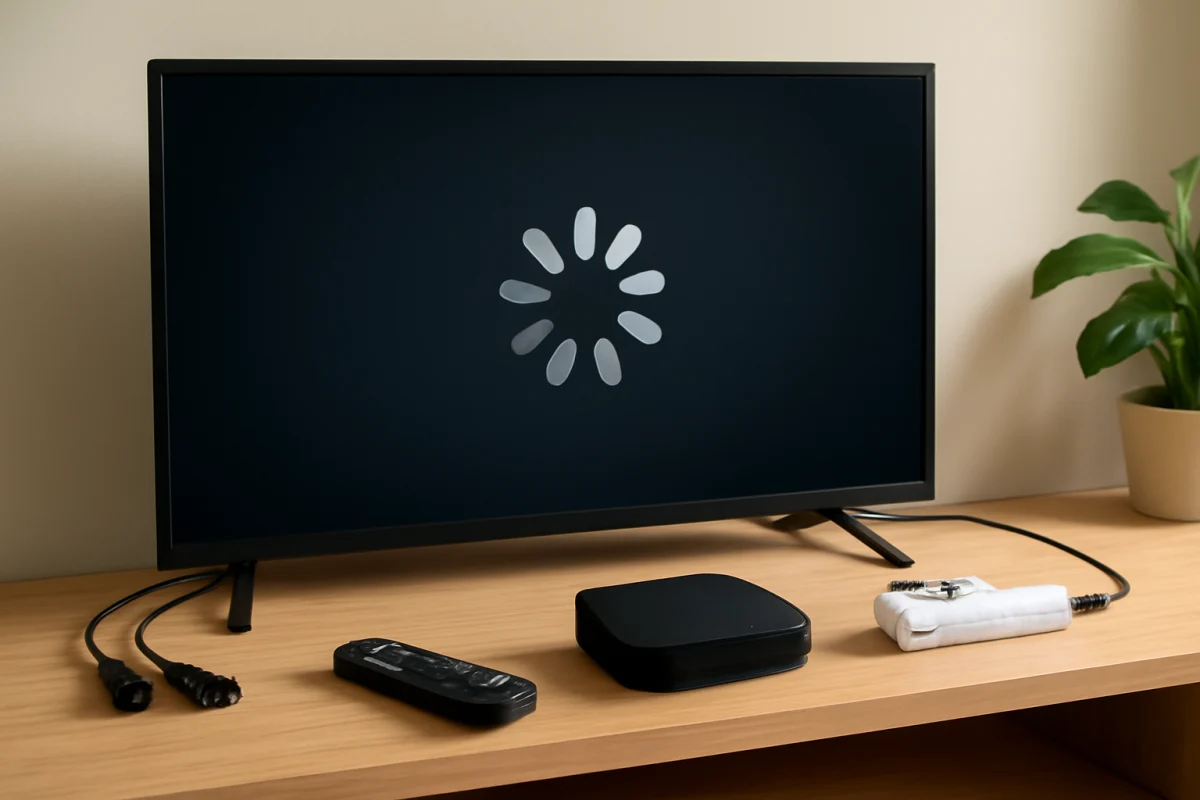
A Roku TV that turns on and off by itself is usually reacting to a power problem, an unintended remote command, an HDMI device, a network feature, or a software fault. Start with the simple checks: remove the remote batteries, disconnect external devices, inspect the power connection, and perform a proper restart. If the TV still cycles after those steps, a factory reset or hardware inspection may be necessary.
Pay attention to the pattern. Does the television shut down once after a few minutes, restart repeatedly, turn on when another device wakes up, or power off even while nothing is connected? The timing can help separate an accessory or setting issue from a failing power component.
1. Check the remote and nearby devices
A stuck button or a second remote can make the TV appear to have a mind of its own. The Roku TV remote may be caught under a cushion, have a button pressed against another object, or be sending commands because of a damaged keypad. A universal remote, cable box remote, game controller, or mobile app can also send power commands.
Test the TV without remote input
- Remove the batteries from the Roku remote.
- Move other remotes away from the television.
- Close any Roku control app on phones or tablets connected to the same network.
- Watch the TV for several minutes to see whether the behavior stops.
If the problem disappears, reinstall fresh batteries and test the remote again. Look for buttons that feel sticky, remain pressed, or do not spring back normally. If you use a mobile control app, temporarily disable its connection or close the app on every device that may be controlling the TV.
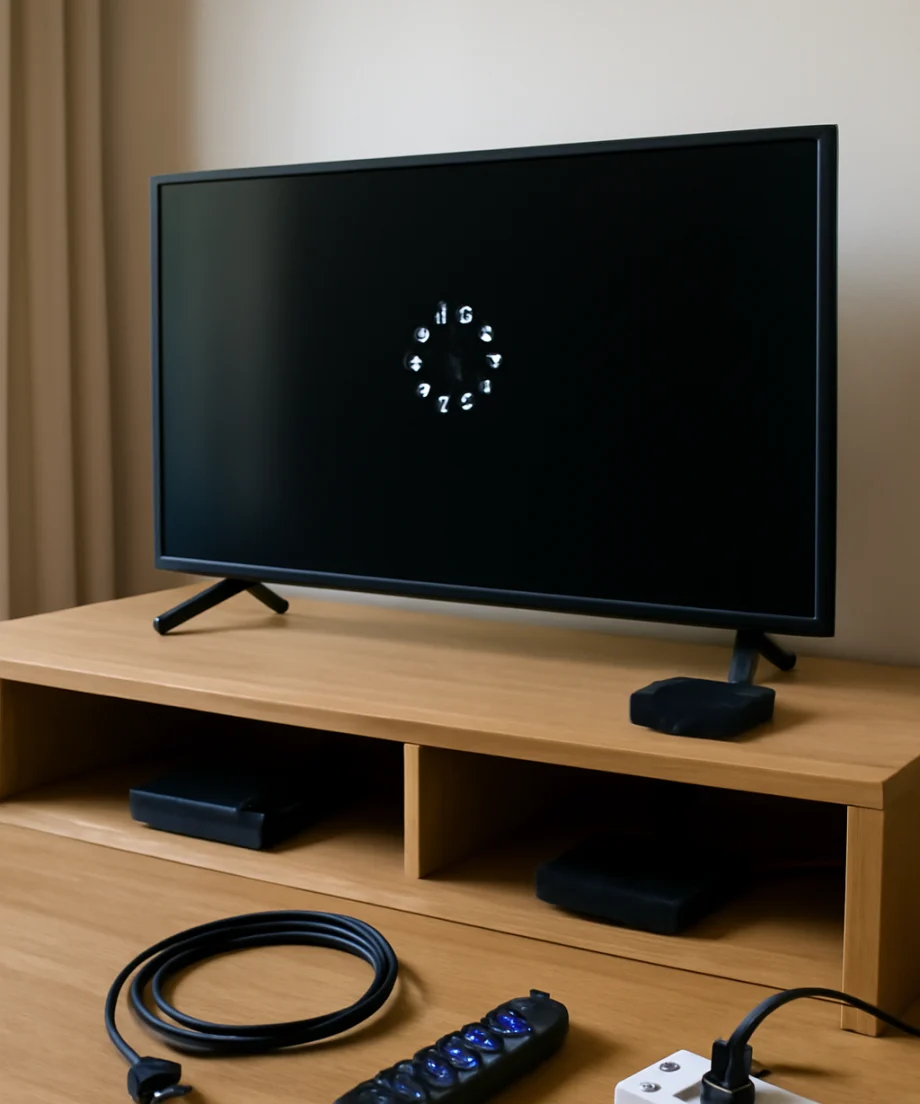
Some Roku TV models use a physical button or joystick on the television. Make sure nothing is pressing against it. A tight wall mount, a decorative object, or a cable routed across the control area can occasionally cause unintended input.
2. Inspect the power connection
Unstable power is one of the most important causes to rule out. A loose plug, worn power strip, overloaded outlet, or damaged cord can cause the television to shut down and restart. In some cases, the TV will turn back on when power briefly returns.
Use a direct wall outlet
- Turn the TV off and unplug it.
- Check the power cord for cuts, crushed sections, bent contacts, or looseness.
- Plug the TV directly into a known-good wall outlet, bypassing a power strip or surge protector.
- Make sure the plug fits firmly and is not being pulled sideways by other cables.
Do not use a damaged cord or continue testing an outlet that feels hot, smells burned, sparks, or shows signs of discoloration. Those are electrical safety concerns and should be handled by a qualified professional. If other appliances connected to the same outlet also lose power, the issue may be with the outlet or household circuit rather than the Roku TV.
After connecting the TV directly to the wall, leave it running long enough to reproduce the problem. If the cycling stops, replace or remove the power strip and avoid overloading the circuit. If it continues, move on to the next checks.
3. Disconnect HDMI and USB devices
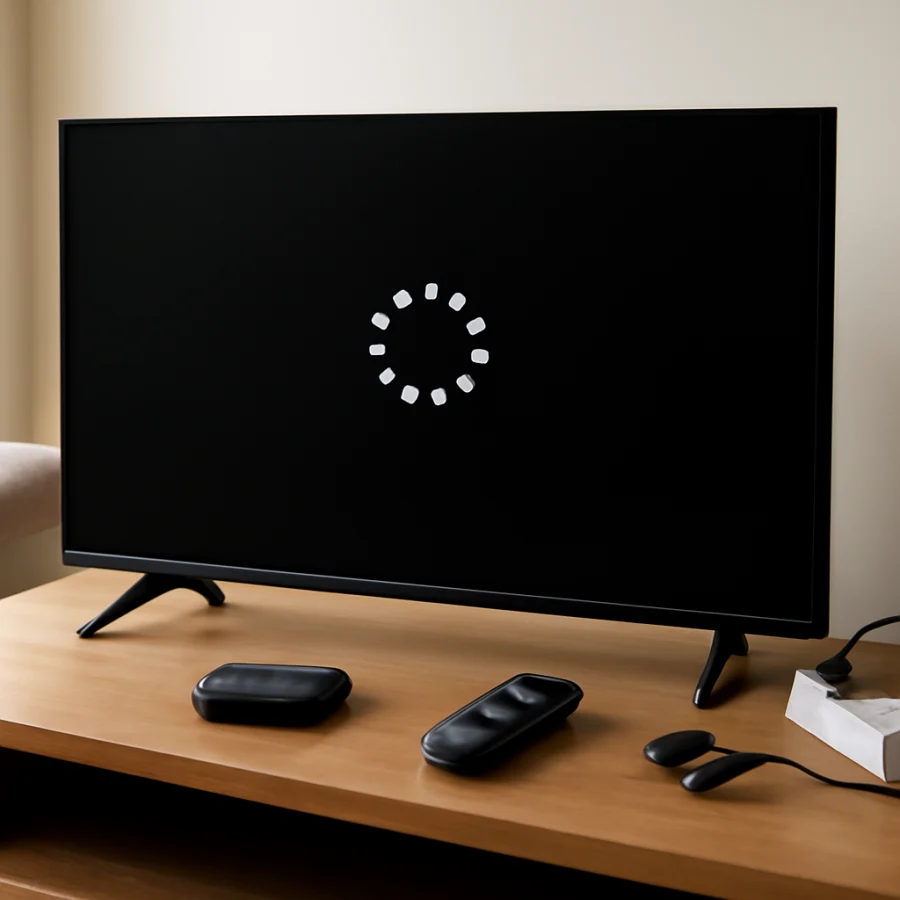
External devices can wake a Roku TV or cause repeated input and power changes. A streaming box, game console, Blu-ray player, soundbar, cable receiver, or USB device may use HDMI control features to turn the television on or switch inputs. A device with unstable power can also repeatedly reconnect.
- Turn off the TV.
- Disconnect every HDMI device, USB drive, antenna accessory, soundbar, and other external cable except the power cord.
- Turn the TV back on and observe it with nothing connected.
- Reconnect devices one at a time, testing the TV after each connection.
If the problem returns after one particular device is connected, inspect that device's power cable and settings. Look for options related to HDMI control, device link, automatic power, or waking the TV. The wording varies by manufacturer and model, so consult that device's manual if you cannot identify the setting.
A soundbar can be a special case. If both the soundbar and TV turn off together, the devices may be following each other's power commands. Test the TV with the soundbar disconnected before changing several settings at once.
4. Perform a proper power cycle
A normal power-off command may leave parts of the TV in standby. A full power cycle clears temporary state information and can fix a one-time software or communication problem without deleting your apps or account information.
- Unplug the TV from the wall outlet.
- Wait at least one minute.
- While it is unplugged, press and hold the TV's physical power button if the model has one. Hold it for several seconds, then release it.
- Plug the TV directly into the wall outlet again.
- Turn it on using the TV's physical control rather than the remote.
The location and operation of the physical button vary by model. If your television has no accessible power button, simply leave it unplugged for the full waiting period before reconnecting it. Avoid repeatedly unplugging and reconnecting the set in quick succession.
5. Check automatic power and network-related settings
Roku TVs may include settings that affect standby behavior, automatic power, bandwidth, screensavers, or device control. The names and available options vary by TV brand, Roku software version, and model. Review the settings for automatic power-down, wake behavior, HDMI device control, and network-based control.
Disable one relevant setting at a time and test the TV. Changing several options together makes it difficult to identify the cause. If the television turns on at a predictable time, consider whether a connected device, scheduled activity, or network control feature is waking it.
Network activity is less likely to be the cause of repeated hard restarts, but it can trigger wake or control behavior. To test this possibility, temporarily disconnect the TV from Wi-Fi if the menus remain accessible, or restart the router and observe whether the pattern changes. For more help separating television problems from connection problems, see our Wi-Fi and network troubleshooting guides.
6. Update the Roku TV software
Software updates can resolve bugs involving power management, HDMI communication, apps, and wireless control. If the TV stays on long enough to open its settings, check for an available system update using the update option provided by your model.
Do not unplug the television while an update is installing. The exact menu path and wording can vary, so follow the prompts shown on the screen. If the TV shuts down before an update can complete, first disconnect external devices and use a reliable wall outlet. Repeated interruptions during an update can create a more serious software problem.
If the TV restarts only when one app is open, remove and reinstall that app if the model allows it. When all apps and inputs are affected, the problem is more likely to involve the TV's system, power, or hardware rather than one streaming service. You can find related guidance in the streaming apps troubleshooting section.
7. Try a factory reset only after basic testing
A factory reset can correct corrupted settings or persistent software behavior, but it should not be the first step. It removes installed apps, saved preferences, network information, and account-related data from the TV. You will need to set up the television again afterward.
Before resetting, confirm that the TV behaves the same way with the remote batteries removed, external devices disconnected, and a direct wall connection. If it remains usable long enough, note your important sign-in information and any settings you want to restore.
Use the reset option in the TV's settings if possible. The menu name and location differ by model. Some televisions also have a physical reset control, but the required procedure is not universal. Do not hold buttons or use a reset pin based on instructions for a different model.
After the reset, test the TV before reinstalling every app or reconnecting all accessories. If it works normally, add devices and apps gradually. If the power cycling continues immediately after a clean reset, a setting or app is less likely to be responsible.
8. Recognize signs of a hardware problem
Hardware service becomes more likely when the TV repeatedly restarts with no remote batteries, no HDMI or USB devices, a reliable wall outlet, and a completed reset. Other warning signs include a clicking sound, a flashing standby light, a burning smell, unusual heat, a faint picture with no backlight, or shutdowns that occur when the TV warms up.
Do not open the back of the television unless you are trained and equipped to work safely with electronics. Internal components can retain hazardous electrical charge even after the TV is unplugged. A qualified repair technician can inspect the power board, main board, buttons, and internal connections.
If the TV is still covered by a retailer or manufacturer service agreement, check the available support options before attempting any internal repair. Keep the model information and a short description of the behavior available. A video showing the restart pattern can also help a technician, provided it can be recorded safely.
Use the pattern to narrow down the cause
- It stops when the remote batteries are removed: inspect the remote, another controller, or a mobile control app.
- It stops when HDMI devices are disconnected: test the devices individually and review HDMI control settings.
- It works from a wall outlet but not a power strip: replace the power strip or have the circuit checked.
- It restarts during one app or input: update the system, reinstall the app, or test the related device.
- It cycles with everything disconnected: perform a proper restart, then consider a factory reset or professional service.
- It smells hot, clicks, sparks, or becomes unusually warm: unplug it and stop using it until it has been inspected.
For other Roku television problems, the Roku troubleshooting section covers related remote, app, network, picture, and system issues. The safest approach is to change one thing at a time, test the result, and avoid a factory reset until the simpler causes have been ruled out.



Comments
0No comments yet. Be the first to share a helpful note or question.
Leave a Comment
Your email address will not be published. Comments are reviewed before appearing on the site.