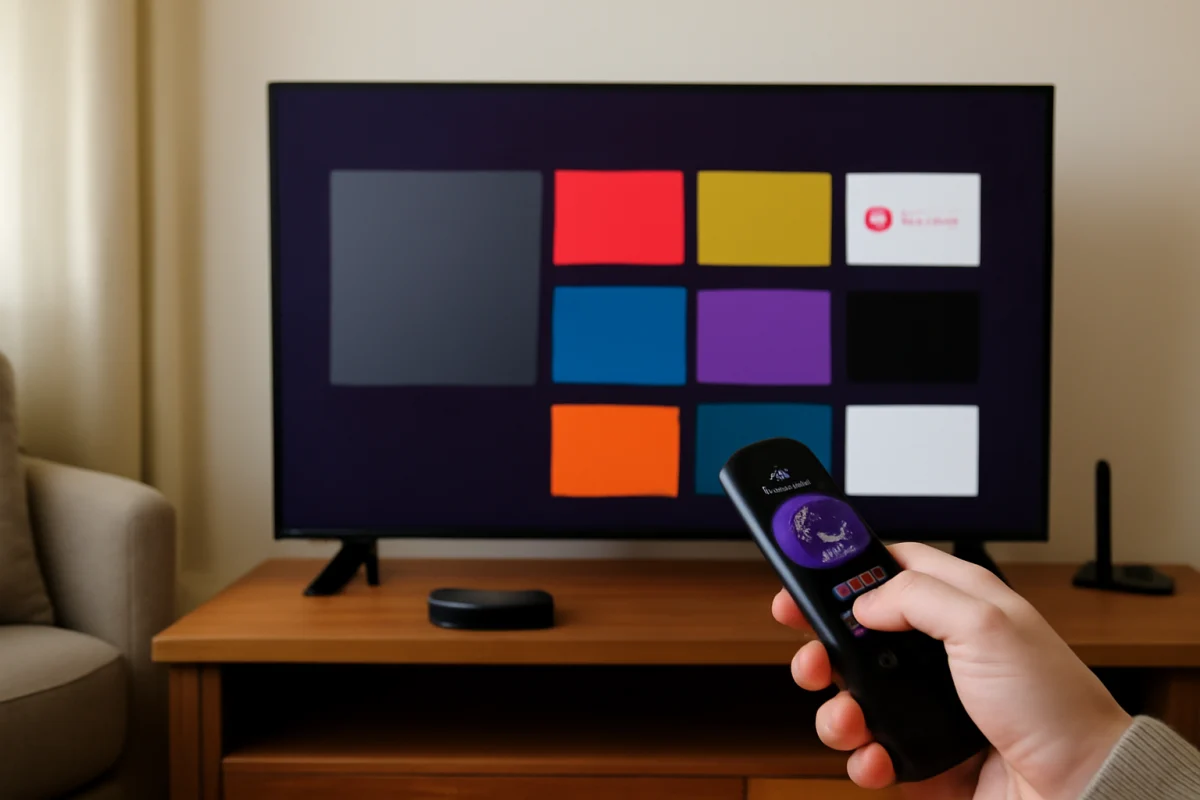
If your Roku TV says its storage is nearly full, start by removing channels you no longer use. Highlight an unwanted channel on the Home screen, press the Star (*) button on your Roku remote, choose the option to remove or delete the channel, and confirm. Then restart the TV so it can finish clearing temporary data.
The exact wording and menu layout can vary between Roku TV brands, software versions, and remote controls. A nearly full storage message does not always mean that one app is using all the space. Roku TVs also keep system files, channel data, updates, and temporary information, so the available room can be limited even when your channel list does not look especially large.
Use the low-risk steps below first. A factory reset should be a last resort because it removes your accounts, channels, settings, and saved network information.
What a nearly full Roku TV storage warning means
Roku TV storage is used for more than the channels visible on the Home screen. Installed streaming channels need room for their app files and local data. The television also needs storage for the Roku operating system, updates, temporary files, and other internal functions.
Unlike a phone or computer, most Roku TVs do not provide a detailed storage dashboard showing exactly how many megabytes each channel uses. Because of that, the best practical approach is to remove channels you no longer need and avoid treating the warning as proof that a particular app is defective.
Removing a channel usually frees the space associated with that channel, although the amount may be small. If the warning returns after you remove several channels, the issue may involve temporary data, a pending system process, or the TV's limited internal storage rather than a single oversized app.
Remove unused channels from a Roku TV
Remove a channel from the Home screen
- Press the Home button on the Roku remote.
- Move the selection to the channel you want to remove. Do not open the channel.
- Press the Star (*) button.
- Look for an option such as Remove channel or Delete channel.
- Confirm the removal when prompted.
The channel tile should disappear from the Home screen. If the channel is part of a subscription, removing it from the TV does not necessarily cancel the subscription. Handle billing or subscription cancellation separately through the service provider or the account used to subscribe.
Remove channels through the channel store
Some Roku TV menus also let you manage installed channels through the streaming channel store. Open the store from the Home screen, find the channel, and check whether the available action is to remove it. The wording may differ, and a channel you have already installed may be shown differently from one that is ready to add.
If you cannot find a removal option, return to the Home screen and use the Star button on the channel tile. That is generally the simplest method.
Choose what to remove first
Start with channels that you have not opened in several months. Good candidates include duplicate versions of the same service, temporary channels added for a single event, free channels you never watch, and apps installed to test them once.
You can also remove channels that you use only occasionally and add them again later. Reinstalling a channel may require you to sign in again, so make sure you know the email address and password for any service you plan to remove.
Do not remove a channel simply because it appears near the top of the Home screen. The order of channel tiles does not indicate how much storage an app uses. Likewise, moving a channel lower in the list changes the layout, not the amount of storage available.
Restart the Roku TV after removing channels
After removing several channels, restart the TV. A restart can allow the system to finish housekeeping and clear temporary information. It is safer than immediately performing a factory reset and does not normally remove your installed channels or account details.
Use the restart command available in your TV's power or system settings if you can access it. If the menus are slow or unresponsive, unplug the TV from the wall outlet, wait about a minute, and reconnect it. This power cycle is different from a factory reset: it cuts power temporarily but does not intentionally erase the TV's setup.
After the TV starts again, wait a few minutes before opening multiple channels. Check whether the warning has disappeared and whether the Home screen responds normally.
Check for updates without interrupting the process
Roku TVs periodically check for software updates, and the update process may use temporary storage. If the TV is showing an update prompt, allow it to complete before removing power. Do not unplug the television while an on-screen update is actively installing unless the TV's instructions specifically tell you to do so.
Once the TV is back at the Home screen, look for the software update option in the system settings. Menu names and locations can differ by model, so use the wording shown on your screen. If an update is available, follow the prompts and let the TV restart on its own.
If storage becomes nearly full immediately after an update, restart the TV once more and then test it. Avoid repeatedly starting an update check if the television is already processing one.
Remove channels from your Roku account
Roku account pages may offer a list of channels associated with your account, but account management is not always the same as removing a channel from a specific TV. A channel can also be installed on one Roku device and absent from another.
For this reason, remove the channel directly from the affected Roku TV first. If the same unwanted channel appears on multiple Roku devices, review your account and each device separately. Be careful with subscriptions: deleting an app from the TV does not automatically prove that a paid plan has been canceled.
When removing channels does not free enough space
If you removed several unused channels, restarted the TV, and still see the warning, try these checks:
- Look for duplicate channel entries: Remove versions you do not use, but keep in mind that duplicate tiles are not necessarily duplicate storage files.
- Close active channels: Return to the Home screen before restarting instead of leaving a channel playing while you disconnect power.
- Check the network: A poor connection can make channels fail to load, which may look like a storage problem. For related connection checks, see what to check when a Roku TV is connected to Wi-Fi but has no internet.
- Test the TV after a quiet restart: Give it time to finish starting before opening several channels in succession.
- Check external storage if applicable: If you use a Roku-compatible external storage device, inspect its connection and follow the TV's on-screen instructions. Compatibility and behavior vary by TV and device.
There is no safe, general-purpose way to expand the internal storage of every Roku TV. Do not open the television or attempt to replace internal components unless you are qualified to service that specific model. Doing so can create additional damage and safety risks.
Should you clear an app's cache?
Roku TVs generally do not offer a universal, phone-style button for clearing an individual channel's cache. Advice that tells you to enter a hidden code or repeatedly press remote buttons should be treated cautiously, especially if it is not supported by the instructions on your TV.
Removing and reinstalling a channel can refresh its local data, but it also removes the channel from the TV and may require another sign-in. Use that method only when the channel is also misbehaving, such as failing to open or repeatedly freezing. It is not necessary to reinstall every channel just because the storage warning appeared.
Use a factory reset only as a last resort
A factory reset erases the TV's setup and returns it to an initial state. You will normally need to reconnect it to Wi-Fi, sign in again, reinstall channels, and adjust picture or audio settings. It may help when system data is corrupted or the TV continues to report a storage problem after ordinary troubleshooting, but it is not the first step for a nearly full message.
Before resetting, write down important account details, confirm that you can access your email and passwords, and check whether the TV's manufacturer provides model-specific reset instructions. Then open the reset option in the system settings and read every warning carefully. Do not proceed if you are unsure whether you are selecting a restart or a full reset.
If the warning remains after a factory reset, or if the TV repeatedly fills its storage without new channels being added, contact the TV manufacturer's support service. Have the model information, a description of when the warning appears, and the troubleshooting steps you already tried. Different Roku TV brands can use different hardware and storage behavior, so model-specific guidance may be necessary.
How to avoid filling Roku TV storage again
- Remove channels you no longer watch instead of keeping every service installed.
- Reinstall temporary event or trial channels only when you need them.
- Restart the TV occasionally if it has been running for long periods or the menus become sluggish.
- Keep your Roku account credentials available before removing channels you may later reinstall.
- Use the TV's own on-screen instructions for updates, storage devices, and resets.
For more Roku troubleshooting guides, visit the Roku section on TV Fix Guide. If you are troubleshooting a different brand, the streaming apps troubleshooting section may also help with channel sign-in, playback, and app problems.



Comments
0No comments yet. Be the first to share a helpful note or question.
Leave a Comment
Your email address will not be published. Comments are reviewed before appearing on the site.