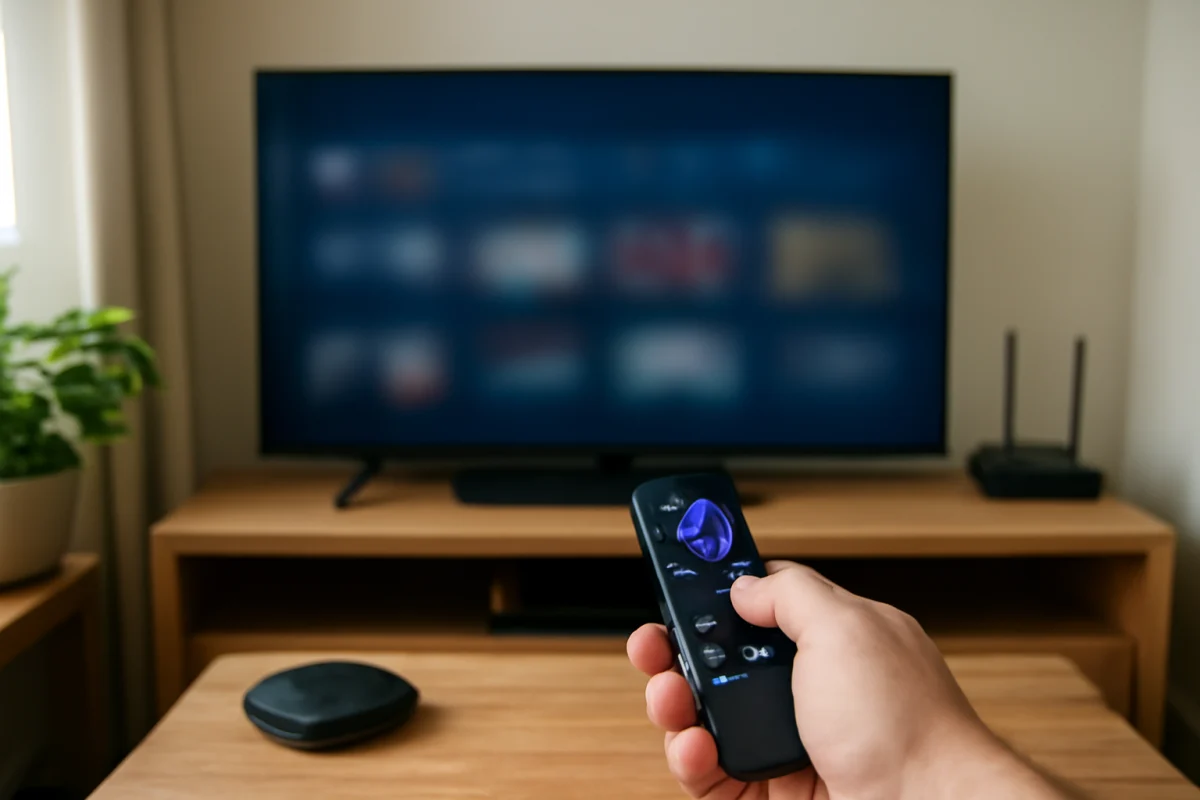
If your Roku screen is frozen, start with a simple restart: press the Home button several times, then open the system power options if the remote responds. If nothing happens, unplug the Roku device or Roku TV from power, wait about 60 seconds, and plug it back in. This clears a temporary software or memory problem without removing your apps or account.
A frozen screen can be caused by the Roku device, the remote, a single streaming channel, an unstable internet connection, or the TV itself. Work through the checks below in order. The exact wording and location of some menu options can vary between Roku streaming players, Roku TVs, and TV brands that use the Roku platform.
1. Check whether the Roku is truly frozen
First, press the Home button once and wait several seconds. Avoid pressing many buttons repeatedly, because a delayed Roku may eventually process all of those commands at once. If the Home screen appears, the problem may be limited to the channel or video you were watching.
Try a few other basic buttons, such as Back, Up, Down, or the volume controls. On a Roku TV, volume buttons may still work even when an app is unresponsive. If only one app is frozen, exit it and reopen it. You may also want to remove and reinstall that channel later if the same app repeatedly locks up.
If the screen is completely motionless, the remote light does not respond as expected, or the TV does not react to any command, move to a power restart.
2. Restart the Roku with the remote
If the remote still responds, use the Roku menus to restart the system. The relevant option is generally found in the system or power settings, but the exact menu path can vary by device and software version. Look for an option that restarts the Roku rather than one that resets it to factory settings.
A restart is different from a factory reset. A restart reloads the Roku software and normally keeps your account, channels, and settings. A factory reset erases information and should not be used as a first response to a frozen screen.
After selecting the restart option, give the Roku time to shut down and load the Home screen again. Do not unplug it while an update or setup process is visibly running unless the device remains stuck for an unusually long time and there is no other practical option.
3. Unplug the Roku to perform a power cycle
When the remote cannot control the frozen screen, a power cycle is the next low-risk step.
- Turn off the TV if you are using a Roku TV.
- Unplug the Roku streaming player or Roku TV from the wall outlet.
- Wait at least 60 seconds. This gives the device time to fully discharge and clear a temporary stuck state.
- Plug the device directly into a reliable wall outlet if possible.
- Turn it on and wait for the Home screen or video to load completely.
If you use a Roku streaming stick or player, check how it receives power. Some models can be powered through the TV's USB port, while others work more reliably with the included power adapter. If the device repeatedly freezes, try the recommended power method for that model and avoid an overloaded USB hub or questionable adapter.
For a Roku TV, unplug the entire television rather than only a connected streaming accessory. If the TV is connected to a surge protector or power strip, temporarily test a known-good wall outlet. Do not remove the back cover or attempt internal repairs.
4. Make sure the remote is not the real problem
Sometimes the picture is still active, but the Roku appears frozen because the remote is not communicating with it. Press a button and watch for any indicator light on the remote, if your model has one. Replace both batteries with a fresh matching pair, checking their direction in the battery compartment.
Move closer to the Roku and make sure nothing blocks the front of the streaming player or the TV's remote sensor. If you use a simple infrared remote, it needs a reasonably clear path to the sensor. Some Roku remotes use wireless pairing instead, so the troubleshooting steps can differ.
If the remote stopped working after a battery change, remove the batteries, unplug the Roku for about a minute, and reconnect the power. Then reinstall the batteries and try the remote again. A replacement or phone-based remote may require the Roku and phone to be on the same Wi-Fi network, so that option may not work while the Roku is offline or completely unresponsive.
For more remote-specific checks, see these Roku remote fixes after changing batteries.
5. Determine whether one channel is causing the freeze
If the Roku works normally on the Home screen but freezes inside one streaming app, the Roku itself may not be the only cause. The channel could have a temporary error, outdated data, or a problem with the particular video.
Exit the channel and open another one. If other channels work, restart the Roku before trying the affected app again. You can also check whether the app has an available update by selecting it from the Home screen and using the available options for checking updates. Menu names and update behavior can vary.
If the same channel continues to freeze, remove it and add it again. Be aware that deleting a channel can require you to sign in again, and some services may have their own account or subscription requirements. Do not remove the channel if you are unsure of the sign-in details.
When every app freezes in the same way, focus on the Roku, its power supply, ventilation, storage, or network rather than only reinstalling one channel.
6. Test the internet connection
A weak or interrupted connection usually causes buffering, but it can also make an app appear stuck while it waits for data. After the Roku responds again, open its network settings and run the built-in connection check if one is available. The menu wording may vary by Roku model and TV manufacturer.
Restart your router and modem by unplugging them, waiting about a minute, and reconnecting them. Wait until your home network is working before testing the Roku again. If possible, move the Roku streaming player away from other wireless devices and large obstructions. A Roku TV that is far from the router may also benefit from testing the connection in the same room temporarily.
Check whether other devices on the same network can load websites or stream video. If they also have trouble, the issue may be with the router, internet service, or Wi-Fi environment. If the Roku alone has trouble, review the network connection on the device rather than repeatedly restarting the app.
Our guide to a Roku connected to Wi-Fi without internet access covers the next network checks.
7. Check heat, storage, and connected equipment
Overheating can make a streaming device slow, unstable, or unresponsive. Make sure a Roku player is not enclosed in a tight cabinet, covered by another device, or placed directly on a heat-producing component. Let it cool down before powering it on again. Do not use the device if it smells burnt, shows physical damage, or becomes unusually hot.
Limited storage can also contribute to slow responses, especially when many channels are installed. If you can reach the Home screen, remove channels you no longer use and restart the Roku afterward. This does not guarantee that storage is the cause, but it can reduce clutter and make testing easier. You can read more about freeing space when Roku storage is nearly full.
Disconnect HDMI devices that are not needed, such as a game console, soundbar, cable box, or external media player. A faulty HDMI device or cable can sometimes make the TV look frozen even though the Roku is still running. Reconnect equipment one item at a time after the Roku is stable.
8. Check for software updates after the Roku works again
Once the Roku responds normally, check for a system update through the device's software or system settings. Roku normally manages updates automatically, but a manual check can help if the device has been offline or behaving inconsistently. The exact update menu and wording may differ by model.
Keep the Roku connected to power and the internet during an update. Do not interrupt the process unless the device has clearly stopped responding for an extended period. If an update repeatedly fails, connection problems, limited storage, or a device-specific issue may be involved. Follow the troubleshooting steps in our Roku software update guide rather than guessing at a firmware version or forcing an installation.
9. When to consider a factory reset
A factory reset should be a last resort, not the standard fix for a single frozen screen. It removes personal settings and may remove channel access from the device, requiring setup and sign-ins again. Before using it, make sure you know the email address and passwords for the services you use.
Consider a reset only if the Roku freezes repeatedly after power cycles, works poorly across multiple channels, and basic power, remote, network, heat, and update checks have not helped. The reset procedure varies between Roku streaming devices and Roku TVs, so use the instructions appropriate for your exact model. If the screen is frozen and you cannot reach the menus, some devices have a physical reset control, but the location and required action vary. Do not hold a reset button casually, because it may erase the device.
When the freeze may indicate hardware trouble
Contact the device manufacturer or the TV brand's support service if the Roku remains frozen after a full power cycle, cannot complete startup, repeatedly shuts down, displays lines or unusual colors, or becomes abnormally hot. A damaged power adapter, failing storage, faulty main board, or TV hardware problem may require inspection or replacement.
If your Roku enters a repeating restart pattern instead of staying frozen, use our guide to fixing a Roku boot loop. If it restarts only while watching certain apps, the cause may be different from a fully frozen Home screen.
In most cases, the safest sequence is simple: stop pressing buttons repeatedly, restart the Roku, power-cycle it if necessary, check the remote and power source, test the network, and only then investigate channels, updates, or a factory reset. This approach resolves many temporary freezes while protecting your account and settings from unnecessary erasure.



Comments
0No comments yet. Be the first to share a helpful note or question.
Leave a Comment
Your email address will not be published. Comments are reviewed before appearing on the site.