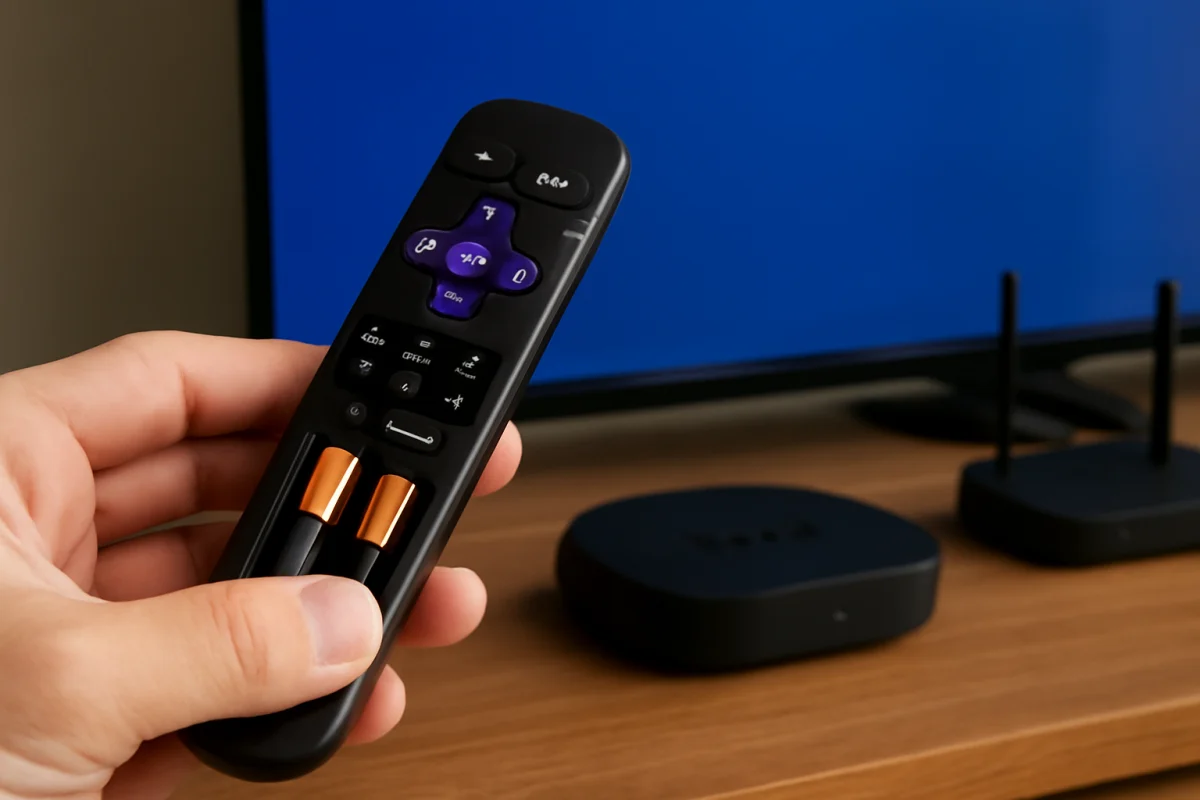
If your Roku TV remote stopped working right after you changed the batteries, start with the basics: confirm the batteries are installed in the correct direction, make sure they are fresh, and restart both the remote and the TV. If the remote uses wireless pairing, it may also need to reconnect after the battery compartment was opened or the batteries were removed for a longer period.
Work through the steps below in order. Most checks are quick and will not erase your Roku TV settings. The exact buttons and menu wording can vary between Roku TV models and remote types, so use the instructions that match the remote in your hand.
1. Check the new batteries and their orientation
A new set of batteries is the most common place to start, even when the batteries came straight from a package. Confirm that both batteries are the same type and that neither one is damaged, leaking, swollen, or unusually warm. Do not mix an old battery with a new one.
Look inside the battery compartment and match the plus and minus symbols. The flat end of a battery normally contacts the spring, but rely on the markings inside the remote rather than on appearance alone. A battery installed backward can make the entire remote seem dead.
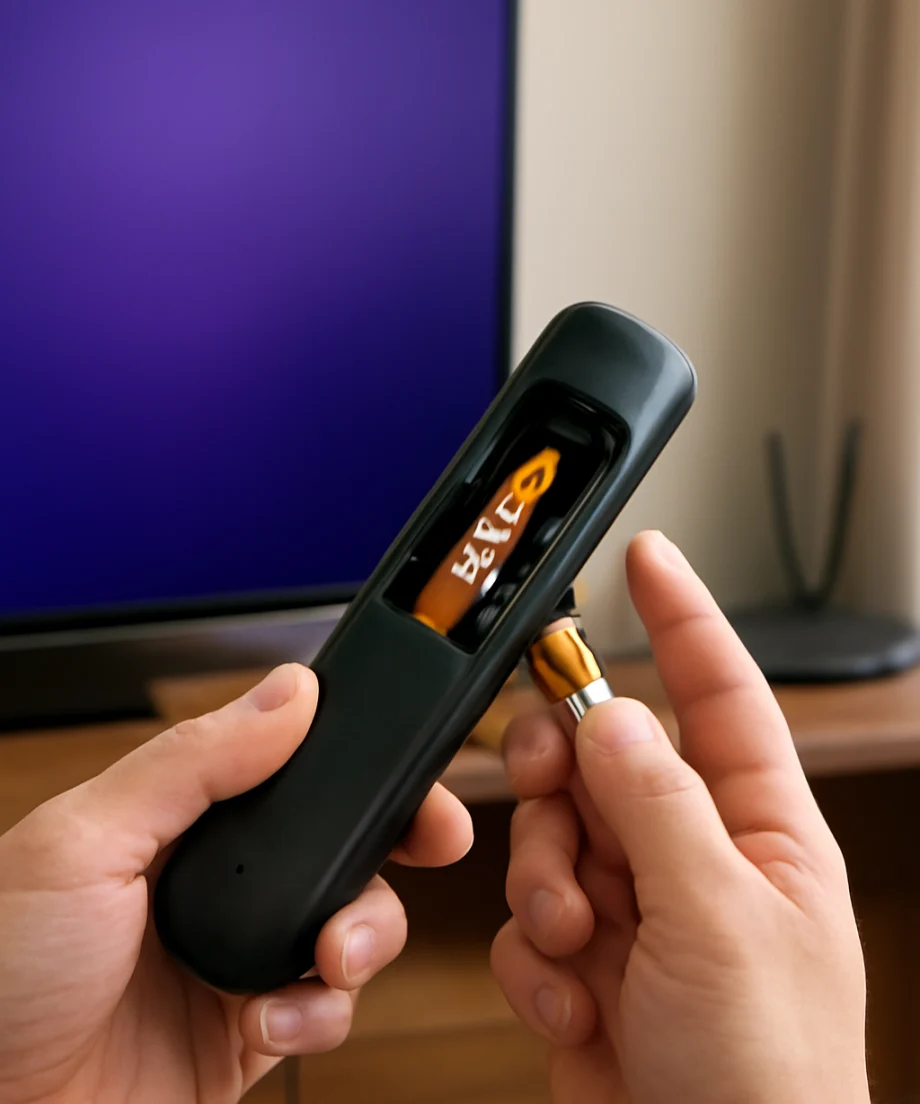
If you have another unused pair of compatible batteries, try them. Batteries can be discharged before use, especially if they have been stored for a long time or exposed to heat. Avoid using rechargeable batteries as a test unless the remote specifically supports them, because their voltage and behavior can differ from standard disposable batteries.
2. Inspect and clean the battery contacts
Remove the batteries and examine the metal contacts at both ends of the compartment. They should look clean and should press firmly against the battery terminals. Dust, residue, or light corrosion can interrupt the connection even when the batteries are installed correctly.
For light dirt, wipe the contacts with a dry cotton swab or a clean, dry cloth. If you see corrosion or crusty residue, do not scrape aggressively or pour cleaner into the compartment. A damaged contact may need professional repair or remote replacement. Let the compartment remain completely dry before installing batteries again.
Also check whether the battery cover closes securely. A loose cover usually does not prevent operation by itself, but it can allow the batteries to shift when you press a button.
3. Check whether the remote is sending a signal
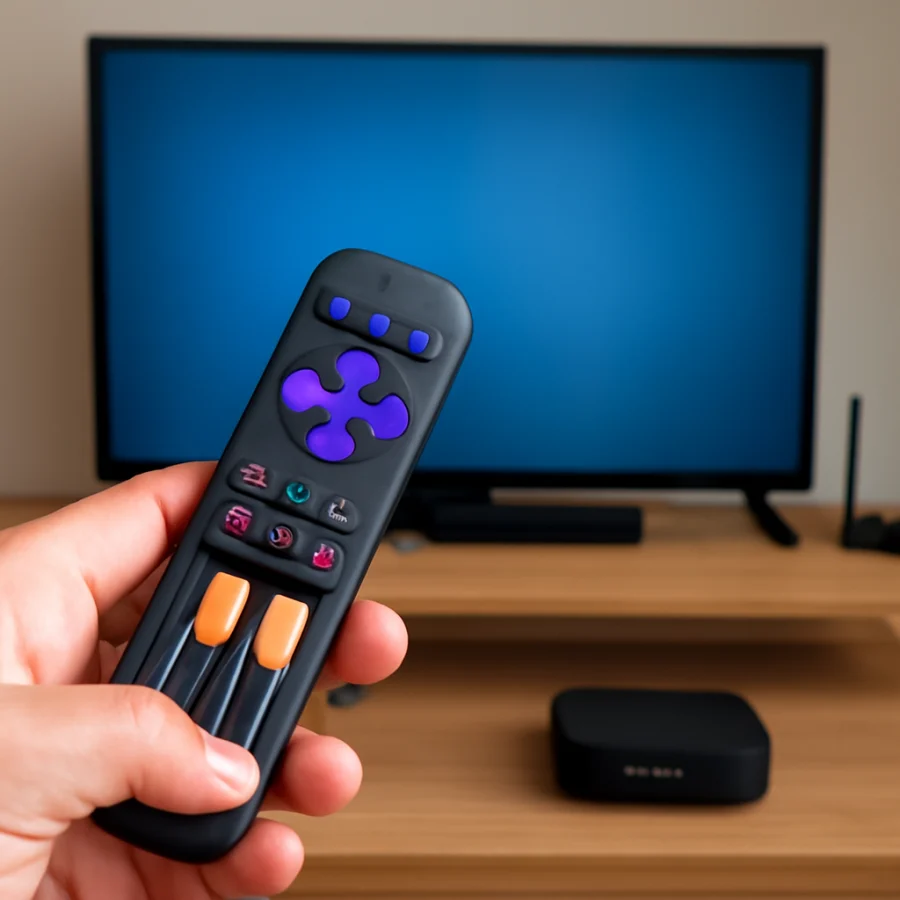
If your Roku remote uses infrared, point its front directly at the TV while pressing a button. Remove objects that may block the sensor area, including soundbars, decorations, or a cabinet door. The TV's infrared receiver is often near the lower front edge, but its location varies.
You can use a phone camera for a basic infrared test. Open the camera app, point the remote's front toward the camera, and press a button. Some phone cameras show a small flashing light when an infrared remote transmits. This test does not work reliably with every phone camera, and a visible flash does not prove that the signal is reaching the TV. It only suggests that the remote is emitting infrared light.
Roku remotes that communicate wirelessly may not show anything through a phone camera. In that case, a failed test does not necessarily mean the remote is defective.
4. Restart the Roku TV and try again
A temporary TV or remote communication problem can remain after a battery change. To restart the TV, unplug its power cord from the wall outlet. Leave it disconnected for about one minute, then plug it back in and allow it time to start.
Use the TV's physical power button if you need to turn it on during this step. Depending on the model, the button may be underneath the screen, on the back, or along one side. If you cannot find it, check the TV's documentation rather than pressing random buttons.
Once the home screen appears, test the directional buttons, the Home button, and volume controls. If only one button fails, the problem may be localized to that button rather than to the battery or pairing process.
5. Re-pair a wireless Roku remote
Many Roku voice remotes connect wirelessly and may need to pair again after the batteries are removed. The pairing process differs by remote design, but the usual approach is to place the remote close to the TV, insert the batteries, and hold the pairing button until an on-screen or indicator-light response appears.
The pairing button may be inside the battery compartment or on the back of the remote. Some newer remote designs use a different button combination or begin pairing automatically after batteries are inserted. Look for a pairing instruction printed in the battery compartment, in the remote's documentation, or in the support information for your specific model.
Keep the remote close to the TV during pairing and wait several seconds before pressing other buttons. If the TV is still starting up, pairing may not complete immediately. Avoid repeatedly removing and reinserting the batteries in quick succession, since that can make it harder to tell whether the remote has entered pairing mode.
If the pairing light does not appear
First, remove both batteries, wait a short time, and install them again with the correct orientation. Try the pairing process once more while standing near the TV. If the remote has no light, no response, and no button action with known-good batteries, it may have an internal fault.
Some remotes do not include a visible pairing light, so the absence of a flashing indicator is not definitive. Look for an on-screen message or a change in TV behavior instead.
6. Make sure the remote is compatible with this TV
If you recently replaced the remote rather than only replacing its batteries, confirm that it is intended for your Roku TV or Roku device. Roku remotes can look similar while using different communication methods and features. A remote designed for a Roku streaming player may not provide the same control over a Roku TV, and voice features may not work with every remote.
Check the label, packaging, or documentation for the remote. If the TV responds to some buttons but not others, compatibility or feature support may be involved. For example, power and volume controls can depend on the TV brand and how the remote is configured.
If you own more than one Roku device in the same room, temporarily move the other device or cover its front sensor while testing. This helps prevent you from controlling the wrong device.
7. Use the Roku mobile app as a temporary remote
If the TV is connected to the same Wi-Fi network as your phone, the official Roku mobile app may provide temporary control. The phone and TV generally need to be on the same local network, and the TV must already be connected to Wi-Fi. A guest network, mobile hotspot, or separate Wi-Fi band can prevent the app from finding the TV.
Use the app to navigate to the TV's remote or device settings and look for any available remote or pairing options. Menu names can vary by Roku TV software and television brand. The app cannot usually help if the TV is offline or if you need to connect it to Wi-Fi for the first time.
If the app works while the physical remote does not, the TV's wireless connection is probably functioning. Focus on the physical remote, its batteries, pairing, or compatibility.
8. Check for interference and blocked sensors
For infrared remotes, bright sunlight, strong lamps, and some electronic equipment can interfere with the signal. Close nearby curtains or move a bright light temporarily, then test the remote from a short distance. Clean the front edge of the TV with a soft, dry cloth.
For wireless remotes, distance and nearby electronic interference can sometimes affect pairing or response. Place the remote within a few feet of the TV during setup. Do not test through a closed cabinet or behind the television.
9. Test another Roku remote or the TV's controls
If you have access to a known-working compatible remote, pair or test it with the TV according to its instructions. This can separate a remote problem from a TV problem. Do not reset the TV simply because a second remote is not immediately recognized; the remote may need to be paired first.
Also try the physical controls on the TV. If the TV responds to its own buttons but not to any compatible remote, the issue may involve the remote receiver, wireless hardware, or pairing system. If the TV's physical controls also fail, the problem may be broader than the remote.
For related troubleshooting, you can browse the Remote Controls section or the site's Roku troubleshooting guides.
10. Avoid a factory reset unless it is necessary
A factory reset is rarely the first fix for a remote that stopped working after a battery change. Resetting the TV can remove account information, installed apps, network settings, and personal preferences. It may also require you to activate the TV again.
Only consider a reset after you have tested fresh batteries, checked the contacts, restarted the TV, attempted pairing, and ruled out compatibility or interference. The reset path varies by Roku TV brand and model, so follow the instructions for your exact television. If you cannot navigate the menus, a reset is especially unlikely to be a practical first step.
When the remote probably needs replacement
The remote may be defective if it does not respond with confirmed compatible batteries, its contacts are clean, it cannot enter pairing mode, and another compatible remote works normally with the TV. Physical damage, liquid exposure, stuck buttons, and corrosion are common causes of failure.
Before replacing it, record the TV model and the remote model or part number. This helps you choose a compatible replacement and avoid losing features such as voice control, private listening, or programmable power and volume buttons. Feature availability depends on the remote and TV combination.
If both the original and a known-compatible replacement fail, the TV may need service rather than another remote. In that situation, keep using the TV's physical buttons or the mobile app when available, and consult the television manufacturer's support documentation for model-specific testing.
Quick checklist
- Install two compatible batteries in the correct direction.
- Try another known-good pair instead of mixing old and new batteries.
- Clean and inspect the battery contacts.
- Restart the Roku TV by unplugging it briefly.
- Point an infrared remote directly at the TV and remove obstructions.
- Re-pair a wireless remote near the TV.
- Confirm that the remote is compatible with the Roku TV model.
- Use the Roku mobile app if the TV and phone are already on the same network.
- Test the TV's physical buttons or another compatible remote.
- Leave a factory reset until all lower-risk checks have failed.
In most cases, the problem is solved by correcting battery orientation, using a reliable pair of batteries, or pairing the remote again. If those steps do not restore control, testing another compatible remote is the quickest way to determine whether the fault is in the remote or in the TV.



Comments
0No comments yet. Be the first to share a helpful note or question.
Leave a Comment
Your email address will not be published. Comments are reviewed before appearing on the site.