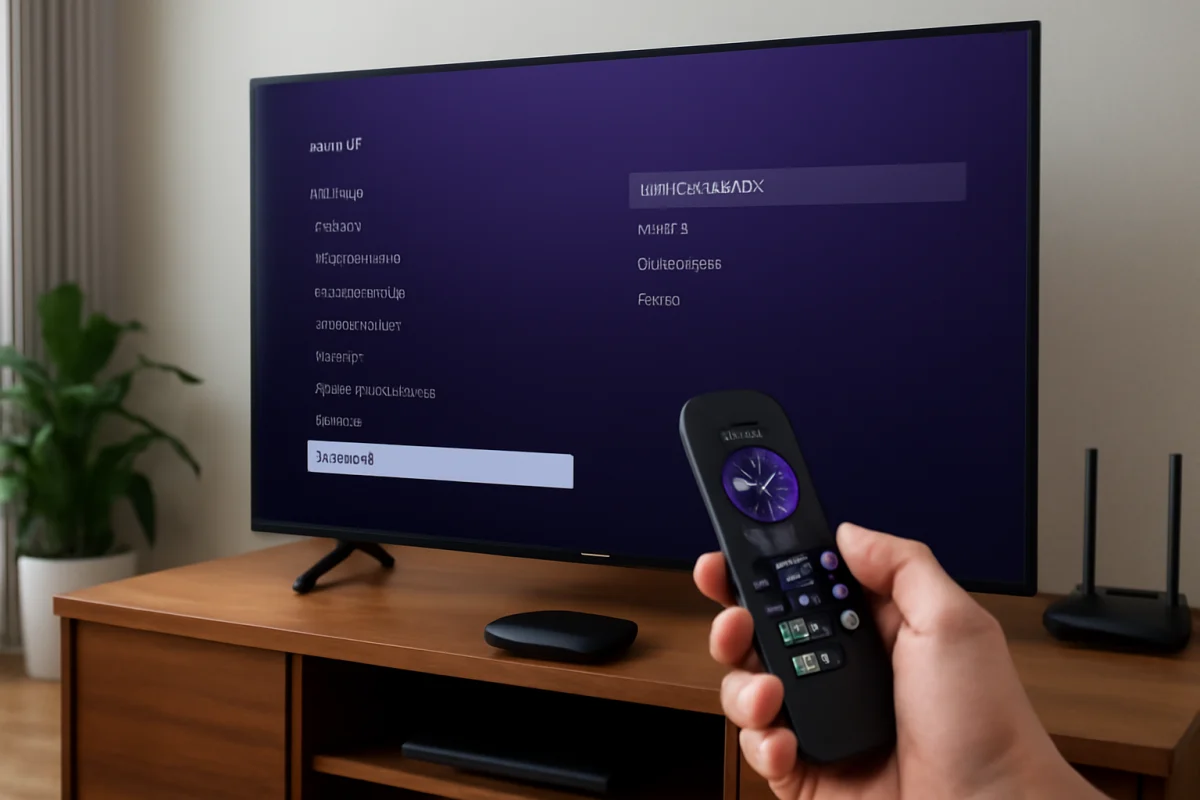
You can manually check for a Roku TV software update from the TV’s Settings menu. In most Roku TV models, open Settings, choose System, select Software update, and then choose Check now. The TV will look for available software and install it if one is found.
Before you begin, make sure the TV is connected to the internet and that you know whether the problem is actually related to outdated software. A slow app, missing channel, remote problem, or network issue may have another cause. Checking the installed version first gives you a useful starting point and makes it easier to tell whether an update changed anything.
How to check the software version on a Roku TV
Roku TV menu labels can vary slightly by television brand, software release, and region, but the version information is normally located in the system information area.
- Press the Home button on the Roku remote.
- Scroll to Settings.
- Open System.
- Choose About.
- Look for the software version or software build information.
The same screen may also show details such as the TV model, serial number, network information, and other device identifiers. You usually do not need to share those details when troubleshooting. If you contact the TV manufacturer or Roku support, they may ask for the model and software information, so take a photo of the screen or write down the relevant version number.
If you do not see About in the expected location, look for a similarly named system-information option. Do not assume that another number shown on the screen is the Roku software version. Roku TV models can display several hardware and identification numbers.
How to manually check for a Roku TV update
Roku TVs normally check for updates automatically when they are connected to the internet. You can still start a check yourself if the TV has not updated recently, an app is acting strangely, or you want to confirm whether new software is available.
- Press Home on the remote.
- Open Settings.
- Select System.
- Choose Software update.
- Select Check now.
- Follow the on-screen instructions if an update is available.
The TV may briefly check the internet and then report that the software is already up to date. If an update is available, allow the process to finish without unplugging the TV or disconnecting the network. The screen may restart, go blank temporarily, or display a progress message during the installation. These behaviors can be normal during an update.
Do not press buttons repeatedly while the update is running. Avoid turning off the television at the wall outlet unless the TV has clearly finished or the manufacturer’s instructions tell you to do so. Interrupting an installation can create a larger problem than the issue that prompted the update.
What “manual” updating means on Roku TV
For most owners, a manual Roku TV update means opening the software update menu and selecting Check now. It does not usually mean downloading a random firmware file from a website and installing it with a USB drive.
Roku TV software is delivered through the TV’s supported update system. The exact process can depend on the television manufacturer and model. Some products may have special recovery or USB procedures, but those instructions are not interchangeable between brands. Using a file intended for another model can make the TV unusable or void support options.
For that reason, do not use unofficial firmware downloads, third-party update tools, or instructions written for a different Roku TV model. If the normal update check fails, troubleshoot the connection and power first. For broader help with Roku devices, you can also browse the Roku troubleshooting guides on TV Fix Guide.
If Roku TV says it is up to date but problems continue
An update is not a general repair for every Roku TV problem. If the TV reports that it has the latest software, work through these low-risk checks before considering a reset.
Restart the TV from the menu
A normal restart can clear a temporary software or app state without erasing your settings. Look under Settings, then System, and find the restart or power option. The wording may differ by model.
If the menu is frozen, you can usually turn the TV off, wait briefly, and turn it on again. Unplugging the TV should be a later step rather than the first response. If you do unplug it, turn the TV off first when possible, disconnect it from power for a short period, then reconnect it and allow it to start fully.
Check the internet connection
A Roku TV may show an update problem when the real issue is an unstable Wi-Fi connection. Open the network settings and use the built-in connection check if your model provides one. Confirm that other devices can access the internet from the same network.
If the TV is far from the router, temporarily move the router or test the TV on a different reliable network when practical. Restarting the router can also help, but it will briefly disconnect every device using that connection. For more network troubleshooting, see the Wi-Fi and network guides.
Be careful when interpreting an internet test. A TV can connect to Wi-Fi while still having trouble reaching an online service. A successful connection test does not prove that every app or update server is available at that moment.
Check whether the problem affects one app or the whole TV
If only one streaming app is failing, the Roku TV software may not be the cause. Test the Home screen, another app, and a live input such as an antenna or HDMI device if available. If other functions work normally, close and reopen the affected app, check for an app update if that option is available, or reinstall the app as a separate troubleshooting step.
Reinstalling an app can remove its local sign-in state, so make sure you know the account email and password before doing it. You may need to sign in again afterward. The streaming app troubleshooting section has additional guidance for app-specific problems.
What to do when the update will not install
If the TV finds an update but does not complete it, first confirm that it has enough time to finish. Installation duration can vary, and the display may restart during the process. Keep the TV connected to power and use a stable internet connection.
Next, restart the TV and router, then run the software check again. If possible, reduce activity on the network while the update downloads. Pause large downloads or high-bandwidth streaming on other devices until the check is complete.
If the TV repeatedly fails at the same point, record what happens without guessing at an error code. Note whether the download starts, whether the TV restarts, and whether the TV returns to the same screen. Also record the model and current software version from the About screen. Those details can help the manufacturer identify whether the issue is related to the TV model, network, or update process.
Do not repeatedly force the TV off during an update. If the television has been unresponsive for an unusually long time, consult the support page for the TV brand and model before taking further action. Manufacturer instructions are safer than generic USB or recovery directions.
When a factory reset is appropriate
A factory reset should not be the first way to update Roku TV software. It removes personal settings, installed apps, network details, and account information. You will need to set up the TV again and sign in to services afterward.
Consider a reset only after checking the network, restarting the TV, confirming the software version, and reviewing model-specific support instructions. It may be reasonable when the TV has persistent system behavior that normal restarts do not fix, but it is unlikely to solve a temporary internet outage or a problem limited to one app.
If you choose to reset the TV, make sure you have access to the Roku account details and passwords for your streaming services. Follow the reset instructions shown on the television rather than holding random buttons or using a procedure intended for another brand.
How to confirm the update finished
After the TV restarts, return to Settings, open System, and check About again. Compare the displayed software information with the version you recorded earlier. The version may change, but the exact display and numbering format can vary between Roku TV models.
Then test the function that originally caused concern. Open the affected app, check the network connection, test the remote, or try the relevant HDMI input. Updating alone does not prove that the original problem is fixed, so verify the specific behavior instead of relying only on the version screen.
When to contact the TV manufacturer
Contact the television manufacturer when the update repeatedly fails, the TV cannot remain connected to the internet, the screen stays stuck during an installation, or the TV will not start normally afterward. Roku TV hardware and menu behavior can differ because the television is made and supported by a separate TV brand.
Have the TV model, current software version, purchase details if available, and a short description of what happened ready. Explain which steps you already tried. Avoid sharing passwords or complete account credentials in a public support forum.
In most cases, the safest update path is simple: check the installed version, connect the TV to a stable network, use the built-in Check now option, and let the television complete the process without interruption. If no update is available, focus on the specific symptom rather than forcing a firmware installation.



Comments
0No comments yet. Be the first to share a helpful note or question.
Leave a Comment
Your email address will not be published. Comments are reviewed before appearing on the site.