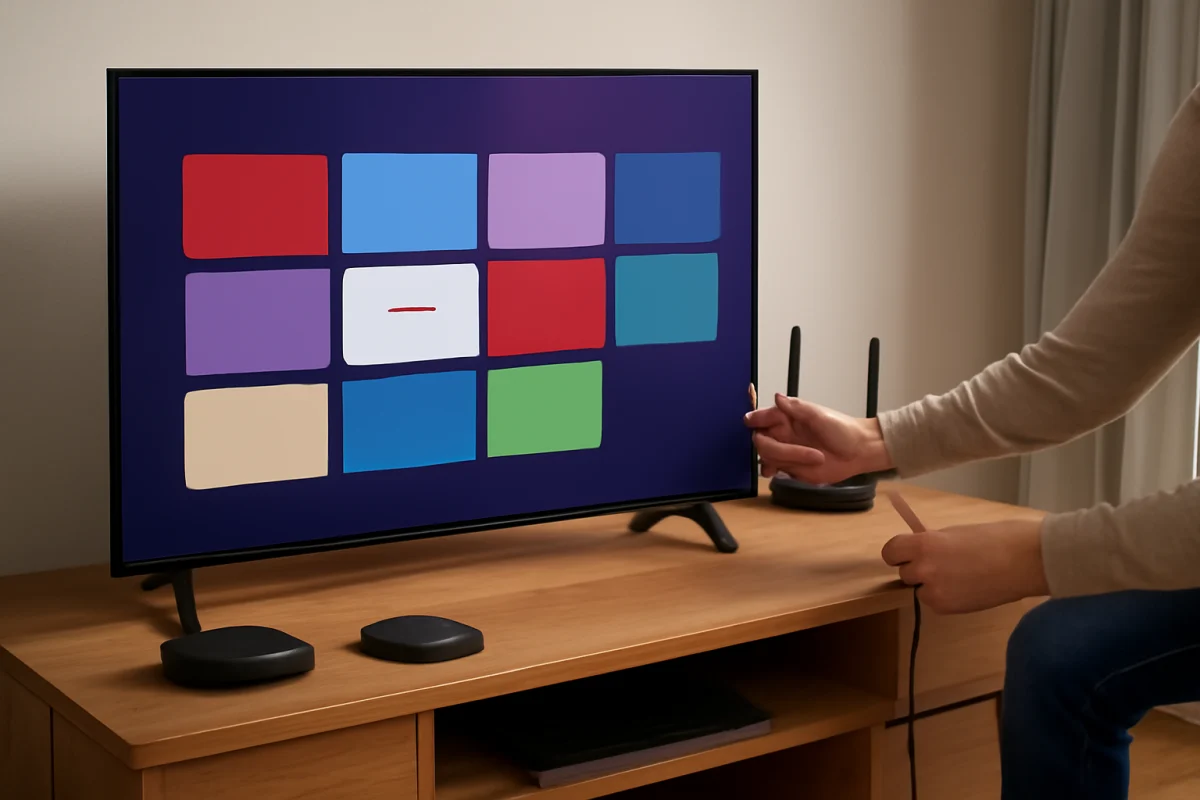
If your Roku TV keeps restarting by itself, begin with a full power cycle, a check of the power connection, and a look at the TV’s ventilation. Random restarts are often caused by a temporary software error, a loose connection, overheating, or a problem with one streaming channel. If the TV restarts only during one app, that app is a more likely cause than the television’s power hardware.
The exact menus and reset procedures can vary between Roku TV models and manufacturers. A TCL, Hisense, onn., Philips, or another Roku TV may not display identical options. Use the general process below, but follow the wording shown on your own screen.
Start with a complete power cycle
A normal turn-off does not always clear a temporary system fault. Perform a full power cycle before changing settings or removing channels.
- Turn the TV off with the remote.
- Unplug the TV from the wall outlet, not just from a power strip.
- Wait at least 60 seconds. If the TV is very warm, leave it unplugged longer.
- While it is unplugged, press and hold the TV’s physical power button for about 15 seconds, if your model has one.
- Plug the TV directly into a known-working wall outlet and turn it on.
Do not repeatedly unplug and reconnect the set while it is starting or installing an update. Give it time to complete the startup process. If the restarts stop after this procedure, the problem may have been a temporary software or power-state error.
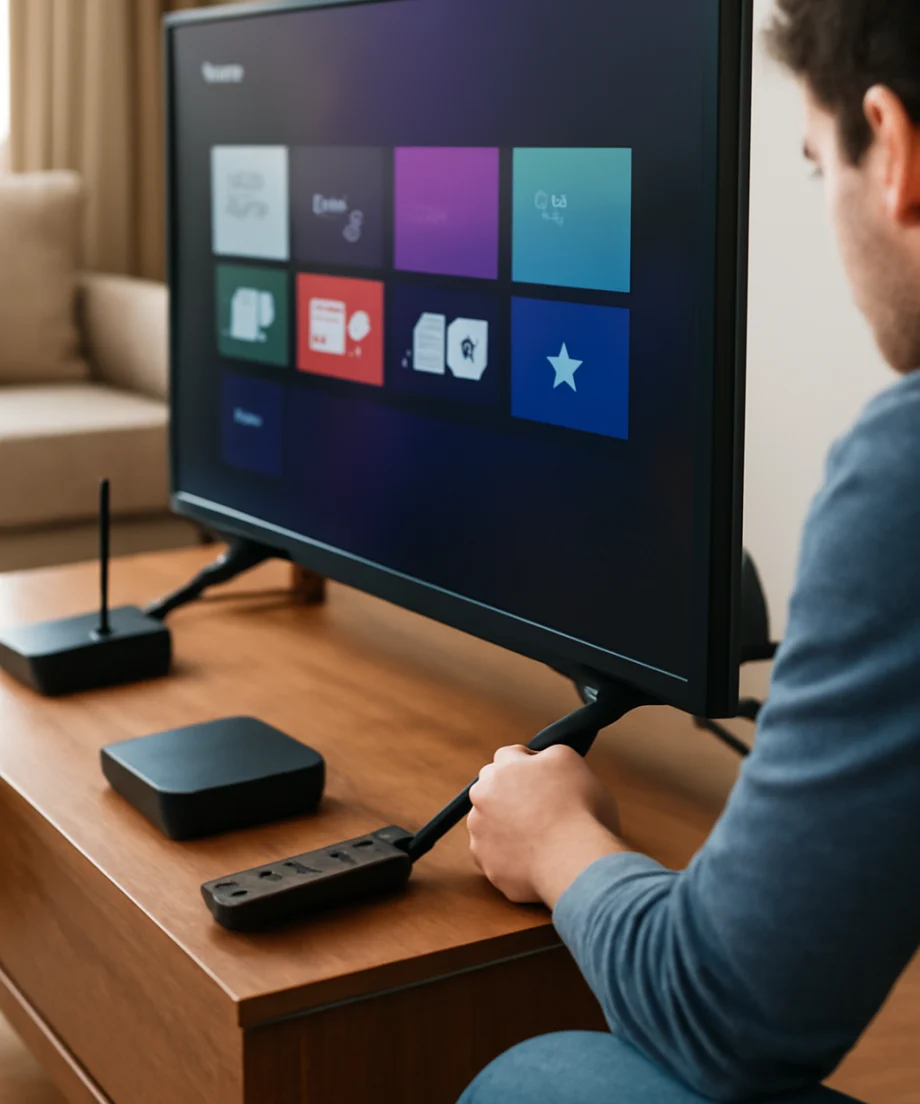
Check the power connection and outlet
Unstable power can make a television shut down and restart without showing a useful message. Inspect the power cord for cuts, bent connectors, looseness, or signs of heat. Make sure the connector is firmly seated in the TV if the cord is removable.
For testing, connect the TV directly to a wall outlet. Temporarily bypass a power strip, surge protector, extension cord, smart plug, or automatic energy-saving outlet. These accessories are not always faulty, but removing them helps identify whether the TV is receiving inconsistent power.
If other devices connected to the same outlet also turn off or flicker, the issue may be with the outlet or household electrical circuit. Avoid using an outlet that feels hot, makes noise, smells burned, or shows visible damage. An electrician should handle electrical repairs rather than a TV owner.
If the power cord is damaged or the TV’s power connector is loose inside the housing, stop using the set and contact the manufacturer or a qualified repair professional. Do not open the television. Internal components can retain dangerous electrical charge even after the TV is unplugged.
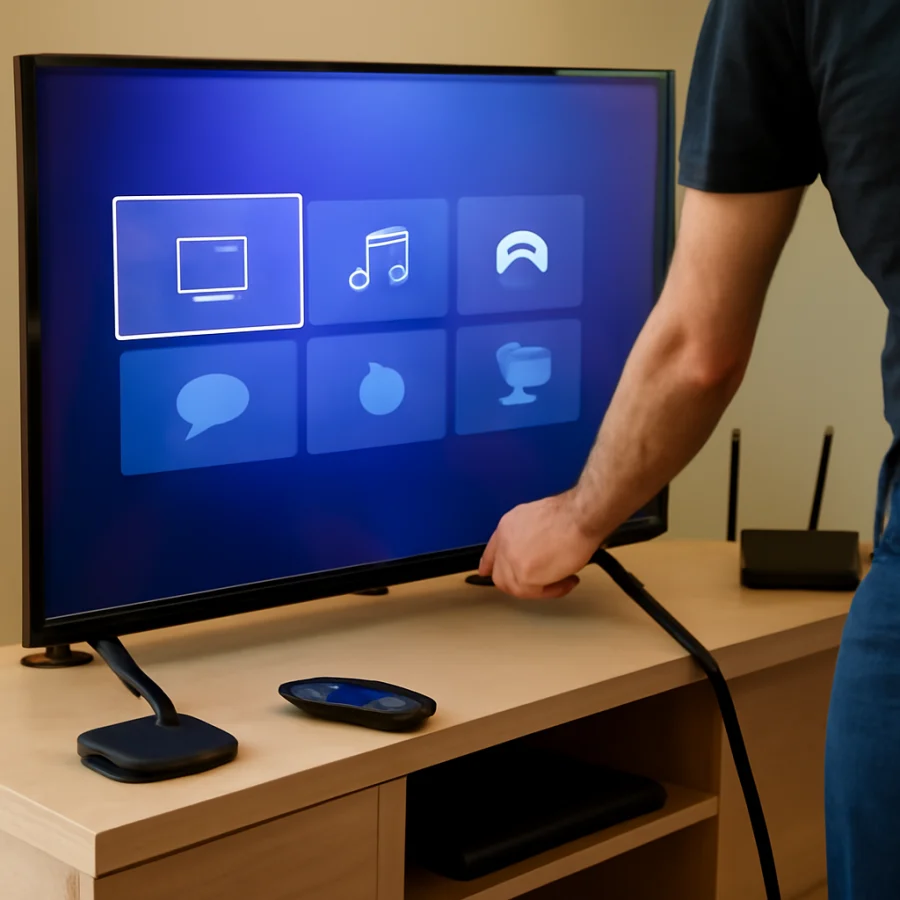
Check for overheating and blocked ventilation
Roku TVs can restart when internal temperatures rise too far. This is more likely if the TV is inside a tight cabinet, close to a heater, pressed against a wall, or covered by dust. Make sure air can move around the ventilation openings and that no object is resting on the set.
Turn the TV off and let it cool completely. Gently remove surface dust around the vents using a soft, dry cloth. Do not push anything into the openings, spray cleaner into the TV, or use compressed air in a way that drives dust farther inside.
After cooling, test the TV in a more open location if possible. Pay attention to the pattern. Restarts that happen after the TV has been running for a while may point toward heat, while restarts immediately after powering on may suggest software, power, or hardware trouble.
Find out whether one channel triggers the restart
Notice what you were doing immediately before the TV restarted. Does it happen only while watching Netflix, YouTube, a live TV input, or one particular channel? If every other app works normally, the affected channel may have corrupted data or may not be handling the current Roku software properly.
First, restart the TV and test a different app. If the problem appears limited to one channel, remove that channel, restart the TV, and add it again from the Roku channel store. The channel-removal process can differ slightly by software version; our guide to deleting a channel from a Roku TV explains the general steps.
Do not assume that a single-app restart proves the TV is defective. Apps can crash because of damaged temporary data, a failed update, an account problem, or a service-side issue. If the TV restarts across several apps, continue with the system and network checks below.
Check the internet connection
A weak or unstable internet connection usually causes buffering rather than a complete TV restart. However, network activity can expose a problem with an app or system process, especially if the restart occurs while content is loading or an app is updating.
Open the TV’s network settings and run its connection test if one is available. The menu name and test details vary by model. Restart your router and modem, then wait until the home network is working before testing the TV again. If possible, compare the Roku TV with another device using the same Wi-Fi network.
If the TV is connected to Wi-Fi but has no usable internet access, troubleshoot that separately using this guide to a Roku TV connected to Wi-Fi without internet. For a TV that restarts only during streaming, also test a different network temporarily, such as a phone hotspot. This is a diagnostic test, not necessarily a permanent solution.
Do not repeatedly change network settings if the TV restarts even on the Home screen. In that case, the network is less likely to be the primary cause.
Install available Roku TV software updates
An outdated or partially completed system update can cause crashes, missing features, or repeated restarts. If the TV stays on long enough, check for a system update through its settings. The exact path and labels may differ by manufacturer and software version, but it is generally found in the system or software-update area.
Keep the TV connected to reliable power and the internet during the update. Do not unplug it while an update is downloading or installing. If the TV restarts once during an update and then returns to normal, allow it several minutes before taking further action.
If an update repeatedly fails, record what happens and check Roku TV update troubleshooting steps. A TV that cannot remain powered on long enough to update may need help from the manufacturer rather than repeated update attempts.
Disconnect external devices
A connected HDMI device can sometimes send commands that wake the TV, change inputs, or contribute to unusual behavior. Streaming sticks, game consoles, cable boxes, soundbars, AV receivers, USB drives, and HDMI switches are all worth testing separately.
Turn the TV off, unplug every external device, and disconnect HDMI, USB, antenna, and other cables except the power cord. Then turn the TV on and leave it on the Home screen. If the restarts stop, reconnect devices one at a time and test after each connection.
Pay particular attention to the device connected immediately before the restarts began. You can also test a different HDMI cable and port. If the TV stops restarting when a particular device is disconnected, check that device’s power settings and HDMI-control settings. Those settings have different names across manufacturers, so do not rely on a menu path from another model.
Check the remote and physical buttons
A stuck remote button usually changes the channel, opens an app, or turns the TV on and off rather than causing a true system restart. Still, it is easy to rule out. Remove the batteries from the Roku remote and any nearby universal remote, then use the TV’s physical controls for a short test.
Keep the remote away from the TV and remove any object pressing against the television’s buttons. If the problem stops with the remote batteries removed, inspect the remote for a stuck button, liquid damage, or accidental repeated input. See our guide to TV remote controls for additional remote checks.
Consider storage and temporary system data
A Roku TV with many installed channels or limited available storage may behave poorly when apps need to update or save data. This is not the most likely cause of every restart, but it is worth checking if the TV is slow, apps disappear, or channels repeatedly reload.
Remove channels you no longer use and restart the TV. Avoid unofficial button combinations or procedures that claim to clear hidden cache data unless they are appropriate for your exact model. Some methods can sign you out, change settings, or create additional problems. If storage appears to be involved, use the TV’s normal channel-management tools. You can also review this guide to freeing storage on a Roku TV.
When to use a factory reset
A factory reset should be one of the final software steps, not the first response. It removes personal settings, installed channels, network information, and account-related data from the TV. You will need to set the television up again afterward, and the exact reset menu may vary by model.
Consider a factory reset only when the TV restarts across multiple apps and inputs, power and ventilation checks are normal, external devices have been disconnected, and software troubleshooting has not helped. Before resetting, make sure you know the email address and password used for your Roku account and any important streaming services.
If the TV restarts during the reset process, cannot stay on long enough to complete setup, or continues restarting immediately afterward, stop repeating the reset. The problem may involve the power supply, main board, storage, overheating, or another internal component.
When the TV needs professional service
Contact the TV manufacturer or a qualified repair technician if the television restarts with nothing connected, does so on multiple outlets, becomes unusually hot, makes clicking or buzzing sounds, shows a flashing light pattern, or displays lines and other picture problems before shutting down. Describe when the restart occurs, how often it happens, whether it affects every app, and which troubleshooting steps you have already tried.
Do not open the back panel or attempt to replace internal boards yourself unless you are trained to work safely on television electronics. If the set is still covered by a warranty or service plan, check the applicable support options before paying for a repair. A clear video of the restart pattern and a note of the TV model number can help support staff diagnose the issue more efficiently.



Comments
0No comments yet. Be the first to share a helpful note or question.
Leave a Comment
Your email address will not be published. Comments are reviewed before appearing on the site.