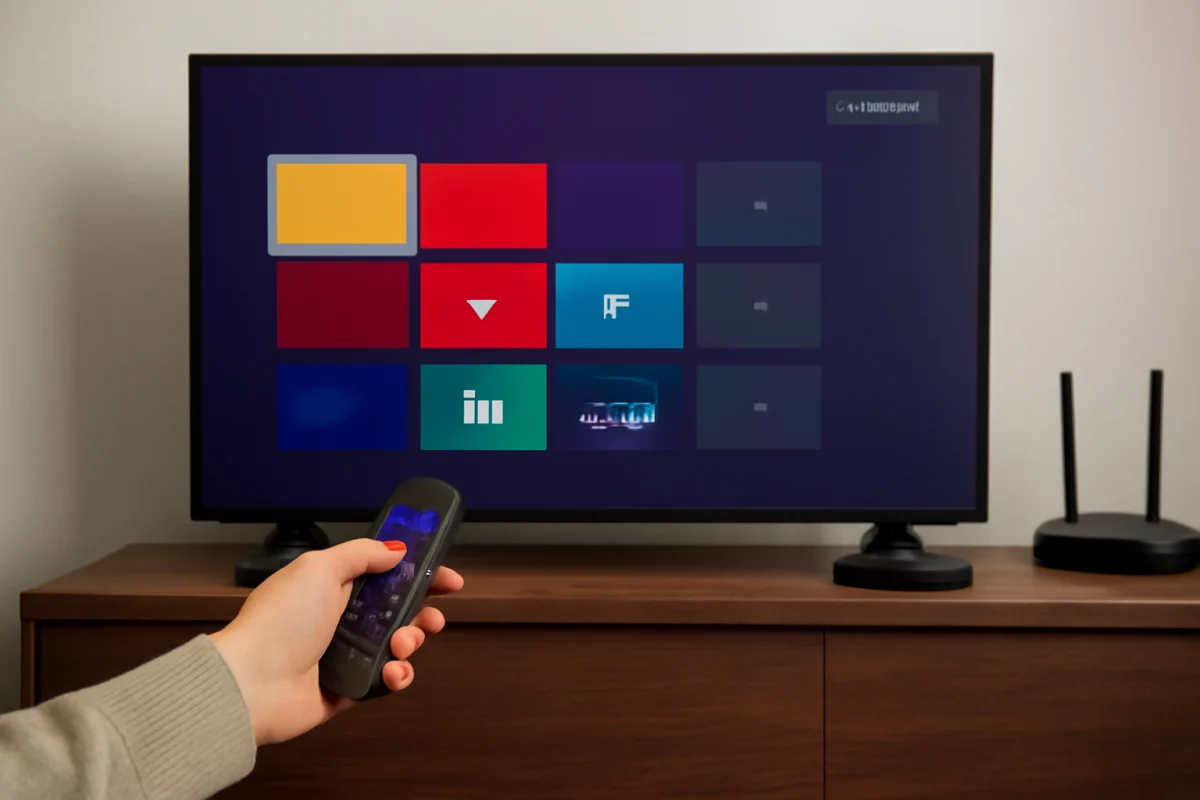
To delete a channel from a Roku TV Home screen, move the highlight to the channel tile, press the * (Options) button on your Roku remote, choose Remove channel, and confirm. The wording or location of the option can vary slightly by Roku TV model and software version.
This removes a streaming channel from your Roku account and Home screen. It does not cancel a paid subscription by itself. If the tile is for an antenna channel, a live TV input, or another built-in feature, the removal process may be different.
Remove a streaming channel from the Roku TV Home screen
Use these steps for apps such as streaming services, free ad-supported channels, and other channels installed through the Roku platform:
- Press the Home button on the Roku remote.
- Move the selection to the channel tile you want to delete. Do not open the channel.
- Press the * (Options) button. On some remotes, this button has an asterisk symbol.
- Look for Remove channel in the menu.
- Select the removal option and confirm when Roku asks you to.
After confirmation, the tile should disappear from the Home screen. If it remains visible, wait a few seconds, move to another row, and return to the Home screen. You can also press the Home button again to refresh the layout.
What happens when you remove a channel?
Removing a channel uninstalls it from that Roku device and normally removes it from the Roku account's channel list as well. Your profile, watch history, and subscription status may depend on the service itself rather than Roku. Removing the app does not automatically end billing through a streaming provider, Roku, a mobile app store, or another payment service.
If you pay for the service, check where the subscription was started before assuming that removing the channel has canceled it. You may need to manage the subscription through the provider's account page or the payment platform used when you signed up.
If “Remove channel” is missing
The most common reason for a missing removal option is that the selected item is not a normal Roku channel. Roku TVs can place several kinds of tiles and inputs on the Home screen, and not all of them can be deleted in the same way.
Check that you selected the actual channel tile
Return to the Home screen and highlight the app itself rather than a search result, recommendation, or shortcut. Then press the Options button again. The menu should show actions that apply to that item.
If the tile opens a menu instead of showing channel management choices, back out and try the Options button while the tile is highlighted. Pressing the button after opening the app may display a different menu or no channel-removal option at all.
Identify the type of item you are trying to remove
Roku TV Home screens can include streaming apps, TV inputs, antenna TV features, and promotional or system-related tiles. A streaming app can usually be removed from its tile. A physical input, such as an HDMI connection, cannot be uninstalled because it represents a port on the television.
Some Roku TV models also display live TV or antenna-related tiles. These are handled through the TV's channel or input settings rather than the same Remove channel command used for streaming apps. Menu names can differ, so look for settings related to TV inputs, live TV, antenna, or channel setup.
How to remove an antenna channel from a Roku TV
If you mean a broadcast channel received through an antenna, do not use the streaming-channel removal steps as your first choice. An antenna channel is part of the TV's scanned channel list.
Depending on the Roku TV model, you may be able to edit the channel list, hide unwanted channels, or run a new scan. Start from the Home screen and open the TV settings. Look for an area related to TV inputs, live TV, antenna, or channel setup. From there, choose the available option for editing or scanning channels.
Because menu labels vary, avoid selecting a full factory reset just to remove one antenna channel. A new channel scan can also change the existing channel list, so write down any important channel information first if your TV offers no simple hide option.
Remove a channel when the remote does not respond
If pressing the Options button does nothing, solve the remote problem before troubleshooting the channel. Confirm that the remote is controlling the Roku TV and not another device connected to it. Point the remote toward the television if it uses infrared communication, or move closer if it uses a wireless connection.
Try the following low-risk checks:
- Press Home once and wait for the Home screen to appear.
- Replace the remote batteries if other buttons are also unreliable.
- Remove anything blocking the front of the TV.
- Press the Options button while a channel tile is highlighted, not while a settings screen is open.
- If you use the Roku mobile app, make sure the phone and TV are connected to the same local network.
If only the Options button fails while the rest of the remote works, the button may be worn or stuck. Use the Roku mobile app temporarily if it is available, or try a compatible replacement remote. For additional remote checks, see this Roku remote troubleshooting guide.
What to do if the channel comes back
A channel that returns after removal may be restored through account syncing, a software refresh, or another user adding it again. First, remove it once more and restart the TV from its power menu if one is available. If the TV is frozen, unplug it from power for about a minute, reconnect it, and wait for the Home screen to load. This is a basic power cycle, not a factory reset.
Check whether another person uses the same Roku account on a different Roku device. Roku channel management can be connected to the account, and changes made on one device may affect the available channel list elsewhere. If the channel keeps returning, review the account's device and channel management settings through Roku's official account tools.
Also check whether the item is actually a recommendation rather than an installed channel. Recommended content can look similar to an app tile but may have different controls. If it cannot be removed through the Options menu, look for a Home screen or recommendation preference instead of repeatedly reinstalling and removing the app.
If the Home screen is stuck or does not refresh
When a deleted channel remains on screen, the TV may not have refreshed its Home screen yet. Try these steps in order:
- Press Home, wait several seconds, and highlight a different tile.
- Open and close another channel, then return to Home.
- Restart the Roku TV using its normal power or system restart option.
- Check the network connection if the TV cannot load account or channel information.
A Roku TV can appear connected to Wi-Fi while still having trouble reaching online services. If other streaming apps also fail to load, check your network rather than focusing only on the deleted channel. Our guide to Roku TV connected to Wi-Fi but no internet covers the basic connection checks.
Do not start with a factory reset. Resetting the TV removes account information, installed channels, preferences, and network details, so it creates more work and is rarely necessary for one channel tile. Consider it only after simpler steps fail and after you have confirmed that you know the Roku account email and password.
Reinstall a channel later
If you remove a channel by mistake, you can usually add it again from the Roku streaming store or the channel store available on your TV. Search for the service by name, select it, and choose the available add or install option. You may need to sign in again, and some apps may require activation with the provider.
Removing and reinstalling an app does not necessarily delete your account with that service. It also may not remove downloads, profiles, or billing records held by the provider. Treat channel removal as an app-management step, not an account-cancellation step.
When to check Roku support or the TV manufacturer
If the Options menu never appears for ordinary streaming channels, several channels cannot be removed, or the TV repeatedly loses its Home screen changes, the issue may be related to the Roku software, account synchronization, or the television's remote. Record the TV model, the channel name, and what appears after pressing the Options button before contacting support.
Use the manufacturer’s support information for model-specific menu instructions, since Roku TV settings can differ by brand and model. You can also browse the Roku section of TV Fix Guide for related setup, network, and remote troubleshooting steps.
For most streaming apps, however, the fix is straightforward: highlight the tile on the Home screen, press the Options button, choose Remove channel, and confirm. If that option is unavailable, identify whether the item is an antenna channel, TV input, recommendation, or system tile before changing deeper settings.



Comments
0No comments yet. Be the first to share a helpful note or question.
Leave a Comment
Your email address will not be published. Comments are reviewed before appearing on the site.