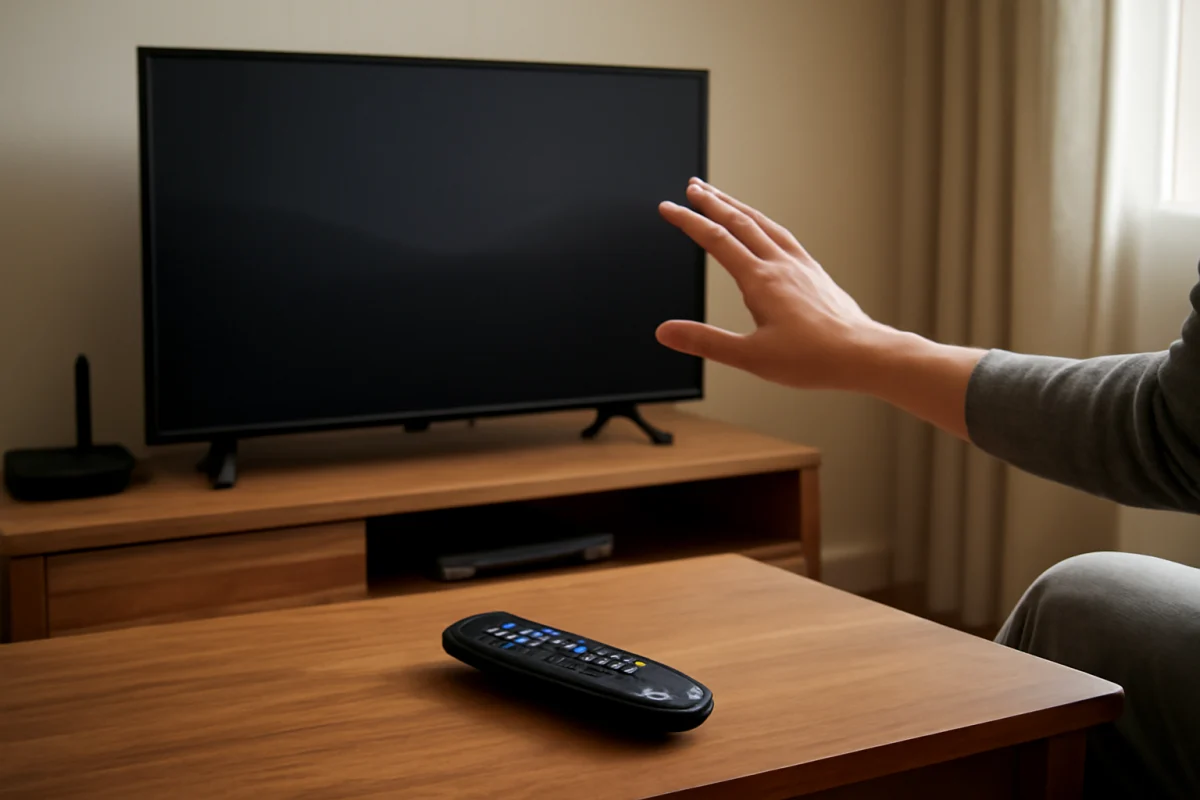
If your Roku TV goes to sleep while you are watching it, first determine what “sleep” means. A Roku TV may show a screensaver after a period of inactivity without actually turning off. It may also reduce power, return to the Home screen, or shut down completely because of an automatic power-saving setting, a streaming app, or a remote-control problem.
Start by pressing a button on the remote. If the picture returns immediately, you are probably seeing a screensaver or inactivity feature rather than a serious fault. If the television does not respond, check the remote, power connection, and software before changing advanced settings or performing a reset.
Check whether the Roku TV is sleeping or only showing a screensaver
A screensaver is not the same as the TV powering off. Roku TVs commonly display moving images, artwork, or another idle screen when no button has been pressed for a while. The television can appear inactive while remaining on and ready to resume.
Press Home, Back, or another navigation button once. Avoid pressing several buttons repeatedly, because that can make it harder to tell whether the TV is responding normally. If the Home screen appears, open the settings and look for screensaver or power-related options. The exact wording and location can vary by Roku TV brand, model, and software version.
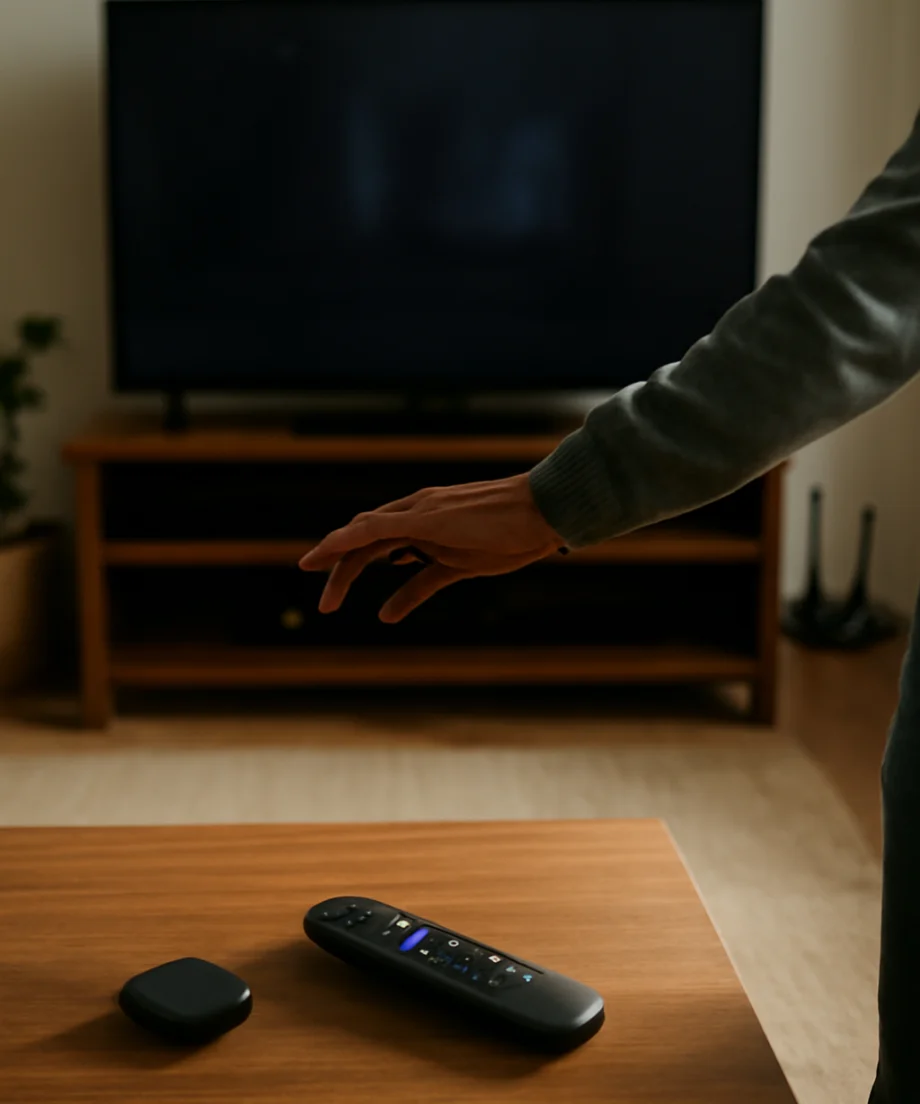
If the TV goes completely black and the power indicator changes, note what happens next. Does it wake when you press the remote? Does it turn back on by itself? Does it shut down at approximately the same time every day? Those details help separate an idle setting from a power, network, or hardware problem.
Review the TV’s power and inactivity settings
Roku TV menus are not identical on every television. Manufacturers can organize settings differently, and available options may change after software updates. From the Home screen, open Settings and look for sections related to power, system, energy, or automatic power savings.
Depending on the model, you may find an option that turns off the TV after a period without activity. If you do not want the TV to power down automatically, disable that option or choose the setting that allows it to remain on longer. Some models offer more than one energy-saving control, so read each description before changing it.
Also check for options that reduce power when the TV has been idle or when no input signal is detected. A television connected to a cable box, game console, or streaming player may interpret a missing signal as inactivity. If the problem occurs only when using one HDMI device, the external device may be shutting down first.
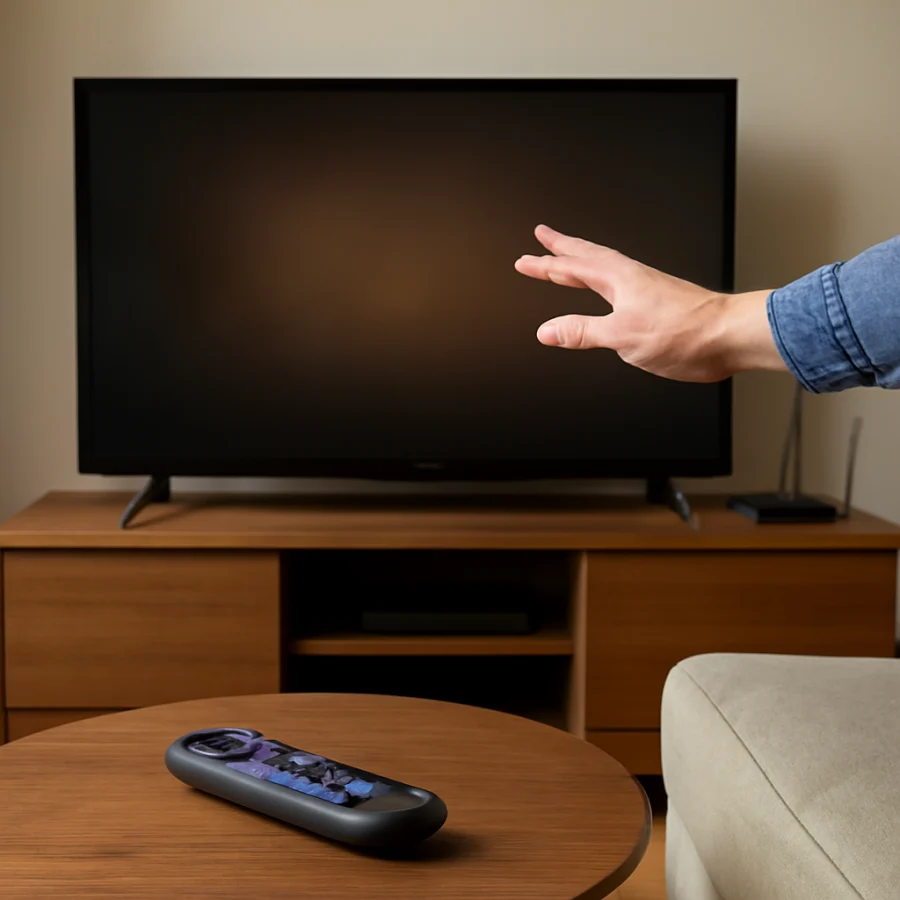
Do not assume that changing the screensaver timeout will prevent every type of shutdown. A screensaver controls what appears during inactivity, while a power-saving option may turn off the display or television separately.
Check the streaming app and playback activity
If the TV sleeps only while a particular app is open, the app may be stopping playback or becoming unresponsive. Some services pause a video when playback ends, when the connection drops, or when the app detects no interaction. A Roku TV may then treat the television as idle.
Test the same TV with another app or with a different program in the same app. If the issue happens everywhere, focus on the TV’s power settings, remote, and network. If it happens only in one service, close and reopen that app, check for an available app update, and sign in again only if necessary.
Before removing an app, make sure you know the account email address and password. Removing a channel can require you to set it up again, and the steps may differ depending on the service. You can also review our guide to clearing the cache on a Roku TV without removing your account for a less disruptive troubleshooting option.
Make sure the remote is not causing false inactivity
A Roku TV may go to sleep because it is not receiving your commands, even when you are using the remote normally. A weak battery, blocked infrared sensor, stuck button, or wireless pairing problem can prevent the TV from recognizing input.
- Replace the batteries with a fresh matching pair if the remote uses replaceable batteries.
- Make sure nothing blocks the front edge of the TV or the remote’s signal path.
- Check whether any button is stuck or being pressed by a case, furniture, or another object.
- Try using the remote from a short distance, then from the normal viewing position.
- If you use the Roku mobile app, confirm that the phone and TV are on the same network.
If the physical remote is unreliable, the TV may still work normally through its buttons or the Roku mobile app, depending on the model and network status. Our guide to a Roku TV that is slow to respond to the remote covers additional remote checks.
Test the TV without an external device
Disconnect HDMI devices temporarily, including game consoles, cable boxes, soundbars, and streaming players. Leave the Roku TV on its built-in Home screen or use a built-in app for a while. This helps determine whether an external device is sending a power command or losing its signal.
If the TV stays on after the HDMI devices are disconnected, reconnect them one at a time. Enable or disable HDMI-CEC-related controls only after identifying the device involved. The setting may have a different name on the TV or connected equipment, so do not rely on one universal menu label.
Also inspect the power cable and outlet. Make sure the cable is firmly connected at both ends, if it is detachable, and plug the TV directly into a known-good wall outlet for testing. Avoid using a loose power strip or smart plug while troubleshooting. Do not repeatedly unplug the television while it is starting, updating, or saving settings.
Restart the Roku TV
A normal restart can clear a temporary software or app problem without removing your accounts. Use the on-screen restart option if your model provides one. The location can vary, but it is generally found in the system or power settings.
If the screen is responsive, follow the TV’s restart instructions and wait until the Home screen returns. Do not interrupt the process. Then test the television with a built-in app and leave it idle long enough to see whether the original behavior returns.
If the TV is frozen, unplug it from the wall only after closing any activity you can close normally. Wait briefly, reconnect it, and allow it to start fully. This is different from repeatedly cutting power during normal operation, which can create additional problems.
Check for Roku TV software updates
Software updates can improve stability, but the update process and menu wording vary by model. Open the system settings and look for the option to check for an update. Keep the TV connected to power and the internet while it checks or installs software.
If the update fails, do not keep restarting the TV randomly. First verify that the internet connection works on another device and that the TV has a stable connection. You can follow our guide on checking and updating Roku TV software for the general process.
If the TV is connected to Wi-Fi but apps frequently stop, buffering or network interruptions may be mistaken for sleep. Restart the router, test another network device, and check whether the TV loses its connection at the same time the screen goes dark. For network-specific symptoms, see our guide to a Roku TV connected to Wi-Fi but without internet access.
When a factory reset may be appropriate
A factory reset should be a last resort, not the first response to a Roku TV that goes idle. It removes settings, installed channels, network information, and account-related setup from the television. You will need to set it up again afterward.
Consider a reset only if the TV continues shutting down after you have checked power settings, tested another app, removed external devices, restarted the TV, and installed available updates. Before resetting, write down the information needed to reconnect to Wi-Fi and sign in to your streaming services.
Use the reset option in the TV’s settings rather than attempting undocumented button combinations. The correct procedure can vary by model. If the TV cannot stay on long enough to open its settings, contact the television manufacturer or Roku support for model-specific instructions.
When to seek service
Contact the TV manufacturer if the television powers off while actively playing different apps, turns off even with external devices disconnected, repeatedly restarts, or will not remain on after a restart. A failing power board, overheating condition, or other hardware fault cannot be fixed safely through menu settings.
Stop using the TV and unplug it if you notice a burning smell, smoke, crackling, unusual heat, or visible damage to the power cord. Do not open the television. Internal components can retain hazardous electrical charge even after the TV is unplugged.
In most cases, a Roku TV that appears to sleep is responding to an inactivity or power-saving feature, a screensaver, or a lost playback signal. Identify whether the display is merely idle or fully powered off, then work through the settings, remote, connected devices, network, and software in that order.



Comments
0No comments yet. Be the first to share a helpful note or question.
Leave a Comment
Your email address will not be published. Comments are reviewed before appearing on the site.