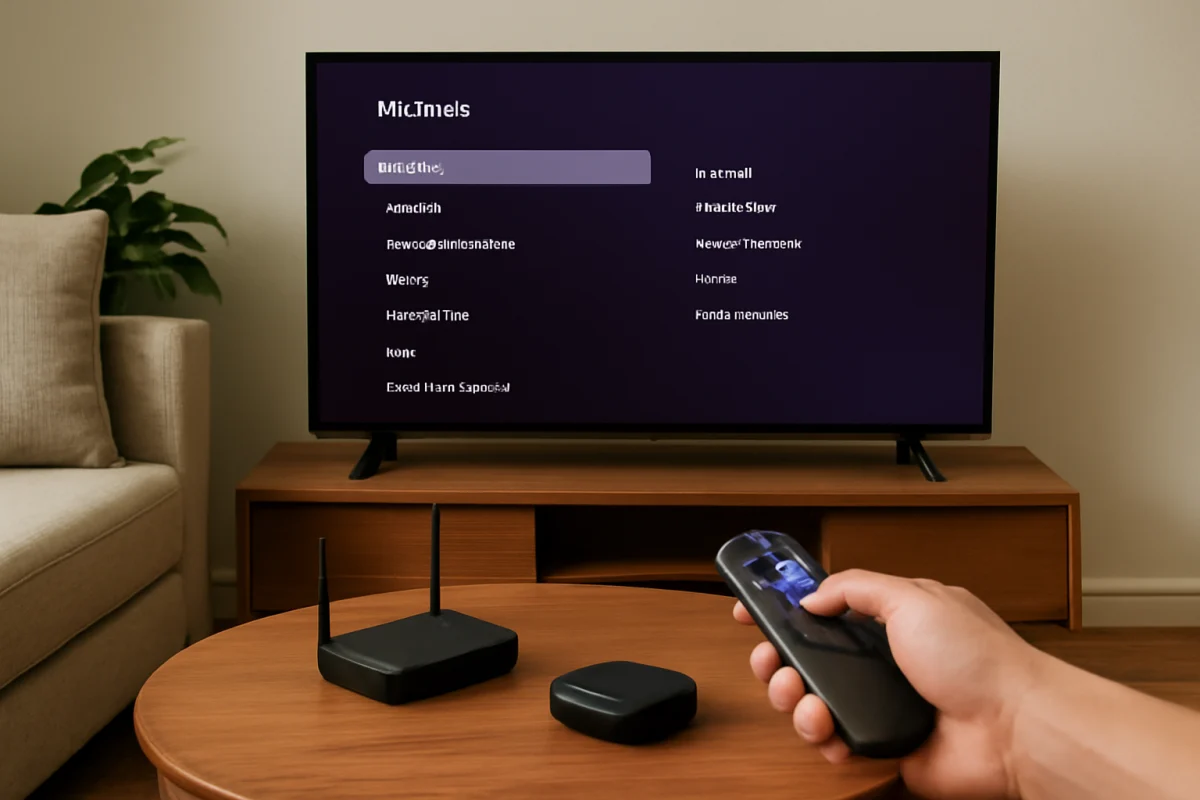
The safest way to clear temporary data on a Roku TV without removing your account is to restart the TV. Roku TVs generally do not include a standard “Clear cache” option like some phones or streaming devices. A normal system restart closes apps, refreshes temporary memory, and can fix freezing, slow menus, playback problems, and channels that refuse to load. It does not normally sign you out of your Roku account or remove your installed channels.
Before trying a factory reset, use the low-risk steps below. Menu names can vary slightly by Roku TV brand, software version, and remote, so follow the closest matching option you see on your screen.
What clearing the cache means on a Roku TV
Apps and the Roku operating system use temporary data while they run. This information can help a channel load content faster, but it may become outdated or behave incorrectly after an app update, network change, or long period of use. Symptoms can include:
- An app opens slowly or gets stuck on its loading screen.
- Video pauses even though other devices use the same Wi-Fi normally.
- The Roku home screen feels sluggish.
- A channel closes unexpectedly or returns to the home screen.
- Search results, menus, or thumbnails fail to appear correctly.
On Roku TV, restarting is the closest general-purpose cache-clearing step. It refreshes the system without erasing your account, apps, preferences, or network details in the way a factory reset can.
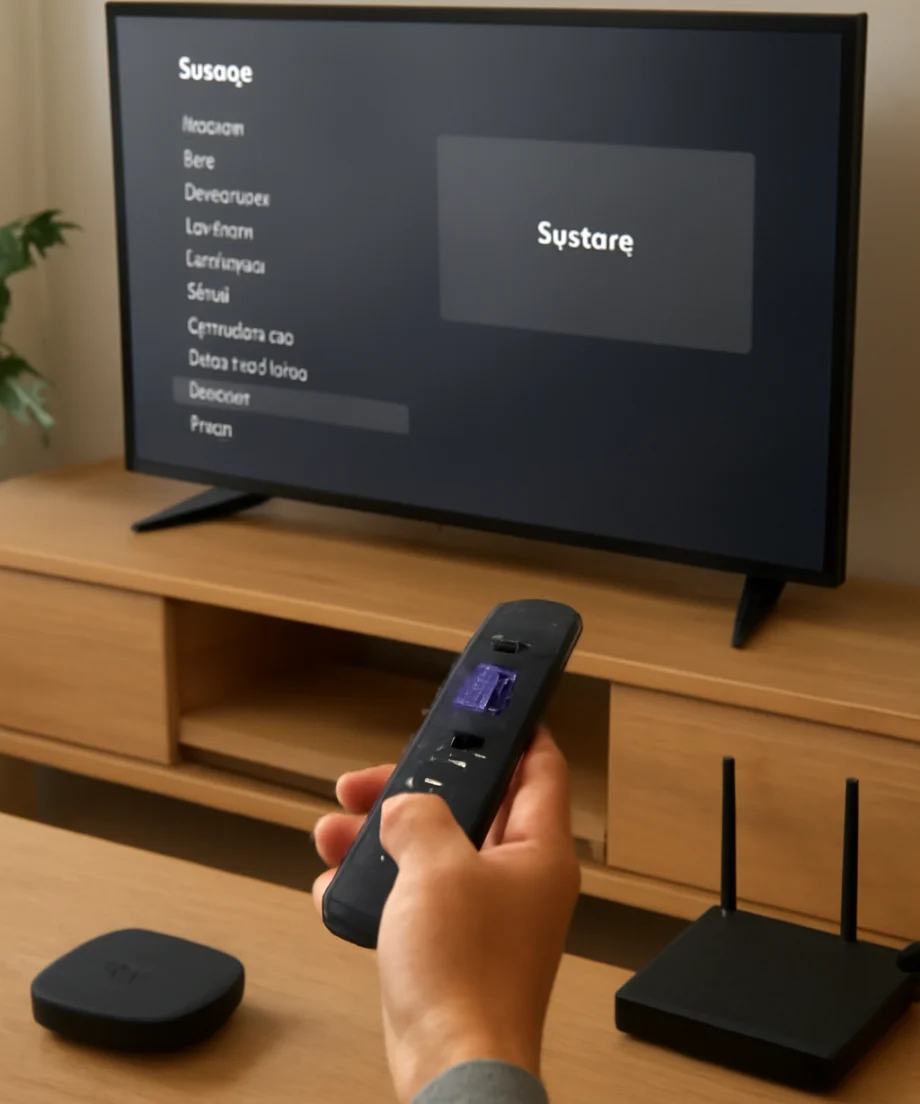
Restart your Roku TV from the Settings menu
Use the on-screen restart option first because it is controlled, simple, and unlikely to change your setup.
- Press the Home button on your Roku remote.
- Open Settings.
- Look for a section named System. On some models, power-related controls may appear in a separate location.
- Select the option for Power, if your TV shows one.
- Choose System restart and confirm.
Some Roku TVs display System restart directly within the System menu instead of placing it under Power. If you do not see the exact same labels, look for a restart option under the system or power settings rather than selecting anything labeled reset or factory reset.
The screen may go blank for a short time while the television restarts. When the home screen returns, open the problem channel and test it again. Your Roku account should remain connected, and your installed channels should still be available.
Power-cycle the TV if the menu is frozen
If the Roku interface will not respond, a power cycle can refresh the TV without using the menus. This is different from a factory reset and should not normally remove your account.
- Turn the TV off with the remote, if possible.
- Unplug the TV from the wall outlet.
- Wait at least 30 seconds. Waiting a little longer is also reasonable if the TV was completely unresponsive.
- Plug the TV directly back into the outlet.
- Turn it on and wait for the home screen to finish loading.
If your TV is connected to a surge protector or power strip, temporarily connect it to a known-working wall outlet for this test. Do not repeatedly unplug the television while it is installing an update or displaying an on-screen update message. Let that process finish whenever possible.
Check whether the problem is really cache-related
A restart helps with temporary software problems, but not every playback or app issue is caused by cached data. Test the problem in more than one channel after restarting.
If only one channel has trouble
When one app fails but other channels work, the issue may be with that service, the channel installation, or the account used inside the app. Check whether the app has an update available and whether the service works on another device. You can also check the channel’s own sign-in or support options.
Removing and reinstalling a channel is more disruptive than restarting. It may require you to sign in again, and it can remove saved settings for that channel. Use it only after the restart and network checks have failed. If you do remove a channel, highlight it on the Roku home screen, press the asterisk or options button, and look for a remove option. The exact wording and availability can vary.
If several channels have trouble
Problems across multiple apps point more toward the TV, network, Roku system, or service availability. Restart your home network equipment if other devices also have slow or unreliable internet. Then reconnect the TV to Wi-Fi if needed and test again.
For more network troubleshooting, see our Wi-Fi and network troubleshooting guides. A weak wireless connection can look like a cache problem because apps may remain stuck while waiting for video or account data.
Use the Roku remote shortcut carefully
Some Roku troubleshooting guides mention a remote-button sequence intended to refresh the device. It generally involves pressing Home several times, followed by directional and playback buttons. However, this shortcut is not presented consistently across every Roku TV model, remote, or software version. It can also trigger behavior you may not expect.
For that reason, use the normal System restart option or unplug-and-reconnect method first. If a support article for your specific Roku TV model recommends a remote shortcut, follow that model-specific guidance and read the instructions carefully before pressing the buttons. Do not assume that every internet-posted button sequence is an official or universal cache-clearing method.
When to remove and reinstall an app
Reinstalling a single channel can help if the channel itself is damaged or its local data is no longer working correctly. This action is different from clearing the entire Roku TV cache.
Before removing the app, make sure you know the email address and password used for that streaming service. Some apps also use a separate activation code or subscription login. Removing the channel does not necessarily cancel a subscription, but it can sign you out and erase local app settings. Check the service’s account page if you are unsure how its subscription works.
After reinstalling, open the channel and sign in again. If the channel still fails while other apps work, the problem may be with the service rather than your TV. Checking the service on a phone or computer can help confirm that.
Do not use a factory reset just to clear cache
A factory reset is not a normal cache-clearing step. It returns the Roku TV to its initial setup state and can erase personal settings, network information, installed channels, picture preferences, and account connections. You will usually need to complete setup again and sign in to your Roku account.
Only consider a factory reset after less disruptive troubleshooting has failed, or when you are preparing to give the TV to someone else. The reset option may be located under a system settings section, but the exact menu path varies by model. Read the warning screen completely before confirming. If you cannot access the menus, check the TV manufacturer’s instructions for the physical reset control and its required procedure.
How to avoid account removal during troubleshooting
- Choose System restart, not Factory reset.
- Do not select an option that says to unlink, deactivate, or reset the TV unless you intend to set it up again.
- Keep your Roku account email and password available before reinstalling channels.
- Do not remove every channel when only one app is having trouble.
- Take a photo of important picture, audio, and network settings before advanced troubleshooting.
A normal restart should preserve your account. If the TV asks you to activate again after a restart, stop and note exactly what happened. A failed update, power interruption, software fault, or accidental reset may require additional support rather than another reset.
What to try if the Roku TV is still slow
After restarting, give the TV a few minutes to finish loading its home screen and channels. Then test the remote, open two or three apps, and play a short video. If the TV remains slow, check for a system update through the system settings. Update labels and locations can vary, so do not worry if your menu does not match another Roku TV exactly.
Also check the remote batteries, confirm that the TV has a stable internet connection, and disconnect unused external devices temporarily. A faulty HDMI device or remote-control problem can sometimes be mistaken for a Roku performance issue. Our Roku troubleshooting guides cover related problems, while the remote control guides can help if navigation is the main issue.
In most cases, restarting the Roku TV is enough to refresh temporary data without touching your account. Move to app reinstallation or a factory reset only when the simpler steps have failed and you understand what information may be removed.



Comments
0No comments yet. Be the first to share a helpful note or question.
Leave a Comment
Your email address will not be published. Comments are reviewed before appearing on the site.