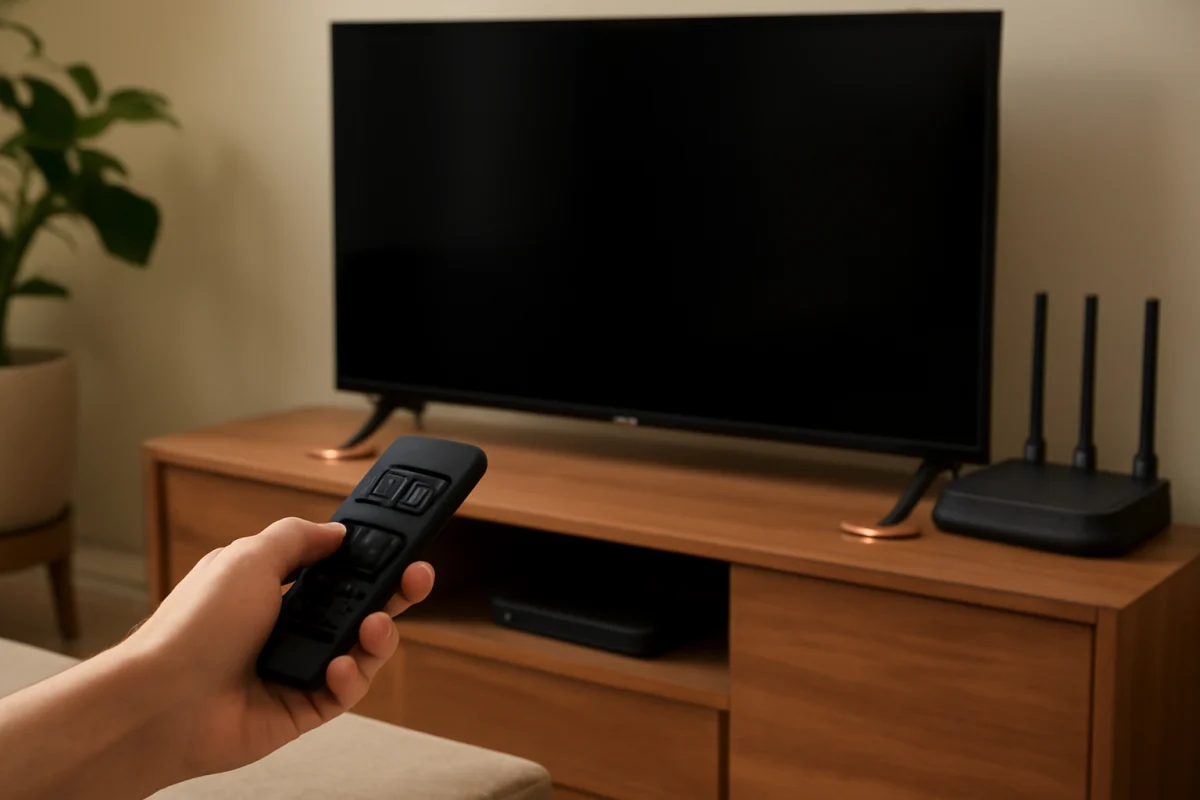
If your Roku TV is slow to respond to the remote, start by checking the batteries, restarting the TV, and making sure the remote has a clear path to the screen. A delayed response does not always mean the remote is faulty. The TV may be busy loading an app, processing a menu command, reconnecting to Wi-Fi, or running low on available system resources.
Work through the steps below in order. The early checks are quick and will not erase your settings. Save a factory reset for last, especially if the delay happens only in one app or only during network activity.
First, identify what is actually slow
Before changing anything, test a few different buttons. Press the arrow keys, Home, Back, and volume controls if your remote includes them. Notice whether the TV reacts slowly everywhere or only in a particular app.
- Slow in every menu: The problem may involve the remote, the TV software, power, or a system-wide performance issue.
- Slow only inside one app: The app may be stuck, overloaded, or having trouble communicating with its service.
- Slow only when opening streaming content: Wi-Fi or internet congestion may be adding delay, even though the remote itself is working normally.
- Some buttons work and others do not: The remote may have worn, dirty, or damaged buttons rather than a general response problem.
This distinction helps prevent unnecessary resets. If the Home screen responds quickly but one streaming app does not, focus on that app and the network before troubleshooting the remote as a hardware problem.
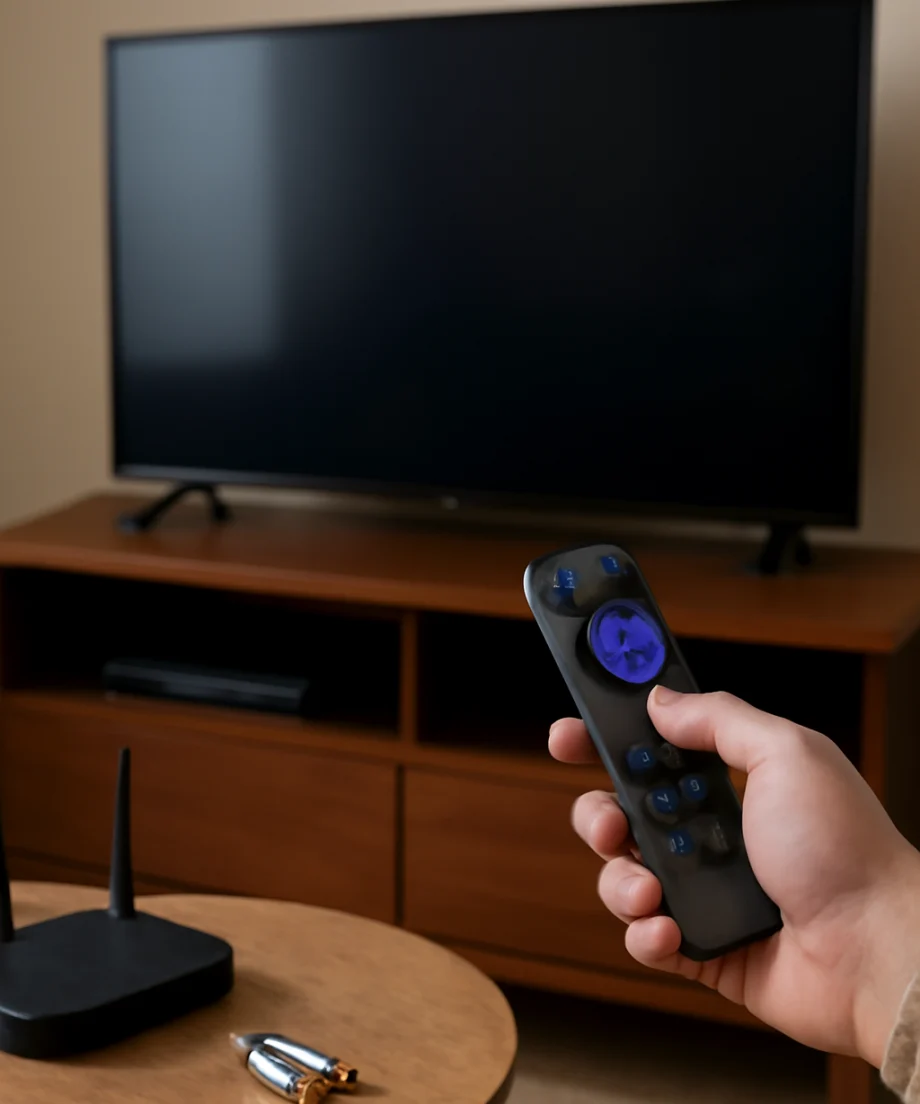
Replace or reseat the remote batteries
Weak batteries are one of the simplest causes of delayed or inconsistent commands. Remove both batteries from the remote and install a fresh pair of the correct type. Make sure the positive and negative ends match the markings inside the battery compartment.
If you recently replaced the batteries, remove them again and check for corrosion, dirt, or a loose contact. Wipe light surface dirt with a dry cloth. Do not use a wet cloth inside the compartment, and do not continue using batteries that are leaking or damaged.
After replacing the batteries, wait a few seconds and test the remote from close to the TV. If it works nearby but not from your usual seating position, the batteries may still be weak, or something may be interfering with the remote signal.
Check the remote's path and possible interference
Move objects that sit directly in front of the TV, particularly soundbars, decorations, game consoles, and other equipment. Depending on the Roku TV and remote type, commands may use infrared, wireless communication, or a combination of technologies. A blocked sensor can affect some remotes, while wireless pairing or interference can affect others.
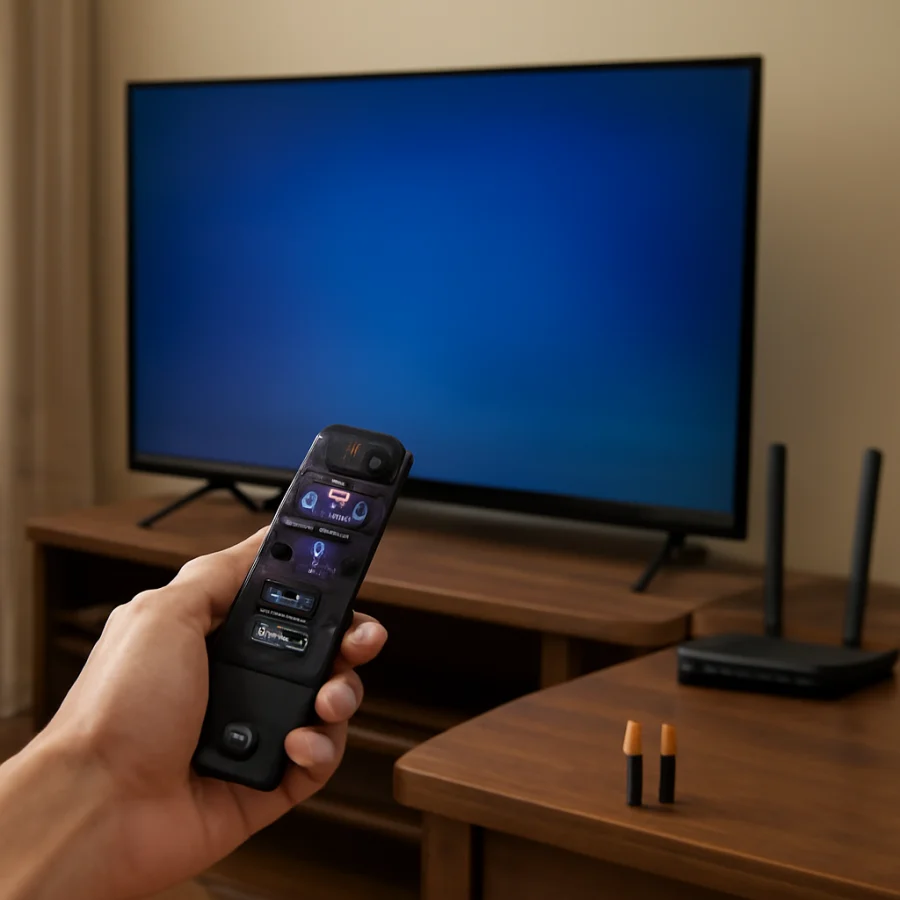
Point the remote toward the TV and try it from several positions. Avoid testing through a cabinet door or from behind the TV. Bright sunlight aimed at the front of the screen can also interfere with some infrared remote systems, so close blinds or move the TV temporarily if sunlight is directly hitting it.
Do not assume that a remote must be aimed at the screen if it is a wireless model. The important test is whether moving closer, changing position, or removing nearby obstructions improves the response.
Restart the Roku TV completely
A normal restart can clear a temporary software process that is slowing down menu commands. Use the restart option available in your TV's settings if the menus are responsive enough to navigate. The exact menu wording and location can vary by Roku TV model and software version.
If the TV is too slow to use the menus, unplug the television from the wall outlet. Leave it disconnected for about one minute, then plug it back in and turn it on using the remote or the TV's physical control. A short power interruption is different from simply pressing the power button on the remote, because some TVs remain in a low-power state when turned off normally.
Wait until the Home screen has fully loaded before testing. If the TV is still reconnecting to Wi-Fi or completing background tasks, it may respond slowly for a short time after startup.
Test the TV before opening an app
Once the TV restarts, stay on the Home screen and press the directional buttons several times. Open a basic settings page, return to Home, and test the volume controls. This tells you whether the delay is present in the Roku interface itself.
If the Home screen is quick but Netflix, YouTube, or another app is slow, close the app by returning to Home and restart the TV. You can also check whether the same service is responsive on another device connected to the same network. A problem affecting only one service may be temporary and may not be caused by the Roku TV.
For related troubleshooting, see TV Fix Guide's streaming app troubleshooting guides.
Check the internet connection
A Roku TV may appear to ignore the remote when it is actually waiting for a network request to finish. This is common when an app is loading, a video is buffering, or the TV is struggling to connect to Wi-Fi.
Open the network section in the TV's settings and review the connection information available on your model. Menu names can differ. Look for an option that tests or checks the internet connection, then follow the on-screen instructions.
Try these low-risk network checks:
- Restart your home router and wait for it to finish reconnecting.
- Pause large downloads, game updates, or high-bandwidth streams on other devices.
- Move the router and TV closer together if possible, or reduce obstructions between them.
- Test the TV at a different time to see whether the delay is limited to busy periods.
- If available, temporarily test another network to determine whether the home Wi-Fi connection is involved.
Do not repeatedly disconnect and reconnect the TV from Wi-Fi unless necessary. If the problem is caused by weak coverage or congestion, re-entering the network password will not solve it.
You can find more general connection advice in the Wi-Fi and network troubleshooting section.
Look for a software update
Roku TVs periodically check for software updates, but a check may not happen immediately after a problem begins. Open the system update area in Settings and check for an update if your TV provides that option. The wording and menu path can vary by manufacturer and model.
Keep the TV connected to power and the internet while an update is installing. Do not unplug it during the process. Afterward, give the television time to restart fully, then test the remote on the Home screen.
An update can help with system bugs, but it is not a reason to install unofficial software or use instructions intended for a different TV model. Use the update tools built into the television.
Check whether the remote needs to be paired again
Some Roku TV remotes pair wirelessly, while other models use a different communication method. If your remote has a pairing button or displays pairing instructions when the batteries are installed, follow the procedure intended for your model.
Pairing steps are not identical across all Roku TV remotes. Avoid holding random button combinations for long periods, since this can create new pairing or input problems. If the TV shows an on-screen pairing prompt, follow that prompt. If the remote has no pairing feature, focus on batteries, line of sight, and possible remote damage instead.
If you have access to a compatible spare remote, test it briefly. A second remote can help identify whether the original remote is the source of the delay. Do not assume that every Roku-branded remote is compatible with every Roku TV.
For additional remote-specific checks, visit the remote control troubleshooting section.
Use the Roku mobile app as a diagnostic tool
If your phone and Roku TV are connected to the same local network, the official Roku mobile app may let you control the TV. Availability and features can vary, and the phone must be able to discover the TV on the network.
This is useful as a comparison rather than a permanent fix. If the mobile app responds quickly while the physical remote remains delayed, the original remote, its batteries, or its connection is more likely to be responsible. If both controls are slow, the TV software or network is a stronger possibility.
Do not treat a phone that works on one network as proof that the TV's physical remote is defective. Network conditions can affect mobile control, so compare the two controls under the same conditions.
Clean the remote carefully
Sticky residue or dust around the buttons can cause missed or repeated commands. Remove the batteries before cleaning. Wipe the outside with a soft, slightly damp cloth, keeping moisture away from openings and the battery compartment. Do not spray cleaner directly onto the remote.
Press each frequently used button once after cleaning. A button that feels stuck, requires unusual pressure, or sends repeated commands may indicate physical wear. Opening the remote is usually not a good first step, particularly if it is still under a seller or manufacturer service arrangement.
When a factory reset is worth considering
A factory reset can remove saved accounts, app settings, network information, picture settings, and other personal preferences. It should be a later step, not the first response to a slow remote.
Consider a reset only when all of the following are true:
- The delay affects the Home screen and multiple apps.
- Fresh batteries and a restart did not help.
- The network connection appears stable or the TV is still slow offline.
- Software is up to date, if an update is available for your model.
- You are prepared to set up the TV and sign back into services afterward.
The reset location and name can vary by Roku TV manufacturer. Read the on-screen warning carefully and confirm that you have the passwords needed to set up the TV again. If the TV is difficult to navigate or you are unsure what will be erased, contact the TV manufacturer's support service before proceeding.
Signs the TV or remote may need service
Arrange further support if the remote remains slow with fresh batteries, a clear path, and a restarted TV, especially if a compatible second remote behaves the same way. Service may also be appropriate when the TV freezes, restarts unexpectedly, ignores its physical controls, or becomes unresponsive even without an app open.
Have the TV model information available when contacting support. You can usually find it on a label, in the TV settings, or on the original documentation, although the exact location varies.
If only the original remote is affected and the TV works normally with another compatible control, replacing the remote may be more practical than resetting the television. Confirm compatibility before buying a replacement.
Prevent slow remote responses
Keep the remote dry, replace batteries as a complete set, and avoid storing it where buttons can be pressed continuously. Leave space around the TV's front and do not cover its sensors with decorations or equipment. Restart the TV when it has been running unusually slowly, and keep its software and apps updated through the built-in tools when updates are offered.
Most delayed Roku TV responses can be narrowed down without erasing the television. Start with the remote batteries and signal path, then restart the TV and compare performance on the Home screen, in apps, and during network activity. That simple diagnosis usually shows whether you need a remote fix, a connection check, an app-specific solution, or more advanced support.
For more Roku troubleshooting guides, browse the Roku section on TV Fix Guide.



Comments
0No comments yet. Be the first to share a helpful note or question.
Leave a Comment
Your email address will not be published. Comments are reviewed before appearing on the site.