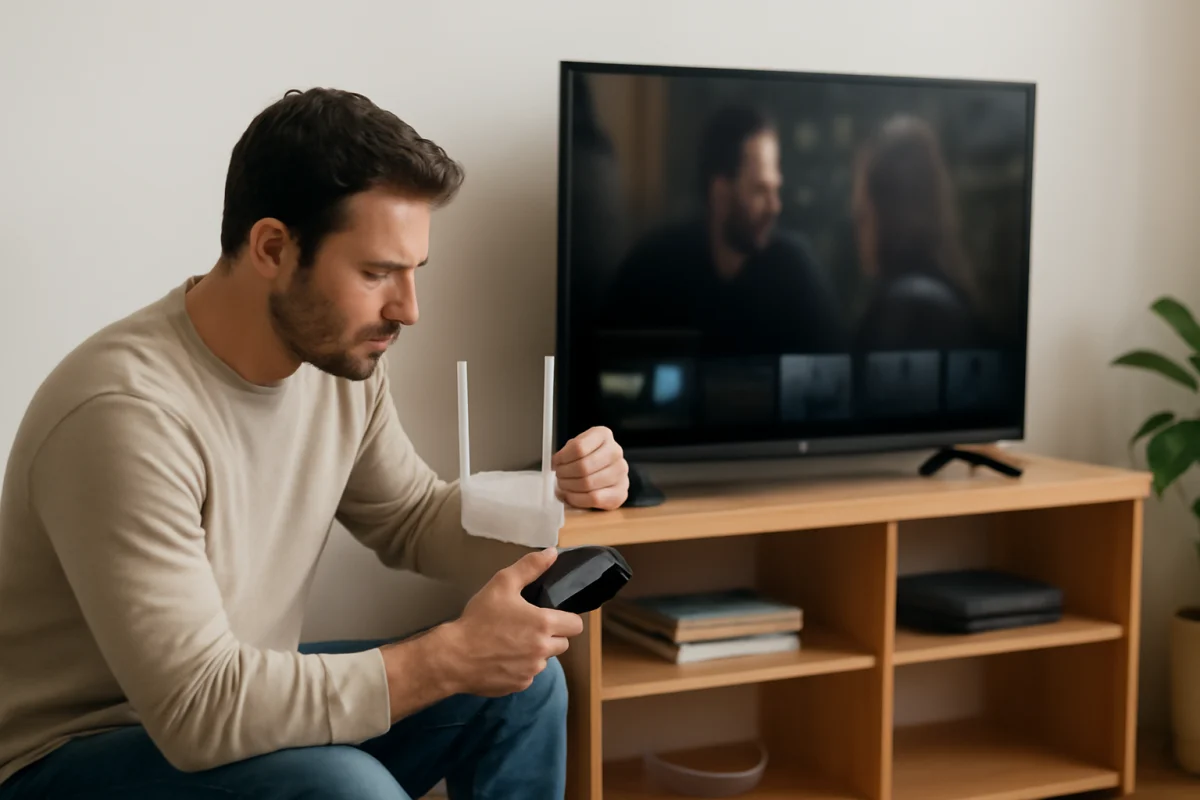
If Wi-Fi keeps dropping on your Sony TV, start by checking whether the problem affects the TV only or every device in your home. Restart the TV and router, test the connection near the router if possible, and remove simple sources of interference before changing advanced network settings. The exact menu names and available options can vary by Sony TV model and software version, but the troubleshooting process is generally the same.
Check whether the problem is the TV or your network
When the connection drops, check a phone, computer, or another streaming device connected to the same Wi-Fi network. Open a website or play a short video to see whether it also disconnects.
- If several devices lose internet access at the same time, the router, modem, internet service, or home network is the more likely cause.
- If only the Sony TV disconnects, focus on the TV's saved network connection, wireless signal, software, or location.
- If Wi-Fi stays connected but only one streaming app stops playing, the issue may be with that app or its service rather than the TV's internet connection.
Also notice when the problem occurs. A TV that disconnects only during evening streaming may be affected by network congestion or a weak signal. A TV that drops Wi-Fi shortly after turning on may need a network reconnect, software update, or power reset.
Restart the Sony TV and network equipment
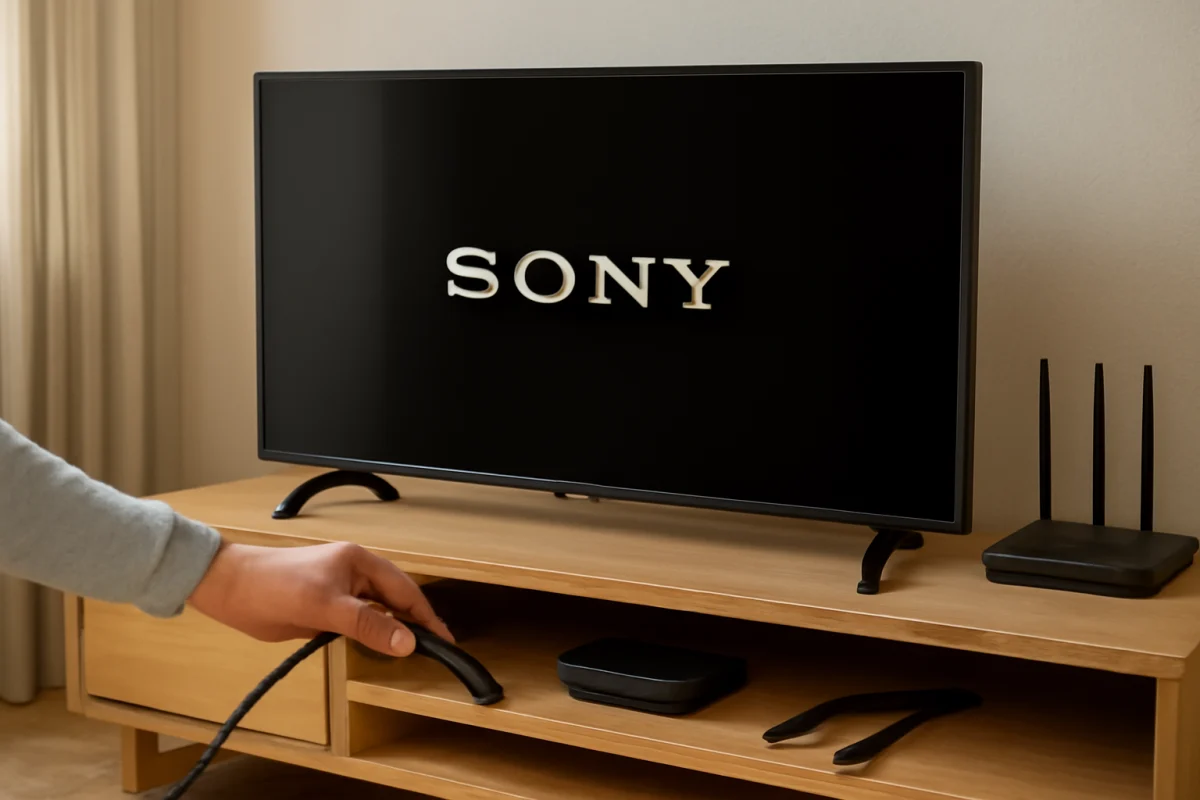
A full restart can clear temporary communication problems without removing your settings. Turn off the TV, then unplug it from the wall for about one minute. While it is unplugged, restart your modem and router using their normal power controls or by disconnecting their power briefly. Allow the network equipment to finish starting before turning the TV back on.
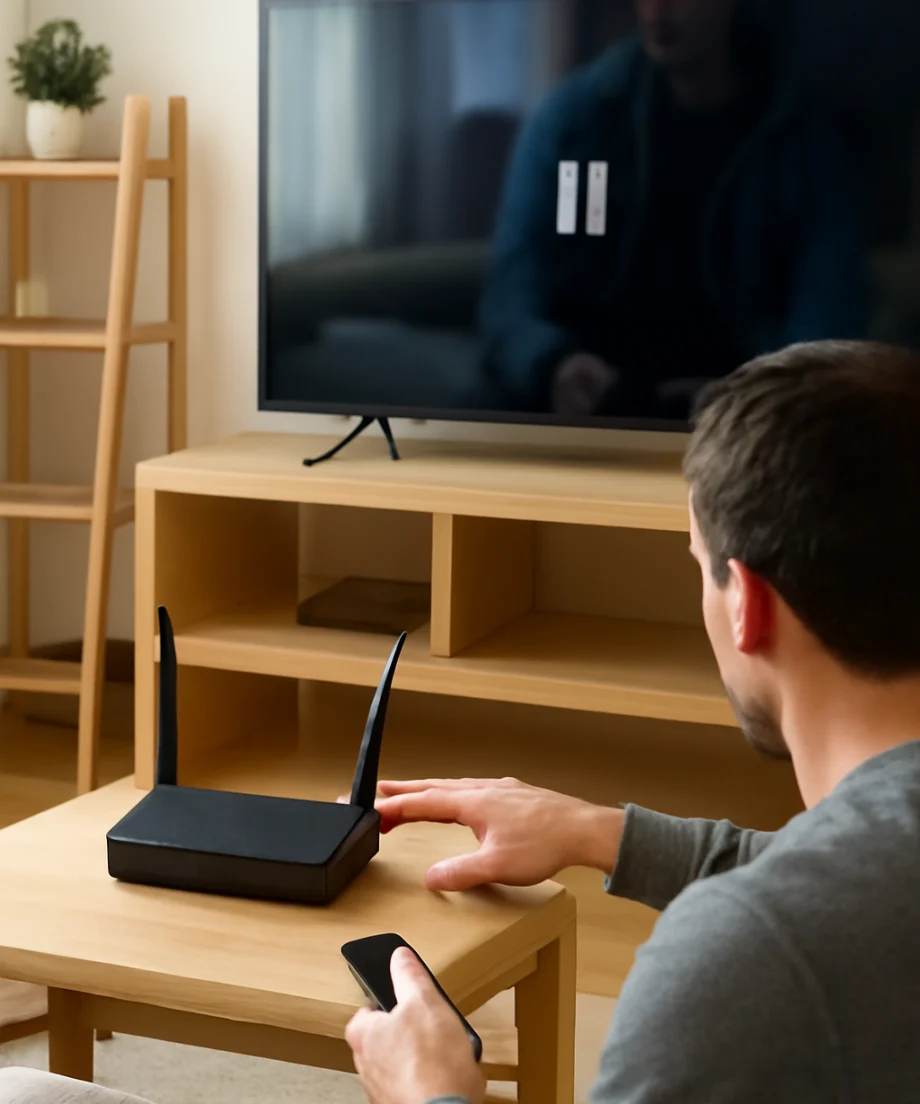
Do not repeatedly unplug a device while it is installing an update. If the TV displays an update or restart message, let that process finish unless it remains stuck for an unusually long time.
After the TV restarts, reconnect to Wi-Fi and test a streaming app for several minutes. If the connection remains stable after the restart but later begins dropping again, the problem may be caused by signal quality, router behavior, or a temporary software issue.
Test the Wi-Fi signal where the TV is located
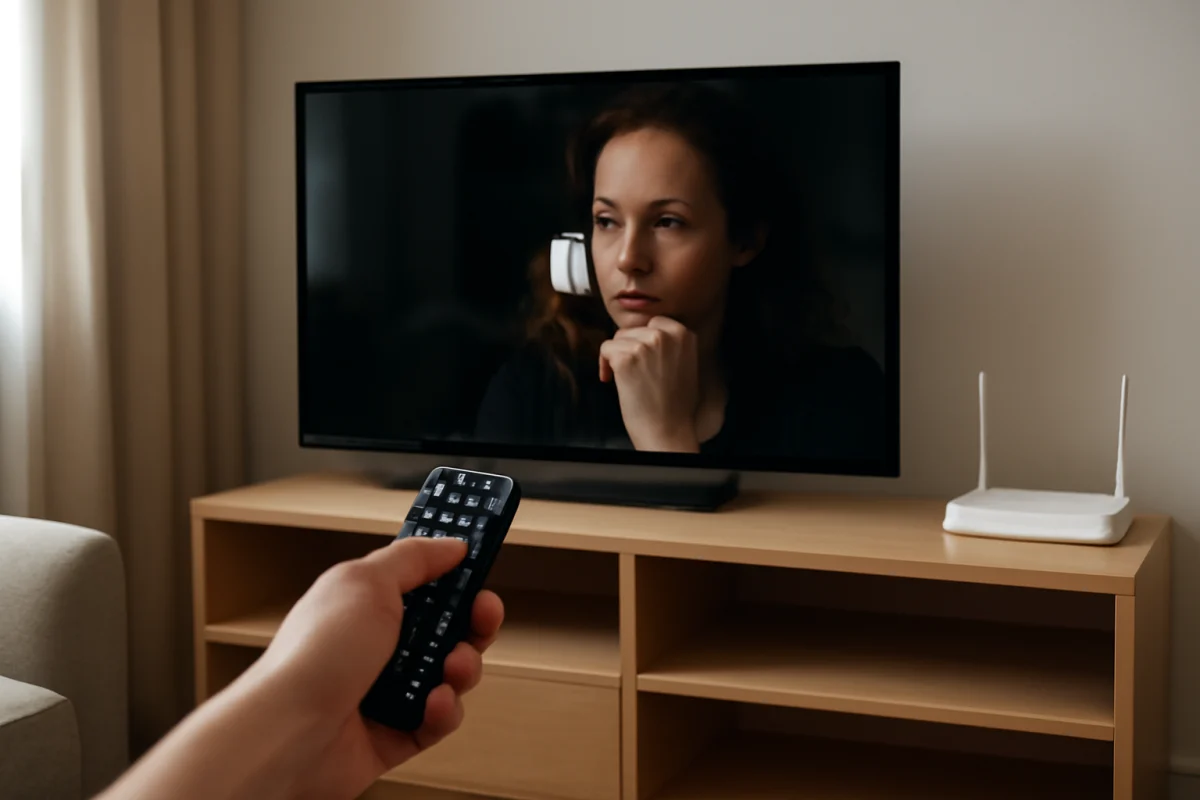
A wireless signal can be strong in one part of a room and unreliable near the TV. Large furniture, walls, metal objects, appliances, and the TV cabinet itself can affect signal quality. If your router is far away, move it into a more open and central position if possible. Keep it away from enclosed cabinets and avoid placing it directly beside other wireless equipment.
For a quick test, temporarily move the router closer to the TV or use a wired Ethernet connection if your TV and router support it. If the TV works reliably when it is close to the router but disconnects in its usual position, the main problem is likely signal strength or interference.
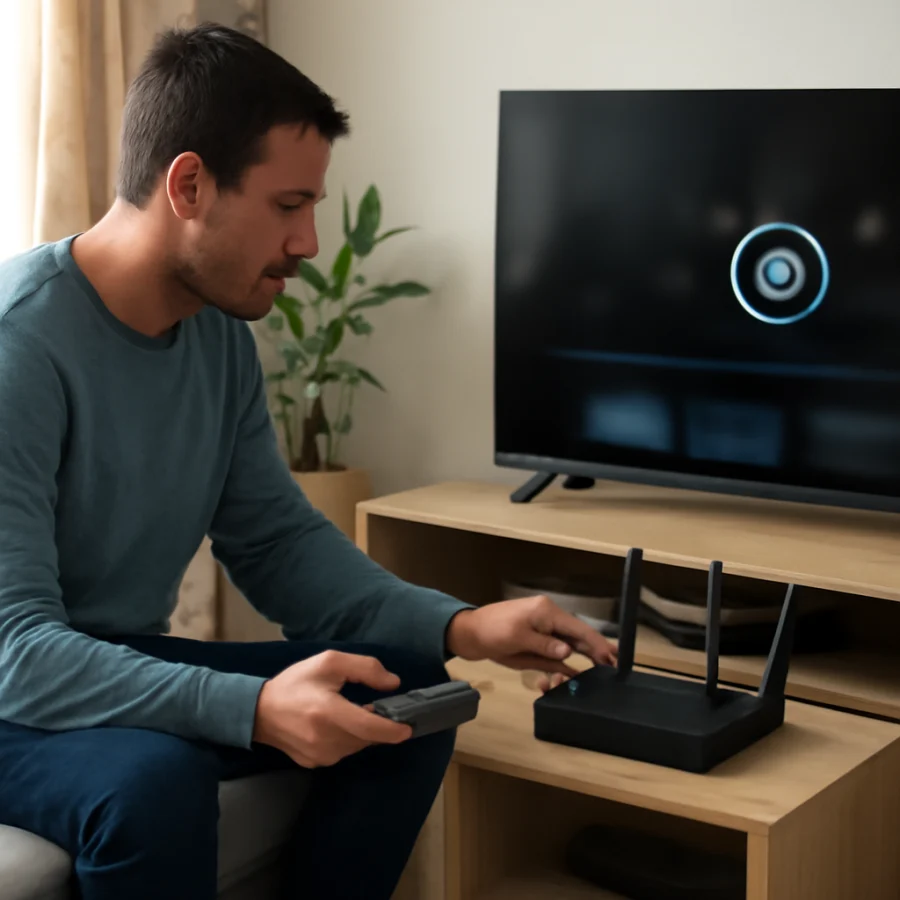
A Wi-Fi extender or mesh system may help in a large home, but adding one is not always the best first step. Poorly positioned extenders can create another weak connection. Place additional network equipment where it still receives a strong signal from the main router, not in the area where the signal has already disappeared.
Forget the network and reconnect
The TV may have an outdated or corrupted saved connection. Removing the saved Wi-Fi network and joining it again often fixes repeated disconnections.
- Open the TV's network or internet settings.
- Find the list of available or saved networks.
- Select your home Wi-Fi network and choose the option to forget, remove, or disconnect it, if available.
- Scan for networks again and select the correct network name.
- Enter the Wi-Fi password carefully, including capitalization and special characters.
The wording and path can differ between Sony TV models, so use the option that controls wireless network settings rather than resetting the entire TV. If the TV shows multiple networks with similar names, confirm that you are selecting your own router's network.
If you recently changed your Wi-Fi password, router, security settings, or internet provider, reconnecting with the current password is especially important. A TV may continue trying to use old saved credentials until the network is removed and added again.
Try the other Wi-Fi band, if your router offers one
Many modern routers provide more than one wireless band, often with separate network names. One band may offer better range while another may provide higher speeds at shorter distances. Which one works best depends on your router, home layout, interference, and TV model.
If your TV is far from the router, connect it to the network that provides better coverage. If it is close to the router and the connection is crowded or unstable, the other available band may perform better. The TV's wireless capabilities vary by model, so do not assume that every Sony TV supports every network option.
If your router combines bands under one network name, you may need to use the router's administration settings to test them separately. Change only one setting at a time and record the original configuration so it can be restored if necessary.
Check the router and internet connection
Look at the router's indicator lights and test another device near the TV. If the other device also loses internet access, check the modem and router connections. Make sure the cable from the modem or wall outlet is secure, and confirm that the router has not been moved into a closed or overheated space.
Some routers temporarily disconnect devices after a restart, automatic maintenance, or a configuration change. If the issue began after installing a new router, changing internet providers, or enabling a security feature, review the router's settings. Features such as device access controls, scheduled Wi-Fi, parental controls, or automatic band selection can affect individual devices.
Contact your internet provider if every device repeatedly loses service, the modem cannot maintain a stable connection, or the service drops even when using a wired device. A Sony TV cannot fix an unstable incoming internet connection.
For more network-focused troubleshooting, see our Wi-Fi and network troubleshooting guide.
Install available TV and router updates
Updates can improve compatibility and correct connection problems, but the update process varies by model and region. Check the TV's support or system settings for an available software update. If the TV cannot stay online long enough to download it, use another supported update method described in the documentation for your exact model.
Also check whether your router has a pending firmware update. Router update instructions differ by manufacturer, and some routers install updates automatically. Do not interrupt either update process, and avoid relying on an update file intended for a different model.
If the problem started immediately after an update, restart both the TV and router first. If the behavior continues, check Sony's support information for your model rather than changing hidden or advanced settings at random.
Test the TV with a wired connection
If your Sony TV has an Ethernet port and your router is nearby, connect the TV directly to the router with a network cable. A wired test helps separate wireless problems from broader internet or TV problems.
- If Ethernet is stable but Wi-Fi keeps dropping, investigate wireless signal strength, interference, router bands, and the TV's saved Wi-Fi profile.
- If Ethernet also disconnects, the issue may involve the router, internet service, TV software, or the streaming service.
- If neither connection works, verify that the TV is receiving a valid network connection and that other devices can access the internet.
This is a diagnostic test, not necessarily a permanent solution. If the TV is far from the router, running a cable may be inconvenient, but the result can prevent you from replacing equipment unnecessarily.
Check the date, time, and account settings
Incorrect date or time settings can sometimes interfere with secure connections and app sign-ins. If your TV allows it, set the date and time to update automatically through the network or broadcast signal, depending on the available options. Avoid changing the date manually unless you are testing a specific issue.
Sign out of a streaming app only if the Wi-Fi connection itself appears stable but the app repeatedly reports a network or playback problem. Reinstalling an app can remove local data, so try restarting the app and checking for updates first.
Use a network reset carefully
If forgetting and reconnecting to Wi-Fi does not help, look for a network reset option in the TV's settings. A network reset usually removes saved wireless networks and other connection information, so you will need to enter your Wi-Fi password again. The exact effect varies by Sony TV model.
Before using it, write down the network name and password and make sure you know how other connected devices are configured. This step is safer than a full factory reset because it targets connection data, but it still changes settings you may need later.
When to consider a factory reset or service
A factory reset should be one of the last steps. It can remove installed apps, accounts, picture settings, parental controls, and other personal preferences. Before choosing it, confirm that the problem is limited to the TV and that you have already tested the router, signal, saved network, software, and—if possible—a wired connection.
If the TV disconnects from multiple networks, loses both Wi-Fi and Ethernet, or cannot maintain a connection after a network reset, document what you tested and contact Sony support or a qualified repair provider. Have the exact TV model, the date the problem began, and the results of your wired and wireless tests available. Do not open the TV or attempt board-level repairs unless you are trained to work safely with electronics.
How to keep the connection more reliable
- Place the router in an open, elevated, and central location.
- Keep the TV and router away from enclosed cabinets and sources of wireless interference.
- Use a wired connection when practical for a TV located near the router.
- Keep the TV and router software up to date through their normal update processes.
- Use a strong, unique Wi-Fi password and avoid repeatedly changing network settings without recording the originals.
- Test the connection on more than one day before deciding that a hardware replacement is necessary.
Most recurring Sony TV Wi-Fi problems come down to a weak or crowded signal, a router issue, or a saved network profile that needs to be rebuilt. Starting with simple tests makes it easier to identify the real cause without erasing your TV settings or replacing equipment prematurely. You can find more TV-specific troubleshooting help in our Sony TV troubleshooting section and broader streaming guidance in our streaming apps troubleshooting section.
Comments
0No comments yet. Be the first to share a helpful note or question.
Leave a Comment
Your email address will not be published. Comments are reviewed before appearing on the site.