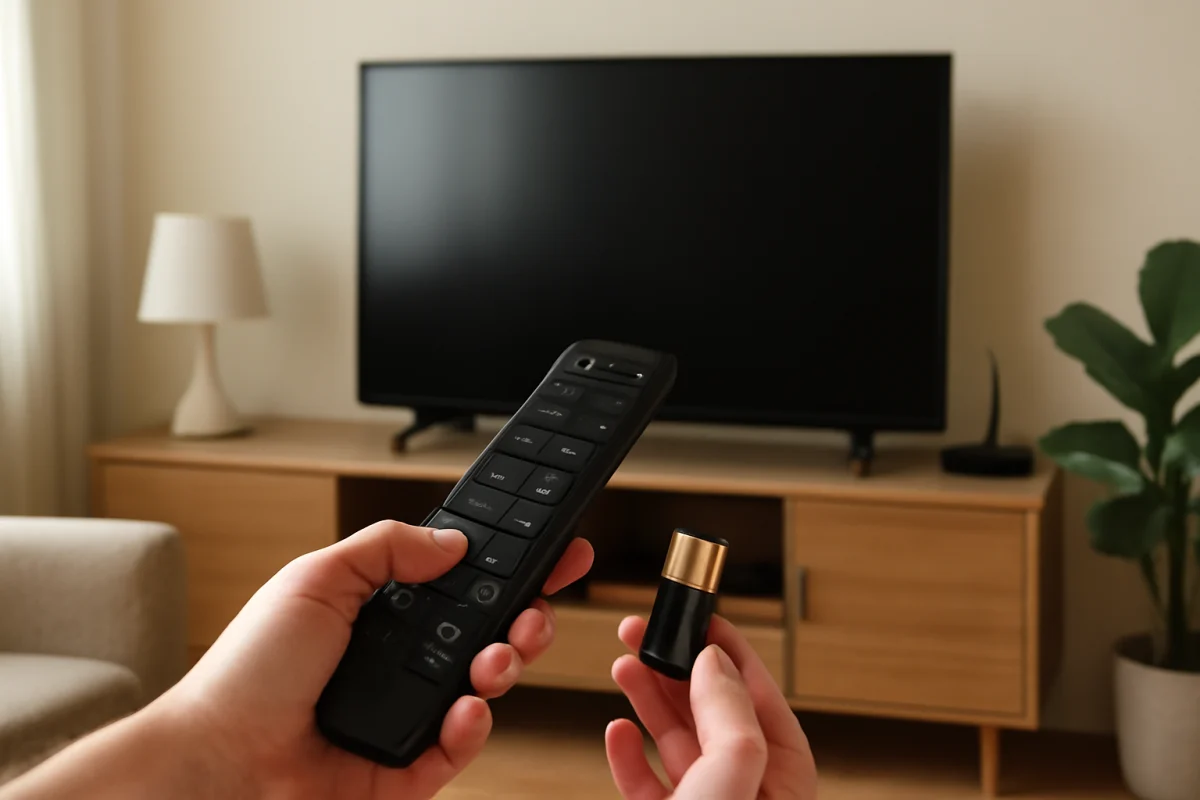
If your Sony TV remote won’t control the TV anymore, start with the simple checks: replace both batteries, make sure nothing blocks the TV’s sensor, and test whether the remote sends any signal. If it is a Bluetooth or voice remote, it may also need to be paired with the TV again. Avoid resetting the television until you know the problem is not caused by the batteries, the remote itself, or a temporary connection issue.
The exact remote type and menu wording can vary by Sony TV model and region. Some Sony remotes use infrared signals, while others use Bluetooth for features such as voice control, navigation, or power commands. The steps below move from low-risk checks to more advanced troubleshooting.
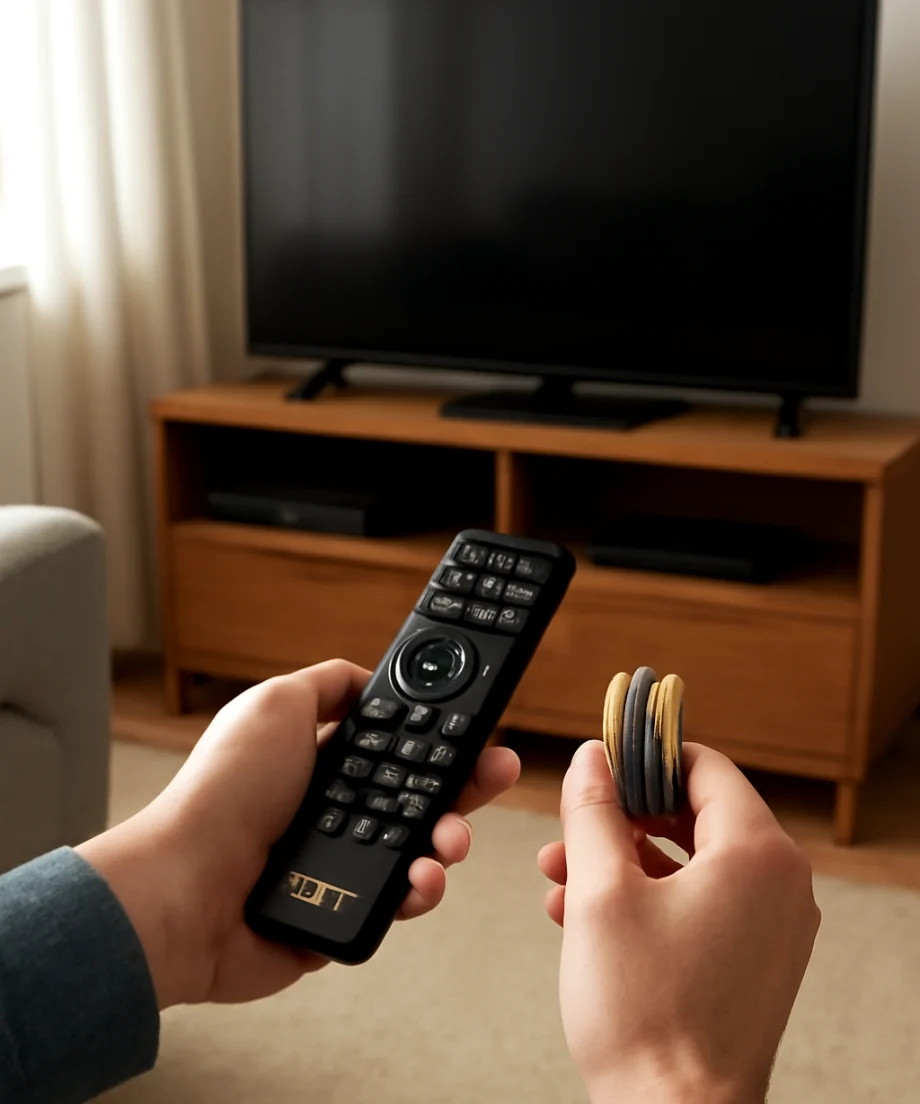
1. Replace the remote batteries
Weak batteries are the most common reason a remote suddenly stops responding. A remote may still light up or work from very close to the television even when the batteries no longer provide enough power for reliable operation.
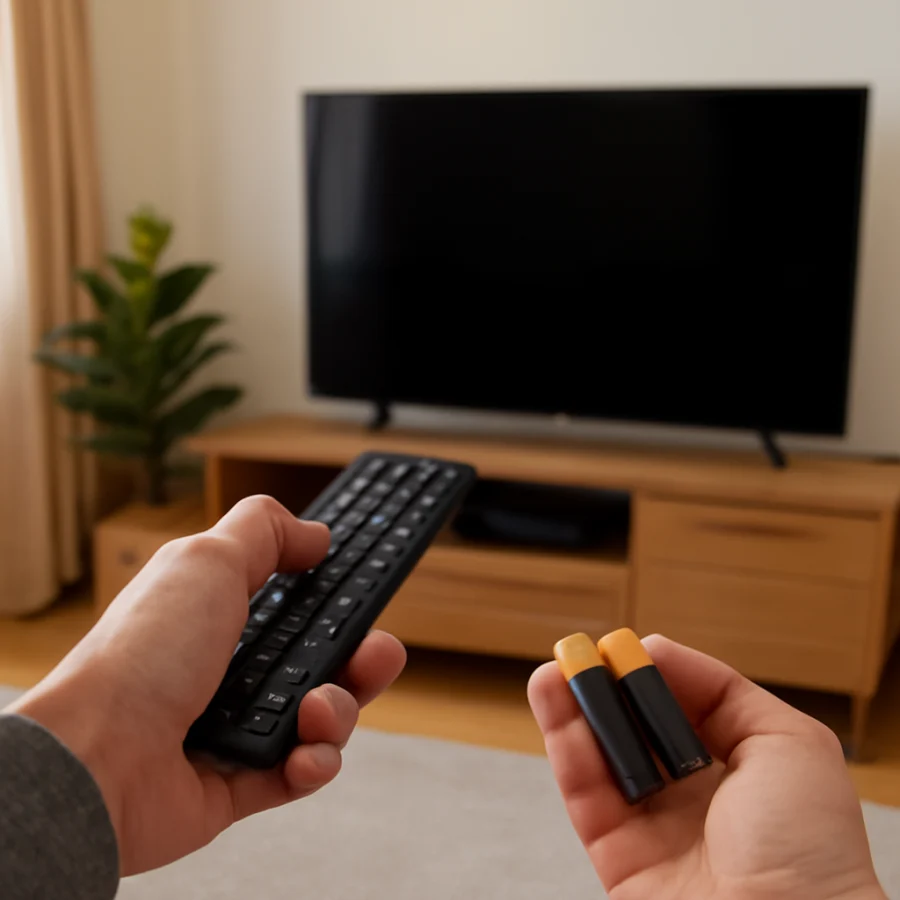
- Remove both batteries from the remote.
- Install a fresh pair of the correct type, matching the positive and negative markings inside the battery compartment.
- Do not mix old and new batteries or different battery types.
- Press several buttons after installing the batteries, including volume, channel, and power.
Check the battery contacts while the batteries are removed. If they look dirty or slightly corroded, gently wipe them with a dry cloth. Do not pour liquid into the compartment. If there is significant leakage or damaged metal, stop using that remote and replace it.
2. Check whether the TV is receiving commands
Point the remote directly at the front of the TV from a short distance. Remove objects that may cover the TV’s remote sensor, including soundbars, decorations, game consoles, or a cabinet door. Bright sunlight or strong lighting aimed at the sensor can occasionally interfere with infrared commands.
Try a button that should produce an obvious result, such as volume up or input. If the TV responds only when you stand very close, the batteries may be weak, the remote’s infrared window may be dirty, or the remote may be failing.
Clean the front of the remote with a soft, dry cloth, especially the dark plastic window at the top. Also check for a stuck button. A button held down by a case, spilled liquid, or physical damage can prevent other commands from working normally.
3. Test the remote’s infrared signal
If your Sony remote uses infrared, you can perform a basic signal check with a smartphone camera. Open the camera app, point the remote’s front end toward the camera, and press a button. Some phone cameras show a small flashing light from the remote even though the light is invisible to your eyes.
Try the front-facing and rear-facing cameras if you do not see anything. Some phones filter infrared light, so this test is not conclusive. A visible flash suggests that the remote is transmitting, but it does not prove that every button works or that the TV’s sensor is receiving the signal.
If there is no visible flash after fresh batteries are installed, the remote may be damaged. Test several buttons rather than just one, because an individual button or contact can fail. If another compatible Sony remote works with the TV, the original remote is the more likely cause.
4. Restart the TV without using the remote
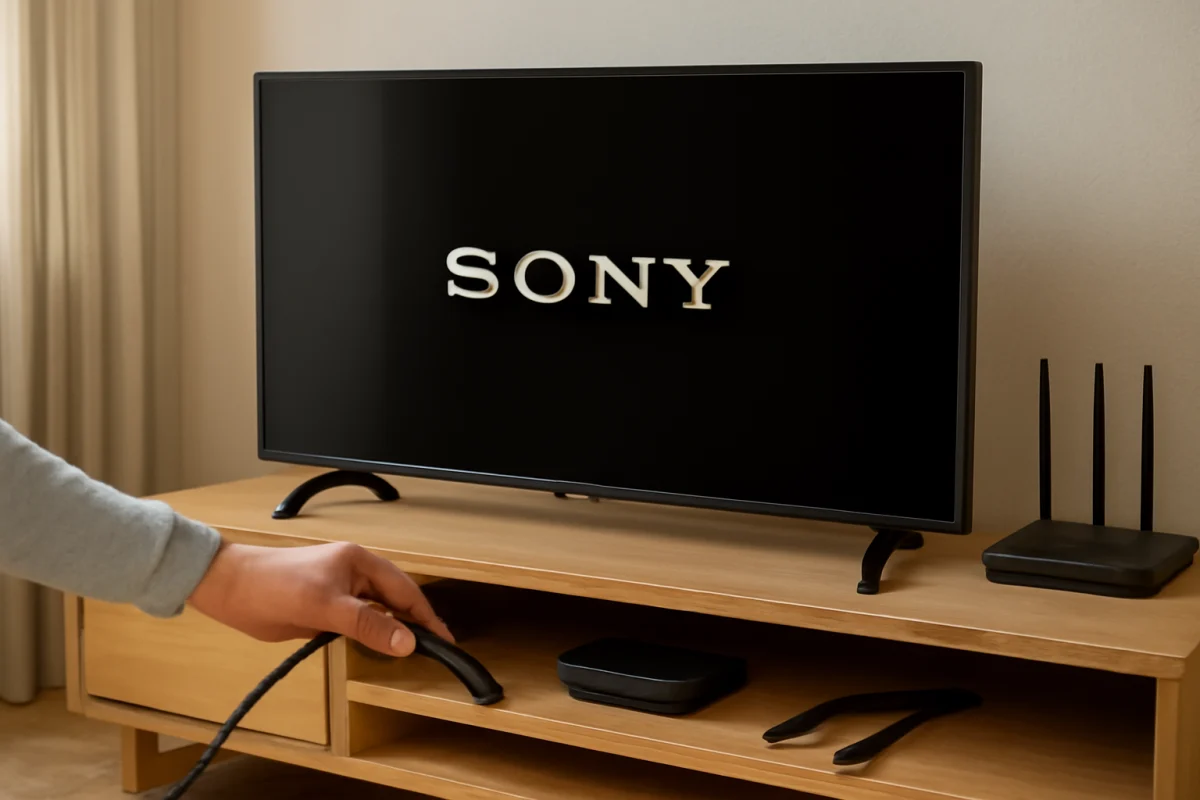
A temporary software or communication problem can make the TV appear to ignore the remote. Use the physical power button on the television if it has one. Depending on the model, the button may be underneath the screen, on the side, or near the rear panel.
Turn the TV off, unplug it from the wall, and wait for about two minutes. While it is unplugged, press and hold the TV’s physical power button for several seconds if one is available. Plug the TV directly into the wall outlet and turn it on using the physical button.
This is a basic power cycle, not a factory reset. It does not normally remove apps, accounts, or picture settings. Once the TV starts, test the remote again. If the remote works briefly and then stops, note what happens immediately before the failure, such as launching an app, connecting a device, or waking the TV from standby.
5. Re-pair a Bluetooth or voice remote
Some Sony TV remotes use Bluetooth rather than infrared for certain controls. If the remote can turn the TV on but navigation, voice control, or other buttons do not work, the Bluetooth connection may need attention. The same may be true if the remote worked normally until the TV was unplugged, updated, or reset.
Move close to the TV and follow the pairing instructions that came with the remote or TV. Sony uses different button combinations and on-screen instructions across models, so do not assume that a pairing shortcut for one remote applies to another. If you can access the TV with its physical button, another compatible remote, or a mobile control option, look for the remote or accessory section in the TV’s settings. The wording and location can differ by model.
Keep other wireless devices, USB accessories, and sources of interference away from the TV while pairing. Make sure the remote has fresh batteries first. Pairing will not solve a remote with liquid damage, broken buttons, or a failed battery contact.
6. Check whether only certain buttons fail
When volume and navigation work but the power button does not, the issue may be limited to one button or one type of command. If the remote controls the TV but cannot adjust a cable box, soundbar, or streaming device, the problem may be with that external device rather than the Sony TV.
Test the remote with the TV’s built-in menus. If the TV reacts to menu navigation but not to commands for an external device, check which device the remote is currently set to control. Some universal or multi-device remotes have a TV, cable, or streaming mode that can be selected accidentally.
Also check HDMI-connected equipment separately. A remote may appear to stop working when the TV changes input or when a connected device takes control through HDMI device-control features. Turn the external device off temporarily and test the TV’s own volume and menu controls again.
7. Use a temporary control method
If your TV is already connected to the same home network as your phone, a compatible Sony control app or the TV manufacturer’s mobile control option may provide temporary access. Availability depends on the TV model, software, region, and whether the TV is currently connected to Wi-Fi.
If the TV is offline, the mobile option may not work until you restore network access through the physical buttons or another compatible remote. A USB keyboard may help with some basic navigation on certain models, but support is not universal. Treat these options as temporary workarounds rather than guaranteed replacements.
For more guidance on finding a compatible replacement or testing a universal model, see the TV Fix Guide remote control troubleshooting section.
8. Check for physical damage
Inspect the remote for cracks, loose parts, missing battery-cover clips, liquid exposure, or buttons that no longer click normally. A remote that was dropped may transmit inconsistently even if its case looks intact. Sticky buttons can also cause repeated or missing commands.
Do not open the remote unless you are comfortable handling small electronic components. Do not spray cleaner directly onto it. If the remote has been exposed to liquid, remove the batteries and allow it to dry fully in a safe place. Do not use high heat, such as a hair dryer, because it can deform the case or damage internal components.
9. When to reset the TV
A factory reset should be a last resort. It can remove installed apps, signed-in accounts, network information, customized picture and sound settings, and other preferences. It is unlikely to repair a physically defective remote or a damaged TV sensor.
Consider a reset only if the remote works with the TV intermittently, the problem began after a serious software or settings issue, and restarting or re-pairing did not help. Before resetting, make sure you know your streaming-service sign-ins and Wi-Fi password. The reset process and menu names vary by Sony TV model, so use the instructions for your exact model rather than a generic button sequence.
When the problem is probably the remote or TV
The remote is probably faulty if fresh batteries make no difference, the signal test shows nothing, the buttons are damaged, or a different compatible remote controls the TV normally. In that case, replacing the remote is usually safer than repeatedly resetting the television.
The TV may need service if multiple known-good remotes fail, the physical buttons also do not work, the remote sensor appears damaged, or the TV has other symptoms such as random restarts or unresponsive menus. Record the TV model, remote model if shown, and the tests you have already completed before contacting support. Model-specific information can help prevent unnecessary replacement or reset steps.
For additional Sony troubleshooting topics, visit the Sony TV help section. If the remote works but the TV still has connection-related problems, the Wi-Fi and network troubleshooting guide may help separate a remote issue from a network or app problem.
Comments
0No comments yet. Be the first to share a helpful note or question.
Leave a Comment
Your email address will not be published. Comments are reviewed before appearing on the site.