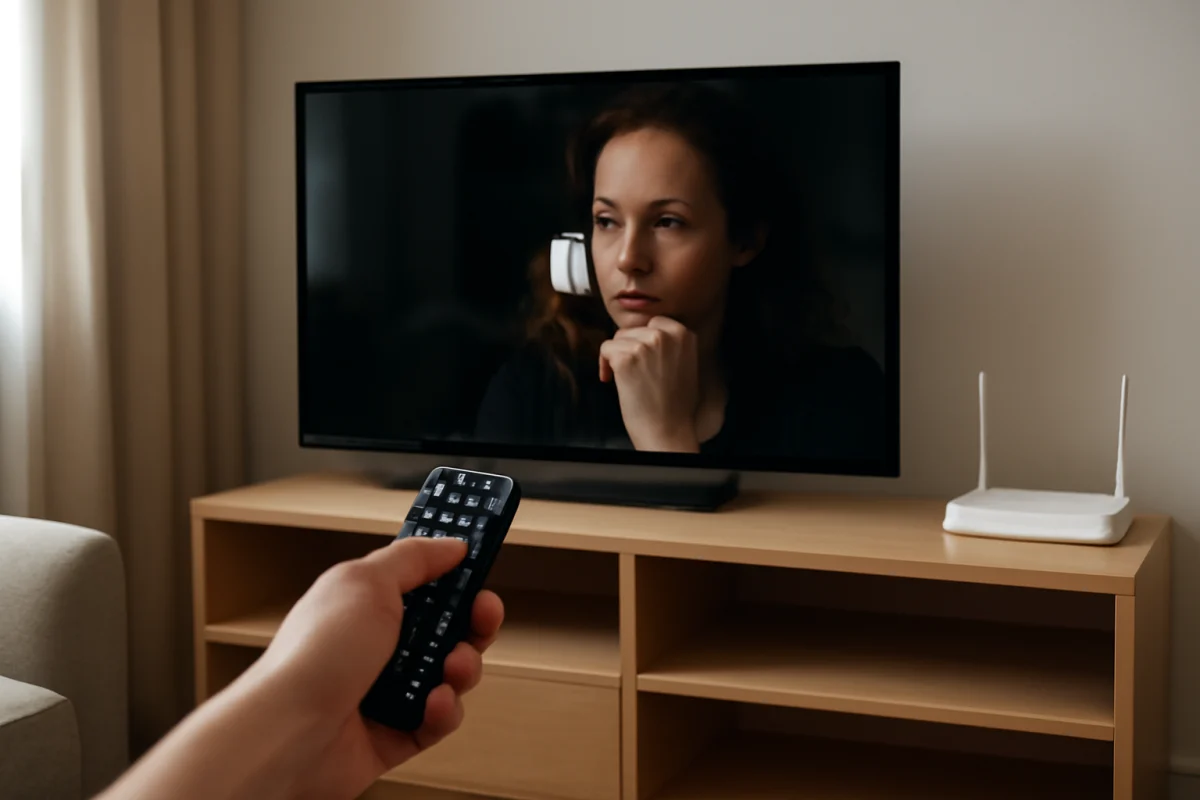
If streaming apps keep freezing, buffering, or closing on your Sony TV, start by checking whether the problem affects one app or every app. A single app usually points to an app-specific problem, while several apps failing at once more often indicates a network, TV software, storage, or system issue.
Before resetting the television, pause other downloads and streams, restart the TV and home network, and test the connection again. These low-risk checks often resolve temporary glitches without removing your apps or changing your settings.
Identify whether the problem affects one app or all apps
Open two or three different streaming services on the TV. Play a video for several minutes in each one, if possible. Pay attention to the pattern:
- Only one app freezes or closes: The app may need an update, a fresh sign-in, or a reinstall. The service itself may also be experiencing an outage.
- Several apps buffer or stop: Check the TV's internet connection, router, Wi-Fi signal, and TV software.
- Apps work briefly and then the TV returns to the home screen: The app or TV may be running short on available system resources, or the app installation may be corrupted.
- Videos load but stop during playback: An unstable connection is more likely than a problem with the TV's display.
If the same service is also failing on a phone, computer, or another streaming device connected to the same network, check the service's status or support page before changing the TV. A temporary service problem cannot be repaired through TV settings.
Restart the Sony TV completely
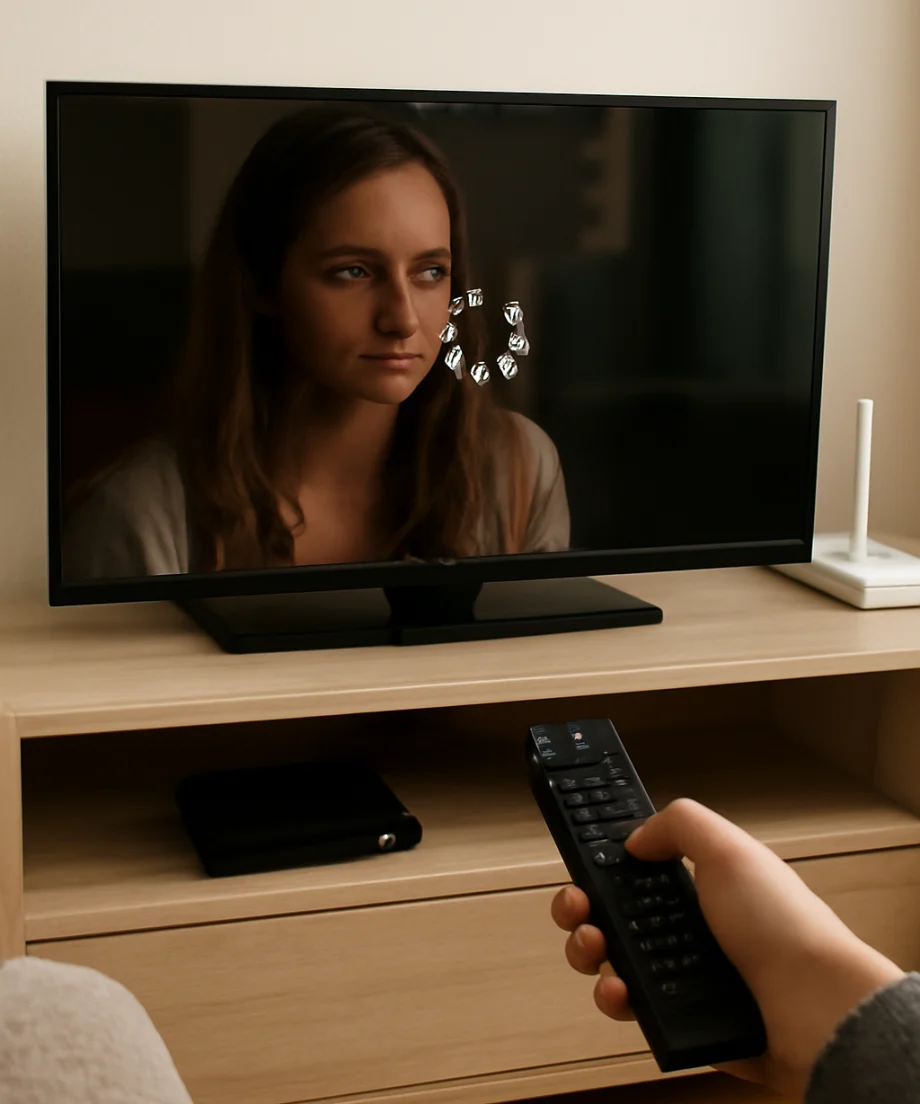
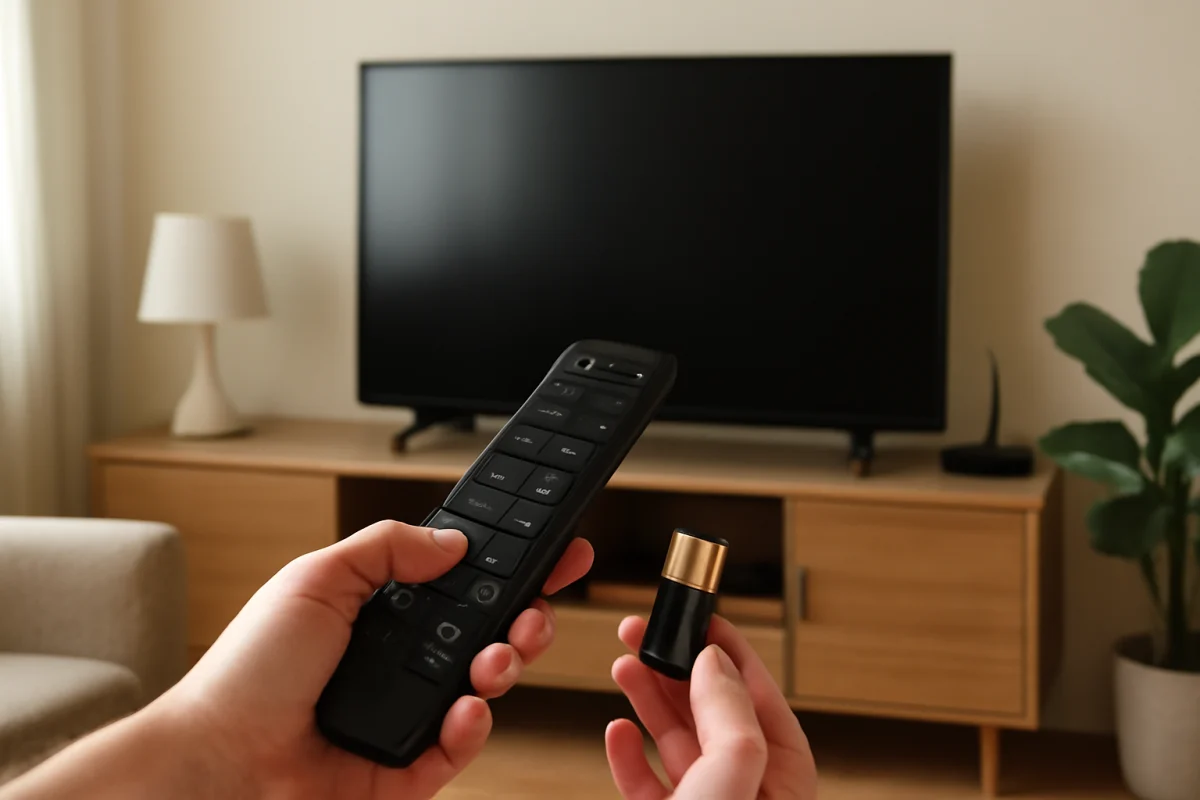
A normal restart can clear a temporary app or system process that has become unresponsive. Use the TV's on-screen power option if it is responding, or press and hold the remote's power button until the TV offers a restart option, if your model supports that function.
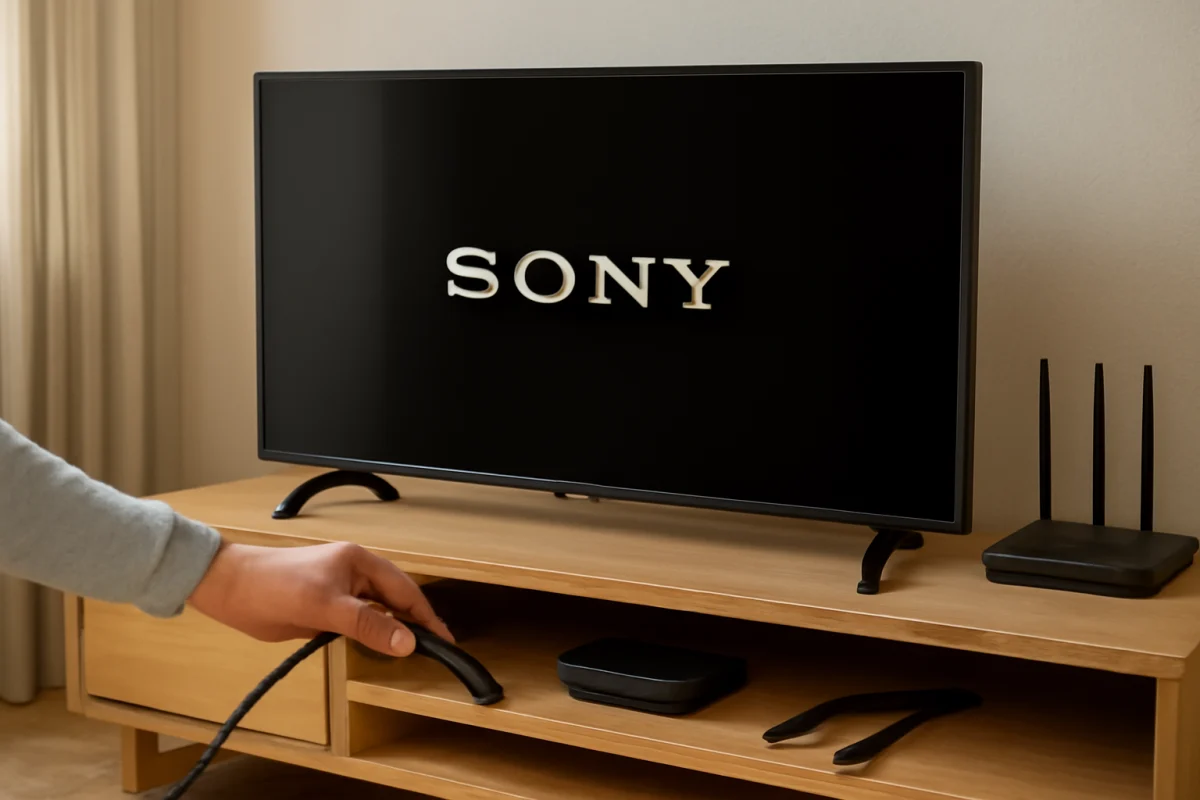
If the screen is frozen, unplug the TV from the wall outlet after turning it off. Leave it disconnected for about one minute, then reconnect it and turn it on. This is different from simply putting the TV into standby. Do not repeatedly unplug the TV while it is installing an update or displaying a message that it is working.
After the TV starts, wait for the home screen to finish loading before opening an app. Test the service that was failing and then try another app. If the problem returns immediately, continue with the network checks below.
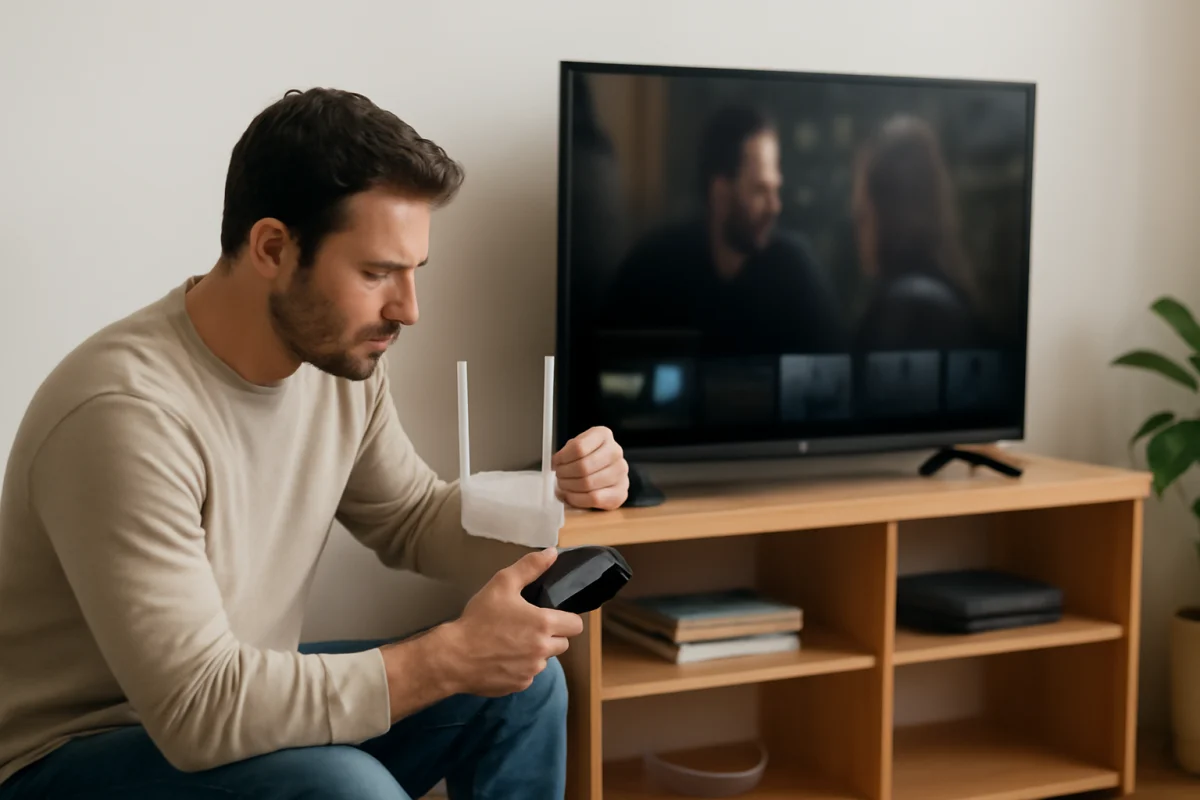
Restart the modem and router
Streaming apps need a steady connection, not just a connection that is fast during a brief speed test. A router can remain connected while dropping packets, struggling with too many devices, or losing contact with the internet provider.
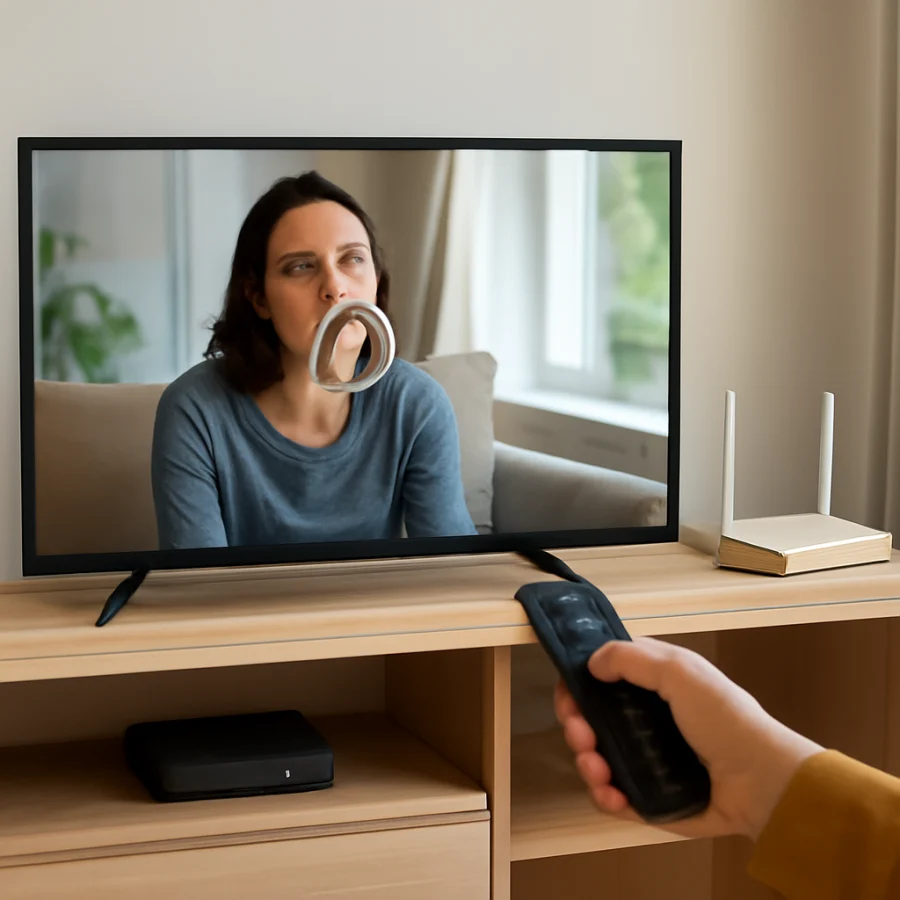
- Turn off or unplug the modem and router.
- Wait at least one minute.
- Reconnect the modem first and allow it time to reconnect to the internet.
- Reconnect the router if it is a separate device.
- Wait until your normal network indicators return, then test the Sony TV.
The exact startup sequence can vary when your internet equipment is a single gateway device. If other devices also have trouble after the restart, contact your internet provider or check its service-status information.
For more general connection checks, see our Wi-Fi and network troubleshooting guide.
Check the TV's connection and Wi-Fi conditions
Open the TV's network settings and run its built-in connection test if one is available. Sony uses different menu layouts across TV models and software versions, so the wording and location of the test may not match the steps for another Sony television.
Look for signs of a weak or unstable Wi-Fi connection. The TV may be far from the router, separated by walls or large furniture, or competing with many devices for wireless bandwidth. Streaming can also become less reliable when someone else is uploading large files, playing cloud games, or watching several high-resolution streams.
Move the router closer to the TV only if that is practical and safe. Keep it in an open area rather than inside a cabinet. If your home has a mesh system, confirm that the TV is connecting to the intended network. Restarting a mesh node may help, but avoid changing advanced wireless settings unless you know the effect of each change.
If possible, test the TV with a wired network connection. A wired test can help separate a Wi-Fi problem from a broader internet or TV problem. If the apps work normally over a cable, focus on the wireless signal and router placement rather than resetting the TV.
Update the affected streaming app
An outdated or partially updated app can freeze, fail to load, or close unexpectedly. Open the TV's app store or app-management area and check for available updates. The exact steps depend on the Sony TV platform and software version.
Allow the update to finish before launching the app. If the app appears to be updating automatically, give the TV a few minutes and then restart it. Do not switch the TV off during an update notification.
If only one app is affected and no update is available, sign out of the app and sign back in. This can refresh an expired session or account connection. Make sure you know the account email address and password before signing out.
Clear the app's temporary data when available
Some Sony TVs provide controls for clearing an app's cache or temporary data. These options are not identical on every model, and removing app data may sign you out or delete app-specific preferences. Read the confirmation message before accepting it.
Clear temporary cache data first when that option is available. Then reopen the app and test playback. If the app still crashes, clearing its stored data may be the next step, but only do this after confirming that you can sign in again.
Do not clear data for every app at once. Target the app that is failing so you can identify what changed and avoid unnecessary account resets.
Reinstall the app
Reinstalling can repair an app installation that is damaged or incomplete. Remove the affected app only after checking that it can be downloaded again on your TV and that you have the correct sign-in information.
After removing it, restart the TV before installing the app again if the TV allows you to do so. Download the app from the television's official app store, sign in, and test a short video. Avoid installing unofficial versions or apps from unknown sources.
If the app cannot be removed, or if the TV does not offer the same app controls described in another guide, use the instructions for your exact Sony model and TV platform. Sony televisions do not all use the same menus.
Check for Sony TV software updates
TV software updates can improve compatibility and correct problems affecting built-in apps. Open the TV's system or support settings and check for an available software update. Menu names and update methods vary by model, region, and software platform.
Keep the TV connected to power and the internet while an update is being installed. Do not unplug it or press buttons repeatedly during the process. If the TV reports that it is already up to date, continue with the other troubleshooting steps rather than trying to install unrelated files.
If the TV cannot update over the internet, consult Sony's support instructions for the exact model before attempting a USB update. A model-specific file and procedure may be required, and using the wrong file can create additional problems.
Check available storage and remove unused apps
Some smart TVs have limited internal storage. A nearly full system can make app updates fail or cause apps to close when they need temporary space. Open the TV's storage or app-management screen if your model provides one.
Remove apps you no longer use, especially large games or services that were installed for a short-term trial. Avoid deleting system apps unless the TV specifically identifies them as removable. After freeing space, restart the TV and try the affected streaming app again.
Try a different playback test
Test a different title within the same service. If one movie or episode freezes while other content plays normally, the issue may be limited to that title or the service's content delivery system. Try a lower playback quality if the app provides a manual quality setting, particularly when the connection is inconsistent.
Also test content at a different time of day. If problems occur mainly during busy evening hours, congestion on your home network, local wireless interference, or your internet service may be involved. This does not prove that the TV is defective.
When to consider a factory reset
A factory reset should be a later step, not the first response to a freezing app. It removes accounts, downloaded apps, network details, picture settings, and other personal preferences. The exact reset path and what is removed vary by Sony model.
Before resetting, write down your Wi-Fi password and confirm that you can access your streaming accounts. Take photos of important picture or sound settings if you want to restore them later. If several apps still fail after restarting the TV, fixing the network, updating the TV, clearing or reinstalling apps, and freeing storage, a reset may help distinguish a software configuration problem from a hardware or service issue.
Use only the reset option in the TV's official settings. Do not choose a reset simply because it has a similar name to another maintenance option. If the television is stuck during startup, cannot complete a reset, or repeatedly shuts down, contact Sony support with the exact model information.
Signs the problem may need professional help
Contact Sony or the app provider if the TV continues to close multiple apps after a stable network test, a restart, software updates, and a reset. Also seek support if the TV overheats, makes unusual sounds, shows severe screen problems, loses power, or cannot remain on long enough to complete troubleshooting.
When contacting support, record the affected apps, whether other devices work on the same network, when the problem began, and what you already tried. Include the TV's exact model and software information from its settings. This helps support avoid repeating generic steps and determine whether the issue is tied to the account, service, network, software, or television.
For more Sony-specific troubleshooting, visit the Sony TV troubleshooting section. You can also browse our streaming app guides for problems that affect a particular service.
Comments
0No comments yet. Be the first to share a helpful note or question.
Leave a Comment
Your email address will not be published. Comments are reviewed before appearing on the site.