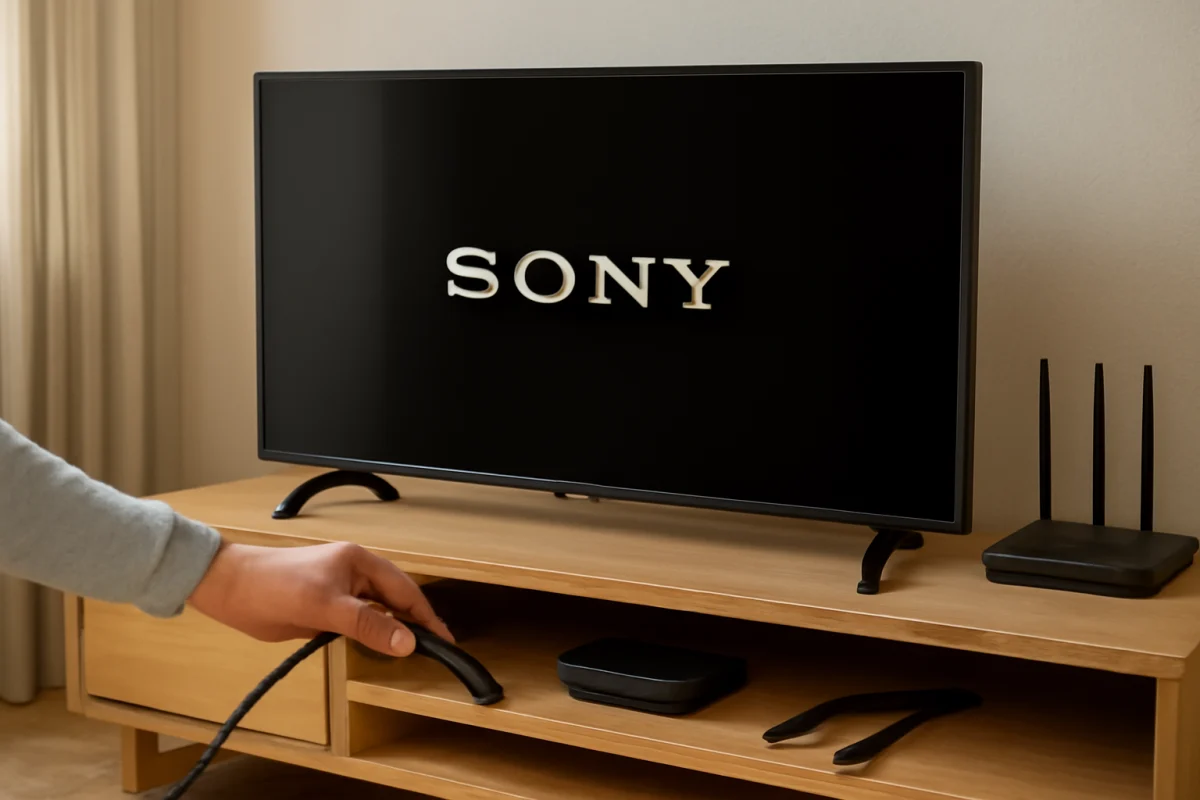
If your Sony TV keeps restarting, start with the power connection and external devices before resetting anything. A loose power cable, unstable outlet, overheating, a faulty HDMI device, or a software problem can all cause repeated restarts. If the television restarts only when you open a particular app or connect a specific device, that clue is especially useful.
Follow the checks below in order. The menu names and available settings can vary between Sony TV models, operating systems, and software versions, so use the closest matching option on your screen rather than forcing an unfamiliar setting.
1. Check whether the TV is actually losing power
First, watch what happens during the restart. Does the screen go completely dark and show the Sony startup logo again, or does the picture briefly disappear and return? A full startup sequence usually points to a power interruption, system crash, overheating, or hardware issue. A brief black screen may instead be an HDMI signal problem.
- Make sure the TV's power cord is firmly inserted into the television, if the cord is removable, and into the wall outlet or surge protector.
- Check the cable for cuts, crushed sections, bent contacts, or signs of heat damage. Do not use a damaged power cord.
- Plug the TV directly into a known-good wall outlet temporarily. This helps rule out a failing surge protector, extension cord, smart plug, or power strip.
- Test the outlet with another small device, or use a different outlet that you know works.
Avoid repeatedly switching the TV on and off while it is restarting. If the outlet, cable, or plug becomes hot, smells burnt, sparks, or shows discoloration, unplug the television if it is safe to do so and stop using it until the electrical problem is checked.
2. Perform a proper power cycle
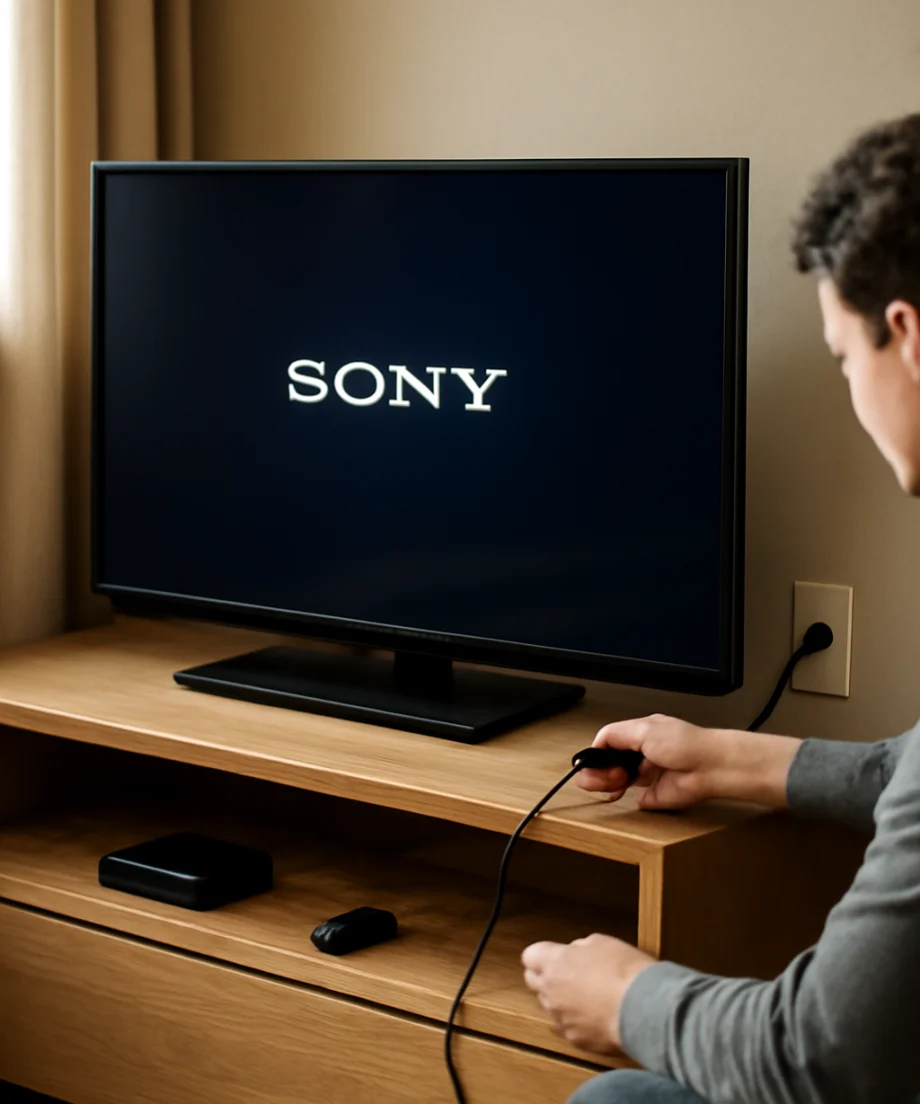
A normal restart through the remote may not clear a temporary system or power-state problem. Instead, turn the TV off and unplug it from the wall. Leave it unplugged for at least a minute, then connect it directly to the outlet and turn it on using the remote or the TV's physical power button.
If the TV is frozen and will not respond, disconnecting power is a reasonable low-risk first step. However, do not unplug the set while it is installing a software update unless it has remained unresponsive for an unusually long time and you have no other safe option. Interrupting an update can create additional problems.
3. Disconnect external devices
A failing streaming stick, game console, cable box, soundbar, USB drive, or HDMI accessory can cause crashes or unexpected power behavior. Some devices also use HDMI control features to send power commands to the TV.
Turn off the TV, unplug every HDMI and USB device, and disconnect any antenna, Ethernet cable, optical cable, or other accessory that is not needed for the test. Leave only the TV's power cable connected. Then use the television for a while.
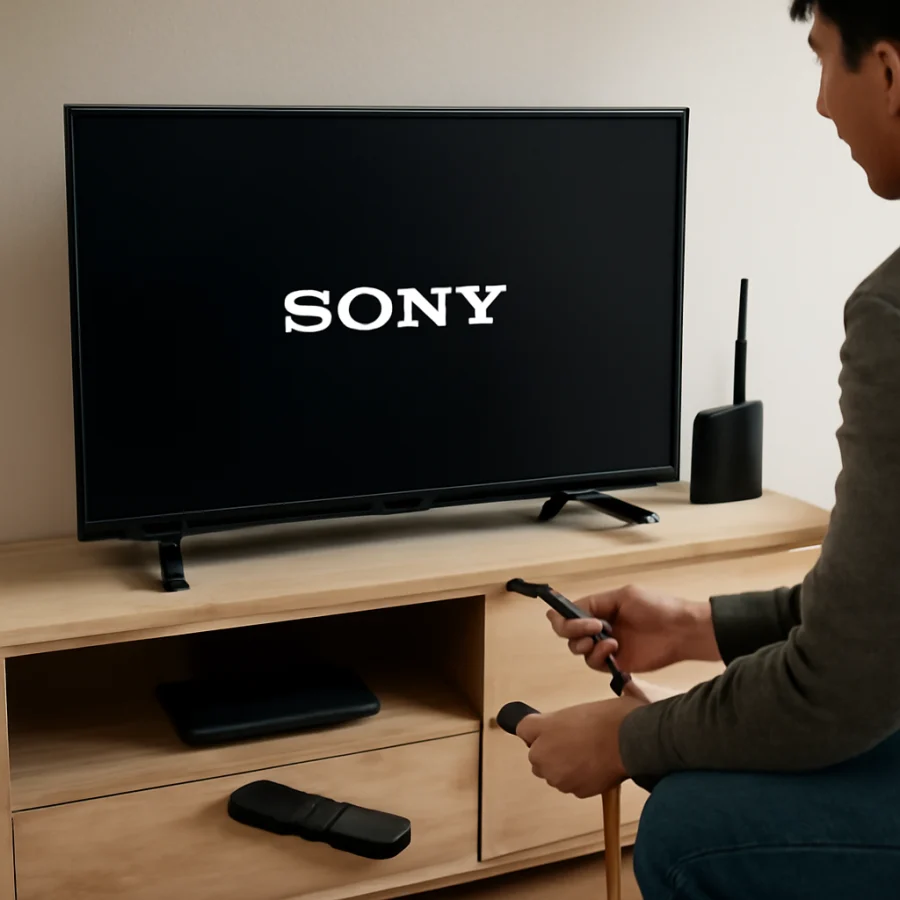
If the restarts stop, reconnect devices one at a time. Test the TV after each connection so you can identify the likely trigger. When the problem returns, try a different HDMI cable or input if appropriate. You may also need to review HDMI device-control settings on the TV and connected equipment. The exact name of this feature differs by model and device, so look for settings related to HDMI control, device linking, or automatically turning equipment on and off.
If you use a soundbar or receiver, test the TV with the soundbar disconnected. If the TV stays on, reconnect the audio system later and check its power and HDMI settings.
4. Check for overheating and blocked ventilation
Heat can make a TV shut down, restart, or become unstable. This is more likely when the set is inside a tight cabinet, mounted very close to a wall, covered by an object, or surrounded by dust. Streaming for long periods, especially in a warm room, can also expose a cooling problem.
- Make sure the ventilation openings are not blocked by the wall, cabinet, decorations, or other electronics.
- Keep routers, game consoles, cable boxes, and other heat-producing devices from sitting directly against the TV.
- Turn the television off and let it cool before testing it again.
- Clean visible dust around the outside vents with care. Do not spray liquid or insert tools into the openings.
Do not remove the back cover. Internal components can retain dangerous electrical charge even when the TV is unplugged. If the set restarts after warming up or shuts down when the room is hot, continued use may worsen an internal fault.
5. Look for a software or app-related trigger
If the TV restarts only while using one streaming app, begin with that app rather than assuming the entire television is defective. Close the app if possible, restart the TV, and test another app. A problem limited to one service may be caused by corrupted app data, a failed update, an account issue, or a temporary service problem.
Depending on the Sony TV model, you may be able to update, stop, remove, or reinstall an app through the TV's app management area. The exact steps vary, and some preinstalled apps cannot be removed. Check the app's behavior after each change instead of making several changes at once.
Also check whether a system software update is available through the TV's settings. Sony's update process and menu wording can differ by model and region. Use the model-specific support page or the instructions shown on the television, and keep the TV connected to reliable power during the update.
If the restart began immediately after an app or system update, do not assume that reinstalling every app will help. First determine whether the issue affects the home screen, live TV, and multiple apps. That distinction separates a single-app problem from a broader system problem.
6. Check timers, automatic power settings, and remote commands
Some apparent restarts are caused by scheduled actions or commands from another device. Review the TV's power, timer, energy-saving, and automatic standby settings. The available options depend on the model, and a setting that turns the TV off is not always the same as one that restarts it, but checking these controls can eliminate an easy cause.
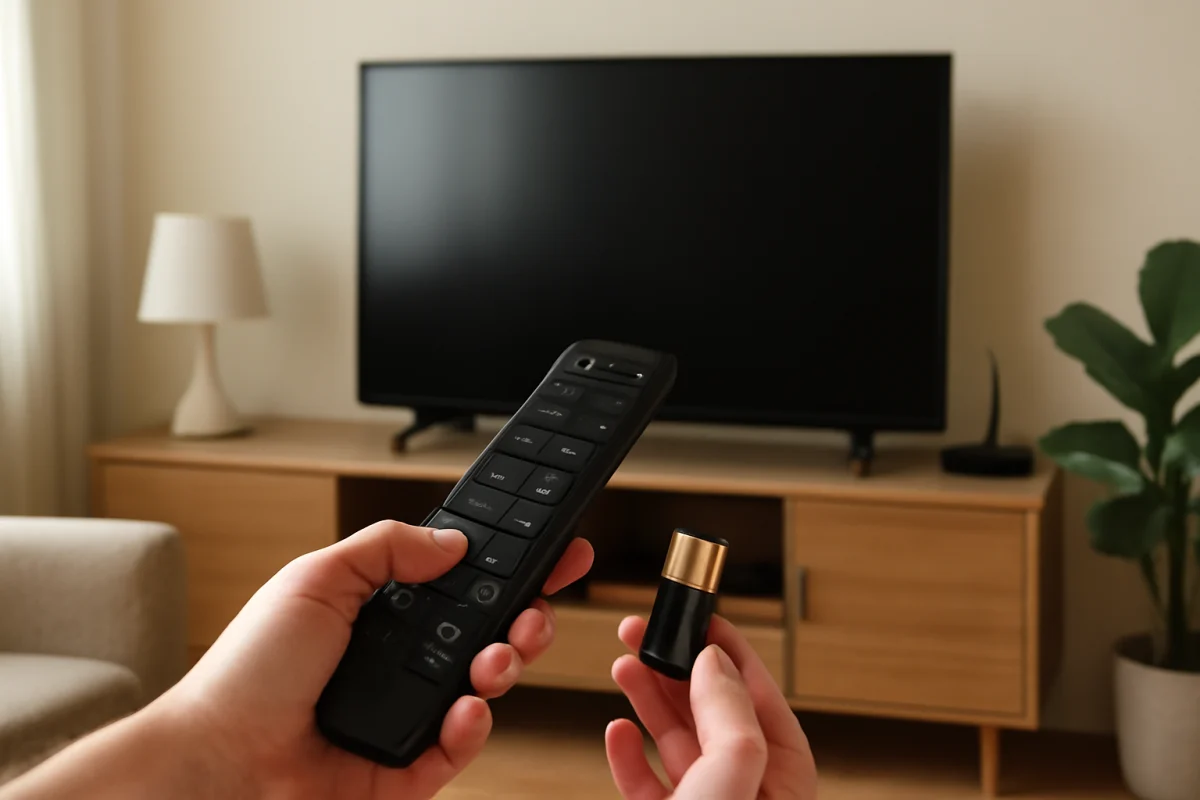
Remove the batteries from the remote temporarily and observe the TV. A stuck power button, liquid-damaged remote, or another remote in the room can send repeated commands. If you use a universal remote, home automation system, HDMI switch, or cable box remote, disconnect or disable it during testing.
Do not place the TV remote under books, cushions, or other objects where a button could remain pressed. If removing the batteries stops the behavior, replace the batteries and inspect the remote for a stuck or damaged button.
7. Test the network connection
A weak Wi-Fi connection normally causes buffering rather than a full television restart, but network-related software failures can sometimes make one app behave badly. If the restarts occur during streaming, test another app and compare the behavior with live TV or a locally connected device.
Restart the router and modem if other devices are also having connection problems. Keep the TV within a reasonable signal range and, if your model supports it, briefly test a wired connection. For more network checks, see the Wi-Fi and network troubleshooting guide.
If only one streaming service causes the restart while other apps work normally, contact that service or check its current support information. If the television restarts even with the network disconnected and no external equipment attached, the network is less likely to be the root cause.
8. Try a reset only after the basic checks
A factory reset can correct corrupted settings or software behavior, but it erases personal settings, app data, accounts, and network information. It may also require you to set up the television again. That is why it should not be the first step.
Before resetting, write down your Wi-Fi details and note any picture, sound, accessibility, parental-control, or input settings you want to restore. If possible, confirm that the TV's model-specific instructions recommend a reset for the symptoms you are seeing. The reset path can vary between Sony televisions, so avoid following instructions for a different model simply because the menu looks similar.
If the TV cannot stay on long enough to complete setup, a reset is unlikely to solve a failing power board, overheating component, or other physical defect. In that situation, repeated resets can waste time without addressing the cause.
When a hardware repair is more likely
Contact Sony support or a qualified TV repair professional if the television keeps restarting after you have tested it with no connected devices, a known-good outlet, clear ventilation, and a completed power cycle. Hardware becomes more likely when the TV:
- restarts at regular intervals regardless of the input or app;
- clicks, makes unusual buzzing sounds, or shows a burning smell;
- has visible damage, liquid exposure, or a damaged power connector;
- restarts as soon as it warms up;
- shows flickering, lines, dimming, or other picture problems before shutting down; or
- cannot remain on during the initial setup screen.
Have the exact model number and a description of what happens immediately before each restart ready when you request help. Note whether the Sony logo appears, whether the problem happens on every input, and whether disconnecting all devices changes anything. This information is usually more useful than simply reporting that the TV turns off.
For related television troubleshooting, you can browse the Sony TV troubleshooting section or review guides for streaming app problems. Stop using the TV if it shows signs of electrical damage, and do not open the cabinet yourself.
Comments
0No comments yet. Be the first to share a helpful note or question.
Leave a Comment
Your email address will not be published. Comments are reviewed before appearing on the site.