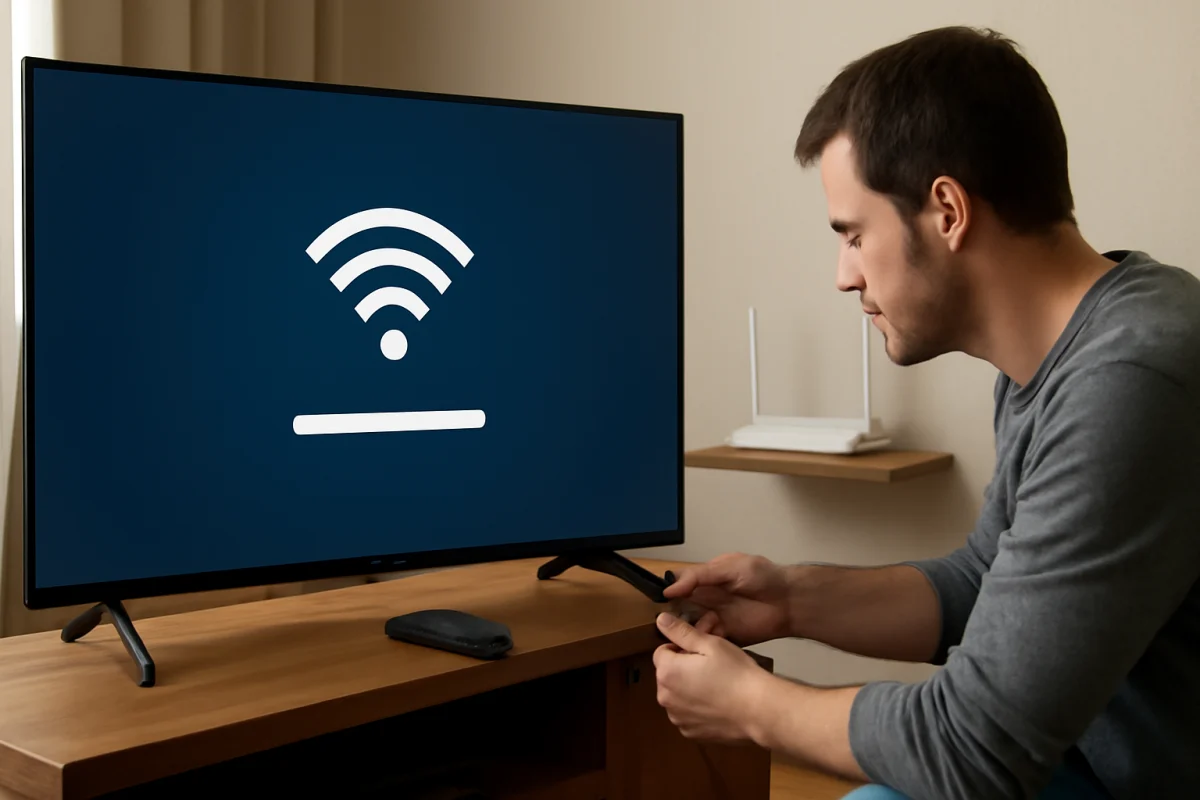
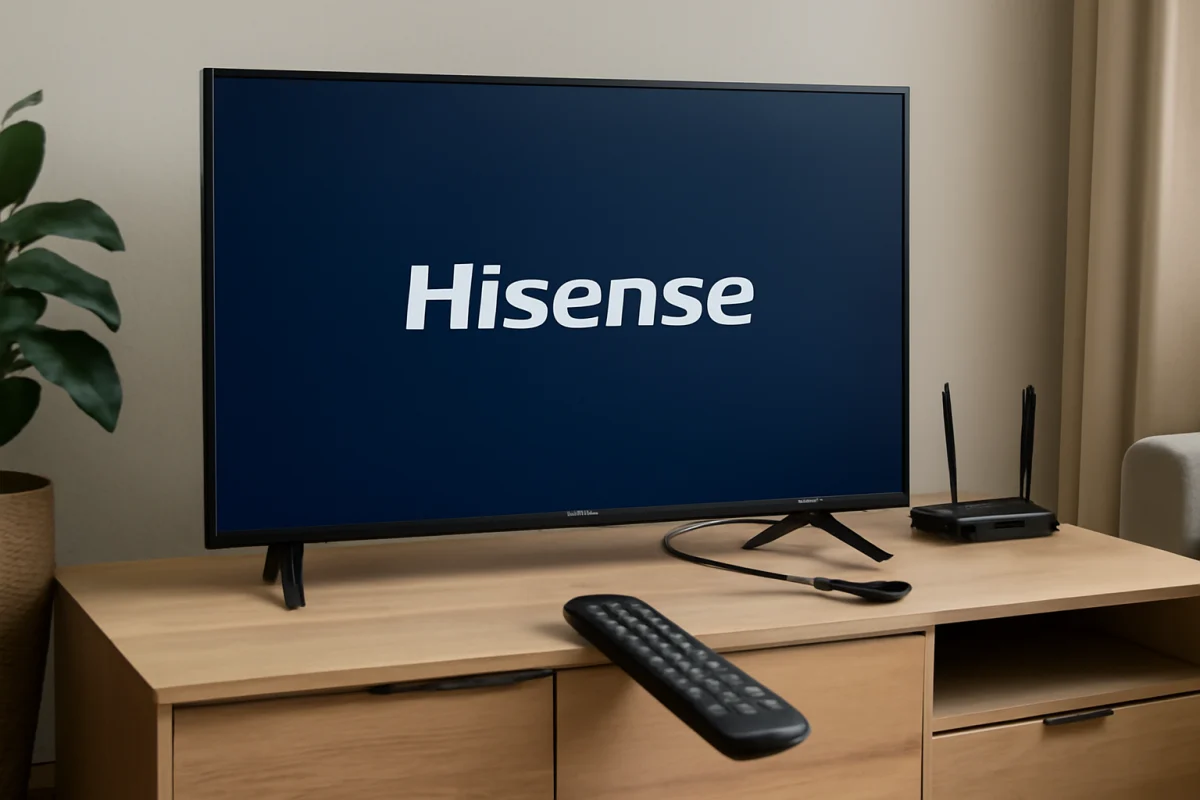
If your Hisense TV keeps disconnecting from Wi-Fi, start by checking whether the problem affects only the TV or every device in your home. Try opening a streaming app on a phone or laptop connected to the same network. If those devices also lose internet access, the router or internet service is the more likely cause. If the TV is the only device affected, work through the TV, signal, and network steps below before considering a reset.
Temporary network congestion, weak signal strength, router problems, outdated TV software, and incorrect network settings can all cause repeated disconnects. The names and locations of settings vary between Hisense models and smart TV platforms, so use the closest matching option on your screen rather than looking for one exact menu path.
1. Check whether the problem is your TV or the network
Before changing settings, test the connection from another device in the same room. Visit a few websites or play a short video. Then check whether the Hisense TV disconnects at the same time.
- Only the Hisense TV disconnects: The issue may involve the TV’s saved network profile, Wi-Fi signal, software, or wireless hardware.
- Several devices disconnect: Restart and inspect the router, modem, or mesh system first.
- The TV stays connected but apps stop loading: The wireless connection may be active while the internet service, DNS service, or individual app is having trouble.
Also note when the disconnect happens. If it occurs only during streaming, the signal may be marginal or the network may be congested. If it happens after the TV has been idle, power-saving behavior or a software issue may be involved. If it happens at the same time every day, check whether the router is restarting or applying an automatic schedule.
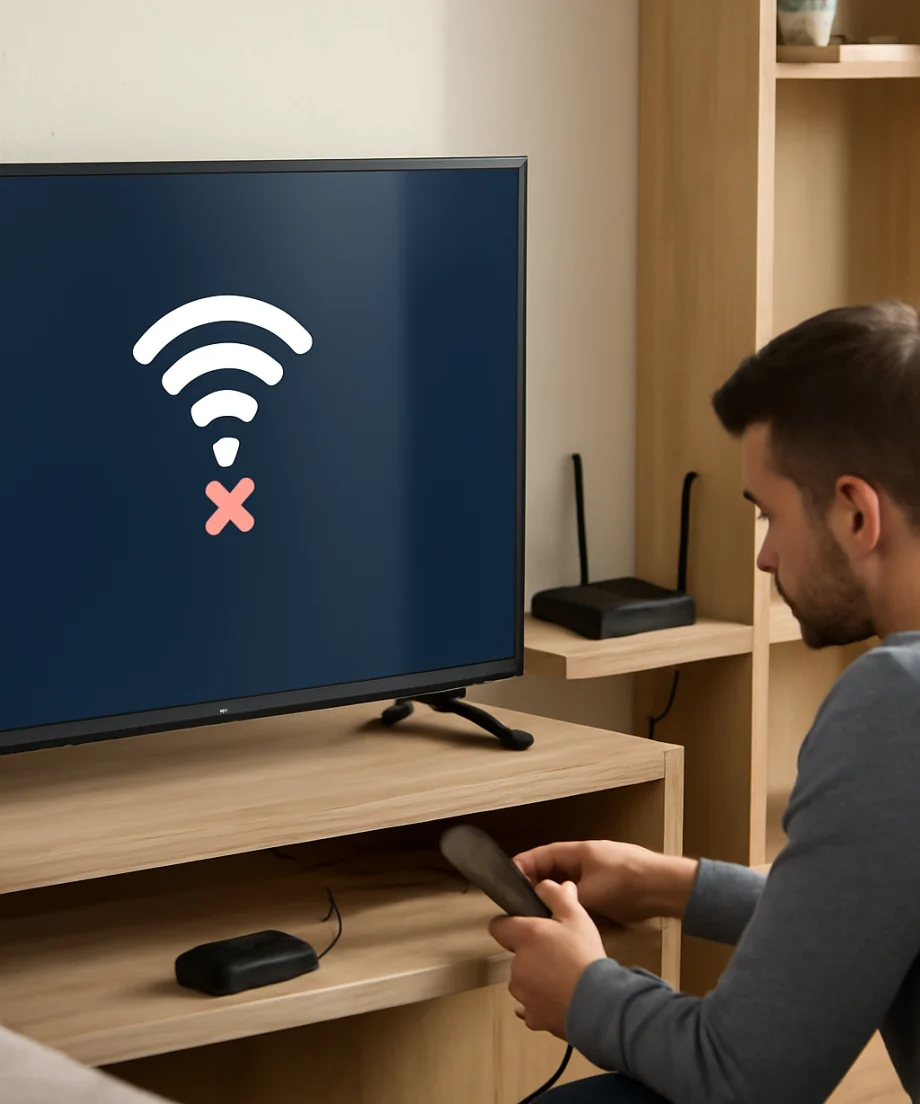
2. Restart the TV and network equipment
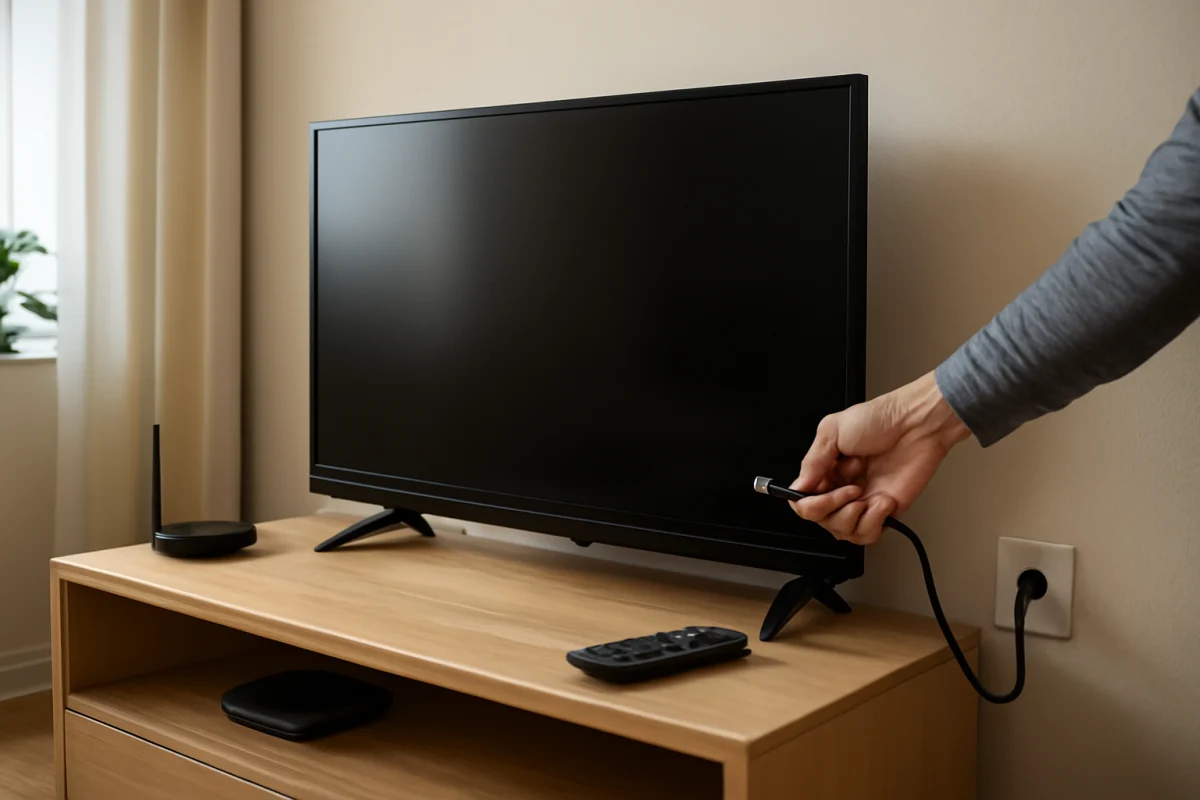
A normal remote-control power-off may leave some components in standby. For a more complete restart, turn off the TV, unplug it from the wall, and wait about one minute. Plug it back in and test Wi-Fi again.
Next, restart the modem and router if they are separate devices. Unplug both, wait at least one minute, reconnect the modem first, and allow its status lights to settle. Then reconnect the router and wait for the wireless network to return. If you use a mesh system, restart the main unit before the satellite units unless the system’s instructions specify a different order.
This process does not erase your TV settings or saved apps. It simply clears temporary connection states and gives the network equipment a fresh start. Avoid repeatedly unplugging devices while their indicator lights are changing, since the router may need several minutes to restore service.
3. Improve the TV’s Wi-Fi signal
A TV can show a strong-looking connection while still having an unstable signal. Large walls, floors, cabinets, appliances, and nearby wireless devices can interfere with Wi-Fi. If the router is inside a cabinet or far from the TV, move it to a more open and central location if possible.
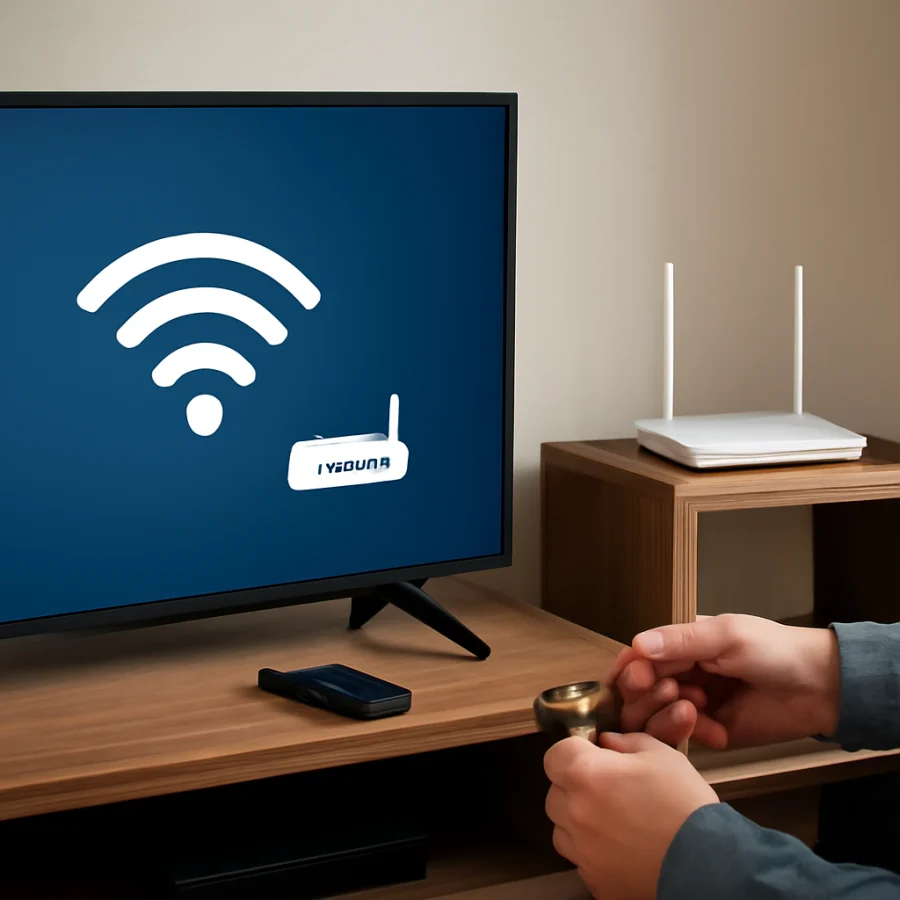
Keep the router away from cordless phone bases, Bluetooth hubs, microwaves, large metal objects, and other sources of interference. Do not place the TV’s wireless equipment directly behind a large metal-backed television stand if you can avoid it.
As a simple diagnostic test, temporarily move the router closer to the TV or bring the TV closer to the router. You do not need to rearrange your home permanently. If the connection becomes stable during the test, distance or interference is probably contributing to the problem.
If your router provides separate wireless network names for different bands, test both available networks. One band may work better through walls, while another may offer better performance at short range. Do not assume that the faster option is always the most reliable one for a TV in a distant room.
For more guidance on connection problems affecting TVs and streaming devices, see the Wi-Fi and network troubleshooting guide.
4. Forget the Wi-Fi network and reconnect
A damaged or outdated saved network profile can cause a TV to connect briefly and then drop the connection. Open the TV’s network or internet settings and look for an option to remove, forget, or disconnect the saved wireless network. The wording depends on the Hisense model and its smart TV platform.
After removing the network, scan for available Wi-Fi networks again, select your home network, and carefully enter the password. Passwords are case-sensitive, and a single extra space or incorrect character can prevent a reliable connection.
If the TV displays more than one network with a similar name, make sure you select the intended one. If you recently changed the router’s network name or password, remove the old saved network from the TV before connecting with the new details.
5. Test the TV with a phone hotspot
A temporary phone hotspot can help separate a TV problem from a home-network problem. Enable a hotspot on a phone with mobile data, place the phone near the TV, and connect the Hisense TV to it. Keep the test short so you do not use unnecessary mobile data.
- If the TV stays connected to the hotspot: The home router, Wi-Fi configuration, signal, or internet service is more likely responsible.
- If the TV also disconnects from the hotspot: The TV’s network settings, software, or wireless hardware may need further attention.
This test does not prove that the TV’s internet performance is good, because a phone hotspot may be slower than your home connection. Its purpose is to compare connection stability, not streaming quality.
6. Check for software updates
Hisense may release software updates that improve stability or correct problems with network connectivity. Open the TV’s system, support, or software-update area and check for an available update. The exact menu name and update process vary by model, region, and smart TV platform.
Keep the TV connected to power while an update is running, and do not turn it off unless the on-screen instructions tell you to do so. If the TV cannot stay online long enough to check for updates, use another available connection for testing or consult the support information for your exact model.
It is also worth checking whether your router has pending firmware or system updates. Router update controls vary widely, and some are managed through a mobile app rather than a browser. Follow the instructions for your router brand instead of changing advanced wireless settings at random.
7. Check router settings carefully
If the TV disconnects while other devices remain connected, a router compatibility setting may be involved. This is more likely after replacing a router, changing internet providers, or enabling new security features.
Look for the following conditions, but change only one setting at a time and record the original value before making a change:
- A wireless access-control list that may be blocking the TV.
- A guest network with device-isolation features that limit local communication.
- Automatic band steering that repeatedly moves the TV between wireless bands.
- A very crowded wireless channel in an apartment or densely populated area.
- A router schedule that turns wireless access off during certain hours.
- Parental controls or device time limits assigned to the TV.
Avoid disabling wireless security entirely. If you need to test a compatibility option, use the safest supported setting available on your router and restore the original configuration if it does not help. Router menus differ considerably, so consult the router’s documentation for the correct procedure.
8. Try a wired connection when available
If your Hisense TV has an Ethernet port and the router is close enough, connect the TV directly to the router with a suitable network cable. A wired test removes wireless interference and signal strength from the equation.
If Ethernet works reliably while Wi-Fi continues to disconnect, the TV’s internet service is probably fine and the problem is limited to wireless coverage, router settings, or the TV’s Wi-Fi hardware. If Ethernet also loses access, investigate the router, internet service, or TV software instead.
Do not route a cable where it can become a tripping hazard or be pinched behind furniture. If a wired connection solves the problem, you can decide whether to keep using it or improve the wireless setup with a better router position or a properly configured mesh system.
9. Reset network settings before a full factory reset
Some Hisense models offer a way to reset network settings without erasing the entire television. If that option is available, it is a lower-risk step than a complete factory reset. It may remove saved Wi-Fi networks and require you to reconnect other network services, so make sure you have your Wi-Fi password ready.
After the network reset, restart the TV, reconnect to Wi-Fi, and test a built-in app. Give the connection enough time to show whether the problem has returned. Testing immediately after reconnecting may not reveal an intermittent issue.
10. Consider a factory reset only as a last resort
A factory reset can resolve persistent software or configuration problems, but it should not be the first step. It may remove installed apps, accounts, picture settings, parental controls, and saved network information. You may also need to complete the TV’s initial setup again.
Before using this option, write down important settings, confirm that you know your account passwords, and check the support instructions for the exact Hisense model. If the TV is still under warranty or has another service arrangement, review the appropriate support route before opening the set or attempting hardware repairs.
When the TV may need service
Contact Hisense support or a qualified technician if the TV disconnects from multiple networks, cannot detect nearby networks at all, or continues losing Wi-Fi after a network reset and software check. Hardware may be involved if the wireless connection fails even when the TV is next to a working router and other devices connect normally.
Have the TV model information, the approximate date the problem started, and the results of your tests ready. Tell support whether a phone hotspot or Ethernet connection worked, whether other devices lose internet access, and whether the problem began after a router or software change. These details can prevent you from repeating steps that have already been tested.
For additional Hisense troubleshooting, visit the Hisense TV help section. If the TV connects but a particular service will not play, the issue may belong to the app rather than Wi-Fi; in that case, review the streaming app troubleshooting resources.
Comments
0No comments yet. Be the first to share a helpful note or question.
Leave a Comment
Your email address will not be published. Comments are reviewed before appearing on the site.