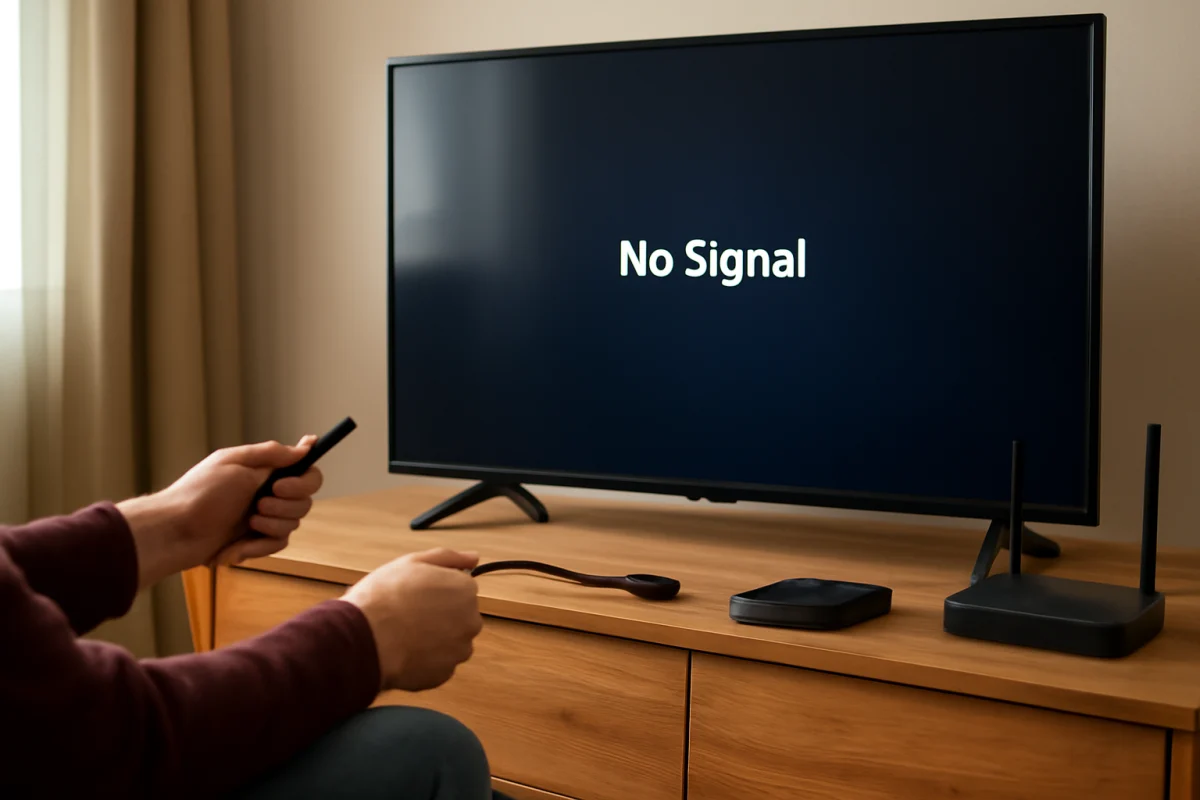
If your Hisense TV says “No Signal” on an HDMI input, first confirm that the TV is on the correct HDMI source and that the connected device is powered on. Then reseat the cable at both ends, try another HDMI port, and test the device with a different cable if possible. These simple checks often restore the picture without changing settings or resetting the TV.
The message usually means the television is not receiving a usable video signal from the selected HDMI input. It does not necessarily mean the Hisense TV is damaged. The problem may be caused by a sleeping streaming device, a loose connection, a failed cable, an incorrect input, an HDMI handshake issue, or a problem with the source device itself.
Check the selected HDMI input
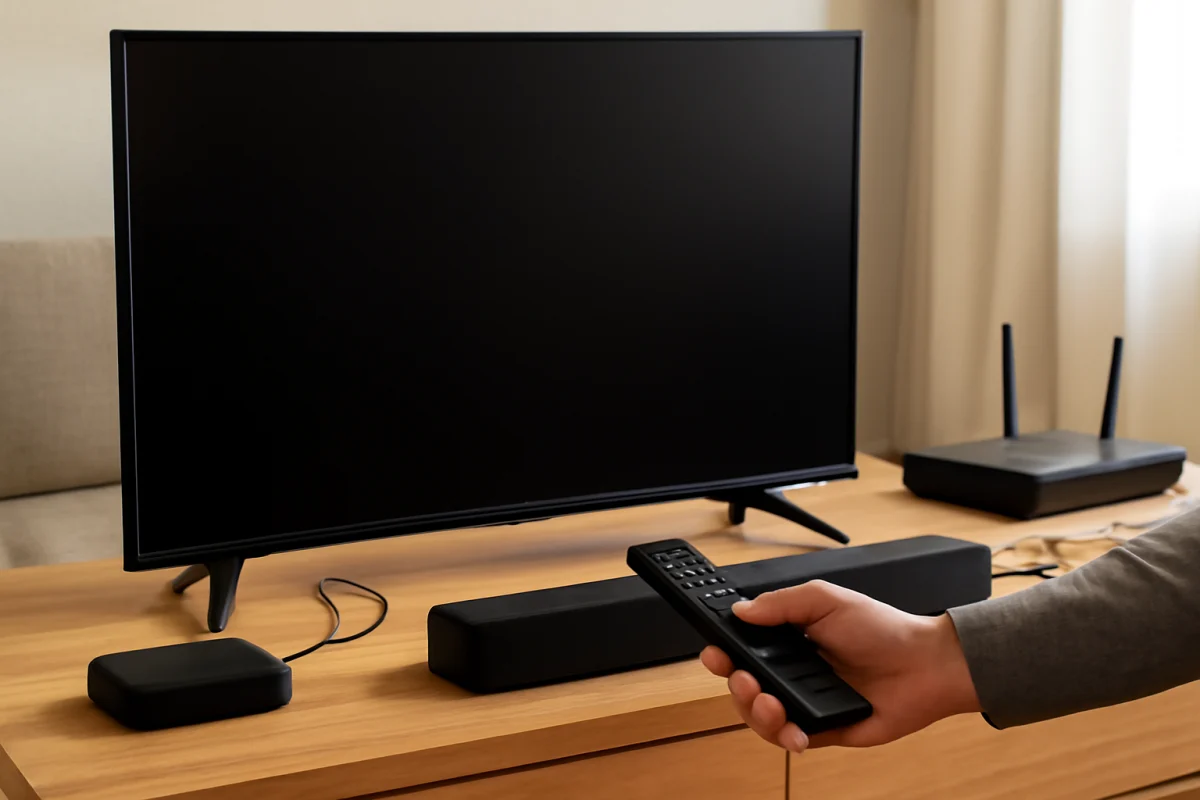
Use the Hisense remote to open the input or source list, then select the HDMI port where the device is connected. The labeling may vary by model and software version, so look for the source button or an on-screen input menu rather than relying on one exact menu name.
For example, if the cable is plugged into the port labeled HDMI 2, select the HDMI 2 source. If the TV is set to HDMI 1, it can correctly display “No Signal” even when the cable and device are working.
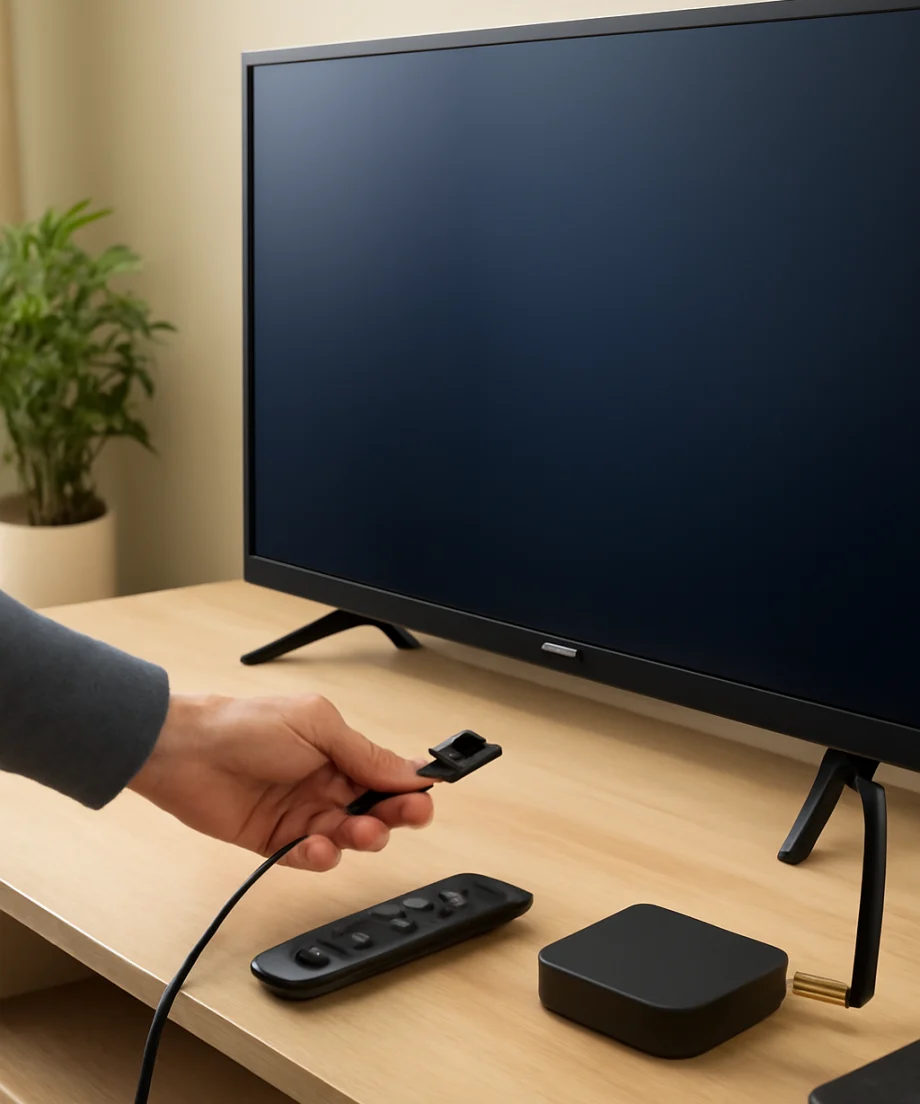
If you are unsure which port is in use, look at the back or side of the TV and trace the cable to its HDMI label. Avoid pulling the cable sharply or forcing it into the port. HDMI plugs fit only one way and should slide in firmly without excessive pressure.
Make sure the connected device is actually on
Check the device connected to the TV, such as a cable box, game console, Blu-ray player, laptop, Roku, or Fire TV device. Its indicator light may be off, or it may be in standby mode. Press the device’s power button or remote-control power button, then wait a minute for it to start.
Streaming sticks and other small HDMI devices can sometimes lose power if they are connected to an unreliable USB port or a damaged power adapter. If the device uses a separate power cable, make sure that cable is connected securely. When possible, use the power adapter supplied with the device or a known-good compatible adapter instead of the TV’s USB port.
Do not assume the source device is working just because its light is on. If it has a separate screen, status display, or power indicator, check for signs that it has finished starting up. A console may need to be fully awake, while a computer may be sending its display to another monitor.
Reconnect the HDMI cable
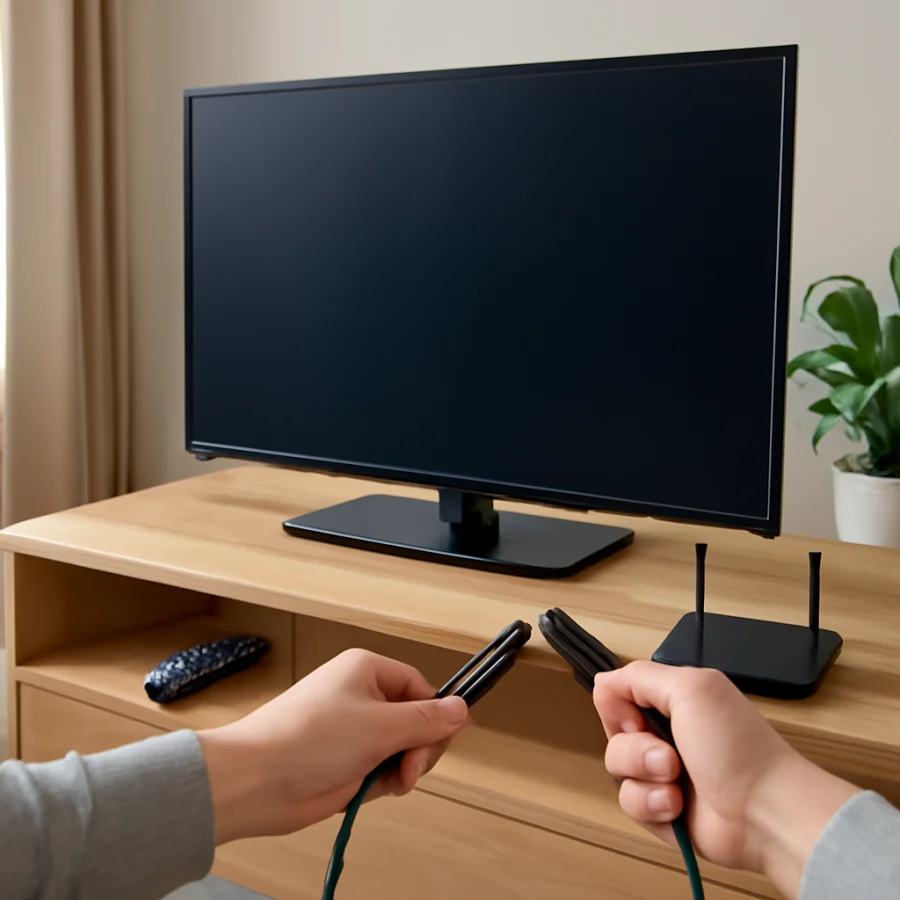
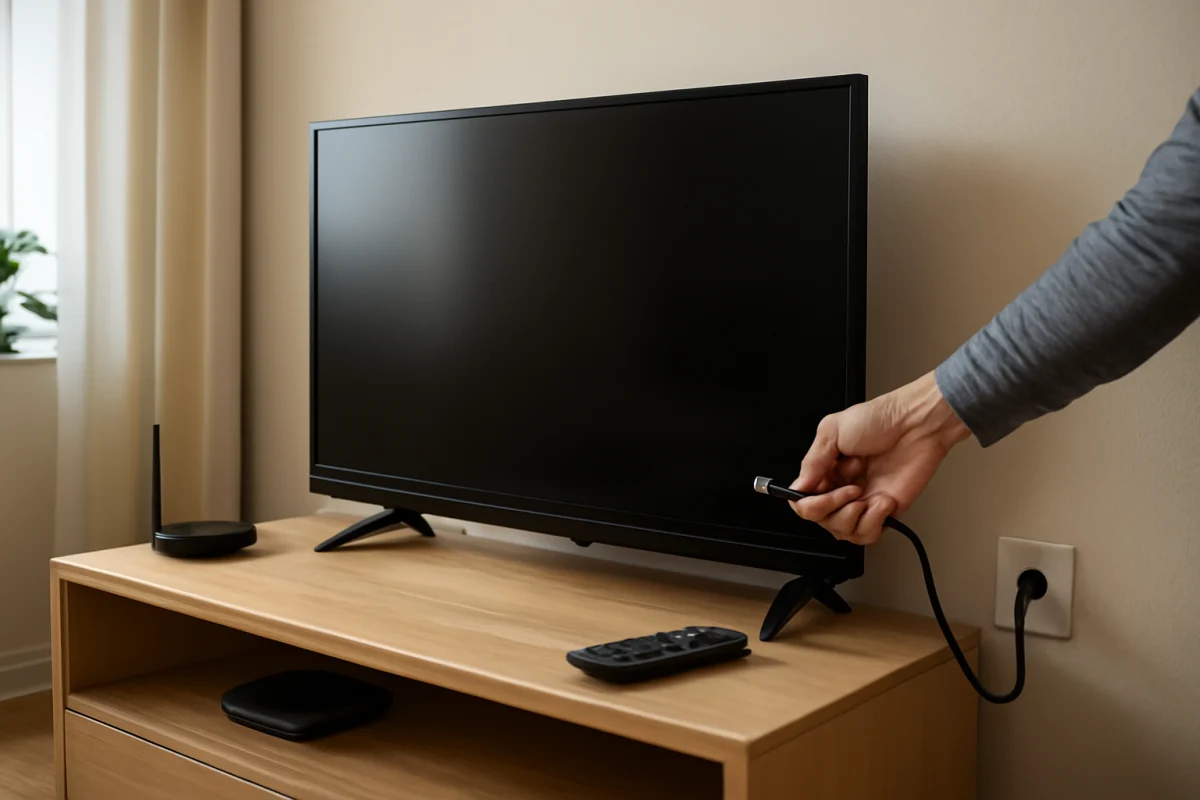
Turn off the source device before removing the HDMI cable. Unplug the cable from the TV and the source device, wait a few seconds, and reconnect both ends firmly. Make sure the plug is fully inserted and that the cable is not under tension.
Inspect the cable and connectors for visible damage, bent parts, looseness, or fraying. Do not use a cable that feels unusually loose in the TV port. Also check whether furniture or the wall is pressing against the connector, since sideways pressure can interrupt the connection.
After reconnecting the cable, turn on the source device first and select the matching HDMI input on the TV. If the picture returns, the original issue was likely a loose connection or a temporary HDMI communication problem.
Try another HDMI port and cable
Move the cable to a different HDMI port on the Hisense TV, then select that new port from the input list. If the picture appears on the second port, the original port may be dirty, damaged, or unable to communicate properly with that device.
Next, test with another HDMI cable if one is available. A cable can fail internally even when its outer jacket looks normal. Use a cable that works with another TV or device so the test is meaningful. You usually do not need the most expensive cable; it only needs to be suitable for the resolution and features used by the source device.
If another port and another cable both work, replace the original cable or avoid the problematic port. If no port works with a device that is known to be functional, continue with the source-device and power checks below.
Power-cycle the TV and HDMI device
A full power cycle can clear a temporary HDMI handshake problem. Turn off the Hisense TV and the connected device. Unplug both from the wall outlet, then wait about 60 seconds. Plug the TV back in, turn it on, select the correct HDMI input, and then power on the source device.
If the device uses an external receiver, soundbar, HDMI switch, splitter, or capture device, include it in the power cycle. These intermediary devices can prevent a video signal from reaching the TV when they are frozen or powered off.
For testing, connect the source device directly to the TV instead of routing it through a receiver or HDMI switch. If the direct connection works, the extra equipment or one of its cables is the more likely cause.
Test the source device on another display
Connect the suspected source device to another television or monitor, if available. This separates a TV-side problem from a source-side problem.
- If the device also shows no picture on another display, troubleshoot the device, its power supply, or its output settings.
- If the device works on another display but not on the Hisense TV, focus on the Hisense input, HDMI cable, compatibility, or display settings.
- If several known-working devices fail on the same Hisense HDMI port, that port may have a hardware problem.
You can perform the reverse test as well: connect a different working HDMI device to the Hisense TV. This is often the quickest way to identify whether the original source device is responsible.
Check for a video-output setting problem
Some devices can be configured to output a resolution, refresh rate, or display format that the TV cannot currently show. This is more common after changing TVs, using a computer, replacing an HDMI receiver, or changing display settings on a game console.
Open the source device’s display settings and choose an automatic or recommended output mode if that option is available. If the device has a safe display mode or a procedure for resetting video output, follow the instructions for that specific device. Do not guess at a reset combination, because the steps differ between consoles, computers, streaming devices, and Blu-ray players.
For a laptop, press the operating system’s display-switching shortcut and confirm that the HDMI display is enabled. You may also need to choose duplicate or extend mode in the computer’s display settings. If the laptop detects the TV but the screen remains blank, try a lower resolution temporarily.
Remove HDMI accessories while testing
Temporarily disconnect HDMI splitters, switches, receivers, soundbars, adapters, and capture cards. Connect one source directly to the TV with one HDMI cable. This reduces the number of devices involved and makes the result easier to interpret.
If the direct connection works, reconnect each accessory one at a time. The picture may disappear when you reconnect the faulty component, cable, or power supply. Some equipment also requires a specific input or output direction, so verify that the cable runs from the source output to the TV or receiver input as intended.
If you use an adapter, such as USB-C to HDMI, test the adapter separately if possible. Not every USB-C port supports video output, and adapters may need compatible hardware or software.
Check the TV software without resetting it
If the HDMI signal works intermittently or the problem began after a software change, check the TV’s settings for a system or software update. The exact menu path and available options vary by Hisense model and operating system. Use the wording shown on your TV rather than following instructions for a different model.
Keep the TV connected to reliable power during an update. Do not unplug it while the update is installing. If the TV cannot connect to the internet, do not assume an update is required; continue with the cable, port, and source-device tests first.
For more troubleshooting help, you can browse the Hisense TV troubleshooting guides or review related advice in the picture and sound section.
When to consider a factory reset
A factory reset should not be the first response to an HDMI “No Signal” message. It removes personal settings and may require you to sign back into streaming apps, reconnect the TV to Wi-Fi, and repeat the initial setup. Consider it only after you have tested the input, cable, port, power cycle, source device, and direct connection.
If you do reset the TV, read the on-screen warning carefully and confirm that you know your Wi-Fi password and streaming-account login details. The reset procedure and menu location can vary by model, so use the instructions displayed by your TV or the support documentation for the exact model.
Signs of a possible hardware problem
Contact Hisense support or a qualified TV technician if multiple known-working HDMI devices and cables fail on every HDMI port, especially after a complete power cycle. Hardware service may also be appropriate if a port is physically loose, visibly damaged, or only works when the cable is held at an angle.
Before requesting service, write down the TV model, the source device, the HDMI port used, and the tests that failed. If the TV displays an image from built-in apps or an antenna but not from any HDMI source, the issue is more likely related to HDMI connections or circuitry. If the entire screen is blank, including built-in TV menus, the problem may be broader than the HDMI input.
In most cases, an HDMI “No Signal” message on a Hisense TV is resolved by selecting the correct source, restoring power to the devices, replacing a faulty cable, or bypassing an HDMI accessory. Work through those low-risk checks in order before changing advanced settings or erasing the TV’s setup.
Comments
0No comments yet. Be the first to share a helpful note or question.
Leave a Comment
Your email address will not be published. Comments are reviewed before appearing on the site.