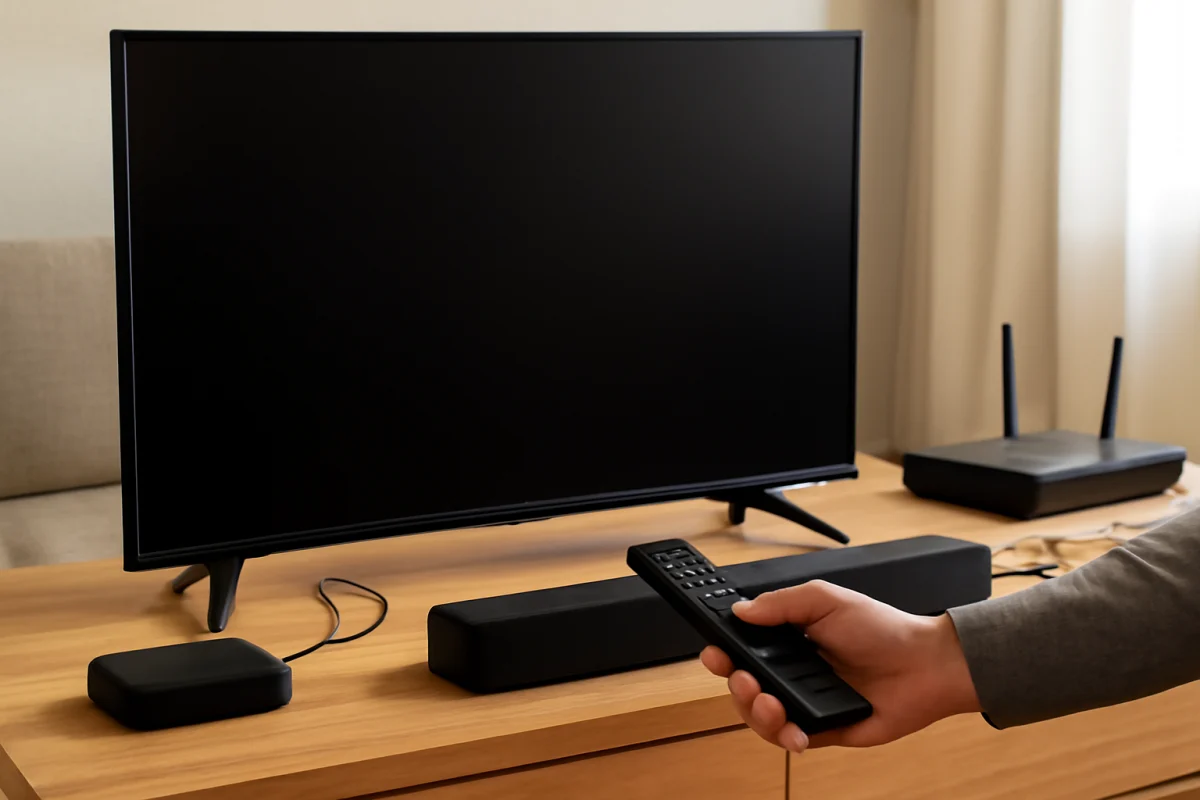
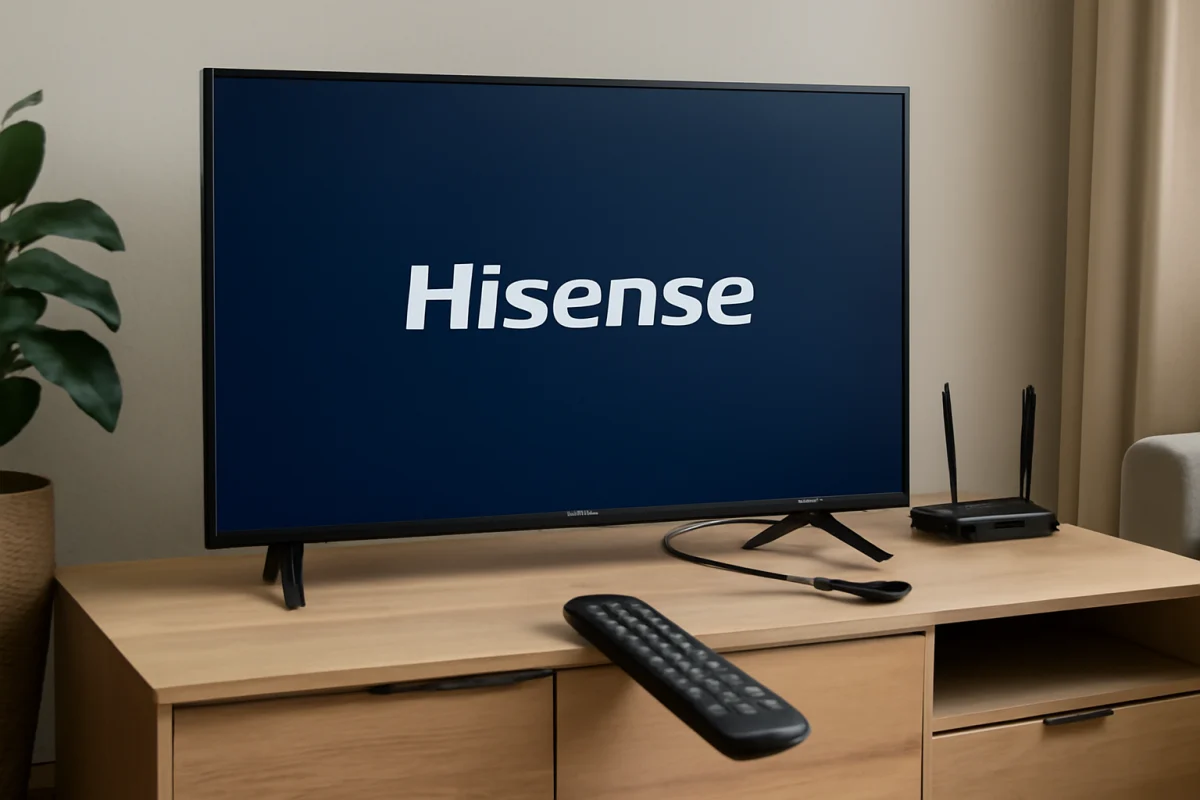
If your Hisense TV turns on but produces no sound, start with the simplest possibilities: press the volume-up button, make sure mute is off, and check whether the TV is sending audio to an external device. A startup sound problem is often caused by a muted TV, the wrong audio output, a loose HDMI connection, or a temporary software glitch rather than a failed speaker.
Work through the checks below in order. Menu names and available settings can vary between Hisense models, operating systems, and regions, so use the closest matching option on your screen instead of looking for one exact menu path.
Check the volume and mute status
First, point the remote at the TV and press the volume-up button several times. Watch the screen for a volume indicator or other response. If the volume number does not change, the remote may not be communicating with the TV, or the TV may be receiving commands from a different device.
Press the mute button once to make sure the TV is not muted. Some remotes have a dedicated mute key, while others may control the connected cable box, streaming device, or soundbar instead of the TV. If you use a universal remote, try the buttons on the original Hisense remote or the physical controls on the TV, if accessible.
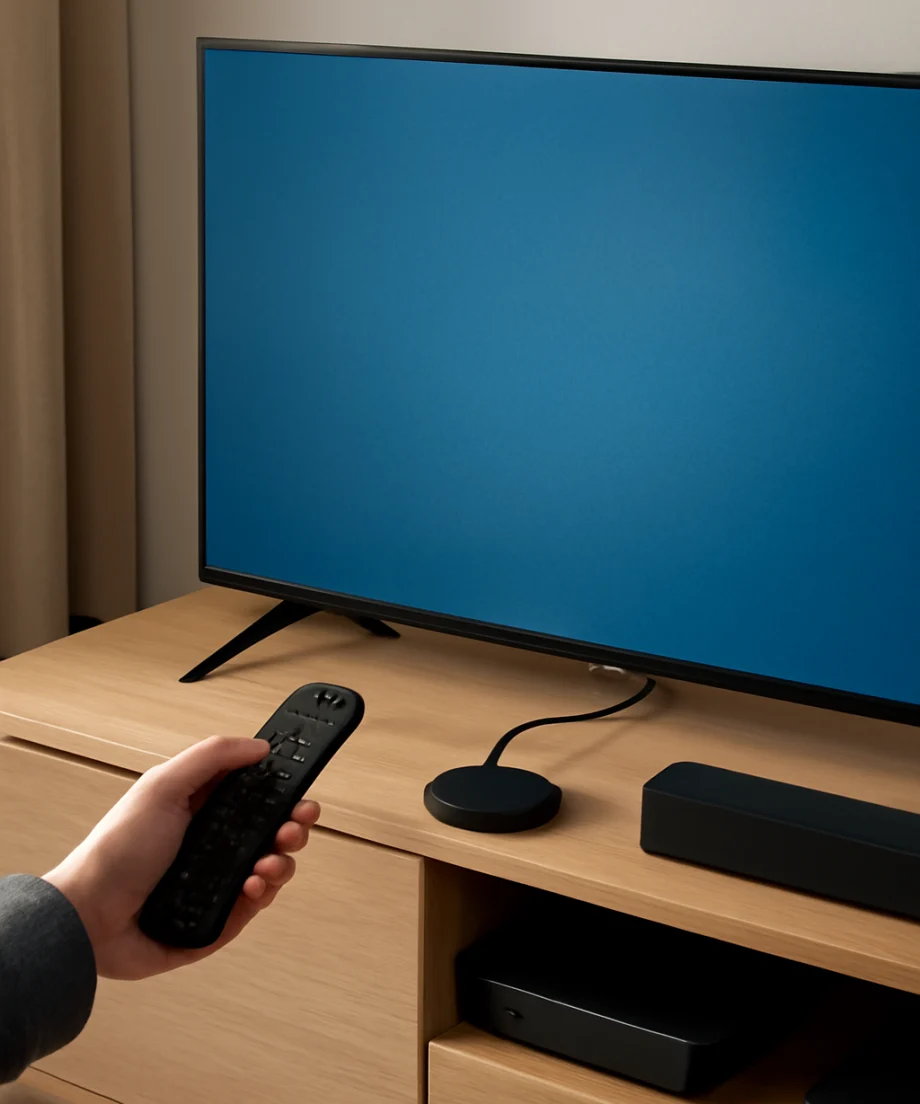
Also check whether the problem affects every source. Try switching from the current input to a built-in app, live TV source, or another connected device. If sound works in one source but not another, the TV speakers may be working normally and the problem is limited to the original source or its connection.
Restart the TV completely
A normal power-off command can leave a smart TV in a low-power standby state. A full restart can clear a temporary audio process problem without changing your settings.
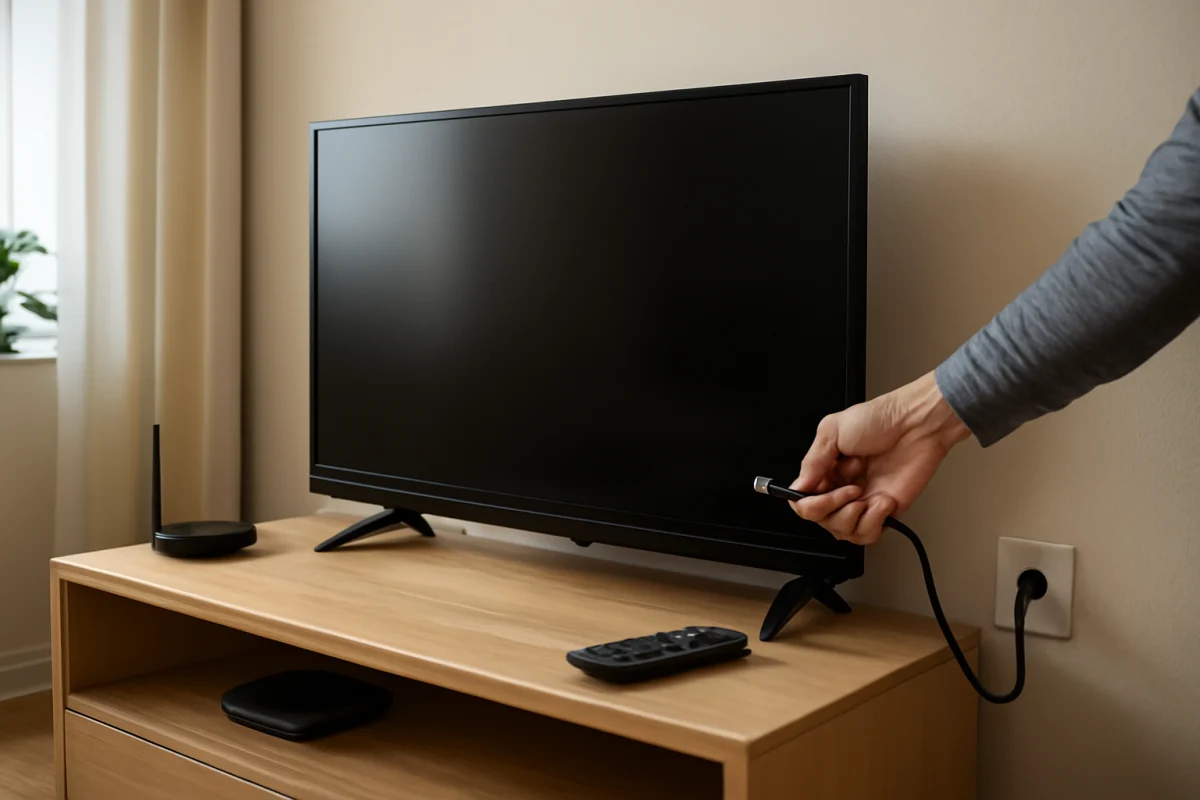
- Turn the TV off with the remote.
- Unplug the TV from the wall outlet.
- Wait at least 60 seconds.
- Plug the TV directly into the outlet again.
- Turn it on and test the sound using a built-in source.
If your Hisense TV has a physical power button, you can press and hold it briefly while the TV is unplugged. This may help discharge residual power, but do not force the button or remove any covers. Do not unplug the TV repeatedly while it is installing an update or displaying a warning about an active process.
Confirm the selected audio output
Your Hisense TV may be directing sound to a soundbar, receiver, Bluetooth headphones, or another audio device even when you expect the built-in speakers to play. Open the TV's sound or audio settings and look for an option related to sound output, speakers, audio output, or listening device.
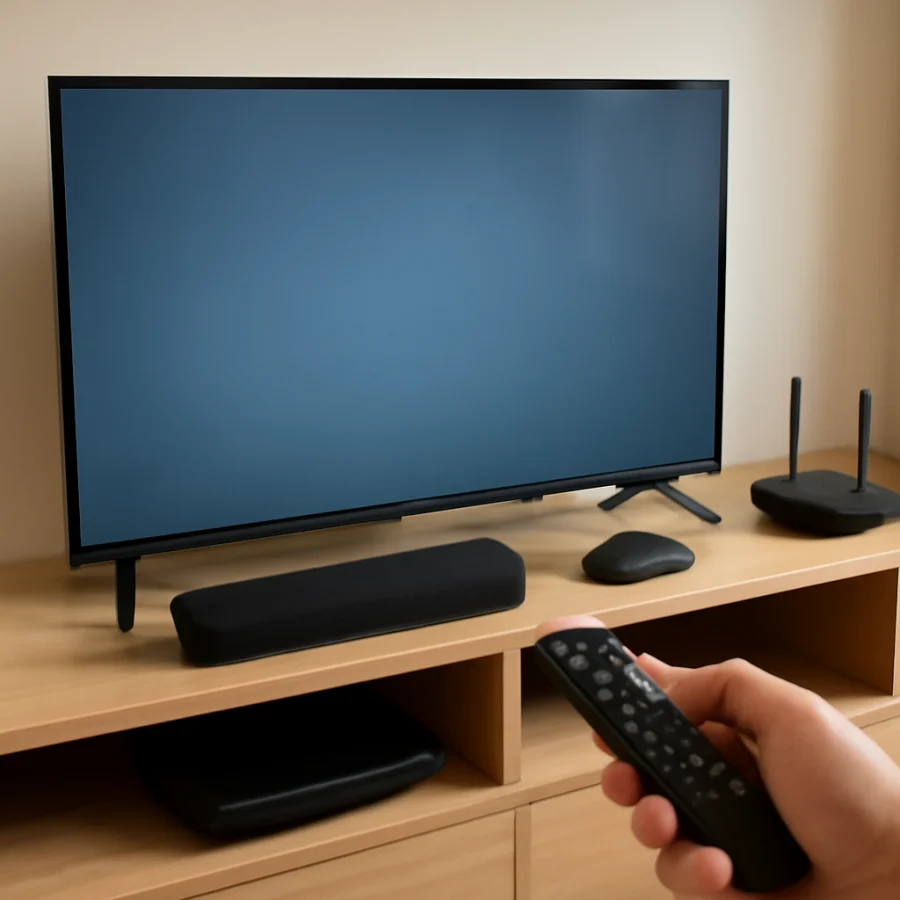
If you want to test the TV speakers, select the built-in TV speakers or an equivalent internal-speaker option. The exact wording depends on the model. If a connected soundbar or receiver is turned on, temporarily disconnect it or turn it off, then test the TV again.
Bluetooth devices can be easy to overlook. If headphones or a wireless speaker were paired previously, the TV might reconnect to them during startup. Disconnect or unpair the device temporarily, or change the audio output back to the TV speakers. If sound returns, the issue is probably related to the wireless device, its volume, or the TV's connection priority.
Inspect a soundbar, receiver, or optical connection
If you normally use external audio, check the soundbar or receiver before changing advanced TV settings. Confirm that it is powered on, set to the input connected to the TV, and not muted. Raise its volume with the device's own remote or buttons.
For HDMI-based audio systems, reseat the HDMI cable at both ends. If the cable is connected through an HDMI port labeled for audio return, make sure the soundbar or receiver is connected to the corresponding audio-return port on the TV. Port labels vary, and not every HDMI port supports the same functions.
For an optical cable, verify that both ends are firmly inserted and that any protective caps were removed before installation. The cable should not be sharply bent. Check the soundbar or receiver's input setting as well as the TV's digital audio output setting.
As a temporary test, disconnect the external audio system and select the TV speakers. If the built-in speakers work, the TV is producing audio and the fault is likely in the cable, selected input, audio format, or external device.
Check digital audio format settings
A soundbar or receiver may not support every audio format produced by a particular app, broadcast, or streaming device. If the TV is sending a format the external device cannot decode, you may get silence even though the connection appears normal.
In the audio settings, look for a digital audio output or digital sound format option. If it is set to an automatic, passthrough, or advanced mode, try a more widely compatible setting such as PCM or stereo, if your model provides that choice. This is mainly a troubleshooting test; the available formats and labels differ by model and connected equipment.
After changing the setting, close and reopen the source that had no sound. If audio returns, the original format or passthrough setting was not compatible with the soundbar or receiver. You can later test other options to find the best setting for your equipment.
Test the source device and HDMI cable
If the TV is silent only when you use a cable box, game console, Blu-ray player, Roku, Fire TV, or another HDMI device, focus on that device rather than the TV. Confirm that its volume is not muted and that it is not set to send audio to headphones or a different output.
Restart the source device and reconnect its HDMI cable. If possible, try another HDMI port on the TV and test with a different known-good HDMI cable. Avoid assuming that a picture proves the entire HDMI connection is healthy; video can work while audio negotiation fails.
Test a built-in TV app after making these changes. If built-in apps have sound but the HDMI device does not, the likely causes include the source device's audio setting, the HDMI cable, the selected port, or an incompatibility between the devices.
Check whether one app or program is affected
When sound disappears in only one streaming app, play a different title in that app and then test another app. A single program can have an audio-track or content issue, while a temporary app error can affect playback until the app is closed and reopened.
Exit the app fully if your TV provides a way to close it, then launch it again. You can also restart the TV using the full unplug procedure above. Avoid deleting app data or signing out immediately unless simpler steps fail, because those actions may remove saved settings and require you to sign in again.
If every app is silent but the TV's menus respond normally, continue with the TV audio-output checks. If only one app remains affected after a restart, the issue may be app-specific rather than a hardware failure.
Check for accessibility and audio balance settings
Review the sound settings for balance, channel balance, and accessibility features. An extreme left or right balance can make audio seem missing from a speaker or channel. Features intended for headphones, voice guidance, or specialized audio may also change how sound is routed.
If the TV offers separate volume controls for internal speakers, headphones, or digital output, confirm that the control you are adjusting matches the device you are listening to. Make one change at a time and test after each change so you know which setting helped.
Install available software updates
A software update may resolve an audio bug, especially if the problem began after a recent change to an app or connected device. Open the TV's system or support area and check for an available update using the option provided for your model.
Do not unplug the TV during an update. Update names, locations, and installation behavior vary, and some TVs require an internet connection or a restart before changes take effect. If the TV cannot connect to Wi-Fi, you can review our Wi-Fi and network troubleshooting guides before attempting an online update.
When to consider a factory reset
A factory reset should be one of the last software steps, not the first. It removes personal settings, installed apps, network information, and account details, and the setup process may differ by model. Before resetting, write down your Wi-Fi password and make sure you know the sign-in details for your streaming services.
Consider a reset only when the TV has no sound across built-in apps and inputs, the output settings are correct, a full restart has not helped, and software is up to date. Use the reset option in the TV's own settings rather than attempting an undocumented button sequence. If the TV is frozen or cannot open its settings, contact Hisense support or consult the manual for the exact recovery procedure for your model.
Signs the problem may be hardware-related
Contact Hisense or a qualified repair professional if there is no sound from any source after the checks above, particularly if the TV also has crackling, a burning smell, repeated clicking, visible damage, or sound that cuts in and out when the cabinet is moved. Do not open the TV. Internal components can retain hazardous electrical charge even after the TV is unplugged.
Before requesting service, record the TV model, the sources you tested, whether the volume indicator appears, and whether sound works through headphones, Bluetooth, or an external audio system. This information can help separate a speaker problem from an audio-output or source-device problem.
In many cases, no sound after startup is fixed by returning the output to the TV speakers, disconnecting an automatically connected Bluetooth device, restarting the TV completely, or correcting the audio format used by a soundbar. Start with those low-risk checks, then move to updates or a reset only if the simpler diagnosis does not restore audio. For more TV audio troubleshooting, visit the TV picture and sound guide or browse the Hisense TV troubleshooting section.
Comments
0No comments yet. Be the first to share a helpful note or question.
Leave a Comment
Your email address will not be published. Comments are reviewed before appearing on the site.