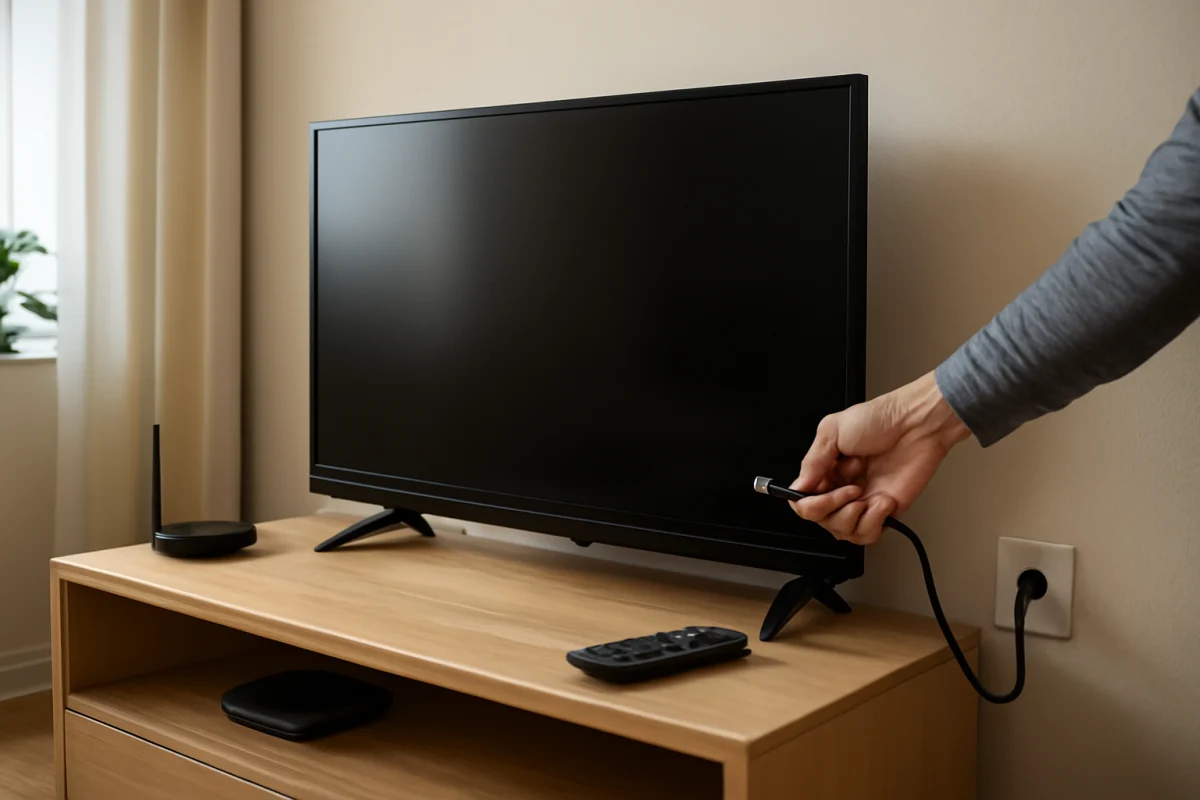
If your Hisense TV keeps turning off, start with the power connection and ventilation before trying a reset. A loose cord, overloaded outlet, overheating, remote-control input, sleep timer, or connected device can make the TV shut down. Software problems and failing internal components are also possible, especially if the TV turns off repeatedly even when nobody is using the remote.
Work through the checks below in order. They begin with simple steps that do not erase your settings and gradually move toward resets or professional repair.
Check whether the TV is losing power
First, watch what happens when the screen goes dark. If the standby light disappears completely, the TV may be losing power. If the standby light remains on, the TV may still have power and could be responding to a timer, software issue, remote command, or HDMI device.
Inspect the power cord and outlet
Make sure the power cord is firmly connected to the TV, if it is detachable, and firmly seated in the wall outlet or surge protector. Avoid relying on a loose extension cord while troubleshooting. If the plug moves easily or the outlet feels loose, use a different outlet temporarily.
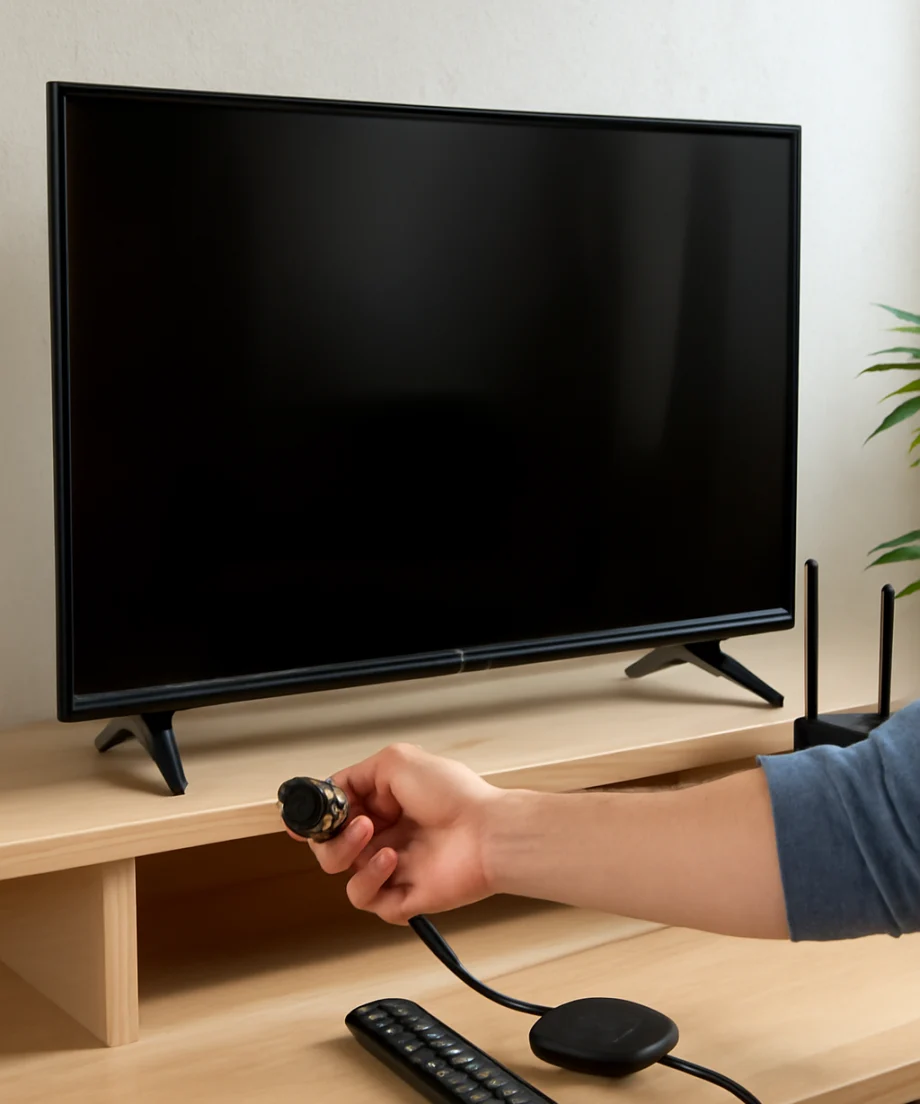
Test the outlet with a lamp or another small appliance. If that device also loses power, the issue may be with the outlet, circuit, or home electrical system rather than the TV. Do not use an outlet that is warm, damaged, sparking, or making unusual sounds. Contact a qualified electrician for electrical problems.
If the TV is connected to a surge protector or power strip, plug it directly into a known-good wall outlet for a short test. A failing or overloaded power strip can interrupt the TV even when the TV itself is working correctly.
Perform a basic power cycle
Turn the TV off and unplug it from the wall. Leave it unplugged for at least one minute, then plug it back in and turn it on using the TV's physical power button if one is available. The button may be underneath the screen, on the side, or on the back, and its location varies by model.
This is different from simply pressing the power button on the remote. Disconnecting power allows temporary electrical or software states to clear without deleting your picture settings, apps, or other preferences.
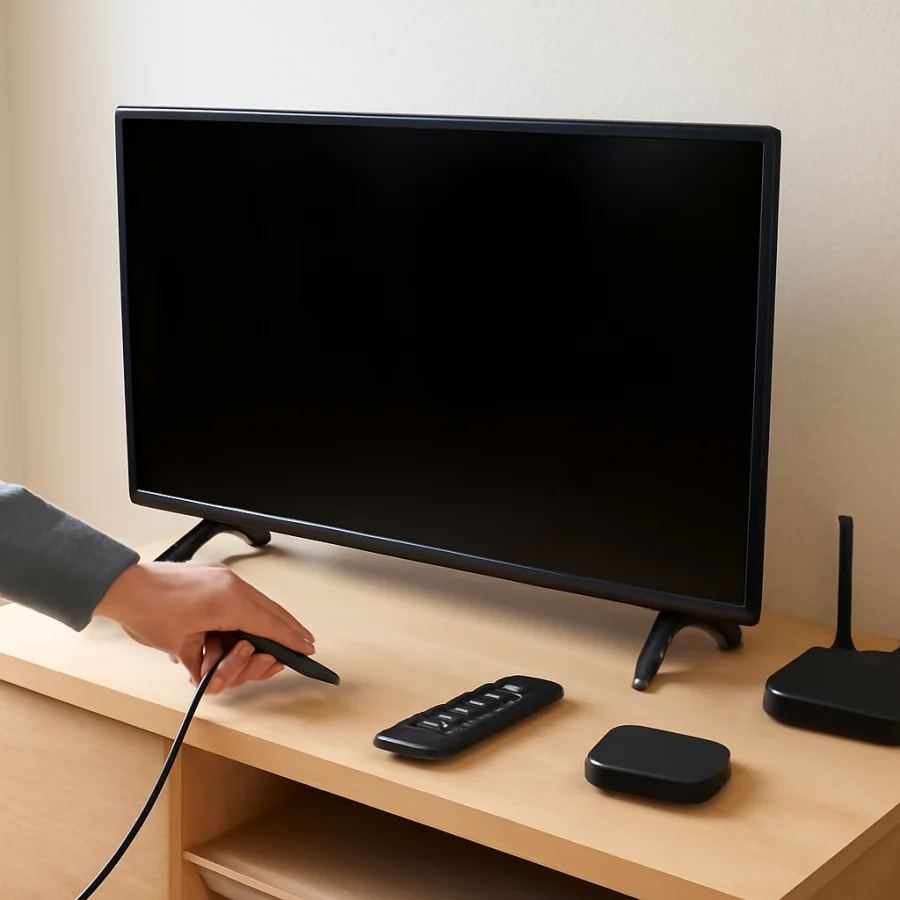
Remove common remote-control causes
A remote can send unwanted commands if a button is stuck, something is pressing against it, or another remote is controlling the TV. Remove objects from the front of the TV and check whether the remote's power button feels stuck.
Take the batteries out of the Hisense remote and leave them out for several minutes. Then use the TV's physical button to turn it on and observe it. If the TV stays on with the remote batteries removed, replace the batteries and test again. If the problem returns, the remote may be sending unintended commands.
Also consider other remotes in the room. A universal remote, cable box remote, game controller, or another smart-home device may be configured to control the TV. Temporarily move those devices away or remove their batteries during testing.
If the TV turns off only when you use a particular streaming device or cable box, disconnect that device and test the TV by itself. HDMI control features allow connected equipment to turn a TV on or off, but the exact setting names and behavior vary by Hisense model and operating system.
Check timers, sleep settings, and inactivity features
A timer can make a healthy TV shut down at a predictable time. Open the TV's settings and look for options related to sleep, power, timers, automatic shutdown, energy saving, or inactivity. Menu names and available options differ between Hisense models, so use the wording shown on your screen rather than looking for one exact menu path.
Disable a sleep timer if one is active, then watch the TV for longer than the usual time before it turns off. Some models also include an automatic power-off feature that responds to inactivity or a lack of signal. If the TV shuts down only after you stop using it, an inactivity setting is more likely than a hardware failure.
Check the connected device as well. A cable receiver, streaming player, or game console may have its own sleep or power-saving setting. Test the TV with all HDMI devices disconnected before changing several settings at once.
Improve ventilation and check for overheating
Overheating can cause a TV to shut down as a protective measure. Make sure the ventilation openings are not covered by a wall, cabinet, soundbar, books, or other objects. Do not place the TV directly against a wall if the design requires space around the rear vents.
Feel the outside of the TV carefully. It may be warm during normal use, but unusually hot areas, a burning smell, buzzing, or repeated shutdowns after a similar amount of viewing time deserve attention. Turn the TV off, unplug it, and let it cool before testing it again.
Clean visible dust from the exterior ventilation area with the TV unplugged. Do not insert tools, cloth, or a vacuum attachment into the TV, and do not remove the back cover. Internal components can retain dangerous electrical charges even after the set has been unplugged.
If the TV stays on when it is cool but shuts off after extended use, reduce heat around it and test it in a more open location. Persistent heat-related shutdowns may indicate a fan, power board, or other internal problem that requires service.
Disconnect HDMI and USB devices
External devices can cause shutdowns through HDMI control, power negotiation, software conflicts, or a defective cable. Unplug every HDMI and USB device from the TV, including soundbars, game consoles, Blu-ray players, cable boxes, streaming sticks, and USB drives. Leave only the TV's power cord connected.
Use the TV's built-in apps or leave it on the home screen for a while. If it no longer turns off, reconnect devices one at a time. Wait between tests so you can identify which device or cable triggers the problem.
When you find a likely cause, try a different compatible HDMI cable and a different HDMI port if available. Avoid assuming that the TV is defective until it has been tested without external equipment. For more help with connection problems, see our Wi-Fi and network troubleshooting guide or browse the streaming app troubleshooting section.
Check for software updates
A software problem can cause repeated restarts, freezing, or shutdowns. If the TV remains on long enough, connect it to the internet and check for an available system update in the settings. The exact menu location and update process vary by model, region, and TV platform.
Use only update instructions intended for your specific Hisense model. Do not interrupt the TV while it is installing an update, and do not unplug it during that process unless the on-screen instructions specifically tell you to do so.
If the TV cannot stay on long enough to update, write down its model information and contact Hisense support or an authorized service provider. Avoid installing firmware files from unofficial websites, since the wrong file can create additional problems.
Test the TV without an internet connection
Network issues do not usually cut power to a TV, but a faulty app, router connection, or software process can sometimes cause freezes or restarts. Temporarily disconnect the TV from Wi-Fi or unplug the Ethernet cable, then test a built-in input or the TV's settings screen.
If the shutdowns stop while the TV is offline, reconnect the network and test again. You can also restart the router, but do not treat a router restart as a fix for an electrical shutdown. If only one app causes the problem, update or reinstall that app if the TV provides those options.
Try a factory reset only after the basic checks
A factory reset can resolve corrupted settings or software behavior, but it removes accounts, installed apps, preferences, and saved settings. It may also require you to complete the TV's setup again. Because reset instructions differ by model, use the reset option shown in your TV's settings and follow the on-screen warnings.
Before resetting, record your Wi-Fi password and note any picture, audio, accessibility, or input settings you want to restore. Disconnect unnecessary HDMI and USB devices first, so you do not reintroduce the same trigger immediately after the reset.
If the TV shuts off during startup or cannot remain on long enough to complete a reset, skip repeated reset attempts. The problem is more likely to require service than another change to the settings.
When a Hisense TV needs professional service
Contact Hisense support or a qualified TV repair professional if the TV keeps turning off after testing a known-good outlet, removing the remote batteries, disconnecting external devices, improving ventilation, and checking timers. Service is especially appropriate when the TV:
- turns off immediately after being switched on;
- restarts repeatedly or shows a flashing standby light;
- makes clicking, buzzing, or popping sounds;
- has a burning smell, visible damage, or signs of liquid exposure;
- shuts down even while sitting on the settings screen with no devices connected; or
- will not stay on long enough to complete basic troubleshooting.
Do not open the TV or attempt to replace internal boards unless you are trained to work safely with television electronics. A repair technician can test the power supply, main board, backlight system, and other components without exposing you to unnecessary risk.
Use the shutdown pattern to identify the cause
The timing of the shutdown provides useful evidence. A TV that turns off at nearly the same time every day points toward a timer or scheduled feature. One that shuts off after several hours may be overheating or reacting to inactivity. A TV that turns off when a console or soundbar is used points toward HDMI control or the connected device.
If the screen goes black but audio continues, the issue may involve the display or backlight rather than a complete power loss. If both picture and sound stop and the standby light changes, investigate power and software behavior first. Note what the TV was doing, how long it had been on, which light remained visible, and whether unplugging it temporarily helped. That information can make support or repair much faster.
For additional model-specific troubleshooting, visit the Hisense TV help section. Starting with the outlet, remote, connected devices, ventilation, and timer settings usually identifies the problem without erasing the TV or taking it apart.
Comments
0No comments yet. Be the first to share a helpful note or question.
Leave a Comment
Your email address will not be published. Comments are reviewed before appearing on the site.