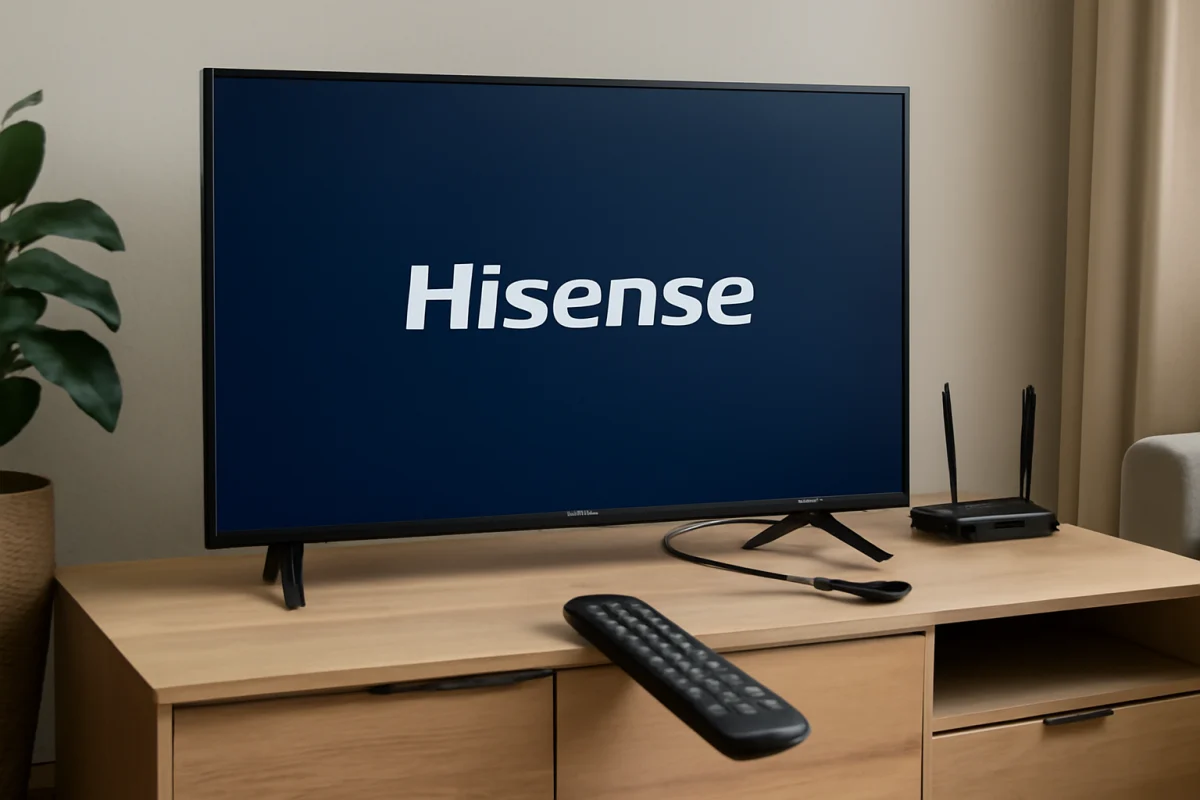
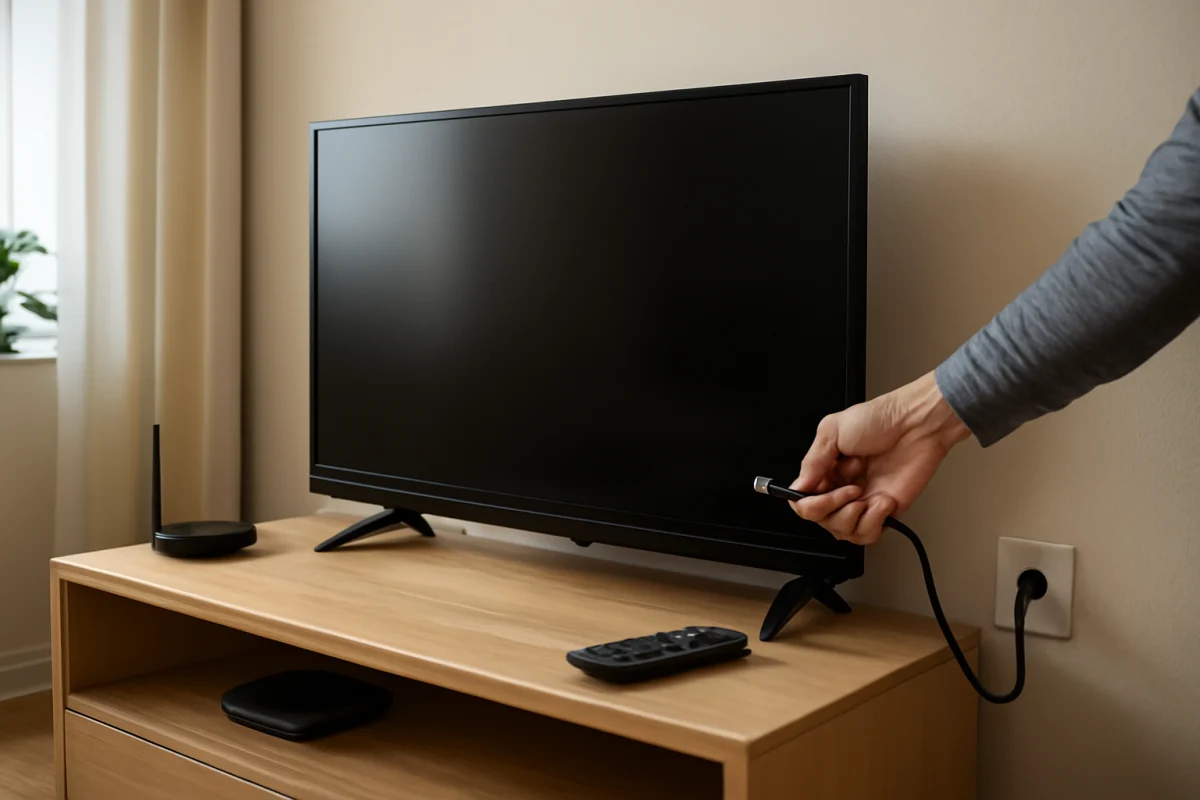
If your Hisense TV is stuck on the logo screen, start with a complete power cycle: unplug the TV from the wall, disconnect every HDMI and USB device, wait at least 60 seconds, and plug the TV directly into a working wall outlet. Then turn it on using the TV's physical power button rather than the remote.
This problem is often caused by a failed startup process, a temporary software lockup, an attached device, or unstable power. It can also indicate corrupted software or an internal hardware fault. Work through the checks below in order so you do not erase your settings before simpler causes have been ruled out.
1. Disconnect everything from the TV
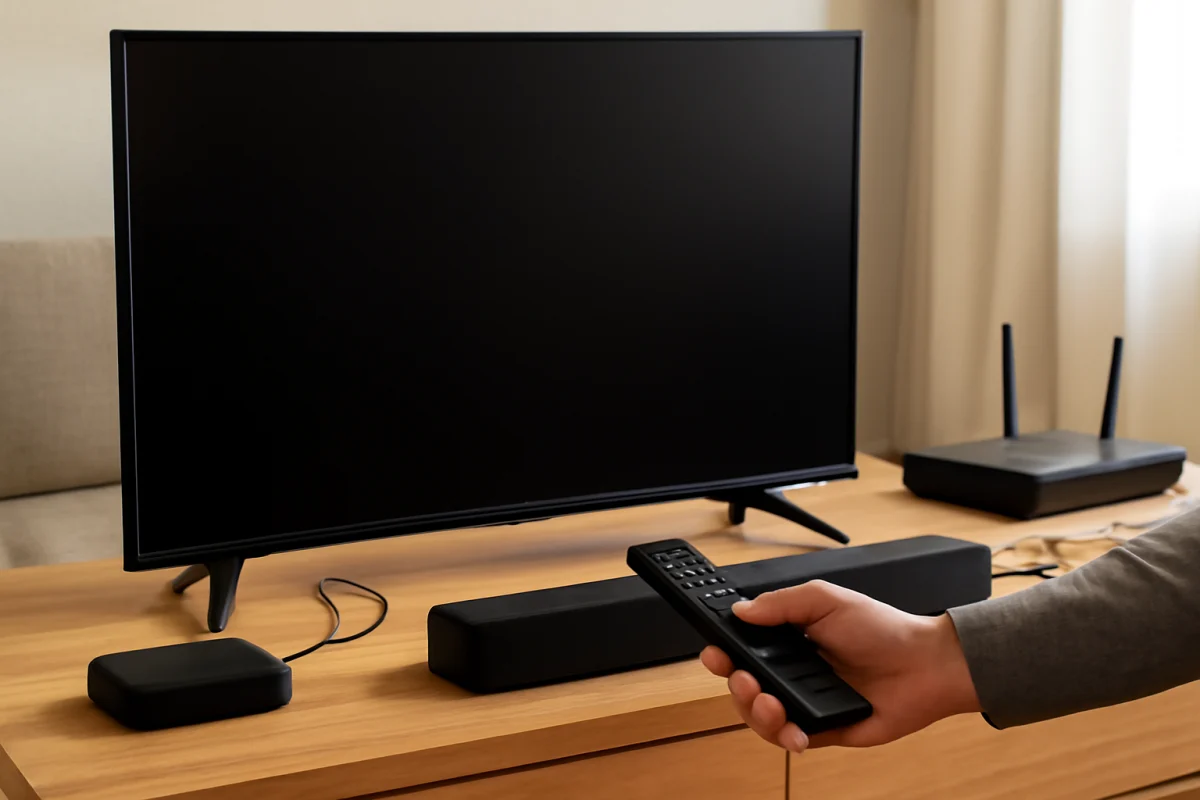
First, remove all external connections from the Hisense TV. Unplug HDMI devices such as a cable box, game console, Blu-ray player, soundbar, streaming stick, or AV receiver. Also remove USB drives, antennas, Ethernet cables, and other accessories if they are connected.
A malfunctioning external device can interfere with the TV's startup process, especially when HDMI-CEC or automatic input switching is enabled. A USB drive can also cause unusual behavior if the TV tries to read it during startup.
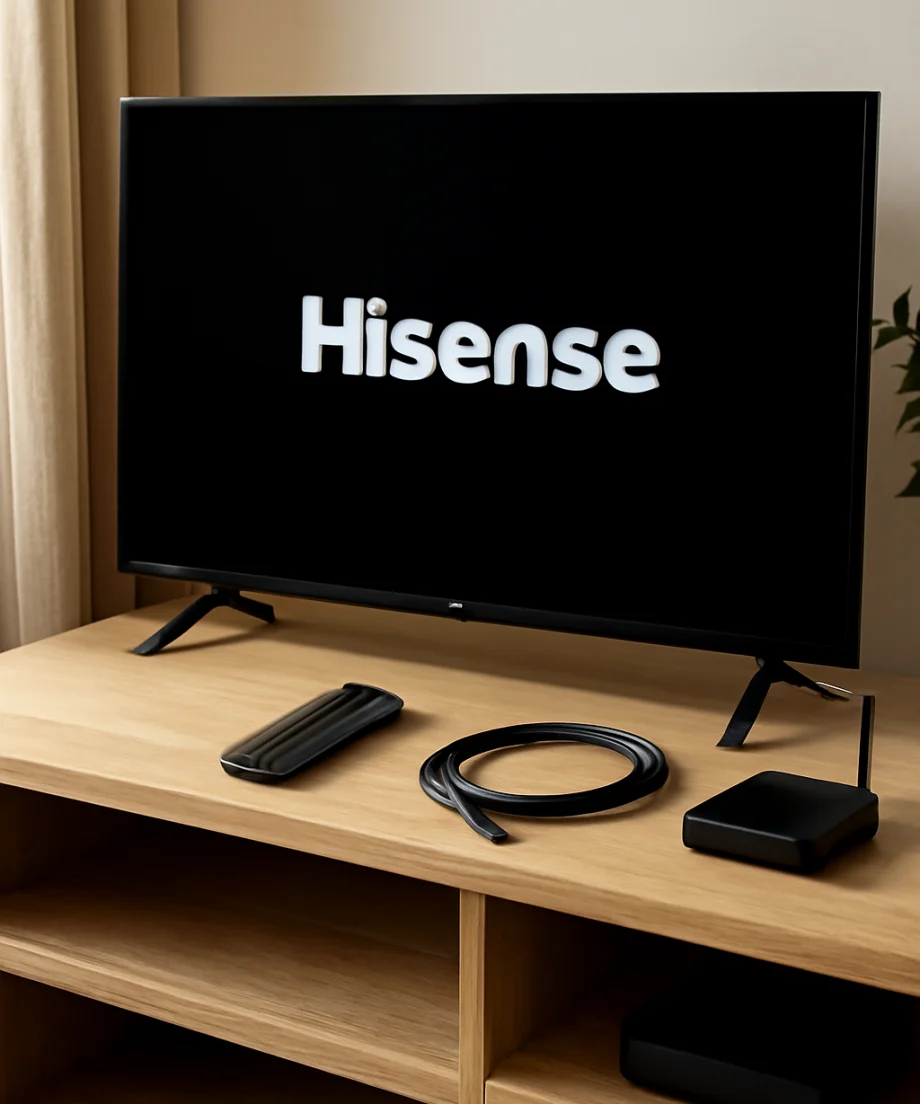
Leave only the TV's power cord connected. Turn the TV on and wait several minutes. If it starts normally, reconnect your devices one at a time. Restart the TV after each connection if necessary. This can identify the device or cable causing the boot problem.
2. Perform a full power cycle
A normal press of the remote's power button may place the TV in standby instead of fully clearing its temporary memory. A full power cycle is more useful when the TV freezes at the logo.
- Turn the TV off if it responds.
- Unplug the power cord from the wall outlet, not just from a power strip if possible.
- Wait at least 60 seconds. Waiting a few minutes is also reasonable if the TV remains warm or unresponsive.
- While the TV is unplugged, press and hold the physical power button on the TV for about 15 seconds, if your model has one.
- Release the button, reconnect the TV directly to the wall, and try turning it on.
The location of the physical power button varies. It may be underneath the panel, along the bottom edge, or on the back of the television. Do not press small recessed buttons unless you know they are intended for power or reset functions.
3. Check the power source
Unstable power can interrupt the startup sequence. Test the wall outlet with a lamp or another simple appliance, and make sure the TV's power cord is firmly connected at both ends if it is detachable.
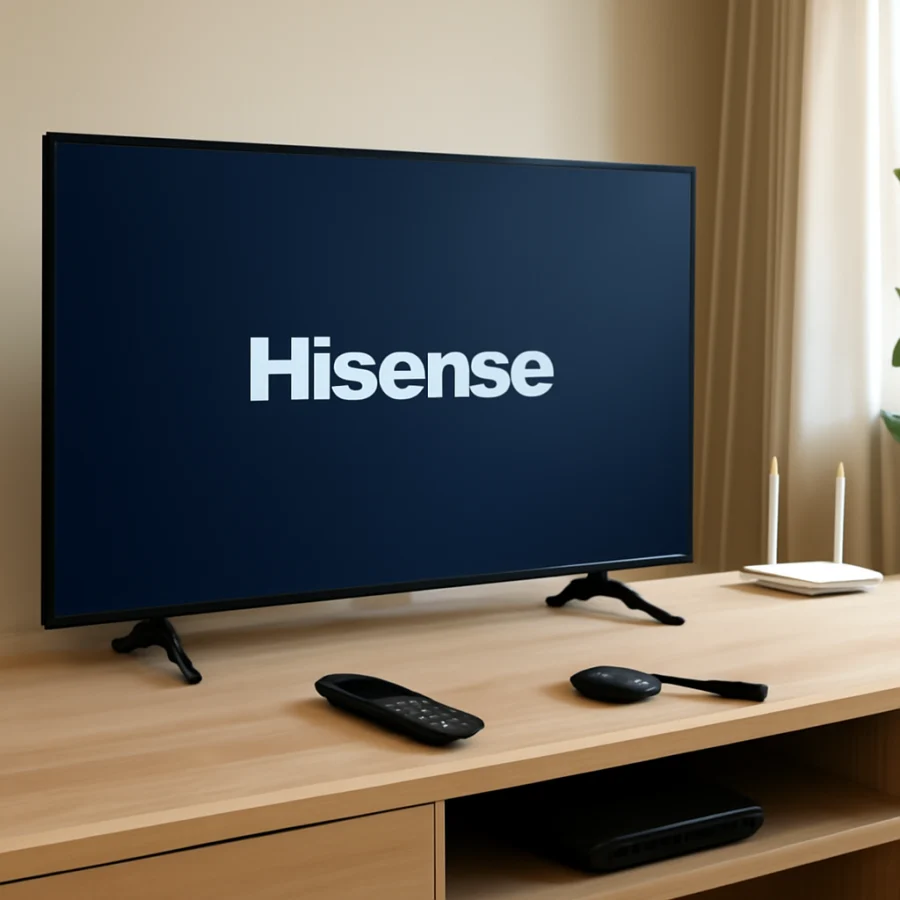
For this test, bypass an extension cord, surge protector, smart plug, or power strip. These accessories are not always the cause, but removing them helps isolate the power path. If the TV works from the wall outlet but not from the accessory, stop using the accessory until it has been checked or replaced.
Do not use a visibly damaged power cord. Look for cuts, crushed sections, bent contacts, burn marks, or a loose connection. If you notice a burning smell, sparking, unusual heat, or repeated clicking from the TV, unplug it and arrange professional service instead of continuing to test it.
4. Try the TV's physical controls
A remote-control problem usually does not cause the logo itself to freeze, but testing the controls can show whether the TV is responding. Try the physical power button and, if available, the volume or input controls on the TV.
If the TV responds to its physical buttons but not to the remote, the remote may have weak batteries, a stuck button, or a pairing problem. Remove the batteries temporarily and use the TV's controls. You can also check our remote control troubleshooting guide for general testing steps.
If neither the remote nor the physical controls produce any response and the logo remains fixed, the issue is more likely related to the TV's software, power supply, main board, or display system.
5. Look for signs that the TV is still working
Pay attention to what happens after pressing the power button. Does the screen briefly go black and return to the logo? Does the standby light change? Can you hear a startup sound, menu sound, or audio from an input? Does the TV restart on its own?
These details help separate a frozen screen from a complete startup failure. For example, if audio is present but the logo remains visible, the display system may be involved. If the TV repeatedly powers off and restarts, it may be caught in a boot loop. If the standby indicator never changes, investigate power and control issues first.
Record the behavior before contacting support. Include the TV model number, what appears on screen, whether the logo stays lit or disappears, and whether the problem began after a power outage, software update, device connection, or factory reset.
6. Allow time for a possible startup or update process
If the TV recently lost power during an update or was just reset, leave it connected to power for a reasonable period while observing it. Do not repeatedly unplug the TV if it appears to be progressing through startup.
However, there is no universal amount of time that applies to every Hisense model. If the screen remains unchanged for an extended period and the TV repeatedly returns to the same logo, continuing to wait is unlikely to solve the problem. Avoid downloading firmware from unofficial websites or attempting an update file intended for a different model.
7. Try a reset only when necessary
A factory reset can resolve corrupted settings or a software startup problem, but it erases personal settings, installed apps, account information, network details, and other saved data. Use it only after the power, cable, and external-device checks have failed.
The reset method differs by Hisense model and operating system. Some televisions offer a reset option inside the settings menu, while a model that cannot reach the menu may use a physical button or a model-specific recovery procedure. Do not assume that a reset sequence for one Hisense TV will work on another.
Check the user guide for your exact model or use Hisense's official support resources before trying a button combination. The model number is commonly printed on a label on the back of the TV or on the original packaging. If the TV cannot reach its menu, do not guess at a hidden reset procedure, especially if it involves holding multiple buttons while reconnecting power.
8. Check for a stuck button or damaged accessory
A stuck button on the remote, game controller, or connected HDMI device can send repeated commands while the TV is starting. Remove the remote batteries and disconnect every accessory again, then test the television by itself.
Also inspect HDMI cables for bent connectors or damage. A bad cable is less likely to cause a logo freeze than a faulty connected device, but replacing or removing a damaged cable is a low-risk test. Reconnect one known-good device only after the TV starts normally.
9. When the problem may be hardware-related
If the Hisense TV remains stuck on the logo after a direct-wall power cycle, with all devices disconnected, the cause may be an internal hardware fault. Possible areas include the power supply, main board, storage used for system software, or another component involved in startup. You do not need to identify the failed part yourself.
Hardware is more likely when the problem began after a power surge, the TV clicks repeatedly, the screen flashes, the unit becomes unusually hot, or the TV has previously restarted or frozen frequently. A logo that is dim, distorted, or accompanied by lines may also point to a display-related issue rather than a simple software lockup.
Do not open the TV unless you are qualified to service television electronics. Internal components can retain dangerous electrical charge even after the TV is unplugged. Contact Hisense support, the retailer or warranty provider, or a reputable television repair shop. Ask about diagnostic service before approving a board replacement.
What to tell Hisense support or a repair technician
Providing clear information can reduce back-and-forth troubleshooting. Have these details ready:
- The exact model number and approximate purchase date.
- Whether the logo is frozen, repeatedly restarting, or disappearing to a black screen.
- Whether the TV responds to its physical power button.
- Whether the issue continues with every HDMI and USB device disconnected.
- Whether a power outage, storm, update, reset, or new device preceded the problem.
- Any blinking light, clicking sound, unusual heat, smell, or visible screen damage.
Take a short video of the startup behavior if the TV intermittently changes symptoms. This can be useful if the problem does not occur while a technician is testing it.
How to prevent the logo problem from returning
Once the TV starts normally, reconnect external devices one at a time and remove any device that immediately brings the problem back. Keep ventilation openings clear, avoid placing the TV in an enclosed space that traps heat, and use a reliable power source.
When installing software updates, keep the TV connected to stable power and do not interrupt the process unless the manufacturer's instructions specifically require it. If the TV continues freezing after it has started, review our Hisense TV troubleshooting resources for related picture, network, and app problems.
In most cases, the best first test remains simple: unplug the TV, disconnect all external devices, wait, and restart it from a direct wall outlet. If that does not change the behavior, avoid repeated forced resets and move to model-specific support or professional diagnosis.
Comments
0No comments yet. Be the first to share a helpful note or question.
Leave a Comment
Your email address will not be published. Comments are reviewed before appearing on the site.