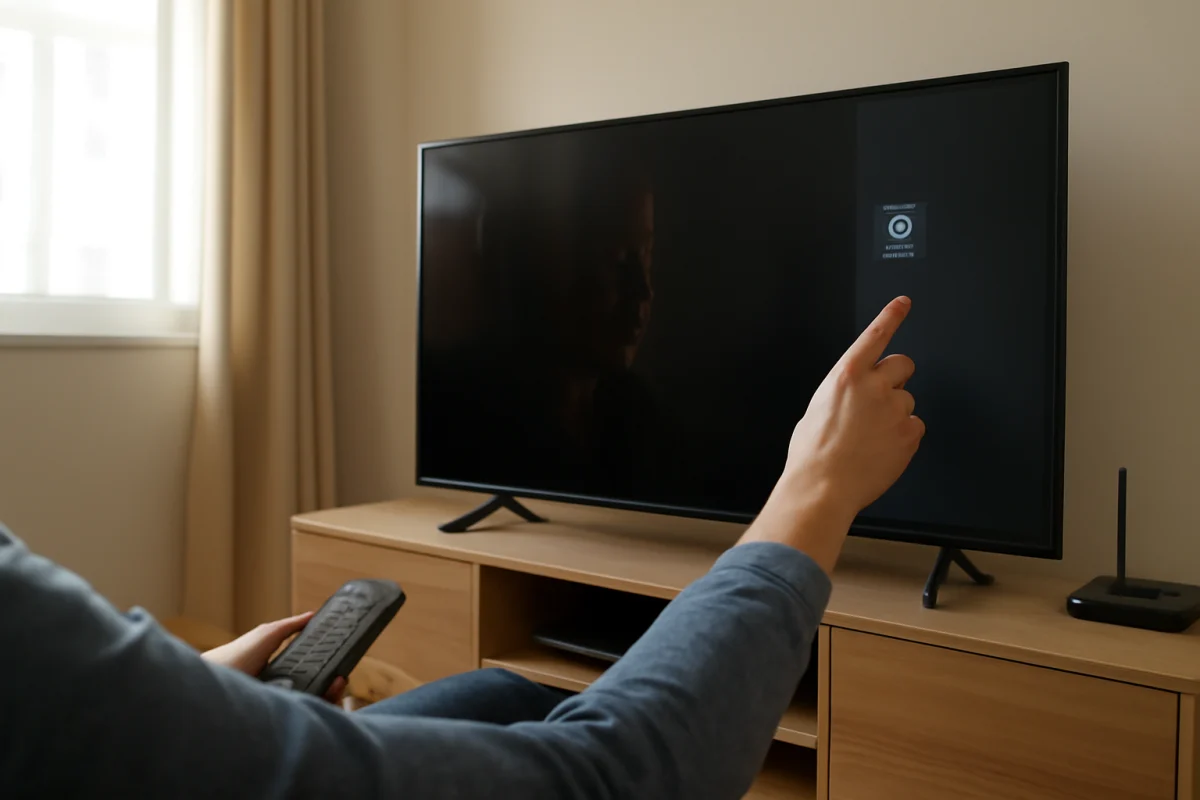
If your TV looks too dark, first check whether the problem affects every source or only one app, input, or channel. Pause the video and compare it with the TV's own settings screen. If the settings menu also looks unusually dim, the TV's picture settings, light sensor, backlight, or display hardware may be involved. If only one show or input is dark, the source or streaming app is more likely responsible.
Start with the simple adjustments below before resetting the TV or changing advanced picture controls. Menu names and available settings vary by brand, model, software version, and region.
Check whether the entire TV is dark
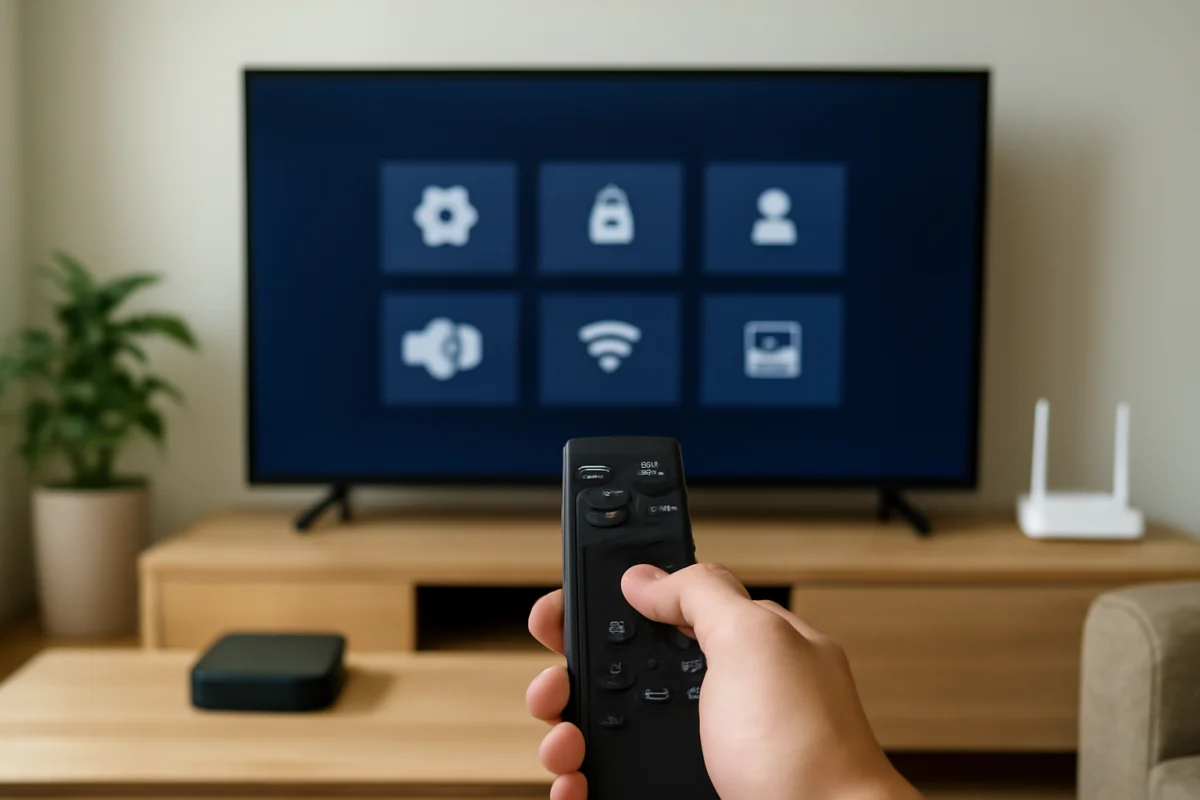
Open the TV's home screen or settings menu. You do not need to change anything yet. Look at the white text and icons against the background, then play the same content on another input or app if possible.
- Everything looks dark: Check picture mode, brightness-related controls, ambient-light features, and the room lighting.
- Only one app looks dark: The app, video, title, or streaming device may be the cause.
- Only one HDMI device looks dark: Check that device's video settings, cable connection, and output range.
- The picture briefly dims during scenes: An automatic picture feature, power-saving setting, or thermal protection may be changing the screen brightness.
- The screen is dark but sound works: The backlight or display hardware could be failing, especially if a flashlight reveals a faint image.
For more display troubleshooting, see the Picture & Sound section on TV Fix Guide.
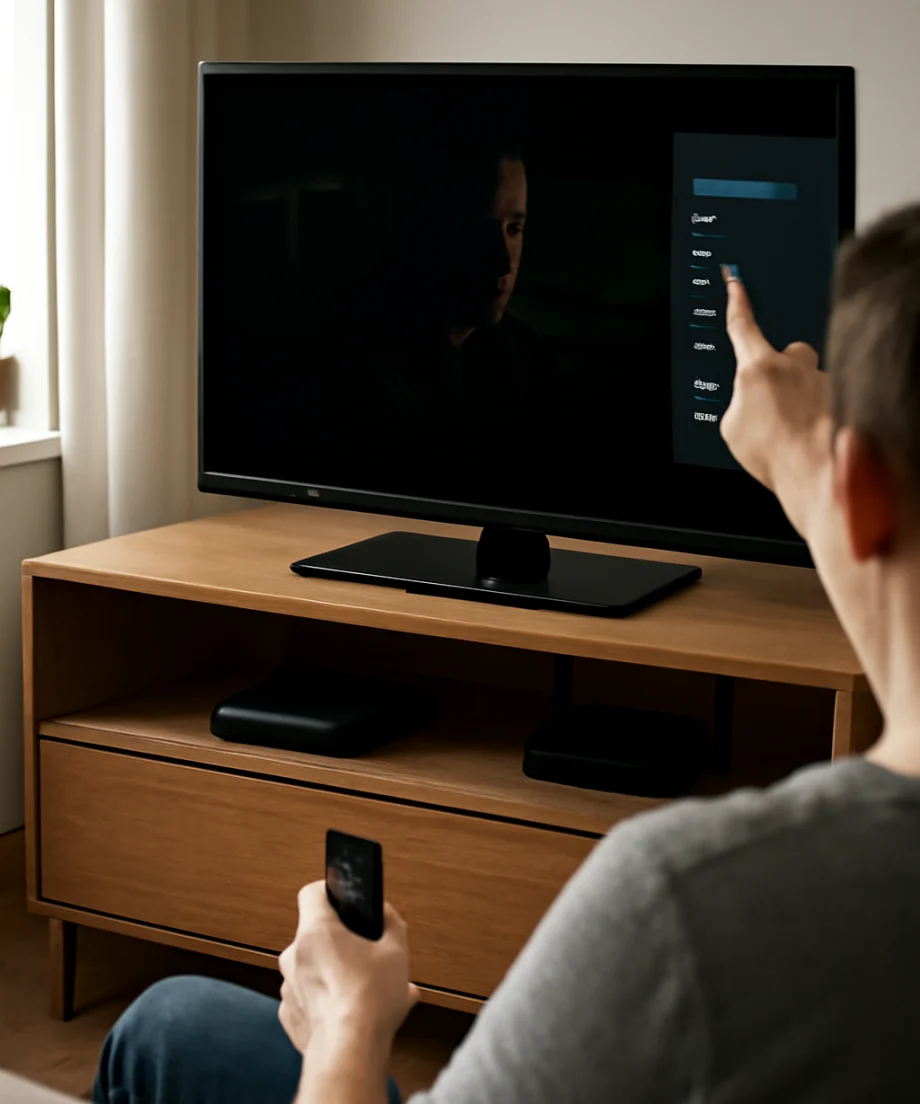
Turn off power-saving and light-sensing features
Many TVs automatically reduce screen brightness to save energy or respond to the lighting in the room. These features can be useful in a dark room, but they may make the picture look too dim during daytime viewing.
Look through the picture, energy, general, or system settings for options related to energy saving, ambient light, automatic brightness, eco mode, or an illumination sensor. The exact wording differs by manufacturer. Temporarily disable the feature, or select a less aggressive setting, and then test the same scene again.
If the brightness changes when you turn a lamp on or off, an ambient-light sensor is probably affecting the picture. If the screen dims after several minutes of inactivity, check for energy-saving behavior or an automatic screen feature. Do not assume that a darker picture means the panel is damaged until these controls have been tested.
Choose a brighter picture mode
Picture modes are designed for different environments. A cinema, filmmaker, movie, or theater mode may intentionally use a darker image for accurate viewing in a dim room. A standard, normal, or similar mode may appear brighter. Some TVs also offer a vivid or dynamic mode, but these settings can make colors look harsh and may increase eye strain.
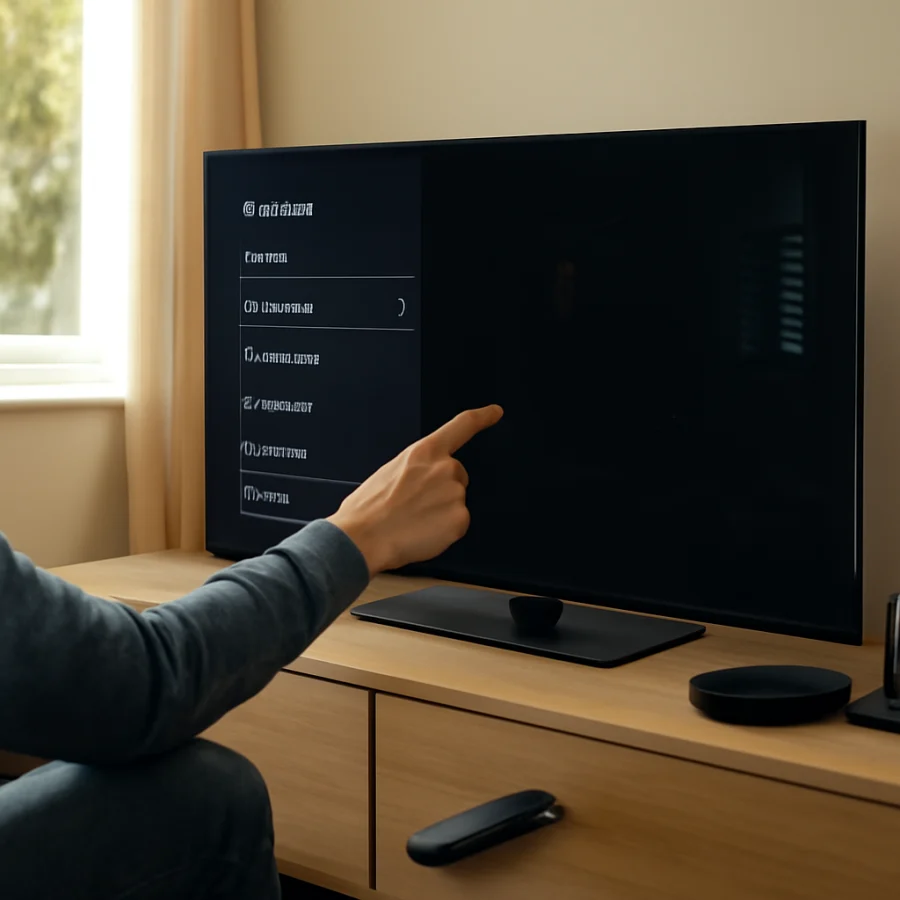
Try the TV's standard or normal picture mode first. Watch a familiar scene for a few minutes and compare it with the previous mode. If the picture becomes visible but looks overly blue, oversaturated, or artificial, use a less aggressive mode and adjust only the basic controls.
Remember that a mode can be saved separately for each input, app, or signal type. Changing the mode while watching a streaming app may not change the mode used by a game console or cable box.
Adjust the right brightness controls
TV picture menus often include several controls with similar names. They do not all do the same job.
Brightness or black level
The brightness control usually changes how visible the darkest parts of the image are. If it is set too low, shadow detail disappears and dark scenes can look almost black. Raise it gradually while watching a scene that contains clothing, hair, walls, or objects in the shadows. Stop when you can see detail without making black areas look gray.
Backlight, panel brightness, or OLED light
A control with a name such as backlight, panel brightness, display light, or OLED light generally changes the overall light output. This is often the most useful adjustment when the whole picture is too dim, particularly in a bright room. Increase it in small steps rather than moving it immediately to the maximum.
On some display types, a similarly named control may work differently. OLED televisions may manage brightness and automatic limiting in ways that differ from LED-backlit LCD televisions. Follow the labels and guidance for your model instead of copying settings from another TV.
Contrast
Contrast affects the brighter parts of the image. Raising it is not always the best way to fix a dark picture. If it is too high, bright details such as clouds, white clothing, or highlights can disappear. Adjust contrast only after checking the backlight or panel-light setting.
Gamma or shadow detail
Gamma changes how midtones and darker areas are displayed. A higher or lower value may make a scene look brighter or darker, but the direction and labels can vary by model. If the TV offers a shadow-detail control, use small changes and check several scenes. Excessive adjustment can make black areas gray and reduce contrast.
Check HDR and the source device
High dynamic range content can look darker than expected when the TV, streaming device, game console, or cable box is not handling the signal correctly. The issue may appear only when a title switches into HDR, Dolby Vision, or another enhanced format.
First, compare an ordinary non-HDR video with the same source. Then check the source device's display settings and the TV's picture settings for that signal type. Many televisions save separate settings for standard and HDR content. A change made while watching regular video may not carry over to HDR.
If an external streaming device is involved, try the TV's built-in app. If the built-in app looks normal but the external device remains dark, inspect the device's output settings and reconnect the HDMI cable. Avoid changing multiple advanced options at once. Make one change, test the same scene, and note whether it helped.
If streaming quality, buffering, or app behavior is also unusual, the Streaming Apps troubleshooting section can help separate an app problem from a display problem.
Test the HDMI connection and input
A loose or damaged HDMI connection can cause unusual colors, flickering, a blank screen, or an incorrect picture format. It is less likely to cause a consistently dark picture by itself, but testing the connection is quick and low risk.
- Turn off the TV and the connected device.
- Unplug the HDMI cable from both ends and reconnect it firmly.
- Try another HDMI input on the TV.
- If available, test a different known-good HDMI cable.
- Compare the external device with a built-in TV app or the TV's home screen.
Some devices let you choose between limited and full video range. The correct option depends on the device and the TV. An incorrect match can make blacks look washed out or crush shadow detail. Change this setting only if the source device's instructions support it, and write down the original setting so you can restore it.
Consider the room and viewing angle
Bright windows and lamps can make a normal picture appear too dark by comparison. Before increasing the TV's light output substantially, reduce glare, close blinds, or move a lamp away from the screen. Reflections can hide shadow detail even when the TV is working correctly.
Viewing angle also matters on some LCD televisions. If the picture looks brighter when you move directly in front of the screen, the panel's viewing characteristics may be contributing to the problem. This is not usually fixed by changing brightness. Adjust the seating position or screen angle if practical.
Restart the TV before considering a reset
A normal restart can clear a temporary software or signal-processing problem. Turn the TV off, unplug it from power, wait about one minute, and plug it back in. If the TV uses an external streaming box, cable box, or game console, restart that device as well.
A factory reset should be a later step, not the first one. It removes saved picture settings, app sign-ins, network details, and other preferences. Before using it, record your current settings and confirm that the problem affects the TV's menus or multiple sources. If the issue occurs only in one app, resetting the entire TV is unlikely to be the most efficient solution.
Signs the backlight or panel may be failing
Contact the manufacturer or a qualified repair professional if the picture remains unusually dark after testing the TV menu, multiple inputs, picture modes, and light-saving features. Hardware is more likely when you notice any of the following:
- The screen is nearly black while sound continues normally.
- Only one side or section of the screen is dark.
- The picture flickers, pulses, or dims repeatedly.
- A faint image is visible when you shine a flashlight at the screen from close range in a dark room.
- The problem appeared after a drop, liquid exposure, power event, or visible physical damage.
Do not open the TV unless you are trained to work safely with electronics. Internal components can retain hazardous electrical charge even after the set is unplugged. Avoid pressing on the panel or attempting to replace LED strips without the correct tools and experience.
When the problem is limited to one app or video
Some movies, shows, broadcasts, and games are intentionally mastered with very dark scenes. Compare several titles and check the same title on another device if possible. If only one app is affected, close and reopen it, check for an available app update through the TV's normal software tools, and sign in again only if necessary.
Also check subtitles, playback quality, and accessibility settings. Certain app or device options can affect how video is rendered, although the available controls vary widely. If your home network is unstable, use the Wi-Fi & Network troubleshooting guide to rule out connection problems that may be mistaken for a picture issue.
A practical order for fixing a dark TV
For the safest and fastest diagnosis, use this order:
- Compare the home screen, settings menu, built-in app, and external input.
- Disable energy-saving or ambient-light features temporarily.
- Try a standard or normal picture mode.
- Raise backlight, panel brightness, or OLED light gradually.
- Adjust brightness or black level only enough to restore shadow detail.
- Check HDR settings and the source device.
- Reconnect or replace the HDMI cable and test another input.
- Restart the TV and connected equipment.
- Use a factory reset only after recording settings and confirming it is justified.
- Arrange professional service if the TV menus are also dark or the symptoms suggest hardware failure.
For brand-specific troubleshooting, browse the manufacturer categories on TV Fix Guide. The best adjustment depends on the TV model, display type, source device, room lighting, and whether the problem affects all content or only one signal.
Comments
0No comments yet. Be the first to share a helpful note or question.
Leave a Comment
Your email address will not be published. Comments are reviewed before appearing on the site.