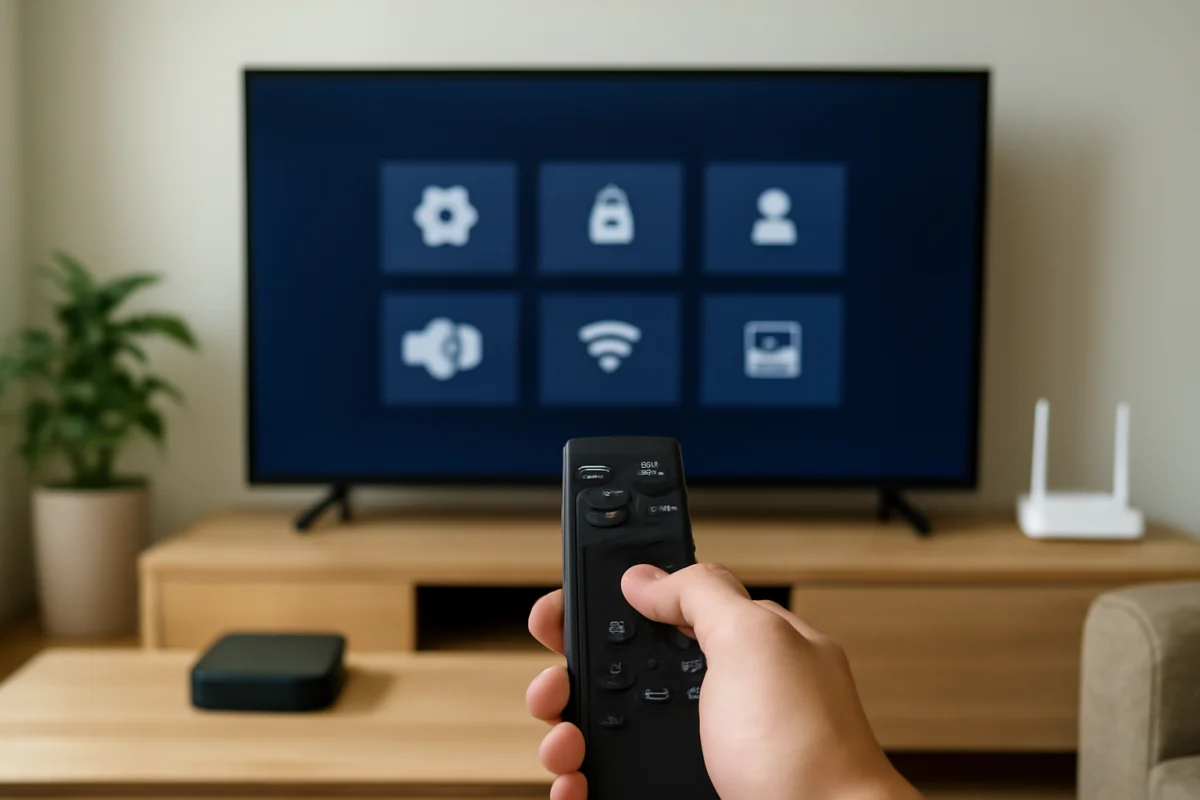
If a smart TV app is slow, freezes, closes unexpectedly, or refuses to play video, clearing its temporary cache is a sensible first fix. Cached files can become outdated or damaged, especially after an app or TV software update. Removing them usually does not delete your account, subscriptions, or personal settings, although the exact result depends on the TV and app.
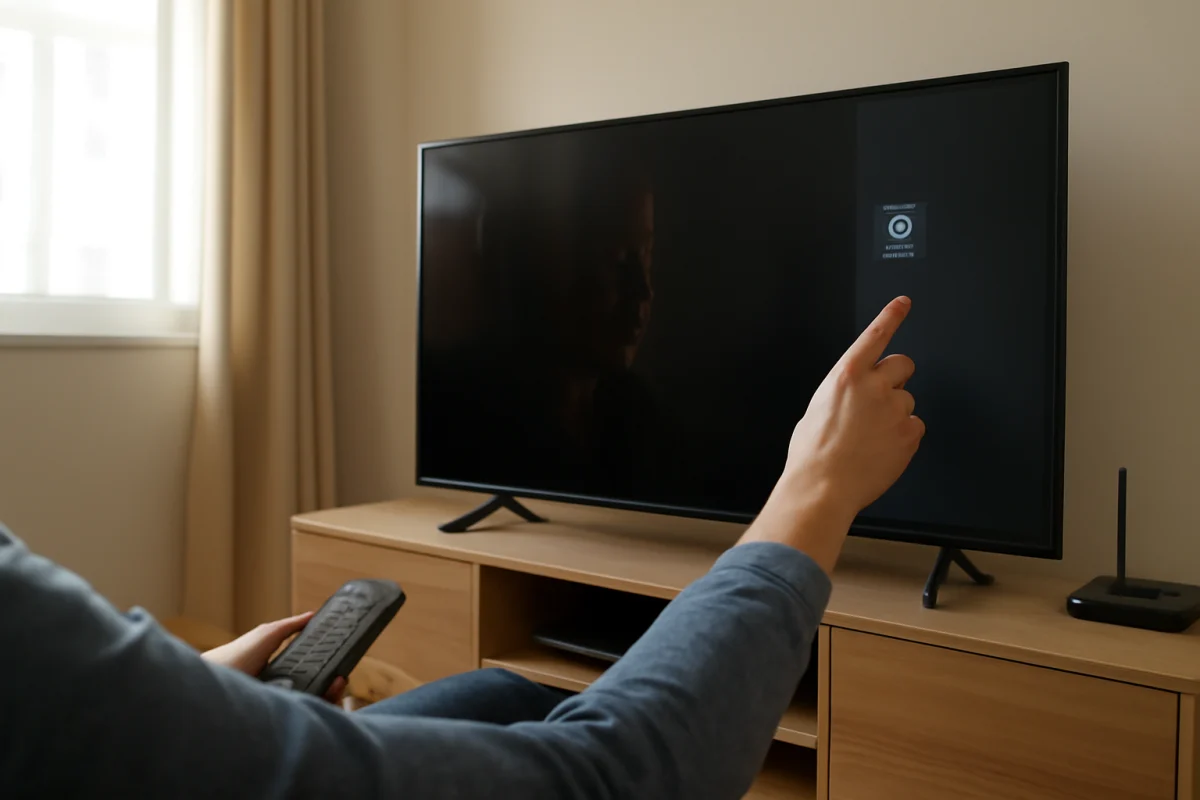
Start with the least disruptive options: close the problem app, restart the TV, and check whether the issue affects one app or the entire television. If the problem continues, clear the affected app's cache if your TV provides that option. Menu names and available controls vary by brand, model, operating system, and software version.
What clearing the cache does
A cache is temporary data that an app stores to load screens, images, account information, and other content more quickly. Over time, those files can become stale or corrupted. Clearing them gives the app a clean set of temporary files to rebuild the next time it opens.
Clearing a cache is different from deleting an app or resetting the TV. In many cases, it leaves the app installed and keeps you signed in. However, some televisions do not separate cached data from other app storage. A device may offer only an option such as clearing data, resetting the app, or reinstalling it. Those choices can remove sign-in information, downloaded content, preferences, or saved settings.
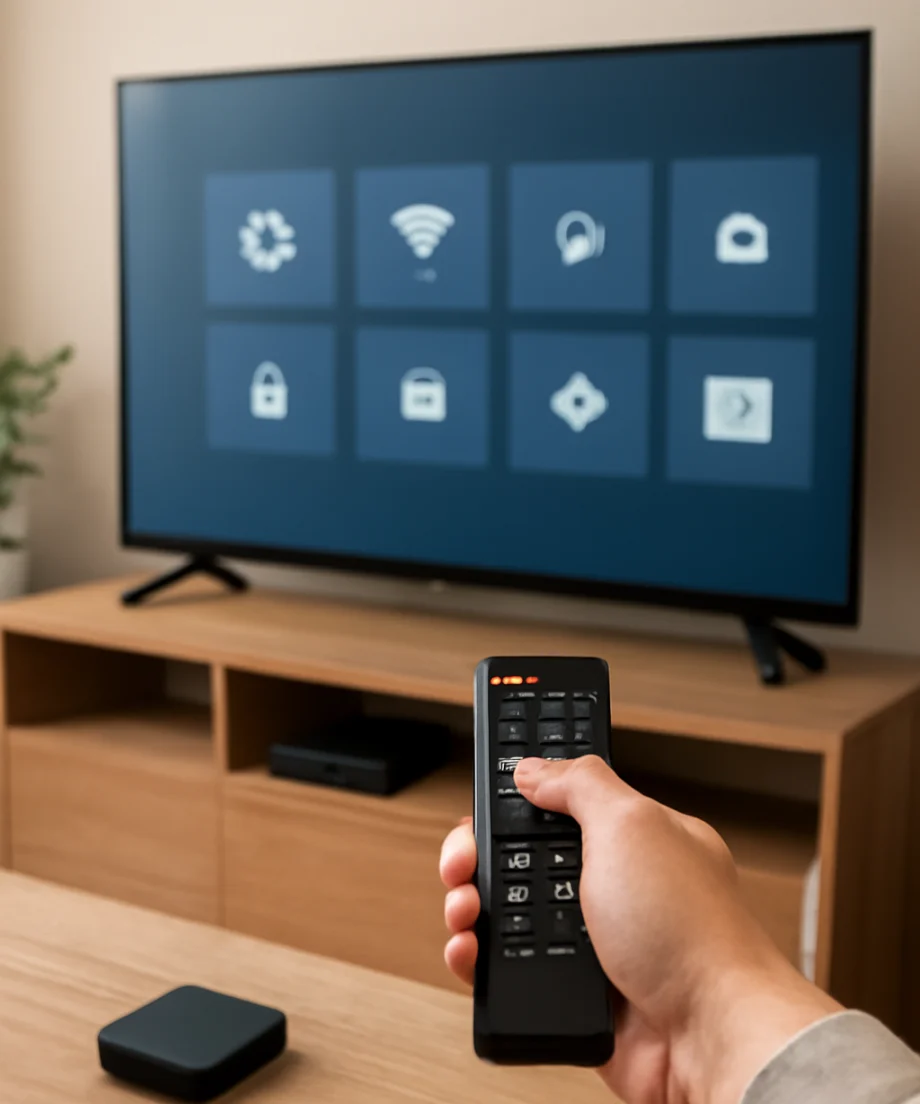
Before choosing a broader reset, read the confirmation message carefully. If you are unsure what will be removed, take note of the app name, account email, and any settings you may need to restore.
Quick checks before clearing the cache
Close and reopen the app
Exit the app completely rather than leaving it running in the background. Depending on the remote and TV interface, you may be able to press a Home or Back button, switch to another input, or close the app from a recent-apps screen. Open it again and test the same content.
Restart the TV normally
Use the TV's on-screen power command or remote to turn it off, then wait a short time before turning it back on. Some TVs enter standby instead of fully restarting, so a power cycle may be more effective when an app remains stuck.
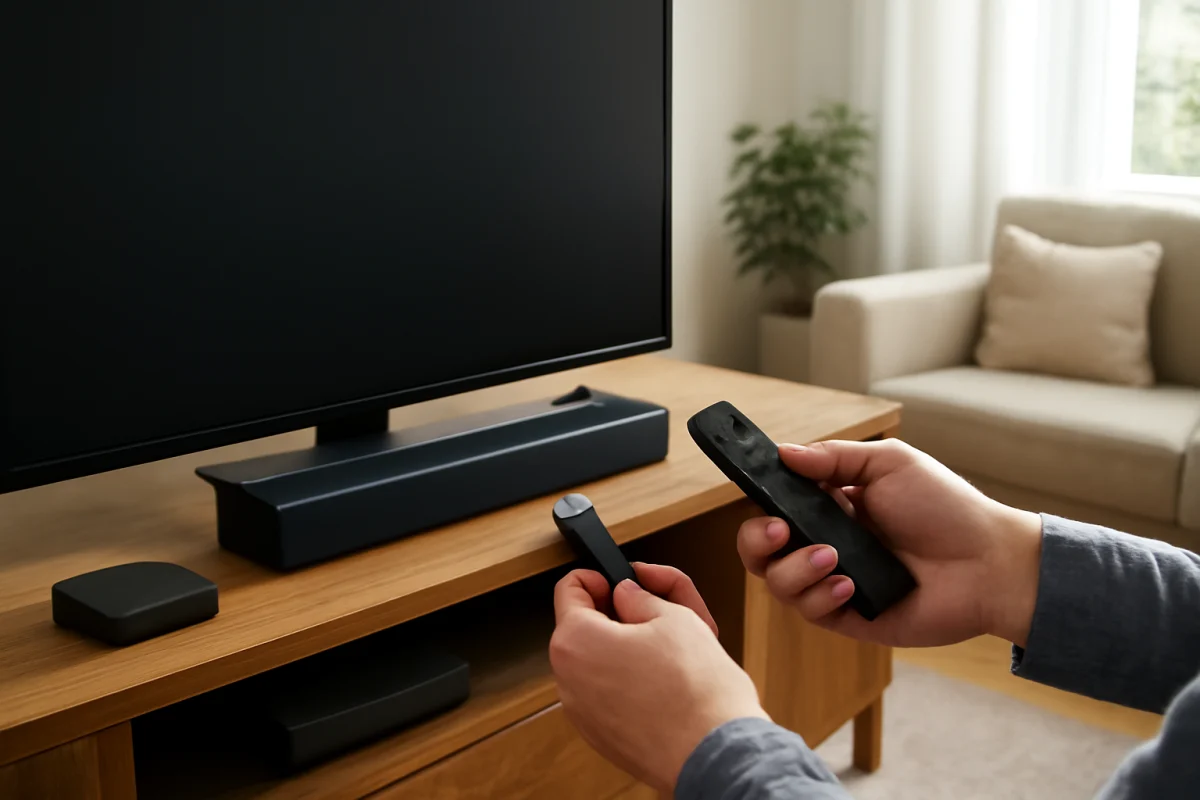
For a basic power cycle, turn the TV off, unplug it from the outlet, wait about one minute, and plug it back in. Do not repeatedly unplug the TV while it is installing an update or displaying a message that it is saving or processing data. After the TV restarts, open the app and check whether performance improves.
Check whether other apps work
Open another streaming app or a built-in TV function. If only one app has trouble, clearing that app's temporary data or reinstalling it is more appropriate than resetting the whole TV. If every app is slow or cannot connect, the cause may be the internet connection, TV software, available storage, or a service outage.
For connection-related problems, see the Wi-Fi and network troubleshooting guides on TV Fix Guide. A cache cleanup cannot correct weak Wi-Fi, an incorrect network password, or an outage affecting the streaming service.
How to clear an app cache on a smart TV
Many smart TV platforms place app storage controls in a settings area related to Apps, Applications, Device Preferences, Storage, or Support. Because the layout changes between models, use the following process as a guide rather than expecting identical labels.
- Open the TV's Settings menu.
- Look for Apps, Applications, App Management, Device Preferences, Storage, or a similar section.
- Select the app that is causing the problem.
- Open its storage or app information screen.
- Choose an option labeled Clear cache, Remove temporary data, or something similar, if available.
- Confirm the action, then wait for the process to finish.
- Restart the TV or reopen the app and test playback.
If the app does not appear in the settings list, it may be a built-in service with different controls. Some TVs manage preinstalled apps as part of the operating system and do not expose a separate cache button. In that situation, restart the TV, check for a software update, and look for an app update before considering a reset.
Brand and platform differences
There is no universal smart TV cache menu. Some Android TV and Google TV devices provide a direct clear-cache control for individual apps. Other platforms may offer only app removal, a reset option, or a way to reinstall the app from the TV's app store. Roku TVs and several manufacturer-specific systems may rely more heavily on restarting the TV, removing a channel or app, and adding it again.
Samsung, LG, Sony, Hisense, TCL, Vizio, and other brands can place similar controls in different locations. Even two televisions from the same manufacturer may use different menus. If you need brand-specific troubleshooting, browse the Samsung TV, LG TV, or Roku sections for guidance that matches your device type.
When searching the TV's menus, do not select a factory reset simply because it appears near app-management controls. A factory reset erases much more than temporary files and should be reserved for problems that simpler steps have not solved.
What to do if there is no clear-cache option
Update the app
Open the TV's app store and check whether the affected app has an update. A bug in an older app version can cause freezing, login failures, or playback problems. If automatic updates are enabled, the app may already be current, but it is still worth checking when one app behaves differently from the others.
Update the TV software
Look for a software or system update in Settings. The wording and location vary by model. Keep the TV connected to power and do not interrupt the update once it begins. If the TV reports that it is already up to date, continue with the next troubleshooting step instead of repeatedly checking.
Remove and reinstall the app
If the TV allows it, uninstall the affected app and install it again from the official app store. This can replace damaged local files when no separate cache control is available. Reinstallation may sign you out, remove downloads, and restore the app's default settings, so make sure you know your login details first.
Some built-in apps cannot be removed. They may offer an option to uninstall updates, reset the app, or restore it to its original state. Treat those choices as more disruptive than clearing a cache and read the on-screen warning before proceeding.
When clearing the cache does not solve the problem
Persistent problems can have causes unrelated to temporary app files. Check the following possibilities:
- Internet performance: Run a connection test if your TV provides one, restart the router, and test another device on the same network. Video quality can suffer even when the TV remains connected.
- Service availability: If one streaming service fails while other apps work, the service may be experiencing a temporary problem. Try again later and avoid changing multiple TV settings at once.
- Account or subscription issues: An expired subscription, changed password, household limit, or sign-in problem can look like an app failure. Check the account using the service's official website or mobile app.
- Low storage: A TV with very little free space may have trouble updating apps or creating temporary files. Remove unused apps or downloads if the TV provides storage controls.
- HDMI or external-device problems: If the issue occurs only with a streaming stick, cable box, or game console, troubleshoot that device and its HDMI connection rather than the TV's built-in apps.
- TV hardware or software faults: Repeated crashes across multiple apps, random restarts, display problems, or unresponsive controls may require manufacturer support.
For app-specific symptoms, the Streaming Apps section can help you separate an account, network, app, and TV problem before you take more drastic action.
Should you factory reset the TV?
A factory reset is not a normal cache-clearing step. It removes installed apps, saved accounts, network settings, picture adjustments, and other personal preferences. The exact list depends on the TV. Consider it only after restarting the TV, checking the network, updating software, clearing or reinstalling the affected app, and confirming that the issue is not limited to a service outage.
If you do reset the TV, write down important settings and make sure you can sign back into your streaming accounts. Follow the instructions shown on the television and allow the process to finish without unplugging the device. Afterward, test the TV with one app at a time so you can identify whether the original problem returns.
How often should you clear a smart TV cache?
There is usually no need to clear a cache on a schedule. Temporary files are designed to help apps work efficiently, and deleting them when nothing is wrong provides little benefit. Use cache clearing when a specific app becomes unusually slow, freezes, displays stale information, or fails after simpler restart checks.
If the same app repeatedly needs its cache cleared, look for a deeper cause instead of treating the cleanup as a permanent fix. An app update, TV software update, network problem, low storage, or account issue may be responsible. For additional TV troubleshooting steps, visit TV Fix Guide and choose the category that matches your device or symptom.
Comments
0No comments yet. Be the first to share a helpful note or question.
Leave a Comment
Your email address will not be published. Comments are reviewed before appearing on the site.