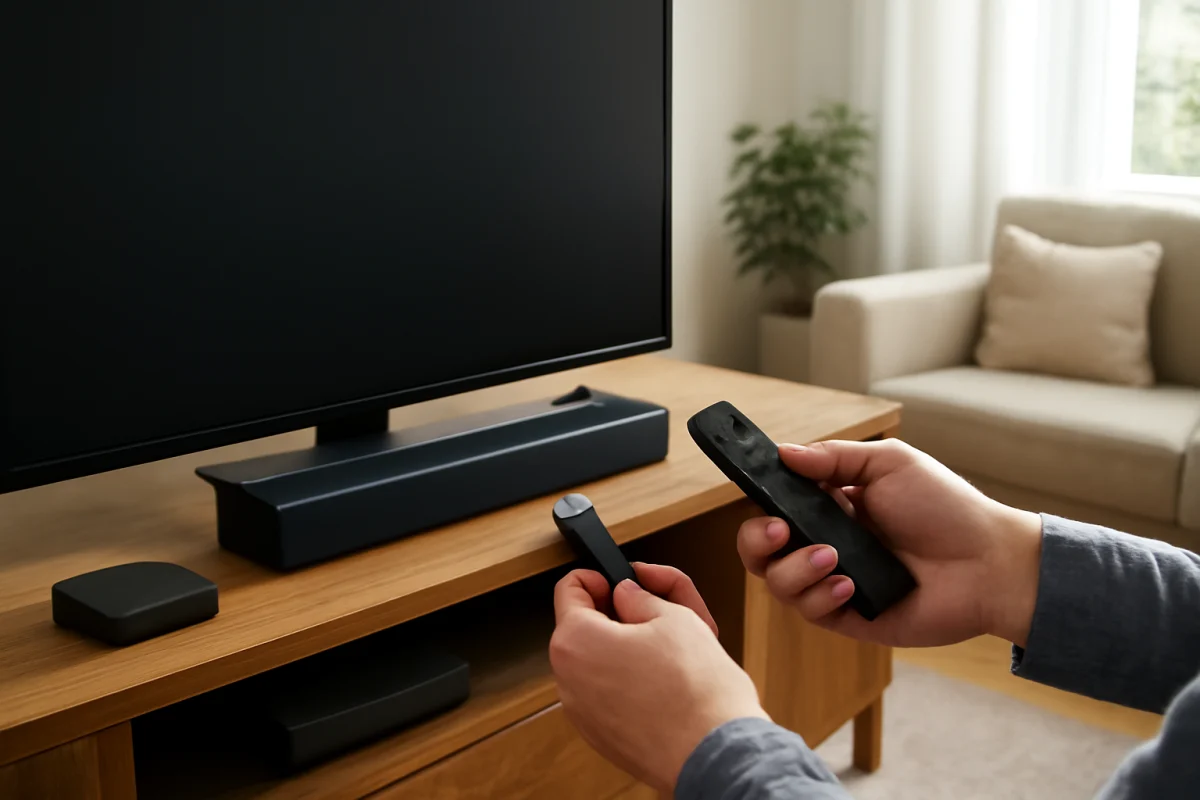
If your TV stopped producing sound immediately after you connected an HDMI device, start by checking the selected input, volume controls, and audio output path. In many cases, the TV is still working normally, but the connected device is muted, the wrong input is active, or sound is being sent to a soundbar, receiver, headphones, or another output.
Work through the steps below in order. The menu names and available audio options vary by TV brand, model, and connected equipment, so look for settings with similar wording rather than relying on one exact menu path.
1. Confirm that the TV is on the correct HDMI input
Press the TV remote’s Input, Source, or similar button and select the HDMI port where the device is connected. If the TV is showing a different input, you may be testing audio from the wrong source.
Once the correct input appears, play content that should have sound. A home screen, paused video, or game menu may not always produce audio, so try a video or live program. If the picture is also missing, the problem may be the HDMI connection rather than sound alone.
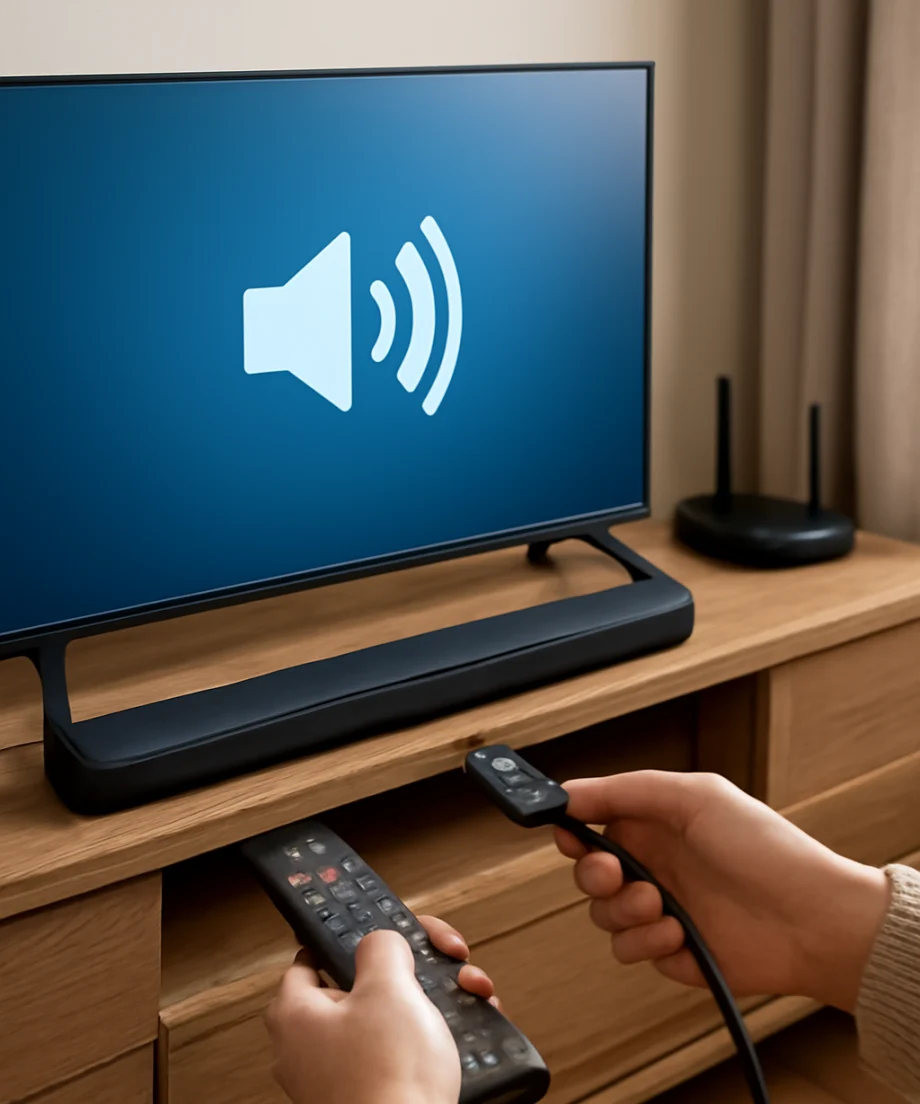
If your TV displays several HDMI inputs, check the physical port number on the back or side of the TV. The port label should match the input selected on screen.
2. Check both volume controls and mute settings
HDMI devices often have their own volume and mute controls. Raise the volume using the TV remote, then raise it using the connected device’s remote or controller. Press mute once on each remote in case one device is muted.
If a soundbar, AV receiver, or powered speakers are connected, check their volume and mute status as well. A TV can show a picture while the external audio system is turned down, turned off, or set to a different input.
Some streaming devices and cable boxes use the TV remote for volume, while others control volume internally or through a separate audio system. If the device has an audio settings screen, make sure its volume is not set to zero and that audio output is enabled.
3. Test another source before changing advanced settings
Open a built-in TV app, switch to a different HDMI device, or play a broadcast channel if your TV receives one. This simple comparison can show whether the issue affects the entire TV or only the recently connected device.
- Sound works from built-in apps: The TV speakers are probably working, and the issue is more likely related to the HDMI device, cable, input, or audio format.
- Sound is missing everywhere: Check the TV’s audio output selection, connected speakers, Bluetooth devices, and general sound settings.
- Sound works intermittently: Suspect a loose connection, an unstable HDMI handshake, a cable problem, or a device that is waking from standby incorrectly.
For additional troubleshooting guidance, you can browse the Picture & Sound section on TV Fix Guide.
4. Inspect and reconnect the HDMI cable
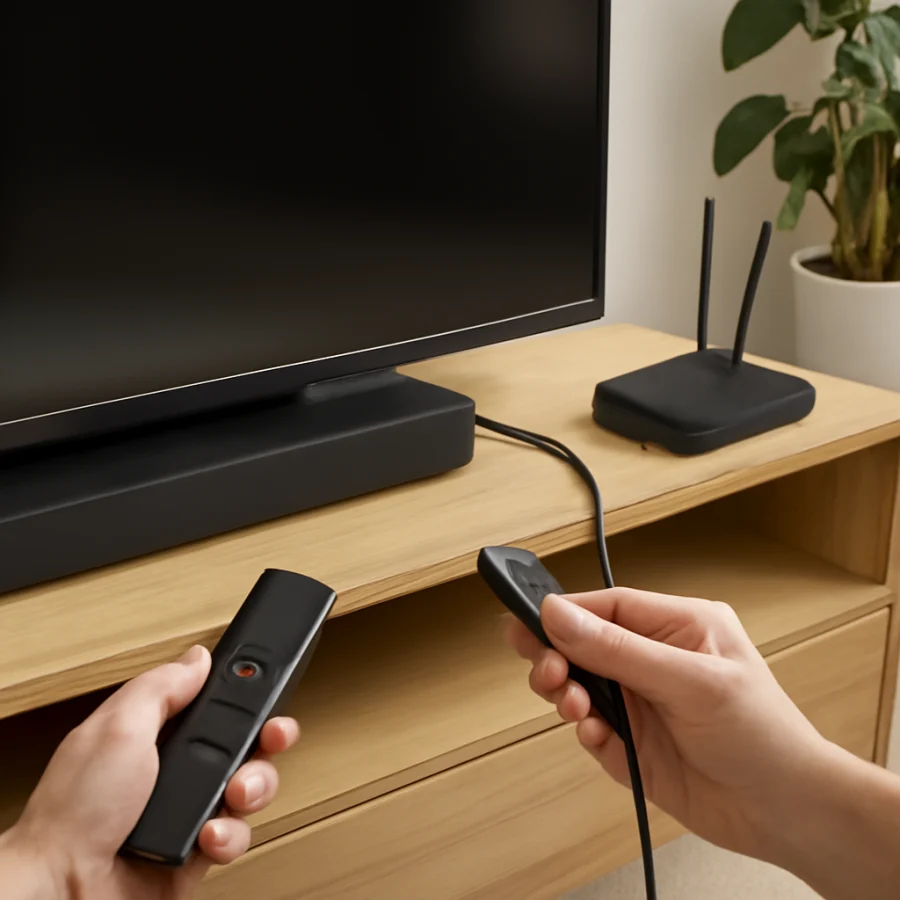
Turn off the TV and the HDMI device, then gently remove the HDMI cable from both ends. Check the connectors for visible damage, bent parts, debris, or a loose fit. Reconnect the cable firmly without forcing it.
Do not assume that a cable is good because it carries a picture. HDMI carries both video and audio, and an imperfect connection can cause audio dropouts or prevent sound from being negotiated correctly even when the image appears normal.
If possible, test the device with another HDMI cable. Use a cable that is long enough for the setup and in good physical condition. You do not need to replace every cable immediately, but testing a known-working cable is a useful way to isolate the problem.
You can also connect the device to another HDMI port on the TV. If sound returns on the second port, the original port or its connection may be involved. If the device works on another TV, the original TV’s input settings or hardware may need attention.
5. Restart the HDMI device and TV
A full restart often clears a temporary HDMI communication problem. Turn off the connected device and the TV. If the device has a power button, use it rather than only pressing a sleep or standby button. Then unplug both devices from power for about one minute, if it is safe and practical to do so.
Reconnect the TV and HDMI device, turn on the TV first, and select the correct HDMI input. After the TV is fully started, turn on the external device and test audio again. This can refresh the connection and cause the devices to negotiate video and audio settings from the beginning.
Do not repeatedly unplug equipment if the manufacturer warns against doing so, and never pull a power cord out by the cable. If the device is managed by a cable or satellite provider, follow that provider’s recommended restart procedure when applicable.
6. Select the TV speakers or the correct external audio output
Open the TV’s sound or audio settings and look for an option that controls where sound is played. Depending on the model, it may refer to TV speakers, an audio system, an optical connection, HDMI ARC or eARC, Bluetooth, headphones, or a similar output.
For a basic test, select the TV’s internal speakers if that option is available. Then play content from the HDMI device. If sound returns through the TV speakers, the HDMI device is probably sending audio correctly and the external audio system or output selection needs attention.
If you normally use a soundbar or receiver, select that system again and make sure it is powered on and set to the correct source. An external system may have switched inputs when the HDMI device was connected.
Because sound menus differ significantly, avoid changing several audio options at once. Write down the original setting before testing an unfamiliar option so you can restore it if needed.
7. Check HDMI ARC or eARC connections
If your TV sends sound to a soundbar or receiver through HDMI, verify that the HDMI cable is connected to the TV port labeled for ARC or eARC and to the matching port on the audio system. The labels and supported features vary by model.
Make sure the soundbar or receiver is set to its TV audio, ARC, eARC, or equivalent input. Also check whether the TV’s device-control feature, often used to control HDMI equipment with one remote, is enabled. The feature name differs by manufacturer.
For testing, disconnect other HDMI devices temporarily and connect only the TV and the soundbar or receiver. This reduces the number of devices competing to control the audio connection. If the soundbar works alone but not after other devices are added, reconnect the equipment one item at a time to identify the conflict.
8. Review the connected device’s audio format
Some HDMI devices can output audio in formats that a particular TV, soundbar, or receiver does not handle correctly. In the device’s audio settings, look for options such as automatic, PCM, stereo, bitstream, or surround output.
As a low-risk test, choose an automatic or basic stereo/PCM option if it is available. This is not necessarily the best permanent setting for every home theater system, but it can help determine whether an audio-format mismatch is causing silence.
If basic audio works but surround sound does not, the problem may involve compatibility between the device and the audio system. Restore advanced audio output only after confirming which equipment supports the selected format. Consult the manuals for the TV, HDMI device, soundbar, or receiver before choosing a specific surround format.
9. Disconnect Bluetooth headphones and other audio accessories
A TV may continue sending audio to paired Bluetooth headphones or another wireless speaker even after you connect an HDMI device. Open the TV’s Bluetooth or sound output settings and check whether an accessory is currently selected.
Turn off or disconnect the accessory temporarily, then select the TV speakers or your normal wired audio system. Also check for a headphone cable plugged into the TV or an adapter, since some TVs automatically disable their speakers when headphones are connected.
10. Check the HDMI device for software or account-related playback issues
If the TV has sound from other sources but one streaming stick, console, disc player, or cable box remains silent, inspect that device. Try a different app, channel, game, disc, or video. A single title may have a soundtrack issue or may be paused in a way that produces no audio.
Restart the app or content, then restart the device. If the device offers a system update, install it only through its normal settings and only when the device is connected to reliable power and internet service. Do not interrupt an update once it begins.
If the device requires a subscription or account, verify that playback itself works. Account problems usually do not change the TV’s general sound, but they can make it seem as though a particular HDMI input has no usable audio.
11. Consider CEC conflicts and connected equipment
HDMI control features allow devices to turn one another on, switch inputs, and adjust volume. These features are convenient, but different brands may not always communicate consistently. A newly connected device can sometimes change the active input or audio output.
Temporarily disconnect other HDMI equipment and test the problem device by itself. If this restores sound, reconnect the other equipment one at a time. You can also test the TV’s HDMI device-control setting, but change only one setting at a time and record the original configuration.
If you use a complex setup with a receiver, switch, splitter, capture device, or adapter, bypass those components for testing. Connect the HDMI device directly to the TV. If direct connection restores sound, the intermediate equipment may not pass the required audio signal or may need its own configuration.
12. When to consider a reset or service
A factory reset should be a last resort, not the first response to missing HDMI audio. It can remove saved network connections, app sign-ins, picture preferences, parental settings, and other personal configurations. Before considering one, document your current settings and confirm that the problem affects more than one HDMI device or input.
Check the TV and connected device manuals for model-specific reset instructions. Do not use a reset procedure intended for another model. If the TV has no sound from built-in apps, multiple HDMI devices, and external audio equipment after the checks above, a hardware issue may be involved.
Contact the manufacturer or a qualified technician if an HDMI port is physically damaged, the TV repeatedly loses audio after restarts, or the problem continues with known-working cables and devices. Stop using equipment that smells burned, becomes unusually hot, shows visible damage, or causes electrical protection devices to trip.
Keep the setup reliable after sound returns
Once audio is working, label cables and note which HDMI port is connected to each device. Keep the TV, soundbar, receiver, and source device updated through their normal update tools, but avoid changing advanced audio formats without a reason.
If your problem is specific to a brand or device, the relevant Samsung TV, LG TV, or Sony TV troubleshooting area may provide more targeted guidance. For issues involving wireless streaming devices, network access can also matter; the Wi-Fi & Network section covers related connection checks.
Comments
0No comments yet. Be the first to share a helpful note or question.
Leave a Comment
Your email address will not be published. Comments are reviewed before appearing on the site.