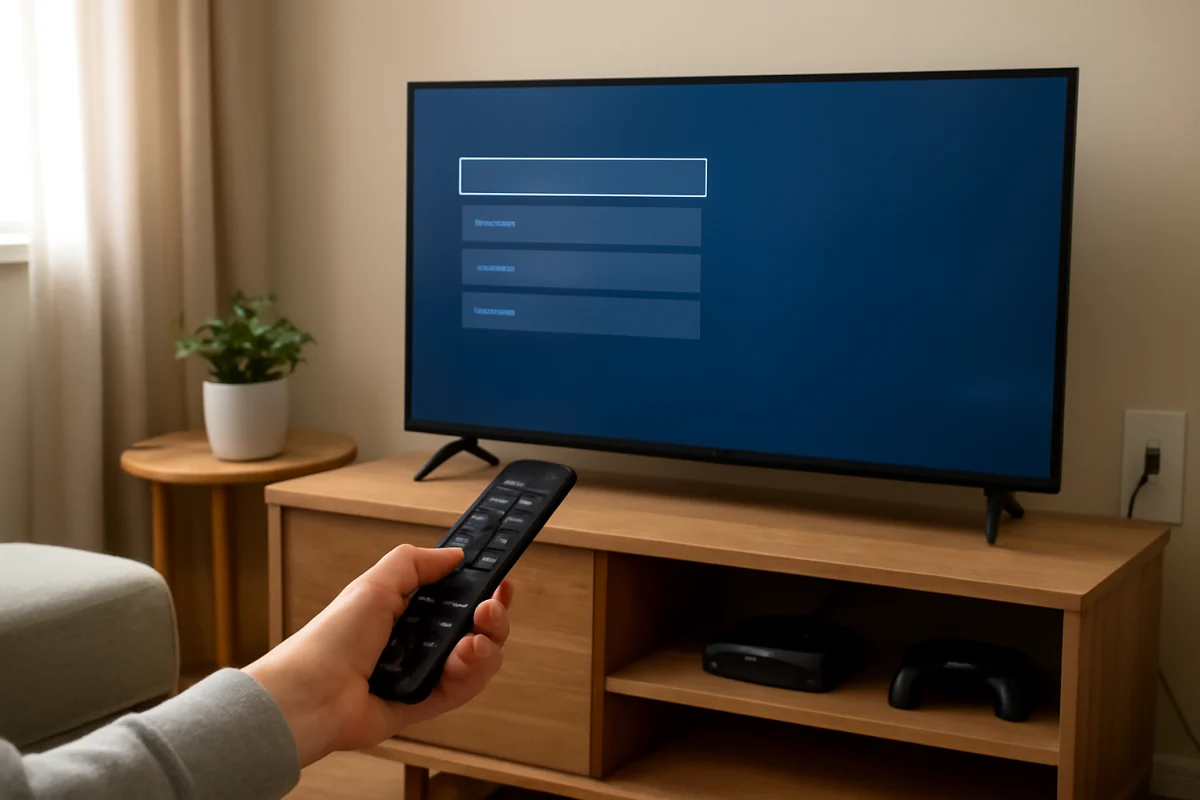
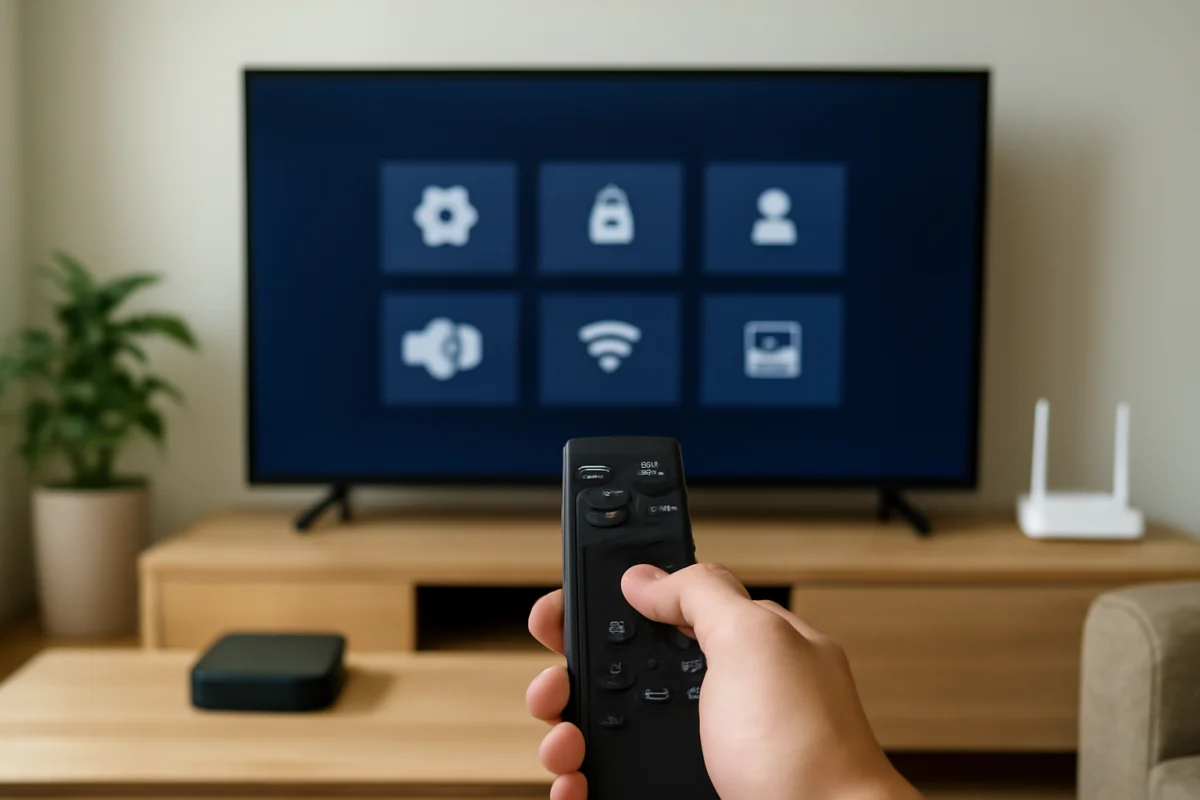
To change the input source on your TV, press the remote’s Input, Source, or TV/Video button, then select the port or device you want to use. Choose the HDMI input connected to your streaming stick, game console, Blu-ray player, or cable box. If you want to watch over-the-air channels, select the TV, Live TV, Antenna, or similar option instead.
The exact labels and layout vary by TV brand, model, remote, and software version. If your remote does not have an Input or Source button, you can usually open the TV’s home screen or settings menu and look for a connected-device list. The steps below start with the quickest method and then cover what to try when an input is missing, blank, or showing no signal.
Use the remote to select an input
- Turn on the TV and the device you want to use.
- Point the remote at the TV and press Input, Source, or TV/Video.
- Wait for the input list to appear on the screen.
- Use the arrow buttons to highlight the correct source.
- Press OK, Enter, or the center button to select it.
For example, if a game console is connected to the second HDMI port, select the input labeled HDMI 2. Labels may be generic, such as HDMI 1 or HDMI 2, or they may show a device name if the TV recognizes the connected equipment. If you are unsure which HDMI port is being used, check the back or side of the TV and follow the cable from the external device to the matching port.
Some remotes include a dedicated button for a particular service or device, but that button may open an app rather than change the physical input. When in doubt, use the general Input or Source menu.
Change the input from the TV itself
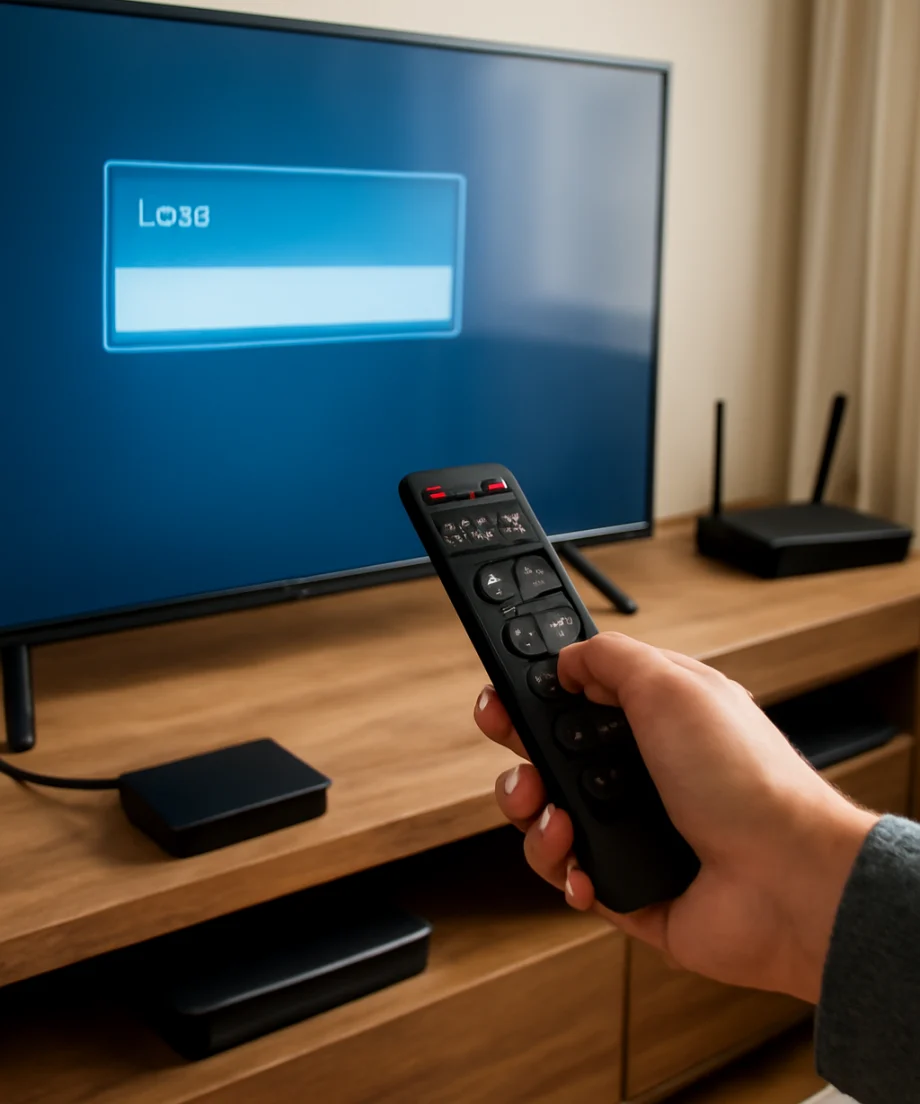
If the remote is lost, not working, or missing the needed button, look for a physical control on the TV. Depending on the model, it may be a button, joystick-style control, or touch-sensitive area underneath the screen, along the side, or on the back.
Press the control once to open the on-screen menu, then move through the available options until you find Input or Source. On some TVs, pressing the button repeatedly cycles through the inputs. On others, a short press opens a menu and a longer press confirms the selection. Because these controls differ substantially, avoid pressing and holding random buttons if you are not sure what they do. Use the TV’s manual or the manufacturer’s support page if the controls are not obvious.
What the common input choices mean
The names can be confusing, especially when several devices are connected. These are the most common options:
- HDMI: Used for modern streaming devices, cable or satellite boxes, game consoles, soundbars, Blu-ray players, and computers. A number identifies the physical HDMI port.
- TV, Live TV, or Antenna: Used for the TV’s built-in tuner and over-the-air antenna channels. Some TVs use a different label for cable service through the tuner.
- AV, Composite, or Video: Used for older equipment with yellow, white, and red cables. The TV may require a special adapter or breakout cable.
- Component: Used on some older TVs for equipment connected with separate video and audio cables. This option is not available on every model.
- USB: Usually opens media files on a USB drive rather than displaying a live video source. The TV’s behavior depends on its model and supported file types.
- Screen mirroring or casting: May appear as a wireless connection option rather than a physical input. The phone, tablet, or computer often needs to start the connection separately.
If you see several unused inputs, that is normal. Selecting an unused port will often produce a blank screen or a no-signal message.
If the TV shows “No Signal” or a blank screen
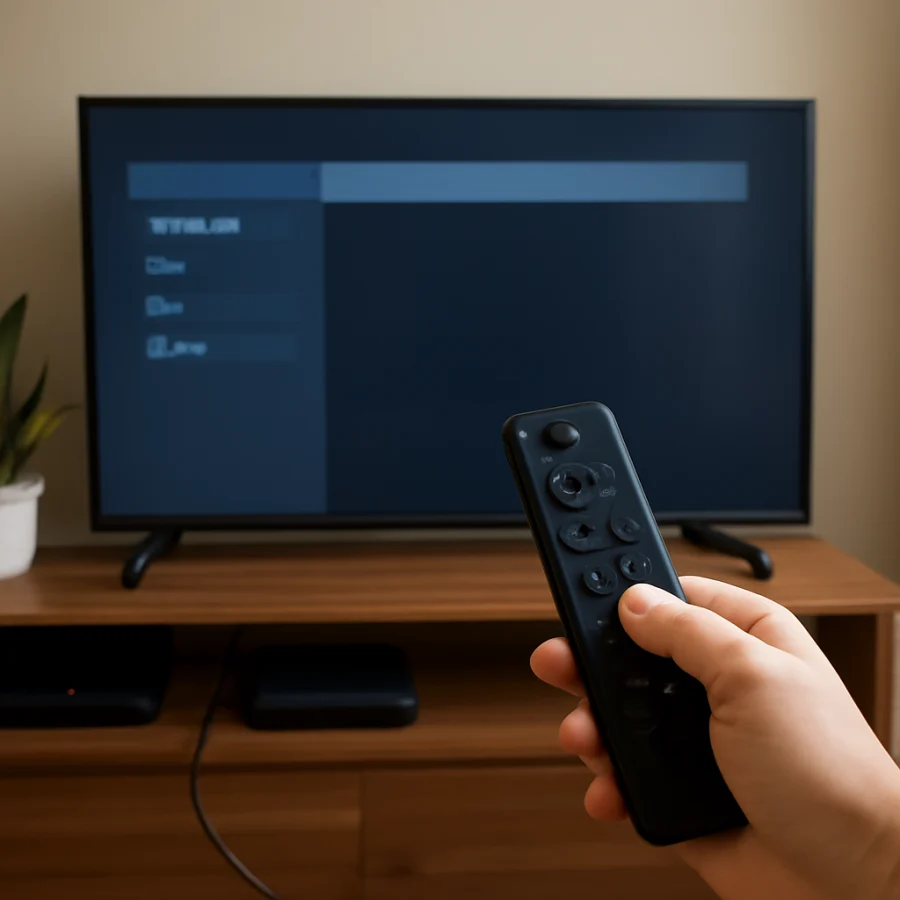
A no-signal message usually means the TV is on the selected input but is not receiving usable video from the connected device. It does not necessarily mean the TV is broken. Work through these low-risk checks before changing settings or resetting anything.
Confirm the device is powered on
Check that the streaming player, game console, cable box, or other source is actually turned on. Some devices enter standby mode and may need a button press on their own remote. If the device has a status light, make sure it indicates that the device is active rather than completely powered off.
Check the HDMI or video cable
Make sure both ends of the cable are firmly inserted. One end should connect to the device’s output port, and the other should connect to the TV’s matching input. A loose HDMI connection can cause a blank screen, intermittent picture, or a message that no source is detected.
If practical, disconnect and reconnect the cable once. Do not force the connector, and avoid repeatedly bending the cable near the plug. If you have another compatible cable, testing it can help identify a cable problem without changing the TV’s settings.
Verify the selected port
Look at the number printed next to the HDMI port on the TV, then select that same number from the input list. If the cable is plugged into HDMI 3 but the TV is set to HDMI 1, the screen will remain blank even though the device is working.
Also check whether the cable is connected to an output on the external device. A source device sends video through an HDMI output, while the TV receives video through an HDMI input. Connecting two outputs or two inputs will not produce a picture.
Restart the source device normally
Turn the external device off using its normal power control, wait briefly, and turn it back on. This can restore a temporary HDMI connection problem. If the device has an important recording, download, or update in progress, follow its normal shutdown instructions rather than unplugging it immediately.
When an input is missing from the list
Some TVs hide inputs that are not detected or allow unused ports to be disabled. Look through the input list for an option such as Edit, Manage Inputs, Set Up Inputs, or a settings icon. The wording differs by model, so do not assume that every TV uses the same menu path.
If the input was renamed, it may appear under a custom device name instead of HDMI 1 or HDMI 2. Check each listed source or open the input-management screen to review the assigned names. A disabled input may need to be enabled before it appears again.
Disconnecting every external device can also make an input list look different on some TVs. Reconnect the device, turn it on, and reopen the source menu. If the port still does not appear, consult the instructions for your specific model rather than performing a factory reset.
If the remote will not change the input
First, press a few other buttons to determine whether the remote is responding at all. Replace weak batteries with a fresh set if needed, making sure the positive and negative ends match the markings inside the battery compartment. Remove anything blocking the remote sensor on the TV, and aim the remote directly at the screen.
If the remote controls a cable box or streaming device but not the TV, it may be in the wrong control mode or may not be paired with the TV. Try the TV button, if one is present, before pressing Input. Universal remotes may require the correct TV code or setup procedure.
You can also try the TV’s physical controls or the manufacturer’s official remote-control app, if your model supports one. A phone-based remote generally requires the TV and phone to be connected to the same network, so it may not work if the TV is offline or still in initial setup.
For more help with unresponsive buttons, pairing, and replacement options, see our remote control troubleshooting guides.
Switching between a built-in app and an external device
Built-in streaming apps are not usually HDMI inputs. To use an app installed on the TV, press the Home button and open the app from the TV’s home screen. To return to a connected streaming stick or set-top box, press Input or Source and select the HDMI port used by that device.
If you use a soundbar, it may be connected through HDMI ARC or eARC. That connection is primarily for sending audio between the TV and soundbar, but the correct HDMI port may still matter for audio features. Do not move the cable to another port unless you know how your TV and soundbar are configured. If changing sources also affects audio, our picture and sound troubleshooting guides cover related checks.
When the problem may be the TV or external device
Try the same external device on another compatible TV or monitor if one is available. You can also test a known-working device on the TV’s input. These simple comparisons help narrow down the cause:
- If several devices fail on one TV input, the port, TV settings, or TV hardware may be involved.
- If one device fails on multiple displays, that device or its cable is more likely to be the cause.
- If the picture appears briefly and disappears, check the cable, power supply, resolution settings, and device temperature.
- If the TV detects the device but shows unusual colors or an unstable picture, try another compatible cable and check the device’s video-output settings.
Do not change advanced resolution, refresh-rate, or HDMI compatibility settings unless you have a specific reason. An unsupported setting can make the picture disappear until the source device is returned to a compatible output mode.
Brand-specific help and next steps
The basic process is similar across most TVs, but the names of buttons, input menus, and device-detection options vary. For brand-focused instructions, browse the Samsung TV, LG TV, or Roku sections of TV Fix Guide. You can also visit TV Fix Guide for additional help with TVs, streaming devices, Wi-Fi, remotes, and picture or sound problems.
Before contacting support or considering a reset, write down the TV model, the source device, the input port in use, and what appears on the screen. That information makes it easier to identify whether the issue is a wrong source selection, a connection problem, a remote problem, or a fault with one of the devices.
Comments
0No comments yet. Be the first to share a helpful note or question.
Leave a Comment
Your email address will not be published. Comments are reviewed before appearing on the site.