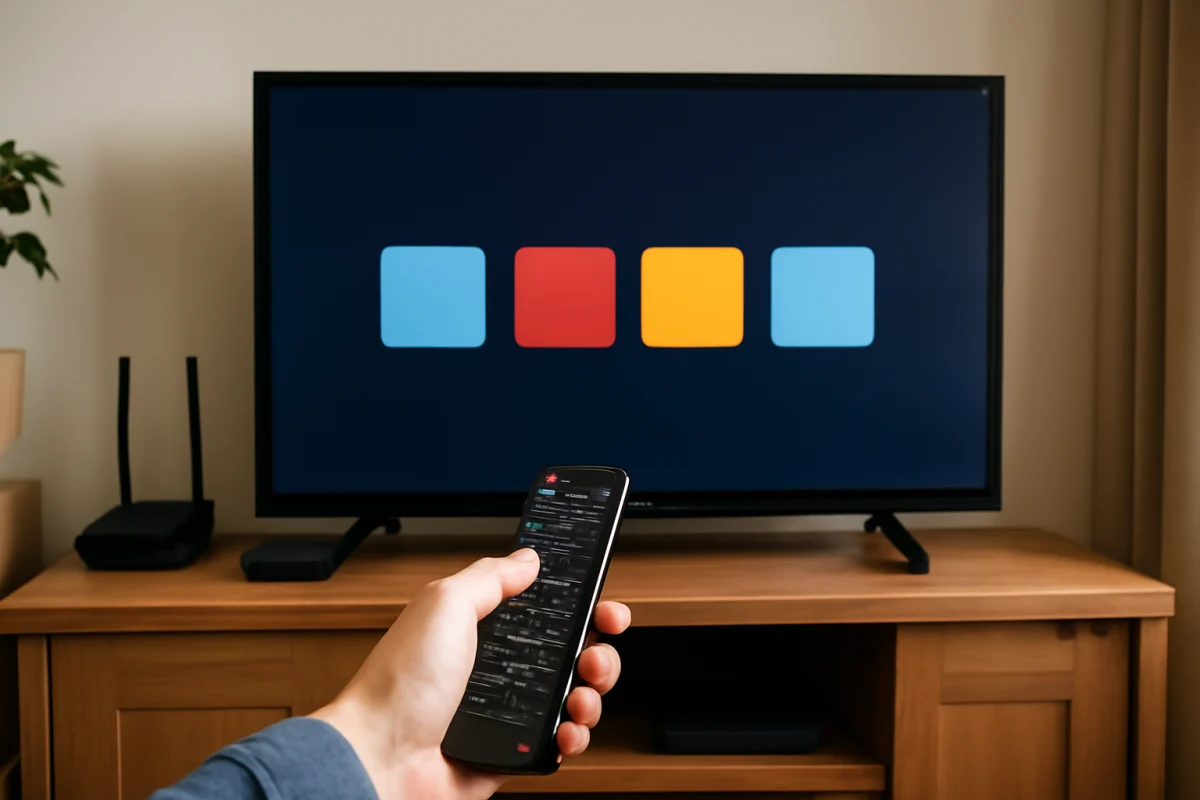
A Sony TV that responds slowly usually has a simple cause: the TV is busy, an app is stuck, the remote signal is not reaching it reliably, or a network request is taking too long. Start with a full power cycle and a few basic checks before changing settings or performing a reset. The exact menu names and available features vary by Sony TV model and software version.
Start with a full power cycle
A quick press of the power button may only put the TV into standby. A full restart clears temporary processes and can resolve delayed menu navigation, slow app launching, and buttons that appear to work several seconds late.
- Turn the TV off with the remote or the TV's power button.
- Unplug the TV from the wall outlet.
- Wait at least 60 seconds.
- Plug the TV directly into the outlet again and turn it on.
Give the TV a few minutes after startup. Some models continue loading apps, checking network services, or completing background tasks after the home screen appears. Test the remote, menus, and one streaming app once the TV has finished starting.
If the TV becomes slow again shortly after every restart, continue with the checks below instead of repeatedly unplugging it.
Check whether the remote is causing the delay
Before troubleshooting the TV's software, find out whether the problem affects the remote or the television itself. Press a physical button on the TV, if it has accessible controls, and watch how quickly the TV responds. You can also try a different control method, such as the official mobile remote feature if your model supports it.
Replace or recharge the remote batteries
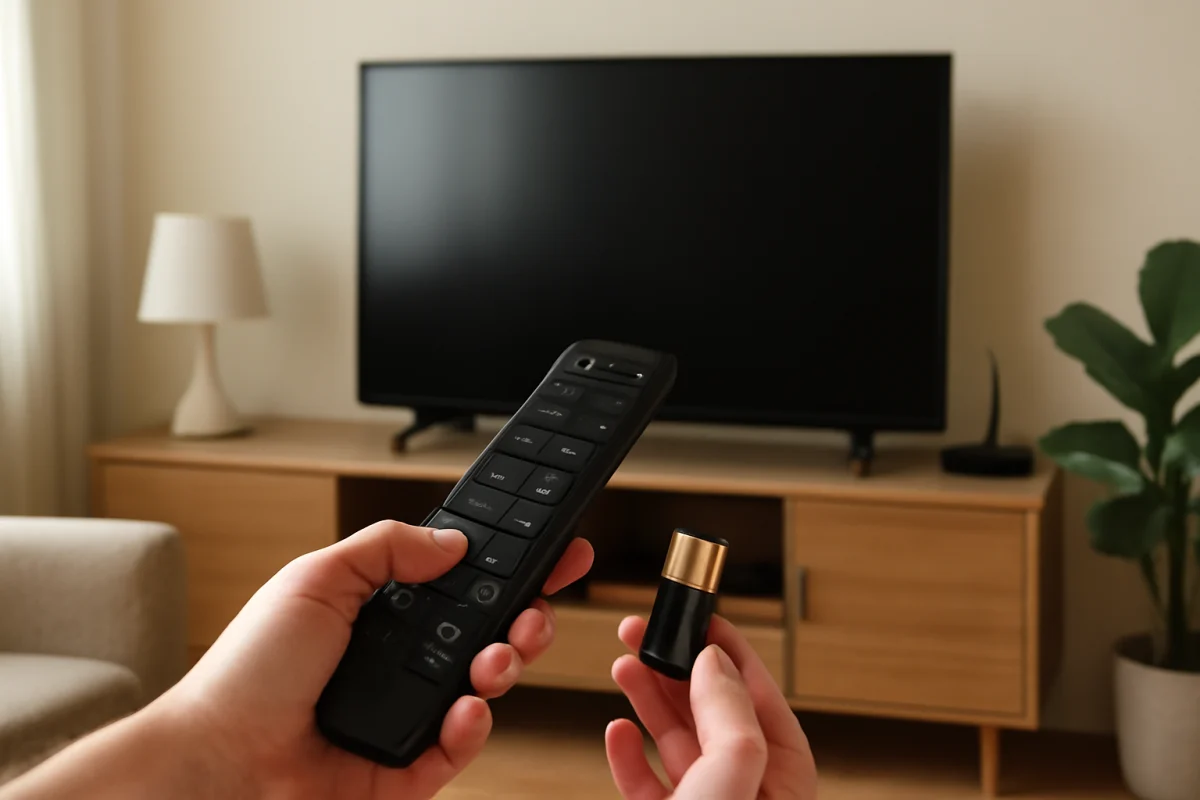
Weak batteries can make a remote appear slow, especially when individual button presses are missed. Replace both batteries with fresh ones, or fully charge the remote if it has a rechargeable design. Make sure the batteries are installed in the correct direction.
Remove obstacles and nearby interference
Point the remote toward the TV's sensor area and remove objects blocking the lower or front edge of the screen. Bright lights, reflective surfaces, and some nearby electronic devices can occasionally interfere with infrared remotes. If the TV responds normally when you stand closer, the issue may be signal range rather than TV performance.
Check for repeated or stuck buttons
A stuck button can send repeated commands and make the interface seem confused or delayed. Press each frequently used button once and check whether any key feels pressed in, unusually soft, or difficult to release. If the TV reacts slowly with one remote but normally with another, focus on the remote rather than the TV.
For more remote-specific checks, see the TV Fix Guide remote control troubleshooting section.
Find out whether the delay affects everything
Test several parts of the TV separately. Open the home screen, move through the settings, change the volume, switch inputs, and launch a built-in app. Then try an external device such as a game console or cable box.
- Only one app is slow: The app may have a damaged cache, a service problem, or a network issue.
- Only streaming is slow: Check the internet connection and the TV's network signal.
- Menus and volume are slow too: The TV may be low on available storage, overloaded by background processes, or experiencing a system software problem.
- Only an external device is delayed: Check that device, its HDMI cable, and its remote before changing Sony TV settings.
This simple comparison prevents you from resetting the TV when the real problem is limited to one streaming service or an external source.
Close apps and reduce the workload
Smart TVs can become sluggish when several apps or processes remain active. The way you close apps depends on the model. Look for an app-switching or recent-apps screen, then close apps you are not using. If your TV does not provide a way to close individual apps, restarting the TV is the safer general alternative.
Avoid opening several demanding apps at the same time while testing. Start one app, wait for it to load, and then return to the home screen. If the TV is responsive after a restart but gradually slows down during a long viewing session, an app or background process may be using more resources than it should.
Check available storage
Low storage can affect app installation, updates, and general responsiveness. The storage screen is located in different places depending on the Sony model and software interface, so use the TV's settings search if one is available.
Remove apps you no longer use, especially large games or streaming services installed only for temporary use. Do not delete system applications unless the TV specifically provides a normal uninstall or disable option. If you are unsure whether an item is required, leave it installed.
After removing unused apps, restart the TV and test it again. Storage changes may not fully take effect until the system reloads.
Test the internet connection when streaming is slow
A slow network can look like a slow TV. The home screen may respond normally while a streaming app takes a long time to open, loads thumbnails slowly, or pauses when you select a program.
Check whether other devices on the same Wi-Fi network are also having trouble. If phones, computers, or another streaming device are slow, restart the router and modem according to your internet provider's normal procedure. Keep the TV within a reasonable range of the router, or test a wired connection if your model and network setup support one.
Run the network test available on the TV, but treat the result as a snapshot rather than a guarantee. Internet congestion, wireless interference, and problems with a particular streaming service can still cause delays. For broader connection troubleshooting, use the Wi-Fi and network troubleshooting guide.
If menus are slow even when you are not using the internet, network troubleshooting alone probably will not solve the problem.
Update the TV and the affected apps
Software updates can fix bugs that cause freezing, delayed menus, or unreliable app behavior. Check for system updates through the TV's settings. The location and wording of the update option vary by model, and some televisions require an internet connection while others may support a USB-based update process.
Do not interrupt an update once it has started. Keep the TV connected to power, and allow it to restart as needed. If the TV reports that it is already current, test the slow app separately rather than repeatedly searching for an update.
For an app that is consistently slow, check whether the app offers an update through its own app store or management screen. A service outage or app-side problem may affect only that application, so try another service before assuming the television is failing.
Clear an app's data or reinstall it carefully
If one app is slow, freezes, or takes a long time to load while the rest of the TV works normally, clearing that app's temporary data may help. Sony TV interfaces differ, but the relevant controls are often found in the applications section of settings. Look for the affected app and options related to clearing its cache or data.
Clearing app data may sign you out and remove downloaded settings, so make sure you know the account email and password before using that option. Reinstalling the app can also remove saved preferences. Use these steps for the affected app only, not every app on the TV.
If the problem began after an app update, test the service on another device. That comparison can reveal whether the issue is with the app's current version or with the Sony TV.
Disconnect accessories for a short test
USB drives, soundbars, receivers, game consoles, and other connected equipment can occasionally create startup or control delays. Turn the TV off, disconnect nonessential USB devices and HDMI equipment, and start the TV with only its power cable attached. Then test the menus and volume.
If performance improves, reconnect one device at a time. The device that brings the delay back may have a compatibility, cable, power, or control problem. Check the external device's settings and try another HDMI cable if appropriate. Do not disconnect equipment that you need for basic testing unless you can safely reconnect it.
Try a settings reset only after basic checks
Some Sony TVs provide a restart or reset option that restores selected settings without erasing everything. The names and effects vary, so read the on-screen explanation carefully. A settings reset may remove network details, picture adjustments, input labels, or remote pairings.
Before using any reset, write down important settings and make sure you know your Wi-Fi password and streaming account credentials. Do not choose a factory data reset as a first step. A factory reset can remove installed apps, accounts, network information, and personal preferences, and it may not fix a hardware problem.
If you eventually perform a factory reset, follow the instructions shown for your exact model and allow the initial setup to finish before judging performance. Test the TV with minimal changes first, then reinstall apps one at a time. This makes it easier to identify whether a particular app or setting causes the slowdown.
When a slow Sony TV may need service
Contact Sony support or a qualified repair professional if the TV remains slow after a restart, with accessories disconnected and apps tested separately. Service is especially appropriate when the TV also reboots, displays unusual lines or flashing, loses sound, fails to recognize the remote, or becomes extremely hot.
Keep the model number, a description of when the delay occurs, and the troubleshooting steps you already tried. If the TV is slow only in one app, include the app name and whether other devices show the same problem. Avoid opening the TV yourself; internal components can retain dangerous electrical energy even after the set is unplugged.
A practical order for troubleshooting
For most cases, use this order: restart the TV completely, replace or charge the remote batteries, test the physical controls, check whether all menus or only one app are affected, close unused apps, review available storage, test the network, update the TV and apps, disconnect accessories, and only then consider a settings reset. This approach starts with reversible actions and gives you useful clues before you erase accounts or preferences.
If you need help with another television brand or streaming device, the TV Fix Guide troubleshooting library includes dedicated sections for streaming apps and other common home entertainment problems.
Comments
0No comments yet. Be the first to share a helpful note or question.
Leave a Comment
Your email address will not be published. Comments are reviewed before appearing on the site.