If your Hisense TV is slow, the most likely causes are temporary software problems, too many apps running in the background, a weak network connection, limited storage, or an issue with a connected streaming device. Start with the simple checks below before deleting data or resetting the TV.
The exact menus and features can vary between Hisense models and operating systems, including Google TV, Android TV, Roku TV, and other regional platforms. If a menu name is different on your screen, look for a similar option rather than forcing an exact match.
First, identify what is actually slow
Pay attention to where the delay occurs. Does the TV take a long time to turn on? Do menus respond slowly? Are streaming apps slow to open, or does video pause after playback begins? Is the remote missing button presses?
These symptoms can have different causes:
- Slow menus or delayed button presses: The TV may be overloaded, running outdated software, or having trouble with its remote connection.
- Slow app startup: One app may be malfunctioning, or the TV may have limited available storage.
- Buffering and low-quality video: The problem is more likely related to Wi-Fi, internet congestion, or the streaming service.
- Slow startup from standby: The TV may need a full power cycle, or a connected device may be delaying the startup process.
- Only one HDMI device feels slow: The source device, HDMI connection, or its own software may be responsible.
Testing more than one app is useful. If the home screen, settings, and several apps are slow, focus on the TV itself. If only one service is affected, troubleshoot that app and your network before changing broader TV settings.
Restart the TV completely
A normal press of the power button may place the TV into standby instead of fully restarting it. A complete power cycle can clear temporary memory problems and close processes that have become stuck.
- Turn off the TV with the remote.
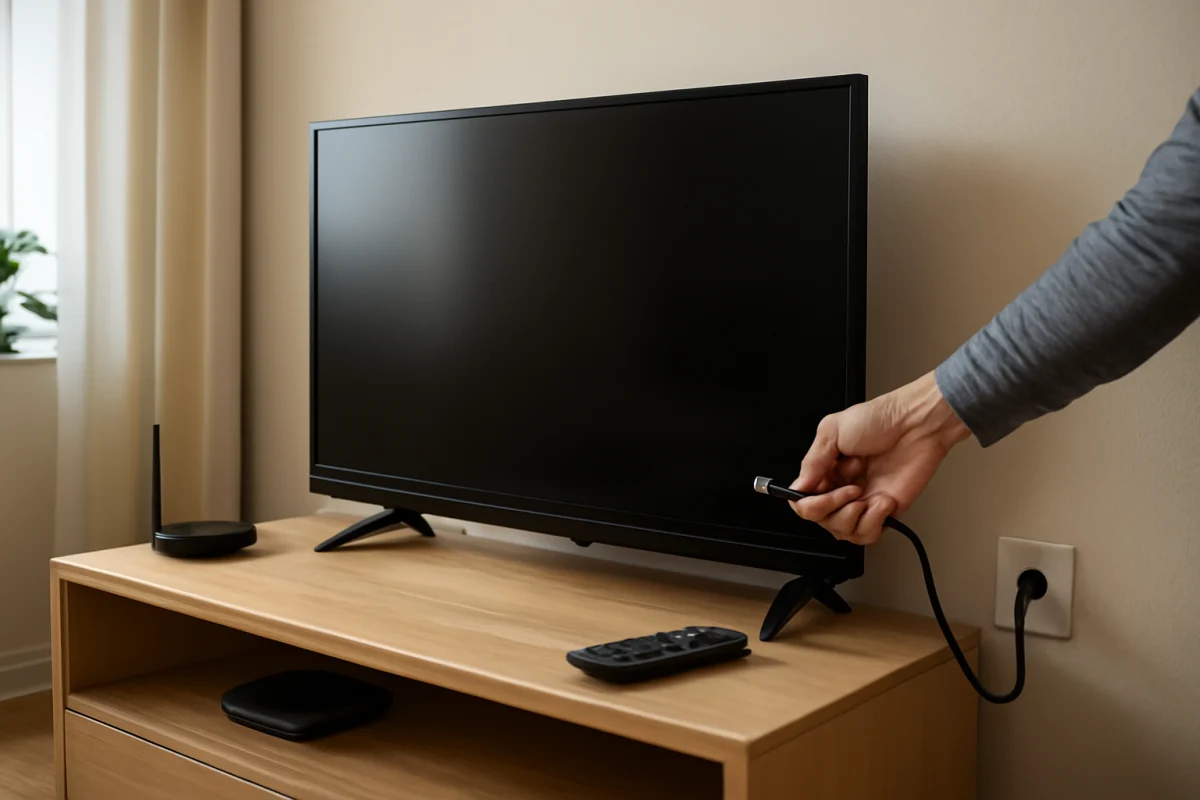
- Unplug the TV from the wall outlet.
- Wait at least 60 seconds.
- Plug it back in and turn it on.
After the TV starts, wait a minute before opening several apps. Some televisions continue background tasks briefly after startup. If the menus are responsive again, the slowdown was probably temporary.
For safety, connect the TV directly to a suitable wall outlet while testing if you suspect a power strip or surge protector. Do not open the TV or attempt to repair internal power components.
Check the remote before blaming the TV
A weak remote battery can make the TV appear slow because button presses may not register consistently. Replace both batteries with fresh ones, making sure they are installed in the correct direction. Avoid mixing old and new batteries.
Try standing closer to the TV and pointing the remote directly at its sensor if it uses infrared communication. If it is a Bluetooth or voice remote, the connection may need to be re-established. The pairing process differs by model, so use the instructions shown on the TV or supplied with the remote.
You can also test the TV's physical controls, if it has accessible buttons, or use the platform's official mobile remote application when available. If the TV responds normally through another control method, the remote is probably the source of the delay.
For more remote troubleshooting, see our remote control troubleshooting guide.
Test the internet connection and Wi-Fi
Slow streaming is not always the same as a slow TV. If menus move normally but shows take a long time to start, pause, or change quality, check the network.
Start by opening another streaming app. If every service buffers, restart your router and modem if you have separate devices. Unplug the networking equipment, wait about a minute, reconnect it, and allow it time to come back online.
Then check the TV's network status using the connection options available on your model. Look for whether the TV is connected to the correct network and whether it reports an internet connection. If the TV is far from the router, walls and interference may reduce reliability. Moving the router closer, reducing obstructions, or testing a wired connection can help when the TV supports one.
Other devices using the same connection can also affect streaming. Large downloads, video calls, game updates, and multiple high-resolution streams may leave less capacity for the TV. If possible, test the Hisense TV when other network activity is paused.
Do not assume that a faster internet plan will fix slow menus. Network problems usually affect playback and app connections, while delays in the home screen or settings point more strongly to the TV, remote, or software.
Our Wi-Fi and network troubleshooting section covers additional connection checks.
Close or remove apps you do not use
Installed apps consume storage, and some platforms may keep app processes or cached data available after you leave them. A nearly full TV can take longer to open apps, load menus, and perform updates.
Review the installed apps and remove services you no longer use. The option may be called uninstall, remove, or delete, depending on the TV platform. Avoid deleting an app that you still need unless you know your sign-in details and can reinstall it.
If only one app is slow, open its settings and look for an option to clear its cache or reset its local data. These options are not available in the same place on every Hisense TV. Clearing data may sign you out and remove downloaded content, so use it only after trying a normal restart.
When an app continues to perform poorly after being updated and reinstalled, the issue may be with the app provider or a temporary service problem rather than the television.
Check for TV software updates
Manufacturers sometimes release software updates that improve stability, app compatibility, or performance. Connect the TV to the internet and check its system settings for an available software or system update.
Because Hisense sells TVs with different operating systems and regional software, the location and wording of this option can vary. Do not install firmware from an unofficial website or from a different model. Use only the update method provided by the TV or the support information for your exact model.
Keep the TV connected to power while an update is in progress. Interrupting an update can create additional problems. If the TV says it is already up to date, continue with the other troubleshooting steps instead of repeatedly searching for an update.
Disconnect external devices for a test
A connected soundbar, game console, streaming stick, cable box, USB device, or HDMI accessory can sometimes cause delays during startup or input changes. This is especially useful to test if the TV becomes slow after you connect a new device.
- Turn off the TV.
- Disconnect HDMI devices and USB accessories.
- Unplug any external streaming device from both power and HDMI.
- Turn the TV on and test the home screen and built-in apps.
If the TV is faster with everything disconnected, reconnect devices one at a time. The device that brings the problem back is the strongest suspect. Check that device for software updates, try another compatible HDMI cable, and test another HDMI input if available.
Also check whether the TV is automatically switching inputs or waking connected equipment. Control features that allow devices to communicate over HDMI can be useful, but they may cause unusual behavior when equipment does not work well together. If the delay appears only during input changes, temporarily disabling that type of HDMI device-control feature can help identify the cause. The setting name varies by platform.
Make sure the TV has adequate ventilation
Heat can contribute to instability and sluggish performance. Make sure the TV's ventilation openings are not covered by a wall, cabinet panel, fabric, or other object. Leave reasonable space around the set as recommended for your model, and keep dust from building up around the vents.
Do not place external devices directly on top of the TV, especially devices that produce heat. If the TV becomes unusually hot, shuts down, or slows after running for a while, turn it off and allow it to cool. Persistent overheating symptoms require professional inspection rather than repeated restarts.
Try a factory reset only after other steps
A factory reset can remove corrupted settings and return the TV software to its initial state, but it is not a first-line fix. It erases personal settings and may remove installed apps, saved networks, accounts, and other local data. You will need to set up the TV again afterward.
Before using it, write down your Wi-Fi password and make sure you know the sign-in information for your streaming services. Look for the reset option in the TV's system or device preferences, but do not continue unless you understand what will be deleted. The exact location and wording vary by Hisense model.
If the TV is too slow to navigate its menus, consult the documentation for your exact model before attempting a button combination or recovery procedure. Do not use reset instructions intended for a different operating system.
When a slow Hisense TV may need service
Contact Hisense support or a qualified TV technician if the TV remains slow after a full restart, app cleanup, software check, external-device test, and careful reset. Service is more appropriate when the TV also freezes frequently, restarts by itself, shows lines or other picture problems, produces unusual sounds, or becomes abnormally hot.
Have the exact model information ready, along with a description of when the delay occurs and which steps you have already tried. If only one streaming app is affected while the rest of the TV works normally, contact that app's support instead.
For more model-specific troubleshooting, visit the Hisense TV troubleshooting section. The safest approach is to begin with a complete restart, remote and network checks, and a test without external devices. Only then move to app data removal or a factory reset.
Comments
0No comments yet. Be the first to share a helpful note or question.
Leave a Comment
Your email address will not be published. Comments are reviewed before appearing on the site.