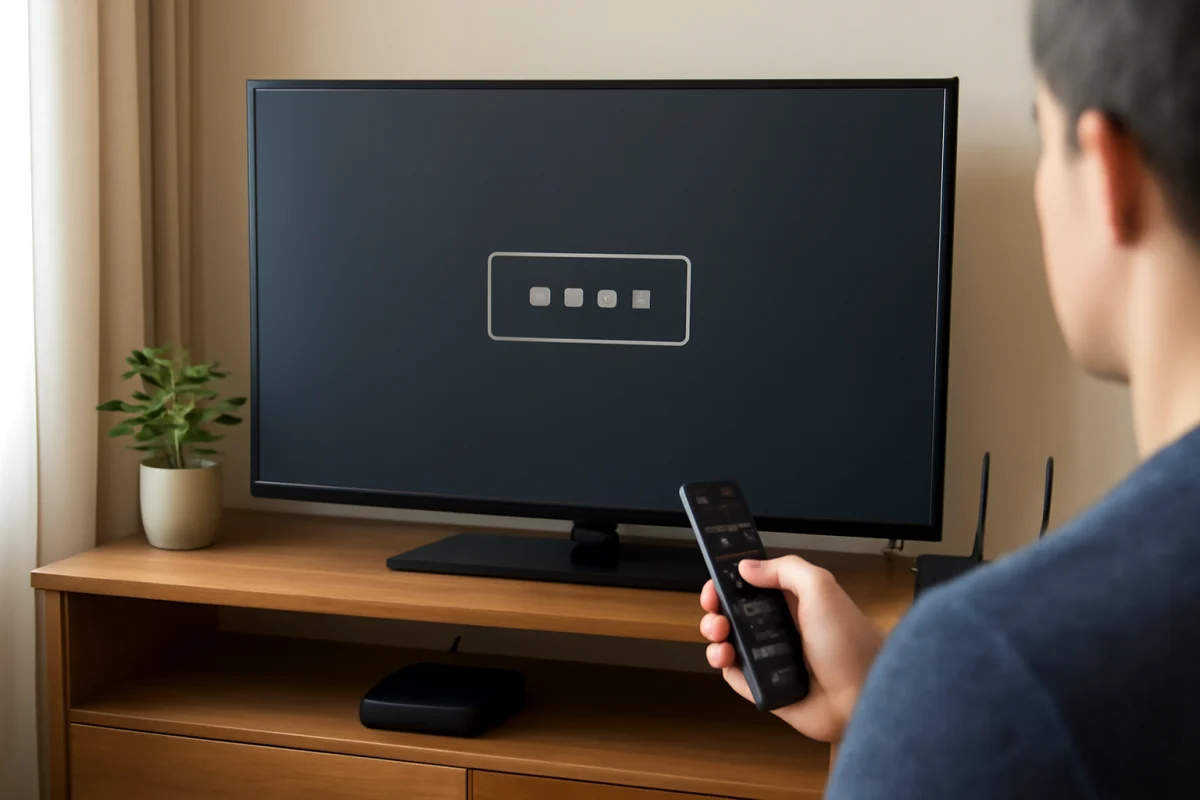
The 4-digit code on a Philips TV is usually not printed in one universal location. The correct code depends on what you are trying to do: pair a remote, unlock parental controls, connect a device, or program a universal remote. Start by identifying the screen or device asking for the code before trying random numbers.
In most cases, the code is shown on the TV screen during setup, printed in the instructions for a separate remote or accessory, or chosen by the TV owner as a PIN. It is usually not the same as the TV's model number, serial number, or product identification label.
Identify which 4-digit code you need
Philips TVs and Philips-branded accessories can use different types of codes. These codes are not interchangeable, so the first troubleshooting step is to match the request with the task on the screen.
Pairing or activation code
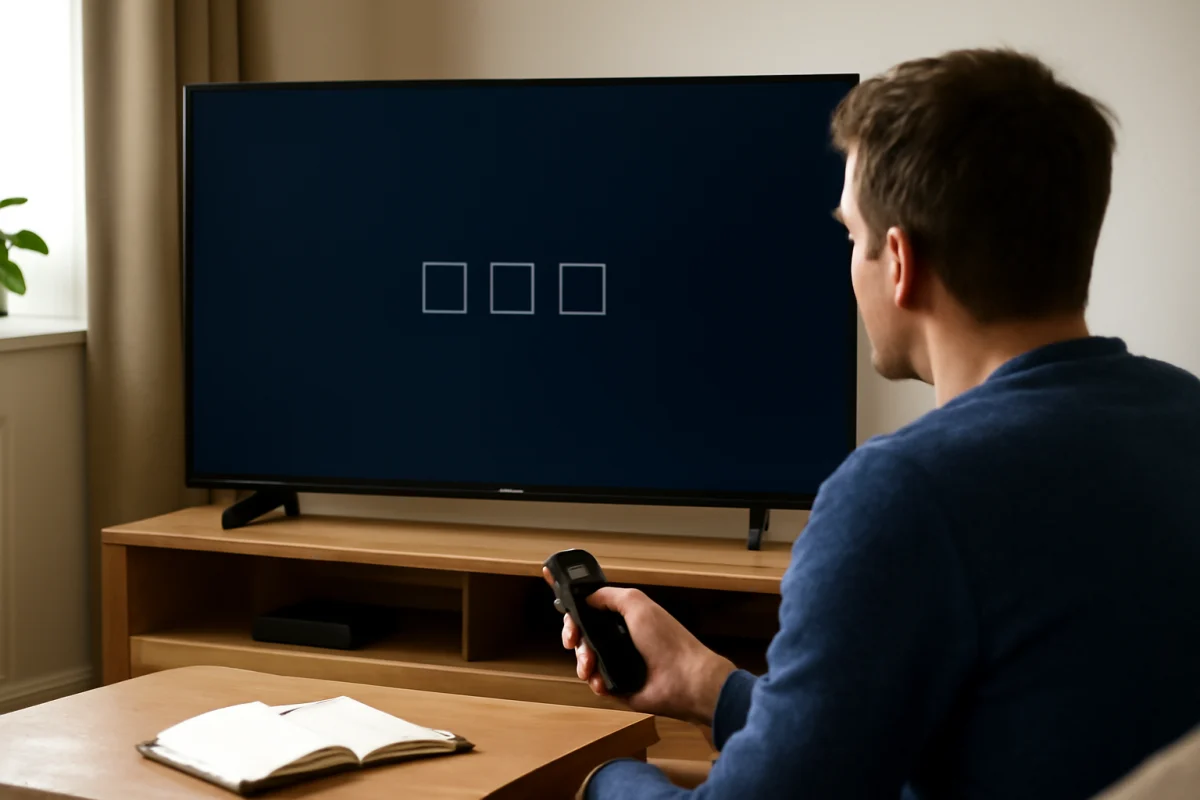
If an app, streaming service, or external device asks you to enter a code, the code normally appears on the TV screen after you choose an activation or pairing option. Look carefully at the entire message, including any instructions about visiting a website or entering the code on another device.
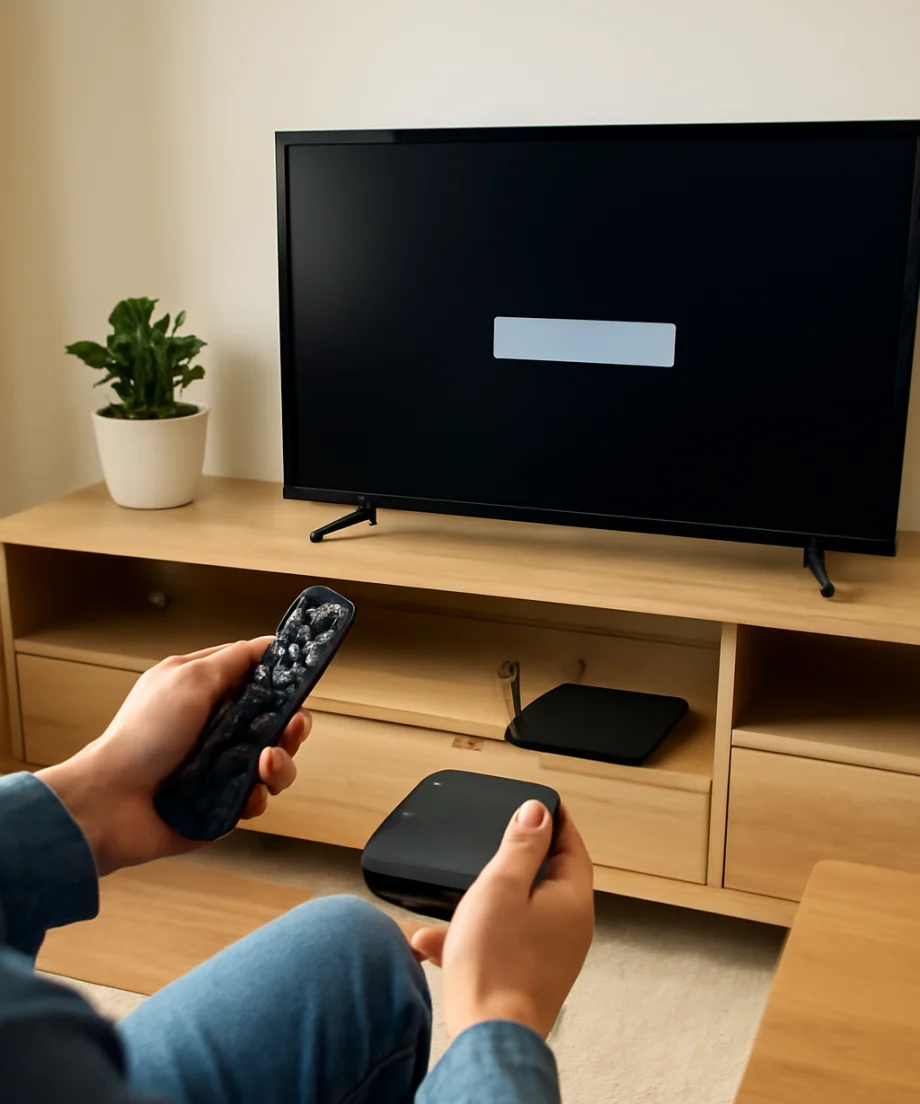
Do not look for this type of code on the back of the television. It is normally generated for the current setup session and may expire. If the code disappears, return to the previous screen and start the pairing process again.
Parental-control PIN
If the TV is asking for a PIN to open a locked channel, change restrictions, or access a protected setting, the 4-digit number is a security PIN. It may have been created during the initial setup or changed later by someone in the household.
A parental-control PIN is not normally printed on the TV. Check whether another household member set it, and review the TV's on-screen help or the official Philips support documentation for your exact model and region if the PIN is forgotten. Avoid repeated guesses because some models may temporarily restrict further attempts.
Universal remote-control code
If you are programming a universal remote, the requested 4-digit code belongs to the remote control, not necessarily to the TV itself. The code is selected from the remote manufacturer's code list and can vary according to the remote model, the TV model, and the brand name printed on the television.
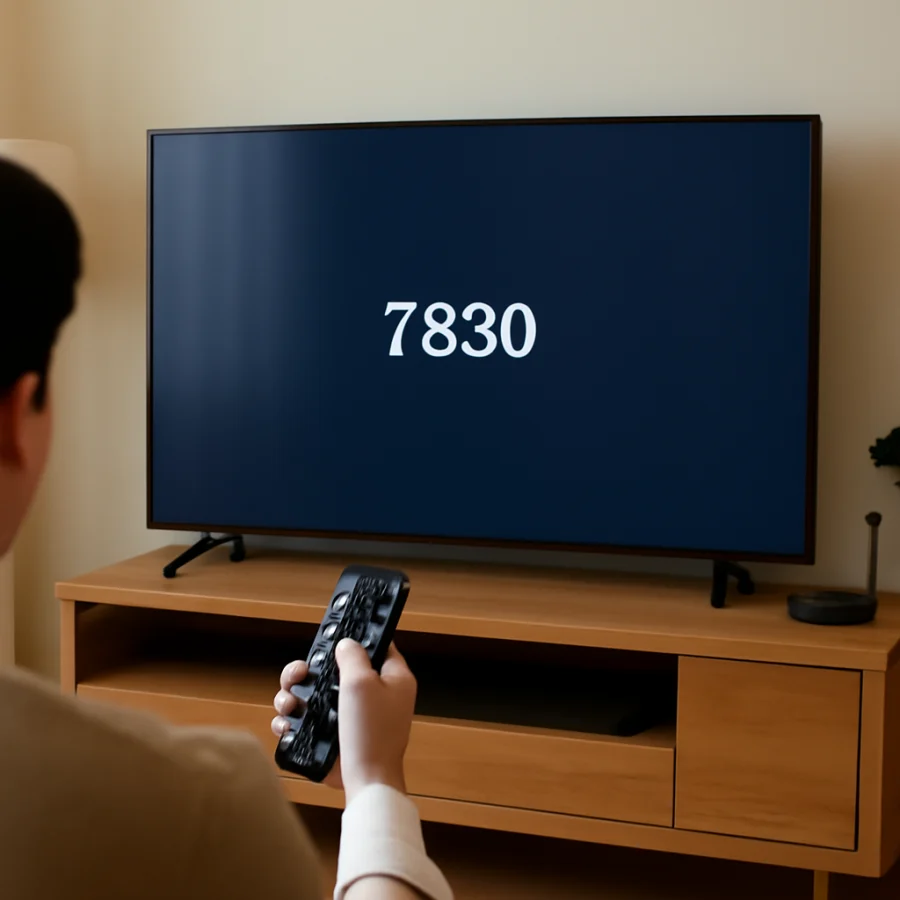
Look in the universal remote's manual, code booklet, or official support page. If the remote has an automatic code-search feature, follow its instructions instead of entering a code found on an unrelated list. A code that works with power may not support every button or smart-TV function.
Device or accessory setup code
Some cable boxes, game consoles, soundbars, hotel systems, and mobile apps use their own four-digit codes. In that situation, the accessory or service usually provides the code. Check the device's screen and instructions rather than searching the Philips TV for a printed number.
Where to check first
Use these low-risk checks before resetting the TV or changing advanced settings.
- Read the complete on-screen message. The wording may explain whether the TV needs a PIN, pairing code, or remote code. Take a photo of the screen if the message disappears quickly.
- Check the remote or accessory manual. If you are setting up a replacement remote or another device, its documentation is often the correct source for the code.
- Look at the original packaging and paperwork. Setup cards may explain how a code is generated, although they generally will not contain a personal security PIN.
- Check the TV's label only for identification. A label on the rear or side may show the model and serial information. These details help you find model-specific instructions, but they are usually not the requested 4-digit code.
- Confirm the input and device. Make sure the message is coming from the Philips TV and not from a cable box, streaming stick, soundbar, or game console connected to it.
If the code should appear on the TV screen
For a pairing or activation code, keep the TV connected to the internet if the setup requires an online service. Confirm that the correct app or setup screen is open, then wait for the code to load. Temporary network problems can prevent a code from appearing even when the TV is otherwise working normally.
Try these simple checks:
- Press Back once and reopen the pairing or activation screen.
- Check that the TV is connected to the intended Wi-Fi network or wired network.
- Restart the app or connected device that requested the code.
- Power off the TV with the remote, wait briefly, and turn it back on.
- Make sure the phone or computer used for activation is entering the code into the correct account or service.
Do not share an activation code publicly. Anyone who receives a live code may be able to connect a device or account before it expires.
If you forgot the Philips TV PIN
There is no single forgotten-PIN procedure that applies to every Philips TV. The available recovery options can differ by model, operating system, country, and production year. Some televisions provide an on-screen recovery process, while others require the original setup information or assistance from Philips support.
First, check the owner's manual for the exact model. You can usually find the model number on the rear label, on the original box, or in the TV's information screen if you can still open the settings. Write the complete model number down, including letters and suffixes, because similar-looking models may use different instructions.
Before attempting a reset, understand that a factory reset can remove installed apps, network settings, picture adjustments, accounts, and other personal preferences. It may not be necessary if the problem is actually a remote-control code or an activation code. Treat resetting as a later option, not the first place to look.
If the TV is used in a hotel, rental property, school, or other managed environment, the PIN may have been set by the administrator. Contact that administrator before changing settings. For general help with Philips models, you can also visit the Philips TV repair guide.
If a universal remote will not accept the code
Make sure the remote is in TV mode before entering a code. Follow the remote's exact programming sequence, since the required button combination varies between brands and models. Keep the remote pointed at the television during testing and replace weak batteries before troubleshooting further.
If one code only controls the volume or power, try another compatible code from the remote manufacturer's list. Different Philips televisions can use different infrared command sets, and a universal remote may have limited support for smart functions such as opening apps, navigating a home screen, or using voice control.
When possible, test the original Philips remote. If the original remote works but the universal remote does not, the issue is probably compatibility or programming. If neither remote works, check whether the TV's standby light responds, whether the remote sensor is blocked, and whether the television is receiving power.
Do not confuse the code with the model or serial number
A Philips TV has several identifying numbers that may appear together on a label. The model number identifies the television family and is useful for finding manuals and support information. The serial number identifies the individual unit. Neither number is normally a 4-digit setup code.
Some labels may also include manufacturing information, barcodes, or other product markings. Entering one of these numbers into a PIN or remote-code prompt will not normally unlock the TV. Use the wording on the screen to determine what kind of information is required.
When the 4-digit prompt keeps returning
A recurring prompt can have several causes. The TV may be asking for a parental PIN, the pairing attempt may have expired, or a connected device may be displaying its own security request. Disconnect nonessential HDMI devices temporarily and check whether the message remains. This helps determine whether the prompt originates from the TV or an accessory.
Also check for a stuck button on the remote, especially if the prompt opens immediately after startup. Remove the remote's batteries for a short test and use the physical controls on the TV if available. If the message stops appearing, inspect or replace the remote.
Document the exact wording, the screen where it appears, the TV model number, and what you were doing immediately beforehand. That information is much more useful than trying common four-digit numbers at random. If the TV remains locked or the code request does not match any normal setup task, use model-specific support rather than performing an unplanned factory reset.
The quickest way to find the right answer
Start with the source of the request: the TV screen, a universal remote, an external device, or a parental-control menu. A code displayed during activation is temporary, a personal PIN is chosen or managed for the TV, and a universal-remote code comes from the remote manufacturer. Once you identify that distinction, finding the correct 4-digit code is usually straightforward and avoids unnecessary resets.
Comments
0No comments yet. Be the first to share a helpful note or question.
Leave a Comment
Your email address will not be published. Comments are reviewed before appearing on the site.