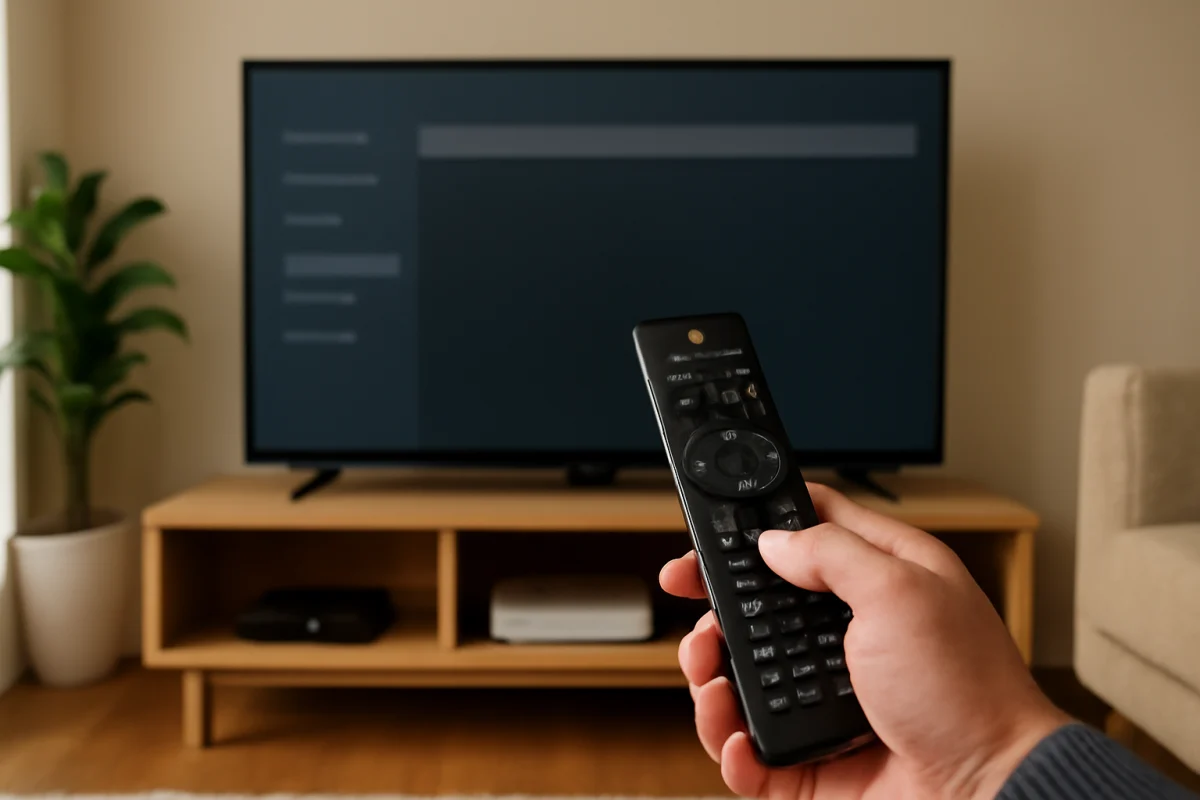
To reset a Philips TV with the remote, first decide whether you need a simple restart, a picture or sound reset, or a complete factory reset. A restart usually fixes temporary glitches without deleting anything. A factory reset erases personal settings, installed apps, saved accounts, network details, and channel information, so it should be the last step.
Philips TV menus vary by model, operating system, region, and software version. The wording and location of the reset option may therefore be different on your television. Use the instructions below as a safe guide, and rely on the labels that appear on your own screen.
Start with a simple restart
If the TV is slow, frozen, unable to open an app, or responding incorrectly to the remote, restart it before attempting a factory reset.
- Press the power button on the Philips remote to turn the TV off.
- Wait at least 30 seconds. If the TV is unresponsive, continue to the power-cycle step below.
- Turn the TV on again and test the original problem.
If the remote does not work but the television still responds to its physical control button, use that button to turn the set off and on. The button may be underneath the screen, on the rear panel, or along one side. Its location depends on the model.
Power-cycle the TV when it is frozen
A power cycle can clear temporary software or standby problems without changing your saved settings.
- Turn the TV off if possible.
- Unplug the power cord from the wall outlet, not just from a connected accessory.
- Wait about 60 seconds.
- Plug the TV directly into a known-good wall outlet.
- Turn it on with the remote or the TV's physical button.
Do not repeatedly unplug the TV while it is installing an update or displaying a message that it is processing a software change. Interrupting an update can create additional problems. If the screen remains completely unresponsive after a normal power cycle, check the power connection and remote batteries before attempting advanced troubleshooting.
Check the remote before resetting the TV
A reset will not solve a remote-control problem if the TV is not receiving the commands. Replace the batteries with a fresh matching pair, making sure the positive and negative ends face the directions marked inside the battery compartment.
Point the remote directly at the TV and press a few different buttons. Remove objects that could block the front of the television. If the remote uses Bluetooth or another wireless pairing method, it may need to be paired again after a reset. Some Philips remotes communicate by infrared, while others may also use wireless features, so the procedure is model-dependent.
If only one button fails, the button itself may be worn or stuck. If no buttons work, try the TV's physical controls. You can also use the television's original remote rather than a universal remote when opening system menus, because universal remotes may not include every Philips function.
Reset picture or sound settings without erasing the TV
If the problem is a dark picture, unusual colors, weak sound, or an incorrect audio balance, a full factory reset may be unnecessary. Philips models commonly provide separate options for restoring picture or sound settings, although the exact menu names differ.
- Press the Home, Menu, Settings, or similar button on the remote.
- Open the section related to picture, display, sound, or audio.
- Look for an option such as restoring default settings, resetting picture settings, or resetting sound settings.
- Read the confirmation message and confirm only if it applies to the problem.
A picture reset may remove a custom brightness, contrast, color, or picture-mode adjustment. A sound reset may remove custom equalizer or audio-output settings. These limited resets normally do not remove apps, accounts, Wi-Fi details, or channels, but the result depends on the model. Check the on-screen warning before confirming.
Before resetting picture settings, verify that the issue is not caused by the source device. Press the remote's input or source button and check another input, such as a built-in app or a different HDMI device. If only one device looks wrong, inspect its cable and video settings instead of resetting the entire TV.
How to perform a full factory reset with the remote
Use a factory reset when the television has persistent software problems, you are preparing to give it away, or you need to remove all personal information. The option may be located under Settings, Device Preferences, System, General settings, Support, or another similar area. Do not assume every Philips TV uses the same path.
- Turn on the TV and press the Home, Menu, or Settings button on the remote.
- Open the system, device, general, support, or setup area shown on your screen.
- Look for a reset, restore, reinstall, or factory-default option.
- Select the option that clearly indicates a complete reset or restoration of the TV.
- Review the warning. It should explain that personal settings, accounts, apps, channels, or network information may be removed.
- Confirm the reset only when you are ready to erase the TV.
- Wait for the television to finish. Do not unplug it during the reset process.
The TV may restart more than once. When the process is complete, it may display the initial setup screen. You will usually need to select a language and location, connect to Wi-Fi if required, accept on-screen terms, sign in to streaming services again, and scan for channels. The exact setup sequence varies by Philips model and region.
What a factory reset removes
A complete reset generally removes settings saved on the television. This can include Wi-Fi passwords, installed applications, streaming-service sign-ins, picture and sound adjustments, parental controls, channel lists, and external-device preferences. It may also disconnect accounts that were added to the TV.
A factory reset does not usually repair a damaged HDMI cable, a failing power board, a weak Wi-Fi signal, or a defective remote. It also may not fix a problem caused by an external streaming device. For practical troubleshooting, identify whether the fault affects the entire TV or only one input or app before erasing anything.
If you cannot find the reset option
Philips uses different menu structures across product families. Some televisions include a dedicated reset option, while others place it inside a broader setup or reinstallation menu. Search the on-screen settings carefully rather than selecting an option based only on a familiar word.
Use the TV's model number to find the correct owner's manual or support documentation. The model number is often printed on a label on the back of the television, shown on the original packaging, or listed in an information screen. Avoid following instructions for a different Philips model simply because the remote looks similar.
If the TV is connected to the internet, check whether the settings screen includes a software update option. A pending software issue may require an update rather than a reset. Do not install files from unofficial sources or use firmware intended for another model.
When the remote cannot open the menu
If the screen is on but the remote cannot open Home or Settings, try these low-risk checks:
- Replace the batteries and test the power, volume, and navigation buttons.
- Remove any object blocking the remote sensor.
- Restart the TV by unplugging it for about 60 seconds.
- Disconnect nonessential HDMI and USB devices temporarily.
- Try the TV's physical control button to open or navigate basic controls, if supported.
- Use the original Philips remote if a universal remote is currently connected.
Some Philips smart TV platforms also support a phone-based remote feature, but the phone and TV generally need to be on the same network, and the feature may not be available on every model. A phone remote may not work if the television is offline, frozen, or still completing startup.
Resetting a Philips TV with no picture
If the TV has sound but no picture, a factory reset is usually not the first move. Press the input button and check whether the on-screen menus appear. Test another source, remove and reconnect the HDMI cable, and restart the connected device. Make sure the TV is not simply set to an unused input.
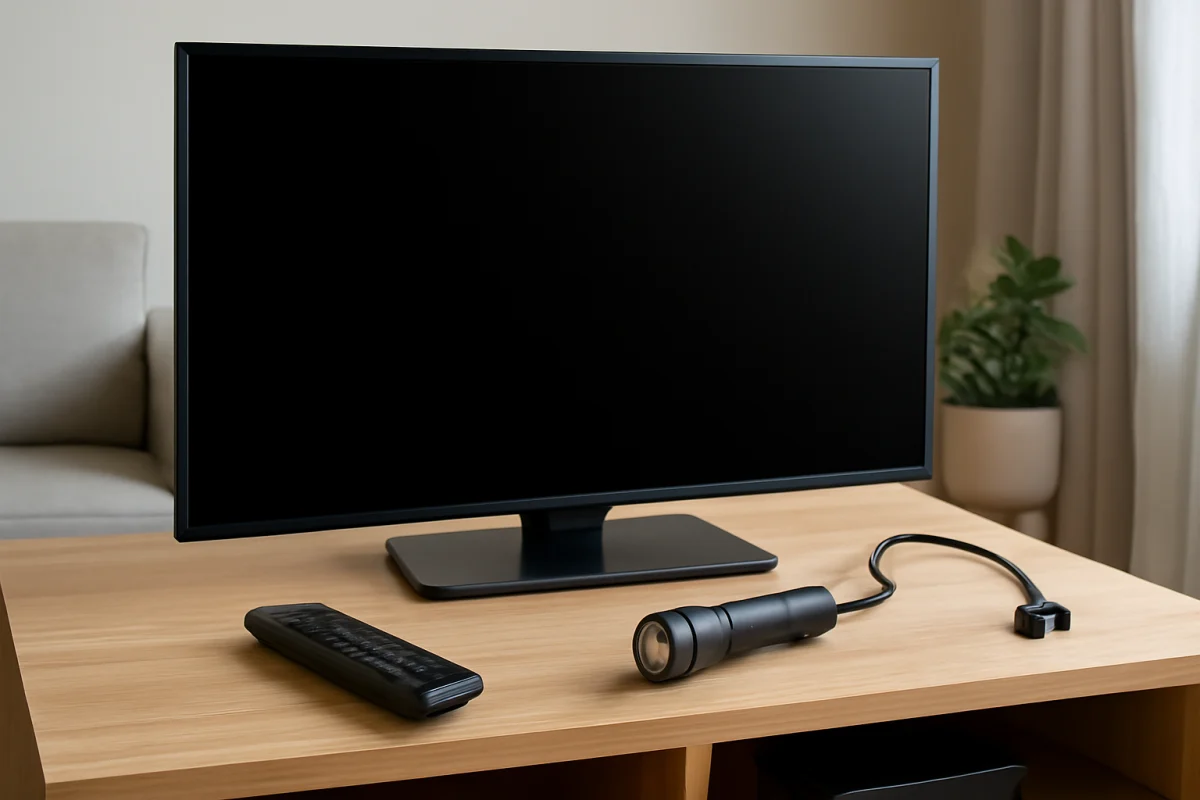
If the standby light responds but the screen remains dark, shine a flashlight at the screen only as a basic diagnostic check and avoid pressing on the panel. A faint image can point to a display-lighting problem, while no visible image may have another cause. These hardware faults are not normally corrected by a remote reset.
If there is no sound, no picture, and no response to the remote or physical controls, verify the wall outlet and power cord. Stop troubleshooting if you smell burning, hear repeated electrical clicking, see damage, or notice unusual heat. Unplug the TV and seek qualified service rather than opening the set.
What to do after the reset
After the TV returns to its setup screen, complete the initial configuration gradually. First confirm that the remote can navigate the menus. Then connect the TV to the correct Wi-Fi network, install only the apps you use, and test the original problem before changing many settings.
If the issue returns immediately after the factory reset, note exactly what happens and when it occurs. A problem limited to one app, HDMI input, channel, or network connection needs a different diagnosis from a problem affecting the entire interface. For more practical guidance, browse the Philips TV repair guide or review troubleshooting topics in our remote controls section.
Resetting a Philips TV with the remote is safest when you begin with a restart and only erase the television after simpler checks fail. Because menus and reset behavior differ by model, read every confirmation message and use documentation for your exact TV whenever the on-screen instructions do not match these general steps.
Comments
0No comments yet. Be the first to share a helpful note or question.
Leave a Comment
Your email address will not be published. Comments are reviewed before appearing on the site.