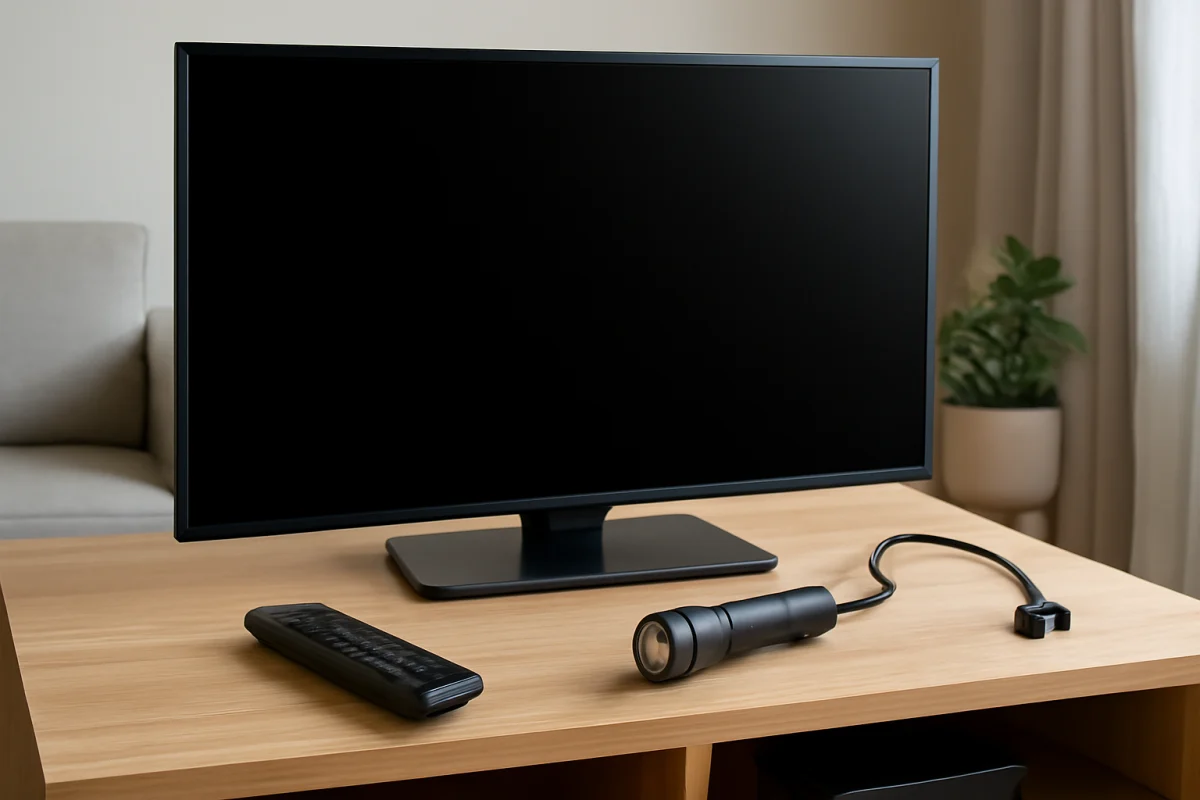
If your Philips TV has no usable picture, you can still try a hard reset, but start with the safest checks first. Unplug the TV from the wall, disconnect external devices, hold the TV’s physical power button if it has one, and leave the set disconnected before reconnecting it. This power reset often clears a temporary startup or HDMI problem without erasing settings.
If the TV remains unresponsive, a factory reset may be possible with the remote, the buttons on the television, or a model-specific recovery procedure. The exact method varies by Philips TV model, operating system, region, and year. Do not assume that one button sequence works on every Philips television.
Start with a safe power reset
A hard reset is often used to describe two different actions. A power reset removes temporary electrical power and normally keeps your picture, network, and app settings. A factory reset erases personal settings and returns the TV to its initial setup state. Try the power reset before attempting a factory reset.
- Turn off the Philips TV if it responds to the remote or its physical controls.
- Unplug the TV directly from the wall outlet. If it is connected to a surge protector or power strip, bypass that accessory for testing.
- Disconnect HDMI devices, USB drives, antennas, soundbars, and other accessories from the TV.
- Wait at least 60 seconds. If the TV appears completely frozen, waiting several minutes is reasonable.
- While the TV is unplugged, press and hold the physical power button on the television for about 15 to 30 seconds, if your model has one.
- Release the button, reconnect only the TV to a known-working wall outlet, and try to turn it on.
Do not repeatedly unplug and reconnect the set in rapid succession. If you hear clicking, smell overheated plastic, see sparks, or notice damage to the power cord, stop testing and disconnect the TV. Those symptoms can indicate a hardware or electrical safety problem rather than a software lockup.
Check whether the TV is actually on
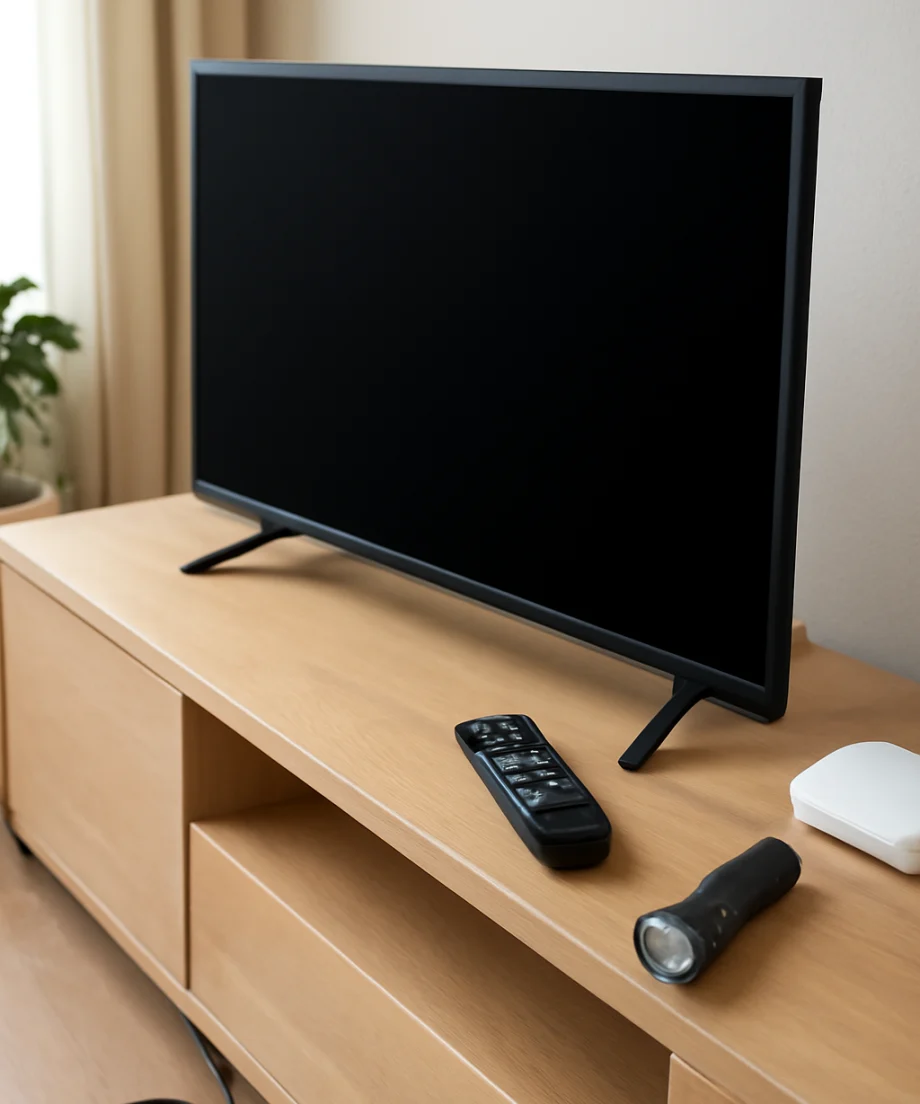
A black screen does not always mean that the TV is off. Look for a standby light, startup sound, backlight glow, or response when you press the volume or channel buttons. Shine a flashlight at an angle across the screen in a dark room while the TV is on. If you can barely see a menu or picture, the TV may have a failed backlight or another display-related fault. A reset is unlikely to repair that hardware problem.
Also press the TV’s volume button and listen for a change. If the volume indicator or sound responds but the screen stays dark, focus on picture, backlight, input, and display hardware checks. If there is no light, sound, or response at all, continue with power and control troubleshooting.
Rule out a remote or input problem
Before trying a factory reset, make sure the command is reaching the TV. Replace the remote batteries with a fresh pair and make sure they are installed in the correct direction. Remove any object blocking the remote sensor. If you use a phone app as a remote, it may not work while the TV is disconnected from Wi-Fi or stuck during startup.
Try the physical buttons on the television. Depending on the model, Philips may place a power button, joystick, or small control cluster underneath the panel, along the side, or on the rear. The number and function of these controls vary. Press the power button once, then wait at least 30 seconds. If the TV turns on but shows the wrong source, press the input or source control if available and test a different input.
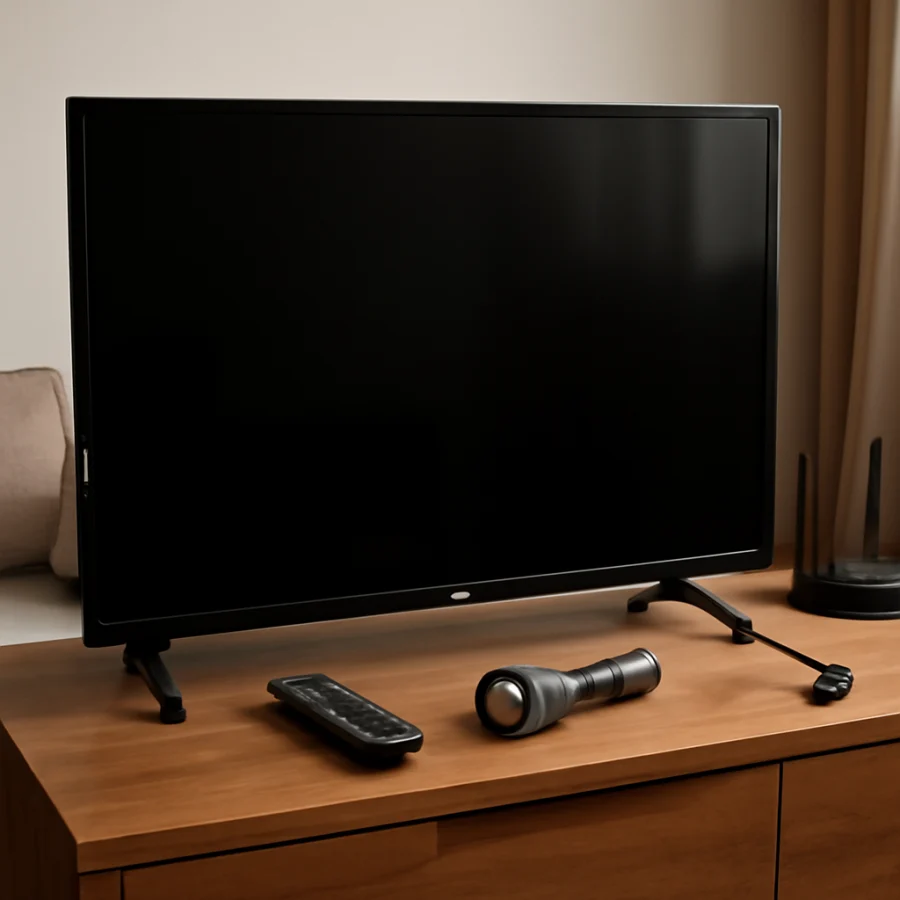
Disconnecting external equipment matters because a defective HDMI device, USB accessory, or cable can interfere with startup. After the TV works by itself, reconnect devices one at a time. This helps identify whether a particular accessory is causing the black screen or boot problem.
Try a factory reset with the remote
If the screen is visible enough to use, the most reliable factory-reset method is the TV’s own settings menu. The wording and menu path differ between Philips models, so use the owner’s manual for the exact instructions. Look for a settings area related to device preferences, system settings, storage, or restoring the TV. The reset command may be labeled with words such as reset, restore, or initial setup, but the location is not universal.
A factory reset usually removes installed apps, wireless network details, picture and sound adjustments, parental controls, and account information. It may also require you to pair the remote again or complete the initial setup. Write down important settings before resetting if the screen becomes usable long enough to do so.
If the picture is entirely unavailable, blind menu navigation is risky. The same button presses can open a different menu on another model, and selecting the wrong option may change inputs or accessibility settings instead of resetting the TV. Use a blind sequence only when it is documented for your exact model.
Find the exact Philips model before using button combinations
Look for the model number on the rear label, the original packaging, the purchase record, or the TV’s documentation. A model number often contains a mixture of letters and numbers, but the format varies by region. Do not rely only on the screen size or a general product name.
Once you have the model number, check the official manual or support documentation for instructions covering factory reset, recovery, forced restart, or a TV that will not display a picture. Philips televisions can use different platforms and control layouts, so a reset sequence that works on one series may do nothing on another or may perform a different function.
When a physical-button reset may help
Some Philips televisions can be restarted or recovered with a physical button, a joystick, or a combination of controls. However, there is no single universal button procedure for every Philips TV. Some models may require the TV to be unplugged first, while others use a control during reconnection. Some may not support a user-accessible forced factory reset at all.
If your model documentation gives a button sequence, follow it exactly. Keep the TV connected directly to a reliable outlet, remove USB devices, and do not interrupt the process once recovery begins. A reset or software recovery may take several minutes, and the screen can remain blank temporarily during startup.
Never open the back of the television to reach internal buttons or boards. Even when unplugged, a TV can contain components that retain dangerous voltage. A reset should be performed through the external controls and documented procedures only.
Use the standby light as a diagnostic clue
The standby indicator can help separate a control problem from a deeper fault, although its behavior varies by model. A steady standby light may simply mean the TV is waiting for a power command. A light that changes when you press the remote suggests that the remote signal may be reaching the set. No light at all can point to an outlet, cord, power board, or internal failure, but it is not enough by itself to identify the cause.
If the light blinks in a repeated pattern, record the pattern rather than guessing at its meaning. Blinking behavior is model-dependent, and not every pattern is an official error code. Include the model number and the exact behavior when checking documentation or asking for repair advice.
If the TV resets but the screen stays black
A successful reset does not guarantee a working picture. After reconnecting the TV, wait for the full startup period before pressing more buttons. Then check the following:
- Confirm that the TV is connected to the wall outlet and that the outlet works with another device.
- Try the TV’s own controls instead of the remote.
- Test a different HDMI cable and source only after the TV starts normally.
- Check whether sound is present and whether a flashlight reveals a faint image.
- Look for a cracked panel, liquid damage, burn marks, or a loose external power cord.
If the flashlight test reveals a faint image, the backlight system may be involved. If there is sound but no visible image, the display panel, backlight, T-con circuitry, or related connections may need diagnosis. If there is no response after a known-good outlet and a documented reset, the power supply or main board may be at fault. These repairs can require board-level testing and are not good candidates for trial-and-error replacement.
What to do if the reset method is unavailable
When you cannot see the screen and the exact model instructions do not provide a reliable button procedure, contact Philips support or a qualified TV technician with the model number and symptoms. Explain whether the standby light appears, whether sound is present, whether the remote changes the light, and what happened immediately before the problem started.
Do not keep attempting random remote sequences. You could change settings without knowing it, start an update or recovery process, or make the original symptom harder to diagnose. For more troubleshooting guides, visit the Philips TV repair section on TV Fix Guide.
Key points before you reset
Unplugging the TV and holding its external power button is the safest first step and normally does not erase settings. A factory reset is more disruptive and should be attempted only when you understand that accounts, apps, network details, and custom settings may be removed. Because Philips reset procedures vary by model, identify the exact model number before using any button combination. If there are signs of electrical damage, or if the TV has no response after basic checks, stop resetting and arrange a professional diagnosis.
Comments
0No comments yet. Be the first to share a helpful note or question.
Leave a Comment
Your email address will not be published. Comments are reviewed before appearing on the site.