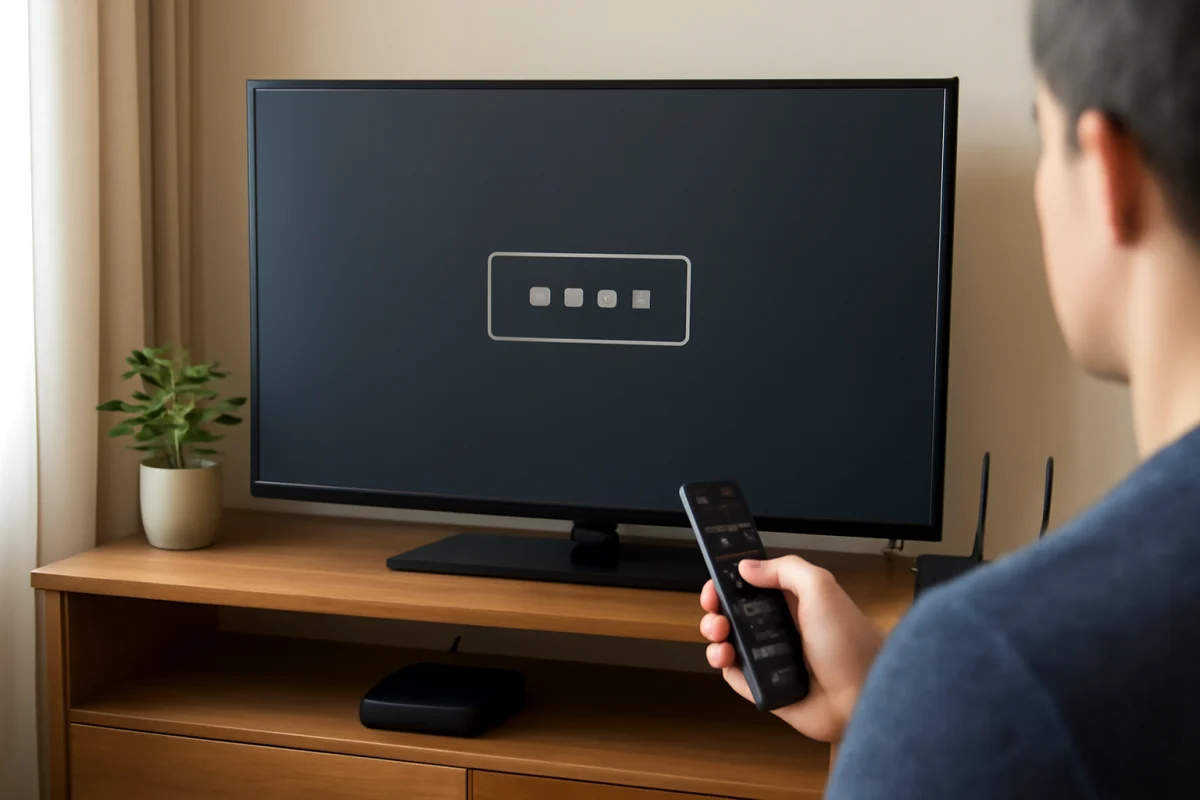
If your Philips TV asks for a PIN before a factory reset, first try the PIN you created during setup. If you do not remember creating one, check the TV manual or the support page for your exact model before entering repeated guesses. Philips TV menus, default codes, and recovery procedures can vary by model, region, operating system, and remote control.
A factory reset erases personal settings and may remove saved Wi-Fi details, installed apps, channels, picture adjustments, parental controls, and account information. It is not always necessary. Start with the low-risk checks below, then move to a reset only when the original problem justifies it.
Check whether the TV really needs a factory reset
A PIN prompt can appear for several different reasons. The TV may be asking for a parental-control PIN, a restricted-channel PIN, a system settings PIN, or a code required to confirm a reset. These are not always interchangeable.
Before trying to reset the TV, identify the symptom:
- If only certain channels, apps, or settings are locked, you may be dealing with parental controls rather than a general reset problem.
- If the TV is frozen, unplug it from the wall for about one minute, reconnect it, and try again. This does not erase settings.
- If the remote is not responding, replace its batteries and test the TV's physical button or joystick, if available.
- If the TV cannot connect to the internet, restart the router and TV before considering a reset.
- If an app is failing, update or reinstall that app when the TV provides those options instead of wiping the entire television.
These steps will not recover a forgotten PIN, but they can prevent an unnecessary factory reset when the actual problem is temporary.
Try the PIN you may have set
Think about when the PIN prompt first appeared. You may have chosen the code while enabling parental controls, blocking channels, restricting inputs, or setting up the TV. A code used on another TV, cable box, streaming device, or router may not apply to the Philips TV.
Do not keep entering random combinations. Some models may temporarily limit attempts, display a lockout message, or require additional recovery steps. If the TV gives you a limited number of attempts, stop once you have exhausted the codes you genuinely recognize.
Also check whether the prompt is asking for a PIN or a password. A Wi-Fi password, Philips account password, streaming-service password, and TV security PIN are different credentials. Entering the wireless network password at a system PIN prompt will not unlock the reset menu.
Find the exact model information
The correct recovery procedure depends on the full model number, not just the brand name or screen size. Look for the model label on the back or side of the TV, on the original box, on the purchase record, or in the TV's information screen if you can still open the settings.
Write down the complete model number and, if shown, the TV's software or operating system information. Avoid relying on a nearly identical model listed in a forum or video. Philips televisions sold in different countries can use different menus and reset instructions, even when their model names look similar.
Use the exact model information when checking the owner's manual or Philips support resources. Search for terms such as “forgotten PIN,” “parental control PIN,” or “factory reset,” but confirm that the instructions match your model and region.
Look for a forgotten-PIN option in the TV menu
If you can access the main settings, move through the security, child-lock, parental-control, or reset area slowly. The wording may differ, and some Philips TVs use a reset or change-PIN option while others display a separate recovery choice.
Do not assume that every Philips TV has the same menu path. Smart TV platforms and firmware versions can change the arrangement of settings. If the TV offers an on-screen option to reset or recover the PIN, follow that option rather than using an undocumented button sequence.
When the menu displays a generic password field, check the owner's manual for the approved procedure. Avoid codes copied from unrelated brands or from a different Philips model. A code that works on one television is not proof that it is valid for yours.
Try a power cycle and remote-control check
A power cycle will not normally remove a forgotten PIN, but it can clear a temporary software state that makes the prompt behave incorrectly.
- Turn the TV off using the remote if it responds.
- Unplug the TV from the wall outlet.
- Disconnect external devices such as game consoles, soundbars, USB drives, and streaming sticks.
- Wait about one minute.
- Plug the TV directly into a known-working wall outlet and turn it on.
If the remote still acts unpredictably, remove and reinstall the batteries or use a replacement remote that is known to be compatible. A stuck button can repeatedly send commands and make menu navigation confusing. If the TV has a physical control, use it only to confirm that the television itself is responding; the exact controls differ by model.
What a factory reset will erase
A factory reset returns the TV to an initial setup state, but the details vary. In most cases, expect to lose saved network information, installed applications, picture and sound adjustments, channel scans, input labels, accessibility preferences, and user accounts.
A reset usually does not repair physical faults such as a failed backlight, damaged panel, defective power board, broken HDMI port, or failing remote receiver. It also may not solve a router problem or an outage affecting a streaming service.
Before resetting, record settings that you want to restore later. Take photos of picture, sound, network, and channel settings if the menus are accessible. Make sure you know the Wi-Fi password and have your streaming-service login details available. If a cable or satellite receiver controls the channels, note its remote-control setup as well.
How to reset the TV when you know the PIN
If you know the correct PIN, open the TV's settings and find the reset, initial setup, or restore option. The exact label and location depend on the model and software platform. Read the warning on screen before confirming, and keep the TV connected to power while the process runs.
Do not unplug the television during a reset unless the screen specifically instructs you to do so. The TV may restart more than once. When it finishes, complete the initial setup, connect to Wi-Fi, scan for channels if necessary, reinstall apps, and test the original problem before changing many settings.
If you are troubleshooting a Philips television more broadly, the Philips TV repair guide can help you compare the reset issue with other common symptoms.
If you forgot the Philips TV reset PIN
When the PIN cannot be recovered through the TV menu, use the official documentation for the exact model. The manual may explain whether the PIN can be changed, cleared, or replaced through a specific recovery process. Follow those instructions precisely and do not substitute a procedure from another model.
If the manual does not provide a recovery method, contact Philips support or the retailer that sold the TV. Have the full model number, serial number if requested, proof of purchase if available, and a description of the PIN prompt ready. Support may be able to confirm the correct process, but availability can depend on the product's age and market.
Be cautious with websites or videos promising a universal Philips master PIN. Some advice is outdated, applies only to older televisions, or is intended for a different regional model. Never install unofficial firmware or open the TV to bypass a PIN unless you are qualified to work safely with electronics. Opening a television can expose you to hazardous voltages even after it has been unplugged.
When a reset does not solve the problem
If the TV accepts the reset but the original fault remains, stop repeating the process. Repeated resets will not fix a hardware failure and can create additional setup work. Check whether the problem occurs on every input or only one device. Test a different HDMI cable, input, outlet, or source device when appropriate.
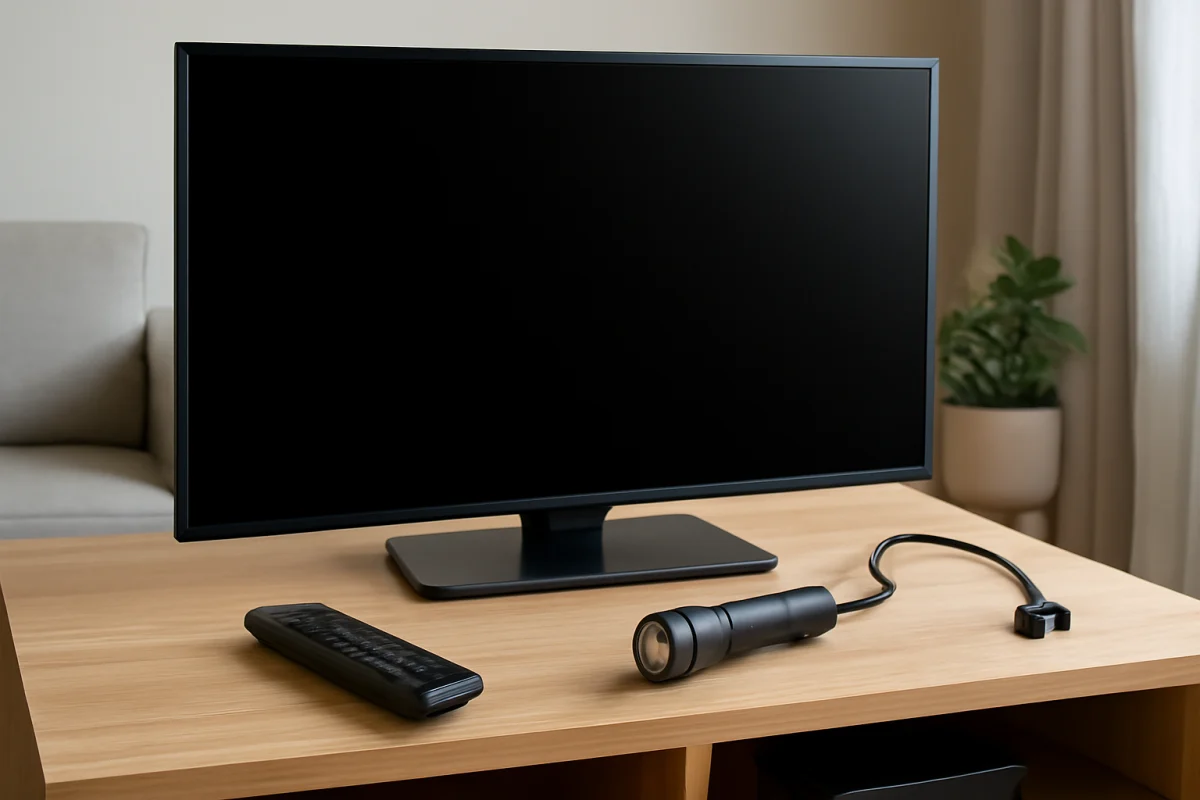
For picture problems, note whether the screen is completely dark, faintly visible with a flashlight, distorted, or limited to one input. For sound problems, test the TV speakers separately from an external soundbar. For network problems, compare the TV with another device on the same Wi-Fi network. These observations are more useful to a technician than a series of unsuccessful resets.
The safest answer to a forgotten Philips TV factory reset PIN is model-specific: use the PIN you originally created, check the exact manual for a supported recovery option, and contact official support when no documented method is available. Start with a power cycle and simple troubleshooting so you do not erase settings for a problem that a reset cannot repair.
Comments
0No comments yet. Be the first to share a helpful note or question.
Leave a Comment
Your email address will not be published. Comments are reviewed before appearing on the site.