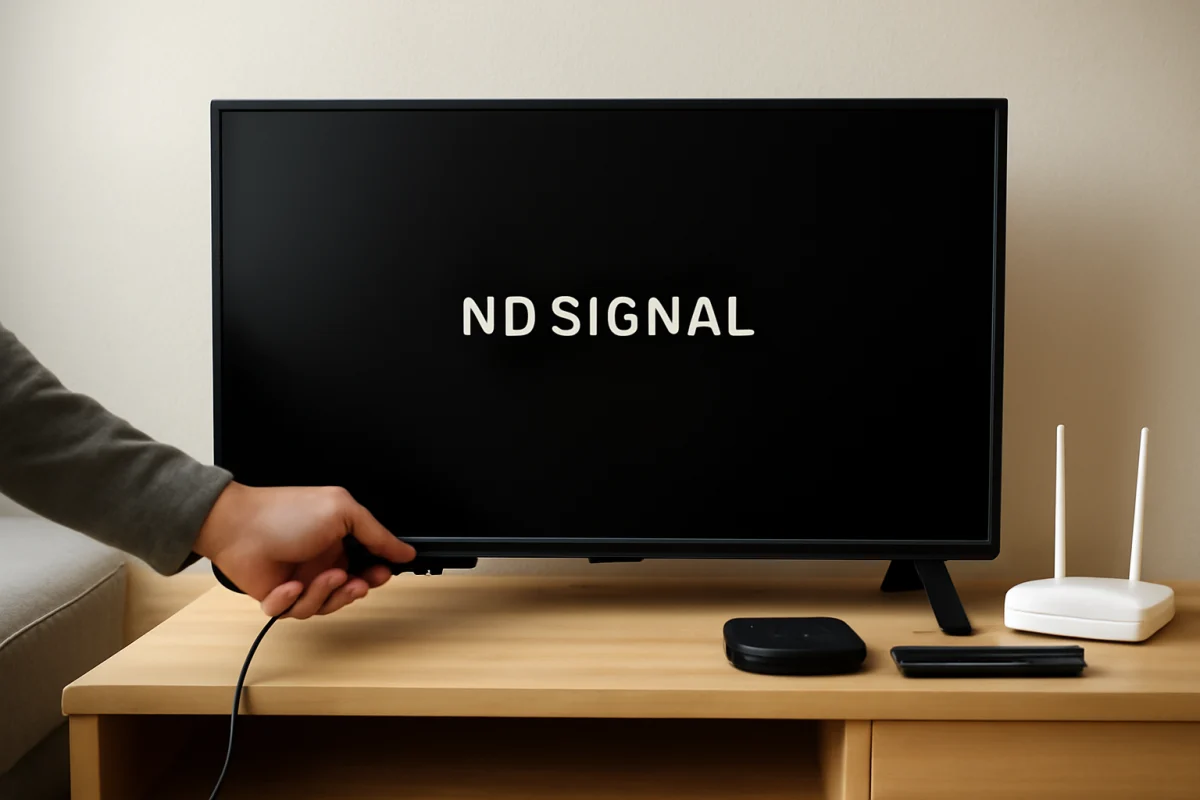
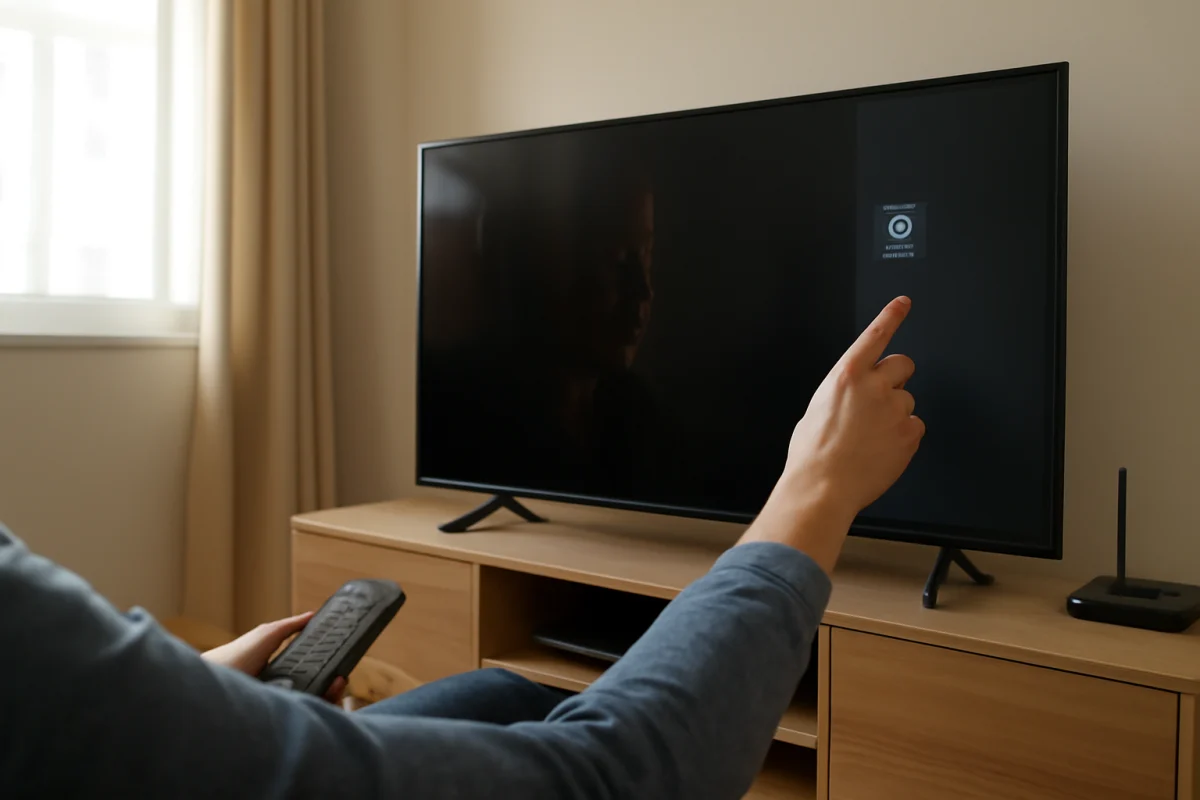
When your TV says “No Signal,” start by checking the selected input and the cable connection before changing settings or resetting anything. In most cases, the TV is working but is not receiving a picture from the device connected to it, such as a cable box, game console, streaming stick, Blu-ray player, antenna, or receiver.
Use the steps below in order. They begin with quick, low-risk checks and gradually move toward more involved troubleshooting. The names and locations of menus can vary by TV model, so look for similar options if your screen uses different wording.
1. Confirm that the TV is on the correct input
The most common cause of a “No Signal” message is selecting the wrong input. For example, a streaming device may be connected to HDMI 2 while the TV is currently set to HDMI 1.
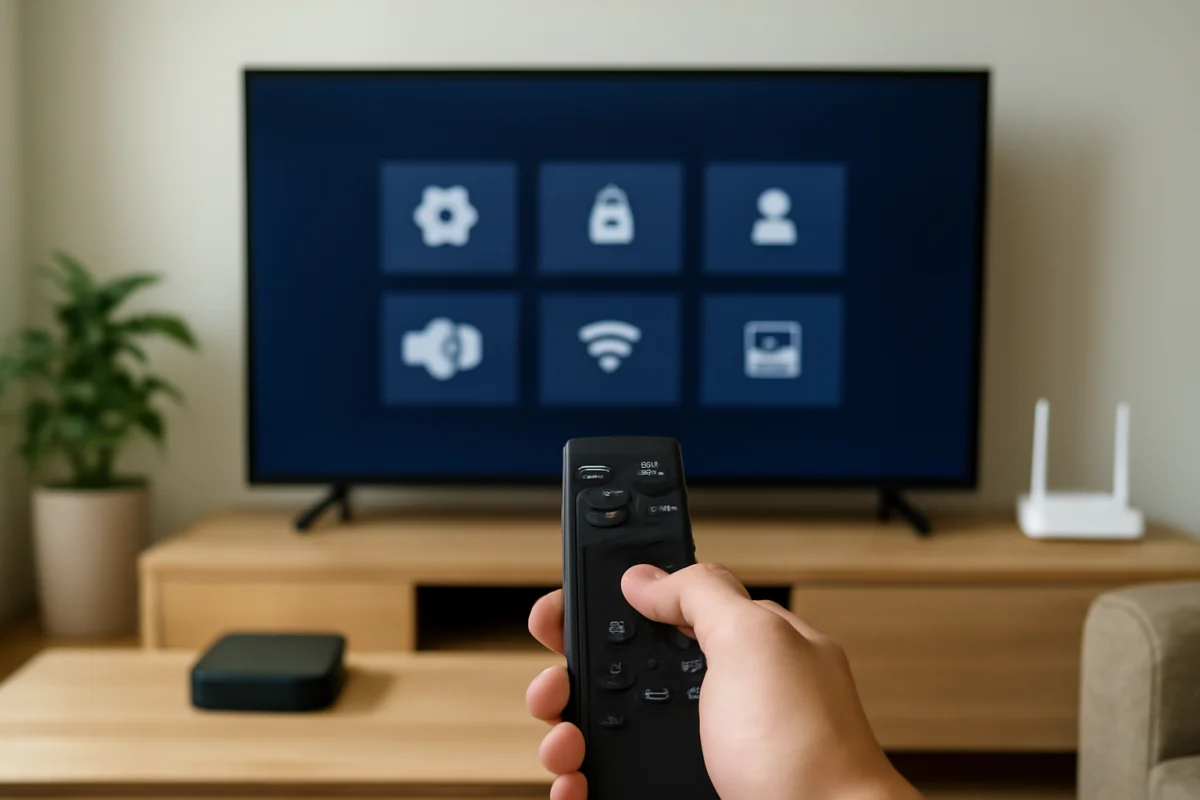
- Press the Input, Source, or similar button on the TV remote.
- Review the available inputs on the screen.
- Select the HDMI port or other input where your device is physically connected.
- Wait several seconds for the picture to appear.
If you are not sure which port to choose, look at the labels beside the HDMI ports on the back or side of the TV. Follow the cable from the external device to the TV and match the port number. If the TV’s home screen appears normally but the “No Signal” message returns on one input, the problem is probably with that input, cable, or connected device rather than the display itself.
2. Make sure the connected device is powered on
A TV cannot display a picture from a device that is turned off, asleep, disconnected from power, or stuck during startup. Check the cable box, console, streaming player, computer, or other source device directly.
Press the device’s power button once and look for a status light or activity on its front panel. Some devices take a minute or more to start. If it is connected through a power strip, surge protector, or receiver, confirm that those components are also switched on.
Do not assume that a small light proves the device is working correctly. A light may indicate standby mode rather than full operation. If possible, wake the device with its own remote or physical button, then wait briefly before testing the TV again.
3. Check both ends of the video cable
Loose HDMI and video cables can cause an intermittent or complete loss of signal. Carefully remove the cable from the TV and the source device, then reconnect it firmly to both ports. Avoid forcing the connector or twisting it sideways.
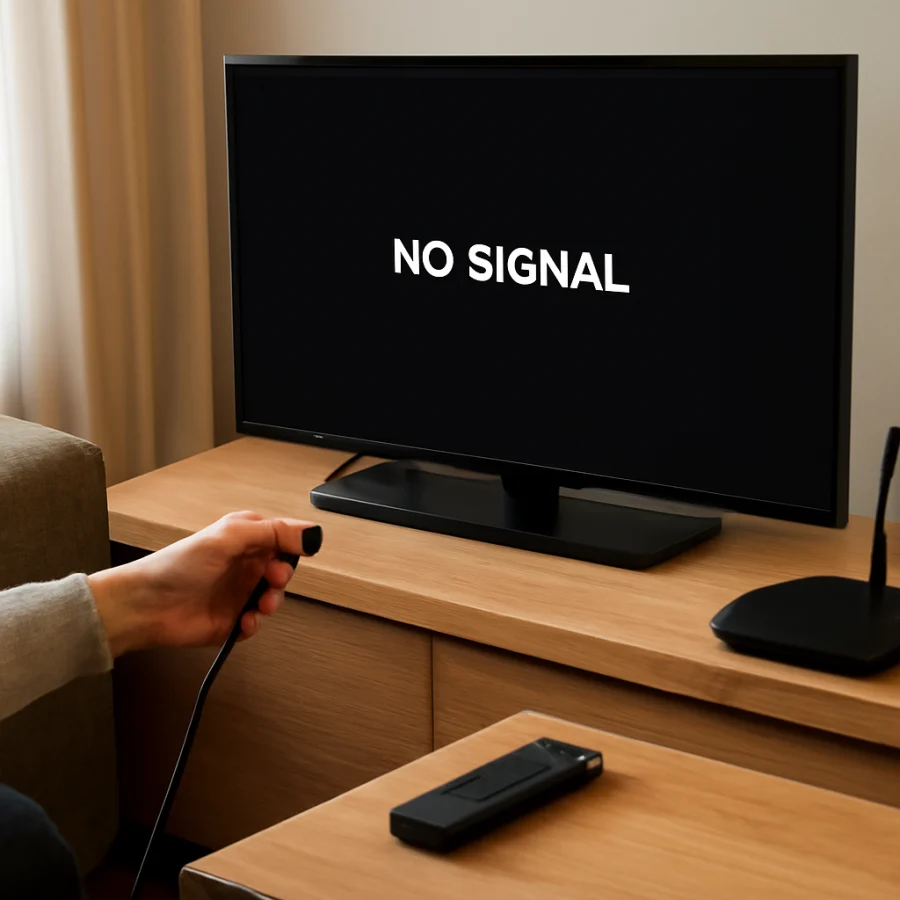
Inspect the cable for obvious damage, including bent connectors, cuts, crushed sections, or a connection that feels unusually loose. If the cable is under tension because furniture is pressing against it, reposition the equipment so the cable can sit naturally.
If you have a spare compatible cable, test it. A different cable is especially useful when the picture cuts in and out, appears after moving the device, or works only at certain times. Use a cable that matches the ports on your equipment. Do not buy an expensive replacement solely because the TV displays “No Signal”; a basic compatible cable is often sufficient for testing.
4. Restart the TV and the source device
A normal restart can clear a temporary communication problem between the TV and an HDMI device. Turn off the TV and the connected source device. If the source has a separate power adapter, unplug it from the wall for about one minute. You can also unplug the TV briefly if its controls are unresponsive.
Reconnect the power, turn on the source device first, and then turn on the TV. Select the correct input again and wait for the device to finish starting. This order is not required for every setup, but it can help the TV detect the source during startup.
When unplugging equipment, use the power plug rather than pulling on the cord. If a device is recording, updating, or performing another important operation, allow it to finish when possible before disconnecting it.
5. Test another input or device
Testing is more useful than repeatedly changing settings. If another HDMI device is available, connect it to the same TV input using a known-good cable. Alternatively, connect the original device to a different HDMI input.
These tests can narrow down the cause:
- Another device works on the same input: The original source device or its cable may be the problem.
- The original device works on another input: The first TV input, its connection, or a related setting may be involved.
- No device works on any input: The TV may have a broader input, power, or hardware issue.
- The source works on another TV: Focus on the original TV, its ports, or the TV-side settings.
Change only one part of the setup at a time so you know which test produced the result. Labeling cables temporarily can also prevent accidentally switching the wrong input or source.
6. Check for an HDMI handshake or resolution problem
Sometimes the TV and source device are powered on but fail to agree on a usable video signal. This communication is often called an HDMI handshake. It can fail after changing devices, moving cables, waking a console, or connecting equipment through an adapter, receiver, or switch.
First, connect the source directly to the TV if it currently passes through an AV receiver, HDMI switch, soundbar, capture device, or adapter. This bypasses extra equipment and makes the cause easier to identify.
If the source has a video resolution setting, temporarily choose an automatic or commonly supported setting. The exact process differs by device, and some equipment requires a special startup procedure to restore a picture. Check the source manufacturer’s instructions rather than guessing at advanced settings. If you can see the source on another display, use that display to change its video output before reconnecting it to the TV.
Some older TVs and devices may not support every combination of resolution, refresh rate, copy-protection standard, or adapter type. If the setup worked previously, a simple restart and direct connection are still the safest first steps.
7. Troubleshoot cable, satellite, or antenna signals
If the “No Signal” message appears while watching live TV rather than an HDMI device, the cause may be the antenna, cable service, satellite equipment, or tuner settings.
For an antenna, check that the coaxial cable is firmly attached to the TV’s antenna or RF input. Inspect the cable for damage and make sure the antenna has not been moved. Buildings, weather, nearby equipment, and changes in antenna position can affect reception. Run a channel scan only after confirming the cable and antenna are connected; the scan process varies by TV model and can replace the existing channel list.
For cable or satellite service, confirm that the set-top box is powered on and that the TV is set to the HDMI input used by that box. If the box displays an error, missing channels, or no front-panel activity, the issue may be with the service connection or the box rather than the TV. Check the provider’s service status or support resources if other troubleshooting steps do not help.
For model-specific tips, you can browse the Samsung TV and LG TV troubleshooting sections. Menu labels and tuner options may differ across brands and model years.
8. Check the TV’s picture and power behavior
Pay attention to what the TV does before the “No Signal” message appears. If the TV home screen, settings menu, or built-in apps display normally, the panel is producing an image and the problem is more likely limited to an external source or input.
If the screen is completely black, the TV repeatedly restarts, or the standby light behaves unusually, this may be a power or hardware issue rather than a simple signal problem. Try the TV’s physical power button if the remote is unreliable. Disconnect nonessential devices and test the TV with only its power cable connected.
Do not open the television or attempt to repair internal boards. TVs can contain components that retain dangerous electrical charge even after being unplugged. If the TV has a burning smell, visible damage, unusual sounds, or signs of liquid exposure, unplug it and seek qualified service.
9. Update or reset only after basic checks
If the TV can access its home screen and network, check for a software update using the manufacturer’s normal support or settings process. The exact menu path depends on the model. An update may help with compatibility problems, but it is not the first step when a cable is loose or the wrong input is selected.
A factory reset should be a last resort. It can remove installed apps, saved Wi-Fi details, picture preferences, parental settings, and other personal information. Before resetting, write down important settings and confirm that you know the account credentials needed to set the TV up again. If only one external device shows “No Signal,” resetting the entire TV is usually unnecessary.
When the TV still says “No Signal”
After completing the tests, note what worked and what did not. Record the TV model, the source device, the input used, whether the home screen appears, and whether another cable or input changes the result. This information can make support or repair diagnosis much faster.
If no connected device produces a picture on any input, one or more HDMI ports may be damaged, or the TV may have an internal fault. If one source fails everywhere but other devices work, focus on that source device, its power supply, or its video output. If the problem began after a storm, power event, liquid spill, or physical impact, stop testing if the equipment appears unsafe.
For additional help with connected devices, see the Roku troubleshooting and Fire TV guides. You can also find more practical fixes across TV Fix Guide, including advice for inputs, remotes, picture issues, and streaming equipment.
Comments
0No comments yet. Be the first to share a helpful note or question.
Leave a Comment
Your email address will not be published. Comments are reviewed before appearing on the site.