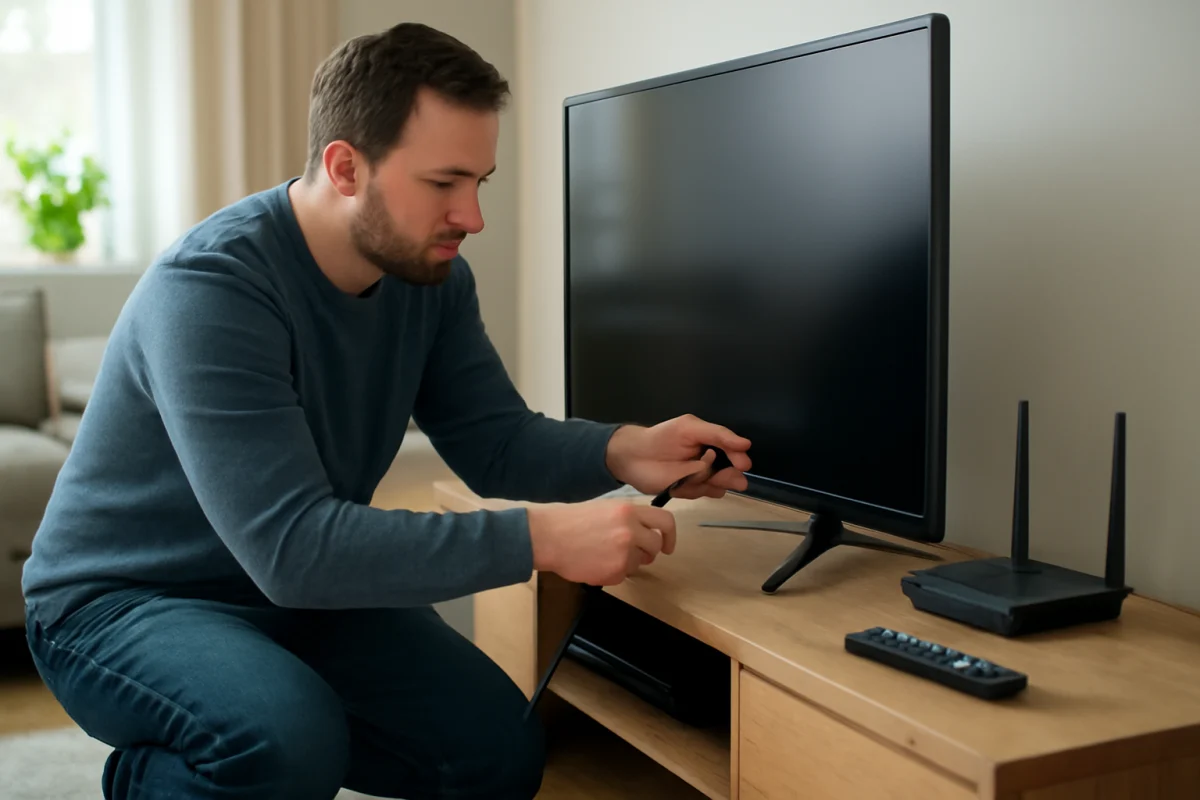
Before resetting your TV, check the power connection, remote, input source, cables, network, and the specific app or feature that is failing. A reset can remove saved Wi-Fi details, app sign-ins, picture settings, and other preferences, while doing nothing to fix a bad cable, weak signal, or service outage.
Start with the simplest checks and move toward more advanced steps only when necessary. The exact menu names and reset options vary by brand and model, so use your TV’s on-screen instructions or manual when a step depends on the model.
First, identify what is actually failing
Take a moment to describe the problem as precisely as possible. A TV that will not turn on needs different checks from a TV that turns on but shows a blank screen. Likewise, one streaming app failing is usually not a reason to reset the entire television.
Ask these questions:
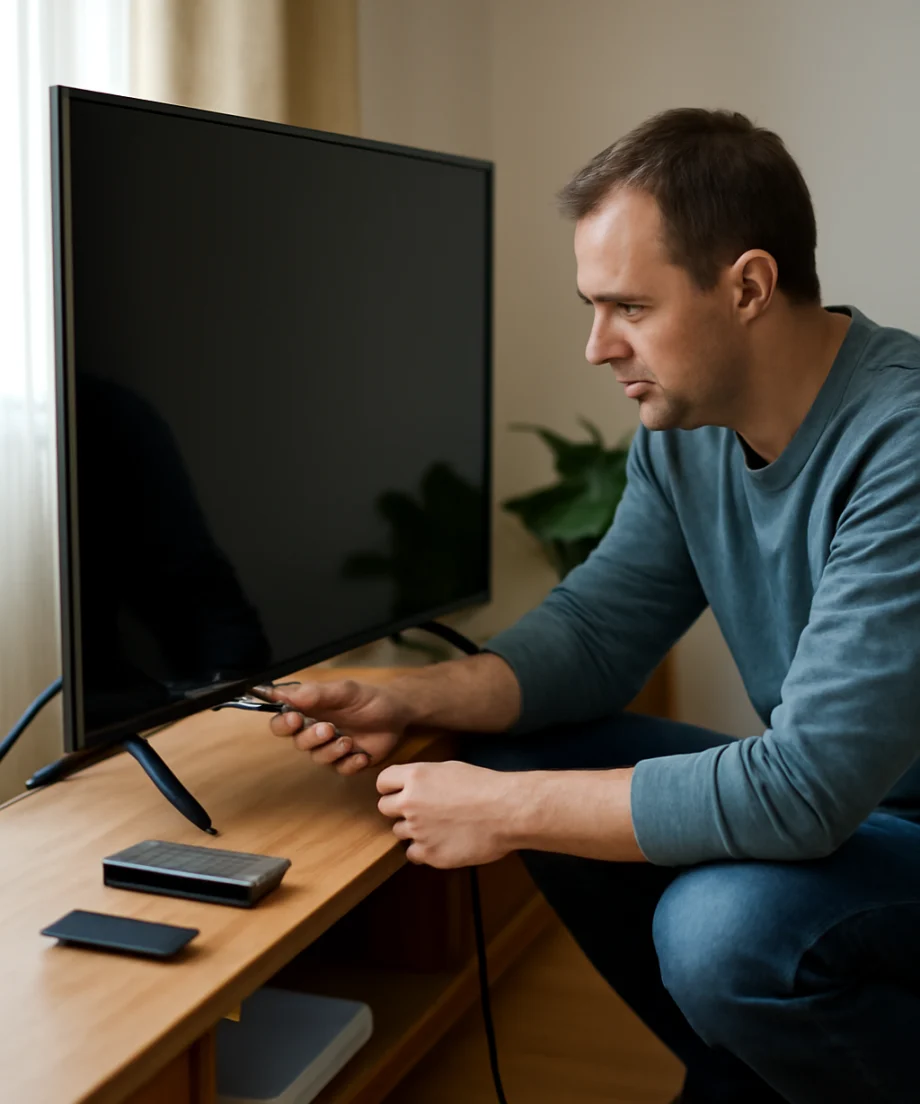
- Does the TV have no power, or does it power on with no picture?
- Is the problem limited to one HDMI device, one app, or one channel?
- Does the issue happen every time or only occasionally?
- Did it begin after moving the TV, changing a cable, updating an app, or changing network equipment?
- Can you control the TV with its physical button, a remote, or a mobile app?
Writing down what you see can prevent unnecessary trial and error. If the problem affects only one external device or streaming service, troubleshoot that device or service before considering a TV reset.
Check the power safely
If the TV appears completely dead, begin with the outlet and power connection. Make sure the TV’s power cord is firmly connected at both ends. If the cord is removable, check the connection at the back of the TV as well as at the wall.
Test the wall outlet with another small device, such as a lamp, if it is safe to do so. If the TV is connected through a surge protector, power strip, smart plug, or extension cord, temporarily connect it directly to a known-working wall outlet. This helps determine whether an accessory is preventing the TV from receiving power.
Do not use a damaged power cord, a loose outlet, or a cable showing exposed wire. If you smell burning, see smoke, hear repeated electrical popping, or notice unusual heat, unplug the TV if it is safe and arrange professional service. Do not open the television or attempt an internal repair.
Perform a basic power cycle
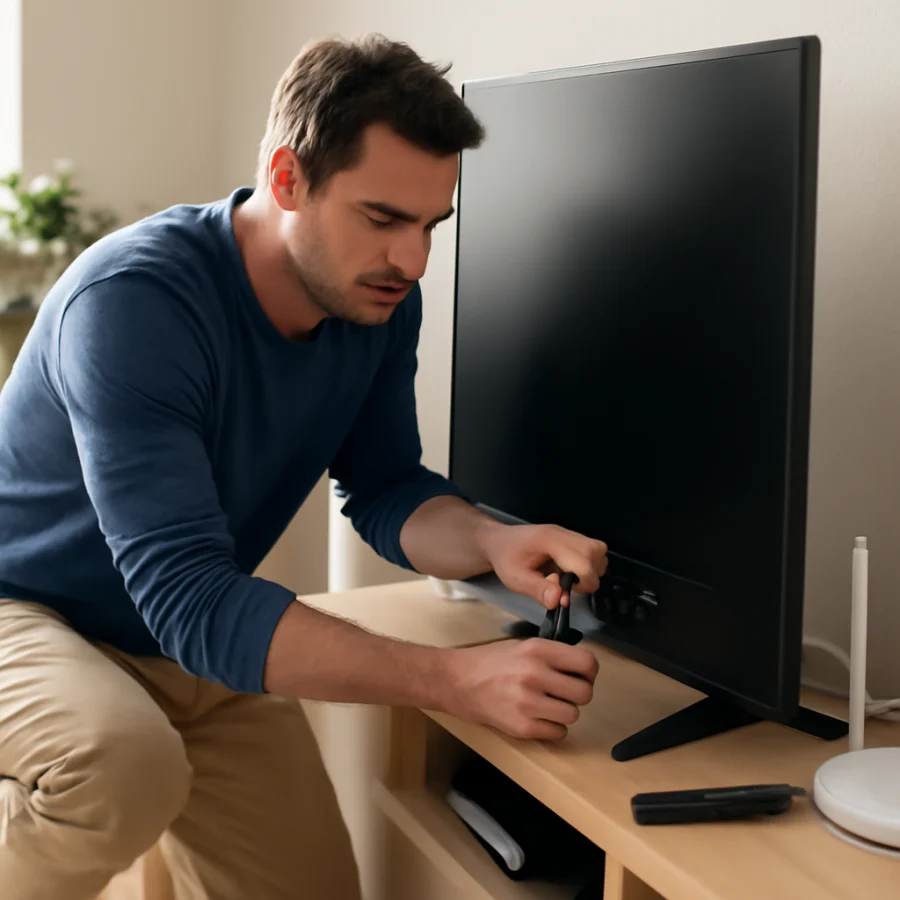
A power cycle is different from a factory reset. It normally does not erase accounts or settings. Turn the TV off, unplug it from the outlet, and wait about one minute. While it is unplugged, press and hold the TV’s physical power button for several seconds if your model has one. Then reconnect the TV and try turning it on with the physical button before using the remote.
This can clear a temporary software or standby problem. If the TV works again, continue using it normally and watch for a pattern. If it repeatedly freezes or shuts down, note when it happens before taking additional steps.
Rule out the remote and input source
A working TV can look unresponsive when the remote is not sending commands. Replace the batteries with a fresh pair and check that they are installed in the correct direction. Make sure no object is blocking the TV’s remote sensor. If the remote uses Bluetooth or another wireless connection, it may need to be paired again after a battery change or power interruption.
Try the TV’s physical controls. If those buttons work but the remote does not, the TV may not need a reset at all. For more remote-specific checks, see the Remote Controls section.
If the TV turns on but displays “No signal” or a blank screen, press the input or source control and select the port connected to your device. Check the cable at both ends, then try another HDMI port or a different known-working cable if available. Turn the connected device off and back on after changing the connection.
Disconnecting every HDMI device temporarily can also help. If the TV’s home screen appears normally with external devices removed, reconnect them one at a time to identify which device or cable is causing the issue.
Check picture and sound before changing settings
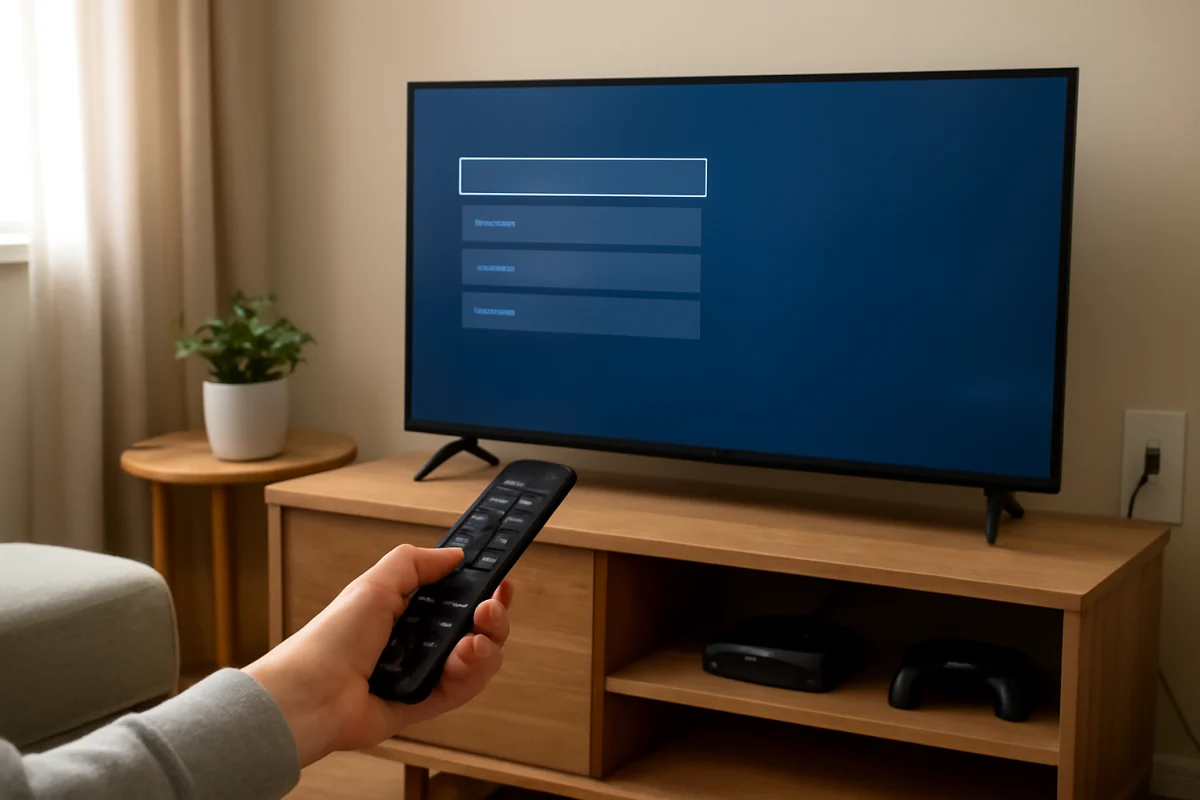
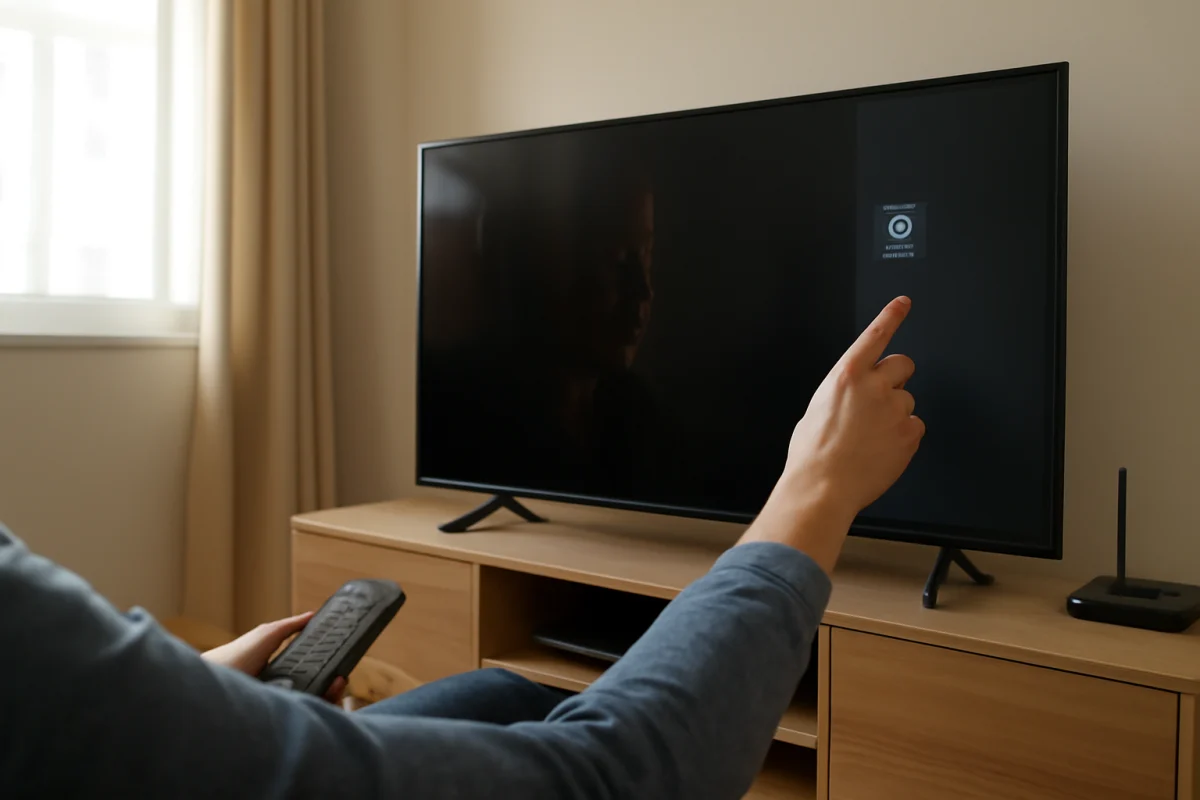
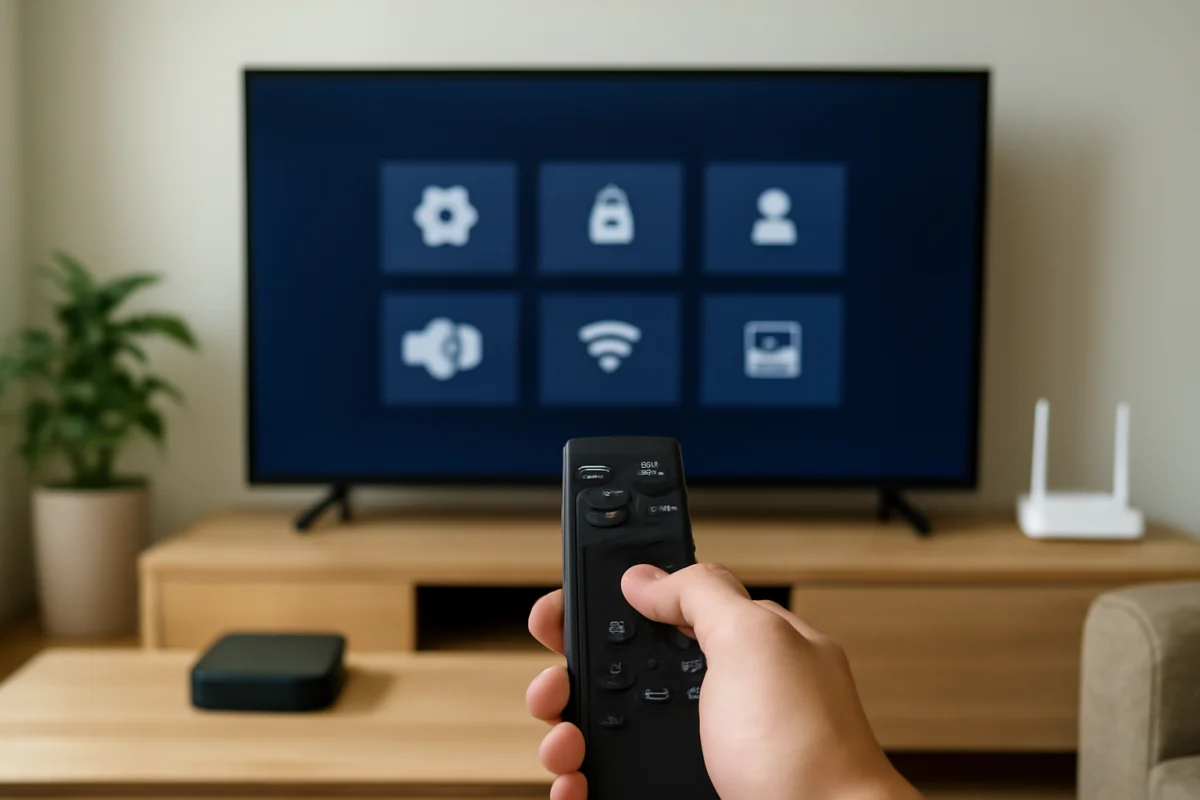
When the picture is dark, distorted, or missing, open the TV’s built-in home screen or settings screen. If the menu looks normal, the TV panel may be working and the problem may be limited to an input, broadcast signal, or app.
Check whether the issue affects all sources or only one. For example, compare a built-in app with an HDMI device. Also confirm that the brightness, picture mode, volume, mute setting, and audio output have not changed. Some TVs have separate picture and sound settings for each input, so a change may not affect every source.
If the screen is black but you can hear sound, shine a flashlight at the screen only as a brief diagnostic check and do not press against the panel. A faint image may suggest a display or backlight problem that a reset is unlikely to repair. Stop using the TV and seek qualified service if the screen is cracked, the image has physical damage, or the set shows signs of electrical failure.
For additional display and audio troubleshooting, visit the Picture & Sound section.
Test the network and streaming apps
If the TV works except for streaming, do not immediately reset the entire device. First check whether other apps load. If every online app fails, the issue may involve Wi-Fi, the router, the internet connection, or a temporary service problem.
Move the router and TV closer together if possible, or remove obstacles that may weaken the wireless signal. Restart the router by following the instructions from your internet provider or router manufacturer. After the connection returns, restart the TV and test again.
If only one app fails, close and reopen it, check for an available app update, and sign out and back in if the app provides that option. Confirm that the account works on another device before changing the TV’s system settings. App availability and troubleshooting options vary by service and TV platform.
For a broader connection checklist, use the Wi-Fi & Network troubleshooting guide. Avoid repeatedly entering passwords or changing advanced router settings unless you know which setting you are testing.
Look for simple software fixes
Temporary freezes and menu problems can sometimes clear after a normal restart. If the TV remains usable, check for system or app updates through its standard settings. The wording and location of update controls differ by manufacturer, and some models update automatically.
Do not unplug the TV or disconnect its network while a software update is actively installing. If the TV is stuck during an update, wait longer than you normally would and consult the model’s official support instructions before interrupting power.
Also check the date and time settings if apps will not sign in, content will not load, or secure connections fail. Automatic time settings are usually preferable, but the available choices depend on the TV and network.
When a factory reset may be appropriate
A factory reset is more reasonable when the TV has persistent software problems after power cycling, the menus are badly corrupted, you are giving the TV to someone else, or you need to remove all personal accounts and network information. It can also help after extensive configuration changes make the original behavior difficult to diagnose, although it is not guaranteed to fix hardware or service problems.
Before resetting, record or photograph important settings. Make sure you know the email addresses and passwords needed to sign back into streaming services. Write down your Wi-Fi password, note any custom picture or audio adjustments, and identify the remote or pairing steps you may need afterward.
Check whether the TV offers more than one reset option. Some models separate a reset of picture or sound settings from a full factory reset. Choose the narrowest option that addresses the problem. If the names are unclear, consult the TV’s manual or manufacturer support page rather than guessing.
Do not reset when the evidence points elsewhere
A reset is unlikely to repair a broken HDMI cable, a failed external device, weak Wi-Fi coverage, a provider outage, a damaged panel, or an electrical fault. It may also make troubleshooting harder by deleting useful settings and account information. If the TV has physical damage, overheats, repeatedly loses power, or makes unusual electrical noises, focus on safety and qualified service instead.
Keep a short troubleshooting record
Before taking advanced action, note what you tested and what happened. Record whether the TV’s home screen works, which inputs fail, whether other apps connect, and whether the physical controls respond. This information can reveal a pattern and make manufacturer or technician support more efficient.
If the issue is brand-specific, browse the relevant guides on TV Fix Guide, including manufacturer and platform troubleshooting categories. The most useful next step is usually the one that tests the suspected cause without erasing unrelated settings. A careful power, connection, input, network, and app check can often resolve the problem—or show clearly when a reset is not the right repair.
Comments
0No comments yet. Be the first to share a helpful note or question.
Leave a Comment
Your email address will not be published. Comments are reviewed before appearing on the site.