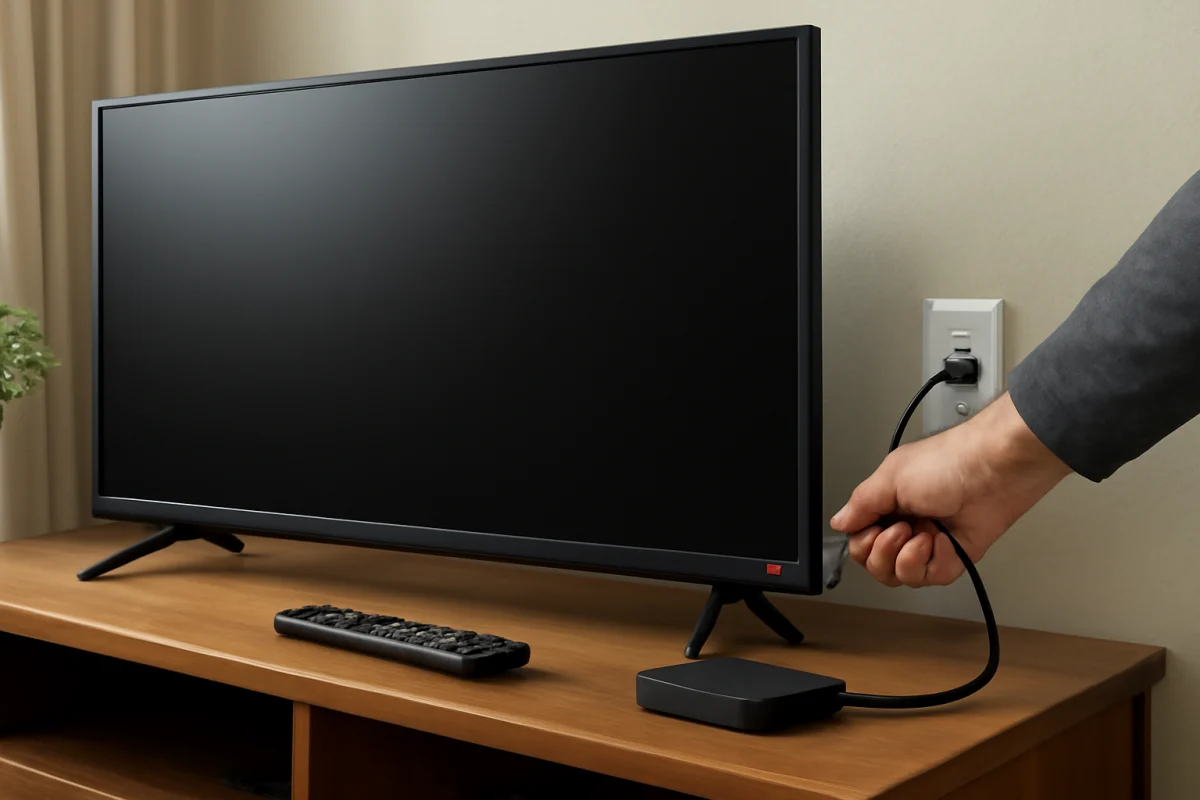
If your Vizio TV’s power light is on but the screen stays black, first try turning it on with the physical power button, then check the input, connected devices, and power connection. A lit indicator does not always mean the TV has completed its startup process. The light may show standby power, or the TV may be running with a display, backlight, remote, or software problem.
Work through the checks below in order. Most are low risk and do not erase settings. Stop if you notice a burning smell, smoke, unusual heat, a cracked panel, or repeated clicking from inside the TV. In those cases, unplug the TV and arrange professional service instead of opening the back cover.
1. Try the TV’s physical power button
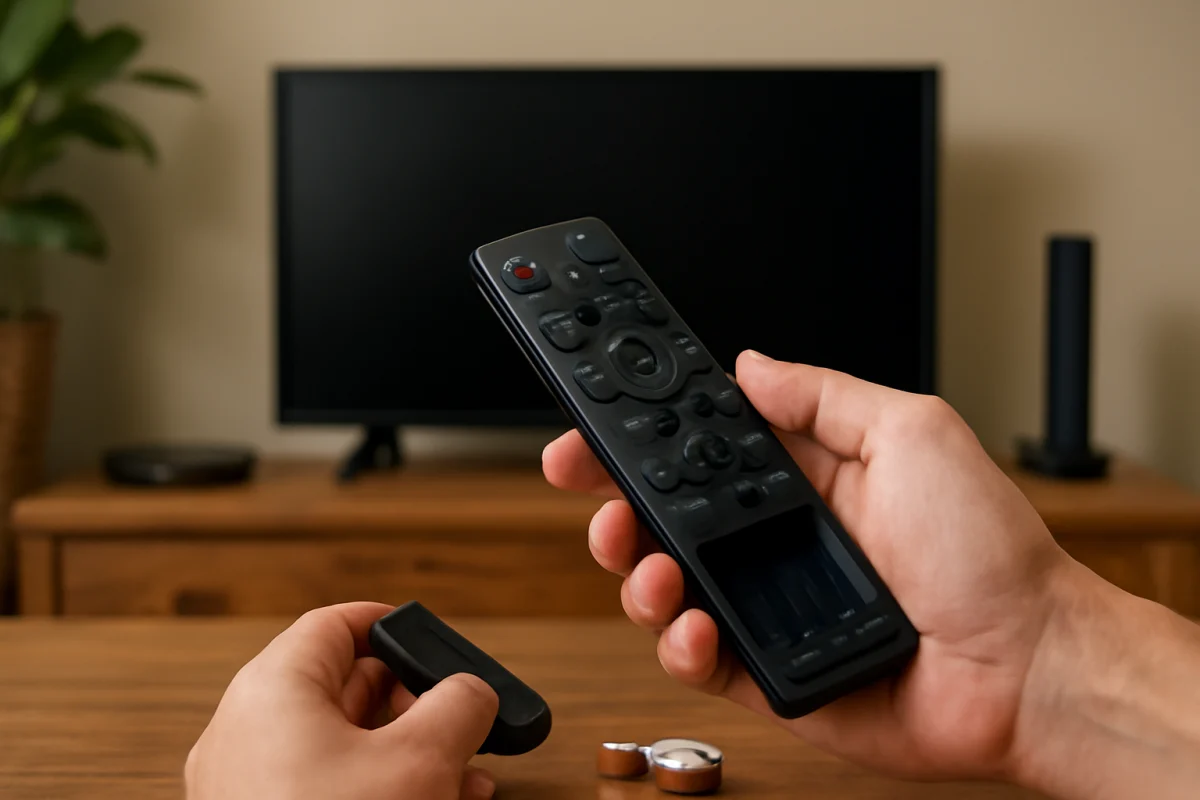
A remote control problem is one of the simplest explanations. Depending on the Vizio model, the physical button may be located underneath the TV, along the side, or on the back. Its location and button layout vary, so check the label on the set or the model’s documentation if necessary.
Press the TV’s power button once and wait several seconds. Do not repeatedly press it, because that can make it harder to tell whether the TV is responding. If the screen turns on with the physical button, replace the remote batteries and make sure nothing is blocking the remote sensor.
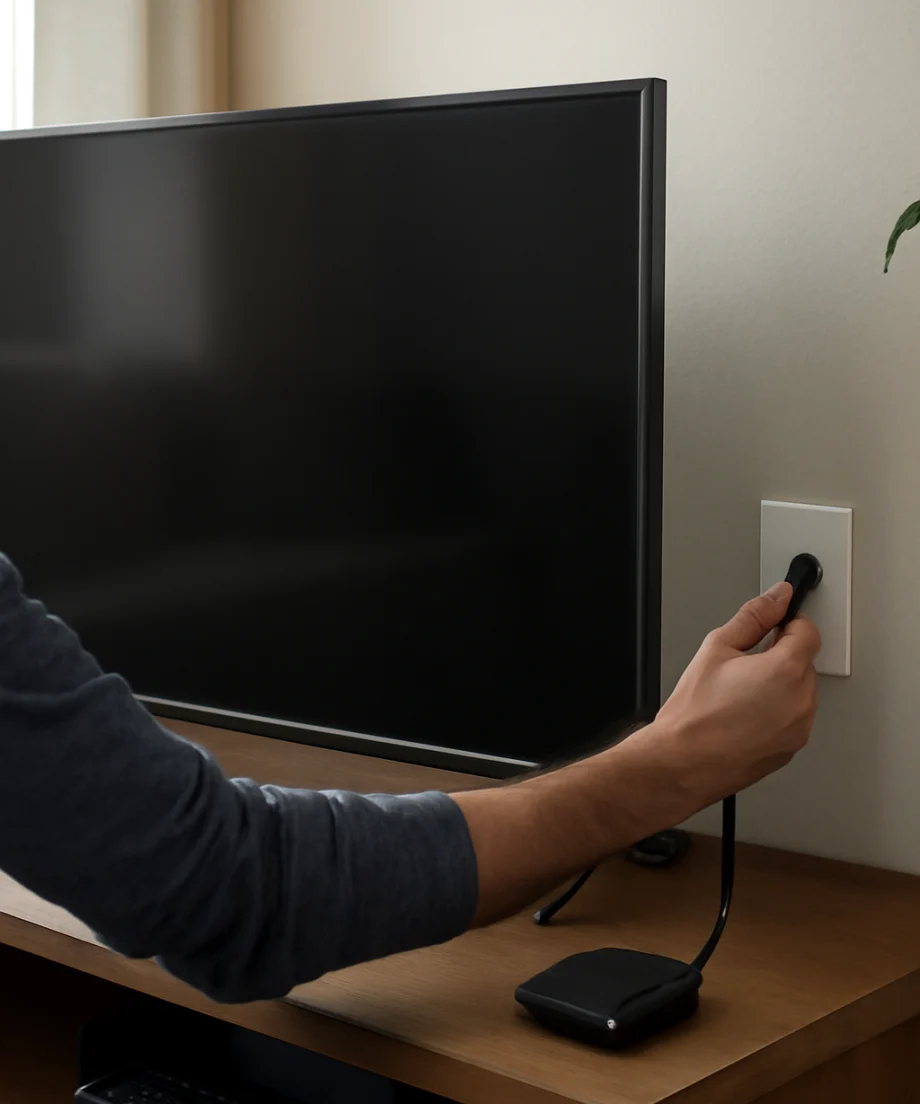
If the remote has a separate input or device-control mode, make sure it is set to control the TV. A streaming remote, cable remote, or universal remote may be sending commands to another device instead.
2. Check whether the TV is actually on
The indicator light may change behavior when the TV starts. On some models it may turn off, dim, or change color, while other models use different light patterns. Because this behavior varies by model, do not rely on the light alone.
Press a volume button on the remote or the TV. If you hear the volume indicator or sound from the speakers but see no picture, the TV may be operating normally except for the display. If there is no sound, no on-screen response, and no reaction to the physical button, continue with the power reset steps below.
3. Perform a basic power reset
A power reset can clear a temporary startup failure without removing your picture settings, apps, or account information.
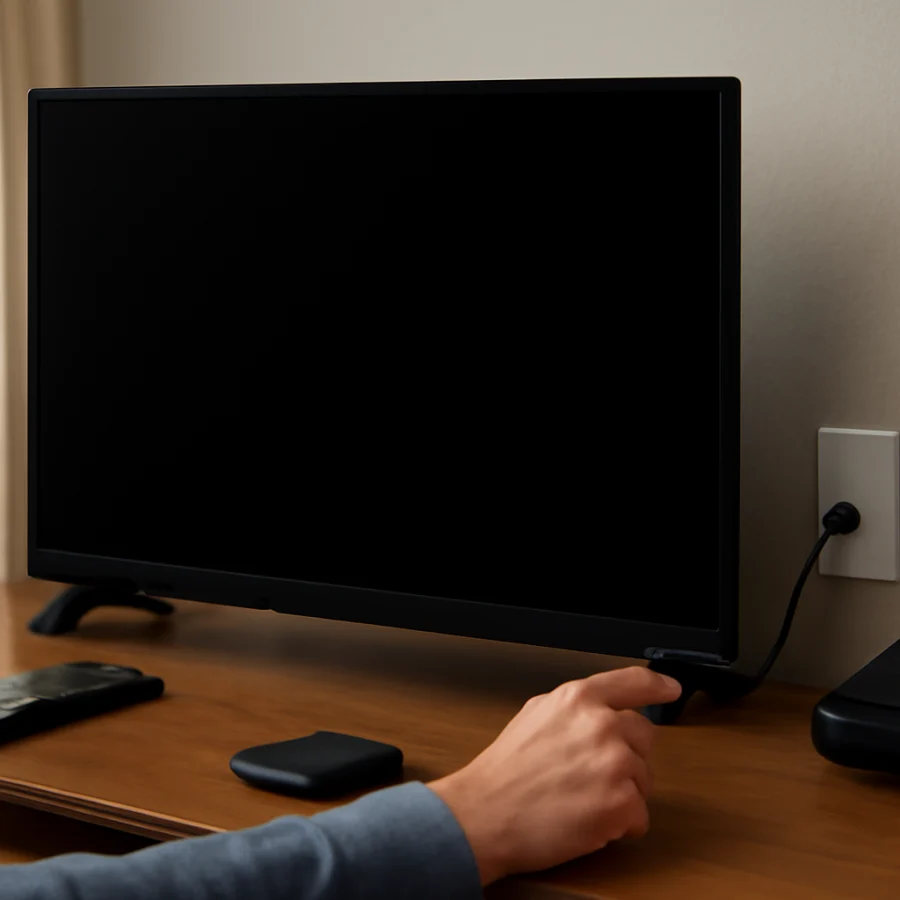
- Turn the TV off if it responds. If it does not respond, continue anyway.
- Unplug the TV’s power cord from the wall outlet.
- Leave it unplugged for at least 60 seconds.
- While it is unplugged, press and hold the TV’s physical power button for about 15 seconds if your model has one.
- Plug the TV directly into a known-working wall outlet.
- Wait a few seconds, then try the physical power button.
For this test, bypass a power strip, surge protector, extension cord, or smart outlet. These accessories can fail or switch off even when other equipment connected to them appears normal. If the TV starts when connected directly to the wall, test or replace the accessory before using it again.
4. Test the wall outlet and power connection
Plug a lamp or another small device into the same outlet to check whether it supplies power. If the outlet is controlled by a wall switch, make sure the switch is on. Also check your home’s electrical panel if the outlet is not working.
Inspect the TV’s power cord for cuts, crushed sections, bent contacts, or looseness. If the cord is removable, disconnect and reconnect it firmly at both ends. Some Vizio models use a detachable cord, while others have a cord permanently attached to the TV. Never force a connector, and do not use a damaged cord.
If the power light is on but the TV still will not start after a direct wall-outlet test and power reset, the problem may involve the TV’s internal power system, main board, display system, or software. The next checks can help narrow down the symptom without opening the television.
5. Disconnect external devices
A connected HDMI device can sometimes interfere with startup or send unexpected power commands through HDMI control features. Unplug every external device from the TV, including a cable box, game console, Blu-ray player, soundbar, streaming stick, antenna accessory, and USB drive.
Leave only the TV’s power cord connected. Then perform the power reset once more and turn the TV on with the physical button. If the picture returns, reconnect devices one at a time. Wait for the TV to finish starting after each connection so you can identify the device or cable associated with the problem.
If the TV works only after a particular HDMI device is disconnected, try a different HDMI cable or port. The exact names and behavior of HDMI control settings vary by model, so use the on-screen settings only after you can reliably see the picture.
6. Confirm that the TV is not on the wrong input
If the TV powers on but displays a blank screen, it may be set to an input with no active signal. Press the Input or Source button and select the port connected to your working device. If no device is connected, look for the TV’s built-in home screen or live-TV source instead.
When the screen says “No Signal,” the TV is usually running and the issue is with the selected input, external device, cable, or signal. A completely black screen with no message can point to a display or backlight issue, although it can also result from a frozen startup process.
For related advice about connected equipment and networked streaming devices, you can browse TV Fix Guide’s Vizio TV troubleshooting section.
7. Use the flashlight test for a black screen
If you hear sound or see signs that the TV is operating but the panel remains black, use a flashlight to check for a very faint image. Dim the room, turn the TV on, and shine the flashlight at an angle across the screen. Look closely for a menu, logo, or moving picture.
If a faint image is visible, the TV may have a failed or weak backlight. This is not something you should repair by removing the back panel unless you have appropriate electronics training. Television panels and power circuits can contain hazardous voltages even after the set is unplugged. Professional diagnosis is the safer option.
If the flashlight reveals no image and there is no sound, the issue could be related to the main board, power board, panel, software, or another internal component. The test cannot identify the failed part by itself; it only helps separate some backlight symptoms from other black-screen problems.
8. Check for a frozen startup screen
Watch the screen carefully after pressing power. A Vizio logo that remains on screen, a screen that flashes briefly, or a TV that repeatedly restarts can indicate a startup or software problem. Disconnecting external devices and completing a power reset should come before any reset that erases settings.
If you can access the menus, check whether a software update is available through the TV’s normal settings. Menu names and update options vary by model and software version. Do not unplug the TV during an update, and do not attempt firmware procedures intended for a different model.
If the TV cannot stay on long enough to display its menus, avoid downloading random firmware files or following instructions for another Vizio model. An incorrect update can create additional problems. Record the model number from the label on the back of the TV and use model-specific support documentation instead.
9. Consider a factory reset only when the menus work
A factory reset may help when the TV turns on but remains frozen, behaves incorrectly after a software problem, or repeatedly fails to complete startup. However, it removes saved settings and may sign you out of apps. It can also require you to repeat the initial setup.
Use the reset option only when you can see and navigate the TV’s menus, and follow the instructions shown for your exact model. Vizio menu paths and wording can change between models, so do not assume that instructions for one television apply to another. If the screen is completely black or the TV will not respond, a factory reset is unlikely to fix a failed backlight or internal hardware component.
What the power light can tell you
A steady light may simply mean that standby power is available. A light that changes when you press power suggests that the TV is receiving a command, but it does not prove that the panel or backlight is working. A flashing light may indicate a startup attempt or another model-specific condition, but the meaning is not universal across Vizio televisions.
Note exactly what happens: whether the light changes, whether you hear sound, whether the logo appears, whether the screen flashes, and whether the TV responds to its physical button. These details are more useful to a repair technician than simply reporting that the light is on.
When professional repair is the right next step
Contact a qualified TV repair professional when the TV remains unresponsive after a direct-outlet test, a power reset, and removal of external devices. Professional help is also appropriate if the flashlight test suggests a backlight problem, the TV repeatedly clicks or restarts, the screen shows lines or physical damage, or the set has an odor or signs of overheating.
Do not open the TV to test internal boards unless you are trained to work safely with high-voltage electronics. The model number, purchase date, visible symptoms, and results of the checks above can help determine whether repair or replacement makes sense. If the problem began after a storm, power surge, liquid spill, or impact, mention that when requesting service.
In most cases, start with the physical power button, a complete power reset, a direct wall outlet, and a test with all HDMI and USB devices disconnected. Those steps are quick, reversible, and often reveal whether the problem is the remote, the power path, an external device, or the TV itself.
Comments
0No comments yet. Be the first to share a helpful note or question.
Leave a Comment
Your email address will not be published. Comments are reviewed before appearing on the site.