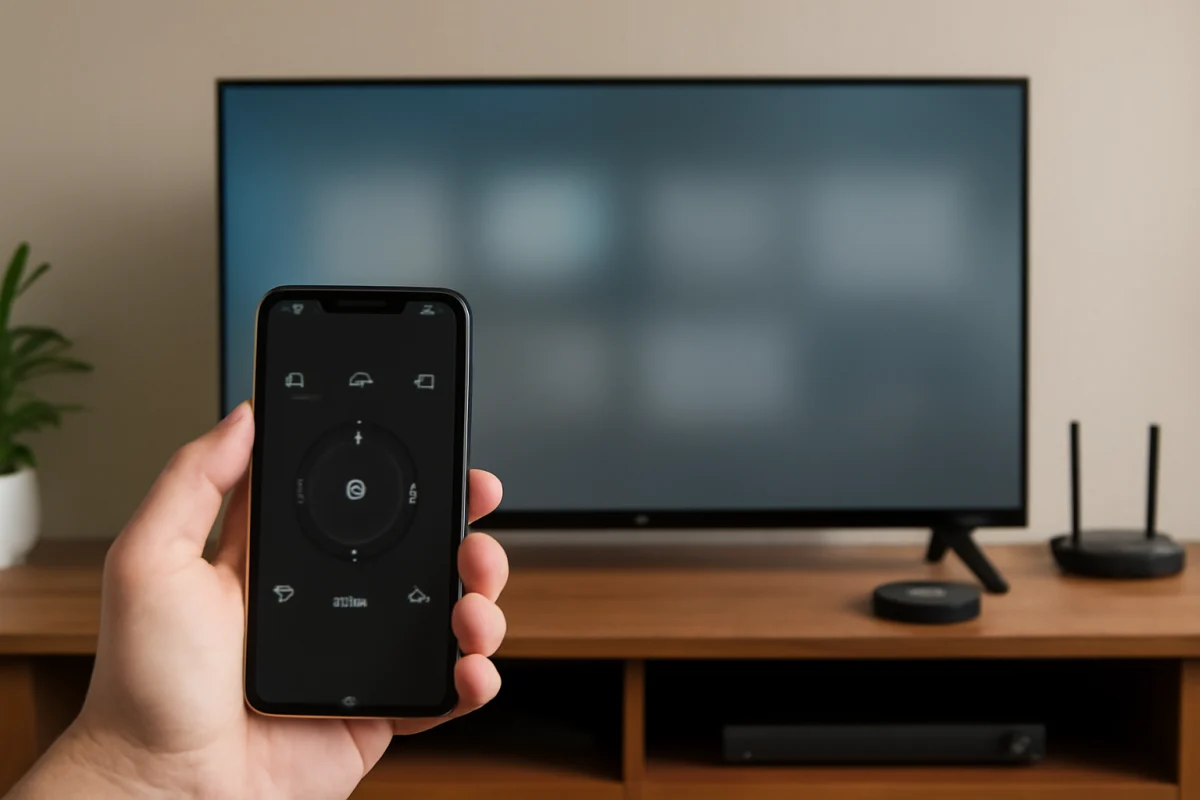
You can use the Vizio mobile app as a TV remote when your phone and Vizio TV are connected to the same Wi-Fi network. After pairing, the app can usually handle everyday controls such as power, volume, input selection, navigation, playback, and app launching. The exact screens and available features depend on your Vizio TV model, software, phone, and app version.
Before trying advanced troubleshooting, confirm that the TV is powered on, your phone is connected to your home network, and the app has permission to discover nearby devices. If the television does not appear, start with the simple connection checks below instead of resetting the TV.
What You Need Before Using the App
The Vizio app does not communicate with every TV in the same way as an infrared universal remote. In most cases, it finds the television over your local network. That means the phone and TV must be able to see each other on the same home network.
- A compatible Vizio smart TV
- The official Vizio mobile app installed on an Android phone or iPhone
- A working Wi-Fi network
- Your phone connected to the same home network as the TV
- The television turned on or available to receive a network connection
App names, pairing instructions, and supported features can change over time. Depending on your TV generation, you may see references to Vizio Mobile, SmartCast, or a similar Vizio app experience. Use the official app listed for your device rather than an unrelated third-party remote app.
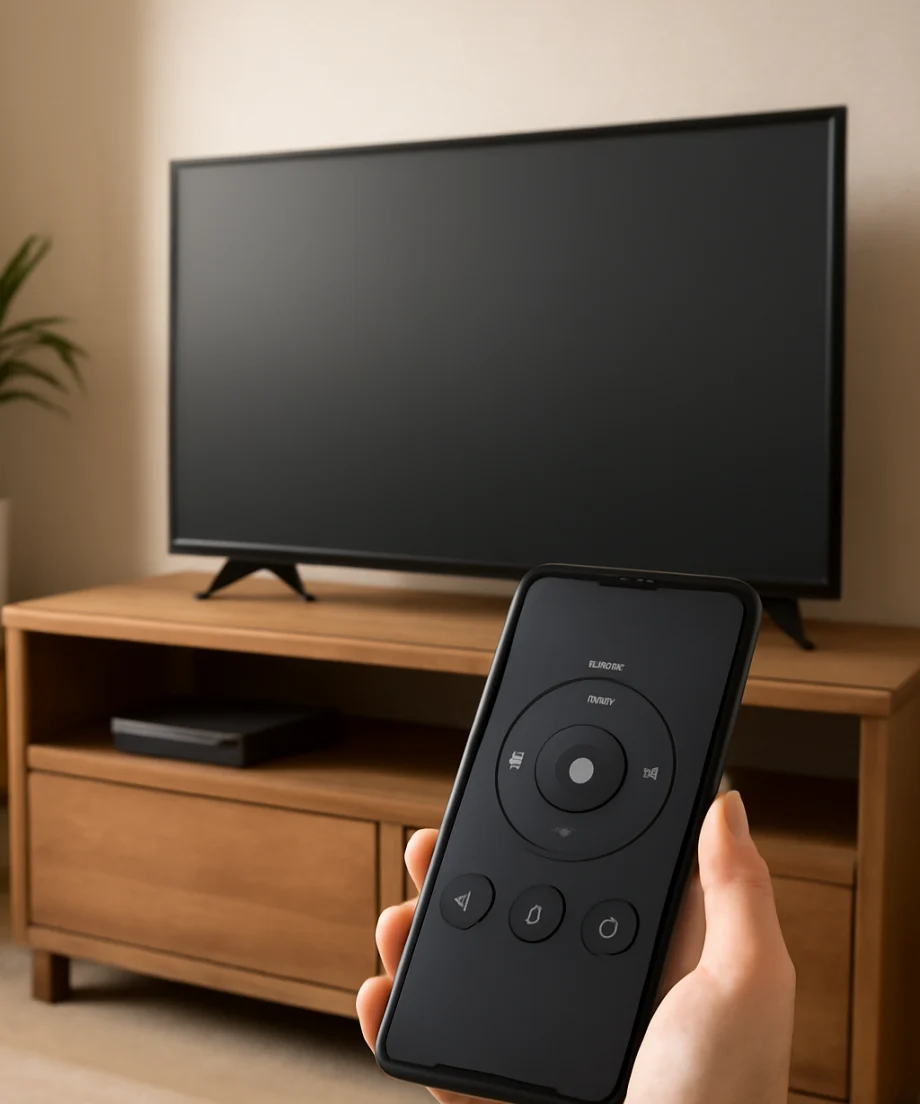
How to Set Up the Vizio App as a Remote
1. Install the official Vizio app
Open the Apple App Store or Google Play Store and search for the official Vizio mobile app. Check the developer name and app details before installing it. If you already have an older Vizio app, update it first so the menus and device discovery process are as current as possible.
Open the app and allow the permissions it needs to find devices on your local network. On an iPhone, local network access is especially important. If this permission was denied during setup, the app may open normally but fail to display your TV.
2. Connect your phone to the correct Wi-Fi network
On your phone, open Wi-Fi settings and confirm the connected network name. It should be the same network used by the Vizio TV. Be careful if your router broadcasts separate network names for regular Wi-Fi and a guest network. A phone on guest Wi-Fi may be blocked from communicating with devices on the main network.
If your router combines multiple wireless bands under one network name, you normally do not need to select a band manually. However, some older TVs may work more reliably when the phone and television are connected through the same access point. If the TV is connected by Ethernet, the app may still work as long as the wired and wireless devices are on the same local network and the router allows device discovery.
3. Add or select the TV
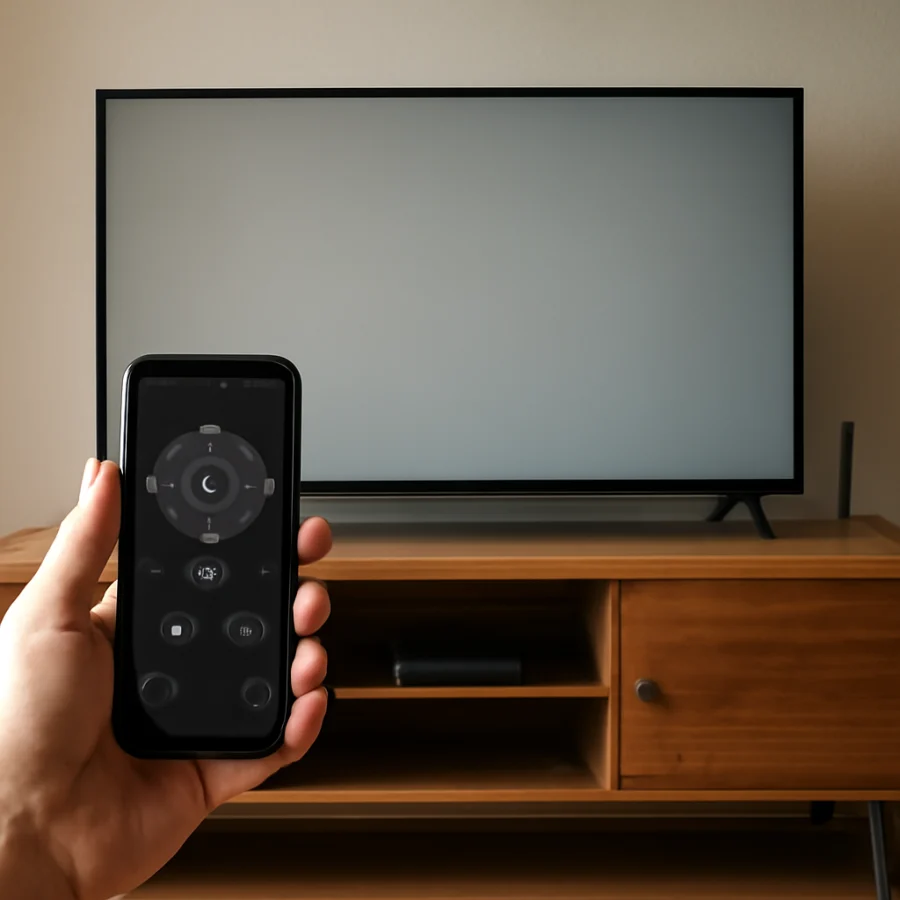
In the Vizio app, look for an option to add a device, choose a TV, or scan for nearby devices. The wording may vary by app version. Wait while the app searches, then select your television from the list.
The app may display a pairing code on the TV screen or ask you to confirm a code shown on both devices. Enter or approve the code as requested. If more than one Vizio TV is nearby, compare the device names carefully so you do not connect to the wrong television.
4. Test the basic remote controls
Once pairing is complete, test the controls one at a time. Try volume up, volume down, mute, navigation, and the back or home control. Then test input selection or app launching if those options are available.
Do not assume the app has replaced every button on the original remote. Some model-specific buttons may be missing, moved to another screen, or available only after opening a remote-control panel. If a feature is not shown, check the app's device screen rather than repeatedly tapping a different control.
What You Can Usually Do With the App
The mobile remote is designed for common TV tasks, but the exact feature list varies. Depending on the TV and app, you may be able to:
- Turn the TV on or off
- Raise, lower, or mute the volume
- Navigate menus with an on-screen directional pad
- Open the home screen
- Change inputs
- Launch supported streaming apps
- Pause, resume, or control playback
- Use the phone keyboard when entering search terms
- Adjust certain TV settings
Some controls may work only after the TV has fully connected to the network. A television that is completely powered off may not respond immediately, especially if its network standby behavior differs from another Vizio model. If the app controls the TV after it is on but cannot wake it, use the physical button on the television or the original remote to power it on.
If the TV Does Not Appear in the App
When the app cannot find your TV, work through these checks in order.
Confirm the TV is on and responsive
Press the physical power button on the TV or use the original remote if available. Wait for the home screen to load. If the TV is frozen, unplug it from power, wait briefly, and reconnect it. This is a low-risk restart and is different from a factory reset because it does not erase your settings or accounts.
Check Wi-Fi on both devices
Verify the phone's Wi-Fi connection again, then open the TV's network settings using its physical controls or another remote. The menu wording varies by model, so look for the section related to network or internet connection. If the TV is offline, reconnect it to your home Wi-Fi before trying the app again.
If other devices are also having trouble, restart the router. Give the router time to restore internet and local network connections before opening the Vizio app. For more network troubleshooting, see our guide to Wi-Fi and network problems.
Turn off cellular data temporarily
As a quick test, temporarily turn off mobile data on your phone and leave Wi-Fi enabled. This does not fix a network discovery problem by itself, but it can prevent the phone from switching between connections while you are pairing the TV.
Disable VPN or security filtering temporarily
A VPN, private relay feature, or network security app can interfere with local-device discovery. Temporarily disable it, if you use one, and try scanning again. Re-enable the service after testing. If the app works only when the VPN is disabled, review that service's local-network settings rather than leaving protection turned off permanently.
Check local network permission
On your phone, open the app permissions or privacy settings and make sure the Vizio app is allowed to access the local network. The location of this setting differs between Android and iPhone versions. You may need to close and reopen the app after changing the permission.
If the App Finds the TV but the Controls Do Not Work
First, close the app completely and open it again. Select the TV from the device list and test a basic control such as volume. If that fails, restart the TV and phone, then pair them again.
Also check whether the phone has moved to a different network. Mesh systems, Wi-Fi extenders, and guest networks can sometimes place devices on separate local segments even when the network names look similar. Move the phone closer to the main router for testing and avoid switching networks while the app is connected.
If the TV responds slowly, wait several seconds between commands. Repeatedly tapping buttons can send a group of delayed commands after the connection recovers, making the TV appear more unpredictable. Close other apps that are using the phone's network connection if the phone itself is experiencing delays.
When the App Will Not Turn the TV On
Power control is often the first feature to fail when the TV is not fully available on the network. Turn the television on with its physical button, then wait until the picture and home screen are ready. Open the Vizio app again and test volume or navigation.
If the app works only after the TV is manually turned on, the issue may relate to the television's standby or network behavior. The relevant option and its location vary by model, so do not change a power or network setting unless you understand what it controls. You can continue using the app after manually powering on the TV, or use the original remote for power.
When the App Keeps Disconnecting
Intermittent disconnections usually point to the local network, a weak Wi-Fi signal, or an app session that needs to be refreshed. Try the following:
- Move the phone closer to the router or access point.
- Restart the phone and TV.
- Restart the router if other devices also lose connection.
- Update the Vizio app through the appropriate app store.
- Check whether the phone or TV is connected to a guest network.
- Remove the TV from the app and add it again if the pairing record appears corrupted.
Do not jump directly to a factory reset. A reset can remove saved network details, app sign-ins, picture settings, and other preferences, and it may not solve a router discovery problem.
Using the App Without the Original Remote
If the original remote is lost, the app can be useful for reconnecting the TV to Wi-Fi or opening settings, but it may not help if the TV is completely offline. In that situation, use the physical buttons on the television to power it on and access whatever controls are available. You may also need a compatible replacement remote to complete network setup.
For general replacement and pairing advice, visit our remote control troubleshooting section. Avoid assuming that every Vizio remote works with every Vizio TV; compatibility depends on the model and the functions you need.
When to Consider a Reset
Consider a reset only after confirming that the app is current, the phone and TV are on the same network, local-network permission is enabled, and a power restart has not helped. If the TV can still be controlled with its physical buttons or another remote, review the on-screen reset options carefully before proceeding.
The reset process and menu names vary by Vizio model. A factory reset normally removes personal settings and network information, so write down any important picture or audio adjustments first. If the TV cannot connect to Wi-Fi at all, or if it restarts repeatedly, troubleshoot the television and network separately before treating the mobile app as the cause.
Bottom Line
The Vizio mobile app can replace many everyday remote functions, but it depends on local network communication. Pair the phone and TV on the same non-guest Wi-Fi network, grant the app local-device access, and test the basic controls before changing advanced settings. If the TV is offline or cannot stay connected, the app may not be able to fix the underlying problem on its own. In that case, restore the TV's network connection first, then pair the app again.
Comments
0No comments yet. Be the first to share a helpful note or question.
Leave a Comment
Your email address will not be published. Comments are reviewed before appearing on the site.