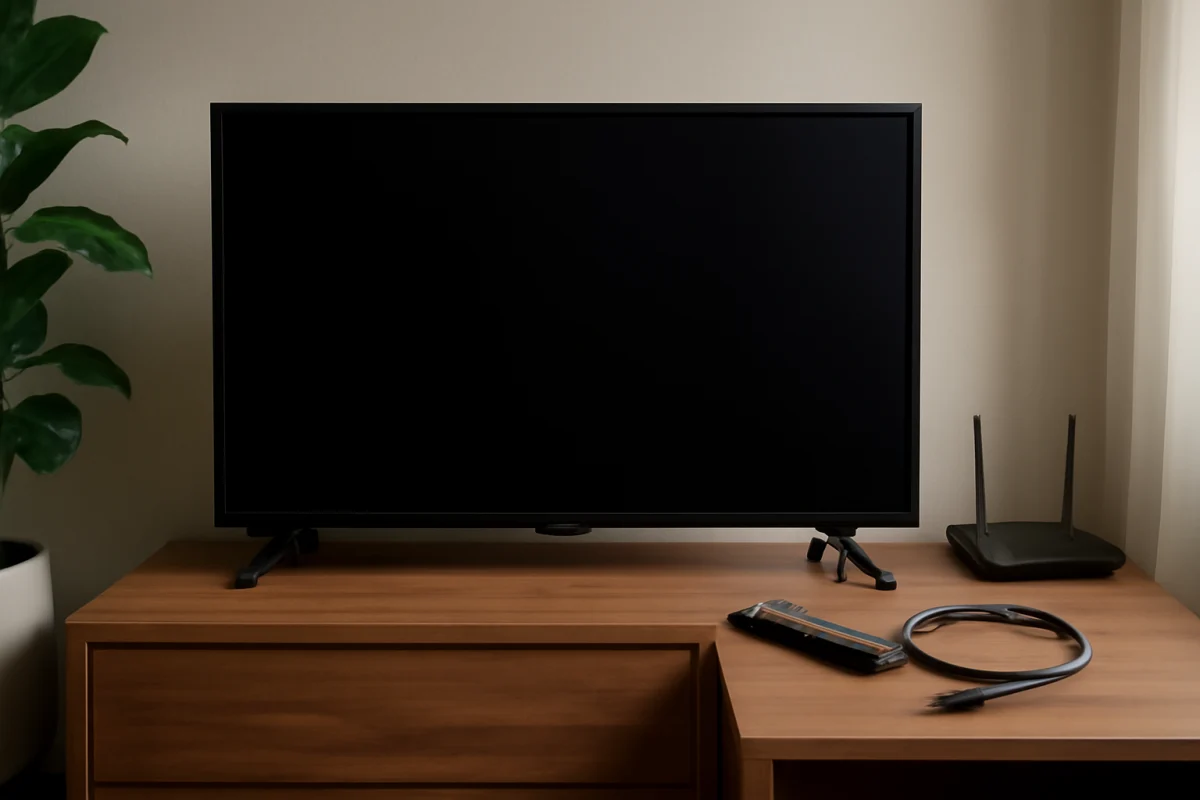
If your Vizio TV power light blinks but the screen never starts, begin with a full power reset, a different wall outlet, and a test of the TV’s physical controls. These steps are low risk and can clear a temporary startup problem without changing your settings.
If the indicator keeps blinking and the TV never shows a logo, menu, or picture, the problem may involve the remote, input device, power delivery, backlight, or an internal component. The exact meaning of the blinking light can vary by model, so do not treat the blink pattern as a universal error code.
1. Perform a complete power reset
A power reset is the best first step because it removes temporary electrical states that can prevent the TV from starting normally.
- Turn off the Vizio TV if it responds to the remote or its physical button.
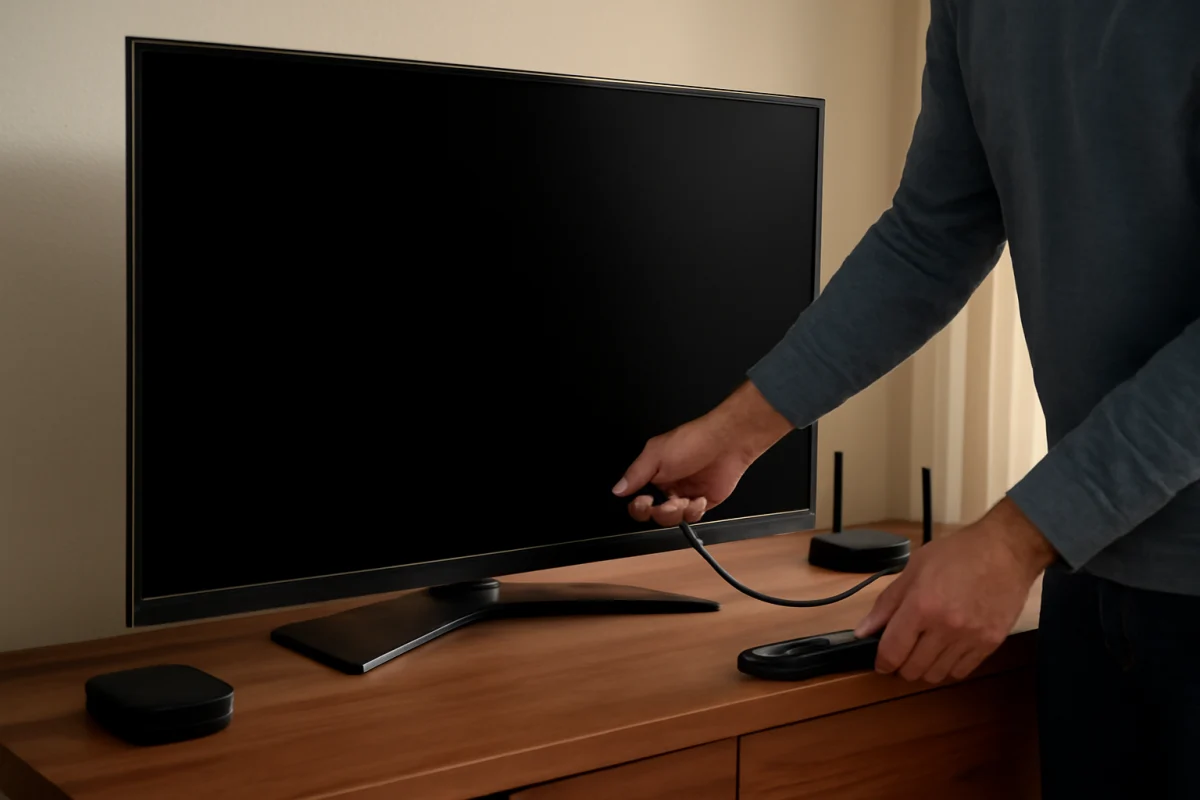
- Unplug the TV’s power cord from the wall outlet.
- Disconnect external devices such as a streaming stick, game console, cable box, soundbar, and USB drive.
- Leave the TV unplugged for at least one minute.
- While it is unplugged, press and hold the TV’s physical power button for about 15 to 30 seconds. The button location varies by model.
- Plug the TV directly into a known-good wall outlet, then try turning it on.
Avoid using a power strip, surge protector, or extension cord during this test. Those accessories are not always the cause, but testing the television directly helps eliminate another possible point of failure.
2. Check the outlet and power cord
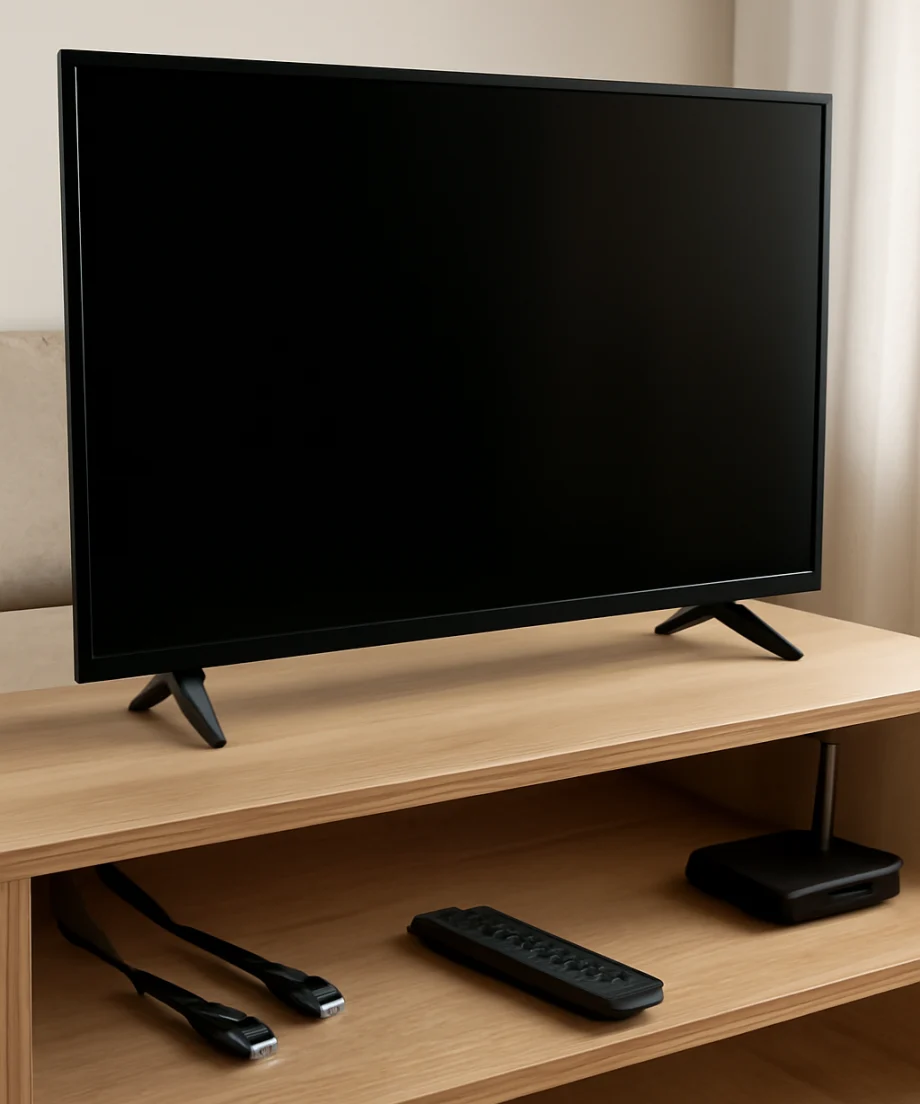
A blinking indicator does not always mean the TV is receiving stable power. The outlet may be loose, switched off, overloaded, or unable to deliver power consistently.
Test the outlet with a lamp or another small appliance. If the other device does not work, try a different outlet in another part of the room. Make sure the TV’s power cord is firmly connected at both ends if your model has a detachable cord.
Inspect the cord for cuts, crushed sections, exposed wire, melted plastic, or bent connectors. Do not continue using a visibly damaged cord. Never open the TV or attempt to repair the power supply yourself; televisions can retain dangerous electrical charges even after they are unplugged.
3. Remove external devices and check the startup screen
A connected device can sometimes interfere with startup, send an unexpected signal, or create the impression that the TV is not working. Disconnect every HDMI device, USB device, antenna cable, Ethernet cable, and audio connection.
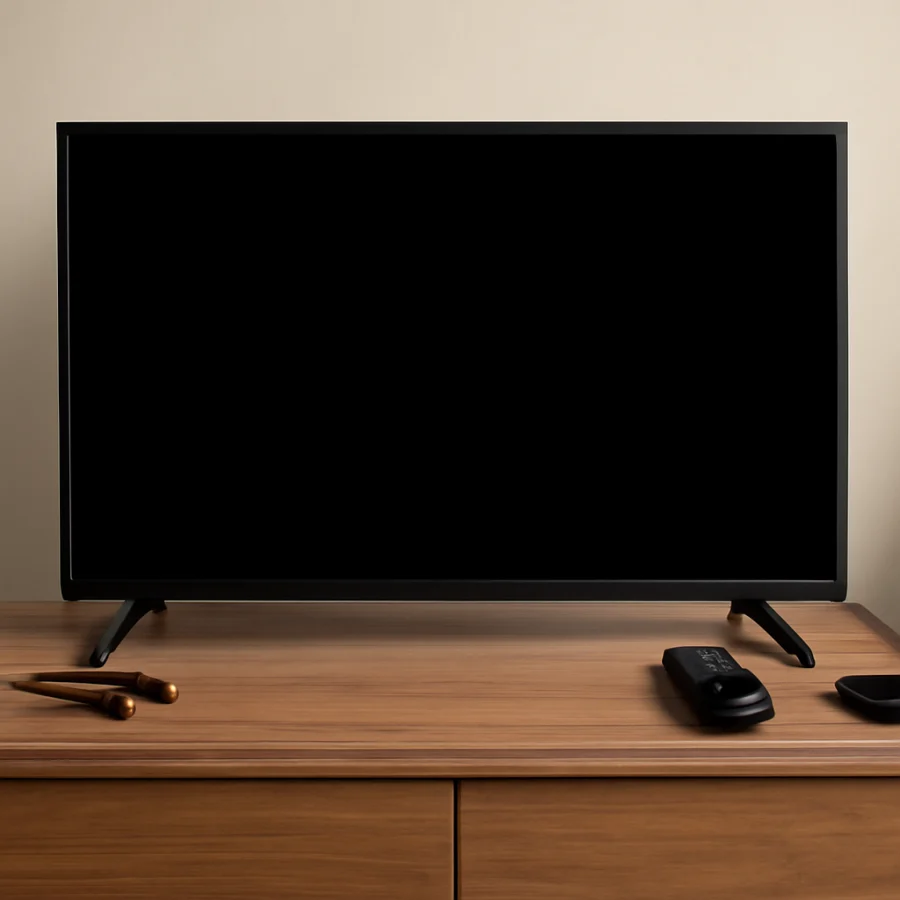
With only the power cord connected, turn on the TV and wait several minutes. Look for any of the following:
- A Vizio logo or startup screen
- A menu or input message
- A faint glow from the panel
- A change in the power light
- Sound from the TV even though the picture is missing
If the TV starts after the external devices are removed, reconnect them one at a time. The device or cable connected immediately before the problem returns is a likely suspect. Try a different HDMI cable and another HDMI port before replacing the device.
4. Test the TV without the remote
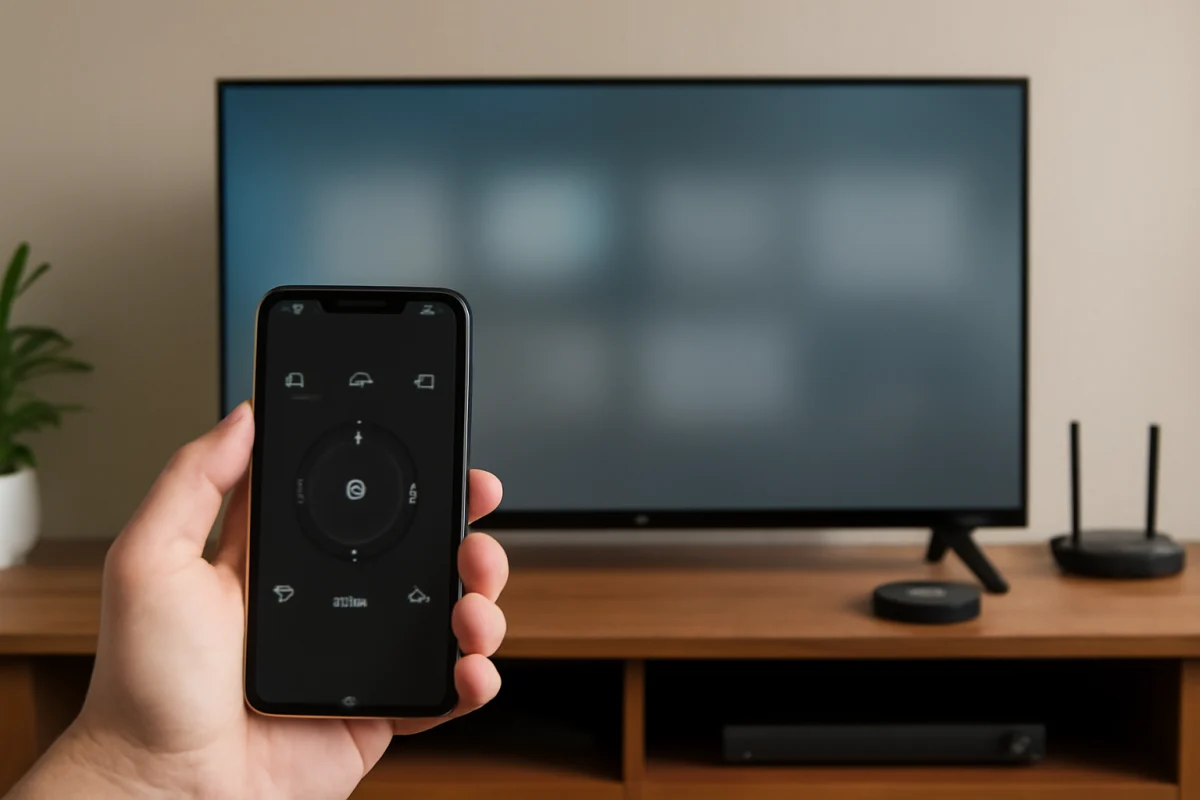
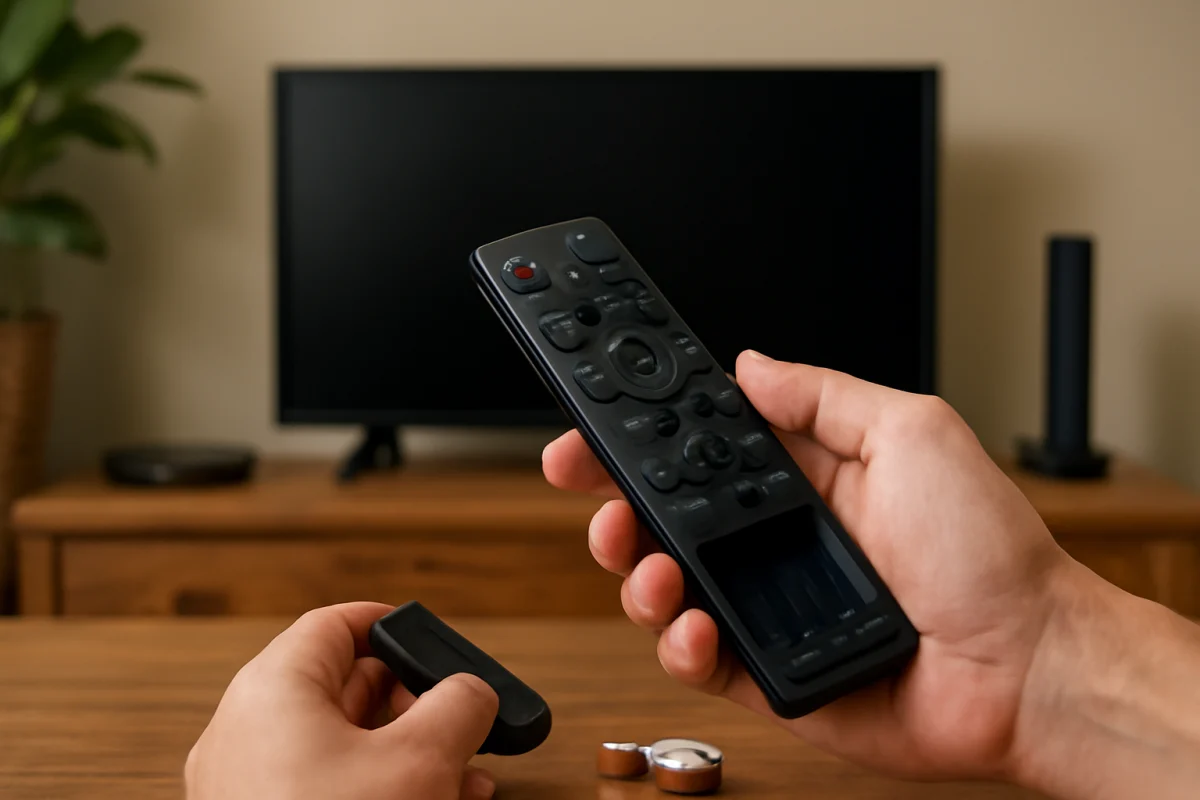
A failed remote, stuck button, or weak batteries can make the TV appear unresponsive. Replace the remote batteries with a fresh pair and check that no button is stuck. If the remote has a power button that feels damaged or remains pressed, stop using it for this test.
Next, use the television’s physical power button. Depending on the model, it may be underneath the lower edge, on the back, or along one side. Press it once rather than holding it repeatedly.
If the TV turns on with its physical button, the remote or its signal may be the problem. If it still only blinks and shows no picture, the issue is probably not limited to the remote. For more remote troubleshooting, see the TV Fix Guide remote controls section.
5. Confirm that the screen is actually receiving light
Turn on the TV in a dark room and look closely at the panel. A completely black screen may still be producing a very faint image if the backlight has failed.
Use a flashlight held close to the screen at an angle while pressing a volume or menu button. If you can barely see menus, shapes, or changing text, the TV may be running while its backlight is not working. This is different from a TV that never starts at all.
Do not press hard on the screen or remove the panel. A backlight repair requires opening the television and may involve fragile display components and hazardous voltages. At this stage, professional diagnosis is usually safer than further home testing.
6. Listen for sound and watch for response
Sound can help separate a display problem from a power or startup problem. After pressing the power button, try the volume controls or mute button. Listen for startup sounds, channel audio, or a response from a connected source.
If there is sound but no visible picture
The TV may be operating with a failed backlight, a display connection problem, or a panel-related fault. The flashlight test can help confirm whether a faint image is present. If the screen remains entirely dark but audio works, avoid repeatedly cycling the power and arrange a repair assessment.
If there is no sound, picture, or menu
The problem is more likely related to power delivery, the main board, the power board, or another startup circuit. A blinking light by itself cannot identify the failed component, and the correct diagnosis depends on the model and the behavior of the indicator.
7. Try a different input only if the TV responds
If you can see a menu or input screen, switch to another input using the remote or the TV’s controls. A blank HDMI source can look like a failed television, especially when a cable box or streaming device is turned off.
Check whether the TV displays its own volume indicator, settings menu, or input label. If those appear, the panel is working and the problem is more likely related to the selected source, cable, or external device. If nothing appears and the light continues blinking, changing inputs will not solve the underlying startup issue.
8. Consider a reset only when you can access the menus
A factory reset can resolve corrupted settings, but it should not be the first step when the screen never starts. It removes saved network information, installed apps, picture settings, account information, and other personal preferences.
If the TV displays its menu normally but behaves incorrectly after startup, look for the reset option using the menu system provided for your model. Menu names and reset procedures can differ between Vizio models and software versions, so follow the instructions for the exact model shown on the TV’s label or original documentation.
If the TV cannot display a menu, do not guess at a button sequence from another model. An incorrect procedure may not help and can make diagnosis more confusing.
What the blinking power light may indicate
The indicator may blink during normal startup, after receiving a remote command, or while the TV is attempting to recover from an electrical interruption. In other cases, continuous blinking with no picture can point to an internal fault.
Because Vizio has produced many TV models, the number and timing of flashes are not guaranteed to have the same meaning across the product line. Record what happens instead of relying only on the light:
- Does the light blink once or continuously?
- Does it change after the power reset?
- Does the screen briefly flash or remain completely dark?
- Is there sound?
- Does the TV respond to the physical power button?
- Did the issue begin after a storm, outage, power surge, or new device connection?
This information will be more useful to a repair technician than an assumed error-code interpretation.
When the problem likely requires service
Stop troubleshooting and seek professional help if the TV smells burned, makes repeated clicking sounds, shows scorch marks, becomes unusually hot, or has a damaged power cord. Unplug it and do not remove the rear cover.
Service is also appropriate when the TV still blinks after a direct-wall-outlet test, complete power reset, external-device disconnect, and physical-button test. At that point, likely causes may include a failed power board, main board, backlight system, display connection, or panel. These parts cannot be identified reliably from the light alone.
Before contacting a repair shop or Vizio support, note the model number from the rear label or purchase records, the TV’s exact behavior, and every step that has already been tried. If the television is still covered by a retailer or manufacturer service agreement, avoid opening it because that can affect available service options.
Most efficient troubleshooting order
For a Vizio TV that blinks but never starts, use this order:
- Unplug the TV and perform a complete power reset.
- Test a different wall outlet without a power strip.
- Disconnect every HDMI, USB, antenna, network, and audio device.
- Try the physical power button and replace remote batteries.
- Check for faint images with a flashlight and listen for sound.
- Try another input only if the TV responds and displays menus.
- Use a factory reset only when the screen and menus are accessible.
- Arrange professional diagnosis if the blinking continues with no picture or response.
These checks can rule out common external causes without opening the television. If the power light continues blinking after them, the safest conclusion is that the TV needs model-specific diagnosis rather than more reset attempts.
Comments
0No comments yet. Be the first to share a helpful note or question.
Leave a Comment
Your email address will not be published. Comments are reviewed before appearing on the site.