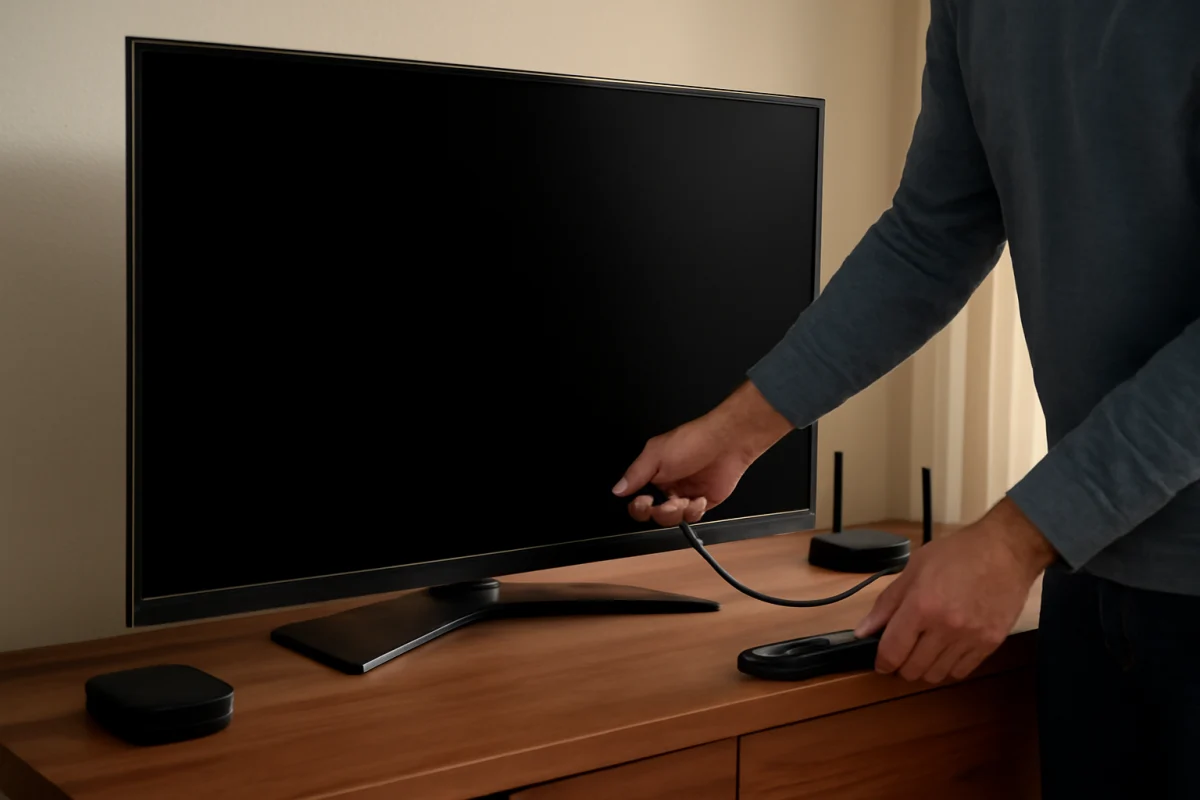
If your Vizio TV turns on but the screen stays black, start with the simple checks: confirm the TV is receiving power, select the correct input, disconnect external devices, and test whether the screen responds to the TV’s own controls. These steps can separate an input problem from a display, backlight, or hardware failure without opening the television.
The exact button labels and menu layout can vary between Vizio models, so do not worry if your screen uses slightly different wording. Work through the checks in order, and stop if a step restores the picture.
1. Check whether the TV is actually powered on
A blank screen does not always mean the TV has started normally. Look for any sign of operation, such as a status light, a startup sound, a response from the remote, or a change when you press the physical power button.
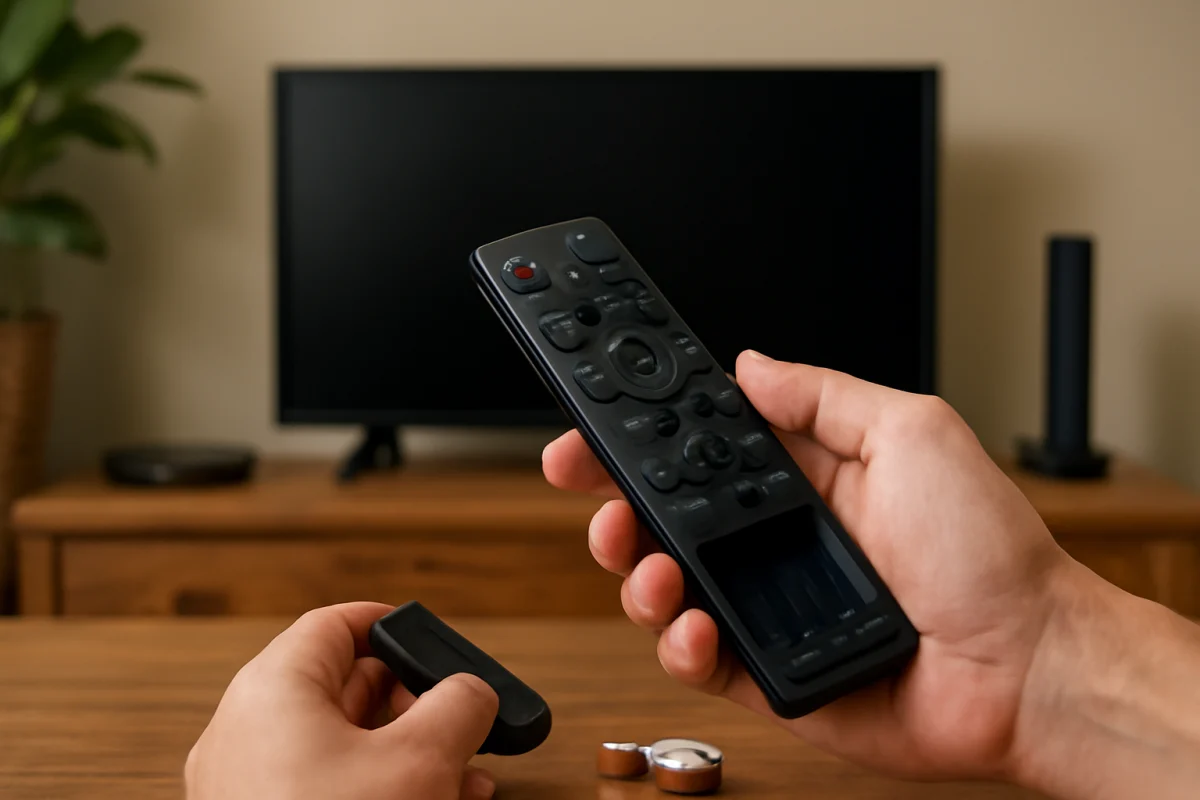
- Press the power button on the remote once, then wait several seconds.
- Try the physical power button on the TV. Its location differs by model and may be underneath, along the side, or on the back.
- Check whether the TV’s status light changes when you press a button.
- Make sure the power cord is firmly connected to both the TV and the wall outlet.
- Test the outlet with another small device, such as a lamp, if you suspect the outlet is not supplying power.
If there is no light, sound, or response at all, the problem may involve the outlet, power cord, remote, or the TV’s internal power circuit. Try the outlet check before assuming the display panel has failed.
2. Perform a basic power cycle
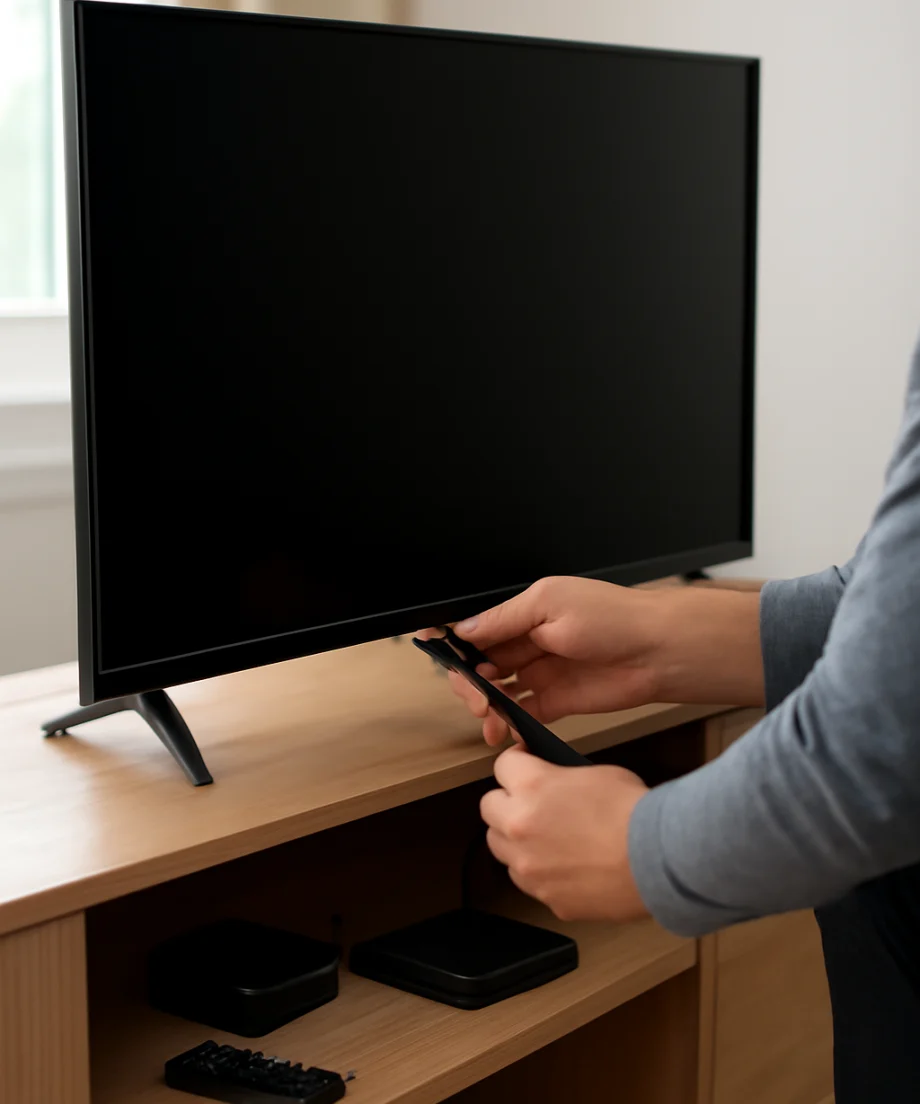
A power cycle can clear a temporary startup problem without deleting your settings. Turn the TV off, unplug it from the wall, and leave it disconnected for at least one minute. While it is unplugged, press and hold the TV’s physical power button for about 10 to 15 seconds if your model has one. This helps discharge residual power from the set’s circuits.
Reconnect the TV directly to a known-working wall outlet and turn it on using the physical button. Avoid testing through a power strip or surge protector at first, because a problem with that accessory can make the TV appear defective.
If the picture returns after this step but disappears again later, note what happens immediately before the failure. Repeated black screens after startup may point to an external device, software problem, overheating, or an internal component that is beginning to fail.
3. Select the correct input
The TV may be working normally while displaying an empty input. This can happen after switching between a cable box, game console, streaming device, antenna, or a built-in smart TV screen.
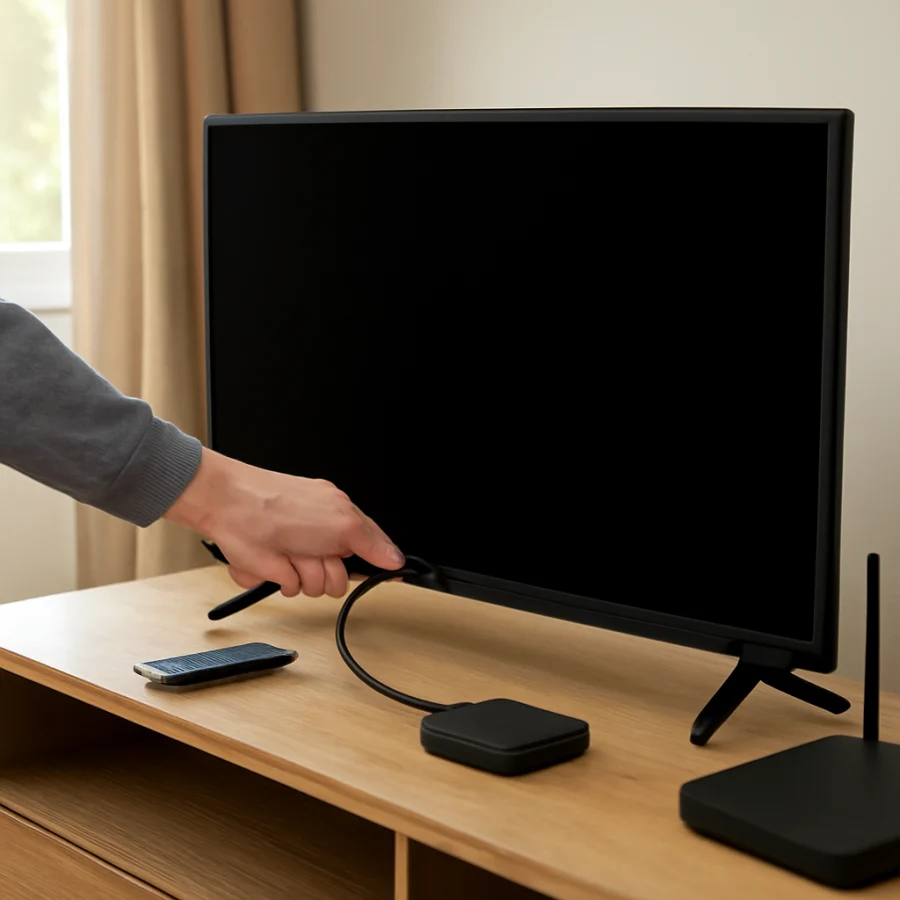
Press the input or source button on the Vizio remote and move through the available inputs one at a time. Pause briefly after each selection. If you see the TV’s input list or on-screen labels, the display is working, and the issue is probably related to the selected source or connected equipment.
For an HDMI device, check both ends of the HDMI cable. Disconnect and reconnect the cable firmly, then try another HDMI port if one is available. If possible, test with a different HDMI cable or connect the device to another TV. A damaged cable, loose connection, or failed source device can produce a black screen even though the Vizio itself is fine.
4. Disconnect external devices
External equipment can interfere with startup or send a signal the TV cannot display correctly. To isolate the problem, turn off and disconnect every device connected to the TV, including:
- Cable or satellite boxes
- Streaming sticks and media players
- Game consoles
- Blu-ray players
- Soundbars or AV receivers
- Adapters, switches, and HDMI splitters
Leave only the TV’s power cord connected. Turn it on and press the input button. If the TV displays its home screen, input list, or another built-in screen, reconnect external devices one at a time. The picture should reveal which device or cable causes the problem.
If you use a soundbar or receiver, temporarily connect the video source directly to the TV. Some audio-video equipment can prevent a signal from reaching the screen when it is turned off, loses power, or has a compatibility problem.
5. Check whether the TV’s menus appear
Press the menu, home, or volume button. The precise buttons vary by remote and model, but the goal is to see whether any on-screen graphics appear. If the menu or volume indicator is visible, the display is functioning and the issue is more likely to involve the source signal, input selection, or a picture setting.
If you can see the menus, check the following:
- Confirm that the selected input matches the device you want to use.
- Make sure the picture is not unusually dim or disabled by a special viewing mode.
- Look for an energy-saving or screen-off option and turn it off temporarily if available.
- Restore picture settings to their default values if the TV provides that option.
Do not change several settings at once. If the image returns after one adjustment, you will know which setting caused the problem.
6. Use the flashlight test carefully
If the TV has sound but the screen appears completely black, a flashlight test can help identify a possible backlight problem. Turn on the TV and play content that should produce a picture. In a dim room, shine a flashlight at an angle across the screen rather than directly into it. Look closely for a very faint image, such as menus, shapes, or moving video.
If a faint image is visible, the LCD panel may be producing a picture while the LED backlight is not illuminating it. This can indicate a failed backlight strip, power circuit, or related component. The test is not definitive, and it does not identify which internal part has failed.
Do not remove the back cover to inspect the backlight. Televisions contain components that can retain dangerous electrical charges even after being unplugged. A backlight repair usually requires disassembling the display panel, which can be fragile and costly to damage. If the flashlight test suggests a backlight issue, get an estimate from a qualified repair technician.
7. Check for a temporary software or startup problem
If the picture appears briefly and then disappears, or if the TV becomes unresponsive during startup, the problem may be related to software, overheating, or a connected device. Disconnect the TV from power and remove all external devices before trying it again.
Once the picture is stable, check for available software updates through the TV’s settings. Menu names and update procedures vary by Vizio model, so use the options shown on your TV or consult the model-specific documentation. Do not unplug the TV while an update is in progress.
If the TV works normally without external devices but fails when a particular streaming player or console is connected, update that device as well. You may also need to change its video output settings so they are compatible with the TV.
8. Try a factory reset only after basic checks
A factory reset can resolve corrupted settings, but it erases saved preferences and may remove network information, installed apps, and account sign-ins. It should not be your first step when the TV has no picture.
Use a reset only if the TV displays its menus clearly enough to navigate, or if the model’s documentation provides a safe procedure for the situation. The reset path and button sequence can differ by model. If the screen is completely blank and you cannot confirm what the TV is doing, repeatedly pressing reset combinations can make troubleshooting harder.
Before resetting, write down your Wi-Fi password and make a note of any settings you may need to restore. After the reset, connect only the TV and test its built-in screen before reconnecting other equipment.
When the problem is probably hardware-related
Contact a qualified technician or Vizio support resource when the TV remains black after a power cycle, input checks, cable tests, and external-device isolation, especially if you notice any of the following:
- The TV has sound but no visible image on any input or menu.
- A flashlight reveals a faint picture behind the black screen.
- The screen flashes briefly and then goes dark.
- The TV repeatedly restarts, clicks, or shuts off.
- There is a burning smell, visible damage, unusual heat, or a popping sound.
- The TV shows lines, large dark areas, cracks, or permanent discoloration.
Unplug the TV immediately if you smell burning, see smoke, hear repeated electrical arcing, or notice damage to the power cord. Do not continue testing a damaged set, and do not open the casing yourself.
How to avoid replacing the wrong part
A black screen can be caused by the source device, HDMI cable, input port, picture settings, software, backlight, power board, main board, or display panel. These parts can produce similar symptoms, so buying a replacement board based only on an online symptom description is risky.
Before requesting service, record the TV model number, what appears on the screen, whether sound works, whether menus are visible, and what happens during the flashlight test. Also note whether the problem affects every input or only one device. This information can help a technician diagnose the TV more efficiently.
For more troubleshooting help, browse the Vizio TV guides on TV Fix Guide or review related advice in the picture and sound troubleshooting section.
In many cases, the fix is as simple as selecting the correct input, reseating an HDMI cable, or power-cycling the TV and its connected equipment. If the TV shows no menus and no faint image after these checks, treat the issue as a possible hardware failure and avoid opening the set without the right training.
Comments
0No comments yet. Be the first to share a helpful note or question.
Leave a Comment
Your email address will not be published. Comments are reviewed before appearing on the site.