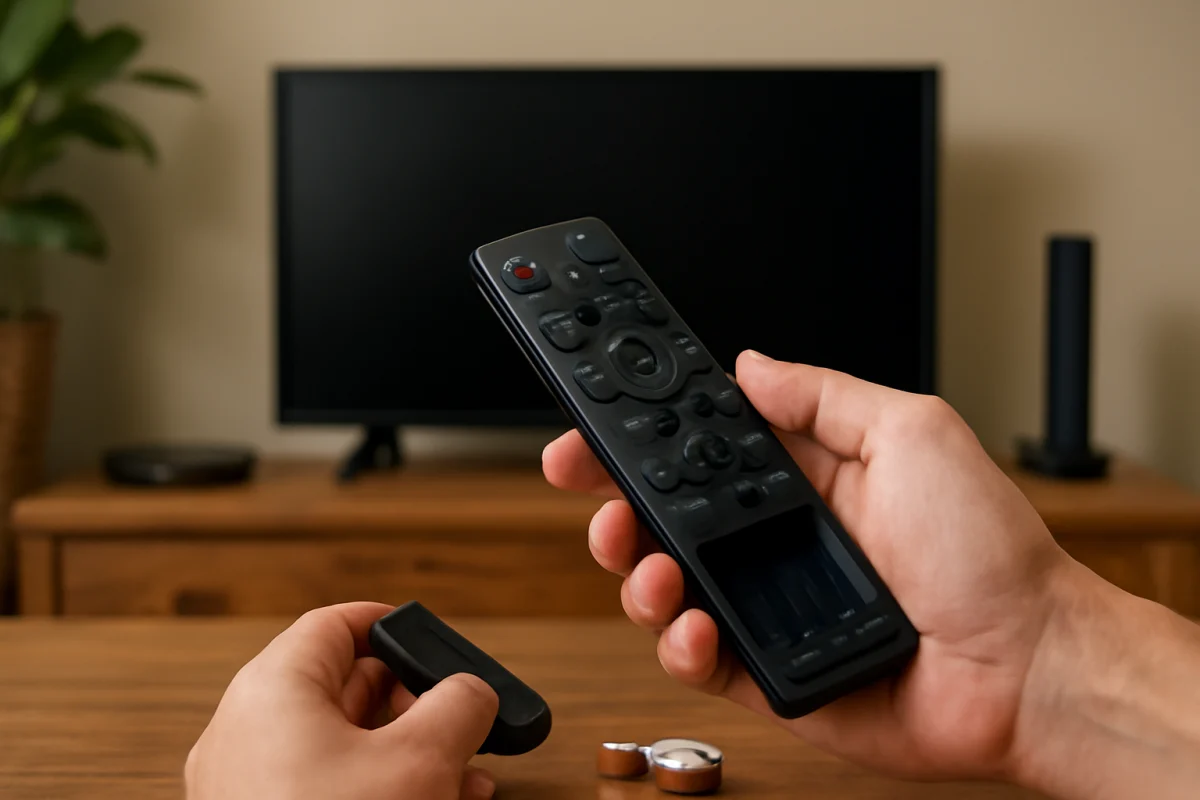
If your Vizio TV remote is not working, start with the batteries, the remote’s infrared signal, and anything blocking the TV’s sensor. These simple checks solve many remote problems without changing TV settings. If the remote still does not respond, power-cycle the TV, reset the remote if its design supports it, and then try pairing it again when it is a Bluetooth or voice remote.
Vizio has released several remote designs over the years. Some use infrared signals and work without pairing, while others use Bluetooth or another wireless connection for voice features and additional control. Because the buttons, pairing method, and menu names can vary by model, use the instructions below as a troubleshooting sequence rather than assuming every step applies to every Vizio TV.
Check the batteries and remote buttons first
Weak batteries are the most common reason a remote suddenly stops responding. Replace both batteries with a fresh pair of the correct type, even if the old batteries still appear to have some power. Install them according to the polarity markings inside the battery compartment.
While the batteries are out, inspect the compartment for corrosion, dirt, or a loose spring contact. If you see white, green, or crusty buildup, the batteries may have leaked. Do not use a damaged remote until the contacts have been cleaned safely or the remote has been replaced. Never mix old and new batteries or different battery types.
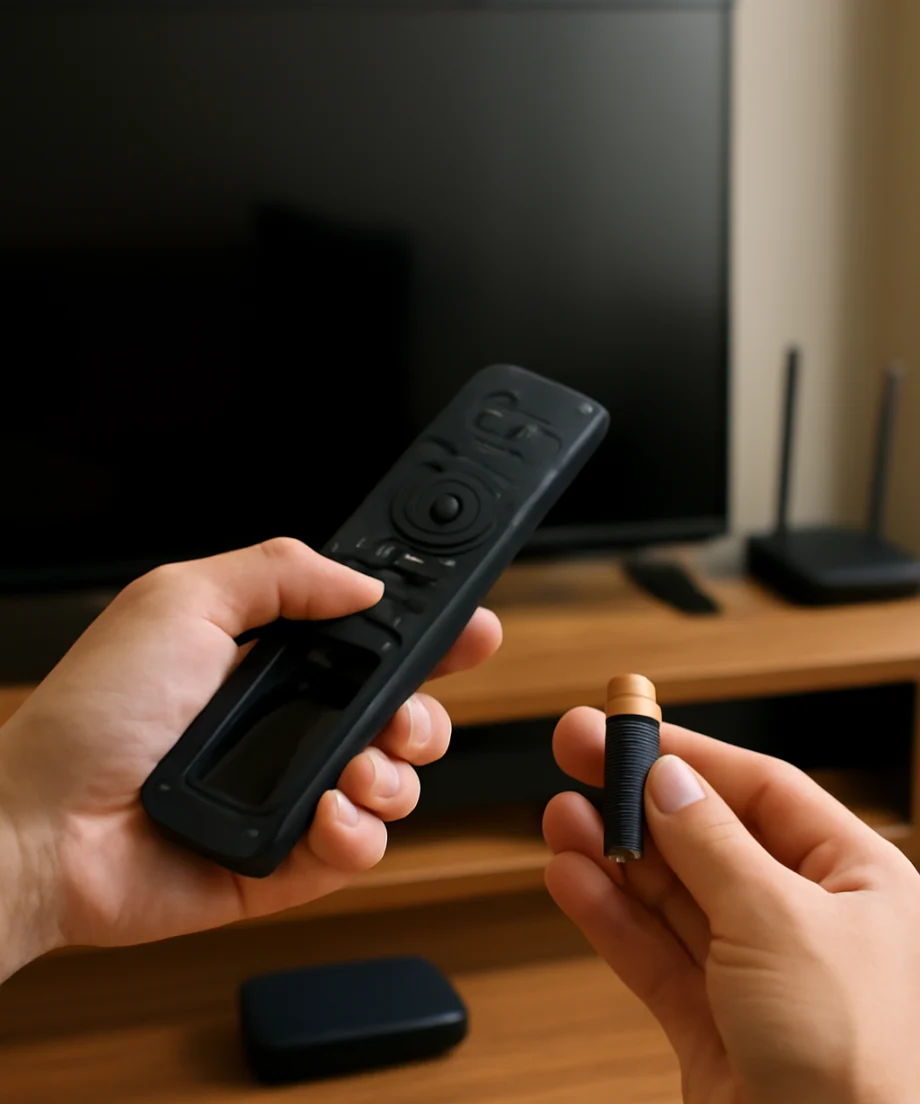
Press several buttons, including the power, volume, and input buttons. If only one button fails, the button itself may be worn, stuck, or contaminated. Remove anything pressing against the remote in a drawer or on a couch. A button that remains held down can also make other commands appear to stop working.
Make sure the TV can receive the signal
Standard Vizio infrared remotes need a clear path to the TV’s remote sensor. The sensor is usually near the lower edge of the screen, but its exact position depends on the model. Move objects such as soundbars, game consoles, decorations, and set-top boxes that may be covering that area.
Point the remote directly at the TV from a short distance and press a button. Bright sunlight, some strong lamps, and certain LED lighting can interfere with infrared signals. Close nearby blinds or turn off a bright light temporarily to see whether the TV responds.
You can also test many infrared remotes with a smartphone camera. Open the camera, point the remote’s front end at the lens, and press a button. If the remote transmits infrared light, you may see a flicker from the remote’s emitter on the phone screen. This test does not work reliably with every phone camera, and it does not confirm that the TV’s sensor is working. It is only a quick way to check whether the remote is sending a signal.
Power-cycle the Vizio TV
A temporary software or communication problem can make the TV ignore remote commands. To perform a basic power cycle:
- Turn the TV off if it responds, then unplug its power cord from the outlet.
- Wait at least 60 seconds.
- With the TV unplugged, press and hold the physical power button on the TV for several seconds if your model has one. This is optional and not available on every design.
- Plug the TV directly into a known-working wall outlet.
- Wait for the TV to finish starting, then test the remote again.
A power strip, surge protector, or smart outlet can sometimes introduce another possible failure point. If practical, test the TV from a wall outlet temporarily. Do not repeatedly unplug and reconnect the TV while it is starting up.
Determine whether the remote needs pairing
Not every Vizio remote needs to be paired. A basic infrared remote normally works as soon as batteries are installed and does not have a pairing procedure. If the remote has a voice button, a microphone symbol, or wireless features, it may need to be paired with the TV before those functions work.
Some Vizio remotes include a dedicated pairing button or a button combination printed in the remote’s documentation. The location and instructions can differ by remote generation. Check the label inside the battery compartment, the paperwork that came with the TV, or the support information for the exact TV and remote model. Avoid following a pairing sequence intended for a different Vizio remote.
General pairing process for compatible wireless remotes
For a compatible Vizio wireless or voice remote, place fresh batteries in the remote and turn on the TV using its physical button if necessary. Hold the remote close to the TV. Press and hold the remote’s pairing button, if present, until an on-screen message or indicator appears. Follow the instructions shown on the TV.
If there is no pairing button, the remote may use a model-specific button combination. Look for instructions that match the exact remote, not just the television brand. A successful pairing may restore voice functions and navigation, but a remote that uses infrared for basic commands may still control power or volume even when its wireless connection is not active.
Reset the remote safely
A remote reset can clear a temporary control or pairing problem, but the reset procedure depends on the remote design. There is no single reset method that applies to every Vizio remote. If the remote has a documented reset sequence, follow that sequence exactly.
For a general battery reset that is safe for many basic remotes, remove the batteries, press and hold the power button for about 15 seconds, release it, and reinstall the batteries. This discharges residual power and can clear a stuck state. It is not a factory reset, and it will not necessarily remove a wireless pairing.
After reinstalling the batteries, wait a few seconds and test the remote. If it is a voice or Bluetooth remote, you may need to pair it again. Resetting some wireless remotes can also remove their connection to the TV, so keep the model-specific pairing instructions available.
Use the TV’s physical controls or a temporary alternative
If the remote is still unusable, find the physical control on the TV. Depending on the model, it may be located underneath the display, along the side, or on the back. The button may provide only basic power and input control, but that can be enough to reach a troubleshooting screen or confirm that the TV itself is responding.
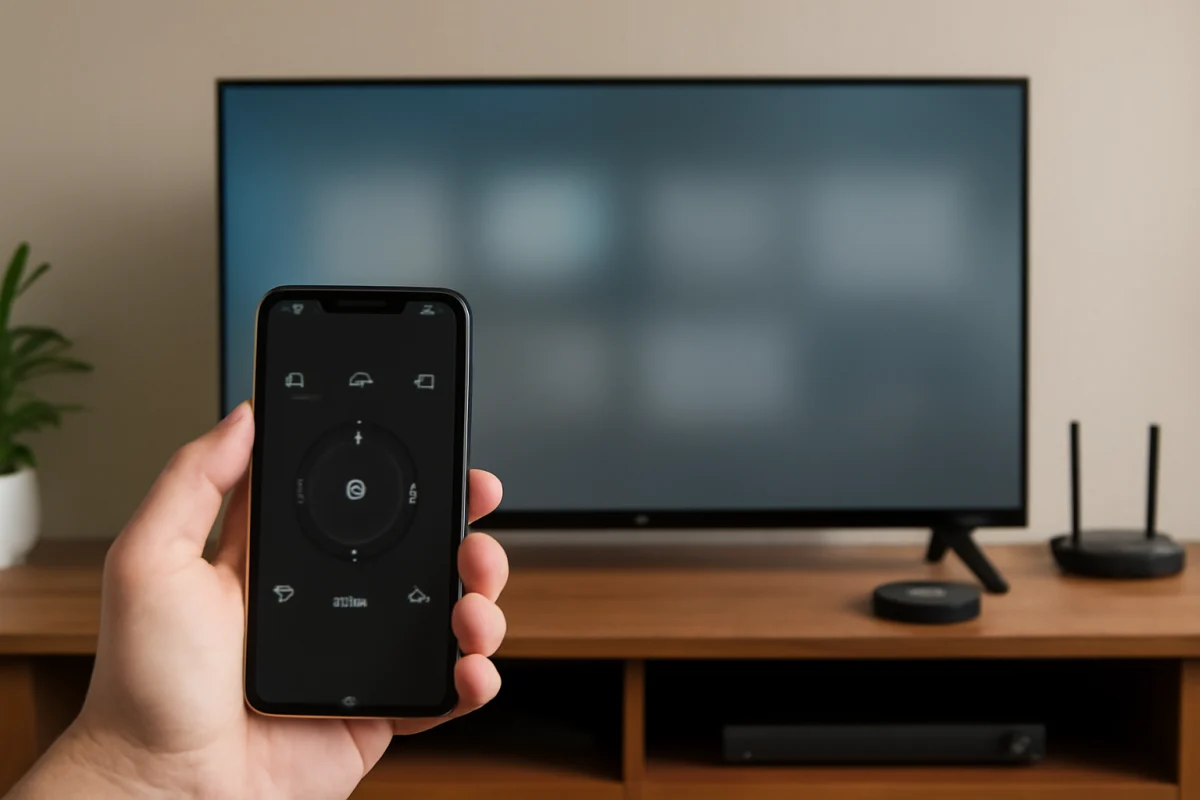
If your TV supports control through an official mobile app, the phone and TV generally need to be on the same local network. This option may not work if the TV is offline, has not been set up, or cannot accept the on-screen confirmation needed to connect. A phone app is a temporary control method, not proof that the original remote is defective.
A universal remote may also work, but compatibility varies. Some universal remotes support only basic infrared commands, while others can handle smart-TV setup or wireless pairing. Confirm that the replacement supports your Vizio TV model and the functions you need before buying it. You can find more general troubleshooting guidance in TV Fix Guide’s remote controls section.
Check whether the TV or remote is the problem
If another compatible remote controls the TV, the original remote is likely the problem. If no compatible remote works, focus on the TV’s sensor, software, power, or wireless connection instead.
Test the original remote with the TV from different distances and angles. If it works only when pointed very precisely at the sensor, the infrared emitter may be weak, the sensor may be partially blocked, or the room lighting may be interfering. If no buttons produce a response after fresh batteries and a reset, replacement may be more practical than repair.
Check whether the TV responds to its physical button. If it does not turn on, the remote may not be the main issue. Verify that the power cord is firmly connected and that the outlet works with another device. If the TV has no indicator or response at all, troubleshoot the television’s power problem separately rather than repeatedly resetting the remote.
When to consider a replacement
Replace the remote when it has liquid damage, cracked internal components, severe corrosion, worn buttons, or no infrared signal after all basic checks. Choose a replacement that matches the TV model or the original remote’s model number. The model number is often printed inside the battery compartment or on the rear of the remote.
For a wireless or voice remote, confirm that the replacement is compatible with the TV’s specific generation. A remote that looks similar may use different wireless hardware or require a different pairing method. If you buy a third-party remote, check which functions it supports before relying on it for voice control, streaming navigation, or TV settings.
What to do if pairing still fails
When a compatible wireless remote will not pair, restart both devices, install fresh batteries, move the remote close to the TV, and remove other nearby wireless devices temporarily if practical. Make sure the TV is fully started and not stuck on a setup, update, or input screen. Then repeat only the pairing method specified for that remote.
If the TV can be controlled by its physical buttons but repeatedly refuses a correct pairing procedure, the issue may involve the remote, the TV’s wireless hardware, or model-specific software. Record the TV model and remote model before contacting Vizio support or a qualified repair provider. Those details are more useful than trying random button combinations.
For related television troubleshooting, you can browse the Vizio TV troubleshooting guide or review the site’s how-to instructions. Start with the low-risk checks, avoid forcing buttons or opening the remote, and only use reset or pairing steps that match your exact Vizio equipment.
Comments
0No comments yet. Be the first to share a helpful note or question.
Leave a Comment
Your email address will not be published. Comments are reviewed before appearing on the site.