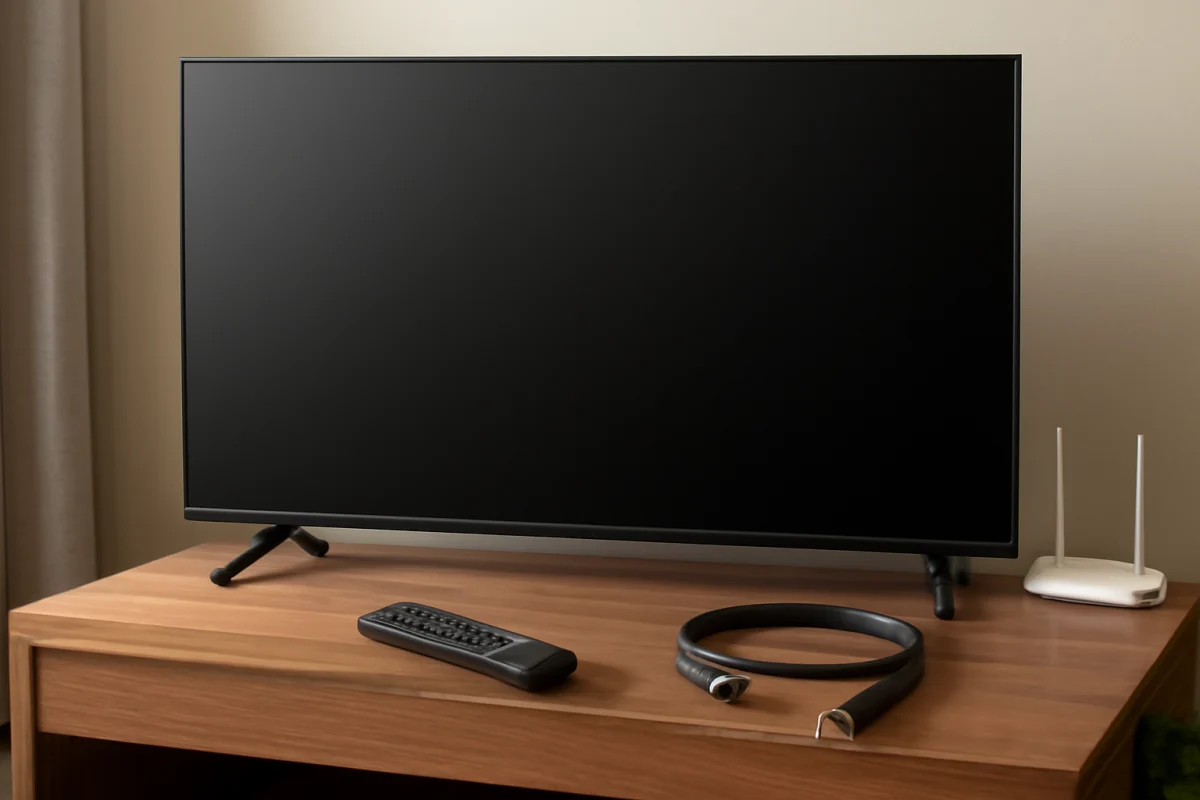
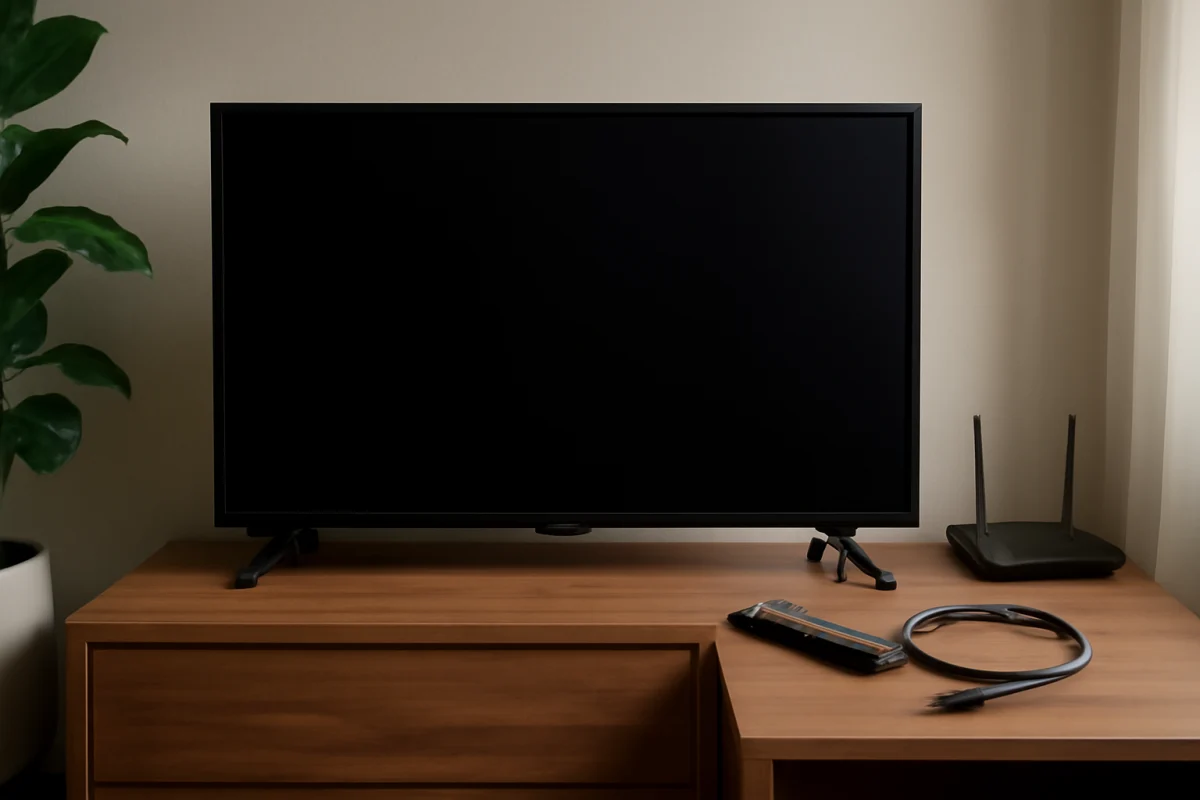
If your Vizio TV has a blank screen and no sound, start by checking whether the TV is actually powering on, then test the input, connected devices, cables, and power source. A loose HDMI connection or a failed streaming device can make the TV appear completely dead, while a power problem or internal hardware fault may require service.
Follow the steps below in order. They begin with simple checks that do not change your settings and gradually move toward resets and more advanced diagnosis. Vizio menu names and button behavior can vary by model, so use the options available on your specific TV rather than relying on an exact menu path.
1. Check whether the TV is receiving power
Look for any sign that the television is powered on. Depending on the model, you may see a small indicator light, hear a startup sound, or notice a brief change on the screen when you press the power button.
- Press the physical power button on the TV instead of using the remote.
- Make sure the power cord is firmly connected to the TV and the wall outlet.
- If the TV is connected to a surge protector or power strip, confirm that the strip is switched on.
- Plug a lamp or another small device into the same outlet to check whether the outlet works.
- If possible, connect the TV directly to a known-working wall outlet for testing.
Do not repeatedly unplug and reconnect the TV if you smell burning, see damaged wiring, or notice unusual heat. Disconnect it from power and arrange professional service instead.
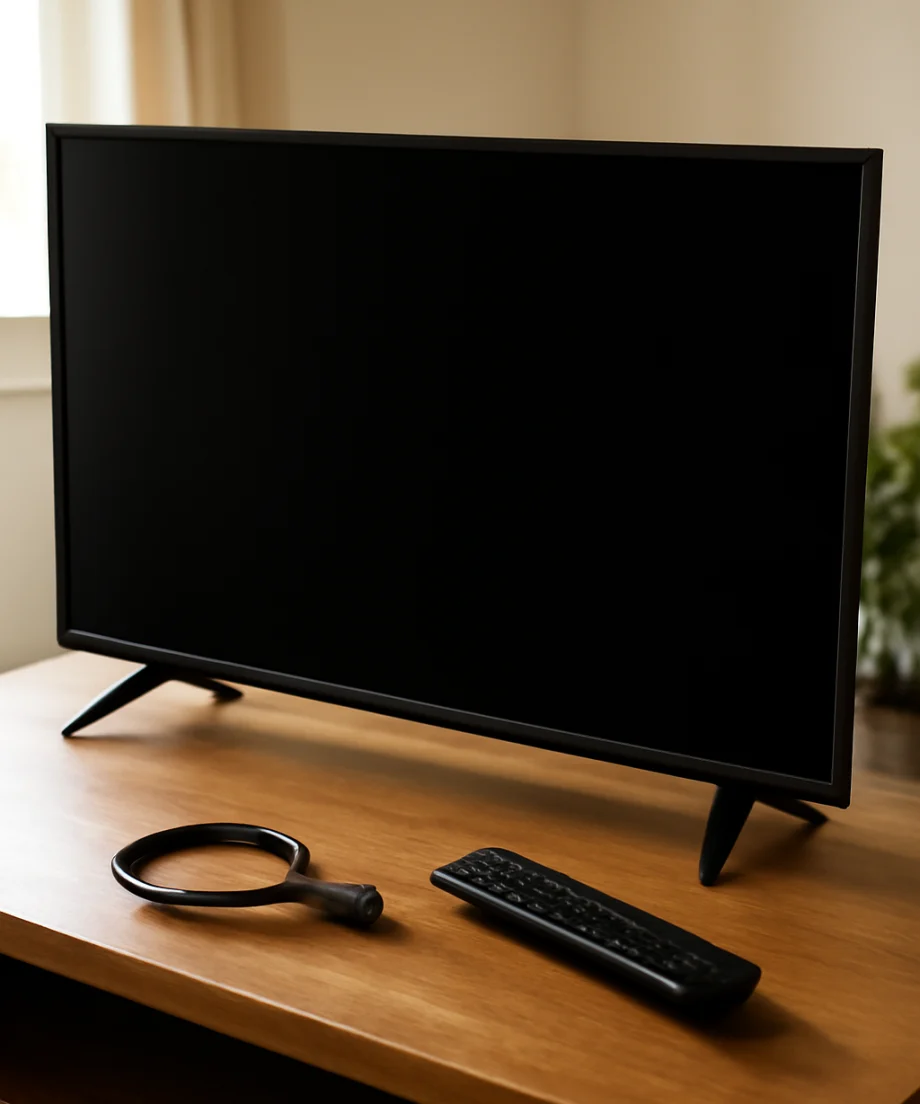
2. Replace or bypass the remote
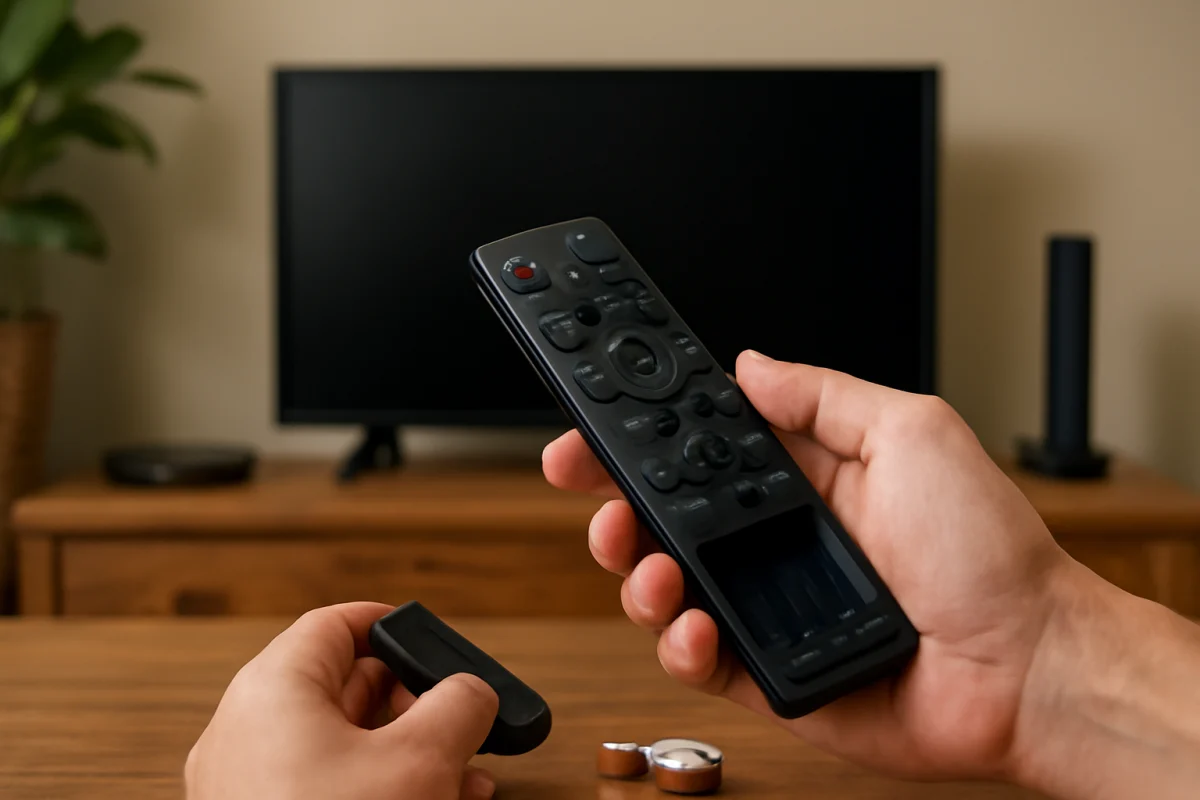
A dead remote can make a working TV look unresponsive. Press the TV's physical power button and volume buttons, if available. If the screen remains blank but the TV reacts to those buttons, the remote may be the problem.
Try fresh batteries and make sure nothing blocks the remote sensor. If you use a universal remote or a voice remote, test the original Vizio remote or the controls on the television. You can find additional troubleshooting ideas in our remote control troubleshooting guide.
3. Confirm that the TV is on the correct input
A wrong input can produce a black screen, especially when no device is connected to the selected HDMI port. Press the Input or Source button on the remote, then try each input one at a time. Allow a few seconds after selecting an input because some devices take time to display a signal.
If you see an input list or on-screen menu, the panel is working. The problem is probably related to the selected source, an HDMI cable, or the external device. If no menu appears at all, continue with the power and reset checks below.
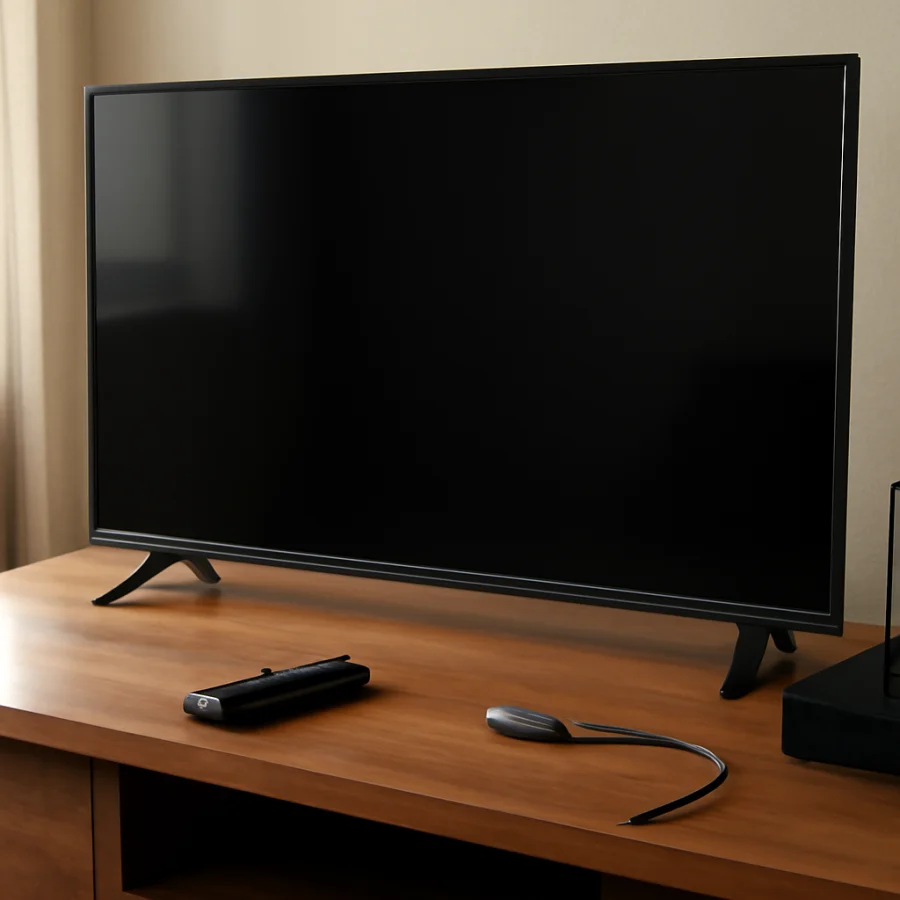
4. Disconnect every external device
Temporarily remove all devices connected to the TV, including streaming sticks, cable boxes, game consoles, Blu-ray players, soundbars, and antenna cables. Leave only the TV's power cord connected.
After disconnecting the devices, turn the TV on and press the Input button. If the TV displays its home screen, setup screen, or input menu, reconnect the devices one at a time. The screen going blank again after connecting one particular device points to that device, its cable, or the HDMI port being used.
This test is important because a malfunctioning HDMI device can interfere with startup or send no usable video or audio signal. If the TV works by itself, avoid assuming that the television needs repair.
5. Power-cycle the TV and connected equipment
A complete power cycle can clear a temporary control or HDMI communication problem. This is different from briefly pressing the power button on the remote.
- Turn off the TV and all connected devices.
- Unplug the TV from the wall outlet.
- Unplug the connected streaming device, receiver, cable box, or console.
- Wait at least one minute.
- Reconnect only the TV to a known-working outlet.
- Turn on the TV using its physical power button.
If the TV starts normally, reconnect one device at a time and test after each connection. Use a different HDMI cable or port if the problem returns. HDMI ports may not all behave identically on every model, so check the labels and documentation for your TV when choosing another port.
6. Test for a hidden picture or backlight problem
When a TV has no visible image but still has power, the backlight or display system may be involved. First, press the volume button or open the TV's settings menu. If you hear a response or can faintly see menu content, the TV may be producing an image that is not being illuminated properly.
You can also perform a careful flashlight test in a dark room:
- Turn the TV on and leave it on an input that should display a picture.
- Shine a flashlight at an angle across the screen, without pressing against the panel.
- Look closely for a very faint image or menu.
A faint image can indicate a backlight-related failure, but this test is not definitive. Do not open the TV or attempt to replace internal components unless you are qualified to work on television electronics. Some parts can retain dangerous voltage even after the TV is unplugged.
7. Check the audio path separately
Because the screen and sound are both missing, the issue may be with power or startup rather than just the speakers. Still, check the audio path once the TV shows any sign of an image.
- Raise the volume using the TV's physical buttons.
- Make sure the TV is not muted.
- Temporarily disconnect a soundbar, receiver, or Bluetooth audio device.
- Test the TV's built-in speakers if your model allows you to select an audio output.
- Try a different source, such as the TV's home screen or another HDMI device.
If the picture returns but sound works only through an external device, the audio output setting or the external audio equipment may be responsible. The exact audio settings and labels differ by Vizio model.
8. Try the TV's built-in controls and menu
If the TV turns on but remains black, use the physical buttons or joystick control on the set to open the menu or change the input. This helps separate a remote problem from a display or software problem.
If the menu appears, check whether the screen brightness, picture mode, or energy-saving options have changed. Avoid making many adjustments at once. Write down the original setting before changing anything so you can reverse the test.
If the TV menu does not appear, but a connected device briefly shows a picture, the television may have a software or input-detection issue. If nothing appears from any source, continue to the reset step only after completing the basic power checks.
9. Perform a factory reset only when necessary
A factory reset can resolve corrupted settings, but it erases personal preferences and may remove saved network information or app sign-ins. It should not be the first step when the TV has no power or shows physical damage.
Use the TV's settings menu to look for a reset or restore option. The wording and location can vary by model and software version. If the screen is completely blank and you cannot access the menu, consult the manual for your exact model before attempting any button sequence. Do not guess at a remote-control combination based on instructions for another Vizio TV.
After the reset, allow the television time to complete its startup process. Do not unplug it during setup unless it becomes completely unresponsive for an extended period.
10. Determine whether the problem is the TV or the source
Use this quick comparison to narrow down the fault:
- The TV menu appears, but an HDMI device does not: Test another HDMI cable, another port, and the device on a different TV if possible.
- One input works while another does not: The problem may be limited to the source device, cable, or HDMI port.
- The home screen appears, but streaming apps are blank: Check the network connection and app behavior rather than the TV panel. Our Wi-Fi and network troubleshooting guide can help with connection-related problems.
- No menu, input screen, picture, or sound appears: The issue is more likely related to power, internal processing, the backlight, or the display hardware.
- The TV turns off immediately or repeatedly restarts: Disconnect external devices and test the TV alone. Persistent restarting may require service.
When to stop troubleshooting
Arrange professional repair or contact Vizio support if the TV remains blank and silent after testing a known-working outlet, using the physical controls, disconnecting external devices, and completing a power cycle. Service is also appropriate if the screen is cracked, the power cord is damaged, the TV clicks repeatedly, the indicator behaves unusually, or you smell smoke or burning.
Keep the TV's exact model information available when requesting help. It is usually printed on a label on the back or side of the television, in the original documentation, or on the purchase record. Model-specific instructions are safer than applying a reset sequence or parts diagnosis intended for a different television.
For related television troubleshooting, browse the Vizio TV troubleshooting section or review our broader picture and sound guides.
Comments
0No comments yet. Be the first to share a helpful note or question.
Leave a Comment
Your email address will not be published. Comments are reviewed before appearing on the site.