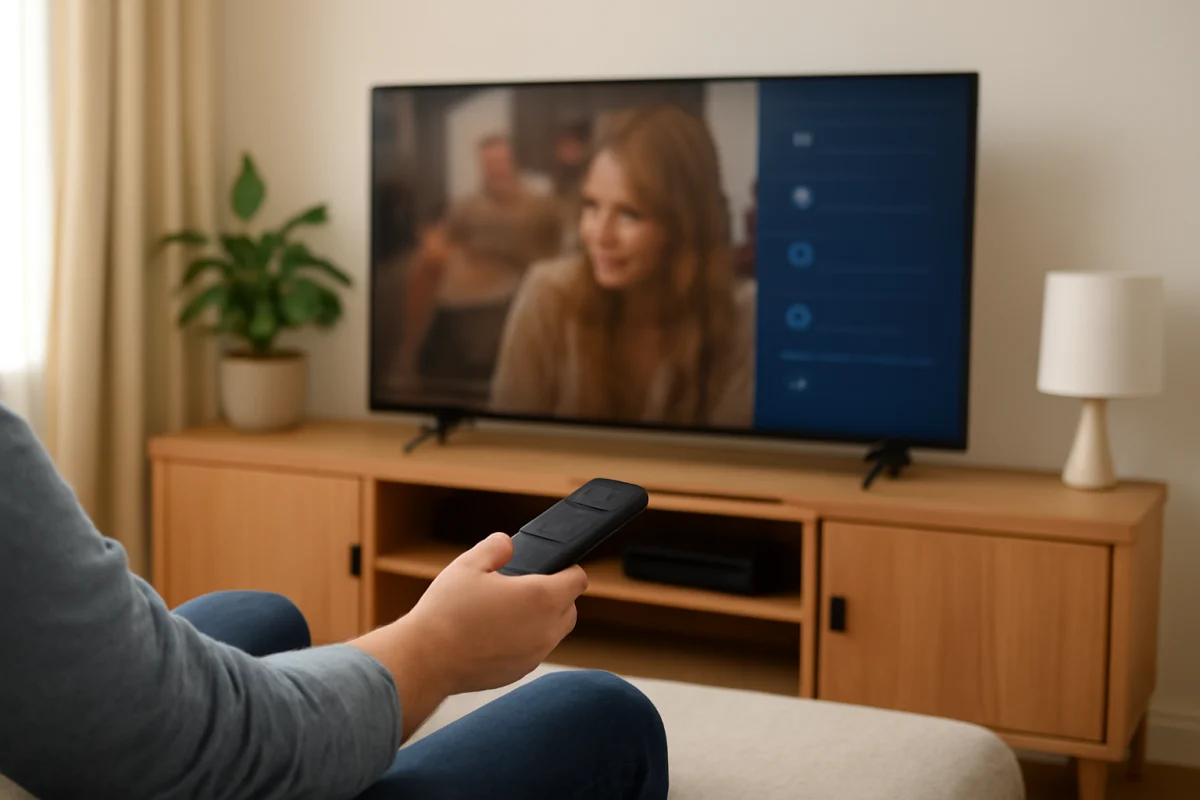
To turn off closed captions on a smart TV, open the TV or streaming app’s accessibility, subtitles, or captions settings and choose Off. The exact menu name and location vary by brand, model, input, and app. If captions appear only in one streaming service, change the setting inside that service rather than changing the TV’s main settings.
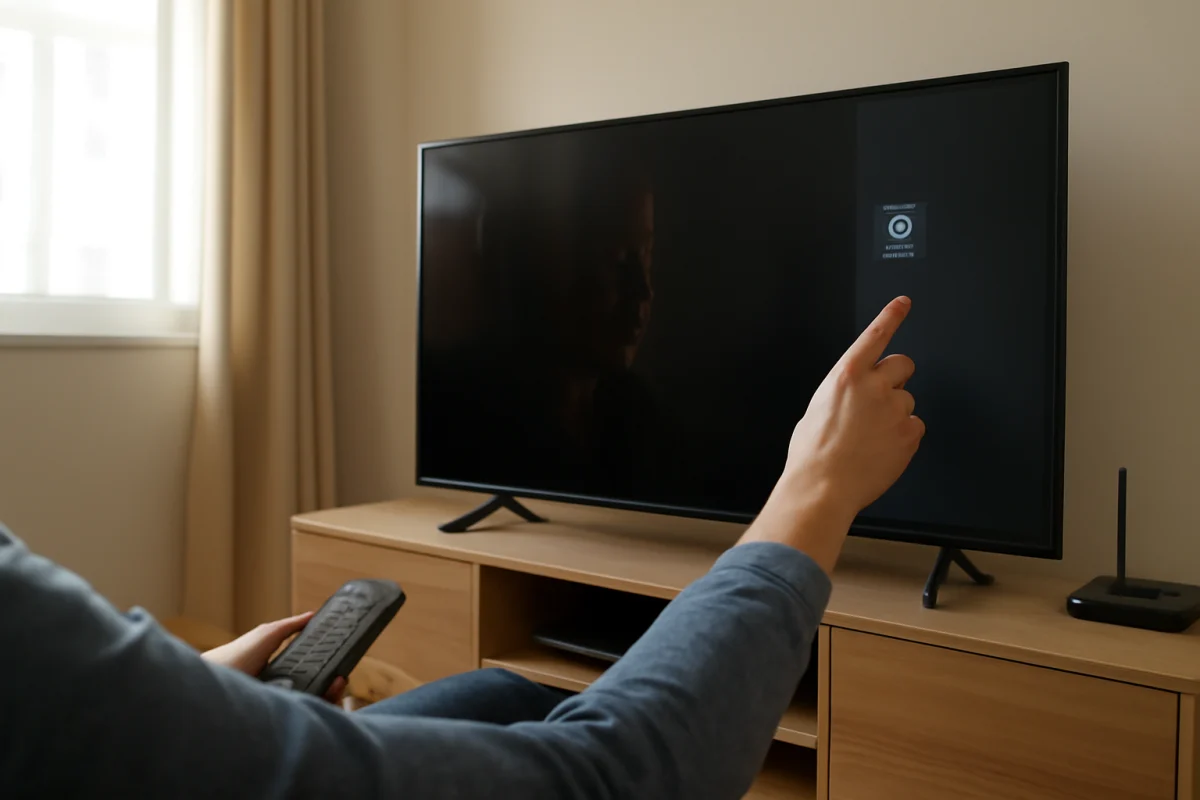
Before changing advanced settings, check which device is actually creating the captions. Your television may be displaying subtitles from a cable box, streaming stick, game console, Blu-ray player, or app. Turning captions off in the wrong place will not remove them.
First, identify where the captions come from
Closed captions can be controlled by several different devices. Start playback and look closely at the captions. Then try one of these quick checks:
- Change to a different app on the TV. If captions disappear, the original app probably controls them.
- Change to a different input, such as a game console or cable box. If captions remain only on one input, check that connected device.
- Pause the video and look for a speech-bubble, CC, subtitles, or settings icon in the playback controls.
- Check whether the words describe sound effects or speakers. That usually indicates closed captions or subtitles rather than a TV fault.
Captions that appear across live TV, apps, and external devices are more likely controlled by the television itself. Captions limited to one program, app, or input usually need to be disabled at that source.
Turn off captions from the TV settings
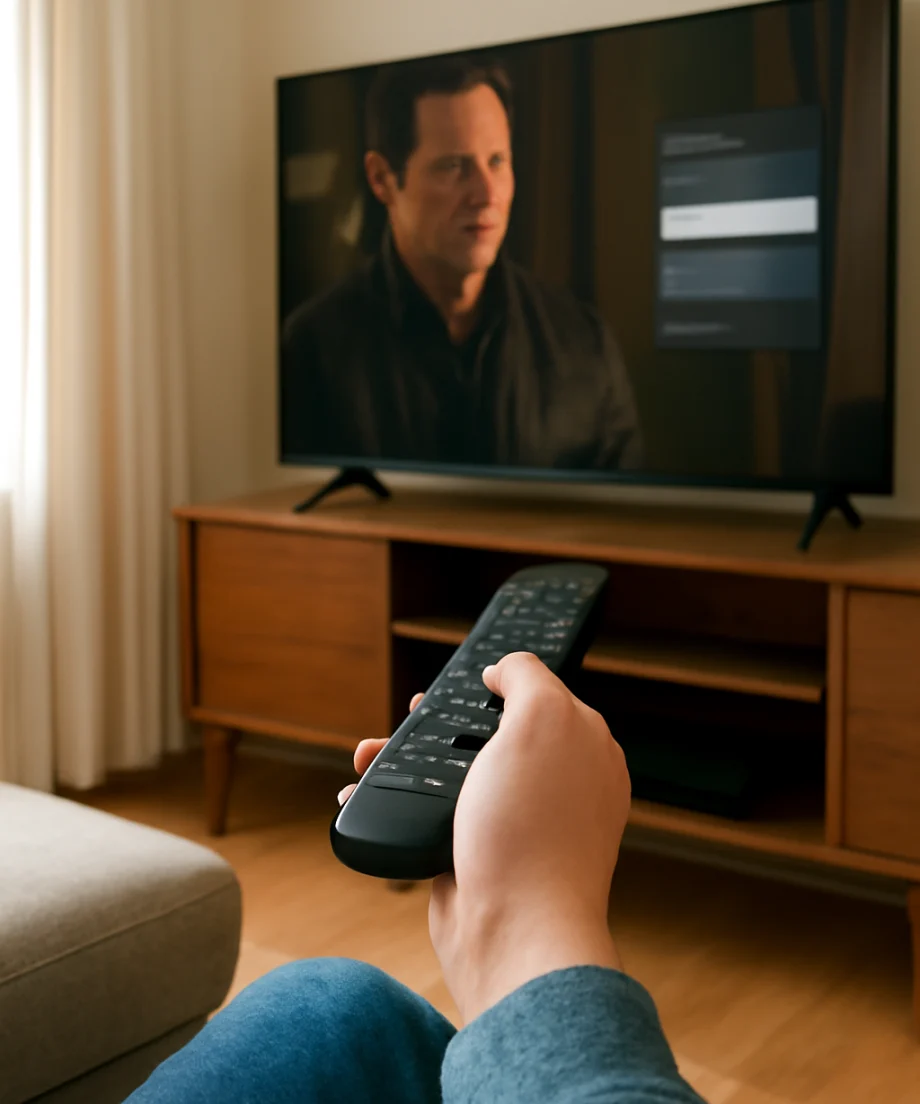
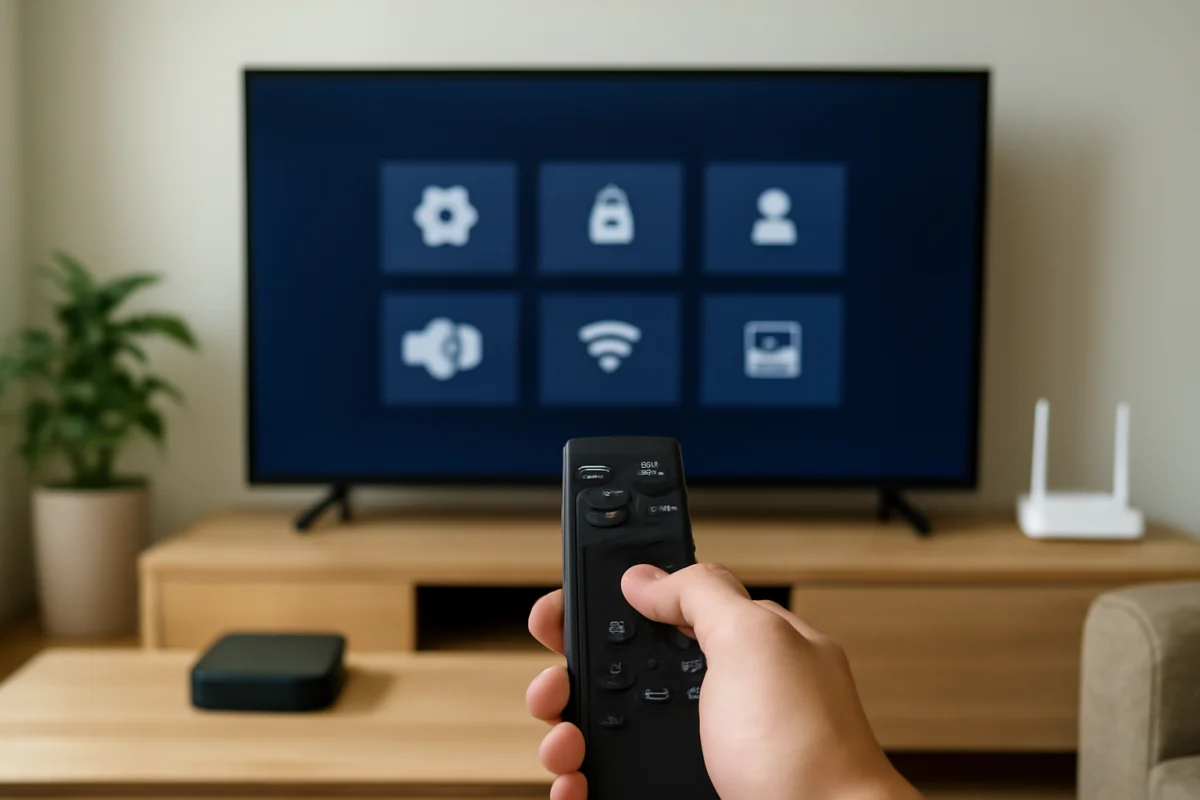
Most smart TVs include a system-wide caption setting, although the wording differs. Look for a menu related to Accessibility, Captions, Subtitles, Hearing, or Broadcast. From there, set captions or closed captions to Off.
A typical path may look similar to this:
- Press the Home, Menu, or Settings button on the TV remote.
- Open the section for Accessibility or General settings.
- Select Captions, Closed Captions, or Subtitles.
- Change the setting to Off.
- Return to the program and test playback again.
These labels are examples, not universal instructions. Manufacturers reorganize menus across model families and software versions, so do not assume the same path applies to every TV from a brand. If you cannot find the setting, use the TV’s built-in search feature or look for a model-specific guide in the TV Fix Guide how-to section.
Turn off captions while watching a program
Some TVs provide a shortcut without requiring you to leave the program. Press the remote’s Menu, Options, CC, or Accessibility button if it has one. On-screen controls may also appear when you press OK, Enter, or the directional buttons during playback.
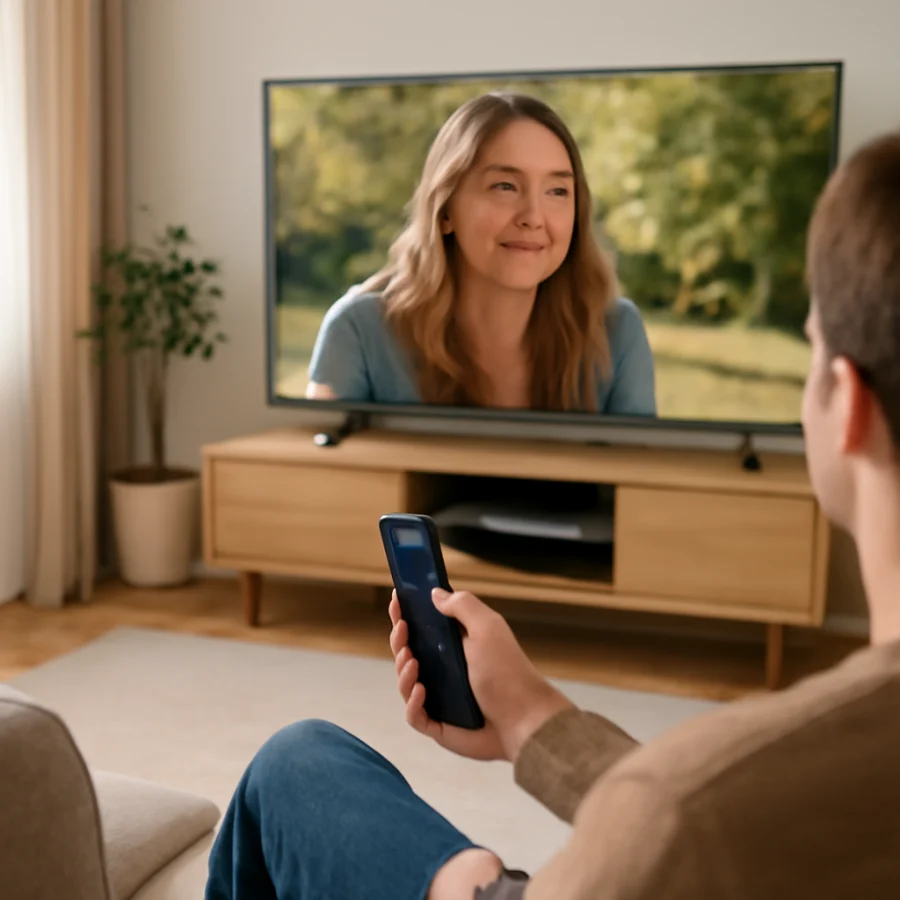
Look for a control labeled CC, Captions, Subtitles, or Audio and Subtitles. Select it, then choose Off or None. If the option changes only the current program, you may need to repeat the process when watching another channel or app.
On some remotes, pressing a dedicated CC button cycles through caption settings. Press it until the screen shows that captions are off. The button may be located under a sliding cover or may not be available at all, depending on the remote.
Turn off captions in a streaming app
Streaming apps often use their own subtitle controls. Even if captions are disabled in the TV’s settings, an app can still display subtitles because the app or streaming service has its own preference.
While a video is playing
- Start the movie, show, or live stream.
- Press OK, Enter, or a directional button to display playback controls.
- Select the speech-bubble, CC, subtitles, or audio-and-subtitles icon.
- Set subtitles or captions to Off, None, or the equivalent option.
- Resume the video and confirm that the text has disappeared.
The control can be hidden until playback controls are opened. On some services, you may need to move left or right across the control bar before the subtitles option becomes visible.
Check the app’s profile or account settings
If captions return every time you start a new program, the service may be saving a subtitle preference to your profile. Open the app’s profile, account, playback, or accessibility settings and look for a default subtitle option. Turn it off, save the change if required, and restart playback.
Different profiles can have different preferences. If more than one person uses the service, test the profile that shows the unwanted captions. Also remember that accessibility preferences may synchronize across devices, so a change made on a phone or computer can sometimes affect the TV app.
For more troubleshooting involving individual services, browse the streaming apps section.
Check a cable box, streaming stick, or game console
If you watch through an external device, the TV may simply be displaying what that device sends. Disable captions using the external device’s remote or settings menu.
Common places to look include Accessibility, Audio, Language, Subtitles, or Closed Captions. A cable or satellite receiver may also have a dedicated CC button. A streaming stick may provide caption controls in its playback overlay, while a game console can have system-wide accessibility settings as well as game-specific subtitle controls.
To confirm which device is responsible, switch the TV to a built-in app or another input. If captions disappear there, focus on the original source. If you use a soundbar, AV receiver, or other video equipment between the source and TV, check its settings only if captions appear on more than one source connected through that equipment.
What to do if captions keep coming back
Captions that return after being turned off usually indicate a saved preference, a second caption control, or a problem limited to one source. Try these low-risk checks in order.
Restart the program and app
Close the video and start it again. If the app has a quit, exit, or restart option, use it. Otherwise, return to the TV Home screen, wait a moment, and reopen the app. A temporary playback setting may not have been saved correctly.
Check both TV and app settings
Turn captions off in the app first, then check the TV’s system caption setting. If you use a cable box or streaming device, check that device as well. Several caption settings can be active at the same time, and changing only one may not be enough.
Test another profile or program
Play a different title or switch profiles if the service supports profiles. If captions appear only on one title, the available subtitle track may be part of that content. If captions appear on every title in one profile, its saved preference is the more likely cause.
Restart the TV safely
Use the TV’s normal power control, then wait briefly before turning it back on. If the TV has a power button, holding it briefly may start a normal restart, but the exact behavior varies. Avoid unplugging the TV repeatedly unless the manufacturer’s instructions recommend it.
Update the app or TV only when appropriate
If captions cannot be disabled, the control is missing, or settings are not being saved, check for available updates through the TV or app’s normal settings. Menu names and update procedures vary by model. Do not interrupt an update once it has started.
A factory reset should be a last resort. It removes saved accounts, network details, app data, picture settings, and other preferences, and it may not solve a caption setting controlled by an external device. Try to identify the source first and use the manufacturer’s instructions before considering a reset.
When captions are actually burned into the video
Some text is permanently part of the video image rather than a selectable caption track. This is sometimes called open captions or burned-in subtitles. You cannot turn this text off through the TV’s closed-caption setting.
To test for this, pause the video and look for a subtitle or CC control. If there is no selectable subtitle option, play the same content on another device or app. Text that appears in exactly the same position and style everywhere may be embedded in the video. In that situation, choose another version of the program if one is available.
Brand and device differences matter
Samsung, LG, Sony, Roku TV, Fire TV, Hisense, TCL, Vizio, and other platforms use different menu structures. Even two TVs from the same manufacturer can place accessibility settings in different locations. Some models separate broadcast captions from captions supplied by apps or HDMI devices.
When looking for exact instructions, note the TV brand, model number, operating system, connected device, and app where the problem occurs. That information helps distinguish a TV setting from a source-specific preference. You can also browse our guides for Samsung TVs or other supported devices through TV Fix Guide.
Captions versus subtitles
Closed captions generally include spoken dialogue plus important non-speech information, such as music, ringing phones, or sound effects. Subtitles usually focus on dialogue and may be intended for viewers who do not speak the program’s language. Streaming services may group both options under the same audio and subtitles menu.
If you turn off closed captions but still see translated dialogue, return to the playback language menu and choose the original audio with subtitles set to None or Off. If the words are part of the picture itself, they cannot be removed with either setting.
When to seek more help
Contact the app provider or device manufacturer if the caption option is missing, the setting will not save, or captions appear across multiple sources after you have checked every relevant device. Have the TV model, app name, input source, and a description of when the captions appear ready.
In most cases, the solution is simply to disable captions at the point where they are being added: the TV, the streaming app, or the connected device. Identifying that source before changing advanced settings is the quickest and safest way to get a clean screen.
Comments
0No comments yet. Be the first to share a helpful note or question.
Leave a Comment
Your email address will not be published. Comments are reviewed before appearing on the site.